Microsoft Defender XDR AIR helps organizations automate threat investigations, analyze evidence, and respond to security incidents across Microsoft 365 environments. In this MS-102 guide, you will learn how Automated Investigation & Response (AIR) works inside Microsoft Defender XDR and how security teams use automation to improve SOC efficiency.
Too many alerts and not enough time.
Security analysts often deal with:
- Phishing attacks
- Malware detections
- Suspicious logins
- Endpoint compromises
- OAuth abuse
- Identity attacks
Manually investigating every security alert is difficult, especially in large organizations.
This is where Microsoft Defender XDR and its Automated Investigation & Response (AIR) capabilities become extremely powerful.
AIR helps organizations automatically:
- Investigate threats
- Analyze evidence
- Determine malicious activity
- Take remediation actions
- Reduce analyst workload
For anyone preparing for the MS-102: Microsoft 365 Administrator certification, understanding Automated Investigation & Response in Microsoft Defender XDR is essential because automation is now a core part of modern security operations.
In this guide, we’ll cover:
- What AIR is
- How Automated Investigation & Response works
- AIR workflow explained
- Automated remediation actions
- Investigation automation levels
- Step-by-step AIR lab
- Best practices
- MS-102 exam tips
Learning Objectives
After completing this guide, you will be able to:
- Explain what Automated Investigation & Response (AIR) is.
- Describe how AIR works within Microsoft Defender XDR.
- Identify what AIR can investigate and remediate.
- Differentiate AIR automation levels.
What is Automated Investigation & Response (AIR)?
Automated Investigation & Response (AIR) is a Microsoft Defender XDR capability that automatically investigates security alerts and takes remediation actions based on predefined logic and machine learning analysis.
AIR helps security teams:
- Reduce alert fatigue
- Speed up investigations
- Respond faster to threats
- Improve SOC efficiency
Instead of manually analyzing every alert:
AIR performs investigations automatically.Why Microsoft Defender XDR AIR Matters
Modern environments generate:
- Thousands of alerts
- Massive telemetry
- Continuous suspicious activity
Without automation:
- Security teams become overwhelmed
- Threats remain unresolved longer
- Analyst fatigue increases
AIR helps organizations scale security operations efficiently.
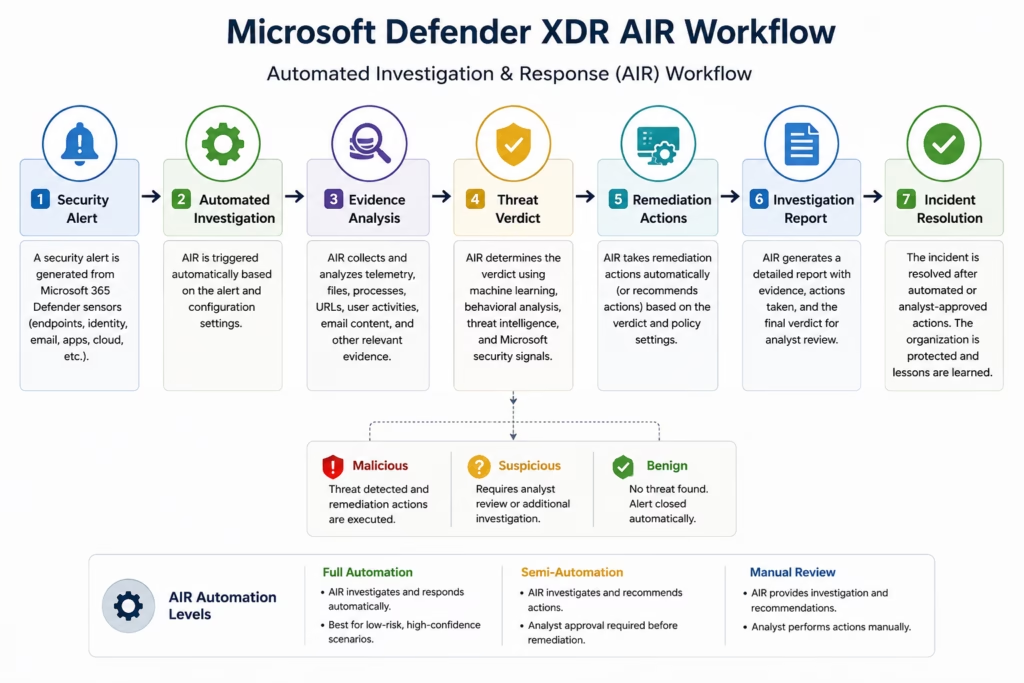
How Microsoft Defender XDR AIR Works
When suspicious activity is detected:
- Alert generated
- AIR investigation triggered
- Evidence analyzed automatically
- Threat verdict determined
- Remediation actions recommended or executed
- Investigation results documented
This dramatically reduces manual effort.
Microsoft Defender XDR AIR Workflow
What AIR Can Investigate
AIR can analyze:
- Suspicious files
- Email threats
- Endpoint activity
- User behavior
- URLs
- Processes
- Registry changes
- Network connections
This helps identify whether the activity is malicious or benign.
What AIR Can Remediate
Depending on the configuration, AIR can:
| Action | Purpose |
|---|---|
| Quarantine file | Remove malware |
| Block URL | Stop phishing access |
| Remove email | Protect users |
| Stop process | Halt malicious execution |
| Isolate device | Prevent spread |
| Disable persistence | Remove attacker’s foothold |
These actions help contain attacks quickly.
AIR Automation Levels Explained
Microsoft Defender XDR supports different automation levels.
| Level | Description |
|---|---|
| Full Automation | Actions executed automatically |
| Semi-Automated | Analyst approval required |
| Manual Review | Recommendations only |
Organizations choose based on risk tolerance.
AIR in Microsoft Defender for Endpoint
AIR is heavily integrated with:
Microsoft Defender for EndpointCommon endpoint AIR scenarios include:
- Malware investigation
- Suspicious PowerShell activity
- Ransomware detection
- Credential theft detection
Endpoint AIR is one of Microsoft’s strongest automation capabilities.
AIR in Microsoft Defender for Office 365
AIR also works with:
Microsoft Defender for Office 365Examples:
- Phishing email remediation
- Malicious attachment removal
- Safe Links investigation
- Campaign analysis
This helps security teams respond to email threats faster.
AIR Investigation Evidence Explained
During automated investigations, Defender XDR analyzes:
- File reputation
- Threat intelligence
- Process behavior
- Email telemetry
- User activity
- Endpoint telemetry
AIR uses Microsoft threat intelligence and behavioral analysis to make decisions.
Step-by-Step Microsoft Defender XDR AIR Lab
This is your practical MS-102 operations section.
Step 1: Open Microsoft Defender Portal
Go to:
Microsoft Defender PortalSign in using:
- Global Administrator
- Security Administrator
- Security Operator
Step 2: Navigate to Automated Investigations
Go to:
Investigation & Response → Actions & Submissions → Action CenterOR
Automated InvestigationsHere you can review:
- Active investigations
- Pending actions
- Completed remediation
- Investigation status
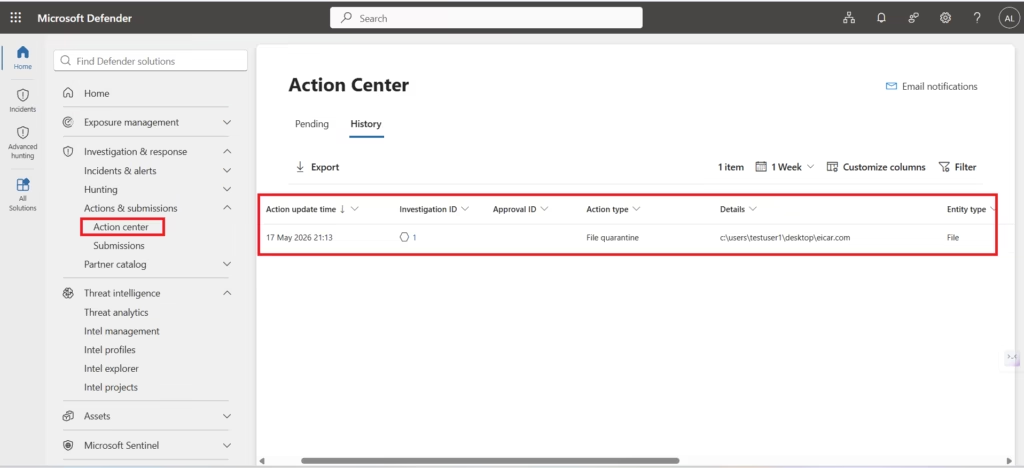
In smaller lab environments, completed or resolved investigations may appear instead of active remediation tasks.
Step 3: Review Investigation Queue
Open an investigation.
Review:
- Triggering alert
- Impacted devices
- Evidence analyzed
- Threat verdict
- Recommended actions
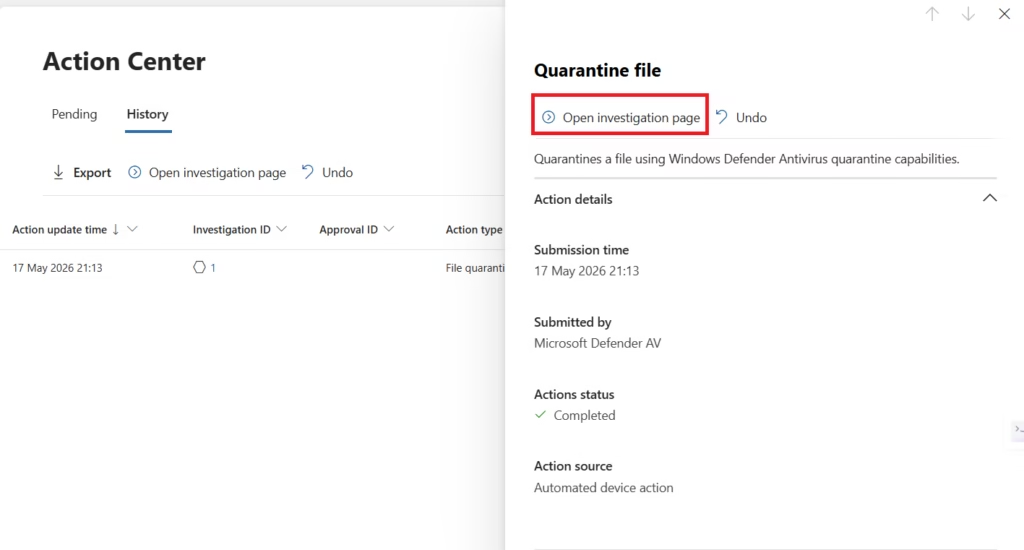
Microsoft Defender XDR AIR automatically tracks investigation activities and remediation workflows inside the Action Center.
Step 4: Review Investigation Evidence
Inside the investigation:
Analyze:
- Suspicious files
- URLs
- Processes
- Devices
- Users
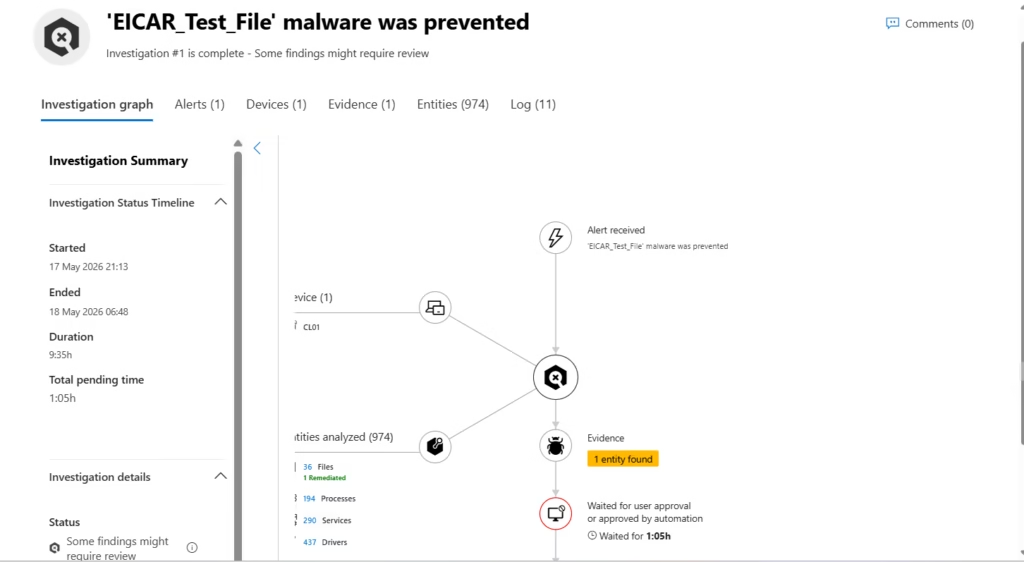
Microsoft Defender XDR AIR automatically analyzes security telemetry, correlates evidence, and maps investigation relationships across Microsoft 365 environments.
This helps validate investigation accuracy.
Step 5: Review Remediation Actions
Review completed remediation activities such as:
- File quarantine
- Automated remediation
- Investigation actions
- Threat containment actions
- Completed response history
Microsoft Defender XDR AIR automatically tracks remediation activities performed during the investigation workflow.
In production environments, organizations may also review actions such as:
- URL blocking
- Device isolation
- Email removal
- User containment actions
Depending on the detected threat and automation policies.
Step 6: Approve or Reject Actions
Depending on the configured automation level, Microsoft Defender XDR AIR may automatically perform remediation actions or require analyst approval.
Review completed actions such as:
- File quarantine
- Threat containment
- Automated remediation
- Investigation updates
Organizations using semi-automated mode may require analysts to approve or reject remediation actions before execution.
This balances automation with human oversight.
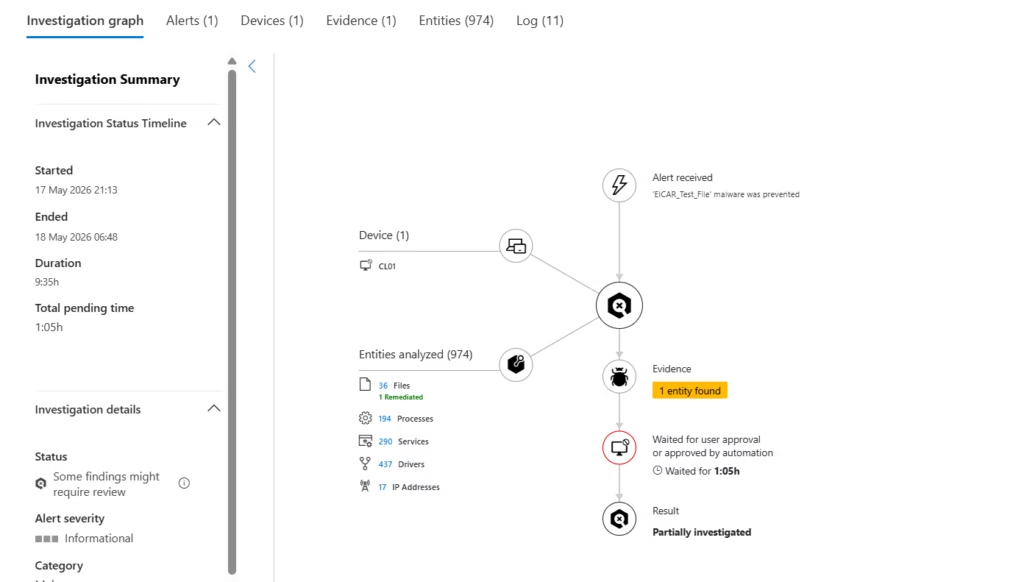
Step 7: Review Investigation Report
Microsoft Defender XDR AIR generates automated investigation summaries that include:
- Investigation timeline
- Evidence analyzed
- Devices involved
- Actions performed
- Investigation verdict
- Remediation status
These reports help analysts understand how AIR investigated and remediated suspicious activity across Microsoft 365 environments.
Step 8: Verify Incident Resolution
After remediation:
Verify:
- Threat removed
- Devices healthy
- Users protected
- No persistence remains
This confirms successful remediation.
Benefits of AIR
| Benefit | Description |
|---|---|
| Faster response | Automated remediation |
| Reduced workload | Less manual investigation |
| Better scalability | Handles large alert volumes |
| Consistent response | Standardized actions |
| Improved SOC efficiency | Faster containment |
AIR significantly improves modern security operations.
Best Practices for AIR
As a senior infrastructure and security engineer, I strongly recommend:
- Start with Semi-Automated Mode
- Avoid enabling full automation immediately.
- Review remediation quality first.
- Monitor Automated Actions Carefully
- Validate remediation actions before broad deployment.
- Review Investigation Reports
- AIR improves efficiency, but analysts still require visibility.
- Tune Security Policies
- Reduce false positives to improve automation quality.
- Combine AIR with Human Oversight
- Automation improves speed, but experienced analysts remain critical.
AIR vs Manual Investigation
| Manual Investigation | AIR |
|---|---|
| Time-consuming | Faster |
| Analyst dependent | Automated |
| Slower remediation | Immediate response |
| Limited scalability | Handles large volumes |
This is why automation is increasingly important in SOC environments.
MS-102 Exam Tip
Scenario:
“A company wants Microsoft 365 security tools to automatically investigate threats and take remediation actions.”
Correct answer:
Automated Investigation & Response (AIR)Not:
- Intune
- Exchange Online Protection
- Defender for Identity alone
- Microsoft Sentinel
Very common exam scenario.
Common Admin Mistakes
- Enabling Full Automation Too Early
- Always validate remediation quality first.
- Ignoring Investigation Reports
- Analysts should still review automated findings.
- Poor Alert Tuning
- Too many false positives reduce automation effectiveness.
- Assuming Automation Replaces Analysts
- AIR assists analysts, but it does not fully replace them.
Final Thoughts
Modern security operations require:
- Speed
- Scalability
- Automation
- Visibility
Manually investigating every alert is no longer realistic.
Microsoft Defender XDR Automated Investigation & Response helps organizations automatically analyze threats, remediate malicious activity, and reduce analyst workload across Microsoft 365 environments.
For MS-102 candidates, understanding AIR is essential.
For security teams, it is operationally transformative.
Because modern cybersecurity is no longer just about detecting threats.
It is also about automating investigations and responding faster than attackers can move.Next in the MS-102 Series
Microsoft Purview Explained: Compliance & Data Protection in Microsoft 365 (MS-102 Guide)
https://techcertguide.blog/microsoft-purview-architecture-ms102
Protecting identities, devices, and applications is critical, but protecting organizational data and maintaining compliance is equally important in modern Microsoft 365 environments.
Previous Topic
If you haven’t read it yet: Complete Incident Management in Microsoft Defender XDR
https://techcertguide.blog/incident-management-in-microsoft-defender-xdr
Start from the Beginning
MS-102 Microsoft 365 Administrator Overview
https://techcertguide.blog/ms-102-microsoft-365-administration
Official Microsoft Reference
https://learn.microsoft.com/en-us/certifications/exams/ms-102CategoriesMS-102
2 thoughts on “Complete Microsoft Defender XDR AIR Guide (MS-102)”