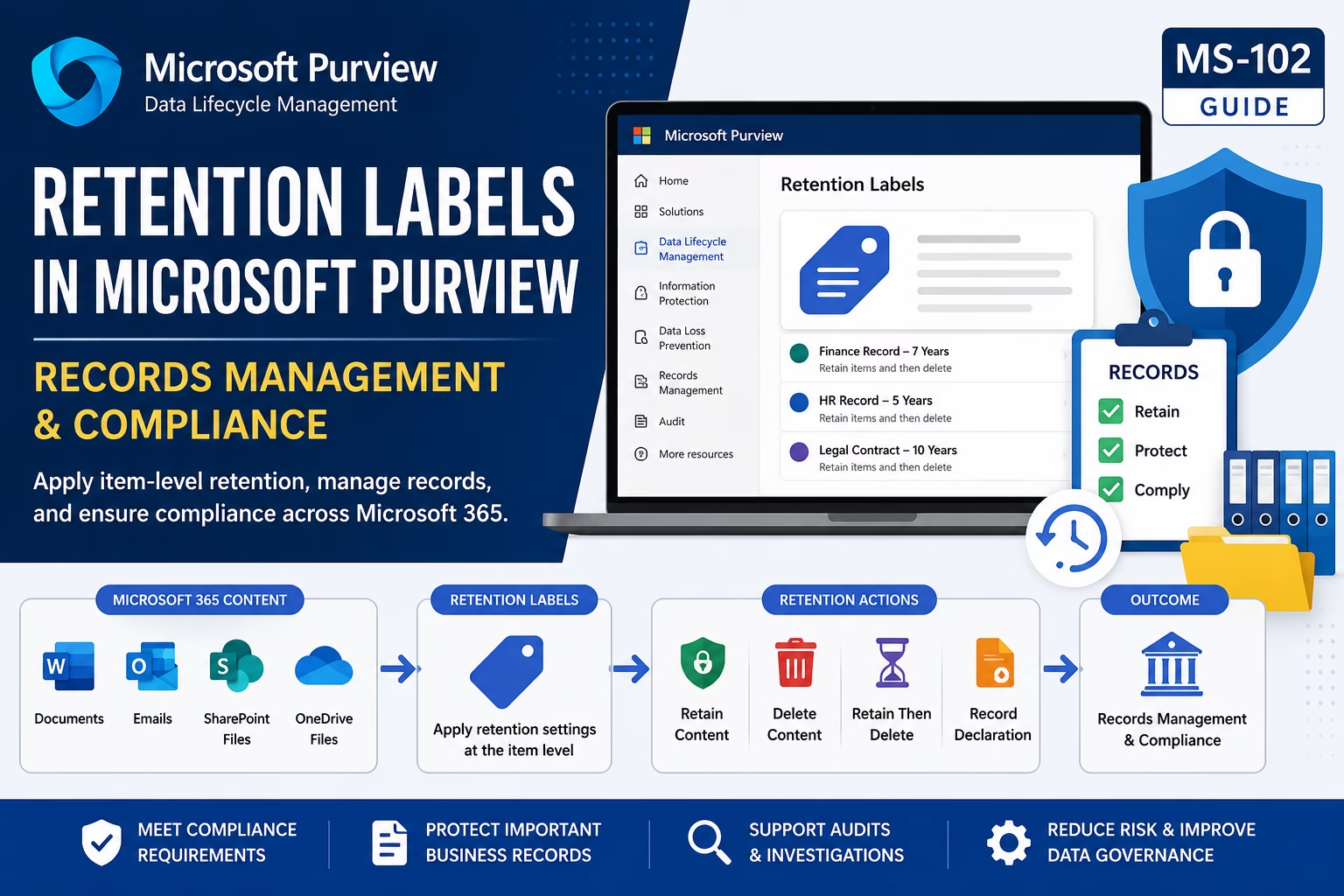
Retention Labels in Microsoft Purview help organizations apply item-level retention settings to documents, emails, SharePoint files, and OneDrive content. Unlike retention policies, retention labels provide granular control over how specific content is retained, deleted, declared as records, and managed throughout its lifecycle. Understanding Retention Labels in Microsoft Purview is essential for Microsoft 365 administrators preparing for the MS-102 certification exam.
Learning Objectives
After completing this guide, you will be able to:
- Explain how retention labels provide item-level retention control.
- Differentiate retention labels from retention policies.
- Describe the benefits of using retention labels.
- Configure a retention label step-by-step.
Introduction
While Retention Policies apply retention settings broadly across Microsoft 365 workloads, Retention Labels in Microsoft Purview provide item-level control over content retention and disposition.
Organizations often need different retention periods for specific documents, records, contracts, and business-critical content. Microsoft Purview Retention Labels help administrators apply retention requirements at a more granular level.
For Microsoft 365 administrators preparing for the MS-102 exam, understanding Retention Labels in Microsoft Purview is essential.
In this guide, you’ll learn:
- What Retention Labels are
- Retention Labels vs Retention Policies
- Records Management concepts
- Label publishing
- Label application methods
- Step-by-step lab
- Best practices
- MS-102 exam tips
What Are Retention Labels in Microsoft Purview?
Retention Labels allow administrators to apply retention settings directly to individual items, such as:
- Documents
- Emails
- SharePoint files
- OneDrive files
Unlike Retention Policies, Retention Labels provide item-level retention control.
Why Use Retention Labels in Microsoft Purview?
Organizations often have content that requires different retention periods.
Examples:
- Financial Records → 7 Years
- HR Documents → 5 Years
- Legal Contracts → 10 Years
- Permanent Records → Never Delete
Retention Labels in Microsoft Purview allow these requirements to be managed individually.
Benefits of Retention Labels in Microsoft Purview
Retention Labels provide organizations with greater flexibility and control compared to broad retention policies. Administrators can apply different retention requirements to individual documents, emails, and records without affecting other content within the same workload.
Key benefits include:
- Granular Retention Control – Apply retention settings to specific items rather than entire locations.
- Regulatory Compliance – Meet legal, industry, and regulatory retention requirements.
- Records Management Integration – Declare content as records and manage disposition processes.
- Automated Governance – Use auto-apply labels to classify content based on sensitive information.
- Improved Data Lifecycle Management – Ensure information is retained and disposed of according to business requirements.
- Support for Microsoft 365 Workloads – Works across Exchange Online, SharePoint Online, OneDrive, and Microsoft Teams.
- Enhanced Auditability – Track retention actions and maintain compliance evidence for audits and investigations.
By combining Retention Labels with Microsoft Purview Data Lifecycle Management, organizations can implement a comprehensive records management strategy while maintaining compliance and reducing administrative overhead.
Retention Labels vs Retention Policies
| Feature | Retention Policy | Retention Label |
|---|---|---|
| Scope | Broad | Item-Level |
| Application | Automatic | Manual or Automatic |
| Flexibility | Lower | Higher |
| Granularity | Workload-Based | Individual Content |
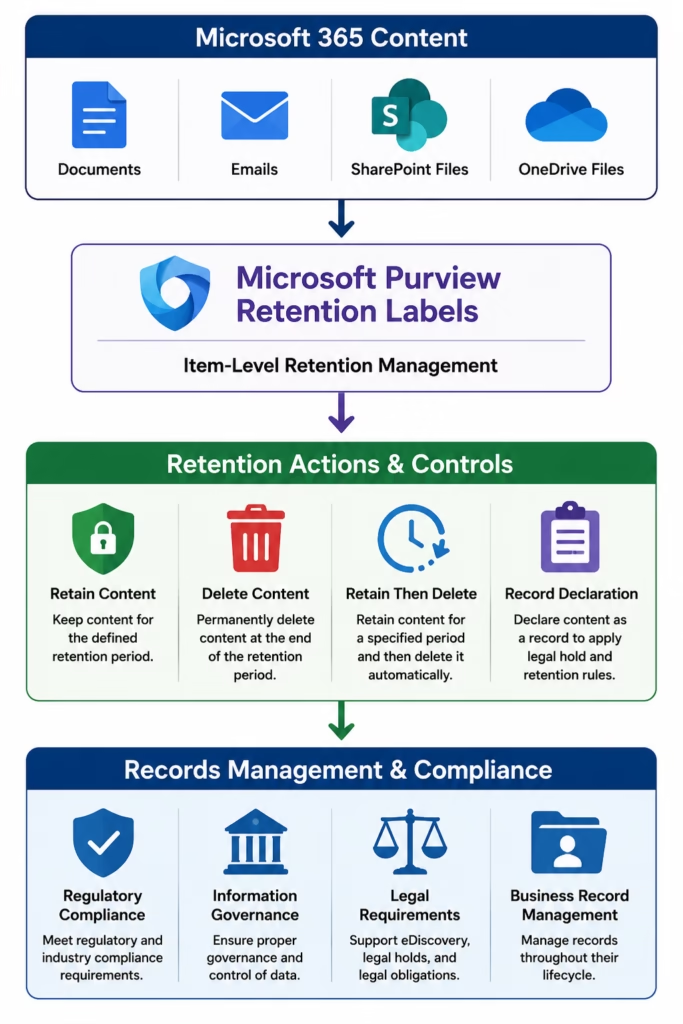
Retention Label in Microsoft Purview Architecture
Step-by-Step Retention Label in Microsoft Purview Lab
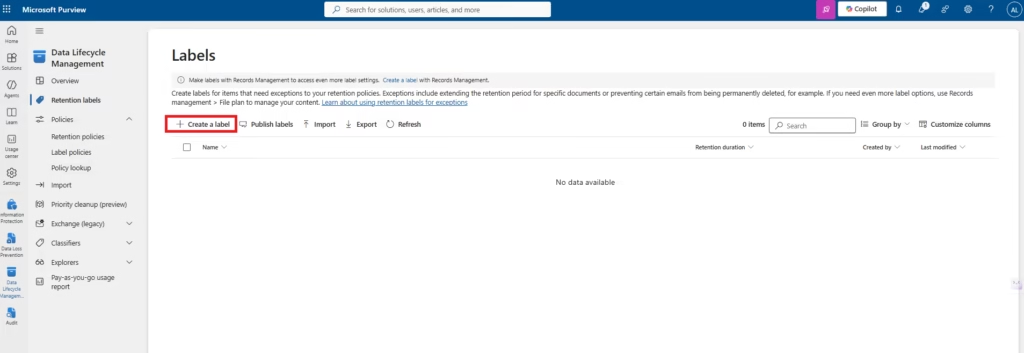
Step 1: Open Microsoft Purview
Navigate to:
Solutions → Data Lifecycle Management → Retention Labels
Step 2: Create a Retention Label
Select:
Create a label
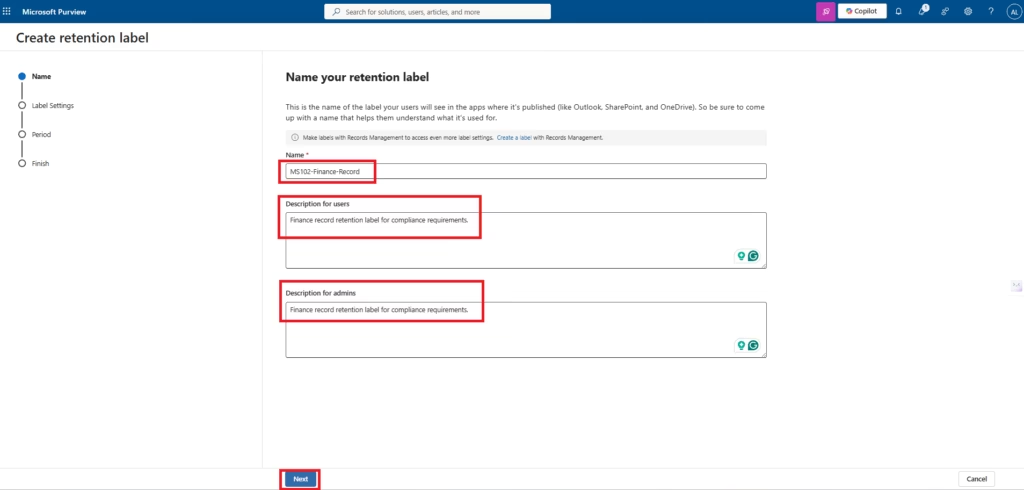
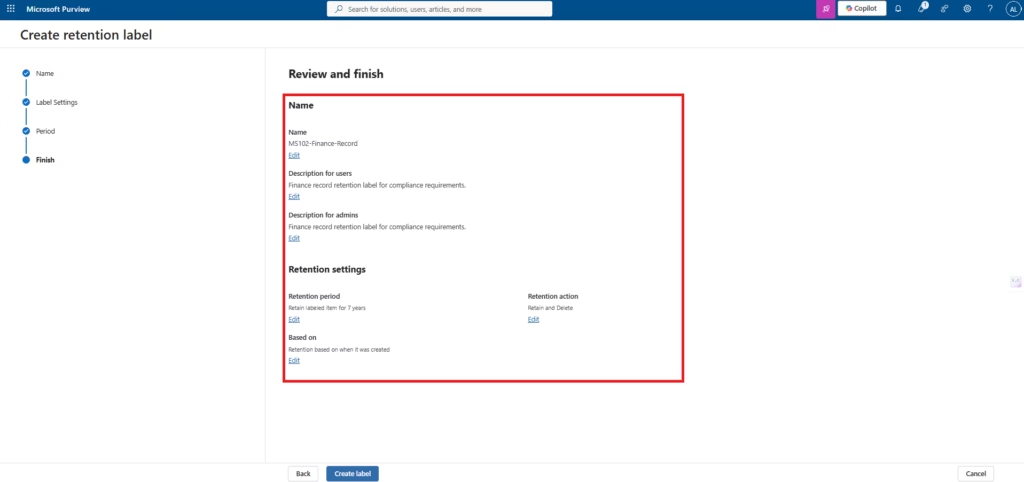
Configure:
Name:
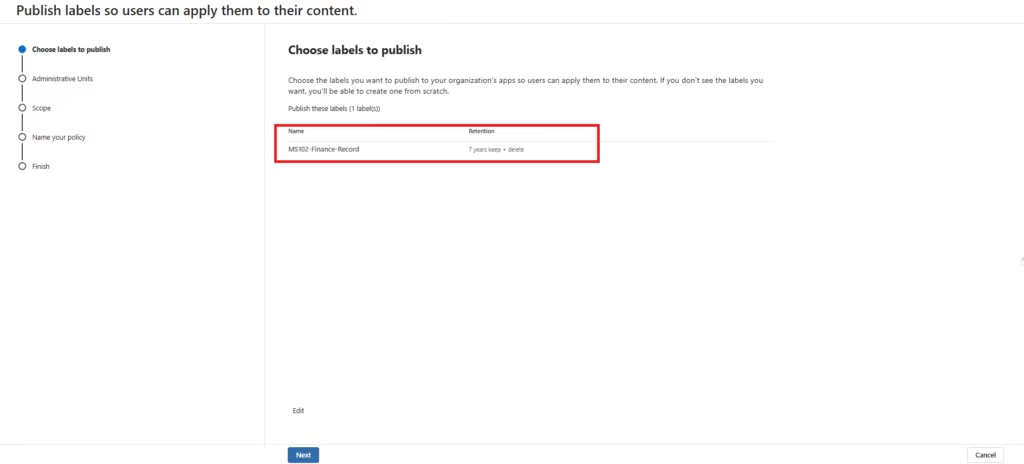
MS102-Finance-Record
Description:
Finance record retention label for compliance requirements.
Step 3: Configure Retention Settings
Choose:
Retain items for a specific period
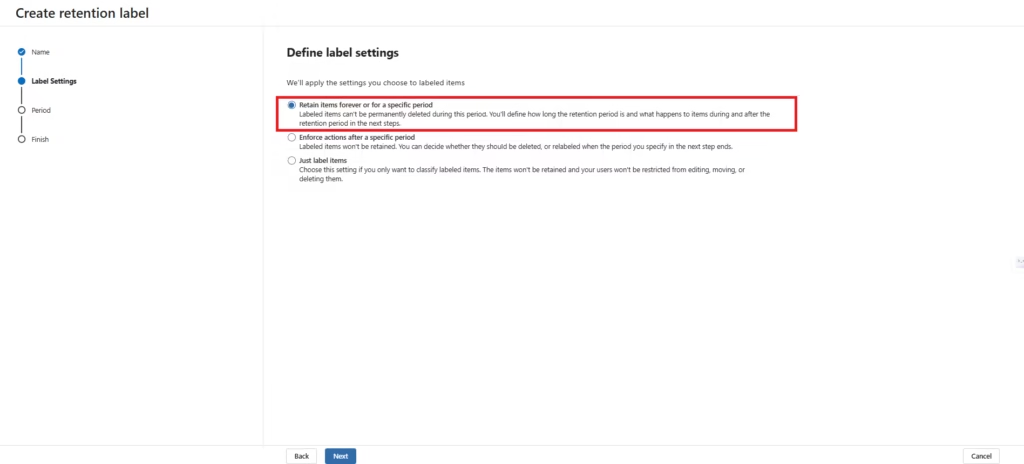
Example:
7 Years
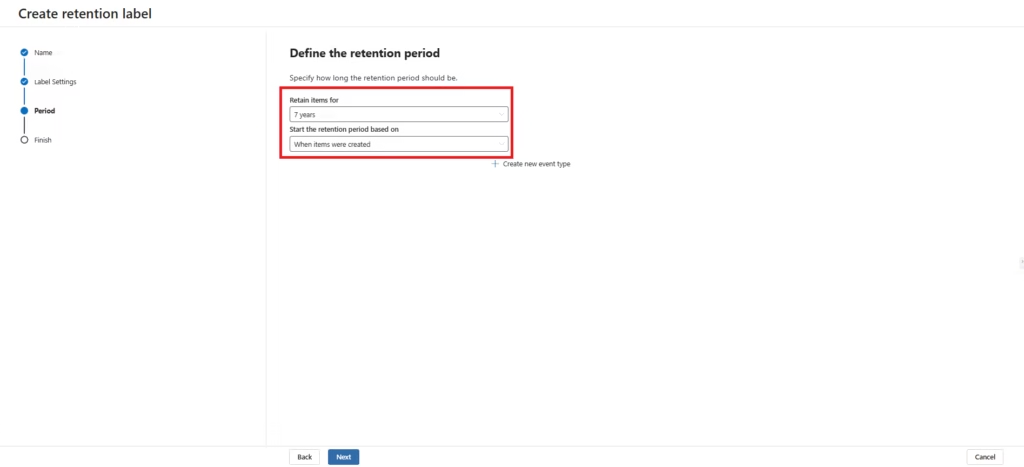
Select:
Retain items and then automatically delete them.
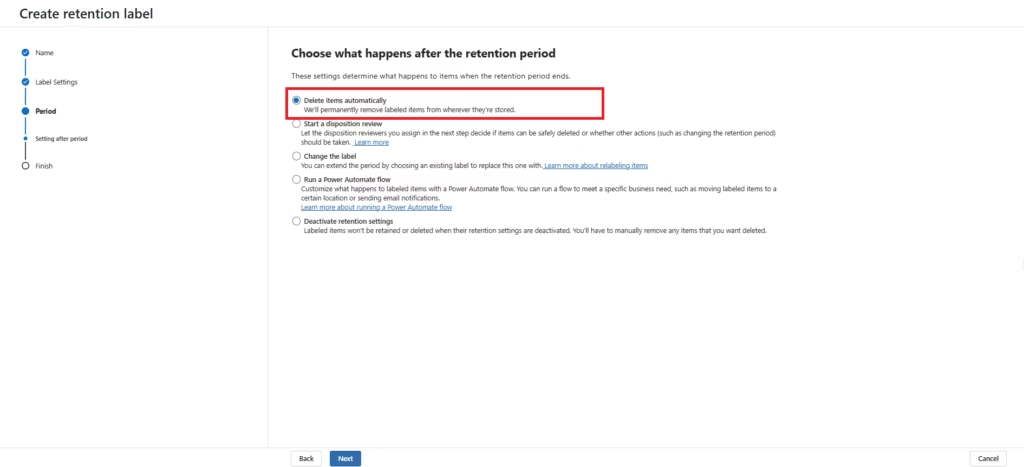
Step 4: Review Record Settings
Optional:
Enable:
- Regulatory Record
- Record Declaration
For this lab:
Leave record declaration disabled.
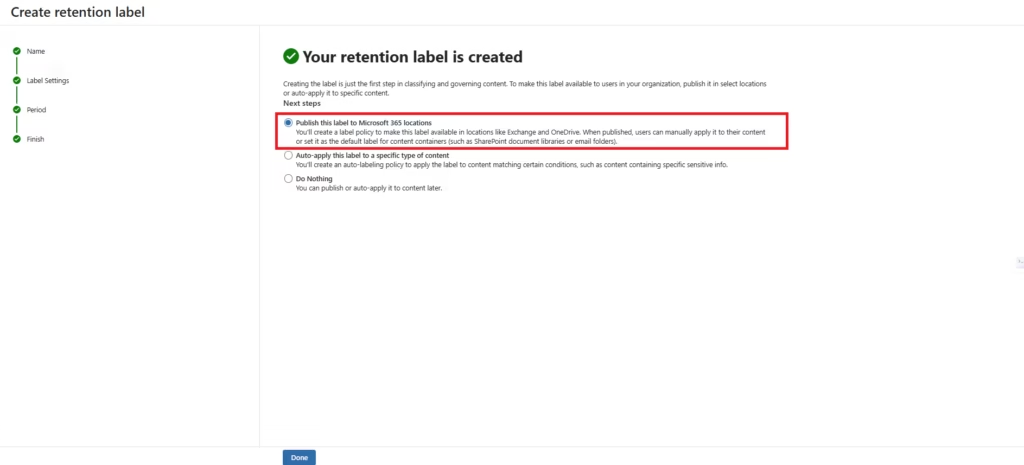
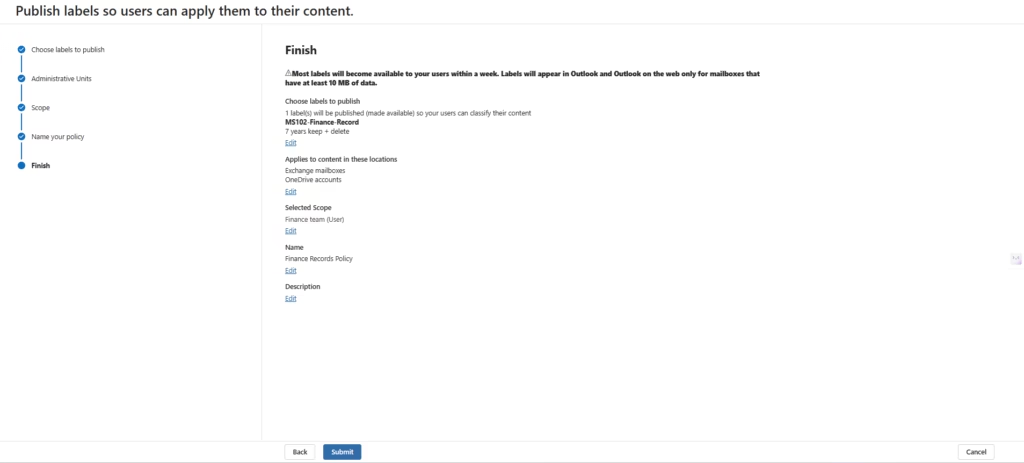
Step 5: Publish the Label
Select:
Publish Labels
Choose:
- Exchange Online
- SharePoint Online
- OneDrive
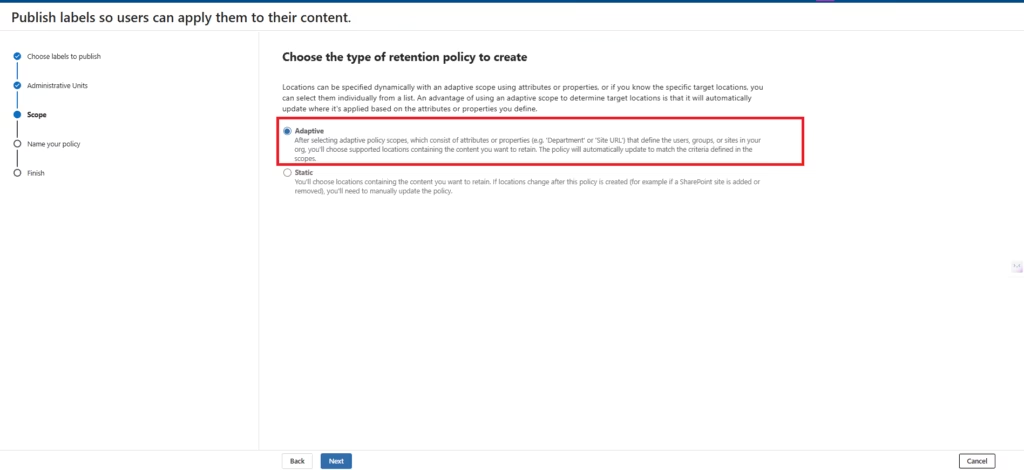
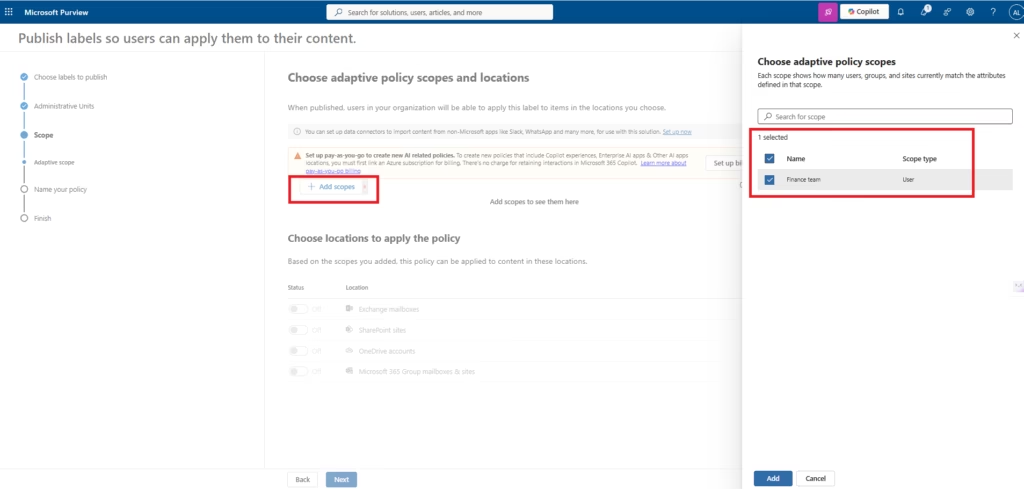
For this lab, I created an Adaptive Scope named Finance Users and configured the scope to automatically include users where the Department attribute equals Finance. This allows Microsoft Purview to dynamically target Finance users without manually selecting individual accounts. Any new user added to the Finance department will automatically be included within the scope and receive the assigned retention label policy.
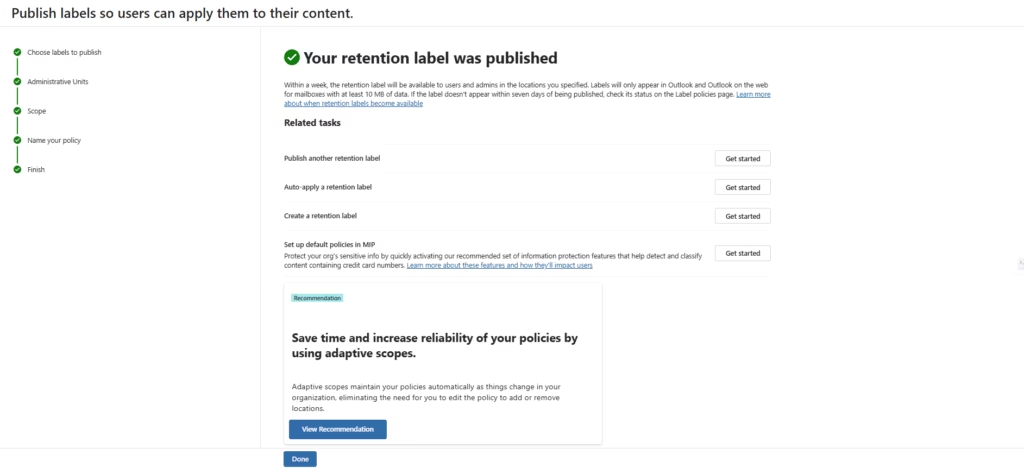
Step 6: Verify Label Availability
After publishing the retention label policy, allow time for policy synchronization.
Since this lab uses an Adaptive Scope configured with Department = Finance, the retention label policy is automatically made available to users within the Finance department.
Verify:
- Label policy publication status
- Finance user scope assignment
- Included Microsoft 365 locations
- Policy synchronization status
Step 7: Verify Label Policy Distribution
Navigate to:
Data Lifecycle Management
→ Label Policies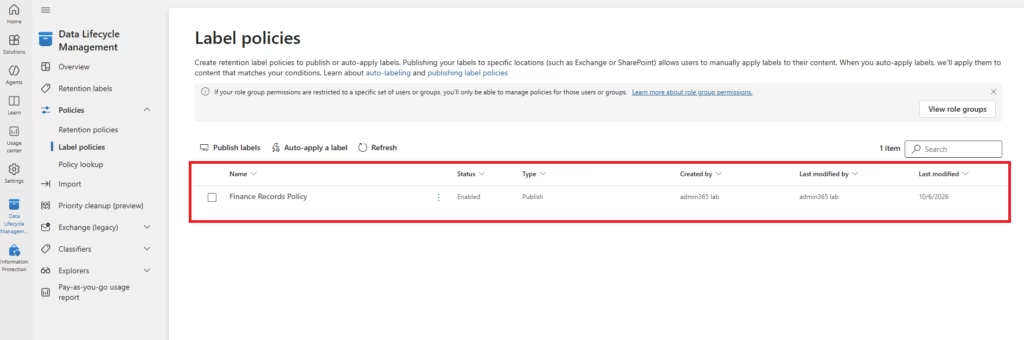
Review the published policy and confirm:
- Published status
- Assigned Adaptive Scope
- Included locations
- Successful policy distribution
For this lab, the policy targets Finance users through the Adaptive Scope, ensuring that retention requirements are automatically assigned to the appropriate department without manually selecting users.
Note: Publishing a retention label to Finance users does not automatically apply the label to documents. The label becomes available to users within the targeted scope. Automatic application requires a separate auto-apply retention label policy, while retention policies can preserve content automatically without user interaction.
Best Practices
- Create Business-Specific Labels
- Examples:
- HR Records
- Financial Records
- Legal Contracts
- Examples:
- Start Small
- Publish labels to test users first.
- Document Retention Requirements
- Align labels with compliance obligations.
- Review Labels Regularly
- Business requirements change over time.
Common Mistakes
- Too Many Labels
- Avoid creating excessive labels that confuse users.
- Incorrect Retention Periods
- Validate legal and regulatory requirements.
- Skipping Testing
- Always test before organization-wide deployment.
MS-102 Exam Tip
Scenario:
A company wants individual documents retained for seven years while allowing different retention periods for other documents.
Correct Answer:
Retention Labels in Microsoft PurviewNot:
- Retention Policies
- Sensitivity Labels
- DLP Policies
Conclusion
Retention Labels are a foundational component of Microsoft Purview Records Management. They provide administrators with the ability to apply retention requirements at the content level, ensuring that critical business records are retained, protected, and disposed of according to organizational policies. For MS-102 candidates, understanding how Retention Labels differ from Retention Policies is a key exam objective.
Microsoft Purview Retention Labels provide granular retention management for individual documents and emails, helping organizations meet compliance, governance, and records management requirements while supporting Microsoft 365 data lifecycle management.
Next in the Microsoft Purview Series
Records Management in Microsoft Purview (MS-102 Guide)
https://techcertguide.blog/records-management-in-microsoft-purview
Previous Post:
Retention Policies in Microsoft Purview: Data Lifecycle Management (MS-102 Guide)
https://techcertguide.blog/retention-policies-in-microsoft-purview
Start from the Beginning
MS-102 Microsoft 365 Administrator Overview
https://techcertguide.blog/ms-102-microsoft-365-administration
Official Microsoft Reference
https://learn.microsoft.com/en-us/credentials/certifications/exams/ms-102
2 thoughts on “Powerful Retention Labels in Microsoft Purview: Records Management (MS-102 Lab Guide)”