Learning Objectives
After completing this guide, you will be able to:
- Explain what Records Management in Microsoft Purview is.
- Identify the key components of records management.
- Differentiate records management from retention labels.
- Configure records management and troubleshoot common issues.
Introduction
Records Management in Microsoft Purview helps organizations manage important business records throughout their lifecycle. While Retention Policies and Retention Labels control how long content is retained, Records Management adds additional controls to protect, govern, and dispose of records in a compliant manner.
Organizations use Records Management to preserve contracts, financial records, legal documents, HR records, and other critical business information.
For Microsoft 365 administrators preparing for the MS-102 exam, understanding Records Management in Microsoft Purview is an important compliance objective.
What Is Records Management in Microsoft Purview?
Records Management is a Microsoft Purview solution that helps organizations:
- Preserve business records
- Enforce retention requirements
- Declare content as records
- Prevent unauthorized changes
- Manage disposition processes
- Meet legal and regulatory obligations
Records Management builds upon Retention Labels by introducing record-specific controls.
Quick Definition: Records Management in Microsoft Purview is the process of declaring content as an immutable, auditable record to enforce retention, prevent changes, and meet legal and regulatory obligations.
Why Records Management in Microsoft Purview Matters
Many organizations must maintain records for legal, financial, and regulatory purposes.
Examples include:
- Financial statements
- Contracts
- Audit reports
- Employee records
- Legal documents
Records Management helps ensure these records remain protected and governed throughout their lifecycle.
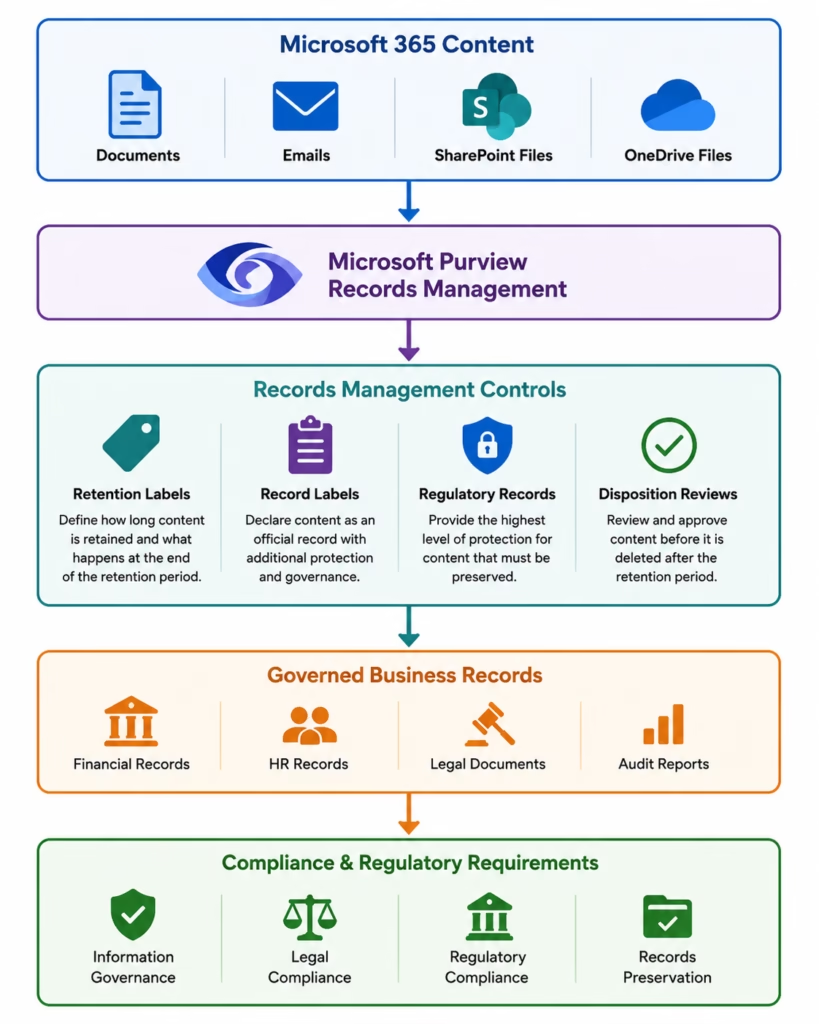
Key Components of Records Management in Microsoft Purview
Retention Labels
Provide retention settings for content.
Record Labels
Declare content as an official business record.
Regulatory Records
Provide the highest level of protection and immutability.
Disposition Review
Allows designated reviewers to approve content deletion after retention periods expire.
File Plan
Provides centralized visibility into records and retention labels.
🔄 Information Lifecycle Diagram
Records Management in Microsoft Purview Architecture
Records Management vs Retention Labels
| Feature | Retention Label | Record Label |
|---|---|---|
| Retention Settings | Yes | Yes |
| Declare Record | No | Yes |
| Enhanced Protection | No | Yes |
| Disposition Review | Optional | Supported |
| Compliance Focus | Moderate | High |
Step-by-Step Records Management in Microsoft Purview Lab
- Open Microsoft Purview
- Create a Retention Label
- Enable Record Settings
- Enable Record Declaration
- Publish the Label
- Review the File Plan
- Verify Record Label Configuration
Step 1: Open Microsoft Purview
Navigate to:
Solutions → Data Lifecycle Management → Retention Labels
Step 2: Create a Retention Label
Select:
Create a Label
Name:
Finance Record
Configure:
Retain items for 7 years
Retain and delete
Step 3: Enable Record Settings
When configuring the label:
Select:
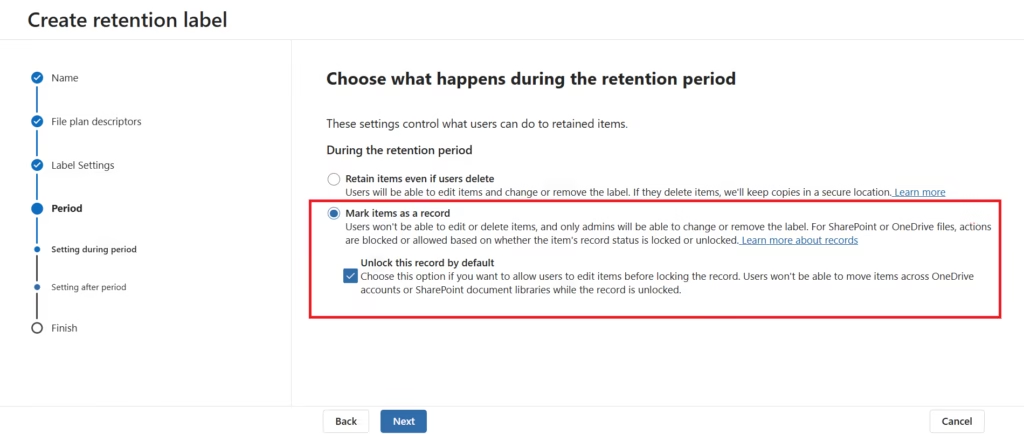
Mark items as a record
This converts the retention label into a record label.
Step 4: Enable Record Declaration
When configuring the retention label, select Mark items as a record.
Record labels provide additional governance controls compared to standard retention labels. Once content is declared as a record, users cannot edit or delete the content, and only authorized administrators can modify the label configuration.
Optionally, administrators can select Unlock this record by default to allow users to edit content before the record is locked.
This setting transforms a standard retention label into a Record Label, enabling Microsoft Purview Records Management capabilities.
Step 5: Publish the Label
Publish the label to:
- Exchange Online
- SharePoint Online
- OneDrive
or target an Adaptive Scope such as:
Department = Finance
Note: The creation and publishing of Retention Labels were covered in detail in the previous article, Retention Labels in Microsoft Purview (MS-102 Guide). In this Records Management lab, we will focus specifically on record declaration, File Plan management, and records governance capabilities.
Step 6: Review the File Plan
Navigate to:
Records Management → File Plan
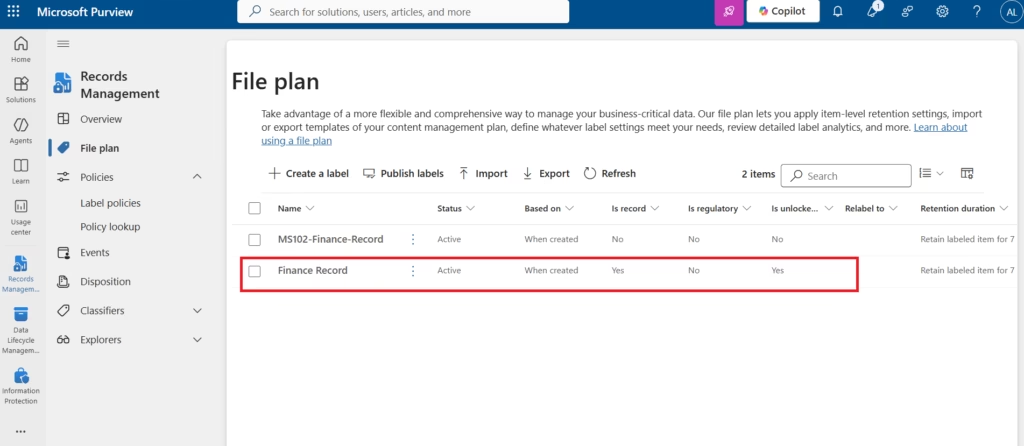
Note: The File Plan provides a centralized view of retention labels, record labels, retention settings, and disposition actions within Microsoft Purview Records Management.Navigate to:
Data Lifecycle Management → Label Policies
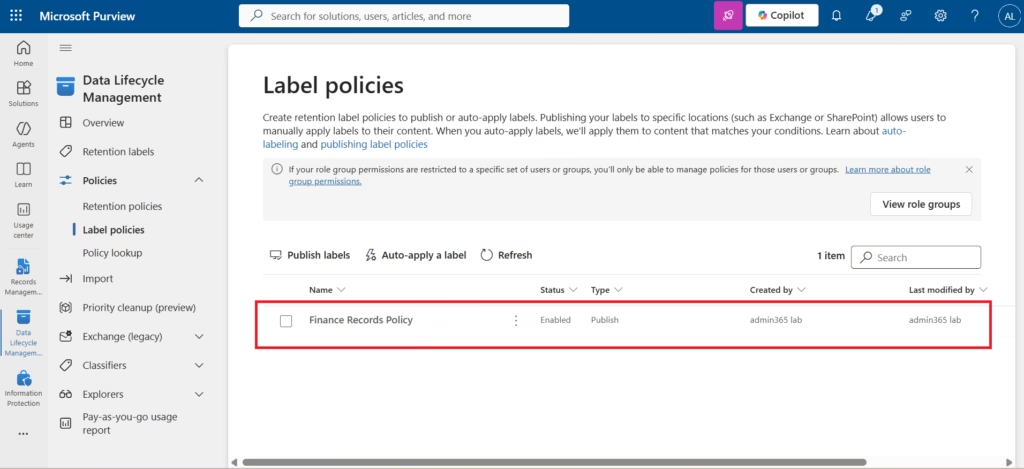
Review:
- Label name
- Retention duration
- Disposition action
- Record settings
- Label status
In this lab, the MS102-Finance-Record label appears in the File Plan with a retention period of seven years and an automatic disposition action.
Step 7: Verify Record Label Configuration
Navigate to:
Solutions → Records Management → File PlanReview the File Plan and verify that the newly created record label appears in the list.
Confirm:
- Label Status = Active
- Is Record = Yes
- Retention Duration = 7 Years
- Record Label visible in File Plan
- Record settings successfully configured
The Is Record = Yes value confirms that the retention label has been converted into a Record Label and is now managed through Records Management in Microsoft Purview.
Troubleshooting Records Management
| Symptom | Likely Cause | Fix |
|---|---|---|
| Retention label doesn’t show as available to apply | Label not published via a label policy, or the policy hasn’t synced yet | Confirm the label is included in a published label policy scoped to the location; allow up to 24 hours for client sync |
| “Is Record” still shows “No” after enabling record settings | Record declaration wasn’t turned on before publishing, or the label wasn’t republished | Edit the label, enable record classification, then republish the label policy |
| Disposition review isn’t triggering at the end of the retention period | Disposition review wasn’t enabled on the label, or the retention period hasn’t elapsed yet | Confirm disposition review is enabled on the label and check the calculated retention end date in the File Plan |
| A regulatory record can’t be modified or deleted, even by an admin | This is expected behavior, regulatory records are immutable by design | Follow your organization’s compliance approval process; only an eligible admin can remove a regulatory record declaration where permitted |
| File Plan doesn’t show the expected item counts | Content hasn’t finished indexing yet, or filters are too narrow | Wait for content indexing to complete and broaden the File Plan filters (label, location, or date range) |
Best Practices
- Create Business-Specific Record Labels
- Examples:
- Finance Records
- HR Records
- Legal Records
- Examples:
- Use Adaptive Scopes
- Target labels dynamically using user attributes.
- Document Retention Requirements
- Align labels with regulatory obligations.
- Review Disposition Processes
- Ensure records are deleted appropriately after retention periods expire.
Common Administrator Mistakes
- Creating Too Many Record Labels
- Keep labels simple and easy to understand.
- Using Record Labels for All Content
- Reserve record labels for official business records.
- Ignoring Disposition Reviews
- Always validate deletion processes for regulated content.
MS-102 Exam Tip
Scenario:
A company must prevent modification of financial records while retaining them for seven years.
Correct Answer:
Record LabelNot:
- Sensitivity Label
- DLP Policy
- Conditional Access
Benefits of Records Management in Microsoft Purview
Organizations use Records Management to ensure that critical business information is protected, governed, and retained according to regulatory requirements. By combining retention labels, record labels, and disposition reviews, administrators can establish a consistent records governance strategy across Microsoft 365 workloads.
Key benefits include:
- Improved compliance and regulatory readiness
- Enhanced protection of business-critical records
- Reduced risk of accidental deletion or modification
- Centralized records governance through Microsoft Purview
- Support for legal, financial, and audit requirements
FAQ
Q: What’s the difference between Records Management and Retention Labels?
A: Retention labels control how long content is retained and when it’s deleted or reviewed. Records Management builds on top of retention labels by adding record declaration, which makes content immutable, auditable, and protected from modification or deletion, even by users with edit permissions.
Q: Can a record ever be deleted before its retention period ends?
A: Regular records generally cannot be deleted by end users. Regulatory records are even stricter, they cannot be deleted or have their retention period shortened by anyone, including administrators, until the compliance requirement is met.
Q: Does declaring a record prevent all changes to a file?
A: Yes. Once a document is declared a record, it becomes locked. It can typically still be read, but editing, renaming, moving, or deleting it is blocked, with the exact restrictions depending on whether it’s a regular or regulatory record.
Q: Is Records Management covered in the MS-102 exam?
A: Yes. MS-102 expects administrators to understand retention labels, record declaration, disposition review, and the File Plan as part of the Microsoft Purview compliance domain.
Conclusion
Records Management in Microsoft Purview extends retention capabilities by allowing organizations to declare content as records, apply enhanced governance controls, and manage content throughout its lifecycle. Together with Retention Policies and Retention Labels, Records Management forms a critical part of Microsoft 365 compliance and governance.
Next in the Microsoft Purview Series
Ultimate Microsoft Purview Audit: Monitoring & Compliance Investigation (MS-102 Guide)
Previous Post:
Powerful Retention Labels in Microsoft Purview: Records Management (MS-102 Lab Guide)
https://techcertguide.blog/retention-labels-in-microsoft-purview
Start from the Beginning
MS-102 Microsoft 365 Administrator Overview
https://techcertguide.blog/ms-102-microsoft-365-administration
Official Microsoft Reference
https://learn.microsoft.com/en-us/credentials/certifications/exams/ms-102
2 thoughts on “Ultimate Records Management in Microsoft Purview: Record Labels & Compliance (MS-102 Guide)”