Microsoft 365 Admin Centers are where every major configuration in your tenant is managed. If you want to think like a real MS-102 Microsoft 365 Administrator, you must understand where each service is controlled and why Microsoft separates them.
Many beginners assume everything is managed from a single dashboard. That’s not how Microsoft 365 works in real-world administration.
Microsoft 365 uses a central admin portal for overview management, but each major workload has its own dedicated administrative center.
If you’re preparing for the MS-102 Microsoft 365 Administrator exam, understanding where each service is managed is critical.
This chapter focuses on exploration — not configuration.
Learning Objectives
After completing this guide, you will be able to:
- Explain why Microsoft 365 uses multiple dedicated admin centers.
- Identify which admin center manages which workload.
- Describe how the central admin portal relates to service-specific centers.
- Understand why this separation matters for real-world administration.
What Are Microsoft 365 Admin Centers?
The Microsoft 365 Admin Centers provide:
- User management
- License assignment
- Basic group control
- Service health monitoring
- Billing overview
But Microsoft 365 includes multiple enterprise-grade services:
- Exchange Online
- Microsoft Teams
- SharePoint Online
- Microsoft Entra ID
- Microsoft Defender
- Microsoft Purview
Each of these services has advanced controls that require dedicated admin portals.
Think of it like this:
- Microsoft 365 Admin Center = Control Room
- Service Admin Centers = Specialized Departments
As an administrator, you must know which portal to use for each task.
Each of the Microsoft 365 Admin Centers provides workload-specific management capabilities.
Navigating between Microsoft 365 Admin Centers becomes second nature for experienced administrators.
Exchange Admin Center
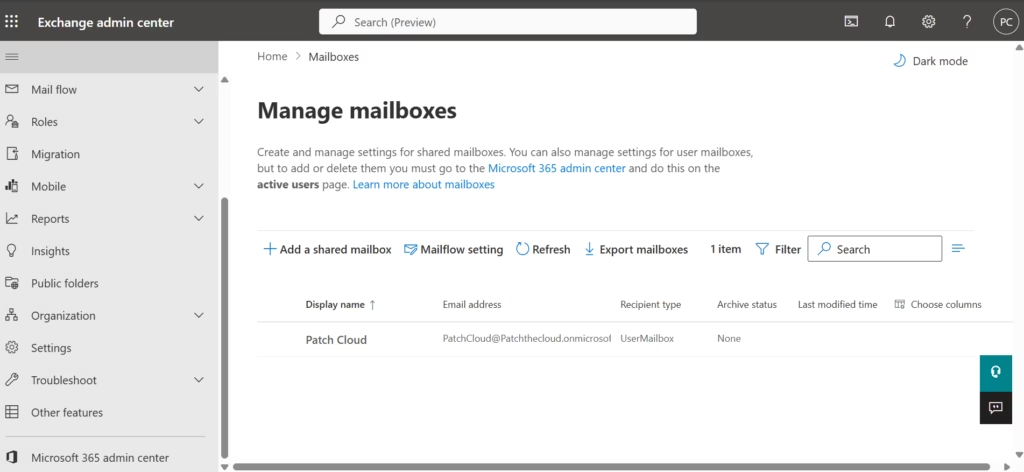
The Exchange Admin Center (EAC) is used to manage email and mail flow inside Microsoft 365.
Where to Access
- From Microsoft 365 Admin Center → Admin centers → Exchange
- Or directly via the Exchange Admin URL
https://admin.exchange.microsoft.com
What You Manage in Exchange Admin Center
- Mailboxes (user, shared, resource)
- Mail flow rules (transport rules)
- Anti-spam and anti-malware policies
- Accepted domains
- Email routing and connectors
- Retention and mailbox settings
Why It Matters
Even though users are created in the main admin center, mailbox behavior is controlled in Exchange.
For MS-102:
You must understand that:
- Identity is managed in Entra ID
- Email configuration is managed in Exchange
That separation is important.
Microsoft Teams Admin Center
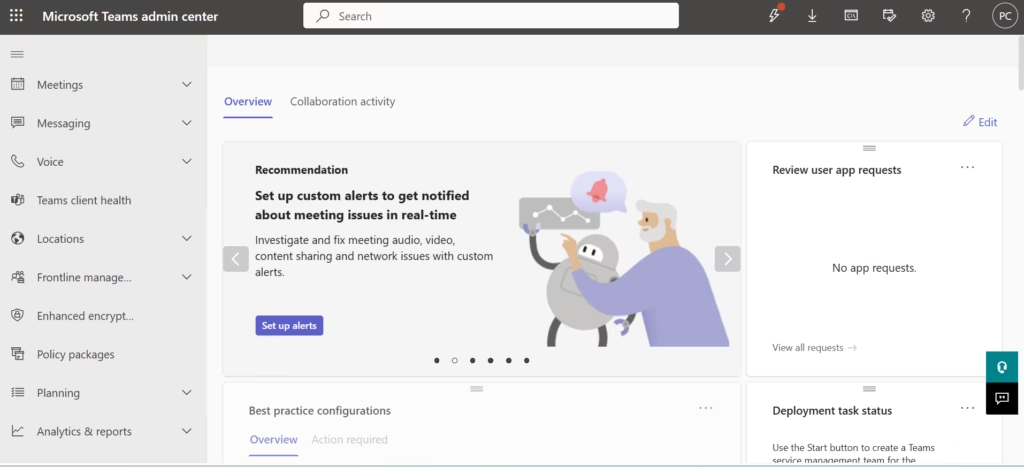
The Teams Admin Center is responsible for communication and collaboration settings.
Where to Access
Microsoft 365 Admin Center → Admin centers → Teams
https://admin.teams.microsoft.com/dashboard
What You Manage in Teams Admin Center
- Teams policies
- Messaging policies
- Meeting policies
- App permission policies
- External access
- Guest access
- Teams devices
Why It Matters
A common beginner mistake is assuming Teams settings are controlled only from user properties.
In reality:
- User creation happens in Microsoft 365
- Access policies are configured in Teams Admin Center
- Advanced security and session controls are influenced by Entra ID
MS-102 often tests understanding of where policies are configured.
SharePoint Admin Center
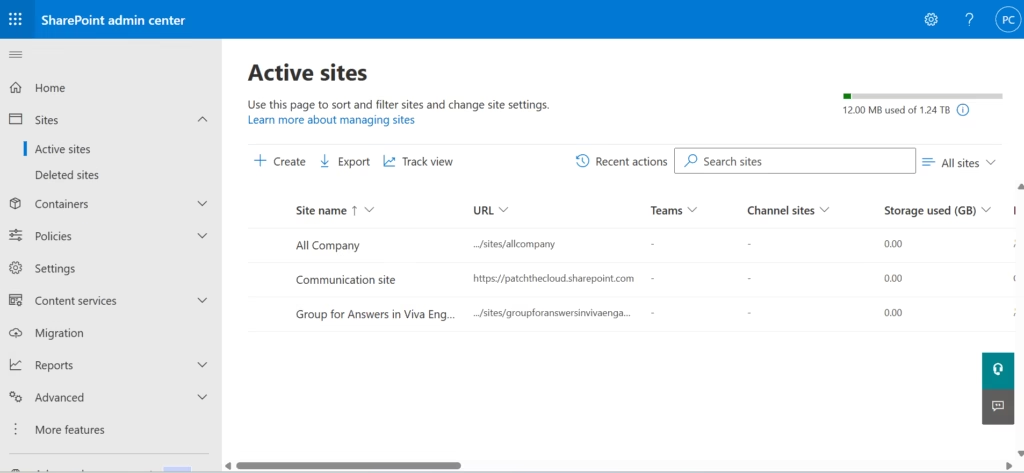
The SharePoint Admin Center manages document storage and collaboration infrastructure.
Since Microsoft Teams stores files in SharePoint, this admin center affects more than just SharePoint sites.
Where to Access
Microsoft 365 Admin Center → Admin centers → SharePoint
https://mycompany-admin.sharepoint.com (replace “mycompany” with your actual tenant name)
What You Manage
- Site collections
- Storage limits
- Sharing policies
- External sharing controls
- Access control policies
- OneDrive configuration
Why It Matters
If your organization wants to:
- Restrict external sharing
- Control link expiration
- Enforce file access policies
These settings are configured in SharePoint Admin Center.
For MS-102, understanding how SharePoint affects Teams and OneDrive is important.
Microsoft Entra Admin Centers (Azure AD)
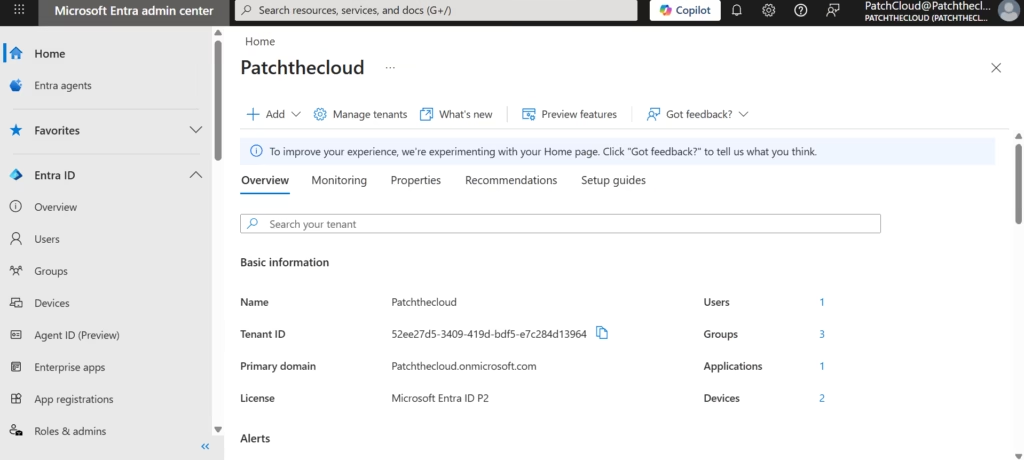
The Microsoft Entra Admin Center is the heart of identity and access management.
Everything related to authentication and authorization starts here.
Where to Access
Admin centers → Identity
Or directly via the Entra Admin portal
What You Manage
- Users and groups
- Administrative roles
- Conditional Access policies
- Multi-Factor Authentication
- Identity Protection
- Device registration
- Enterprise applications
- Sign-in logs
Why It Matters
For MS-102 Microsoft 365 Administrator:
Identity is central.
Exchange, Teams, SharePoint, Defender — all rely on Entra ID for authentication and access decisions.
If you understand Entra Admin Center well, you understand the backbone of Microsoft 365.
Defender and Purview Admin Centers
Depending on licensing, you may also see:
- Microsoft Defender Portal
- Microsoft Purview Compliance Portal
These are used for:
- Threat protection
- Incident investigation
- Data Loss Prevention
- Retention policies
- Insider risk management
You do not need to configure these yet. For now, just understand they exist and are workload-specific.
How All Admin Centers Connect
Here’s the practical structure:
- Microsoft 365 Admin Center → User lifecycle, licensing, overview
- Entra Admin Center → Identity & authentication
- Exchange Admin Center → Email & mail flow
- Teams Admin Center → Collaboration policies
- SharePoint Admin Center → File storage & sharing
- Defender Portal → Threat protection
- Purview Portal → Compliance & data governance
A real Microsoft 365 administrator does not work in only one portal.
They understand how all of these connect.
Common Beginner Confusion
New administrators often struggle with:
- “Why can’t I configure mail flow from the main admin center?”
- “Why is Conditional Access not visible here?”
- “Why does Teams policy not appear under user settings?”
The answer is simple:
Each workload has its own administrative layer.
Understanding this structure reduces confusion and builds confidence.
Why This Matters for MS-102
The MS-102 exam tests:
- Tenant-level administration
- Identity & access management
- Service configuration
- Workload-specific controls
Many exam questions indirectly test whether you know:
Which admin center controls which feature?
If you mix them up, you will choose incorrect answers.
This chapter ensures you understand the administrative architecture before diving deeper.
What You Should Do Now (Hands-On Exploration)
Inside your tenant:
- Open Microsoft 365 Admin Center
- Navigate to Admin centers
- Open each service portal
- Observe the layout
- Do not change settings yet
- Familiarize yourself with navigation
The goal is orientation — not configuration.
Final Thoughts
For the MS-102 Microsoft 365 Administrator exam, this knowledge helps you understand the Microsoft 365 Admin Centers. Microsoft expects administrators to understand the capability before configuration.
If you’re new to this learning series, start with the main MS-102 Microsoft 365 Administrator overview, where we explain how all chapters connect and what skills you’ll build across the journey.
For the most accurate and up-to-date exam objectives and reference material, Microsoft maintains the official MS-102 documentation on Microsoft Learn. This series complements those resources by focusing on real-world administrative understanding.
Summary
Microsoft 365 uses multiple administrative centers because each workload has specialized controls.
Understanding Microsoft 365 Admin Centers is essential for MS-102 success.
As a Microsoft 365 administrator, you must understand:
- The central admin portal provides oversight.
- Service portals provide deep configuration.
- Identity decisions originate in Entra ID.
- Email, collaboration, and storage are managed separately.
This architectural awareness separates beginners from real administrators.
What’s Next
Now that you understand where services are managed, the next logical step is to move into deeper configuration areas.
In the upcoming chapter, we will begin working with:
- Domain management
- Licensing models
- Administrative roles
Each of these builds directly on the administrative architecture you just explored.
You are now moving from exploration to structured administration.