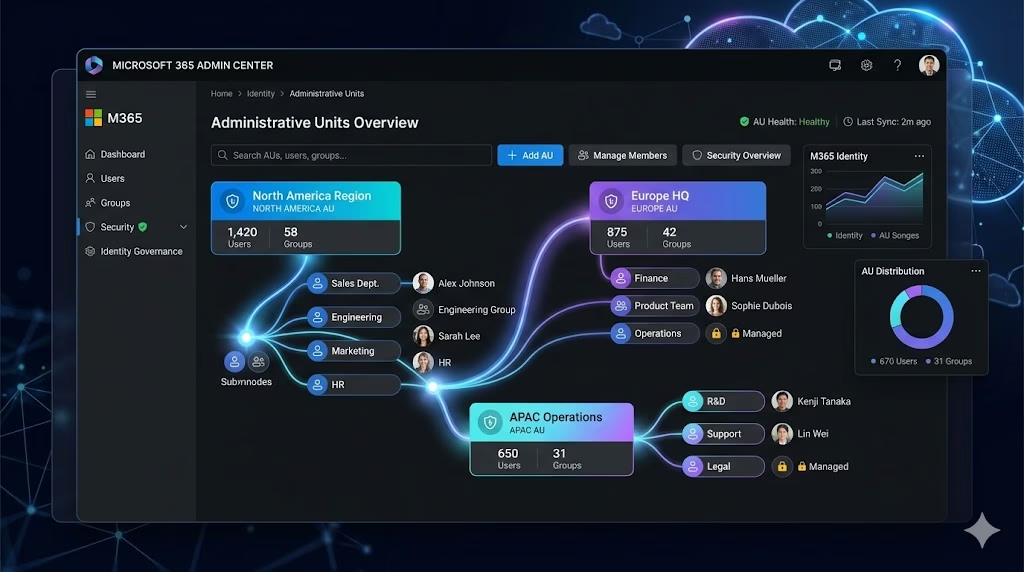
Administrative Units (AUs) are one of the most important tools for delegating administrative access in Microsoft Entra ID. They allow organizations to assign admin permissions only over specific subsets of users, rather than the entire tenant. This is a critical capability for least‑privilege access, regional delegation, and large enterprise management all core concepts tested in the MS‑102 exam.
In this guide, you will learn:
- What Administrative Units are
- Why they matter for identity security
- How AUs work
- How to configure them step‑by‑step (lab)
- MS‑102 exam insights
Let’s get started.
What Are Administrative Units? (Clear Definition)
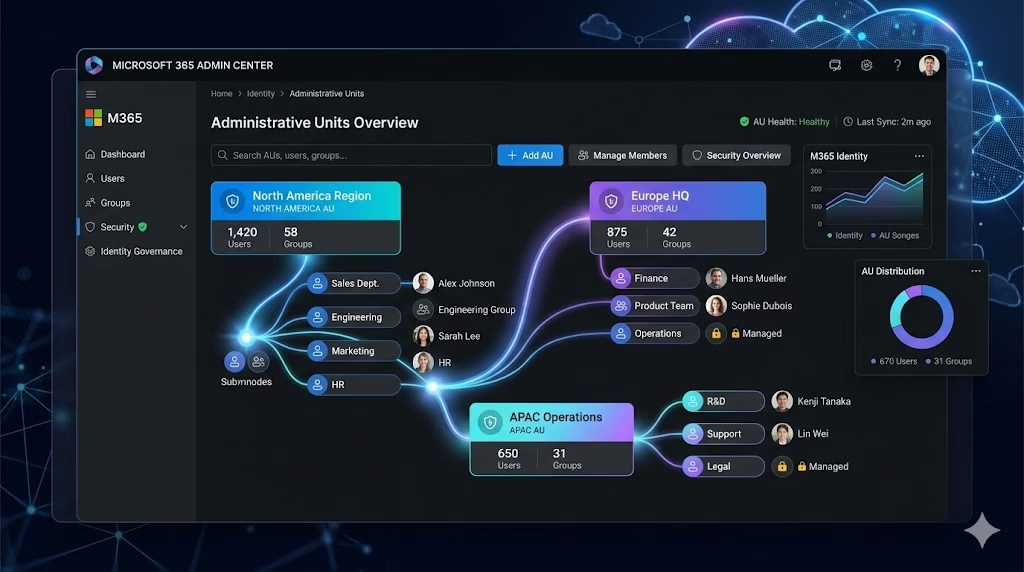
Administrative Units (AUs) are containers for users, groups, or devices in Microsoft Entra ID. They allow you to delegate administrative permissions only for resources inside that AU.
Example use cases:
- India IT team manages only India users
- HR department resets passwords only for HR employees
- Helpdesk team manages only contractor accounts
This implements scoped administration, reducing the need for global roles.
AUs are required knowledge for MS‑102 under:
“Manage delegation using Administrative Units.”
Why Administrative Units Matter (Security Benefits)
Without AUs, even small admin tasks require directory-wide permissions, which causes:
- Excessive privileges
- Higher risk of insider attacks
- Large impact if an admin account is compromised
With AUs:
- Admins receive scoped, limited permissions
- You reduce the tenant attack surface
- Global admins no longer need to handle local operations
- Each team manages only what it owns
This aligns perfectly with Microsoft’s Zero Trust model.
How Administrative Units Work (Simple Architecture)
An AU includes:
- Users
- Groups
- Devices (optional)
You can assign role permissions at the AU level, including:
- User Administrator
- Groups Administrator
- Helpdesk Administrator
- Password Administrator
Admins assigned to roles inside an AU can manage only the members of that AU.
Example:
Assign “User Administrator” to HR inside AU-HR →
HR admins can manage HR users, but cannot modify IT or Finance users.
LAB: Configure Administrative Units (Step-by-Step)
This lab is fully valid for the MS‑102 exam and real-world administration.
Learning Objectives
After completing this guide, you will be able to:
- Explain the purpose of Administrative Units in Microsoft Entra ID.
- Configure an Administrative Unit and assign scoped admin roles.
- Identify how Administrative Units support least privilege and regional delegation.
- Validate role scoping after configuring an Administrative Unit.
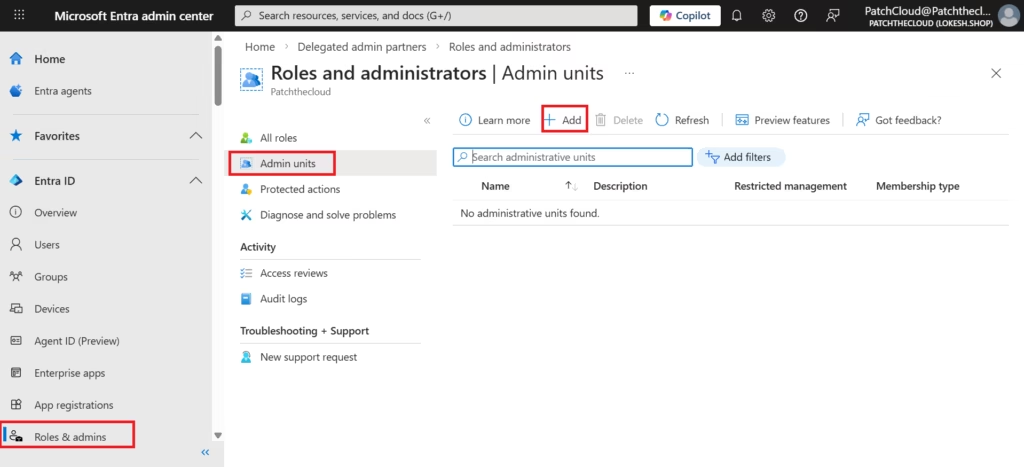
Step 1: Open Administrative Units
- Sign in to Microsoft Entra Admin Center
- Navigate to:
Entra ID → Roles & admins → Admin Units - Click + Add to create a new AU.
Step 2: Create a New Administrative Unit
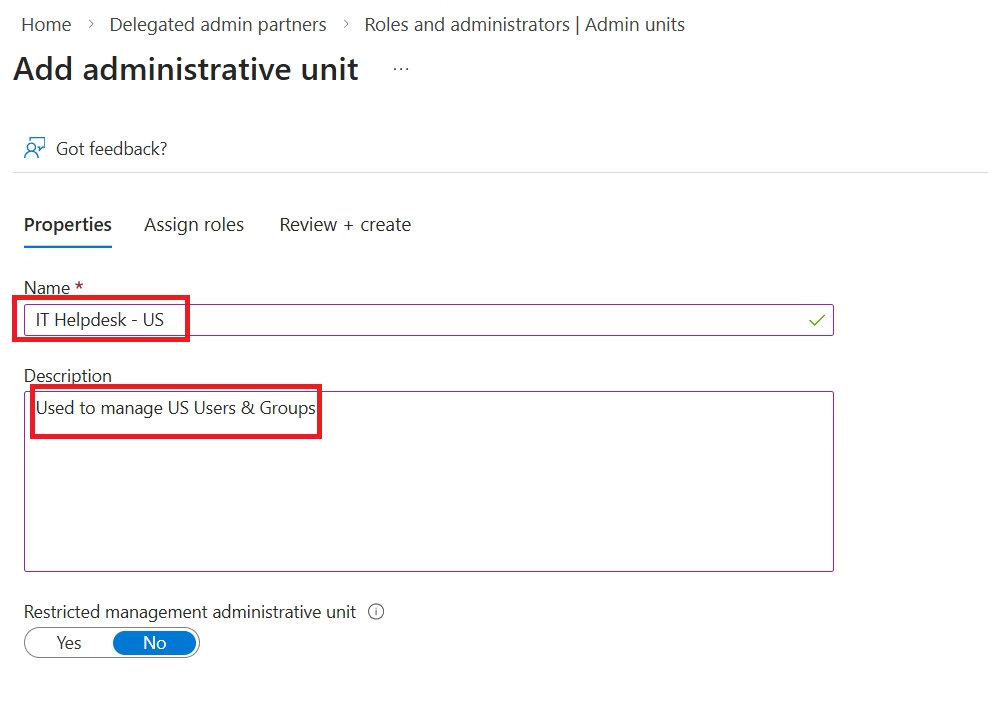
Fill in:
- Name: IT Helpdesk ‑ US
- Description: Optional
- Restricted management administrative unit: Yes/No (You can mark this administrative unit for restricted management if you don’t want tenant-level administrators to be inherited to roles on this administrative unit.)
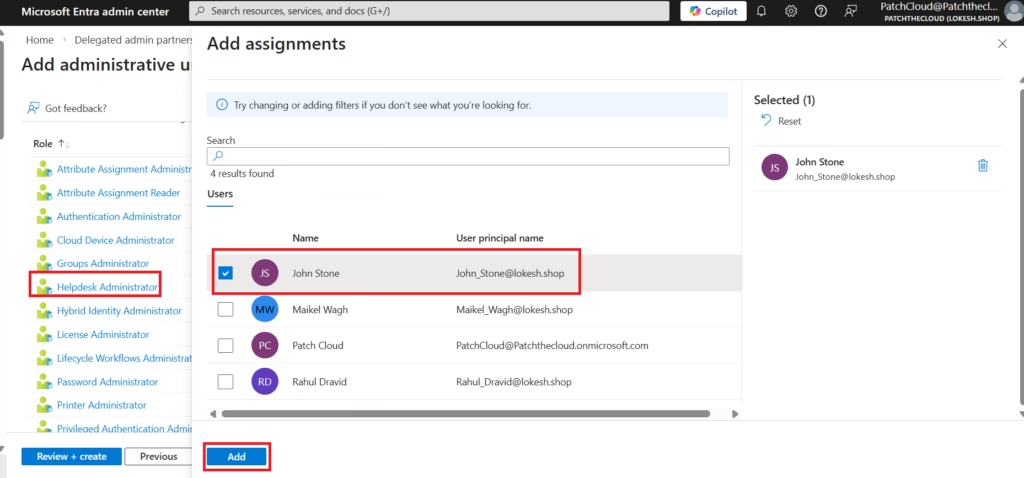
Step 3: Assign Scoped Admin Roles to the AU and Add Members
- Inside the AU, select:
Roles and administrators - Select a role such as:
- User Administrator
- Groups Administrator
- Helpdesk Administrator
- Select Users
- Click Add
- Choose the users who belong to this AU
This grants admin rights only for AU members, not the entire tenant.
Tip:
If you use Dynamic Groups, you can simply add that group to the AU for auto‑managed membership.
Step 4: Review and Create
Review the settings and create the Administrative Unit
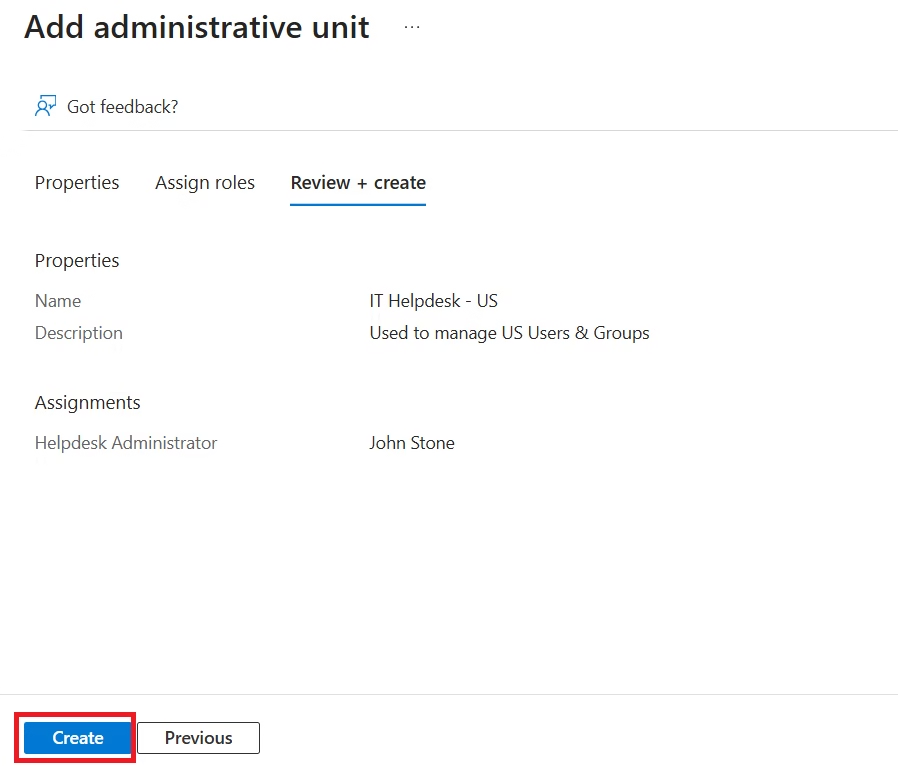
Click Create.
Administrative Unit is now created.
Step 5: Validate Role Scoping (Important for Exam)
Log in as the delegated admin and test:
Test 1
Try resetting a password for a user inside the AU →
Should succeed
Test 2
Try resetting a password for a user outside the AU →
Should fail
This confirms that scoped administration is working correctly.
Best Practices for Using Administrative Units
- Always use scoped roles instead of global roles
- Group users logically (region, department, project team)
- Use Dynamic Groups to automate AU membership
- Combine AUs with Conditional Access for region‑based policies
- Regularly audit AU membership and role assignments
MS‑102 Exam Insights
Expect exam questions like:
Scenario:
“Give the India IT team rights to reset passwords only for India-based users.”
Correct steps:
- Create an AU → “India Users.”
- Add India users to AU
- Assign “Password Administrator” to the India IT team
- Verify that the role applies only inside the AU
MS‑102 checks whether you understand:
- What AUs do
- How to delegate roles at the AU level
- Why AUs support least privilege
- Difference between Global roles vs AU‑scoped roles
Summary
In this guide, you learned:
- What Administrative Units are
- When to use them
- How do they help enforce least privilege
- How to configure AUs step‑by‑step
- How they appear in the MS‑102 exam
AUs are a powerful identity governance tool that every Microsoft 365 Administrator must master.
If you’re new to this learning series, start with the main MS-102 Microsoft 365 Administrator overview, where we explain how all chapters connect and what skills you’ll build across the journey.
For the most accurate and up-to-date exam objectives and reference material, Microsoft maintains the official MS-102 documentation on Microsoft Learn. This series complements those resources by focusing on real-world administrative understanding.
2 thoughts on “Mastering Administrative Units (AUs): The 2026 MS-102 Lab Guide”