Organizations must manage data throughout its lifecycle. Simply protecting information is not enough; organizations must also determine how long data should be retained and when it can be deleted.
Retention Policies in Microsoft Purview help organizations manage data retention requirements across Microsoft 365 workloads while supporting legal, regulatory, and business compliance obligations.
For Microsoft 365 administrators, understanding Retention Policies in Microsoft Purview is a core MS-102 skill.
In this guide, you’ll learn:
- What Retention Policies are
- Why Retention Policies Matter
- Retention vs Deletion
- Microsoft Purview Data Lifecycle Management
- Retention Policy architecture
- Step-by-step lab
- Best practices
- Common mistakes
- MS-102 exam tips
Learning Objectives
After completing this guide, you will be able to:
- Explain the purpose of retention policies in Microsoft Purview.
- Differentiate retention policies from retention labels.
- Identify the Microsoft 365 workloads supported by retention policies.
- Configure a retention policy step-by-step.
What Are Retention Policies?
A Microsoft Purview retention policy is a container-level rule that automatically retains, deletes, or retains-then-deletes content across one or more Microsoft 365 workloads. Retention Policies in Microsoft Purview help organizations:
- Retain content for a specific period
- Prevent premature deletion
- Automatically delete content after retention periods expire
- Meet compliance requirements
- Manage information lifecycle
Retention Policies can be applied across:
- Exchange Online
- SharePoint Online
- OneDrive
- Microsoft Teams
Why Retention Policies Matter
Organizations often have legal and regulatory requirements to preserve information.
Examples:
- Financial records are retained for 7 years
- HR documents retained for 5 years
- Project records retained for 3 years
- Legal documents retained indefinitely
Retention Policies in Microsoft Purview help automate these requirements.
Retention Policy Architecture in Microsoft Purview
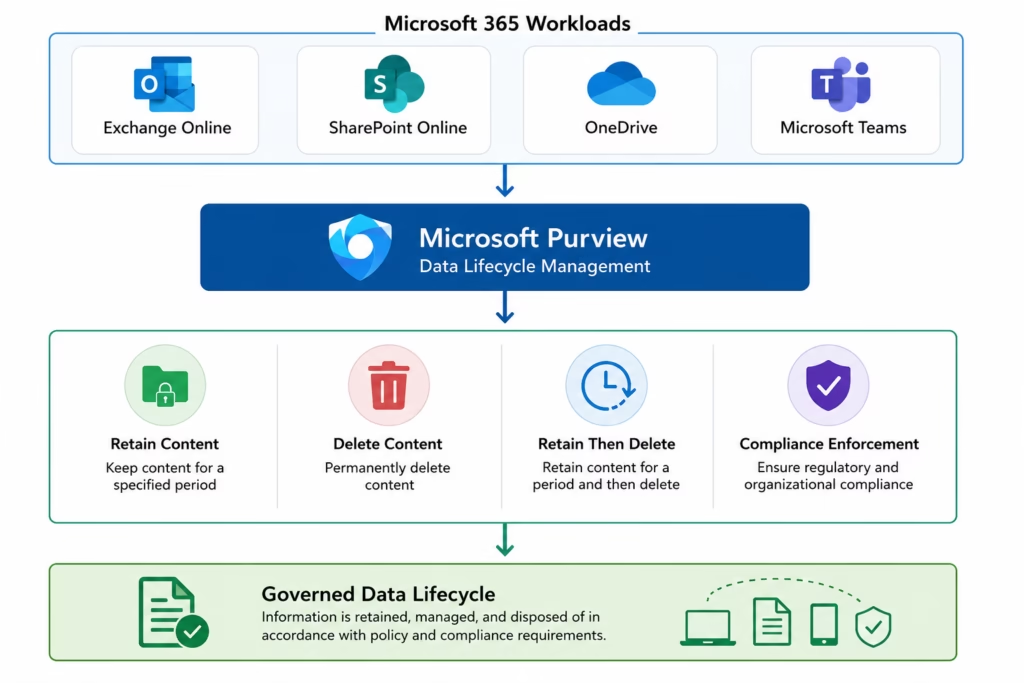
Data Lifecycle Management is the Microsoft Purview solution that contains retention policies and retention labels, and this architecture demonstrates how Microsoft Purview manages retention and deletion policies across Microsoft 365 workloads.
How Retention Policies in Microsoft Purview Work
Microsoft Purview evaluates content based on configured retention settings.
Organizations can choose:
| Option | Purpose |
|---|---|
| Retain Only | Preserve content |
| Delete Only | Automatically remove content |
| Retain and Delete | Preserve then remove content |
This enables organizations to control the entire information lifecycle.
Retention Policy Workflow
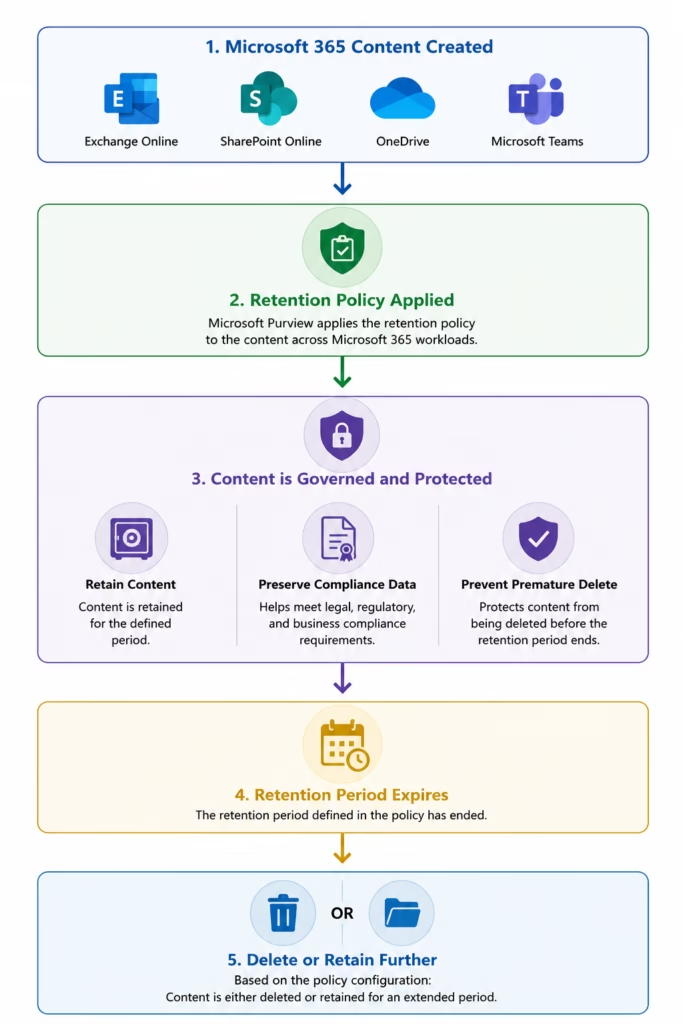
Retention Policy workflow showing how Microsoft Purview governs content throughout its lifecycle.
Retention Policies vs Retention Labels
A common MS-102 exam topic is understanding the difference between policies and labels.
| Feature | Retention Policy | Retention Label |
|---|---|---|
| Scope | Broad workload coverage | Individual items |
| Application | Automatically applied | Manual or automatic |
| Granularity | Organization-wide | Item-level |
| Management | Centralized | Flexible |
Retention Policies are generally implemented before Retention Labels.
Microsoft 365 Workloads Supported
Retention Policies in Microsoft Purview support:
Exchange OnlineRetain:
- Emails
- Mailboxes
- Calendars
SharePoint OnlineRetain:
- Documents
- Lists
- Libraries
OneDriveRetain:
- Personal files
- User data
Microsoft TeamsRetain:
- Chat messages
- Channel conversations
Step-by-Step Retention Policy in Microsoft Purview Lab
This section provides practical MS-102 administration experience.
Step 1: Open Microsoft Purview Portal
Navigate to:
https://purview.microsoft.com/Sign in using:
- Global Administrator
- Compliance Administrator
Step 2: Open Data Lifecycle Management
Navigate to:
Solutions → Data Lifecycle Management → Policies → Retention Policies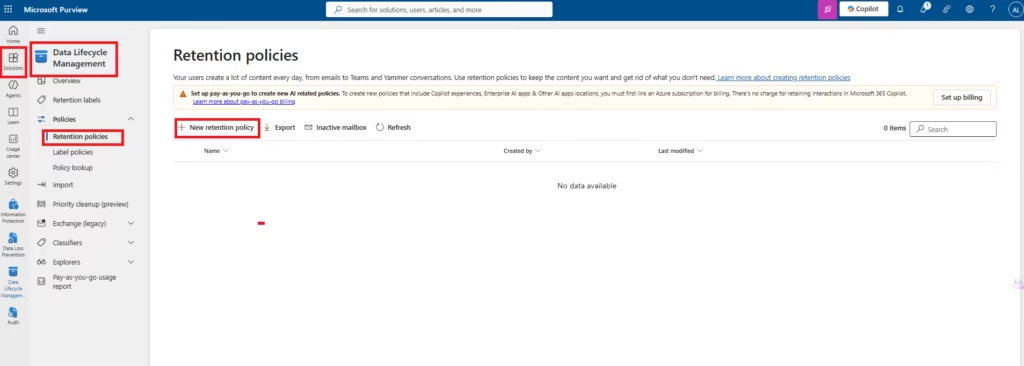
Step 3: Create a Retention Policy
Select:
Create Retention PolicyName:
MS102-Retention-PolicyDescription:
Retention policy for Microsoft 365 compliance lab.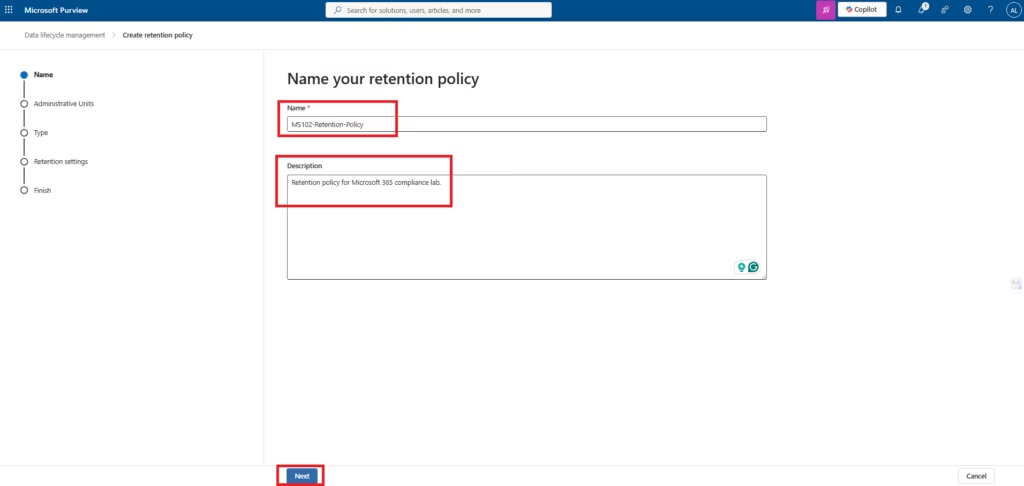
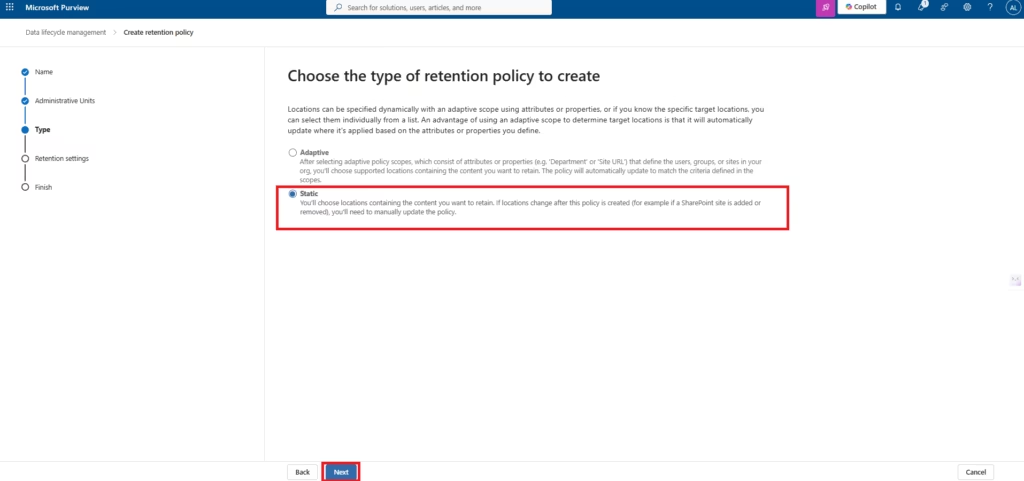
For this lab, I selected Static scope because it allows administrators to manually choose Microsoft 365 locations such as Exchange Online, SharePoint Online, OneDrive, and Microsoft Teams. Adaptive scopes are typically used in larger organizations where policies are assigned dynamically based on user or site attributes. See Microsoft’s guide to creating and configuring retention policies for more detail on choosing between scopes.
Step 4: Select Workloads
Choose:
- Exchange Online
- SharePoint Online
- OneDrive
- Microsoft Teams
This determines where the policy applies.
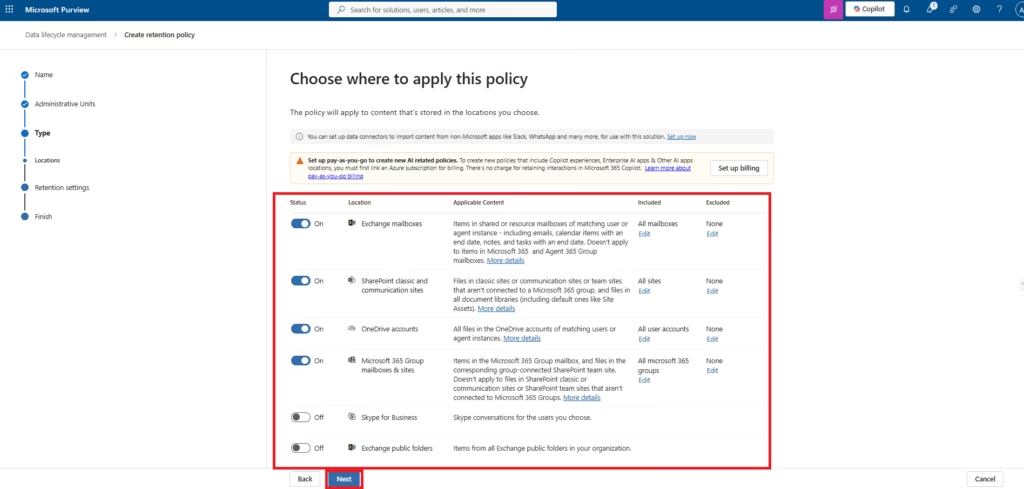
Step 5: Choose Retention Settings
Select:
Retain Items For
Example:
7 YearsChoose:
Retain items for a specific period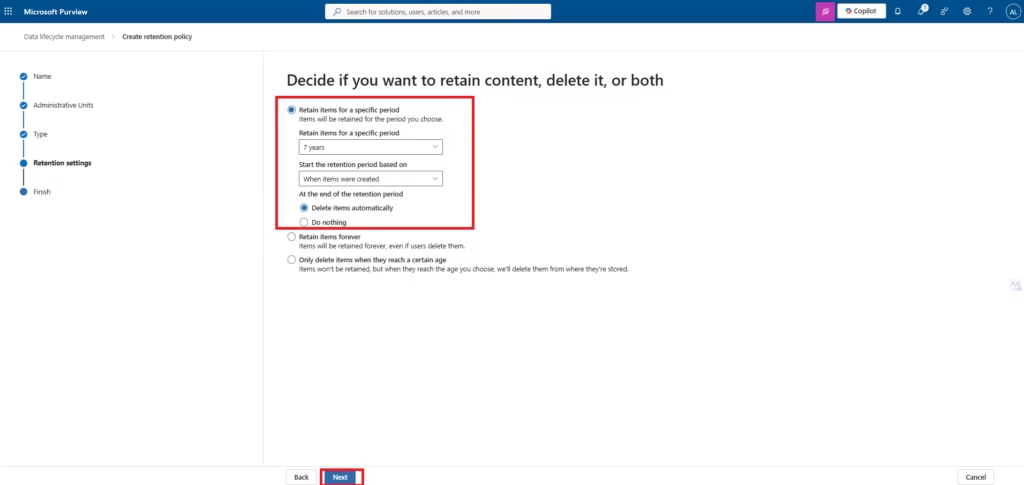
Step 6: Review and Publish
Review:
- Retention duration
- Workloads
- Scope
Select:
Submitto create the policy.
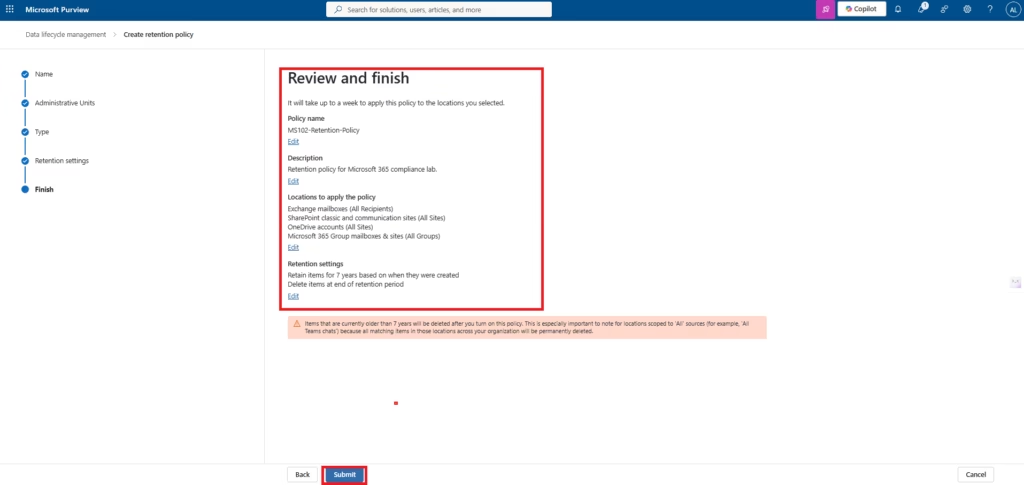
Step 7: Verify Policy Deployment
Review:
- Policy Status
- Distribution Status
- Assigned Locations
Policy deployment may take time to propagate across Microsoft 365 services.
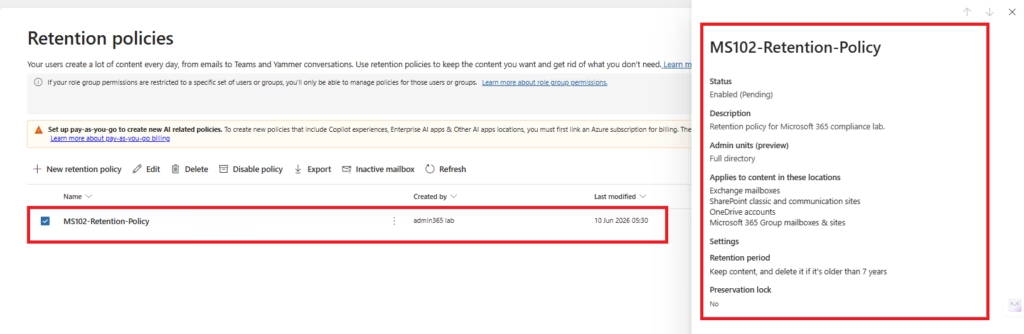
The retention policy was successfully created and configured to retain content for seven years before automatically deleting it. The policy applies across Exchange Online, SharePoint Online, OneDrive, and Microsoft Teams, helping organizations meet compliance and data lifecycle management requirements.
Retention Policies may take several hours or longer to fully propagate across Microsoft 365 workloads. During this period, the policy status may display as “Enabled (Pending).”
Common Retention Policy Scenarios
| Scenario | Recommended Retention |
|---|---|
| Financial Records | 7 Years |
| HR Records | 5 Years |
| Project Documentation | 3 Years |
| Legal Records | 10 Years |
| Compliance Records | Organization Requirement |
Best Practices
- Define Retention Requirements First
- Understand legal and regulatory obligations before creating policies.
- Start with Limited Scope
- Test policies before organization-wide deployment.
- Document Retention Decisions
- Maintain records explaining retention periods.
- Regularly Review Policies
- Business requirements change over time.
- Align Policies with Compliance Goals
- Retention periods should support governance objectives.
Common Administrator Mistakes
- Applying Retention Policies in Microsoft Purview Too Broadly
- Start small and validate results.
- Choosing Incorrect Retention Periods
- Verify legal requirements before implementation.
- Ignoring Business Requirements
- Retention should support operational needs.
- Assuming Immediate Deployment
- Policy synchronization can take time.
MS-102 Exam Tip
Scenario:
“A company must retain all Exchange Online emails for seven years to satisfy regulatory requirements.”
Correct Answer:
Retention PolicyNot:
- Sensitivity Label
- DLP Policy
- Conditional Access Policy
This is a common MS-102 scenario.
Why This Matters for Microsoft 365 Administrators
Retention Policies help organizations:
- Meet compliance requirements
- Preserve important business records
- Automate data lifecycle management
- Reduce administrative effort
- Improve governance
- Support legal investigations
They are a foundational Microsoft Purview capability.
Retention Policies: Related Concepts to Know
A few related Microsoft Purview capabilities often come up alongside retention policies. Retention holds behave similarly to eDiscovery holds: when content is subject to either one, it is preserved in place, and for SharePoint and OneDrive it is copied into the Preservation Hold Library until every applicable hold is released. Priority cleanup is a newer Data Lifecycle Management capability that lets administrators expedite the permanent deletion of specific content even while it remains on hold, which is useful for removing sensitive data quickly. It also helps to know the tenant-wide retention limits: Microsoft supports a maximum of 1,000 retention labels and 10,000 total retention-related policies per tenant, with additional per-workload limits for Exchange.
Final Thoughts
Microsoft Purview Retention Policies help organizations manage information throughout its lifecycle.
While Sensitivity Labels focus on protecting information, Retention Policies focus on preserving and governing information for the required period.
Together, they form a critical part of Microsoft 365 compliance and governance.
Conclusion
Retention Policies in Microsoft Purview help organizations retain, preserve, and govern Microsoft 365 content throughout its lifecycle while supporting compliance, regulatory, and business requirements.
Frequently Asked Questions
What is the difference between a retention policy and a retention label?
A retention policy applies the same retention settings broadly at the container level, such as an entire mailbox or SharePoint site, while a retention label is applied to individual items and can travel with that item. Retention policies are typically configured first, with labels used for item-level exceptions.
Should I choose a static scope or an adaptive scope for a retention policy?
A static scope is best when you want to manually select specific locations, such as particular mailboxes or sites. An adaptive scope is better for larger organizations, since it assigns locations dynamically based on user or site attributes and automatically adjusts as those attributes change.
How do retention policies relate to eDiscovery holds?
Retention policies and eDiscovery holds both preserve content so it cannot be permanently deleted. For SharePoint and OneDrive, content affected by either one is copied into the Preservation Hold Library until all applicable holds are released.
What is Priority Cleanup in Microsoft Purview?
Priority cleanup is a Data Lifecycle Management capability that lets administrators expedite the permanent deletion of specific content, even when it is still subject to a retention policy or hold. It is typically used to remove sensitive data quickly when normal retention rules would otherwise keep it in place.
What is the Preservation Hold Library?
The Preservation Hold Library is a hidden library within a SharePoint or OneDrive site where copies of retained content are stored while a retention policy or hold applies. It ensures content cannot be permanently deleted until all applicable retention requirements have been satisfied.
Is there a limit to how many retention policies I can create?
Yes. Microsoft supports a maximum of 1,000 retention labels and 10,000 total retention-related policies per tenant, with additional per-workload limits, such as up to 1,800 retention policies for Exchange.
Next in the Microsoft Purview Series
Retention Labels in Microsoft Purview: Records Management (MS-102 Guide)
Previous Post:
Automatic Sensitivity Labels in Microsoft Purview (MS-102)
Start from the Beginning
MS-102 Microsoft 365 Administrator Overview
MS-102: Microsoft 365 Administrator Learning Path
Official Microsoft Reference
Exam MS-102: Microsoft 365 Administrator – Microsoft Learn
1 thought on “Ultimate Retention Policies in Microsoft Purview: Data Lifecycle Management (MS-102 Guide)”