Conditional Access in Microsoft Entra ID is the engine that enforces modern identity security in Microsoft 365. While Multi-Factor Authentication protects accounts, Conditional Access decides when, where, and under what conditions access is granted.
For the MS-102 Microsoft 365 Administrator exam, you must understand:
- What Conditional Access is
- Why it is important
- Key components of a policy
- Common policy scenarios
- How to create a policy step-by-step
- Grant vs block controls
- Named locations
- Best practices
Conditional Access is not optional in modern tenants — it is foundational.
What Is Conditional Access in Microsoft Entra ID?
Conditional Access (CA) is a policy-based access control system in Microsoft Entra ID.
It evaluates:
- Who is signing in
- From where
- On what device
- To which application
- Under what risk level
Then it decides:
- Allow access
- Require MFA
- Require compliant device
- Block access
It is often described as:
“If this condition is met → enforce this control.”
Why Conditional Access Is Important
Passwords can be stolen.
MFA can be bypassed in some phishing scenarios.
Conditional Access adds context awareness.
It enables:
- Location-based access control
- Device-based enforcement
- Risk-based authentication
- Application-level restriction
For MS-102, this topic is critical because it connects identity, security, and compliance.
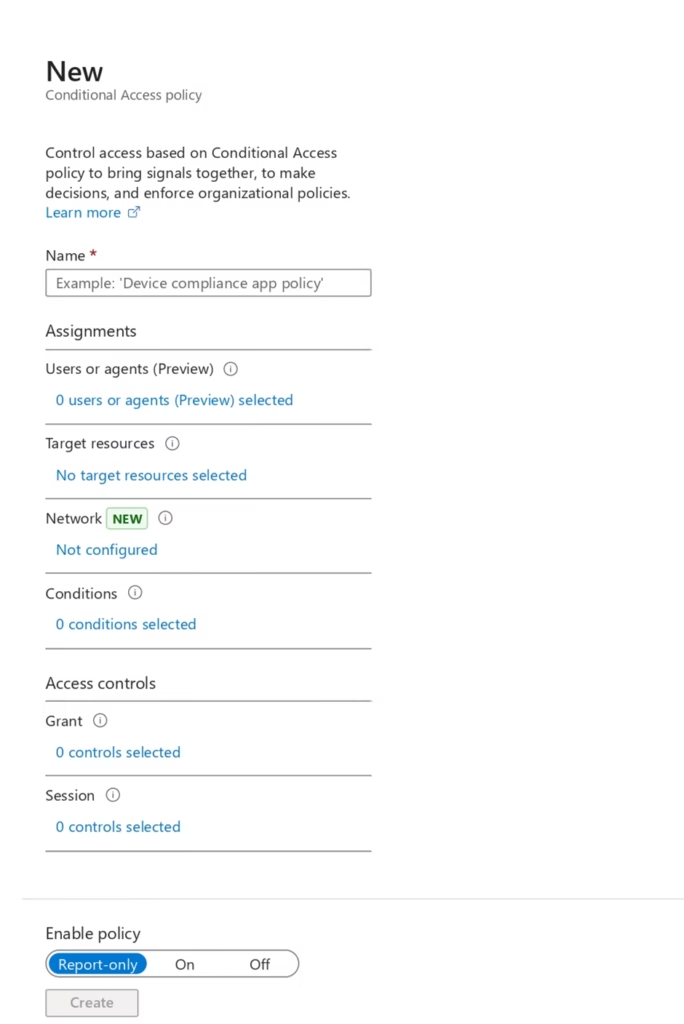
Key Components of a Conditional Access Policy
Every Conditional Access policy contains three main parts.
Assignments (Who & What)
Assignments define:
- Users or groups
- Cloud apps or actions
- Conditions (location, device, risk)
Conditions (When)
Conditions include:
- Sign-in risk
- User risk
- Device platform
- Location
- Client app type
Conditions make policies intelligent.
Access Controls (How)
Access controls define what happens.
Grant Controls:
- Require MFA
- Require compliant device
- Require hybrid Azure AD joined device
- Require approved client app
Block Controls:
- Block access completely
Common Conditional Access Scenarios
Here are real-world examples often referenced in MS-102.
Scenario 1: Require MFA for Admin Accounts
Policy:
- Users → Admin group
- App → All cloud apps
- Grant → Require MFA
This protects privileged accounts.
Scenario 2: Block Access from High-Risk Countries
Policy:
- Location → Named location (blocked countries)
- Grant → Block access
Scenario 3: Require Compliant Device for SharePoint
Policy:
- App → SharePoint Online
- Grant → Require compliant device
This protects sensitive data.
Scenario 4: Require MFA for External Access
Policy:
- Condition → Location (outside corporate IP range)
- Grant → Require MFA
Step-by-Step: Creating a Conditional Access Policy (Example: Enforce MFA for All Users)
Let’s walk through it.
Follow these steps:
- Go to https://entra.microsoft.com
- Navigate to:
Entra ID → Conditional Access - Click + Create new policy
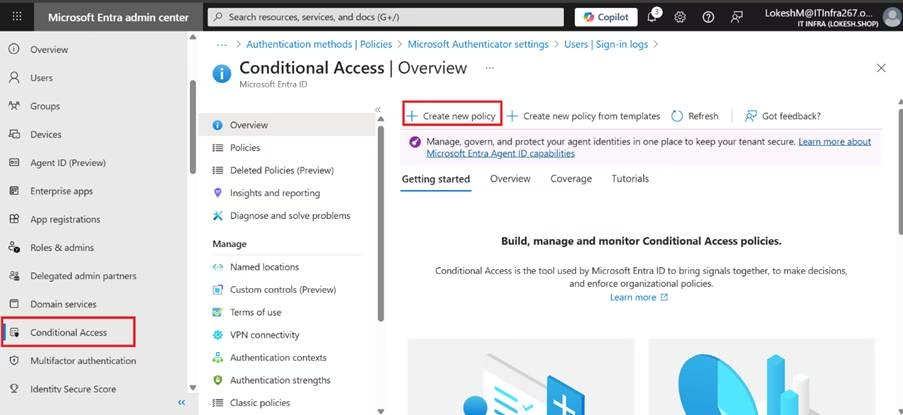
- Open Conditional Access
- Click New policy
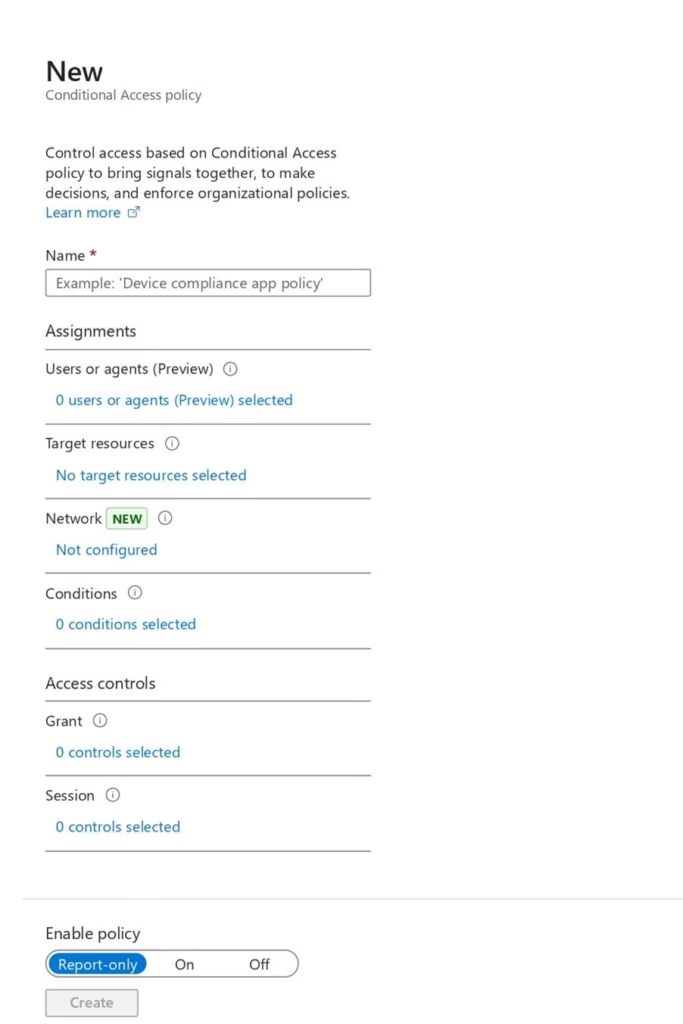
- Enter a policy name
- Under Users, select:
- Include: All users
- Exclude: Break-glass account
- Under Cloud apps, select:
- All cloud apps
- Under Grant controls, select:
- Require multi-factor authentication
- Set Enable policy to On
- Click Create
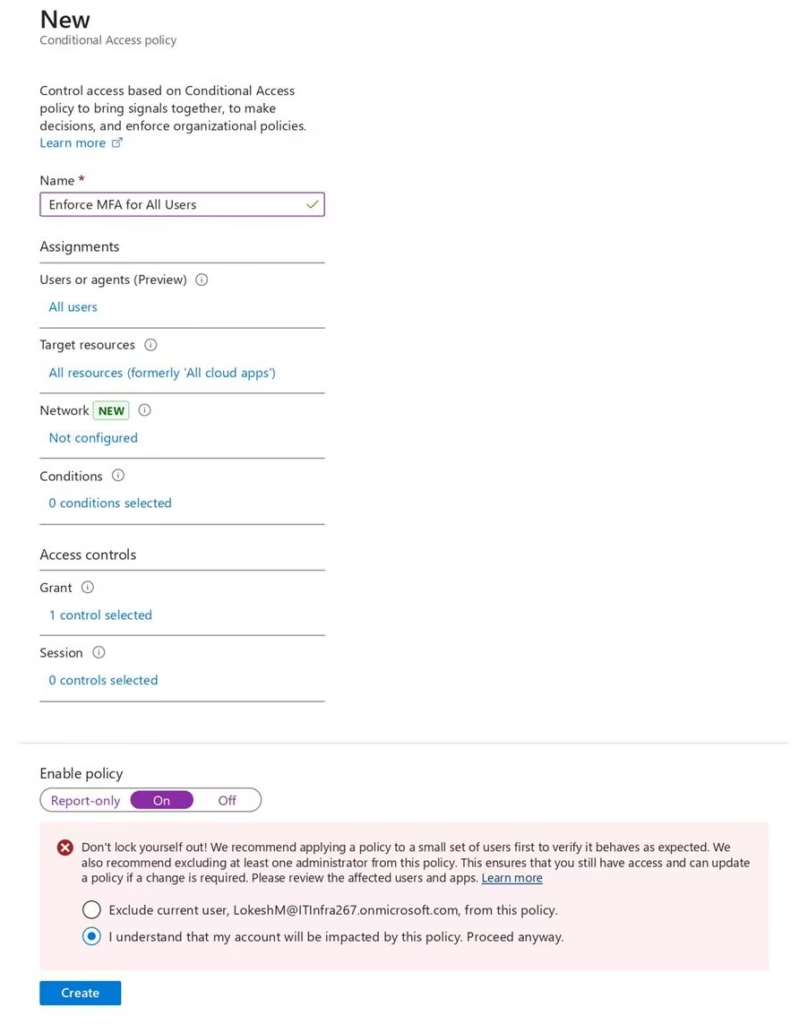
This ensures all users must use MFA when signing in.
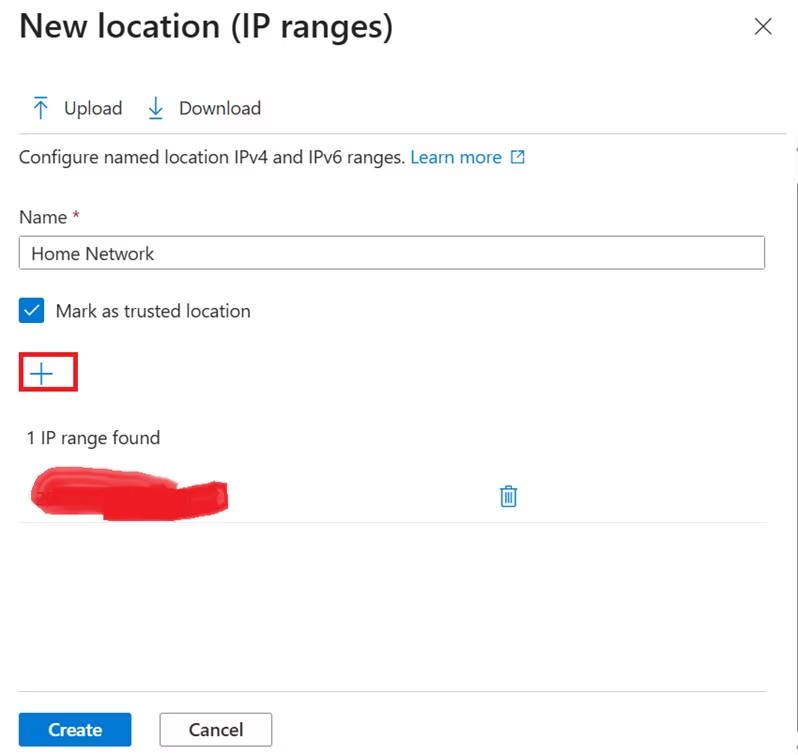
Named Locations
Named locations define trusted IP ranges.
Use cases:
- Office network
- VPN IP range
- Trusted countries
Admins can create policies such as:
- Allow login without MFA from office IP
- Require MFA for all other locations
Grant vs Block Controls
Understanding the difference is critical.
Grant Control
The user can access the resource after meeting the requirements.
Example:
Require MFA.
Block Control
Access is denied completely.
Block controls should be used carefully.
Device-Based Access
Conditional Access integrates with:

- Microsoft Intune
- Device compliance policies
You can require:
- Compliant device
- Hybrid joined device
This enforces endpoint security.
Conditional Access Best Practices
Always Exclude Emergency Access Accounts
Never lock yourself out.
Use Report-Only Mode First
Test policy impact before enforcing.
Use Group-Based Assignment
Avoid targeting individual users directly.
Start with High-Risk Policies
Protect admins first.
Combine with Identity Protection
Conditional Access becomes more powerful when risk signals are used.
Why Conditional Access Matters for MS-102
MS-102 tests your ability to:
- Design Conditional Access strategies
- Select appropriate grant controls
- Understand risk-based policies
- Troubleshoot access issues
- Apply least privilege principles
Conditional Access in Microsoft Entra ID connects identity management with active security enforcement.
Final Insights
Conditional Access in Microsoft Entra ID represents modern Zero Trust security in action.
Instead of assuming trust based on network location, it evaluates identity, device, location, and risk in real time.
When implemented correctly, Conditional Access:
- Reduces attack surface
- Protects privileged accounts
- Secures sensitive workloads
- Enables secure remote work
For the MS-102 Microsoft 365 Administrator exam, mastering Conditional Access means understanding how identity becomes policy-driven and risk-aware.
If you’re new to this learning series, start with the main MS-102 Microsoft 365 Administrator overview, where we explain how all chapters connect and what skills you’ll build across the journey.
For the most accurate and up-to-date exam objectives and reference material, Microsoft maintains the official MS-102 documentation on Microsoft Learn. This series complements those resources by focusing on real-world administrative understanding.
Next, we will move into: Microsoft Entra Identity Protection & Risk-Based Access
That is where Conditional Access becomes intelligence-driven.