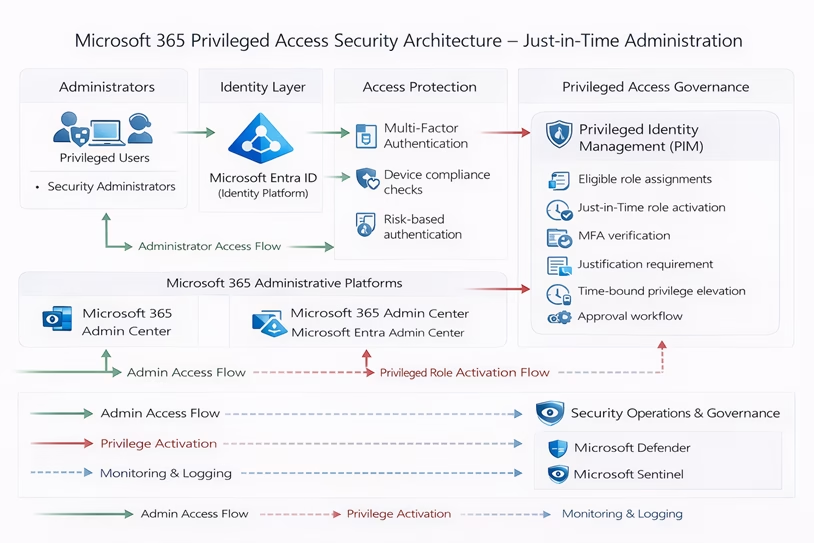
Privileged accounts are the most powerful identities inside a Microsoft 365 tenant. If a privileged account, such as a Global Administrator, is compromised, attackers can gain full control of the entire organization.
Many environments still rely on permanently assigned administrative roles, which significantly increases the attack surface.
A compromised administrator credential can lead to complete tenant takeover, data exfiltration, identity compromise, and privilege escalation across services.
To address this risk, Microsoft provides privileged identity management through Privileged Identity Management (PIM) in Microsoft Entra ID. PIM enables Just-In-Time access for privileged identity management, where administrative roles are activated only when required and only for a limited time.
This guide explains how to secure privileged access using PIM with a practical step-by-step implementation.
This guide explains how to secure privileged identity management access using PIM with a practical step-by-step implementation.
The Security Problem: Permanent Administrator Roles
In many organizations, administrator roles are permanently assigned without proper controls.
Common issues include permanently assigned Global Administrators, lack of MFA enforcement, and no monitoring of privilege elevation.
This creates a high-risk scenario where a single compromised account can result in full tenant compromise.
Attackers specifically target administrator accounts because they provide unrestricted access to resources.
The solution is to adopt a least-privilege model combined with Just-In-Time administration.
Security Objective: Just-In-Time Access (JIT)
The goal of implementing PIM is to remove permanent administrative privileges and enforce controlled access.
Key objectives include removing permanent admin roles, enforcing MFA before role activation, limiting access duration, and maintaining full audit visibility.
Architecture Overview
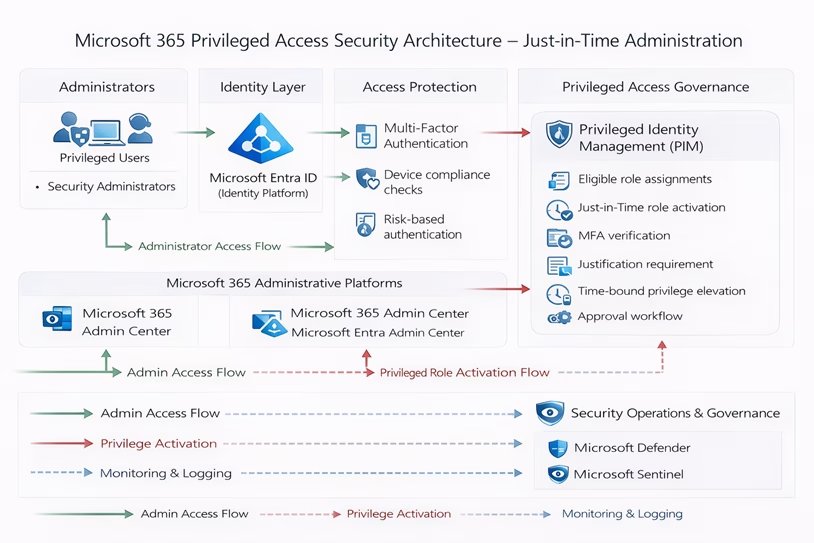
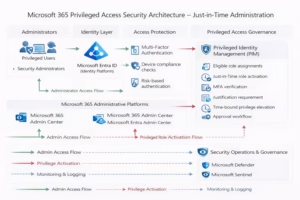
The architecture implements a secure administrative access model using Microsoft Entra ID. Administrators authenticate through Conditional Access and Multi-Factor Authentication before requesting temporary privileged access through Privileged Identity Management. All privileged actions are monitored through audit and sign-in logs to ensure traceability and security visibility.
Implementation Guide
Step 1: Open Privileged Identity Management
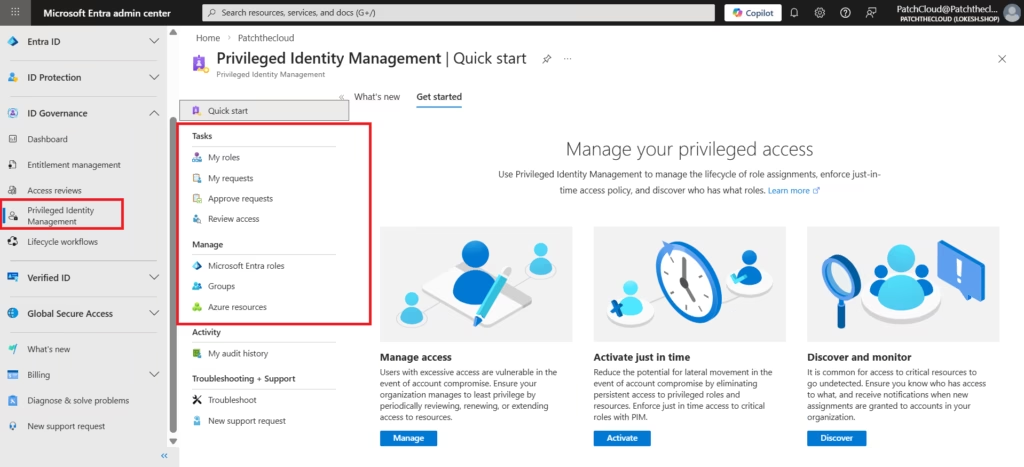
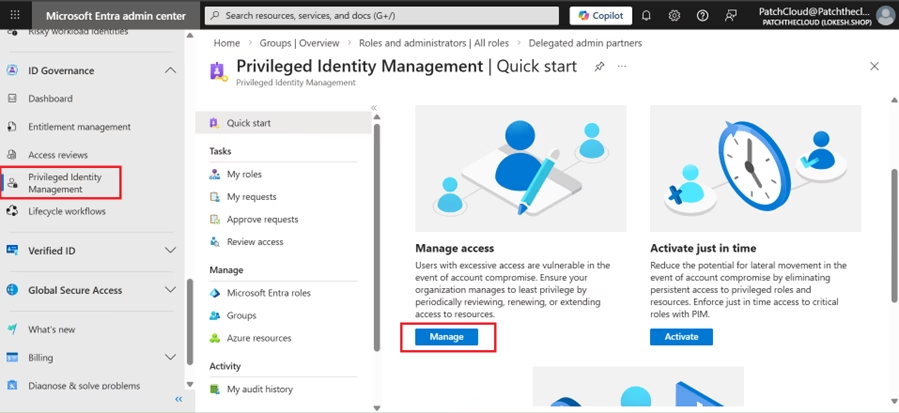
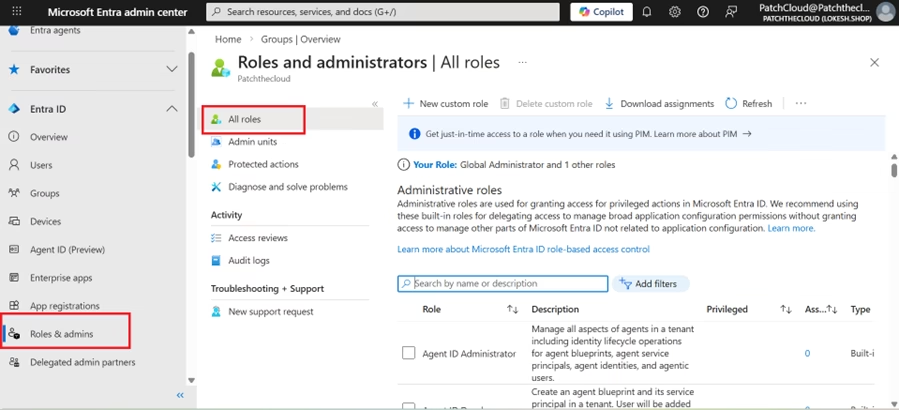
Go to Microsoft Entra Admin Center, then navigate to Identity Governance and select Privileged Identity Management.
From the dashboard, click Manage under the Manage access section.
Step 2: Enable Privileged Identity Management (PIM)
In the PIM dashboard, navigate to Azure AD Roles > Roles. Here is where the “Least Privilege” magic happens:
- Assignment Type: Always choose Eligible (not Active).
- Maximum Duration: Set this to 8 hours or less for the MS-102 standard.
- Require MFA: Ensure “Require Multi-Factor Authentication on activation” is checked.
- Approval: For high-value roles like Global Administrator, require a second person to approve the request.
- Entra ID Admin Center → ID Governance → Privileged Identity Management
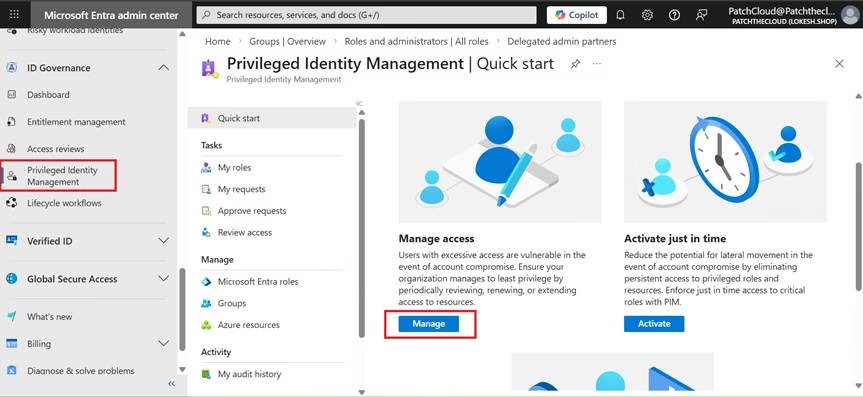
- Goto Roles and then Add Assignments
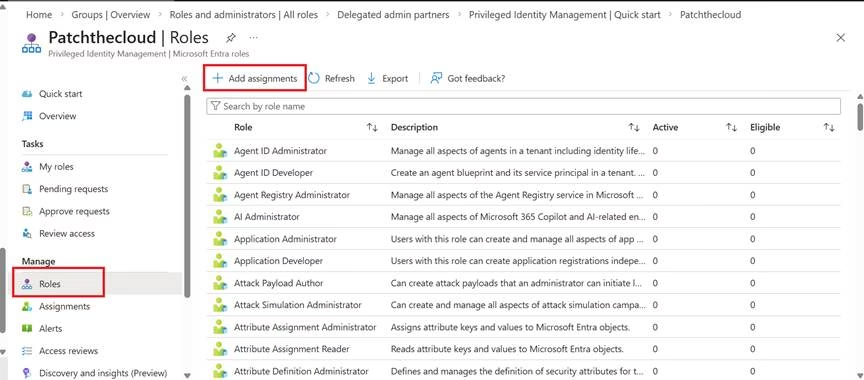
- Make admin roles Eligible, not permanent
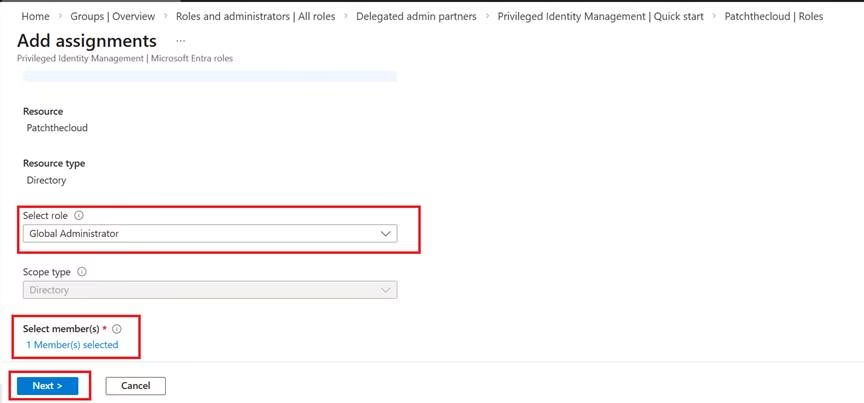
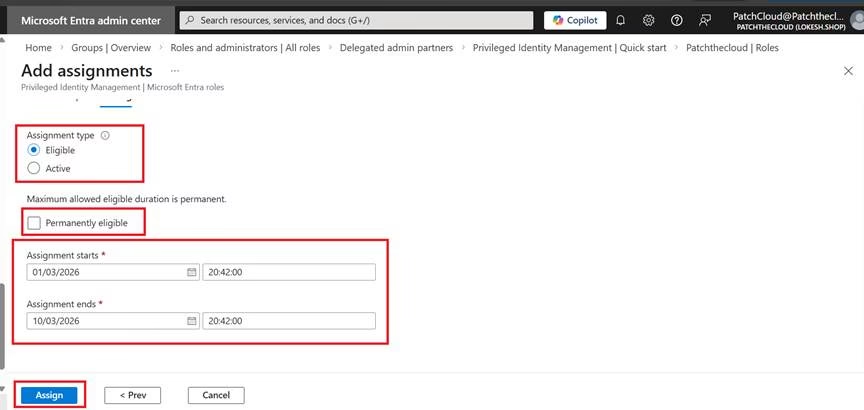
- Configure:
- Entra ID Admin Center → ID Governance → Privileged Identity Management
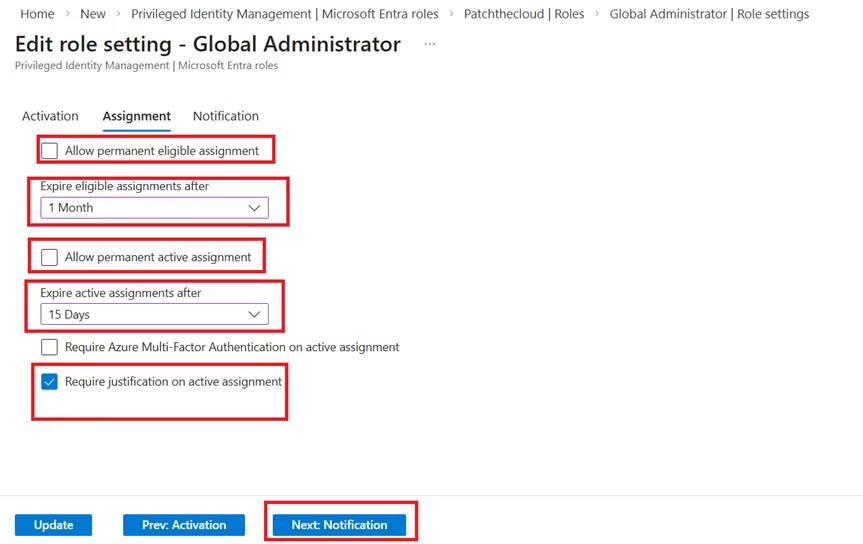
- Goto Roles à Global Administrator à Role Settings
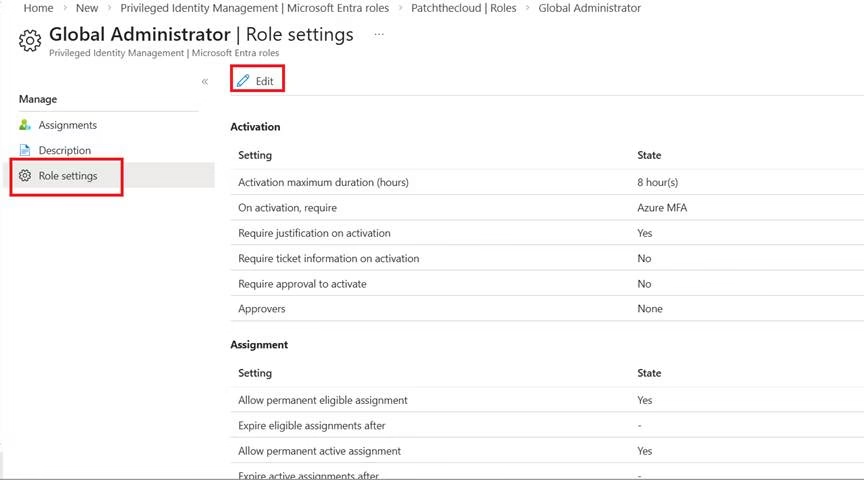
- MFA required
- Time-bound access
- Approval (If required)
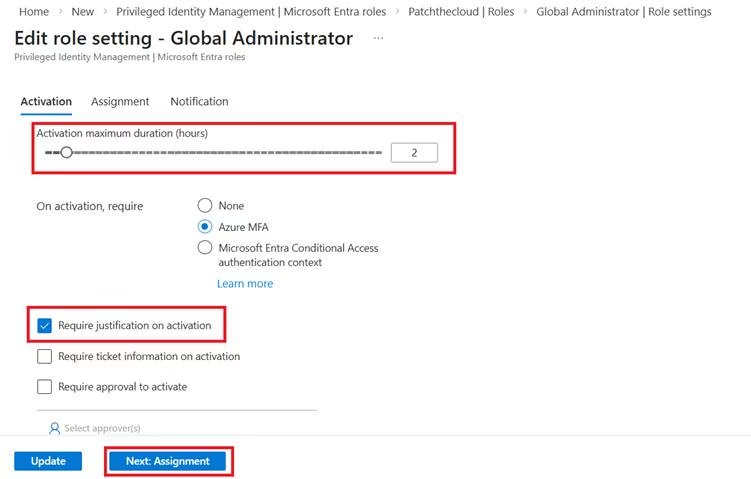
- Disable permanent eligibility & disable permanent active assignment
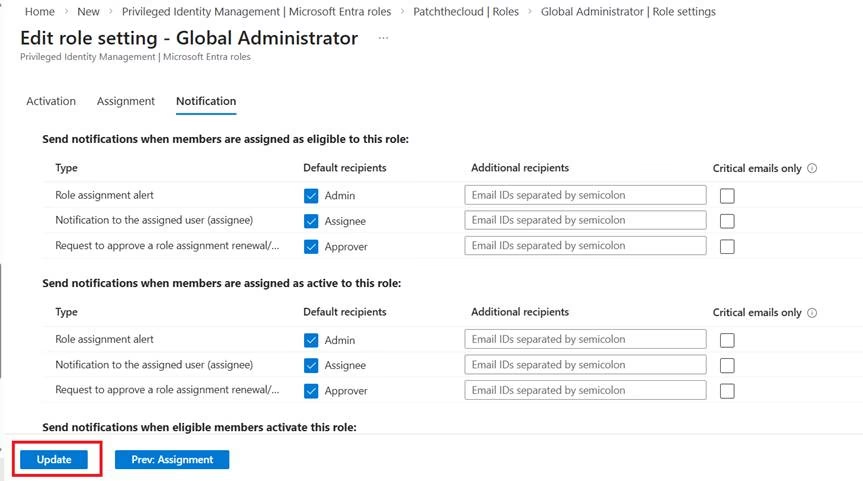
- Update Notifications
Enforcing MFA Using Conditional Access
Privileged access should always be protected with strong authentication.
Create a Conditional Access policy in Microsoft Entra Admin Center.
Assign the policy to all users while excluding a break-glass emergency account.
Select all cloud applications and configure the policy to require Multi-Factor Authentication.
Start with report-only mode to test the impact, then enable the policy once validation is complete.
Security Outcome
After implementing this configuration, administrative access becomes controlled and secure.
Permanent admin roles are removed. Access requires MFA and must be activated when needed. Privileges are time-limited, and all actions are logged for auditing.
This significantly reduces the risk of unauthorized access.
Best Practices
All privileged roles should be assigned as eligible instead of active.
MFA must always be required during role activation.
Access duration should be limited to the minimum necessary time.

A break-glass account should be maintained for emergency access and monitored closely.
Audit logs should be reviewed regularly to detect suspicious activity.
MS-102 Exam Relevance
Privileged Identity Management is a core topic in the MS-102 Microsoft 365 Administrator certification.
You should understand how Just-In-Time access works, how to configure role assignments, and how Conditional Access integrates with identity security.
💡 MS-102 Exam Trap: PIM vs. Conditional Access
A common exam question asks how to enforce MFA for PIM. The Trap: PIM has its own “Role Settings” where you check a box to require MFA. However, for overall tenant security, you should still have a Conditional Access policy.
- PIM MFA: Triggered when the user clicks “Activate.”
- Conditional Access MFA: Triggered when the user first signs into the portal. Key Tip: For MS-102, remember that PIM requires Microsoft Entra ID P2 licensing!
Final Insights
Privileged accounts are a major security risk in modern cloud environments.
Organizations that rely on permanent administrator roles expose themselves to identity-based attacks.
By implementing Privileged Identity Management in Microsoft Entra ID, organizations can enforce Just-In-Time access, require strong authentication, and maintain full visibility of privileged actions.
This approach improves both security and operational control.
If you’re new to this learning series, start with the main MS-102 Microsoft 365 Administrator overview, where we explain how all chapters connect and what skills you’ll build across the journey.
For the most accurate and up-to-date exam objectives and reference material, Microsoft maintains the official MS-102 documentation on Microsoft Learn. This series complements those resources by focusing on real-world administrative understanding.
1 thought on “Securing Privileged Identity Management in Microsoft 365 Using PIM (Step-by-Step Guide)”