Why This Step Matters
Explore Microsoft 365 Admin Center to become familiar with the primary workspace used by Microsoft 365 administrators for tenant-level management and daily tasks.
This step helps you explore Microsoft 365 Admin Center without making changes, allowing you to understand where administrative tasks are performed.
Before creating users, assigning licenses, or configuring security, you need to feel comfortable moving around the Microsoft 365 Admin Center. This is the primary workspace where Microsoft 365 administrators spend most of their time.
In this chapter, we will explore the Admin Center not configure anything. The goal is simple:
By the end of this post, you should know where things live and what each section is used for.
This foundational familiarity is essential for both real-world administration and the MS-102 Microsoft 365 Administrator exam.
What Is the Microsoft 365 Admin Center?
The Microsoft 365 Admin Center is the central management portal for your tenant. It acts as the main entry point for managing:
- Users and groups
- Licenses and subscriptions
- Tenant-wide settings
- Service health and messages
- Access to other admin centers
Think of it as the control room for Microsoft 365. While individual services like Exchange or Teams have their own admin portals, almost every administrative task starts here.
You can access it at:
https://admin.microsoft.com
Make sure you are signed in using your Global Administrator account created during tenant setup.
First Look: The Home Dashboard
When you log in, you land on the Home page of the Admin Center. This dashboard gives you a high-level snapshot of your tenant’s current state.
As a new admin, you should take a few minutes to simply observe what appears here.
Typically, the Home dashboard includes:
- Tenant status information
- Set up or configuration recommendations
- Notifications and alerts
- Quick links to common admin tasks
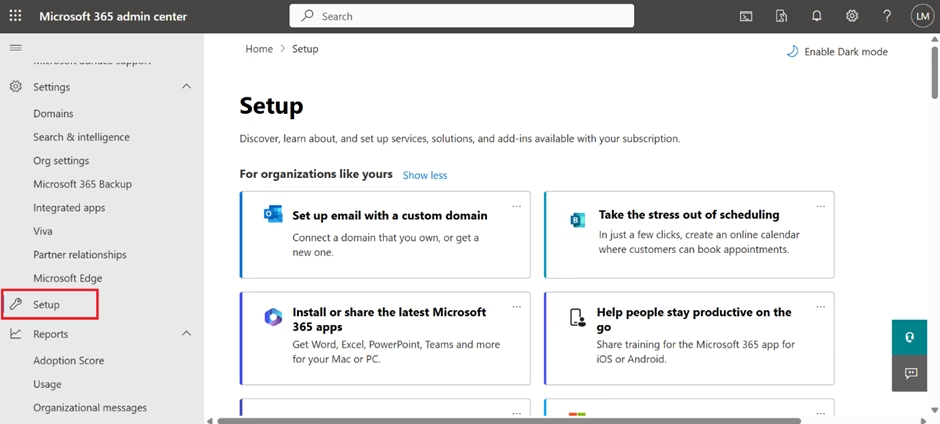
You are not expected to act on everything you see here yet. At this stage, the goal is awareness, understanding that this dashboard surfaces important information about your tenant over time.
Understanding the Left Navigation Menu
The left-hand navigation menu is where most admins spend their time. This menu provides access to different areas of tenant management.
At a high level, you will see sections such as:
- Users
- Teams & groups
- Billing
- Health
- Settings
- Admin centers
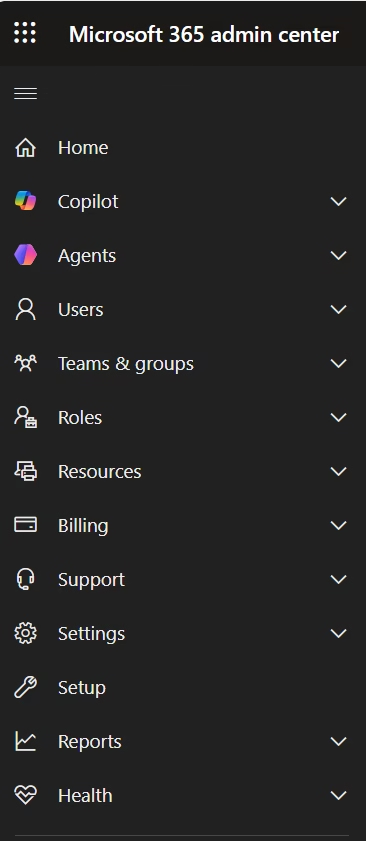
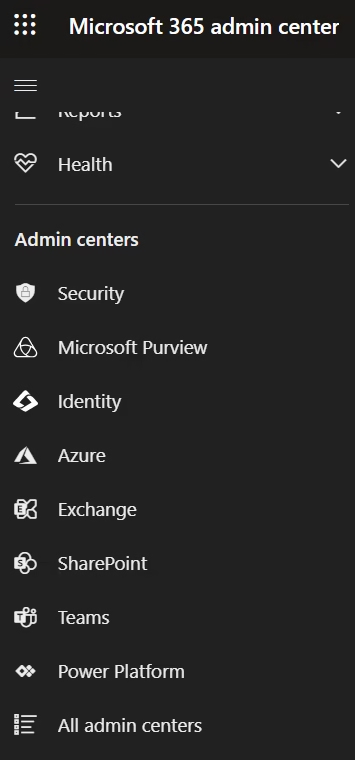
You do not need to open everything right now. Simply expanding and collapsing sections helps you build a mental map of the portal.
This familiarity will make later labs much easier.
Exploring the Users Section
Click on Users in the left navigation.
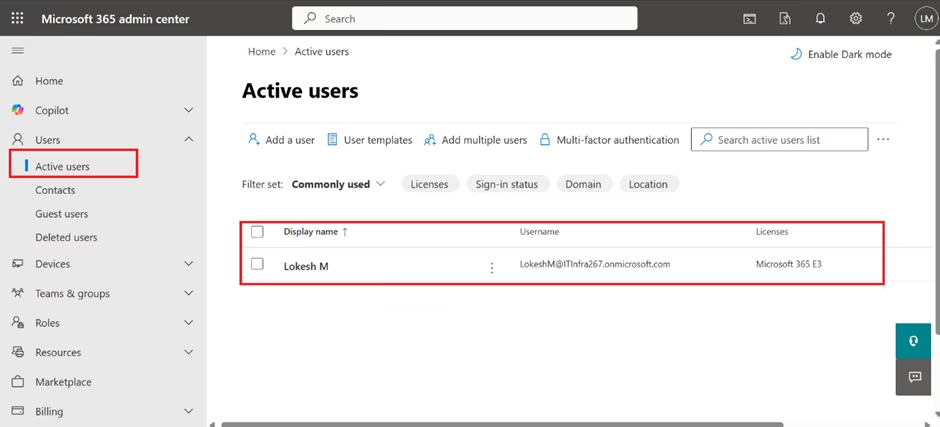
At this stage, do not create or modify anything. Just observe:
- Where user accounts are listed
- That admin accounts and regular users appear together
- That user status, licenses, and roles are visible at a glance
This section is where most day-to-day identity tasks begin. In upcoming chapters, you will return here to manage users in detail. For now, the goal is simply to know where user management happens.
Exploring Teams & Groups
Next, expand Teams & groups.
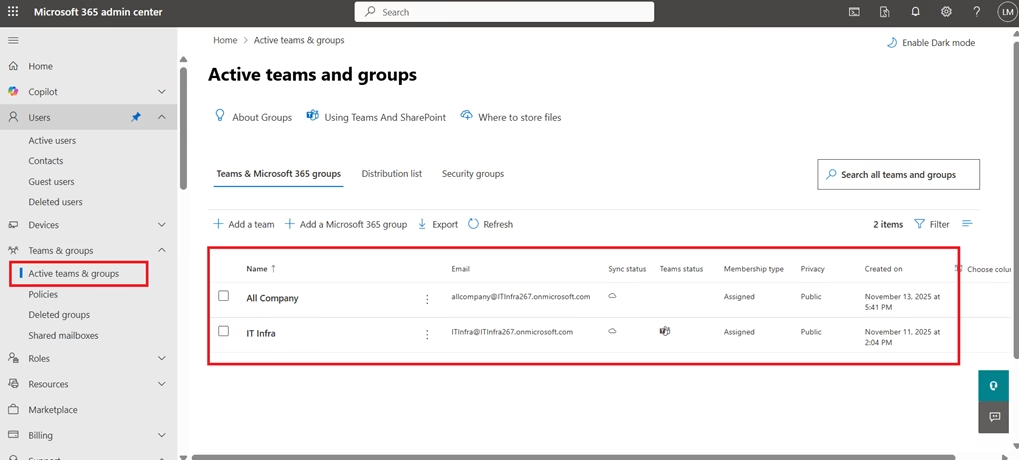
You will notice options related to:
- Microsoft 365 groups
- Security groups
- Distribution lists
Groups play a critical role in access control, collaboration, and licensing. At this stage, you are only observing that:
- Group management exists at the tenant level
- Multiple group types are supported
- Groups are managed centrally from the Admin Center
Detailed group concepts and usage will be covered in later chapters.
Exploring Billing
Click on Billing, then look at your products if available.
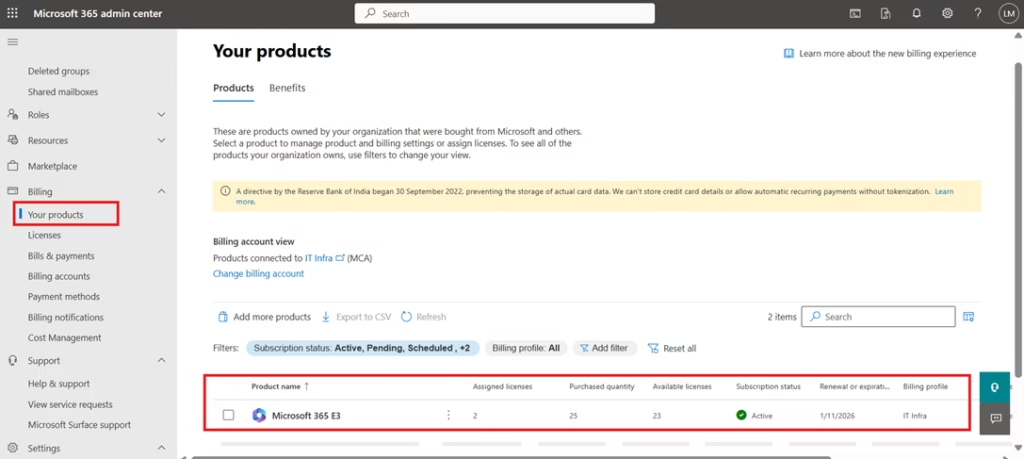
Here, you can see:
- Active subscriptions (such as the Microsoft 365 E3 trial)
- License counts
- Subscription status
This section reinforces an important concept introduced earlier:
Subscriptions are attached to the tenant, and licenses are managed centrally.
Do not change any billing settings at this stage. This is purely an exploration step.
Exploring Health
The Health section provides visibility into Microsoft service status and communications.
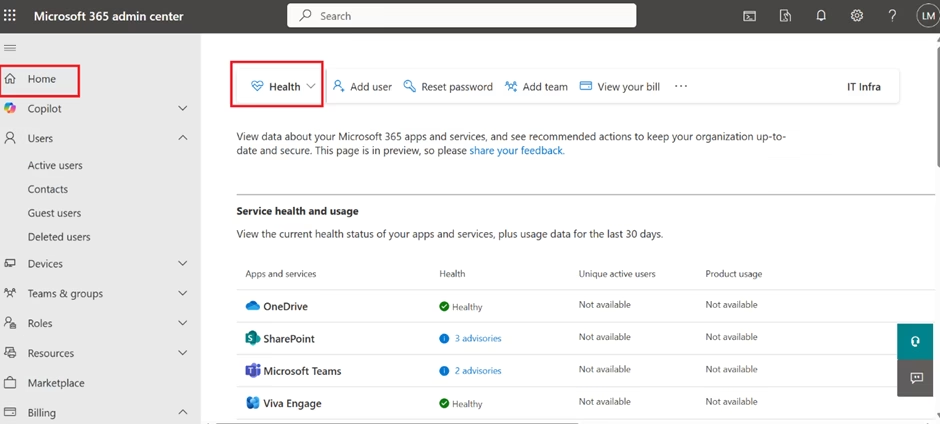
Here, you may find:
- Service health updates
- Planned maintenance notices
- Messages from Microsoft about changes or recommendations
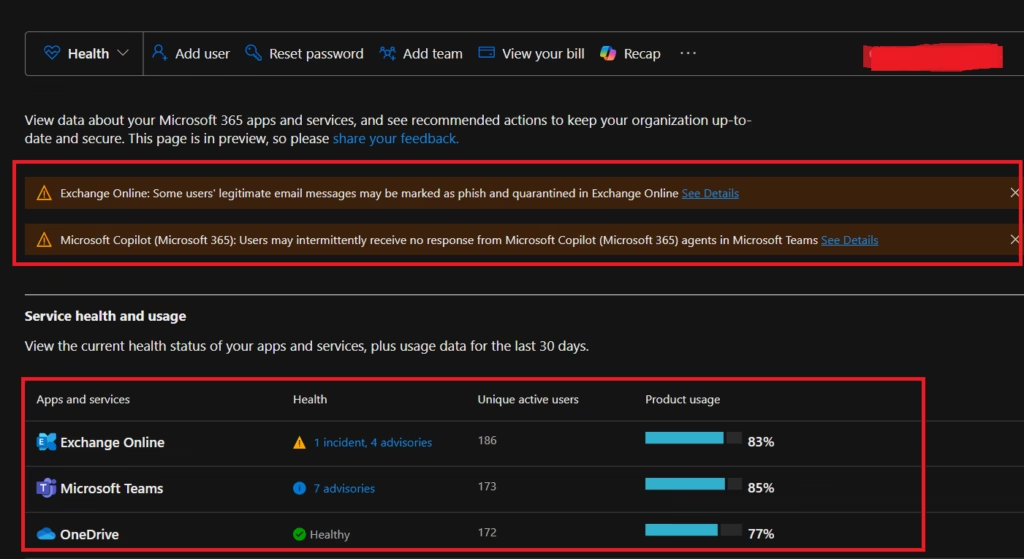
Even in small tenants, this area becomes important over time. Many organisations rely on it to understand service disruptions or upcoming changes.
For now, note where it is and what kind of information appears here.

Admin Centers Launcher
One of the most important areas in the Admin Center is Admin centers.
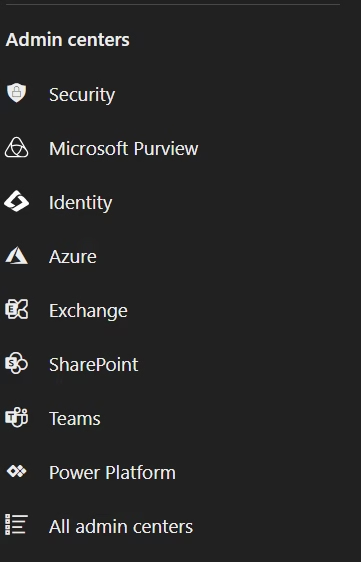
This section provides links to workload-specific portals, such as:
- Exchange admin center
- SharePoint admin center
- Teams admin center
- Entra ID admin center
You do not need to open these portals yet. Just understand that:
- The Microsoft 365 Admin Center is the starting point
- Each major service has its own dedicated admin experience
- Advanced configuration usually happens in these service-specific portals
This distinction is critical for MS-102 exam scenarios.
What You Should Not Change Yet
At this stage of the learning series, avoid making changes to:
- Security defaults
- Identity protection settings
- Conditional Access policies
- Tenant-wide security configurations
These settings affect the entire tenant and are covered later in a structured way. Exploring first helps you avoid mistakes and build confidence.
Why This Exploration Matters for MS-102
The MS-102 Microsoft 365 Administrator exam often assumes that you:
- Recognise which portal is used for which task
- Understand tenant-level vs service-level administration
- Can navigate administrative tools confidently
This chapter helps you build that foundation without pressure to configure anything yet.
Summary
In this chapter, you explored the Microsoft 365 Admin Center and:
- Accessed the central management portal for your tenant
- Observed the Home dashboard and navigation structure
- Identified where users, groups, billing, and health are managed
- Learned how to access other Microsoft 365 admin centers
- Learned how to explore the Microsoft 365 Admin Center and identify key administrative areas
This orientation step is essential before performing real administrative tasks.
Understanding the Microsoft 365 tenant is the first step toward thinking like a real administrator, not just a feature-level operator. Every identity decision, security policy, and workload configuration in Microsoft 365 starts at the tenant level.
If you’re new to this learning series, start with the main MS-102 Microsoft 365 Administrator overview, where we explain how all chapters connect and what skills you’ll build across the journey.
For the most accurate and up-to-date exam objectives and reference material, Microsoft maintains the official MS-102 documentation on Microsoft Learn. This series complements those resources by focusing on real-world administrative understanding.
What’s Next
Now that you are comfortable navigating the Microsoft 365 Admin Center, it’s time to start working with users.
In the next chapter, we’ll explore user accounts in more detail, looking at admin accounts, sign-in status, license assignments, and MFA indicators, building directly on what you’ve seen here.