Why User Exploration Comes Next
After setting up your Microsoft 365 tenant and becoming familiar with the Admin Center, the next logical step is to Explore users in Microsoft 365 Admin Center.
Users are at the center of everything in Microsoft 365 identity, access, licensing, security, and collaboration. Before you start creating or modifying accounts, it’s important to understand what information is visible, where it appears, and what it represents.
In this chapter, we will explore the Users section in the Microsoft 365 Admin Center without making changes. The goal is awareness and confidence, not configuration.
Accessing the Users Section
- Sign in to the Microsoft 365 Admin Center:
https://admin.microsoft.com - From the left navigation, select Users
- Click Active users
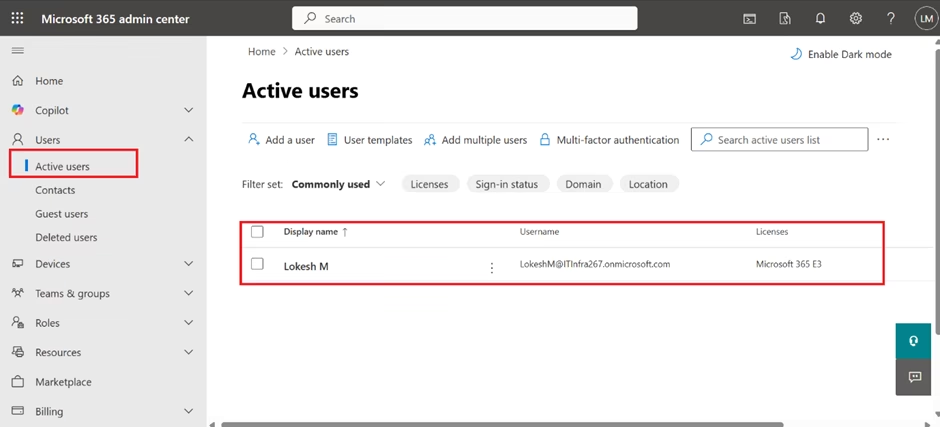
This page lists all user accounts that currently exist in your tenant.
Understanding the User List View
The Active users page provides a quick snapshot of your tenant’s identities.
As you scan the list, observe the following columns:
- Display name – the user’s friendly name
- Username – typically in the format
user@tenant.onmicrosoft.comor a custom domain - Status – whether the account is active or blocked
- Licenses – which subscriptions are assigned
- Admin roles – whether the user has elevated permissions
This single view answers many basic administrative questions at a glance and is heavily used in real environments.
The Admin Account (Global Administrator)
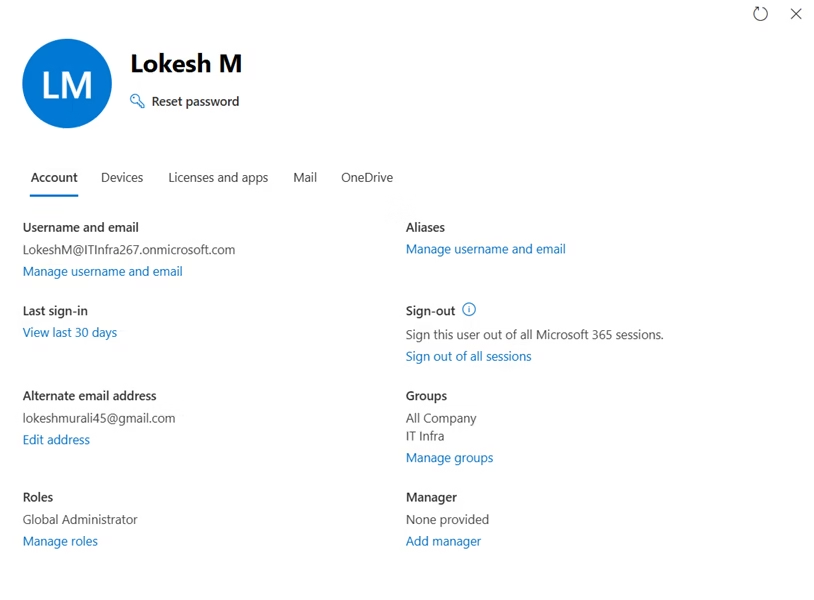
One of the users listed will be the Global Administrator account you created during tenant setup.
When you select this account, notice:
- It is marked as an admin
- It has elevated privileges across the tenant
- It typically has licenses assigned for administrative access
This account is the most powerful identity in your tenant. In real organisations, access to Global Administrator accounts is tightly controlled and closely monitored.
For now, the key takeaway is to recognise which account is the admin and how it appears in the user list.
Sign-In Status
Each user account has a sign-in status, which indicates whether the user can authenticate.
Common statuses include:
- Allowed – the user can sign in
- Blocked – the user is prevented from signing in
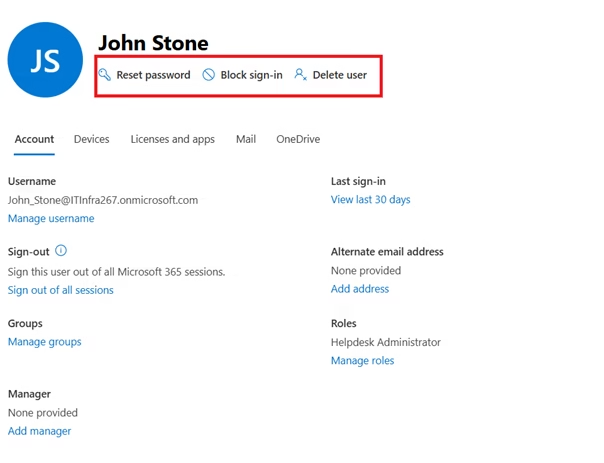
Even without changing anything, this column helps you understand how access can be enabled or restricted at the account level. This concept becomes important later when troubleshooting access issues.
License Assignments
The Licenses column shows whether a user has:
- One or more licenses assigned
- No licenses assigned
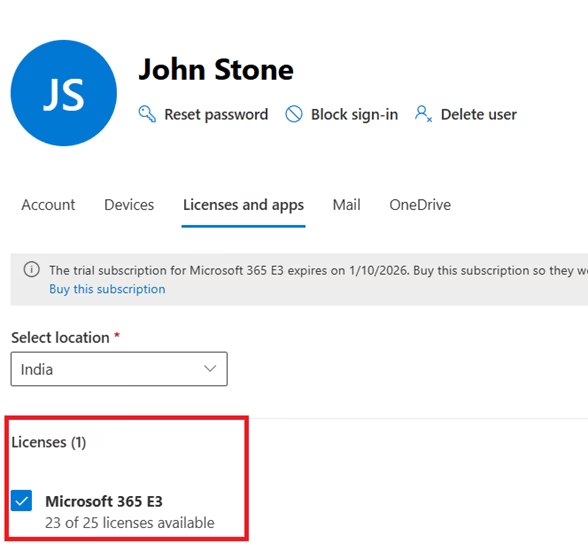
At this stage, do not focus on which licenses are applied. Instead, understand that:
- Licenses control access to Microsoft 365 services
- License assignment happens at the user level
- A user can exist without a license
Detailed license management is covered in a later chapter.
MFA Status Visibility
Depending on your tenant configuration, you may also see indicators related to multi-factor authentication (MFA).
This gives early exposure to an important idea:
- Authentication and security status are tied to user identities
- Security posture can often be reviewed directly from user-related views
You are not expected to configure MFA here—only to understand where such information is surfaced.
What You Can Learn Without Making Changes
By simply exploring the Users section, you begin to understand:
- How Microsoft 365 represents identities
- Where admin and standard users appear
- How access, licensing, and roles are surfaced
- Why identity is foundational to every other configuration
This exploration step reduces mistakes later when you begin creating and managing accounts.

Why This Matters for MS-102
The MS-102 Microsoft 365 Administrator exam frequently tests scenarios where you must:
- Identify the correct user account
- Understand admin vs non-admin roles
- Interpret sign-in or license status
- Choose the correct place to manage identity-related tasks
Being comfortable with the Users section gives you an advantage before you even start configuration labs.
Summary
In this chapter, you explored the Users section of the Microsoft 365 Admin Center and:
- Located active user accounts in the tenant
- Identified the Global Administrator account
- Reviewed sign-in status and license indicators
- Built familiarity with how identities are presented in Microsoft 365
This foundational understanding prepares you for hands-on identity management.
Final Thoughts
Understanding the Microsoft 365 tenant is the first step toward thinking like a real administrator, not just a feature-level operator. Every identity decision, security policy, and workload configuration in Microsoft 365 begins at the tenant level, making this foundation critical for effective administration and MS-102 readiness.
If you’re new to this learning series, start with the main MS-102 Microsoft 365 Administrator overview, where we explain how all chapters connect and what skills you’ll build across the journey.
For the most accurate and up-to-date exam objectives and reference material, Microsoft maintains the official MS-102 documentation on Microsoft Learn. This series complements those resources by focusing on real-world administrative understanding.
What’s Next
Now that you understand how users appear in the Microsoft 365 Admin Center, the next step is to explore groups.
In the next chapter, we’ll look at Microsoft 365 groups, security groups, and distribution lists—understanding their purpose, differences, and why they are essential for access control and administration.