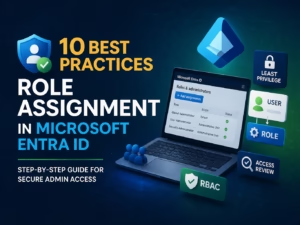
Microsoft 365 Admin Roles define who can manage what inside your tenant. Without proper role assignment, your environment either becomes insecure (too many Global Admins) or inefficient (admins unable to perform tasks).
For the MS-102 Microsoft 365 Administrator exam, understanding admin roles is critical. But in real-world environments, it is even more important. Role-based access control (RBAC) protects your tenant from misconfiguration, privilege abuse, and security risk.
In this guide, you’ll learn:
- What admin roles are
- Where to assign them
- Key admin roles you must know
- Role categories in Microsoft 365
- How to assign roles step-by-step
- Best practices aligned with MS-102
Why Microsoft 365 Admin Roles Matter for MS-102?
Admin roles are permission sets assigned to users that allow them to manage specific services.
Instead of giving every administrator full control, Microsoft uses Role-Based Access Control (RBAC).
RBAC ensures:
- Least privilege access
- Segmentation of duties
- Reduced security risk
- Clear administrative boundaries
Example:
- A Helpdesk admin should reset passwords
- A Teams admin should manage meeting policies
- A Security admin should configure Defender
Not everyone needs to be a Global Administrator.
Where to Assign Microsoft 365 Admin Roles
Admin roles can be assigned from two main locations:
Microsoft 365 Admin Center
Users → Active Users → Select User → Manage Roles
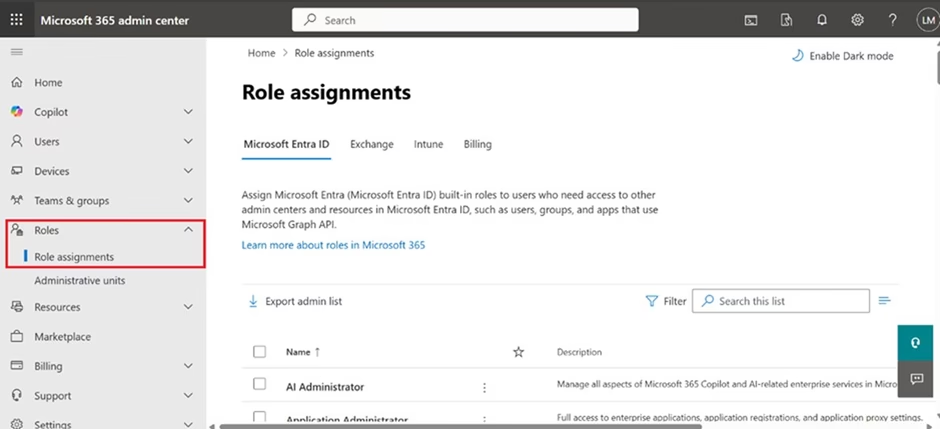
Microsoft Entra Admin Center (Recommended)
Entra ID → Roles and Administrators
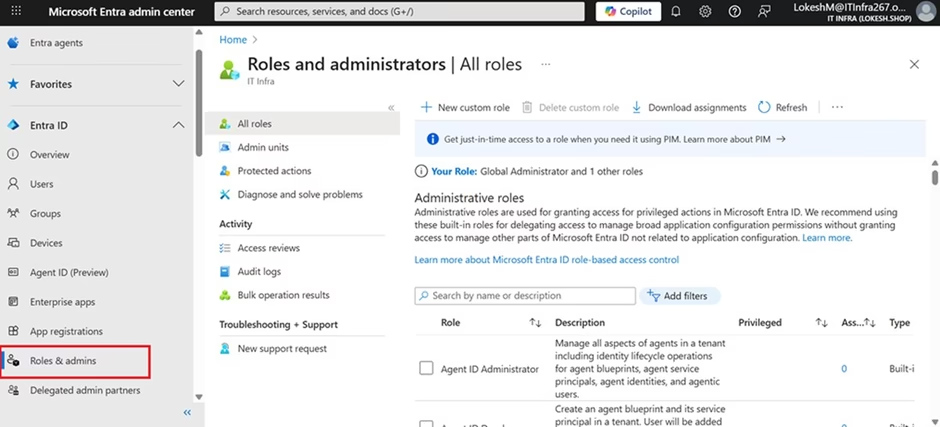
The Entra Admin Center provides more detailed control and visibility.
For MS-102, you must be comfortable navigating both.
Key Microsoft 365 Admin Roles You Must Know (MS-102 Focus)
Here are the most important roles tested and used in real environments.
Global Administrator
The highest privilege role.
Can:
- Manage all services
- Assign roles
- Configure security settings
- Manage billing
- Modify tenant settings
Best Practice:
Microsoft recommends maintaining only 2–4 Global Admin accounts.
Too many Global Admins = high risk.
User Administrator
Can:
- Create, update, delete users
- Reset passwords
- Manage group membership
Cannot:
- Assign Global Admin role
- Change tenant-wide settings
Exchange Administrator
Can:
- Manage mailboxes
- Configure mail flow rules
- Manage transport rules
- Perform message trace
Teams Administrator
Can:
- Configure Teams policies
- Manage meeting settings
- Control external access
SharePoint Administrator
Can:
- Manage site collections
- Configure sharing settings
- Control storage limits
Security Administrator
Can:
- Manage Microsoft Defender
- Configure security policies
- View risk reports
Compliance Administrator
Can:
- Manage retention policies
- Configure DLP
- Handle eDiscovery
These roles frequently appear in MS-102 scenario-based questions.
| Complete List of Microsoft 365 Admin Roles (40+ Roles) | |
| 1. Global & High-Privilege Roles | |
| Role | Purpose |
| Global Administrator | Complete control over all Microsoft 365 services |
| Privileged Role Administrator | Manage role assignments and PIM. |
| Security Administrator | Manage security-related features (Defender, Secure Score) |
| Compliance Administrator | Manage Purview, DLP, eDiscovery |
| Global Reader | Read-only access to everything |
| 2. User & Group Management Roles | |
| Role | Purpose |
| User Administrator | Manage users, passwords, and groups. |
| Groups Administrator | Create/manage Microsoft 365 & security groups |
| Helpdesk Administrator | Reset passwords, monitor service health. |
| Directory Readers | Read basic directory info. |
| Directory Writers | Write basic directory info. |
| 3. Exchange / Email Roles | |
| Role | Purpose |
| Exchange Administrator | Complete control of Exchange Online |
| Exchange Recipient Administrator | Manage mailboxes & recipients only. |
| Exchange Online Support Engineer | Troubleshoot Exchange settings |
| Email Migration Administrator | Manage mailbox moves & migrations. |
| Message Centre Privacy Reader | View private messages in Message Center. |
| 4. SharePoint & OneDrive Roles | |
| Role | Purpose |
| SharePoint Administrator | Manage SharePoint, sites, and OneDrive settings. |
| OneDrive Administrator | Manage OneDrive security & policies. |
| Search Administrator | Manage search schemas & settings. |
| 5. Teams & Collaboration Roles | |
| Role | Purpose |
| Teams Administrator | Manage Teams org-wide settings. |
| Teams Communications Administrator | Manage voice/calling settings. |
| Teams Communications Support Engineer | Troubleshoot Teams PSTN/calling |
| Teams Communications Support Specialist | Basic support for Teams calling |
| Teams Device Administrator | Manage Teams phone/room devices. |
| 6. Security & Identity Roles | |
| Role | Purpose |
| Security Operator | Investigate alerts |
| Security Reader | View security dashboards & reports. |
| Authentication Administrator | Manage MFA, SSPR, and auth methods. |
| Tenant Creator | Create tenants (rarely used) |
| Hybrid Identity Administrator | Manage AAD Connect, sync |
| Conditional Access Administrator | Manage CA policies |
| 7. Compliance, Governance & Purview Roles | |
| Role | Purpose |
| Compliance Data Administrator | Manage retention, DLP, and label policies. |
| Information Protection Administrator | Manage sensitivity labels |
| Information Protection Reader | Read-only access to labels |
| eDiscovery Manager | Conduct eDiscovery cases |
| eDiscovery Administrator | Oversee eDiscovery managers |
| Insider Risk Management Admin | Configure insider risk settings |
| Records Management Admin | Manage retention & disposition policies. |
| Audit Log Reader | Access unified audit logs |
| Compliance Data Reader | View compliance-related data |
| 8. Intune & Device Management Roles | |
| Role | Purpose |
| Intune Administrator | Full device management control |
| Device Administrator | Admin of Entra-joined devices |
| Cloud Device Administrator | Register, reset, and manage devices. |
| Mobile Device Administrator | Limited mobile device management |
| 9. Billing & Licensing Roles | |
| Role | Purpose |
| Billing Administrator | Manage billing & subscriptions. |
| License Administrator | Manage license assignments |
| Billing Reader | View billing details only. |
| 10. Service-Specific / Misc Roles | |
| Role | Purpose |
| Power BI Administrator | Manage Power BI settings & governance |
| PowerApps Administrator | Manage PowerApps environments |
| Dynamics 365 Administrator | Manage Dynamics settings |
| Kaizala Administrator | Manage Kaizala settings |
| Yammer Administrator | Manage Yammer networks |
| CRM Service Administrator | For CRM workload |
| Reports Reader | Access usage & analytics reports |
| Service Support Administrator | Open support tickets |
| Message Center Reader | View updates in Message Center |
| Privileged Authentication Admin | Reset MFA for privileged users. |
Role Categories in Microsoft 365
Admin roles fall into categories.
Identity Roles (Entra ID)
- Global Admin
- User Admin
- Privileged Role Admin
These manage identity and access.
Service-Specific Roles
- Exchange Admin
- Teams Admin
- SharePoint Admin
These manage individual workloads.
Security & Compliance Roles
- Security Admin
- Compliance Admin
- Information Protection Admin
These control security posture and governance.
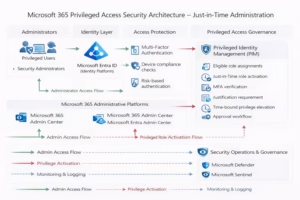
Privileged Roles
Used for high-level access control.
Often managed using:
- Privileged Identity Management (PIM)
- Just-in-time role activation
PIM is commonly referenced in MS-102.
Step-by-Step: How to Assign an Admin Role
Let’s walk through the process.
Step 1: Go to Microsoft Entra Admin Center
Navigate to: Go to https://admin.cloud.microsoft/
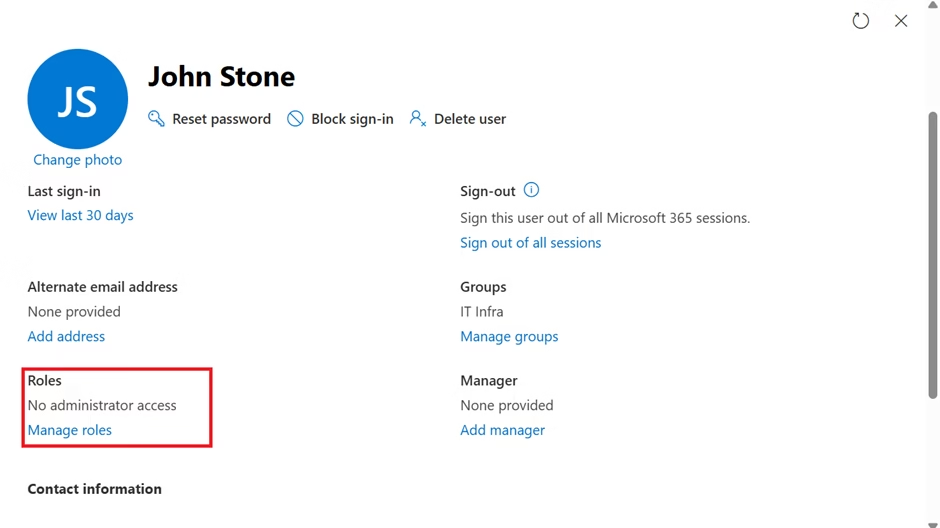
- Open Users → Active Users
- Double-click on the User whom you need to assign a role
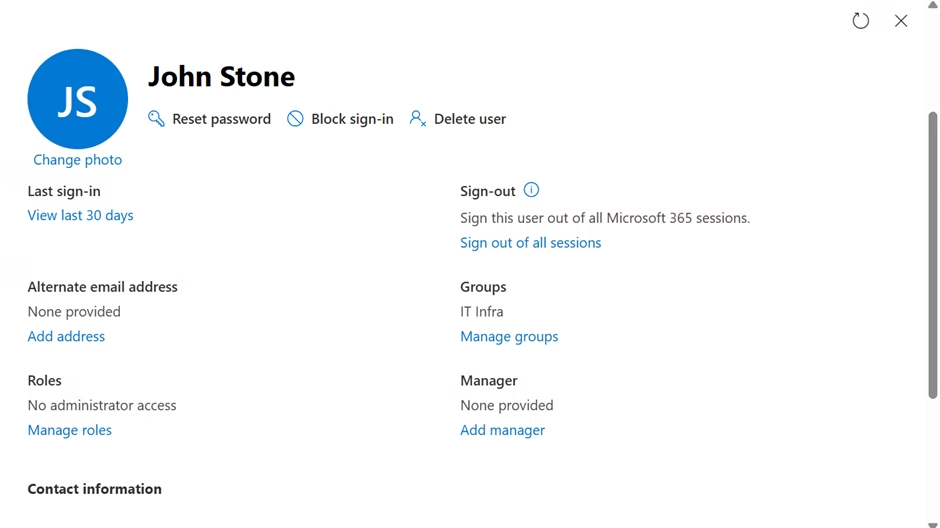
- Go to Roles
Step 2: Select the Role
Example:
Click “Helpdesk Administrator”
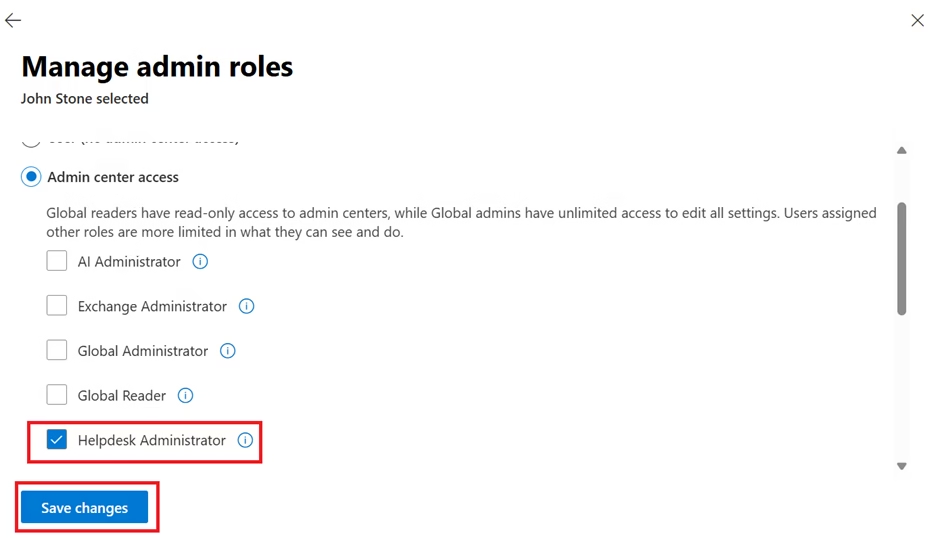
- Save changes
Best Practices for Admin Roles
Here are professional-level recommendations.
Apply Least Privilege Principle
Assign only the permissions required.
Avoid making everyone a Global Admin.
Limit Global Administrators
Keep 2–4 maximum.

Use dedicated admin accounts separate from daily accounts.
Use Privileged Identity Management (If Available)
PIM allows:
- Just-in-time access
- Approval workflows
- Time-bound assignments
This reduces permanent privilege exposure.
Separate Duties
Example:
- Licensing handled by one admin
- Security is handled by another
- Mail flow handled by Exchange admin
Segmentation reduces operational risk.
Why Admin Roles Matter for MS-102
MS-102 tests your understanding of:
- Delegation of administration
- Role assignment boundaries
- Least privilege application
- Security risk management
Scenario example:
A helpdesk employee needs to reset passwords but should not manage mail flow.
Correct solution:
Assign User Administrator role.
Understanding this distinction is crucial.
Final Insights
Microsoft 365 admin roles are not just permission labels — they define governance inside your tenant.
When roles are assigned correctly:
- Security risk decreases
- Accountability improves
- Operational efficiency increases
- Tenant control becomes structured
For the MS-102 Microsoft 365 Administrator exam, role management represents the transition from configuration to governance.
Once you master admin roles, you begin thinking like a platform owner rather than a feature operator.
If you’re new to this learning series, start with the main MS-102 Microsoft 365 Administrator overview, where we explain how all chapters connect and what skills you’ll build across the journey.
For the most accurate and up-to-date exam objectives and reference material, Microsoft maintains the official MS-102 documentation on Microsoft Learn. This series complements those resources by focusing on real-world administrative understanding.
In the next chapter, we will explore Tenant Health Monitoring and Service Reports, where operational visibility meets administrative responsibility.
That’s where proactive administration begins.