Microsoft 365 Billing and Subscriptions are foundational to effective Microsoft 365 administration.
Before configuring security, assigning roles, or enabling advanced identity features, every Microsoft 365 administrator must understand one critical area: Billing and Subscriptions.
In real-world Microsoft 365 administration, many technical issues are not configuration problems — they are licensing problems.
Features don’t appear. Security controls are unavailable. Identity Protection isn’t enabled. Why?
Because licensing defines capability.
In this guide, we’ll explore the Billing → Your Products section inside the Microsoft 365 Admin Center and understand why it is foundational for the MS-102 Microsoft 365 Administrator exam and real-world tenant management.
Why Billing Knowledge Matters for Microsoft 365 Administration
Every Microsoft 365 tenant operates on subscriptions.
A subscription determines:
- What services are available
- What security features are included
- How many users can be licensed
- What advanced capabilities (Defender, Entra ID P2, Compliance features) are accessible
Without understanding licensing:
- You cannot properly assign access
- You cannot enable certain security policies
- You cannot troubleshoot feature limitations
- You cannot prepare correctly for the MS-102 exam scenarios
Licensing is not finance-only knowledge.
It is administrative control knowledge.
Where to Find Billing → Your Products
To explore subscriptions:
- Sign in to Microsoft 365 Admin Center
- Navigate to Billing
- Click Your Products
This section provides a complete overview of all subscriptions attached to your Microsoft 365 tenant.
This is the control center for understanding what your organization is actually licensed to use.
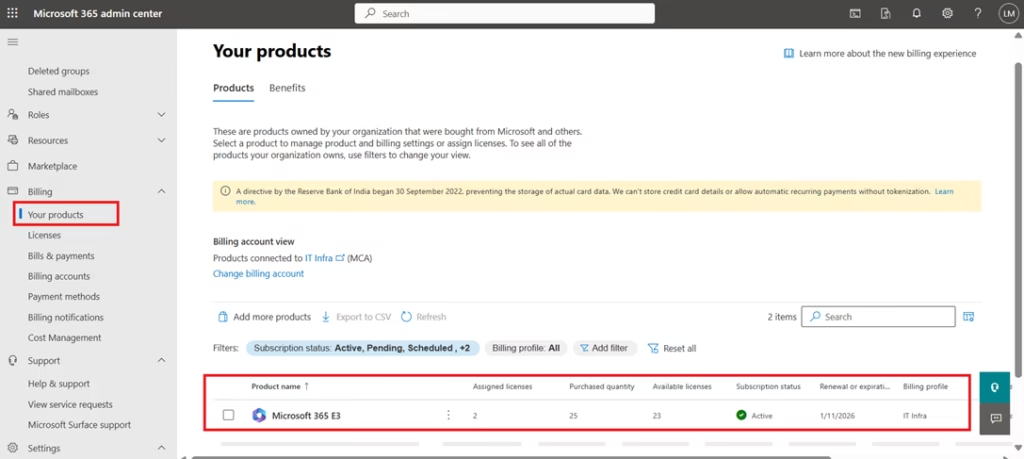
Active Subscriptions Overview
Inside Your Products, you will see:
- Subscription name (e.g., Microsoft 365 E3, Business Premium, E5 Trial)
- Subscription status (Active, Trial, Expired)
- Renewal date
- License quantity
- Auto-renew status
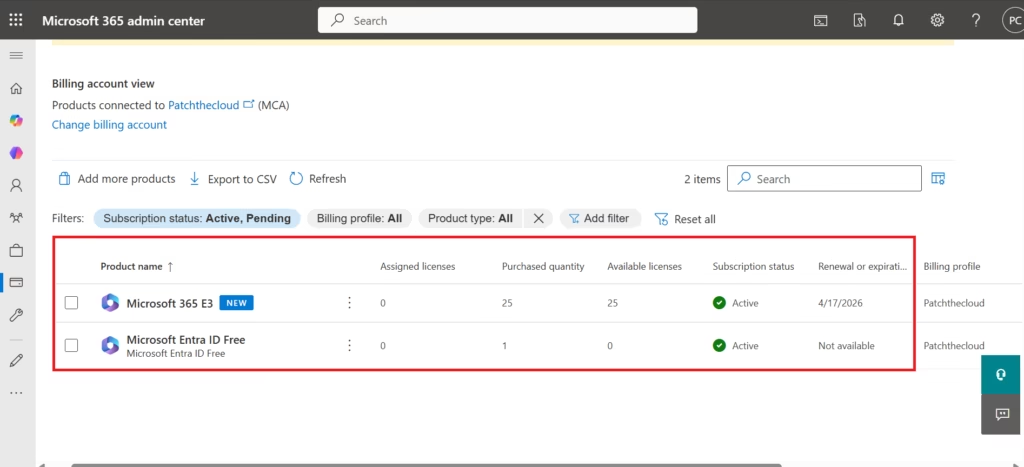
For example, if you created a trial tenant for MS-102 labs, you might see:
- Microsoft 365 E3 Trial
- Status: Active
- 25 licenses available
- Expiration date
Understanding subscription status is critical in real environments.
If a subscription expires:
- Users may lose access
- Services may stop functioning
- Security protections may degrade
Understanding Included Apps and Services
Each Microsoft 365 license includes multiple services, known as service plans.
For example, Microsoft 365 E3 typically includes:
- Exchange Online
- SharePoint Online
- OneDrive for Business
- Microsoft Teams
- Microsoft Entra ID (Azure AD) features
- Basic security and compliance capabilities
Higher-tier plans (like E5) may include:
- Microsoft Defender for Endpoint
- Defender for Office 365 Plan 2
- Insider Risk Management
- Advanced eDiscovery
- Entra ID P2 features
Why this matters:
Many MS-102 exam questions test whether a feature is available under a specific license level.
If a user cannot access a feature, the issue may not be configuration — it may be licensing.
Number of Licenses: Purchased vs Assigned
Inside the subscription details, you will see:
- Total licenses purchased
- Licenses assigned
- Licenses available
Example:
- Purchased: 25
- Assigned: 18
- Available: 7
This directly impacts user provisioning.
If no licenses are available:
- You cannot assign new users access
- New employees cannot access services
- Automation workflows may fail
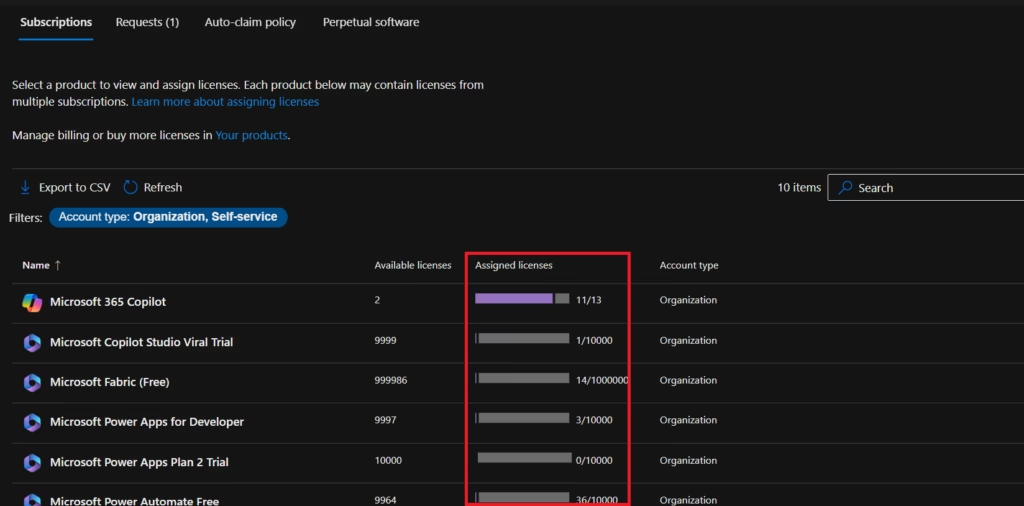
In enterprise environments, monitoring license availability is a core administrative responsibility.
License Assignment Path
Licenses are typically assigned in three ways:
- Direct assignment to users
- Group-based licensing
- Automated provisioning workflows
Basic flow:
Billing → Your Products
Users → Assign License
Or:
Groups → Assign License to Group (recommended in structured environments)
Group-based licensing improves scalability and reduces manual administrative errors.
Understanding this connection prepares you for later MS-102 topics like:
- Group-based licensing
- Identity lifecycle management
- Automated onboarding processes
Managing Auto-Renew and Subscription Settings
Within the Billing section, administrators can:
- Enable or disable auto-renew
- Cancel trial subscriptions
- Review payment methods
- View billing history
For lab environments:
It is strongly recommended to disable auto-renew on trial subscriptions to prevent unintended charges.
In enterprise environments:
Auto-renew settings must align with procurement and budget planning.
Billing configuration is not just technical — it intersects with governance and operational management.
Common Real-World Licensing Scenarios
Here are typical administrative situations:
Scenario 1: Feature Not Available
An administrator tries to configure Identity Protection policies, but the option does not appear.
Cause:
The tenant lacks Microsoft Entra ID P2 licensing.
Scenario 2: Defender Feature Missing
Defender for Endpoint advanced features are unavailable.
Cause:
The organization does not have E5 licensing.
Scenario 3: User Cannot Access Teams
User is created but cannot log into Teams.
Cause:
License not assigned.

Understanding Billing → Your Products allows administrators to troubleshoot these issues efficiently.
Why Billing Is Important for the MS-102 Microsoft 365 Administrator Exam
MS-102 exam scenarios often test:
- Identifying licensing requirements
- Understanding feature availability
- Assigning appropriate subscriptions
- Ensuring users receive correct service access
- Troubleshooting missing capabilities
Licensing awareness demonstrates administrative maturity.
Microsoft expects MS-102 candidates to think at the tenant level — not just the feature level.
Best Practices for Microsoft 365 Licensing Management
To manage subscriptions effectively:
- Regularly review license availability
- Avoid over-assigning premium licenses unnecessarily
- Use group-based licensing for scalability
- Monitor trial expiration dates
- Align security configuration with licensing tier
- Document license allocation strategy
Licensing strategy directly impacts security posture and cost control.
Final Thoughts
Understanding Microsoft 365 Billing and Subscriptions is one of the most overlooked yet critical skills in Microsoft 365 administration.
Before configuring security policies, assigning admin roles, or enabling advanced identity features, an administrator must first confirm what the tenant is licensed for. Licensing defines capability. Subscriptions define service access. Without this clarity, troubleshooting becomes guesswork.
In real-world environments, many “technical issues” are simply licensing limitations. A feature is missing. A policy cannot be enabled. A security control is unavailable. In most cases, the root cause begins in Billing → Your Products.
For the MS-102 Microsoft 365 Administrator exam, this knowledge helps you think at the tenant level, not just at the feature level. Microsoft expects administrators to understand the capability before configuration.
If you’re new to this learning series, start with the main MS-102 Microsoft 365 Administrator overview, where we explain how all chapters connect and what skills you’ll build across the journey.
For the most accurate and up-to-date exam objectives and reference material, Microsoft maintains the official MS-102 documentation on Microsoft Learn. This series complements those resources by focusing on real-world administrative understanding.
Summary: What You Should Now Understand
After exploring Billing → Your Products, you should clearly understand:
- A subscription defines tenant capability
- A license defines user access
- Service plans define feature availability
- License counts impact onboarding
- Billing configuration affects operational continuity
In Microsoft 365 administration, capability begins with licensing.
Before configuring identity, roles, MFA, or Conditional Access — confirm the subscription supports it.
What’s Next
Now that you understand how subscriptions and licenses define tenant capability, the next logical step is to explore:
Licensing Models in Microsoft 365
In the next article, we’ll break down:
- Business vs Enterprise plans
- E3 vs E5 differences
- Add-on licenses
- Service plan control
- Best licensing strategies for MS-102 scenarios
Microsoft 365 administration is built layer by layer.
Tenant → Admin Center → Users → Groups → Billing → Licensing → Roles → Identity → Security.
Stay consistent, and you’ll begin thinking like a real Microsoft 365 Administrator — not just an exam candidate.