Microsoft 365 Licensing Models determine what services your users can access, what security capabilities are available, and how your tenant operates at scale. For anyone preparing for the MS-102 Microsoft 365 Administrator exam, understanding licensing is not just about plan names — it is about operational control.
In Microsoft 365, no service is active without a license. No mailbox, no Teams access, no SharePoint storage, no security features. Everything begins with licensing.
In this guide, we will cover:
- What licensing means in Microsoft 365
- Types of Microsoft 365 licensing models
- What a license actually contains
- How to assign and manage licenses
- Group-based licensing
- Trial licenses
- Best practices for MS-102
What Is Licensing in Microsoft 365?
A license in Microsoft 365 is permission for a user to consume specific cloud services.
Without a license:
- A user cannot have a mailbox
- Teams will not function
- SharePoint access is limited
- Security features are unavailable
Licensing connects:
- Identity (user account)
- Services (Exchange, Teams, SharePoint)
- Security capabilities (Defender, Purview)
This is why licensing is part of Deploy and Manage a Microsoft 365 Tenant in the MS-102 exam blueprint.
Types of Microsoft 365 Licensing Models
Microsoft 365 licensing models are structured into categories.
Microsoft 365 Business Plans
Designed for small to medium businesses (up to 300 users).
Business Basic
- Web versions of Office apps
- Exchange Online
- Teams
- SharePoint & OneDrive
Business Standard
- Everything in Basic
- Desktop Office apps
Business Premium
- Everything in Standard
- Intune
- Entra ID P1
- Defender for Business
Business Premium is often used for practical MS-102 labs.
Microsoft 365 Enterprise Plans
Designed for larger organizations.
Microsoft 365 E3
- Full desktop apps
- Exchange Online
- SharePoint & Teams
- Basic compliance features
Microsoft 365 E5
- Everything in E3
- Advanced security (Defender XDR)
- Advanced compliance (Purview)
- Entra ID P2
For MS-102 preparation, E3 and E5 differences are important.
Add-On Licenses
These extend functionality.
Examples:
- Microsoft Defender for Endpoint
- Microsoft Defender for Office 365
- Entra ID P2
- Microsoft Purview eDiscovery Premium
Add-ons are attached to existing base licenses.
What a License Contains (Service Plans)
Each license contains multiple service plans.
For example, Microsoft 365 E3 includes:
- Exchange Online
- SharePoint Online
- Teams
- Yammer
- Office Apps
- Power Platform services
When assigning a license, you can:
- Enable all services
- Disable specific service plans
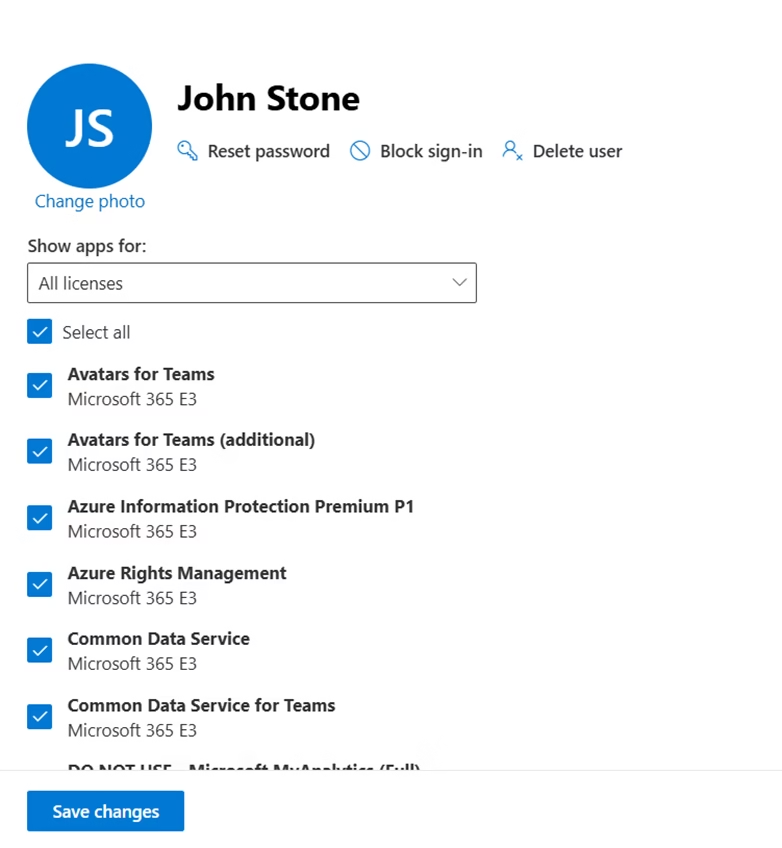
Example:
You may assign E3 but disable Teams for a specific user.
Understanding service plans is important for troubleshooting scenarios in MS-102.
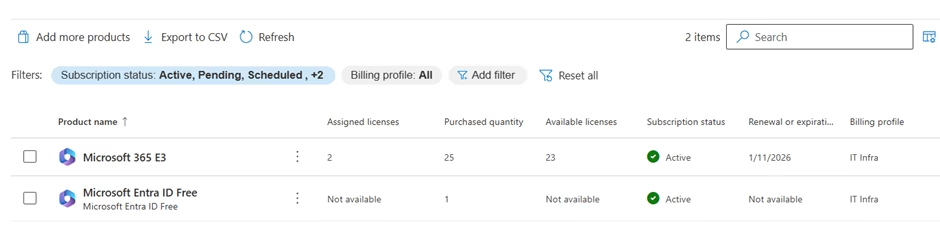
Where to View and Manage Licenses
You can manage Microsoft 365 licensing models in:
Microsoft 365 Admin Center → Billing → Your Products
Here you can see:
- Active subscriptions
- Number of licenses
- Available vs assigned licenses
- Renewal status
To assign licenses:
Users → Active Users → Select User → Licenses and Apps
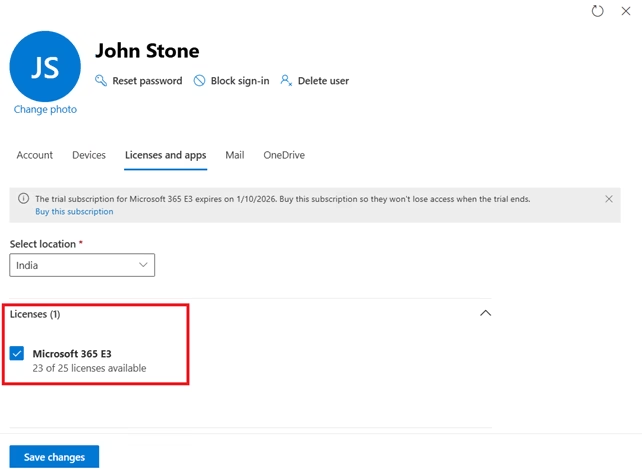
This is where service plans can be enabled or disabled.
Assigning Licenses to Users
Licenses can be assigned in several ways.
Manual Assignment
- Go to Users
- Select a user
- Click Licenses and Apps
- Assign the required license
This method works for small environments.
Bulk License Assignment
- Go to Users
- Select multiple users
- Choose Manage Licenses
- Apply changes
Useful for onboarding multiple employees.
Removing or Changing Licenses
When removing a license:
- Mailbox may be soft-deleted
- Teams access is removed
- OneDrive data may be retained for a limited time
Understanding impact is critical.
Group-Based Licensing (Important for MS-102)
Group-based licensing automates license assignment.
Instead of assigning licenses individually:
- Create a group
- Assign a license to the group
- Add users to the group
All users in the group automatically receive the license.
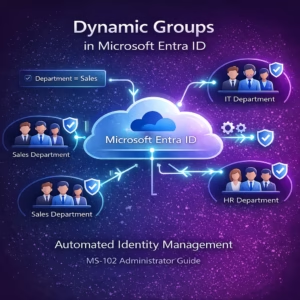
Static vs Dynamic Groups
Static Group
Admin manually adds members.
Dynamic Group
Membership rules determine users automatically.
Example dynamic rule:
Department equals "IT"
This enables automated provisioning workflows.
MS-102 frequently references automation and lifecycle management — group-based licensing supports that.
Trial Licenses
Trial licenses are temporary.
Important considerations:
- Trials usually last 30 days
- Services stop after expiration
- Recurring billing must be disabled if not continuing
For exam purposes, understand:
- Difference between trial and paid subscription
- Impact of expiration
Best Practices for Microsoft 365 Licensing Models
Here are practical administrator-level recommendations.
Apply Least Privilege Licensing
Do not assign E5 if E3 is sufficient.
Over-licensing increases cost and complexity.

Disable Unused Service Plans
If a department does not use Yammer or Power Apps, disable it.
Reduces exposure and confusion.
Use Group-Based Licensing for Scale
Manual assignment does not scale.
Group-based licensing supports automation and lifecycle management.
Monitor License Utilization
Regularly review:
Billing → Your Products
Ensure:
- No unused licenses
- No over-assignment
- No service disruption
Why Licensing Matters for MS-102
In the MS-102 Microsoft 365 Administrator exam, you may encounter scenarios such as:
- A user cannot access Teams after account creation
- A mailbox was not provisioned
- Compliance features are missing
- Security policies cannot be applied
Often, the root cause is licensing.
Licensing impacts:
- Identity functionality
- Security configuration
- Compliance capability
- Device management
- Defender XDR integration
Without correct licensing, services simply do not activate.
Final Insights
Microsoft 365 licensing models are not just billing constructs — they define your organization’s operational capability.
A well-managed licensing strategy ensures:
- Proper service access
- Cost control
- Security alignment
- Automation readiness
For the MS-102 Microsoft 365 Administrator exam, licensing is a foundational skill. But in the real world, it is even more critical. Licensing determines whether your tenant operates efficiently or becomes misconfigured and overexposed.
When you understand Microsoft 365 licensing models deeply, you move beyond assigning products and begin managing a platform responsibly.
If you’re new to this learning series, start with the main MS-102 Microsoft 365 Administrator overview, where we explain how all chapters connect and what skills you’ll build across the journey.
For the most accurate and up-to-date exam objectives and reference material, Microsoft maintains the official MS-102 documentation on Microsoft Learn. This series complements those resources by focusing on real-world administrative understanding.
What’s Next
Now that you understand where services are managed, the next logical step is to move into deeper configuration areas.
In the upcoming chapter, we will begin working with:
- Admin roles
- Tenant Health
Each of these builds directly on the administrative architecture you just explored.
You are now moving from exploration to structured administration.