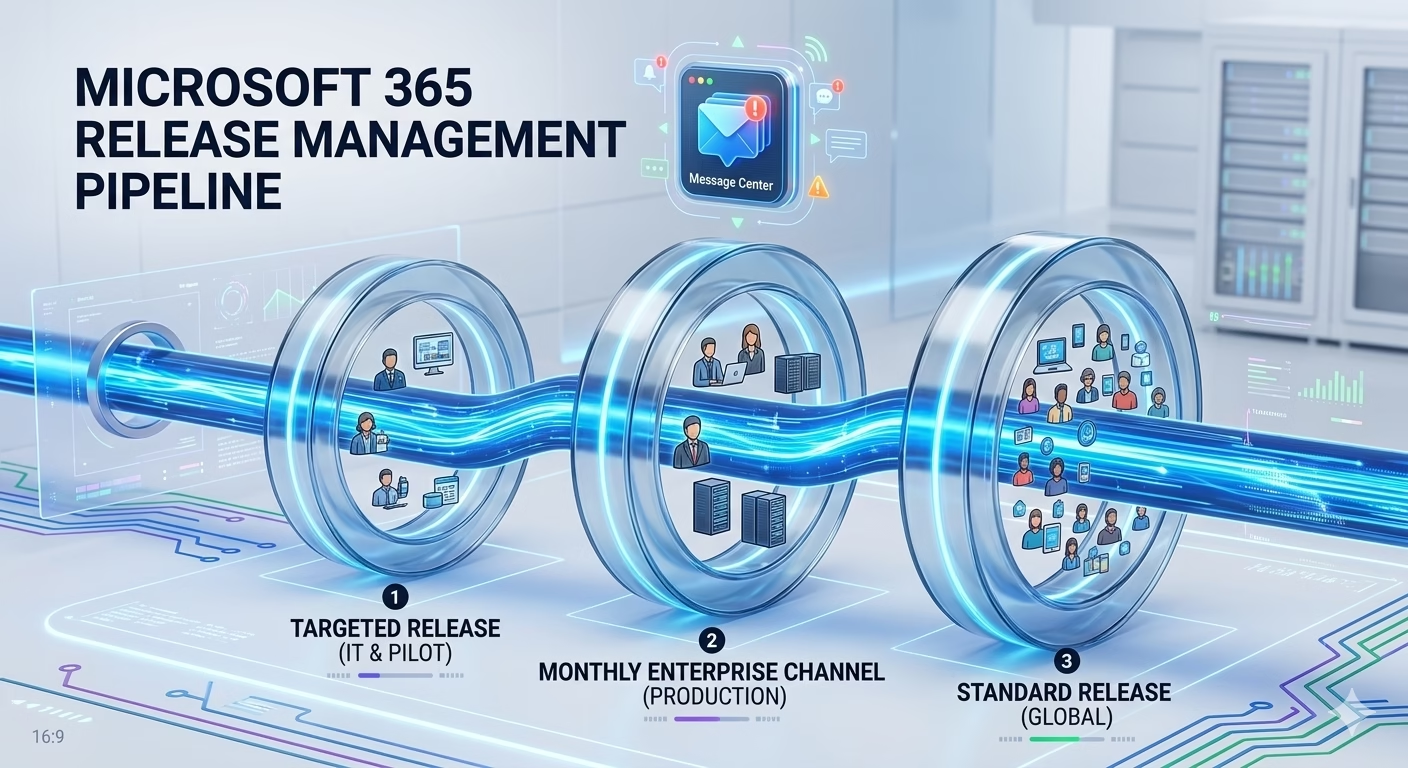
Microsoft 365 Organizational Settings are not a “set it and forget it” environment. As a Senior IT Infrastructure Engineer, I’ve learned that the most dangerous phase of tenant administration isn’t the initial setup, it’s the lifecycle management. Microsoft pushes hundreds of updates annually; without a robust release strategy, your helpdesk will be underwater, and your Zero Trust architecture could face unexpected drift.
In this exhaustive guide, we are moving beyond the surface level. We will explore the mechanics of Master Microsoft 365 Release Management, Targeted vs. Standard Release, the architecture of Office 365 App Update Channels, and walk through a Live Lab to configure these settings like a pro.
Learning Objectives
After completing this guide, you will be able to:
- Explain the architecture of change in Microsoft 365 release management.
- Differentiate the Admin Center strategy from the Intune strategy.
- Describe core release management strategies through hands-on practice.
- Identify best practices to minimize helpdesk disruption from updates.
What is Microsoft 365 Release Management?
At its core, Microsoft 365 Release Management is the formal process of governing how, when, and to whom new features are deployed within a tenant. It bridges the gap between Microsoft’s rapid innovation and your organization’s need for stability.
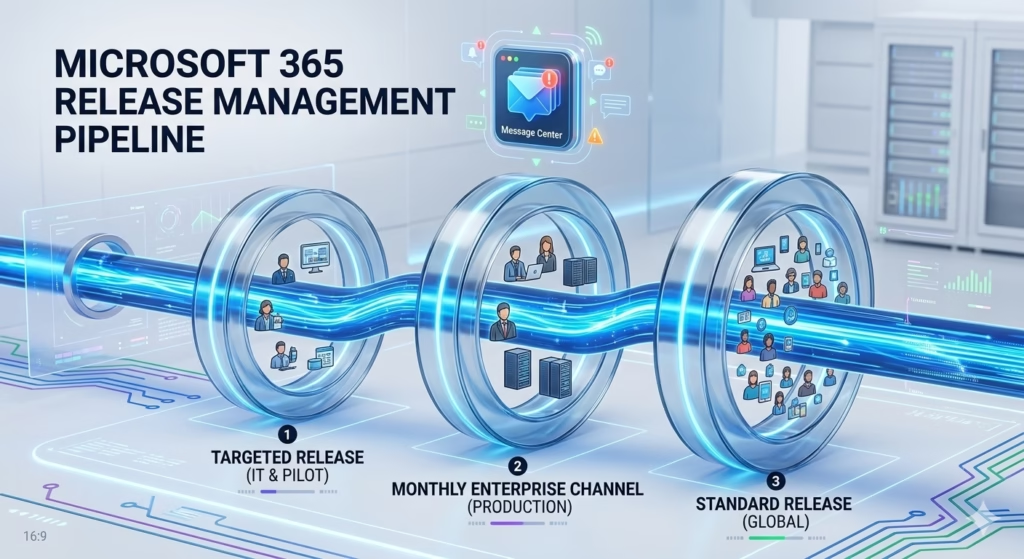
Part 1: The Architecture of Change in Microsoft 365 Release Management
In a cloud-native world, “Service Updates” happen in the backend (SaaS), while “App Updates” happen on the endpoint. MS-102 candidates must distinguish between these two layers.
1.1 Tenant-Level Release Preferences
This controls the Services (Teams features, SharePoint UI, Web-app toggles).
- Standard Release: The “Safe Harbor.” Updates arrive only after they have been vetted by Microsoft’s internal rings and Targeted users.
- Targeted Release (Entire Org): High risk. Every user becomes a beta tester.
- Targeted Release (Selected Users): The Gold Standard for enterprise. You assign your IT team and “Champion” users to this ring. This gives you a 2–4 week lead time to update internal documentation before the rest of the company sees the change.
Microsoft is gradually evolving toward a modern, audience-based release model (frontier, standard, and deferred audiences) as part of a converged release strategy. Organizations currently using Standard Release and Targeted Release can continue using these options for now — see Microsoft’s release options documentation for the latest guidance.
1.2 Client-Level Update Channels (Microsoft 365 Apps)
This controls the Software installed on Windows/Mac (Word, Excel, Outlook).
- Current Channel: Features as soon as they are ready. Great for the “Move Fast” crowd.
- Monthly Enterprise Channel: The sweet spot. One update per month on a predictable second Tuesday schedule.
- Semi-Annual Enterprise Channel: For highly regulated or “specialized” machines (e.g., floor-shop PCs) where change must be minimal.
Part 2: The “Admin Center” Strategy vs. “Intune” Strategy
One of the most frequent points of confusion in the Microsoft 365 Organizational Settings menu is where the authority lies.
- Org Settings: Sets the default behavior for the tenant.
- Intune (Settings Catalog): Overrides the tenant default for specific managed devices.
- Message Center: Your “Early Warning System.” If you aren’t checking the Message Center weekly, you aren’t managing the tenant; you’re just reacting to it.
Part 3: Hands-On Lab Core Strategies for Microsoft 365 Release Management
In this section, we will perform a hands-on lab to configure Microsoft 365 Release Management preferences. We recommend validating this configuration in a test or development tenant before rolling it out broadly in production.
Prerequisites: Global Administrator permissions and a Microsoft 365 Developer Tenant (or a test/sandbox subscription) for initial validation.
Phase 1: Step-by-Step: Microsoft 365 Release Management Configuration
- Navigate to the Microsoft 365 Admin Center.
- Go to Settings > Org settings.
- Under the Organization profile tab, select Release preferences.
- Notice the default is likely “Standard release.” Select Targeted release for selected users.
- Click + Add users. Add yourself and two “Power Users.”
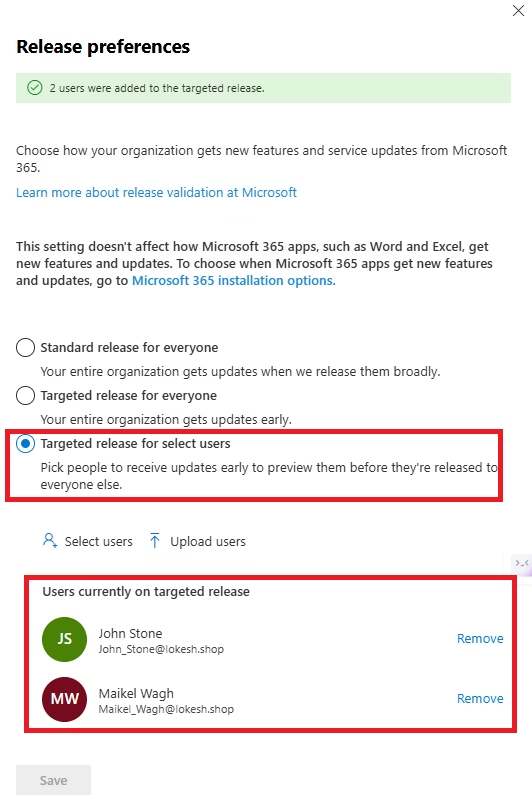
Senior Engineer Note: It can take up to 24 hours for these features to propagate to the selected accounts.
Phase 2: Managing the Message Center Workflow
- Navigate to Health > Message center.
- Click Preferences.
- Ensure the “Email” tab is configured to send you weekly digests.
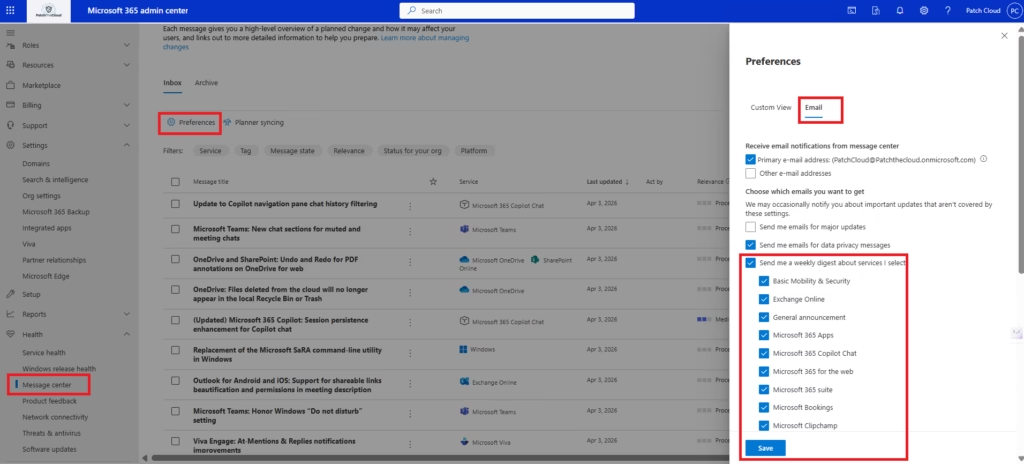
Pro Tip: Use the “Share” button on a critical update to send a direct link to your Helpdesk Lead. This is proactive engineering.
Phase 3: Implementing Forced Restart with User‑Friendly Warnings using Windows Update for Business (Microsoft 365 Release Management)
Organizations often struggle to balance two competing requirements when managing Windows updates:
- Ensuring devices restart in a timely manner to remain secure
- Avoiding sudden, disruptive restarts that frustrate users
In this section, we look at how Windows Update for Business (WUfB) can be configured to force a restart after one week, while still providing multiple warnings and clear user notifications.
The objective of this configuration was simple:
- Install Windows updates automatically
- Allow users sufficient time to restart at their convenience
- Display repeated restart reminders
- Enforce a restart after 7 days if the device has not been rebooted
This approach ensures security compliance without sacrificing user experience.
Using Update Deadlines Instead of Immediate Restarts
Windows Update for Business provides deadline‑based controls that are ideal for this scenario.
Rather than forcing an immediate reboot after updates are installed, deadlines allow administrators to:
- Define how long users can postpone a restart
- Control when Windows enforces the reboot
- Display increasingly prominent warnings as the deadline approaches
- Open the Microsoft Intune Admin Center.
- Navigate to Devices > Configuration.
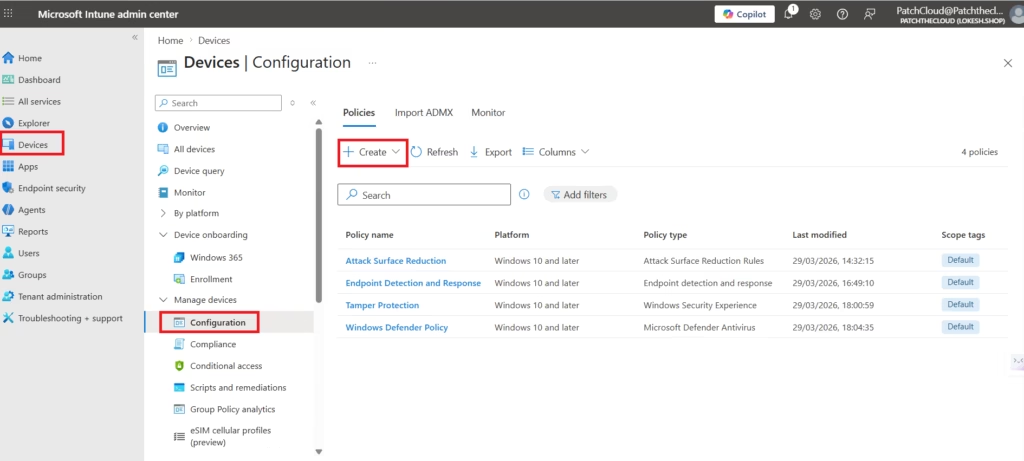
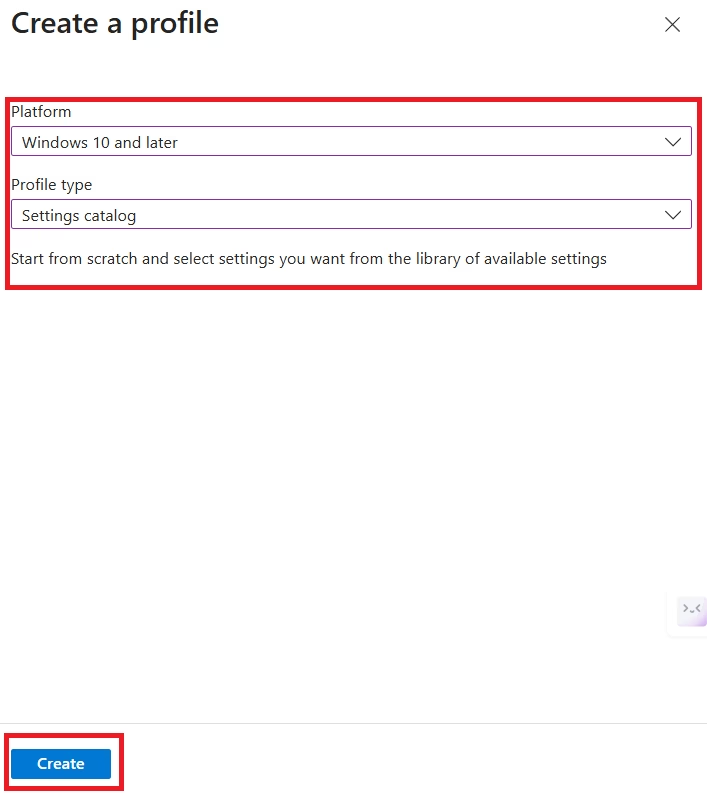
- Create a new Settings Catalog profile for Windows 10/11.
- Search for “Windows Update for Business” under the Windows Update for Business category.
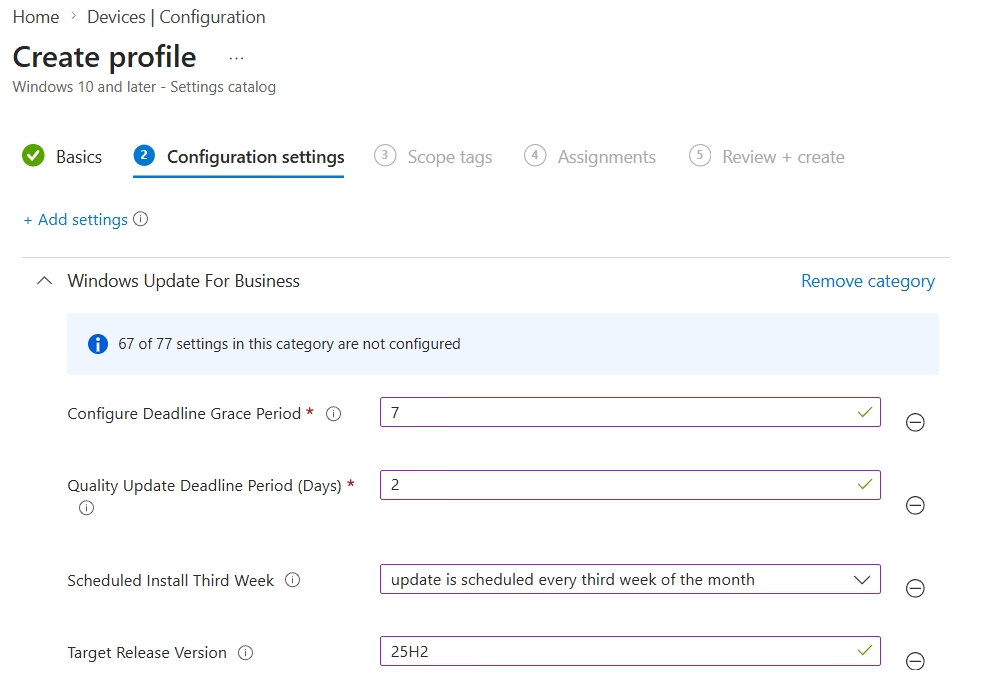
Quality Update Deadline
Quality Update Deadline Period (Days): 7
This setting defines how long Windows waits after a quality update is installed before requiring a reboot.
With a value of 7 days:
- Users can continue working without interruption
- Restart reminders begin appearing automatically
- The device must be restarted within the allotted window
This ensures that security updates are not indefinitely postponed.
Grace Period for Final Warnings
Deadline Grace Period: 2 days
The grace period begins after the 7‑day deadline has passed.
During this time:
- Users receive clear and persistent warnings
- Restart notifications become more urgent
- The reboot cannot be avoided once the grace period expires
This creates a predictable and transparent enforcement model.
Restart Enforcement
To allow Windows to actually enforce the reboot, the following settings were intentionally left disabled:
- Configure deadline no auto‑reboot
- Configure deadline, no auto‑reboot for quality updates
- Configure deadline, no auto‑reboot for feature updates
Leaving these disabled ensures that:
- Windows can perform an automatic restart
- Compliance is achieved even if users ignore warnings
User Notifications During Active Hours
Restart notifications were allowed during active hours by not suppressing update notifications.
This is important because:
- Users are made aware of upcoming restarts
- Notifications are not hidden during working hours
- Users can plan reboots proactively
Multiple warning notifications are displayed automatically as the deadline approaches.
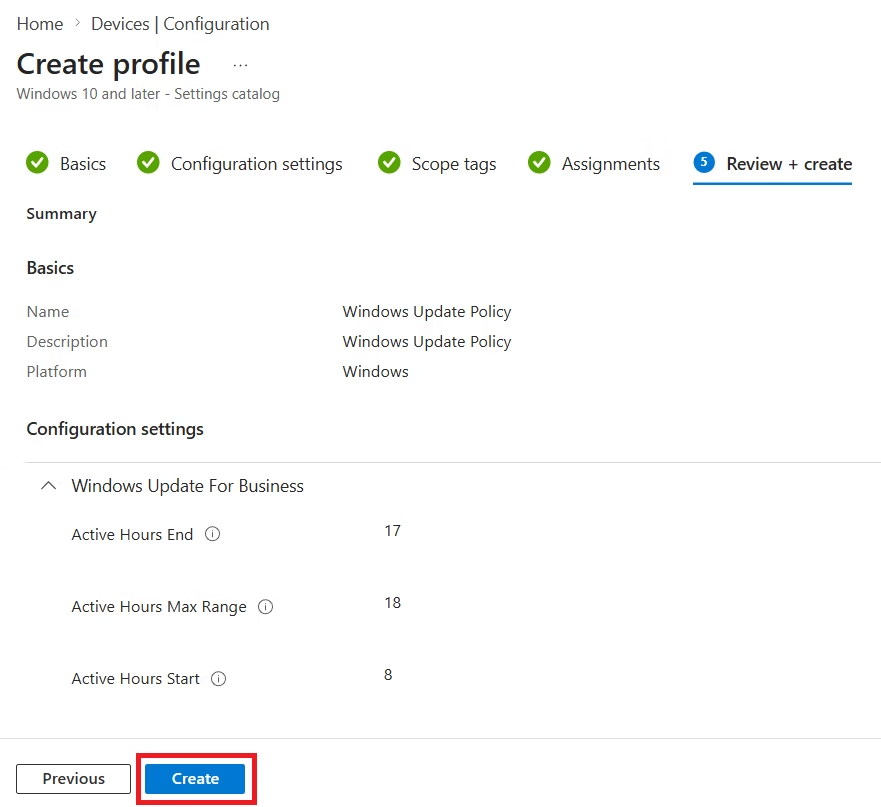
Active Hours Configuration
To avoid disruptive restarts during working hours, Active Hours were configured:
- Active Hours Start: 08:00
- Active Hours End: 17:00
Within active hours:
- Automatic restarts are avoided where possible
- Users see reminders instead of forced reboots
Once the deadline and grace period expire, Windows enforces the restart outside active hours or at the next allowed opportunity.
User Experience Timeline
From a user perspective, the experience looks like this:
- Day 0 – Update installs successfully
- Day 1–5 – Informational restart notifications appear
- Day 6–7 – Stronger restart warnings are displayed
- Day 8–9 – Grace period with urgent notifications
- After the grace period, an automatic restart is enforced
This ensures clarity, predictability, and fairness.
Why This Approach Works Well for Managed Windows Devices
This configuration aligns well with a standard managed-device update strategy because:
- Devices remain secure and compliant
- Users are informed instead of surprised
- Forced restarts occur only after ample warning
- Administrators retain control without micromanaging devices
Rather than blocking updates or forcing immediate reboots, this model focuses on timed enforcement with clear communication.
| Setting | Recommended Value | Purpose |
|---|---|---|
| Quality Update Deadline | 7 days | Defines how long users can postpone a restart before Windows enforces one |
| Grace Period | 2 days | Adds a final warning window after the deadline before the reboot cannot be avoided |
| Active Hours | 08:00–17:00 | Prevents automatic restarts from interrupting users during working hours |
| Restart Enforcement (no auto-reboot settings) | Disabled | Allows Windows to perform the automatic restart once the deadline and grace period expire |
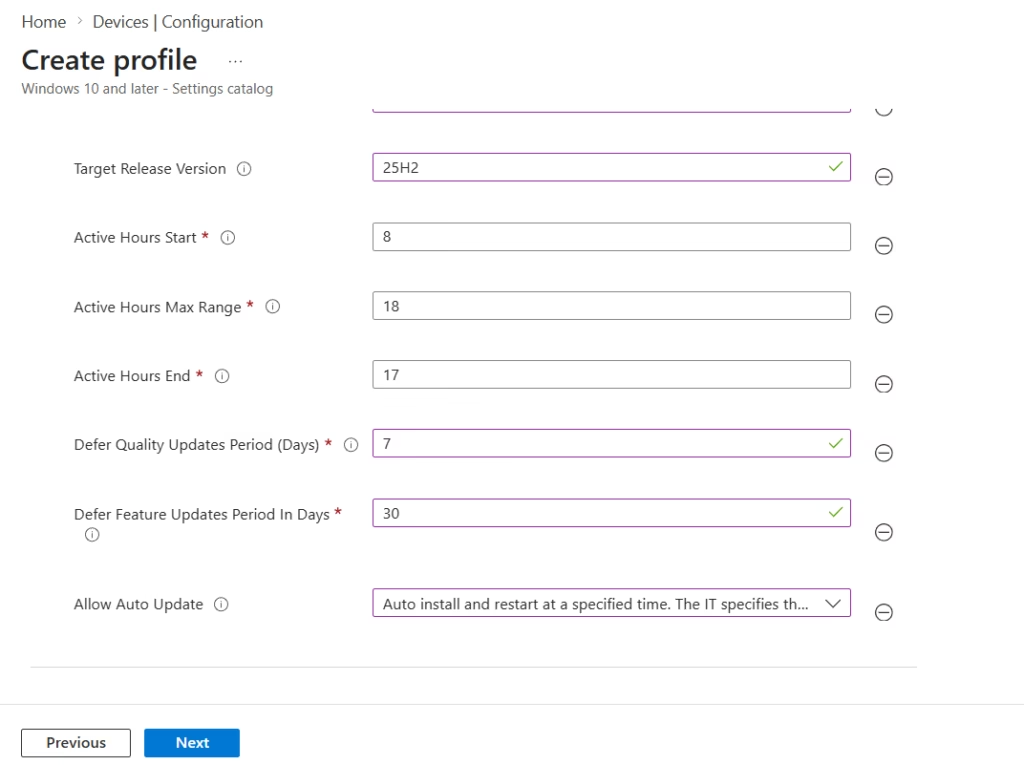
- Assign this to your “Production Devices” group. And Create
Part 4: MS-102 Exam Focus: Real-World Scenarios
The MS-102 exam doesn’t just ask “What is Targeted Release?” It asks: “The CEO wants to see new Outlook features before anyone else, but the Finance department must remain on a stable version. How do you configure this?”
The Answer Logic:
- Set the CEO’s account to Targeted Release (Selected Users) in Org Settings.
- Set the Finance Department’s devices to Semi-Annual Enterprise Channel via Intune or Group Policy.
Part 5: Senior Engineer Best Practices for Microsoft 365 Release Management (The “No-Helpdesk-Call” Checklist)
- Rule of 10%: Always have at least 10% of your users in a Targeted Release ring to catch UI bugs.
- The “Monday Rule”: Never move a group to a faster update channel on a Friday.
- Audit the ‘Ownerless’ Groups: Use the Microsoft 365 Organizational Settings we discussed in the previous guide to ensure Group owners are notified of changes.
- Documentation Lag: If an update is coming in 30 days, your internal “How-To” guides are already 30 days out of date. Start rewriting the moment you see it in the Message Center.
Key Takeaways for the MS-102 Exam
Effective Microsoft 365 Release Management is the difference between a stable tenant and a constant stream of helpdesk tickets.
- Targeted Release is for service/web features.
- Update Channels are for installed Apps (Office suite).
- Message Center provides the roadmap; Org Settings provides the steering wheel.
- Stability is a choice. Configure your channels based on Risk Tolerance.
Conclusion: Mastering the Flow of Change
Microsoft 365 Release Management is not just about toggling a switch in the Admin Center; it is about building a culture of predictability and trust between IT and the end-user. By moving from a reactive “Standard Release” posture to a proactive, tiered strategy using Targeted Release and Monthly Enterprise Channels, you transform from a technician into a true platform architect.
For the MS-102 exam, remember that Microsoft isn’t testing your ability to memorize menu paths; they are testing your ability to protect user productivity while keeping the tenant modern. Use the Message Center as your compass, and your release rings as your shield.
Next Step
Continue your learning with:
Microsoft Network Connectivity Testing & Insights
Read: Microsoft Network Connectivity Testing & Insights
Previous Topic
If you haven’t explored it yet:
Microsoft 365 Adoption Score
Read: Microsoft 365 Adoption Score
Start from the Beginning
MS-102 Microsoft 365 Administrator Overview
Start with: MS-102 Microsoft 365 Administration Guide
Official Microsoft Reference
View the official MS-102 exam page on Microsoft Learn
2 thoughts on “Master Microsoft 365 Release Management: The Definitive MS-102 Lab Guide”