Introduction
The MS-102 exam doesn’t just test if you know where the buttons are; it tests if you can defend an enterprise identity in real-time. Static security policies aren’t enough anymore. Hackers are using sophisticated password sprays and token replays that bypass basic MFA. As an MS-102 administrator, your job is to move beyond “check-the-box” security and implement an intelligent, risk-based defense.
In this guide, we’re breaking down Microsoft Entra ID Identity Protection—the “brain” of Microsoft 365 security. We will cover the critical differences between User Risk and Sign-in Risk, the exact licensing you need to know for the exam, and how to automate remediation so you can stop attacks before they start.
What Is Microsoft Entra ID Identity Protection?
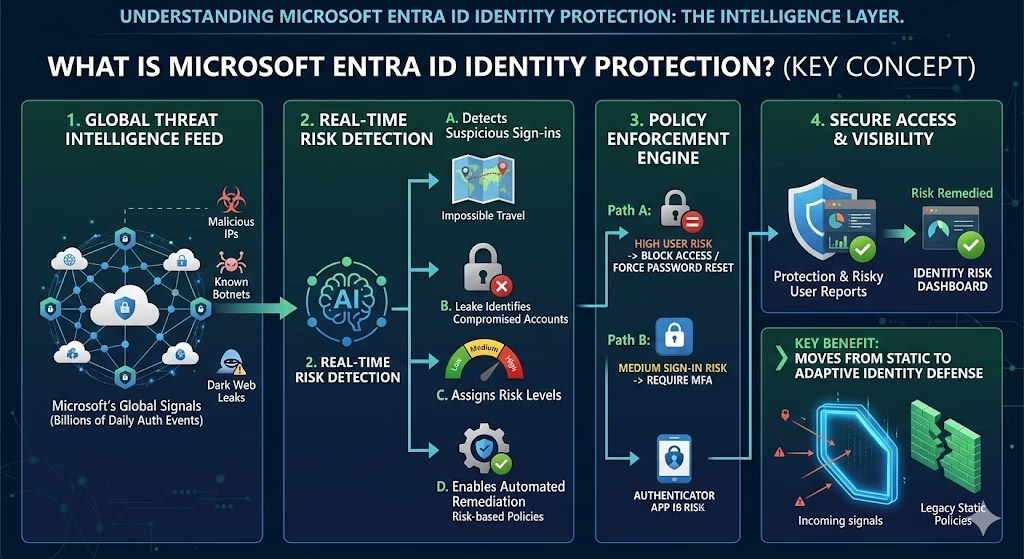
Microsoft Entra ID Identity Protection is a risk-based security feature that:
- Detects suspicious sign-ins
- Identifies compromised accounts
- Assigns risk levels
- Enables automated remediation
It uses Microsoft’s global threat intelligence and behavioral analytics to evaluate authentication activity across tenants worldwide.
Why Identity Protection Matters in Microsoft 365
Most attacks today target identities.
Common attack patterns include:
- Phishing-based credential theft
- Token replay attacks
- Password spray attacks
- Sign-ins from malicious IP addresses
Identity Protection helps detect these risks early and respond automatically.
For MS-102, you must understand how identity risk is detected and mitigated.
Understanding Risk Types
Microsoft Entra ID Identity Protection evaluates two primary risk categories:
1️⃣ Sign-In Risk
Sign-in risk measures the likelihood that a specific authentication attempt is suspicious.
Examples:
- Impossible travel (logins from two distant countries within minutes)
- Anonymous IP address usage
- Sign in from known malicious infrastructure
- Unusual sign-in behavior
Risk levels:
- Low
- Medium
- High
Sign-in risk applies only to that authentication event.
2️⃣ User Risk
User risk reflects the probability that an account has been compromised.
Examples:
- Leaked credentials discovered on the dark web
- Repeated suspicious activity
- Confirmed compromised account
User risk persists until remediated.
This distinction is important for MS-102 exam scenarios.
| Feature | Sign-In Risk | User Risk |
| Focus | The specific authentication attempt | The overall account integrity |
| Triggers | Impossible travel, Anonymous IP | Leaked credentials, Dark web |
| Typical Policy | Require MFA | Require Password Change |
| Persistence | Per-session | Until remediated |
Where to Access Identity Protection
Navigate to the Microsoft Entra Admin Center
→ ID Protection
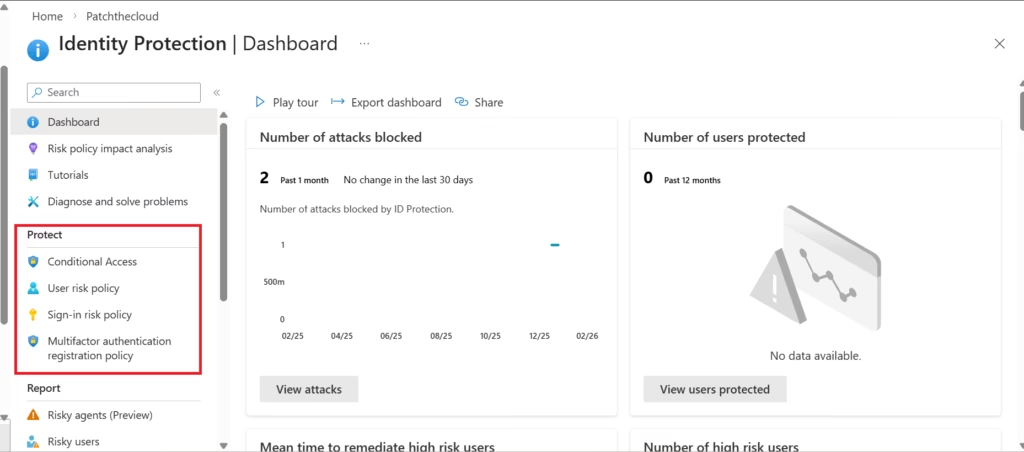
From here, you can view:
- Risky users
- Risky sign-ins
- Risk detections
- User risk policies
- Sign-in risk policies
This dashboard provides real-time visibility into identity threats across your tenant.
Risk-Based Policies
Identity Protection allows you to automate responses through policies.
User Risk Policy
Used when a user account is likely compromised.
Common configuration:
If user risk = High
Then, require a password reset
This forces secure recovery before access is restored.
Sign-In Risk Policy
Used during suspicious authentication attempts.
Example:
If sign-in risk = Medium or High
Then require MFA
This adds a verification layer before access is granted.
Lab 1: Create a Sign-In Risk Policy
- Go to Microsoft Entra Admin Center
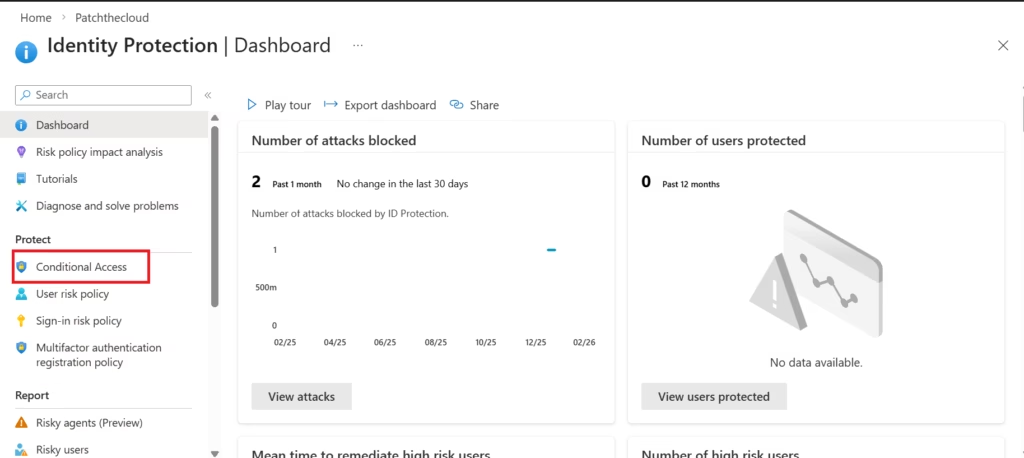
- Navigate to Identity Protection → Dashboard → Protect → Conditional Access
- Select Conditional Access
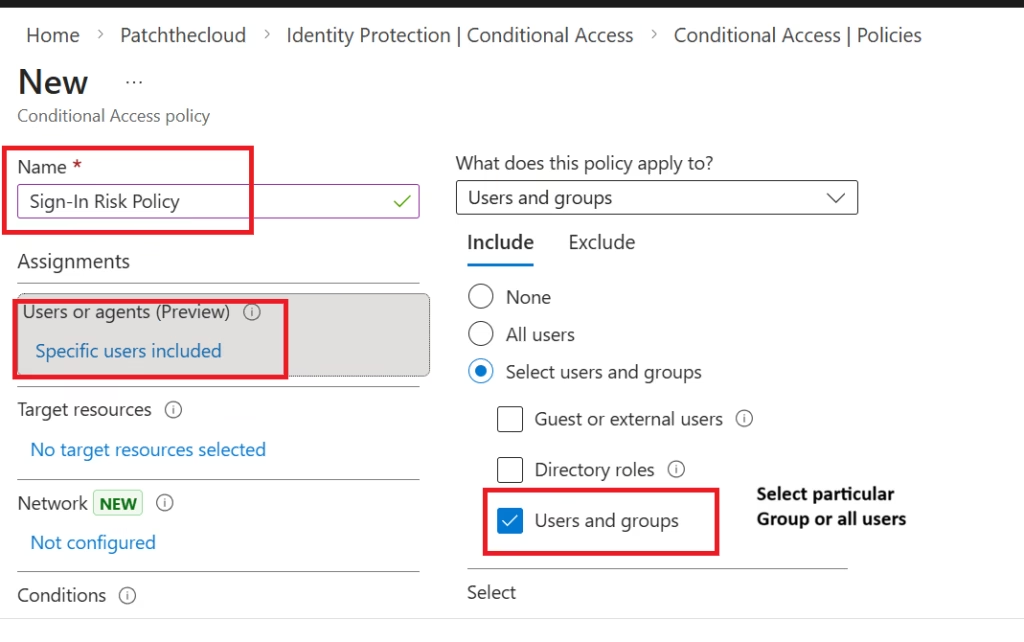
- Assign users or groups
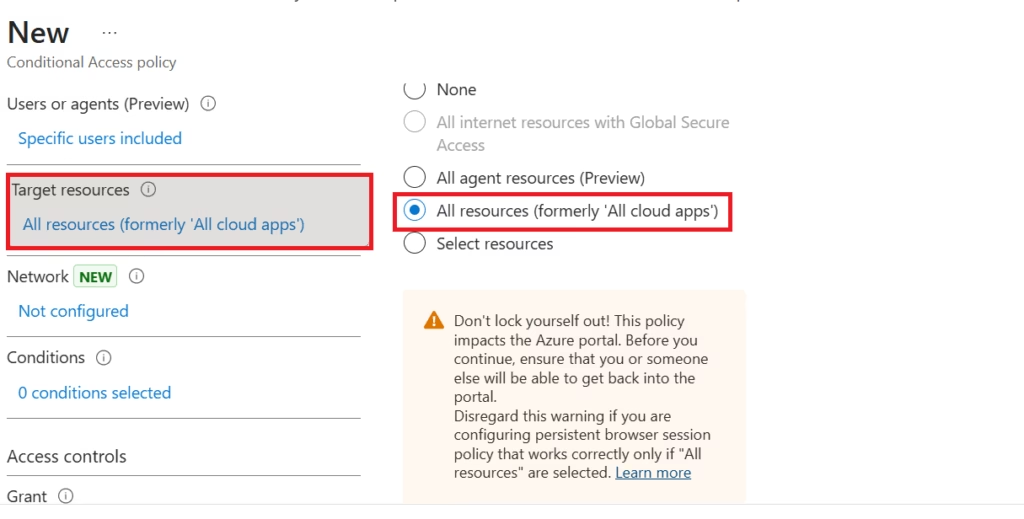
- Select resources to all resources (formerly ‘All cloud apps’)
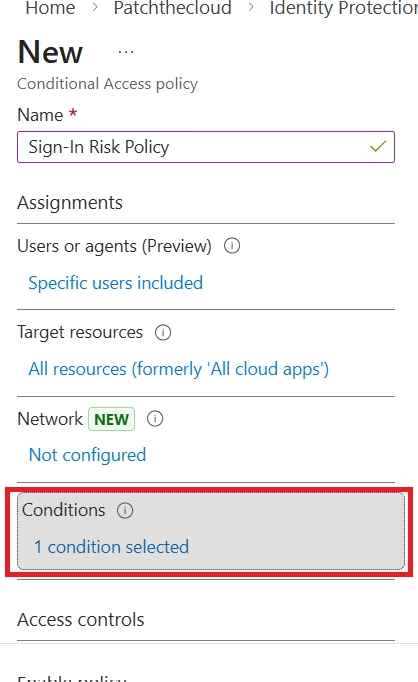
- Select Conditions
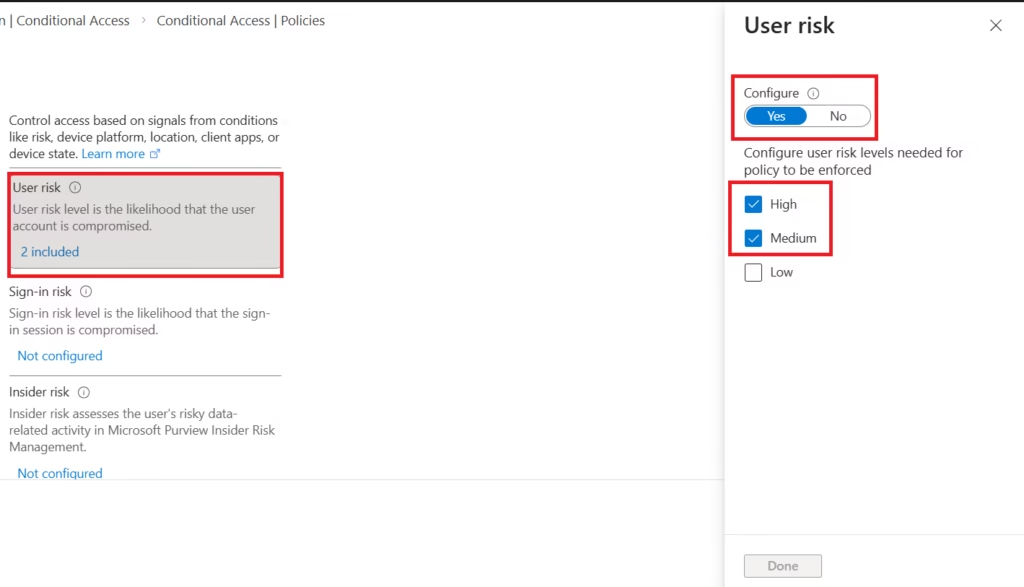
- Set the sign-in risk level to Medium and High
- Under Access controls, select Require MFA
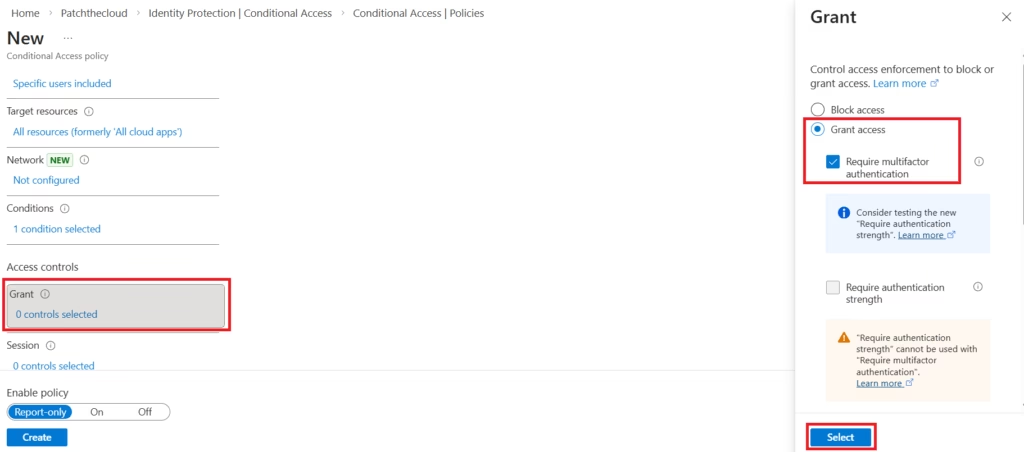
- It’s recommended to enable Policy with Report-Only before actually enforcing it.
Lab 2:Configure a User Risk Policy
- Navigate to Identity Protection
- Select the Conditional Access
- Assign users or groups
- Select resources to all resources (formerly ‘All cloud apps’)
- Select Conditions
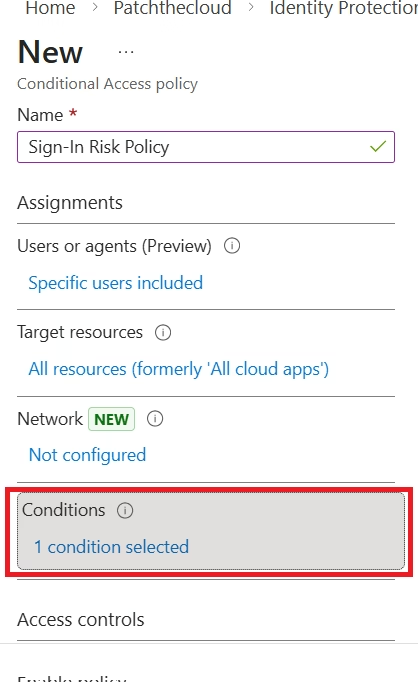
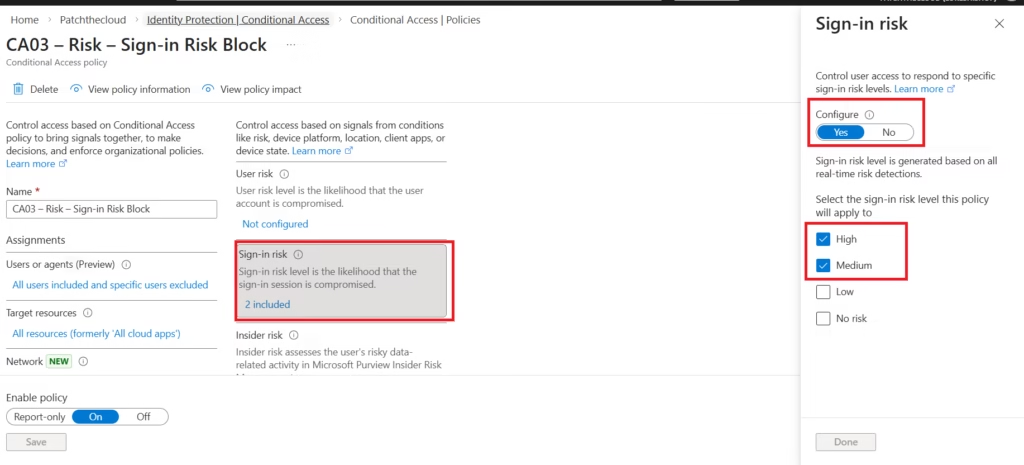
- Set User risk level to High
- In Controls: Choose Require password change
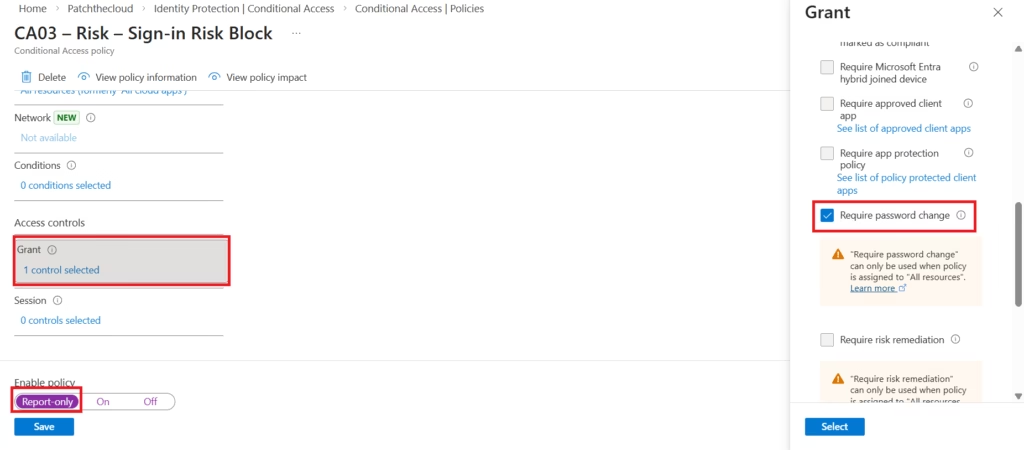
- It’s recommended to enable Policy with Report-Only before actually enforcing it.
Risk Remediation
Administrators can respond by:
- Forcing a password reset
- Blocking sign-in
- Requiring MFA
- Investigating logs
- Confirming compromise status
Once remediation occurs, risk levels are cleared.
Password Writeback (Hybrid Scenario)
In hybrid environments:
- Password resets are performed in the cloud
- Are written back to on-prem Active Directory
This ensures consistent identity protection across environments.
Password writeback requires a proper hybrid configuration.
Licensing Requirements
Microsoft Entra ID Identity Protection requires:
- Microsoft Entra ID P2
or - Microsoft 365 E5
This is commonly tested in MS-102.

MS-102 Exam Alert: Microsoft loves to ask about Entra ID P1. Remember: P1 gives you security reports, but it does not allow you to automate the “Require Password Reset” or “Require MFA” policies. You must have P2 for automation.
Identity Protection vs Conditional Access
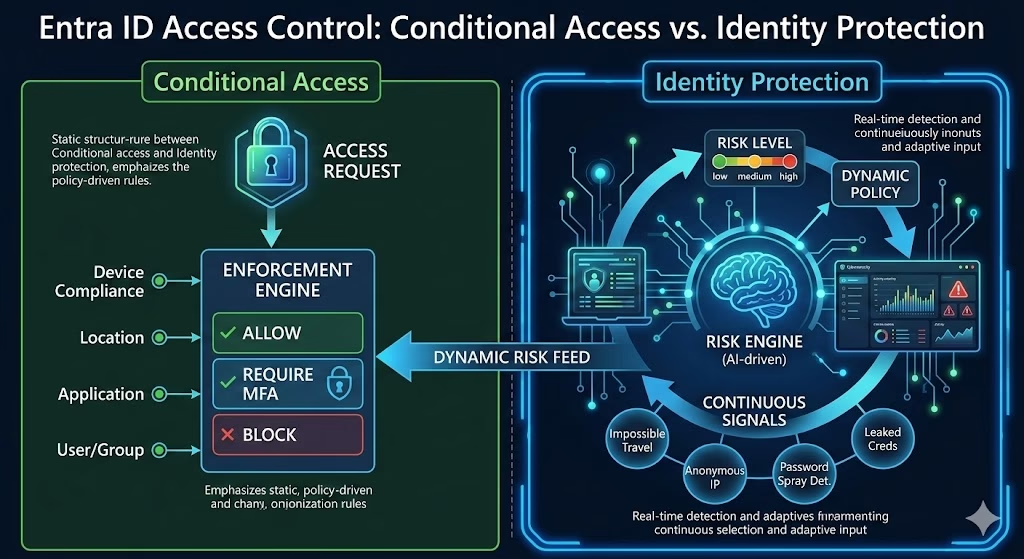
Conditional Access:
- Enforces policy rules
Identity Protection:
- Detects risk
- Feeds risk signals into Conditional Access
Together, they create adaptive access control.
This integration is a key exam concept.
MS-102 Exam Alignment
Focus on:
- Difference between sign-in risk and user risk
- Risk-based Conditional Access integration
- Automated remediation workflows
- Licensing requirements
- Dashboard navigation
Expect scenario-based questions.
MS-102 Key Exam Takeaways: Identity Protection
What is the difference between User Risk and Sign-in Risk?
- Sign-in Risk: High probability that the current authentication request is unauthorized (e.g., login from an anonymous IP or “impossible travel”).
- User Risk: High probability that the entire account is compromised (e.g., leaked credentials found on the dark web).
Which license is required for Microsoft Entra ID Identity Protection?
For the MS-102 exam, remember that full automated risk-based policies require Microsoft Entra ID P2 or Microsoft 365 E5. While P1 includes some security features, it does not support the automated risk remediation policies discussed in this guide.
How do you remediate a “High” User Risk?
The standard remediation for a high-risk user is a forced password reset. This must be done through a User Risk Policy. For hybrid users, Password Writeback must be enabled for the cloud reset to update the on-premises Active Directory.
What is the best way to test Identity Protection policies?
Microsoft recommends using “Report-only” mode in Conditional Access before enforcing policies. To simulate a risk event for testing, you can use the Tor Browser to sign in (triggers Anonymous IP risk) or use a VPN to simulate Impossible Travel.
Can I use Identity Protection with Conditional Access?
Yes. In fact, Microsoft is migrating legacy ID Protection policies into Conditional Access. In the MS-102 exam, look for scenarios where “Sign-in Risk” or “User Risk” are used as Conditions within a Conditional Access policy to trigger MFA or Block access.
Final Insights
Microsoft Entra ID Identity Protection transforms identity security from static enforcement to intelligent risk-based defense.
MFA verifies identity.
Conditional Access enforces policy.
Identity Protection decides when stronger controls are needed.
As an MS-102 administrator, understanding how identity risk flows through your tenant is critical.
If you’re new to this learning series, start with the main MS-102 Microsoft 365 Administrator overview, where we explain how all chapters connect and what skills you’ll build across the journey.
For the most accurate and up-to-date exam objectives and reference material, Microsoft maintains the official MS-102 documentation on Microsoft Learn. This series complements those resources by focusing on real-world administrative understanding.
In the next post, we will explore Self-Service Password Reset (SSPR) and how it integrates with identity protection and user lifecycle management.