Passwords have long been one of the weakest points in identity security. Users reuse passwords, create weak passwords, or fall victim to phishing attacks. To address these risks, Microsoft Entra ID supports passwordless authentication, allowing users to sign in without entering a traditional password.
Instead of passwords, authentication relies on secure verification methods such as mobile approvals, biometrics, or security keys.
For administrators preparing for the MS-102 Microsoft 365 Administrator certification, understanding passwordless authentication is essential because it plays a key role in modern identity protection strategies.
What is Passwordless Authentication?
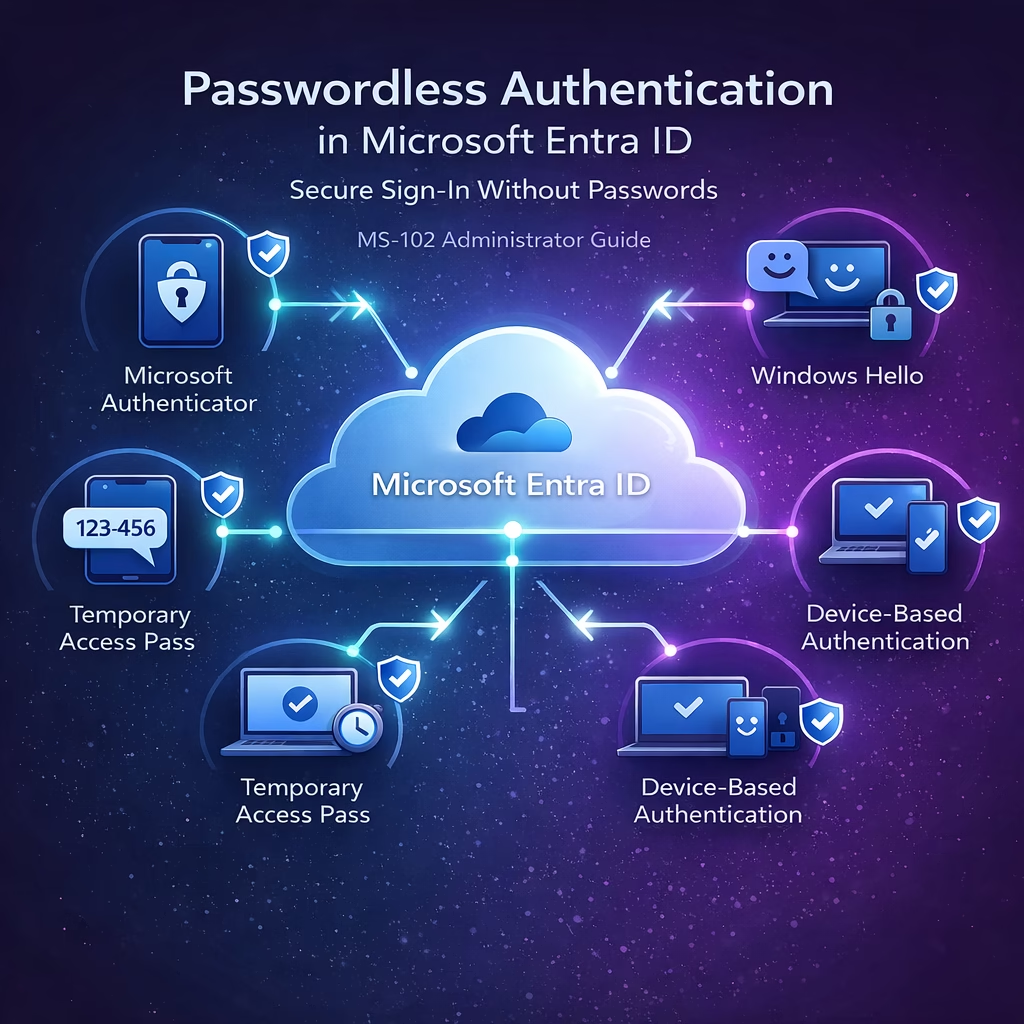
Passwordless authentication allows users to sign in using secure authentication factors instead of passwords.
These factors include:
- Microsoft Authenticator approvals
- Passkeys (FIDO2 security keys)
- Windows Hello for Business
- Temporary Access Pass
Because passwords are removed from the sign-in process, attackers cannot steal or reuse them.
Benefits include:
- Strong protection against phishing
- Reduced password reset requests
- Improved user experience
- Better alignment with Zero Trust security models
How Passwordless Authentication Works
In a passwordless environment, the authentication process changes slightly.
Typical sign-in flow:
- User enters their username
- Microsoft Entra ID sends an authentication challenge
- User verifies their identity using a registered method
- Access is granted
Because no password is transmitted, the risk of credential theft is significantly reduced.
Where to Configure Passwordless Authentication
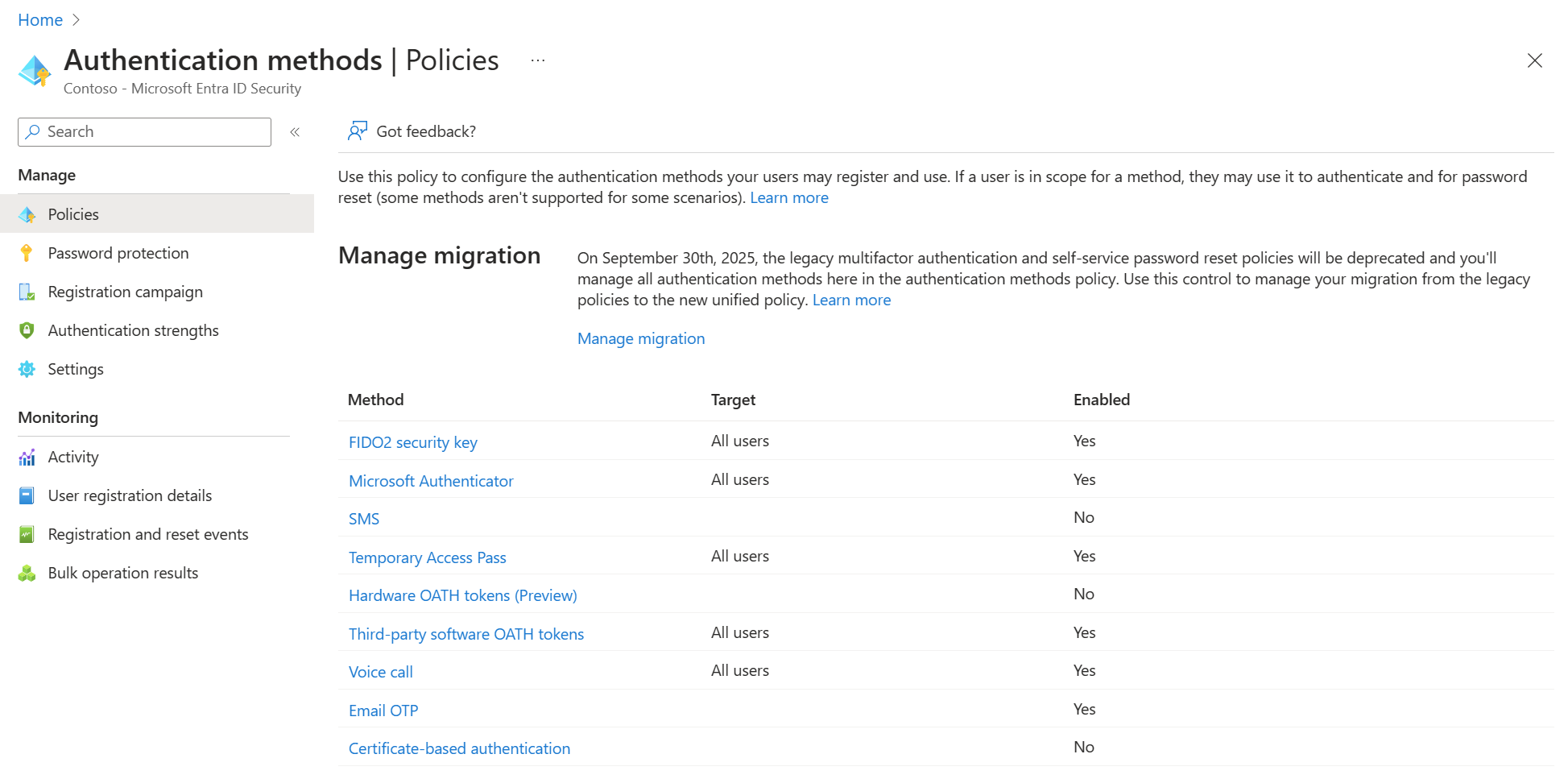
Administrators configure passwordless authentication using Authentication Method Policies.
Navigation path:
Microsoft Entra Admin Center
→ Protection
→ Authentication Methods
→ Policies
This interface allows administrators to control which passwordless methods users can register.
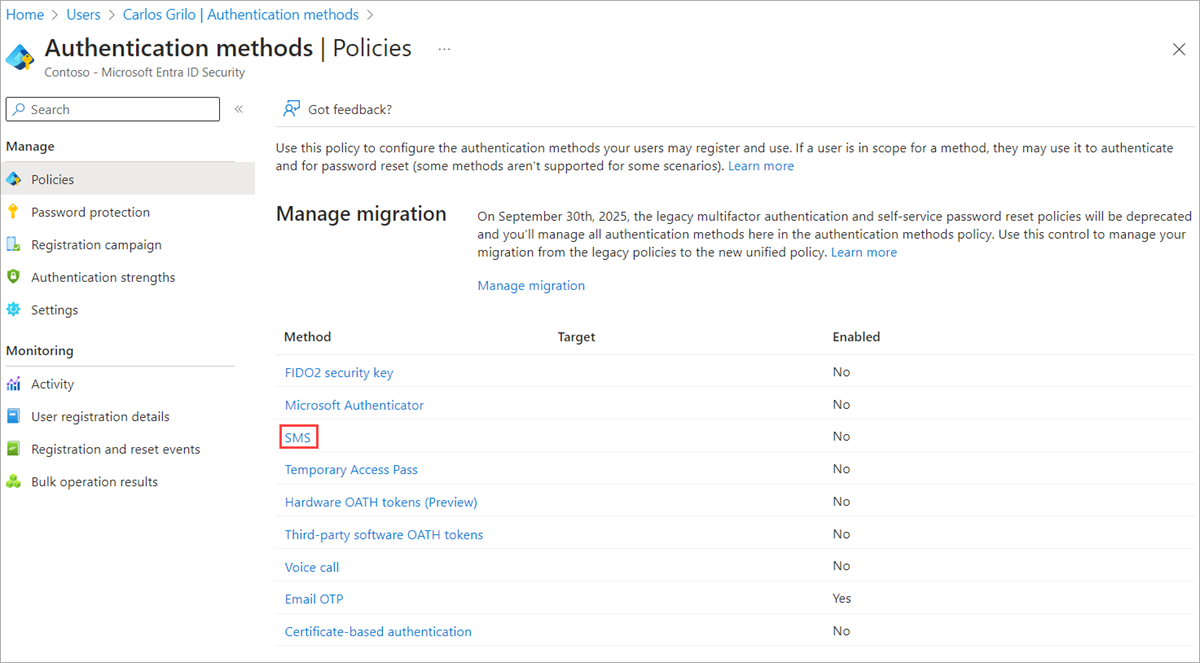
Authentication Methods Policy Overview


4
From this page, administrators can enable or disable authentication methods and assign them to users or groups.
Passwordless Method 1: Microsoft Authenticator
Microsoft Authenticator enables passwordless sign-in using mobile push notifications.
When a user signs in:
- A push notification is sent to their device
- The user verifies the login using number matching
- Access is granted without entering a password
This method provides strong protection against phishing attacks.
Microsoft Authenticator Configuration

4
Administrators can configure:
- Enable or disable Microsoft Authenticator
- Target all users or specific groups
- Authentication mode (Push approval)
This is currently one of the most widely deployed passwordless authentication methods.
Passwordless Method 2: Passkeys (FIDO2)
Passkeys are phishing-resistant authentication credentials stored on:
- Security keys
- Hardware tokens
- User devices
These credentials use public-key cryptography, meaning no password is transmitted during authentication.
Passkey Configuration


4
Administrators can enable passkeys and target them to specific users or groups.
Passkeys provide one of the strongest authentication protections available in Microsoft Entra ID.
Supporting Authentication Methods
While passwordless authentication focuses on stronger authentication technologies, additional methods can still support identity verification.
These include:
- SMS verification
- Temporary Access Pass
- OATH hardware tokens
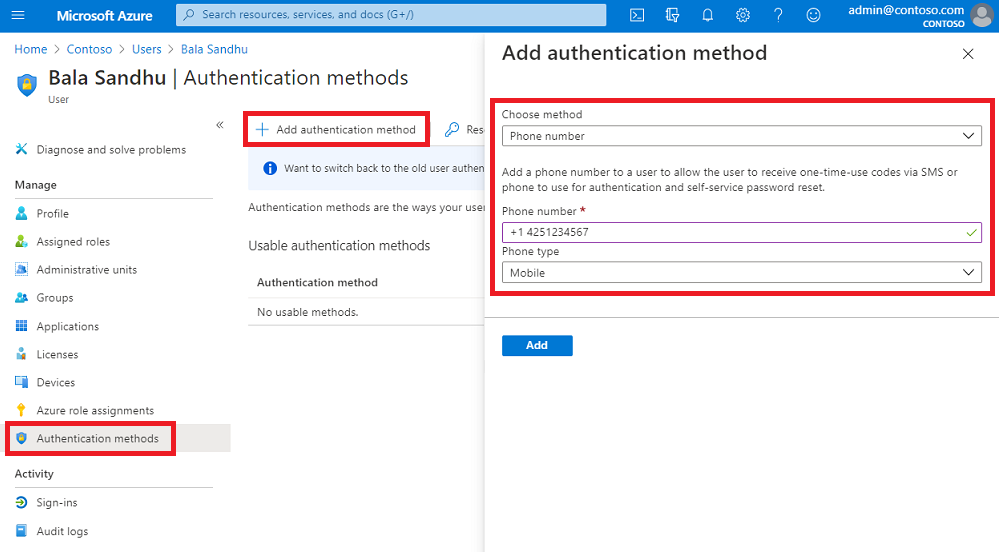
SMS Authentication Settings

4
SMS authentication sends a one-time passcode to a user’s phone.
Although widely supported, SMS authentication should generally be used as a fallback authentication method, not the primary passwordless solution.
Temporary Access Pass (TAP)
Temporary Access Pass helps users onboard into passwordless authentication.
Administrators generate a time-limited passcode that allows users to sign in and register stronger authentication methods.
Common use cases include:
- New employee onboarding
- Device setup
- Passwordless migration
Once users register authentication methods such as Microsoft Authenticator or passkeys, the temporary pass expires.
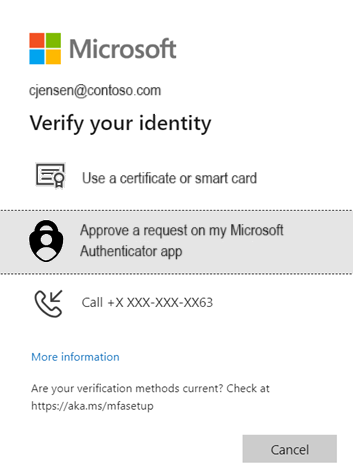
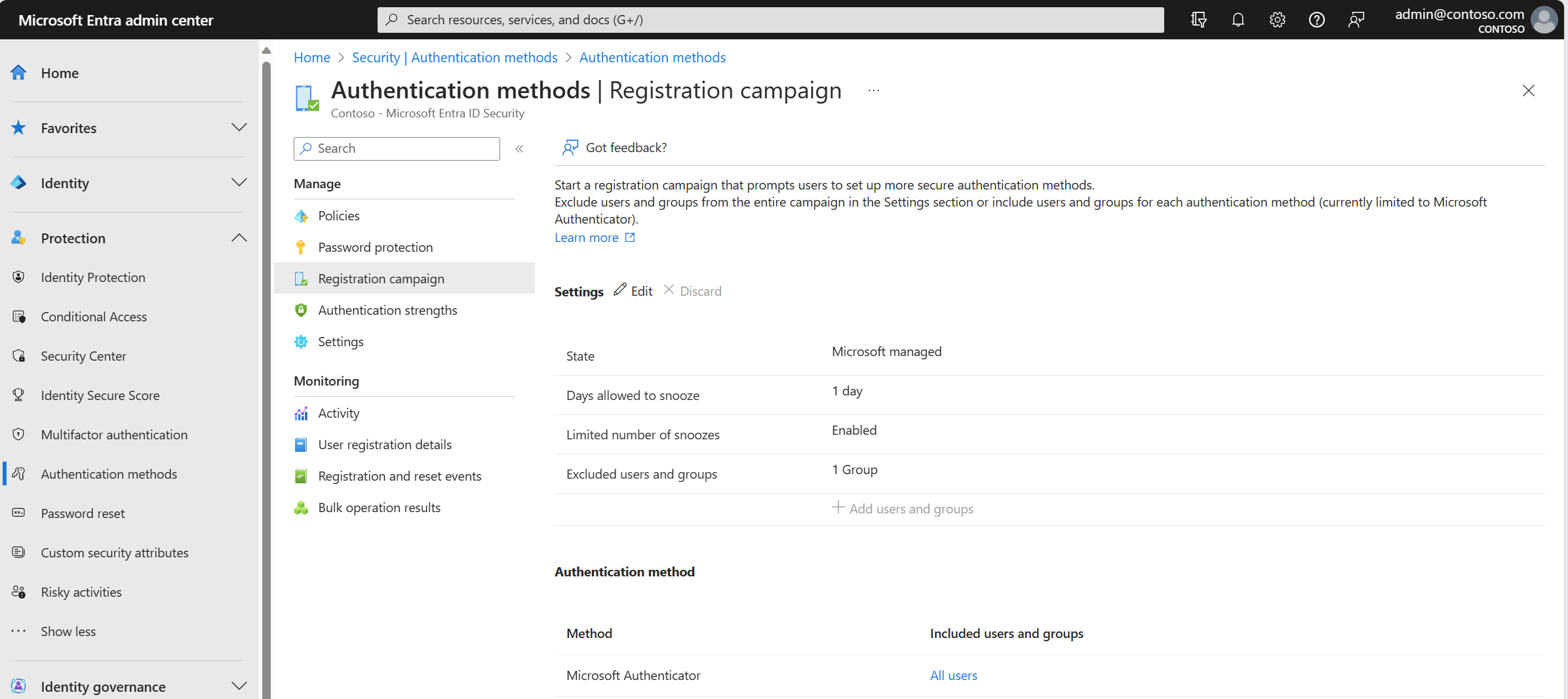
Authentication Method Registration Campaign
Organizations often use registration campaigns to guide users toward stronger authentication methods.
Registration Campaign Configuration
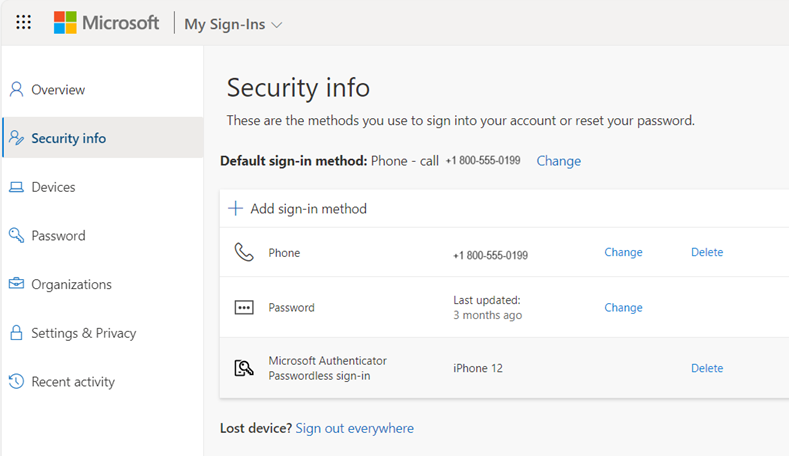
4
Administrators can configure:
- Campaign state
- Snooze duration
- Maximum snooze count
- Excluded users
This helps ensure users adopt modern authentication methods like Microsoft Authenticator.
Best Practices for Passwordless Deployment
Organizations should follow these best practices when implementing passwordless authentication.
Start with Pilot Groups
Deploy passwordless authentication to small groups before enabling it organization-wide.
Encourage Authenticator Registration
Microsoft Authenticator provides a secure and user-friendly passwordless experience.
Maintain Emergency Accounts
Break-glass administrator accounts should be excluded from authentication policies to prevent lockout scenarios.
Promote Phishing-Resistant Methods
Passkeys and hardware security keys offer the strongest protection against credential theft.
MS-102 Exam Alignment
For the MS-102 Microsoft 365 Administrator certification, administrators should understand:
- Passwordless authentication concepts
- Microsoft Authenticator passwordless sign-in
- Passkeys (FIDO2 security keys)
- Temporary Access Pass onboarding
- Authentication method configuration
Many exam questions focus on selecting the appropriate authentication method for a given security scenario.
Final Insights
Passwordless authentication represents the future of identity security in Microsoft environments. By eliminating passwords, organizations can significantly reduce phishing risks, improve user experience, and strengthen access control.
Microsoft Entra ID provides several passwordless technologies, including Microsoft Authenticator, passkeys, and Temporary Access Pass. When properly configured, these methods create a secure and modern authentication framework.
For administrators preparing for the MS-102 certification, mastering passwordless authentication is a key step toward managing secure Microsoft 365 environments.
If you’re new to this learning series, start with the main MS-102 Microsoft 365 Administrator overview, where we explain how all chapters connect and what skills you’ll build across the journey.
For the most accurate and up-to-date exam objectives and reference material, Microsoft maintains the official MS-102 documentation on Microsoft Learn. This series complements those resources by focusing on real-world administrative understanding.