Introduction
Privileged access is one of the most sensitive aspects of identity management. In many organizations, users are granted administrative or group-level permissions but those permissions are rarely reviewed over time. This leads to a common security issue known as privilege creep, where users accumulate access they no longer need.
Microsoft Entra ID solves this problem using Access Reviews in Privileged Identity Management (PIM).
Access Reviews allow organizations to:
- Periodically validate user access
- Remove unnecessary permissions
- Enforce least privilege principles
- Meet compliance requirements like ISO 27001 and Zero Trust
In this guide, we will walk through a complete step-by-step configuration of Access Reviews using real admin portal screenshots, so you can implement this in your environment confidently.
What are Access Reviews?
Access Reviews are part of Microsoft Entra ID Governance, designed to help administrators ensure that the right users have the right access at the right time.
Instead of manually auditing permissions, Access Reviews allow you to:
- Schedule recurring reviews
- Assign reviewers (managers, owners, admins)
- Automate decisions
- Remove users who no longer require access
They can be applied to:
- Microsoft 365 Groups
- Teams
- Enterprise Applications
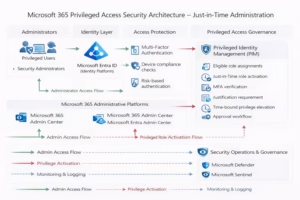
- Privileged roles (via PIM)
Why Access Reviews are Important
Without access reviews, organizations face multiple risks:
Security Risks
- Users retain access after role change
- Ex-employees may still have permissions
- Elevated privileges remain active
Compliance Issues
- Lack of audit trail
- Failure in security audits
- Non-compliance with governance standards
Zero Trust Alignment
Access Reviews support Zero Trust by:
- Continuously validating access
- Removing unnecessary permissions
- Enforcing least privilege
🔧 Step-by-Step: Configure Access Reviews
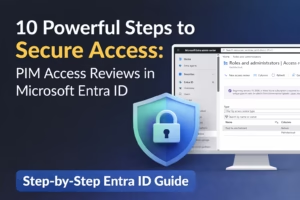
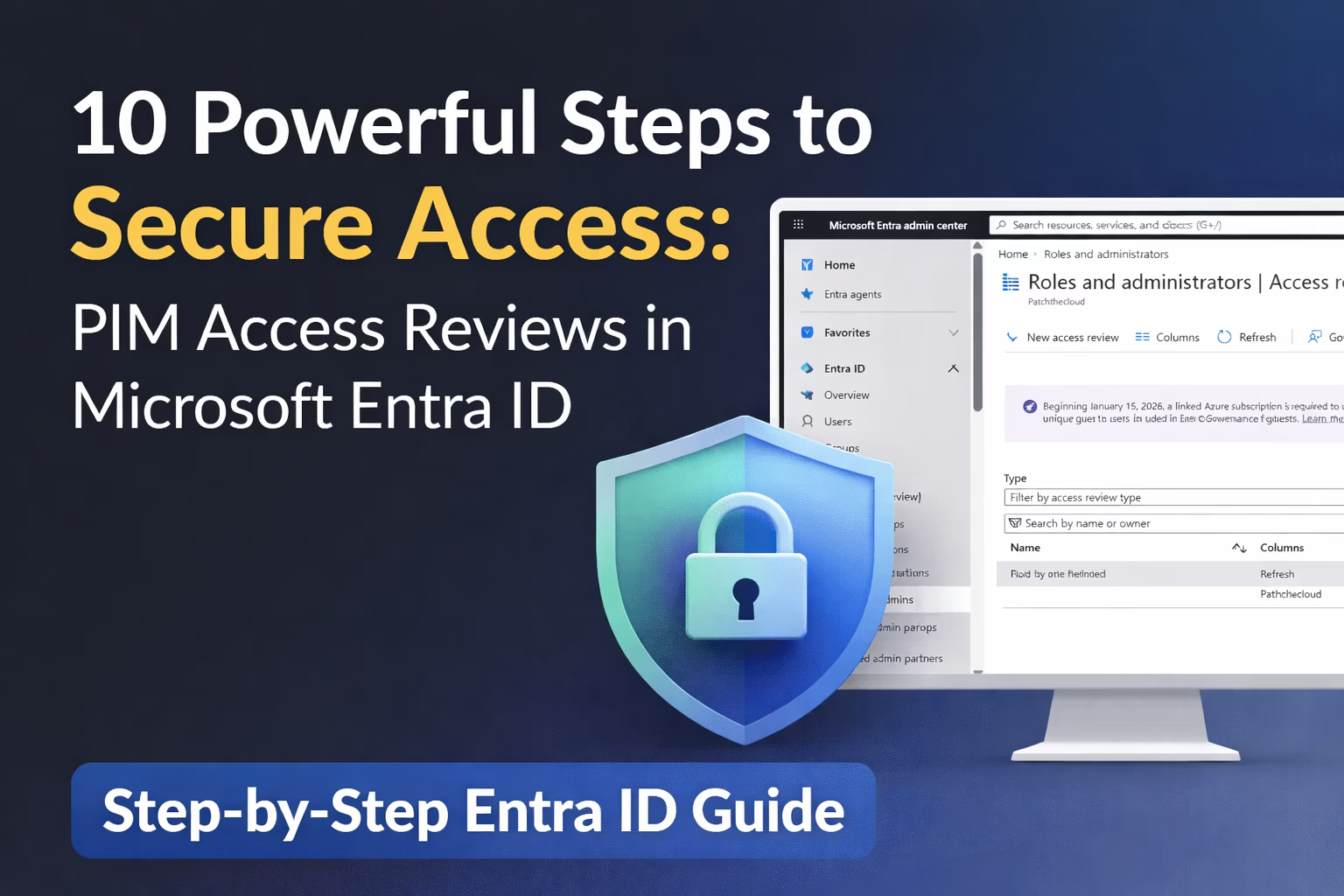
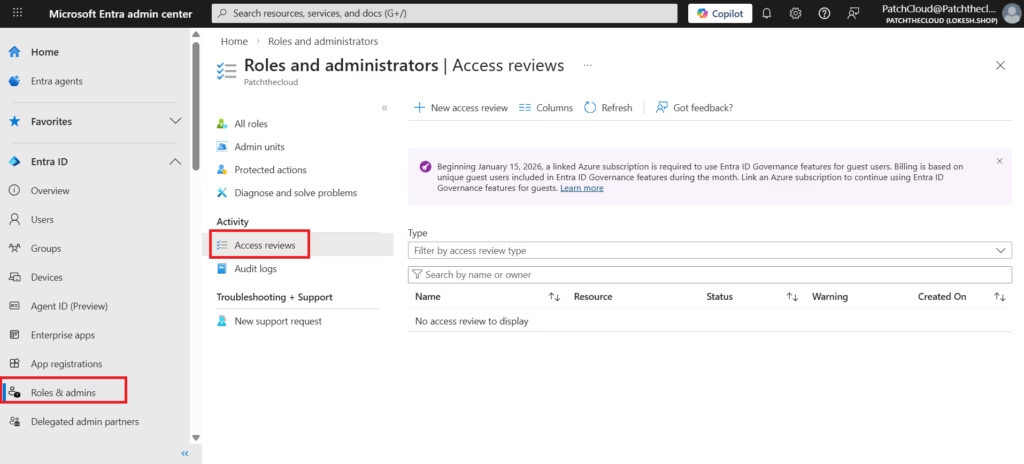
🔹 Step 1: Navigate to Access Reviews
Login to:
👉 Microsoft Entra Admin Center
Navigate to:
👉 Identity → Roles & administrators → Access reviews
This is the central location where you can create and manage all access reviews.
🔹 Step 2: Create a New Access Review
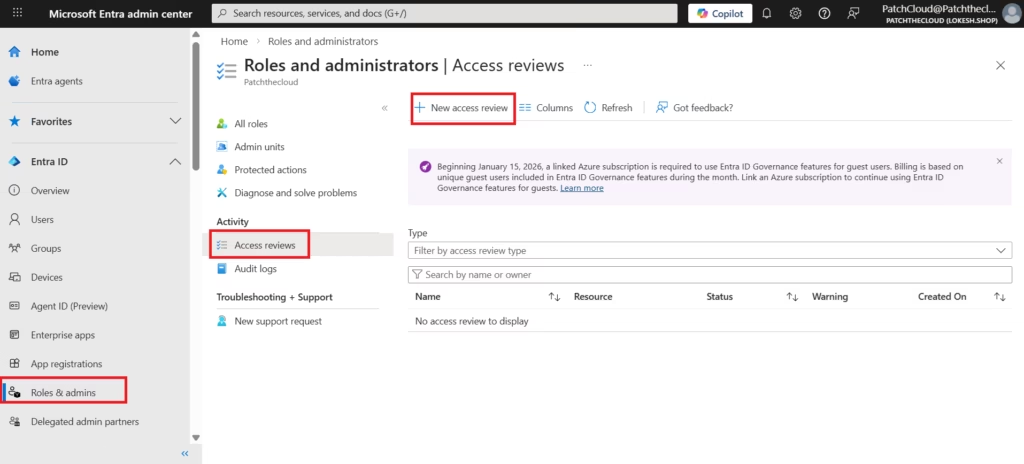
Click on:
👉 + New access review
This will open a configuration wizard where you define the scope, reviewers, and behavior of the review.

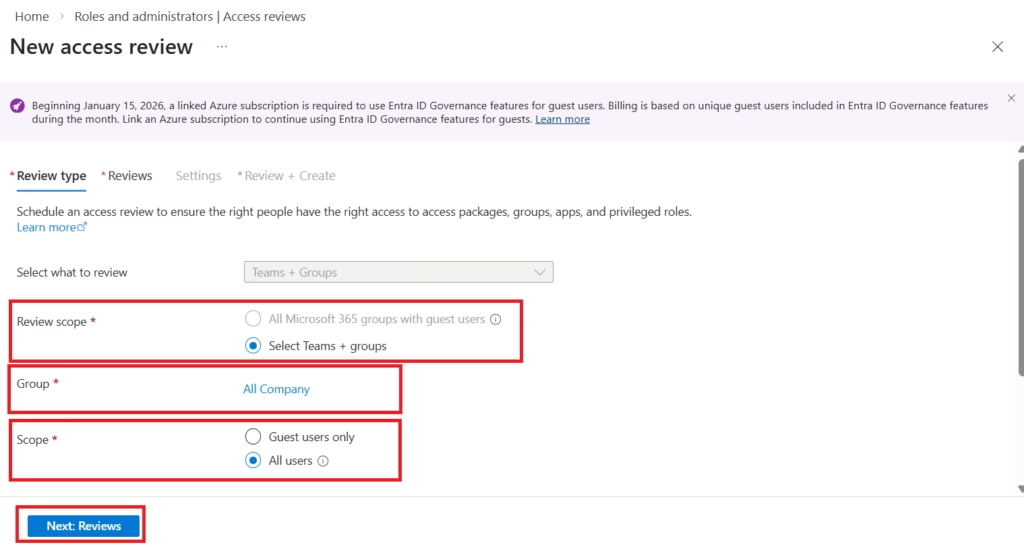
🔹 Step 3: Configure Review Scope
In this step, you decide what access you want to review.
You can choose:
- Teams + Groups
- Applications
- Roles
In your example:
- Selected: Teams + Groups
- Group: All Company
- Scope:
- All users OR
- Guest users only
This flexibility allows you to review:
- Internal users
- External collaborators
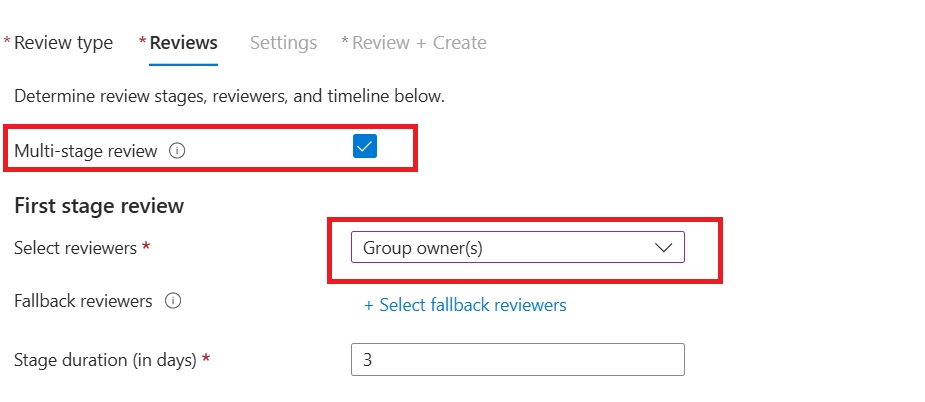
🔹 Step 4: Configure Reviewers (Multi-Stage Review)
Access Reviews support multi-stage approvals, which is very useful in enterprise environments.
Enable:
✔ Multi-stage review
First Stage:
- Reviewer: Group Owner(s)
- Duration: Example → 3 days
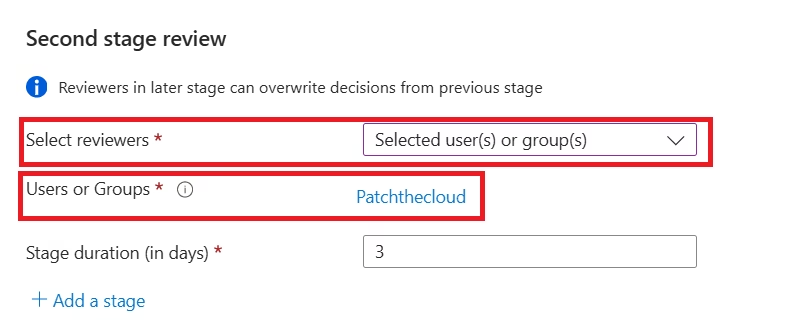
Second Stage:
- Reviewer: Selected users or groups
- Example: Security team or admin group
Why Multi-Stage is Important:
- Adds an additional validation layer
- Reduces risk of incorrect approvals
- Ensures accountability
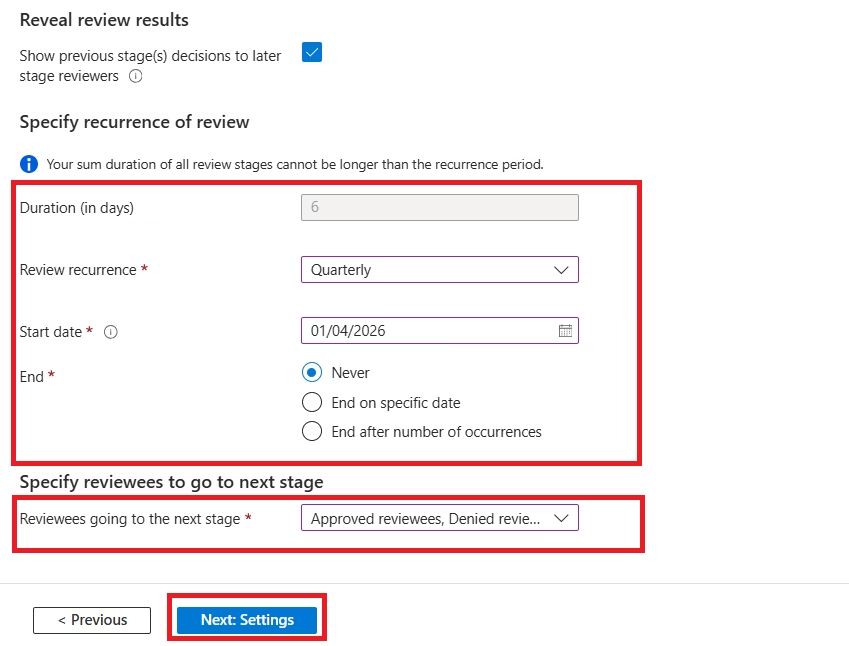
🔹 Step 5: Configure Review Duration & Recurrence
This step defines how often reviews happen.
You can configure:
- Duration (e.g., 6 days)
- Review recurrence:
- Weekly
- Monthly
- Quarterly
- Start date
- End condition
Example:
- Quarterly reviews
- No end date
Best Practice:
- Privileged roles → Monthly
- Groups → Quarterly
🔹 Step 6: Configure Review Behavior
You can define:
- Which users move to next stage
- Whether approved/denied users proceed
Example:
- Approved users proceed
- Denied users removed
This ensures a structured review workflow.
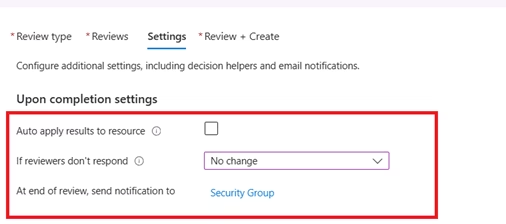
🔹 Step 7: Configure Completion Settings
This is a critical step that defines what happens after the review ends.
Options include:

- Auto apply results
- If reviewers don’t respond:
- No change
- Remove access
- Notification settings
Important Tip:
Always enable auto apply results for automation.
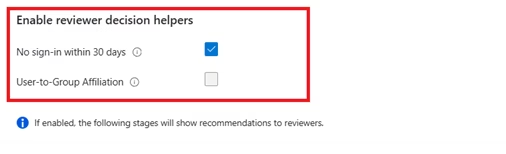
🔹 Step 8: Enable Decision Helpers
Decision helpers make reviews smarter and faster.
Options include:
- No sign-in within X days
- User-to-group affiliation
These help reviewers make data-driven decisions.
🔹 Step 9: Advanced Settings
Here you can enforce governance policies:
- Justification required
- Email notifications
- Reminders
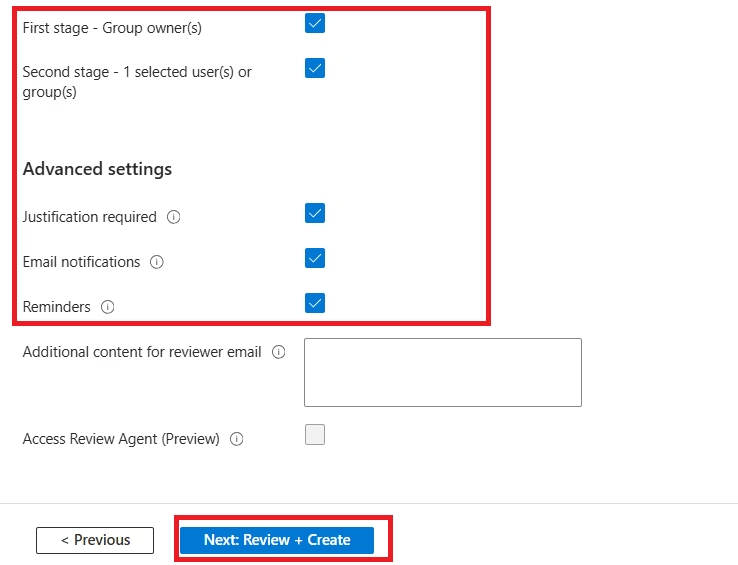
These settings ensure:
- Accountability
- Better audit trails
- Timely reviews
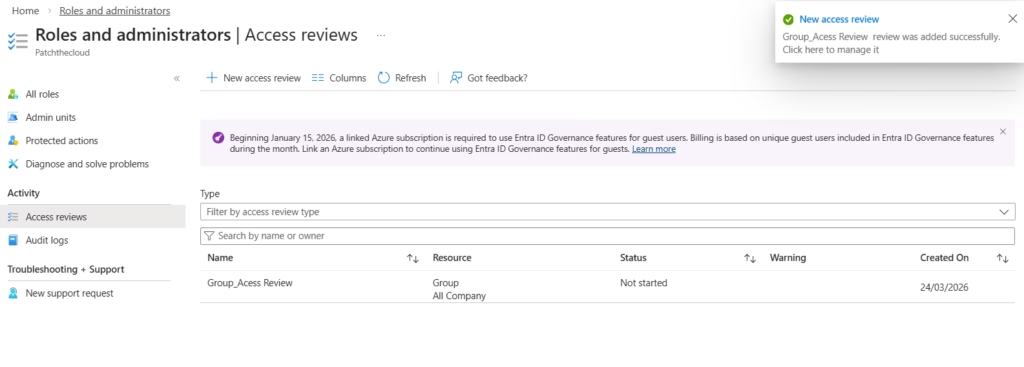
🔹 Step 10: Review & Create
Finally:
Click Next: Review + Create
Once completed, your access review will be created successfully.
How Access Reviews Work (Flow)
- Review is created
- Reviewers are assigned
- Users are evaluated
- Decisions are applied
- Access is retained or removed
Best Practices
Use multi-stage reviews for critical access. Enable automatic removal of inactive users. Assign fallback reviewers. Schedule reviews based on sensitivity. Combine with:
- PIM
- Conditional Access
- Identity Protection
Continue Learning
Access Reviews in Microsoft Entra ID provide a powerful and automated way to ensure that access remains appropriate and secure over time.
By implementing Access Reviews, organizations can:
- Strengthen security posture
- Reduce unnecessary privileges
- Maintain compliance
- Align with Zero Trust principles
When combined with Privileged Identity Management (PIM), Access Reviews become a critical component of identity governance in Microsoft 365 environments.
➡️ Next Step
Continue your learning with:
➡️ Administrative Units in Microsoft Entra ID
https://techcertguide.blog/administrative-units-in-microsoft-entra-id
⬅️ Previous Topic
If you haven’t explored it yet:
➡️ Privileged Identity Management (PIM) in Microsoft Entra ID
https://techcertguide.blog/entra-privileged-identity-management-pim/
📖 Start from the Beginning
If you’re new to this learning series:
➡️ MS-102 Microsoft 365 Administrator Overview
https://techcertguide.blog/ms-102-microsoft-365-administration/
📚 Official Microsoft Reference
For the most accurate and up-to-date exam objectives:
➡️ Microsoft Learn – MS-102 Documentation
https://learn.microsoft.com/en-us/certifications/exams/ms-102/