Multi-Factor Authentication (MFA) in Microsoft Entra ID is one of the most important security controls in Microsoft 365. Modern attacks rarely break encryption — they compromise credentials.
For the MS-102 Microsoft 365 Administrator exam, you must understand:
- What authentication is
- What MFA is
- Authentication methods available
- How to enable and manage MFA
- Passwordless authentication
- Monitoring authentication logs
- Best practices
This guide walks through MFA clearly and practically.
What Is Authentication?
Authentication is the process of verifying a user’s identity.
Traditionally, this meant:
- Username
- Password
However, passwords alone are no longer sufficient.
What Is MFA in Microsoft Entra ID?
Multi-Factor Authentication requires users to provide two or more verification factors.
These factors belong to categories:
1️⃣ Something you know (password)
2️⃣ Something you have (mobile device)
3️⃣ Something you are (biometrics)
MFA combines at least two of these.
Example:
Password + Microsoft Authenticator approval
Why is an MFA in Microsoft Entra ID critical?
Most cloud breaches involve:
- Stolen passwords
- Phishing
- Credential reuse
MFA blocks:
- 99%+ of automated credential attacks
- Many phishing-based compromises
For MS-102, understanding why MFA reduces risk is essential.
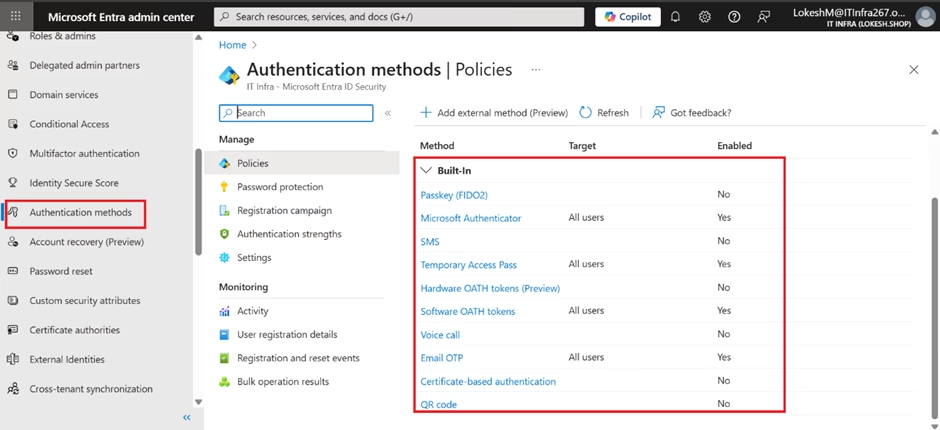
Authentication Methods Available in Microsoft Entra ID
Microsoft Entra ID supports multiple authentication methods.
Learning Objectives
After completing this guide, you will be able to:
- Explain why Multi-Factor Authentication is critical to Microsoft 365 security.
- Identify the available MFA methods, including Authenticator, SMS, and FIDO2 keys.
- Differentiate Security Defaults from Conditional Access-based MFA enforcement.
- Describe best practices for enforcing MFA across a tenant.
Microsoft Authenticator App (Recommended)
- Push notification approval
- Number matching
- Strong phishing resistance
SMS (Text Message)
- One-time code sent to mobile device
- Less secure than Authenticator
Voice Call
- Automated call with verification code
FIDO2 Security Keys
- Hardware-based authentication
- Very strong phishing protection
Windows Hello for Business
- Biometric authentication
- PIN-based device trust
Enabling and Managing MFA
There are two primary ways to enforce MFA.
1️⃣ Security Defaults (Basic)
If enabled:
- MFA required for admins
- Baseline protection applied
Good for small environments.
2️⃣ Conditional Access (Recommended)
MFA can be enforced using Conditional Access policies.
Steps:
1️⃣ Go to Entra Admin Center
2️⃣ Navigate to Conditional Access
3️⃣ Create new policy
4️⃣ Select users or groups
5️⃣ Configure grant control → Require MFA
6️⃣ Enable policy
Conditional Access provides granular control.
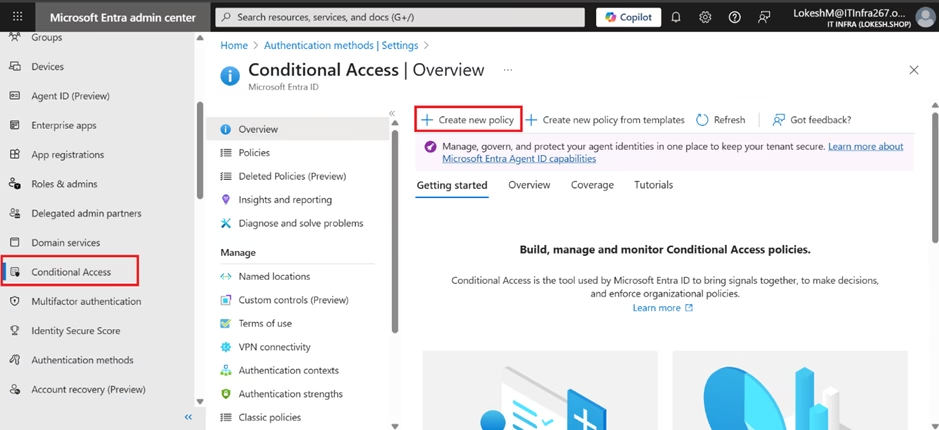
This is frequently tested in MS-102.
Configuring Authentication Methods
To configure authentication methods:
- Go to https://entra.microsoft.com
- Navigate to Entra ID → Authentication methods
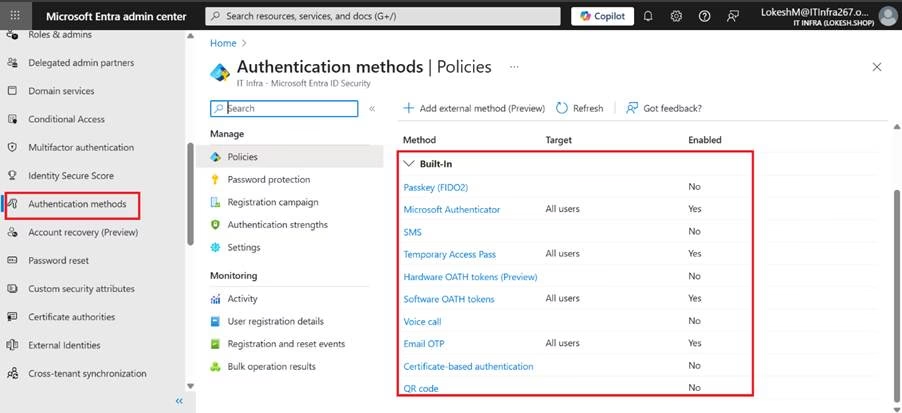
- Select the method (e.g., Microsoft Authenticator)
- Enable or disable for users/groups
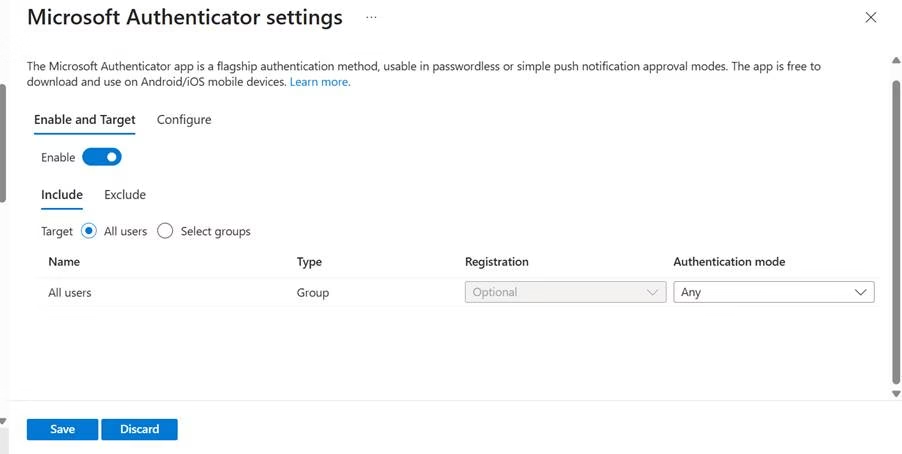
- Configure policy settings
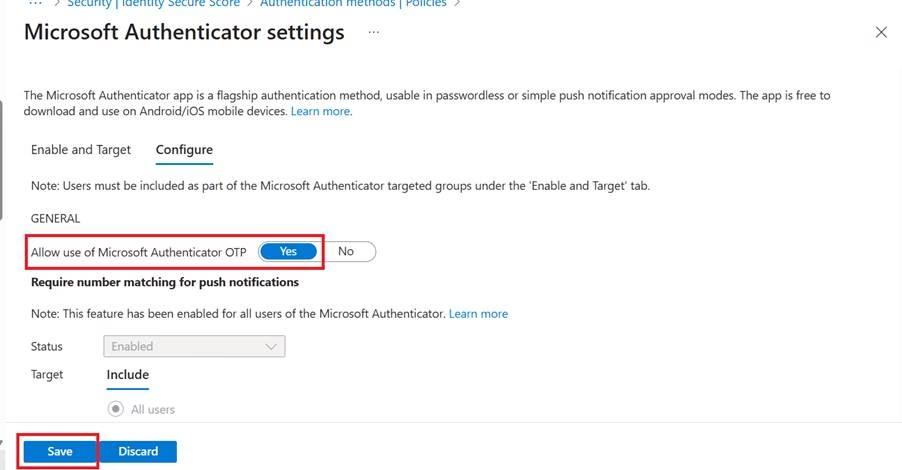
You can define which methods are allowed in the tenant.
Passwordless Authentication
Microsoft Entra ID supports passwordless login methods.
Examples:
- Authenticator app (passwordless mode)
- FIDO2 security key
- Windows Hello
Benefits:
- Reduces phishing risk
- Eliminates password reuse
- Improves user experience
Passwordless is increasingly emphasized in modern identity strategy.
User MFA Registration Process
Users may be required to register authentication methods.
You can configure:
- Registration campaigns
- Mandatory setup on next login
- Grace periods
Administrators must monitor registration compliance.
Monitoring MFA and Authentication Logs
Sign-in logs are located in:
Entra ID → Sign-in Logs
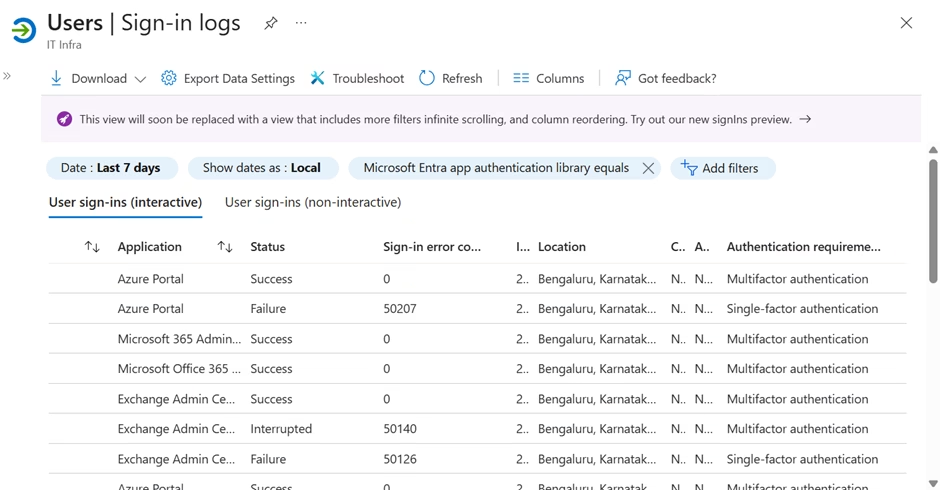
Here you can see:
- MFA requirement status
- Authentication method used
- Risk level
- Failure reason
For troubleshooting:
Check whether MFA was:
- Required
- Successfully completed
- Blocked by policy
Best Practices for MFA Deployment
1️⃣ Enforce MFA for All Users
Start with the administrators first.
2️⃣ Use Conditional Access Instead of Legacy Per-User MFA
Conditional Access provides better control.
3️⃣ Prefer Authenticator Over SMS
SMS is more vulnerable to SIM swap attacks.
4️⃣ Monitor Risky Sign-Ins
Combine MFA with Identity Protection.
5️⃣ Implement Passwordless Where Possible
Modernize authentication to reduce risk.
Why MFA in Microsoft Entra ID Matters for MS-102
MS-102 expects you to:
- Understand authentication vs authorization
- Configure MFA policies
- Choose appropriate authentication methods
- Troubleshoot sign-in failures
- Interpret authentication logs
MFA is central to identity security.
Final Insights
Multi-Factor Authentication in Microsoft Entra ID is not just a checkbox — it is a foundational defense layer.
Identity is the new security perimeter.
When MFA is implemented correctly:
- Credential theft becomes far less effective
- Risk exposure decreases dramatically
- Tenant security posture improves significantly
For the MS-102 Microsoft 365 Administrator exam, MFA represents the transition from identity management to identity protection.
If you’re new to this learning series, start with the main MS-102 Microsoft 365 Administrator overview, where we explain how all chapters connect and what skills you’ll build across the journey.
For the most accurate and up-to-date exam objectives and reference material, Microsoft maintains the official MS-102 documentation on Microsoft Learn. This series complements those resources by focusing on real-world administrative understanding.
In the next chapter, we will move into: Conditional Access Policies in Microsoft Entra ID
That is where identity becomes intelligent and risk-aware.
2 thoughts on “Multi-Factor Authentication (MFA) in Microsoft Entra ID: The Essential Security Guide for MS-102 Administrators”