Before configuring the Hybrid Identity Lab Setup in Microsoft 365, you need a basic on-premises Active Directory & Domain Controller Setup.
This lab setup will help you understand and implement:
- Microsoft Entra Connect
- Password Hash Sync (PHS)
- Pass-Through Authentication (PTA)
- Seamless SSO
- Sync troubleshooting
Why This Lab Setup Matters for MS-102
Hybrid identity is a core part of the MS-102 exam. Many concepts like synchronization, authentication methods, and troubleshooting are based on integrating on-premises Active Directory with Microsoft Entra ID.
Without a proper lab setup, it becomes difficult to understand how these components work together in real-world scenarios. This setup provides a practical foundation to explore features like Entra Connect, Password Hash Sync, and Pass-Through Authentication.
Key Benefit:
This lab allows you to practice real configurations instead of relying only on theory.
Hybrid Identity connects:
On-prem Active Directory
Microsoft Entra ID (Azure AD)
Without Active Directory, there is nothing to sync, so this setup is essential for all hybrid identity topics.
Where This Lab Will Be Used
This lab setup will be used throughout the Hybrid Identity section of this series. You will reuse this environment for multiple topics, including:
- Microsoft Entra Connect installation
- Identity synchronization methods
- OU and attribute filtering
- Troubleshooting sync errors
By setting up this lab once, you can use it across all related topics without rebuilding your environment.
Lab Requirements
You don’t need a complex setup. A simple lab is enough.
Minimum Requirements
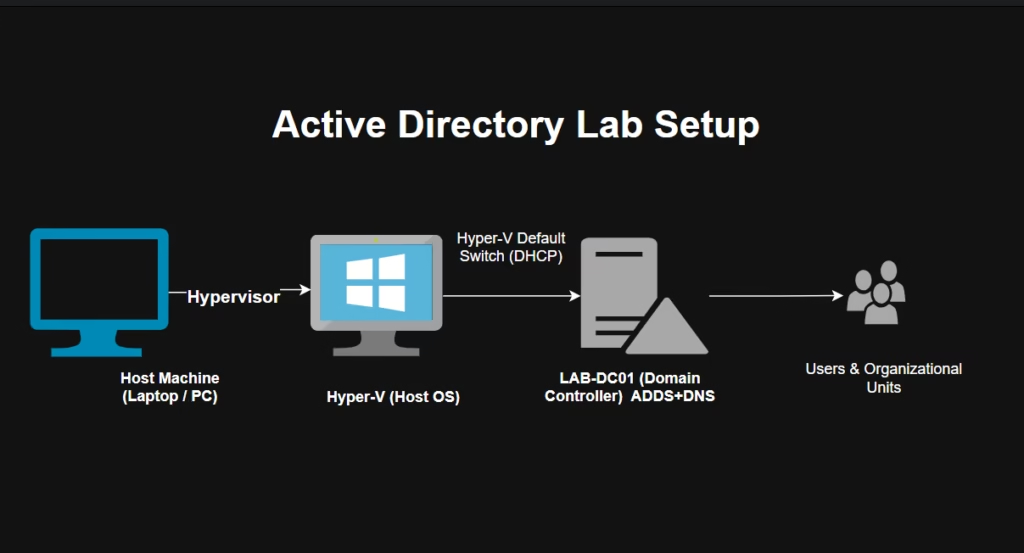
- 1 Virtual Machine (Hyper-V / VMware)
- Windows Server 2019 or 2022
- 4 GB RAM (minimum)
- Internet access
Step-by-Step Active Directory & Domain Controller Setup
Step 1: Install Windows Server
- Create a VM
- Install Windows Server
- Log in as Administrator
Step 2: Rename Server
Rename for clarity:
Rename-Computer -NewName LAB-DC01 -Restart
Step 3: Configure Static IP
- Open Network Settings
- Assign a static IP
- Set DNS = same server IP
Required for domain stability
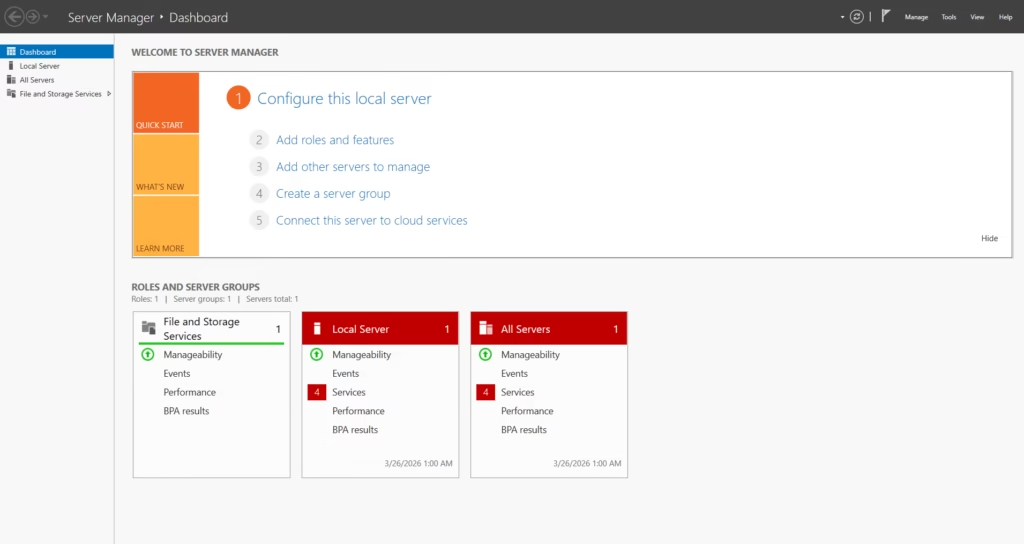
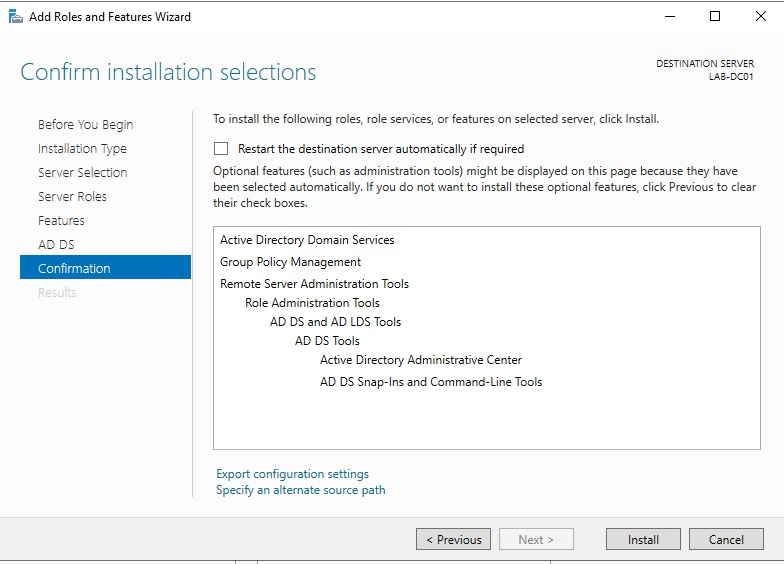
Step 4: Install the AD DS Role
- Open Server Manager
- Click Add Roles and Features
- Select:
- Active Directory Domain Services
Step 5: Promote to Domain Controller
- Click Promote this server to a domain controller
- Select:
Create a new forest
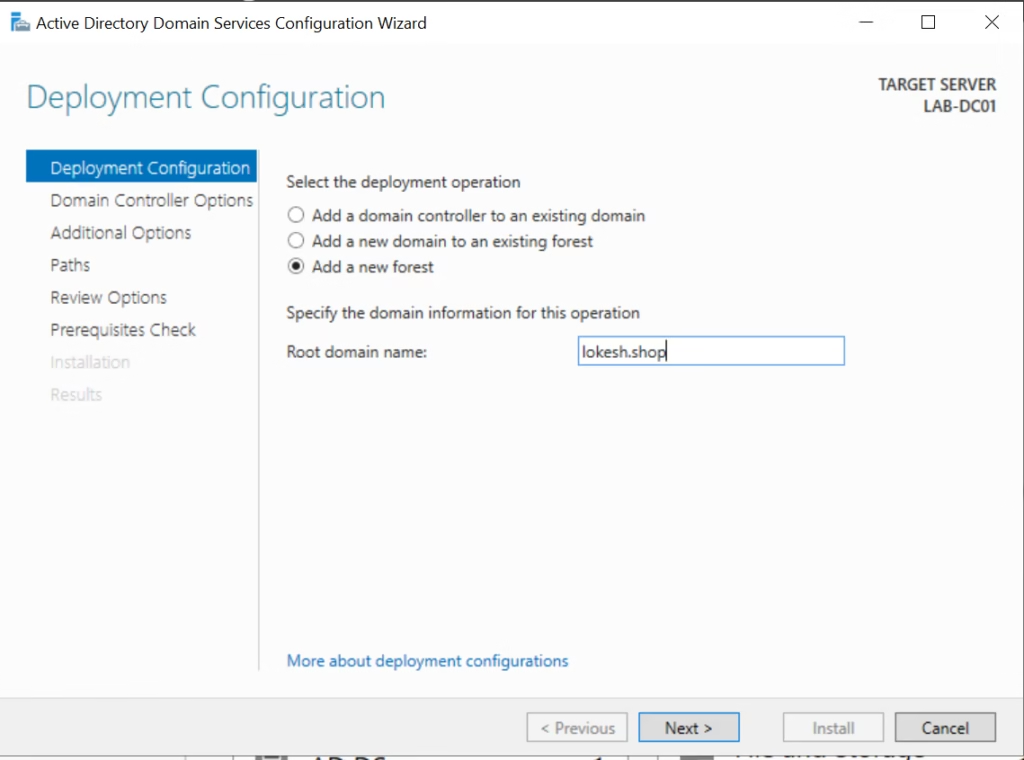
Example domain:
corp.local
- Set DSRM password
- Complete installation
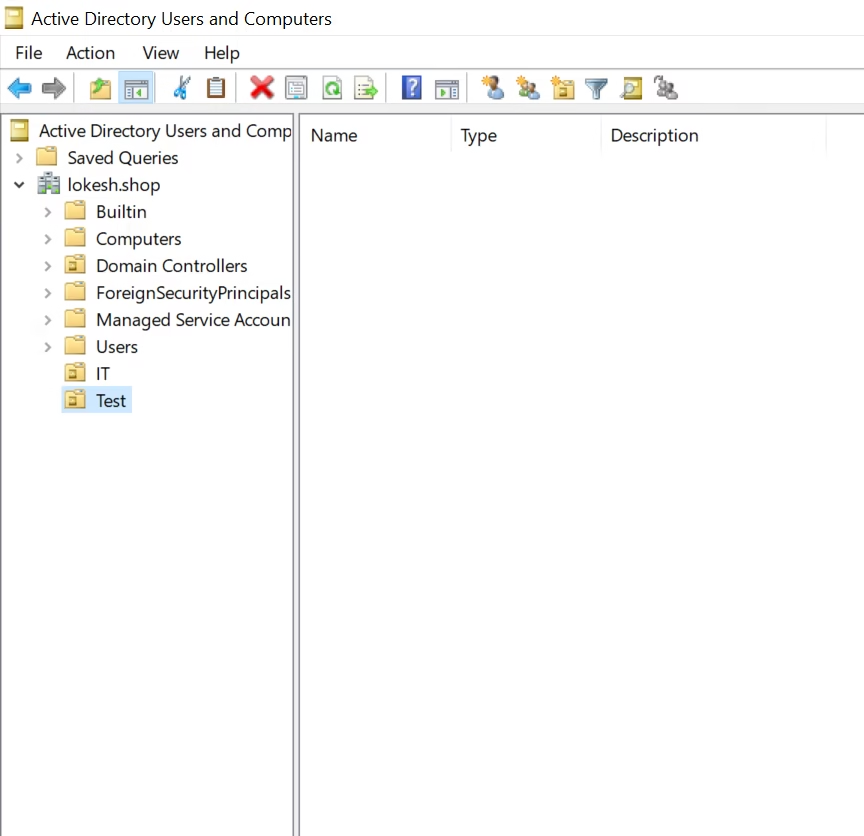
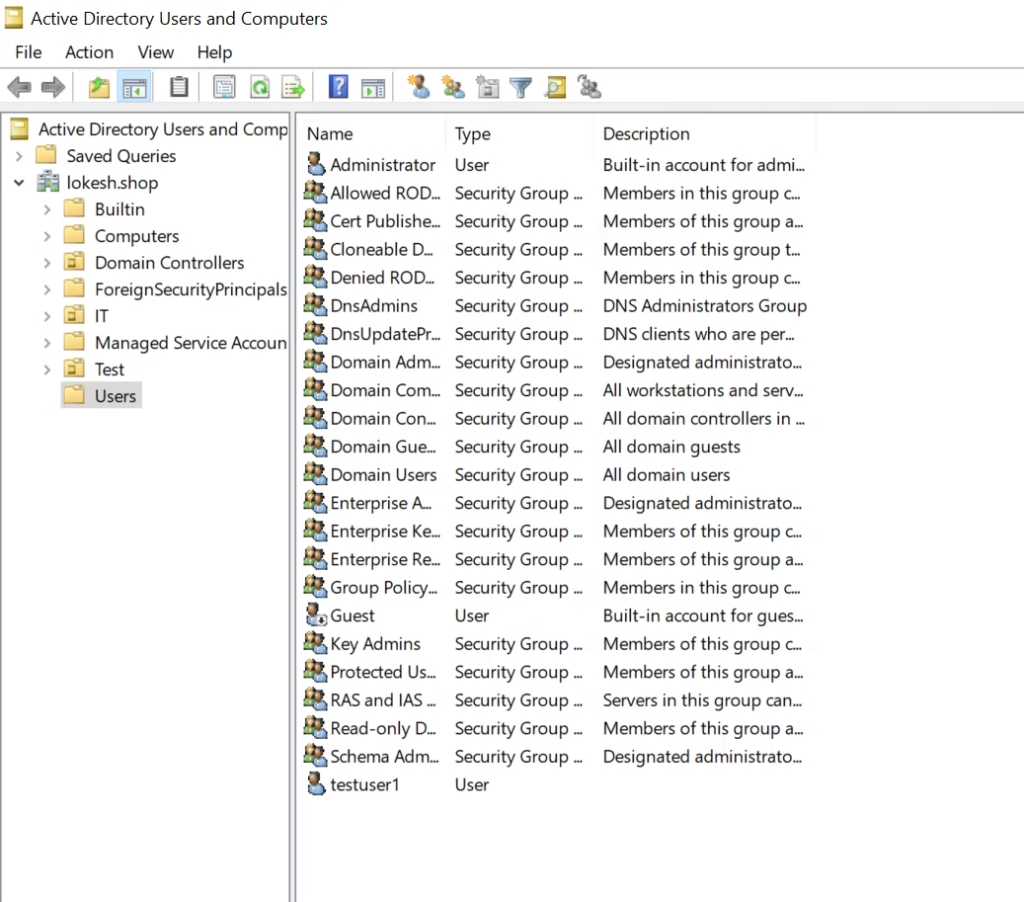
Step 6: Create Users & OUs
Open Active Directory Users and Computers
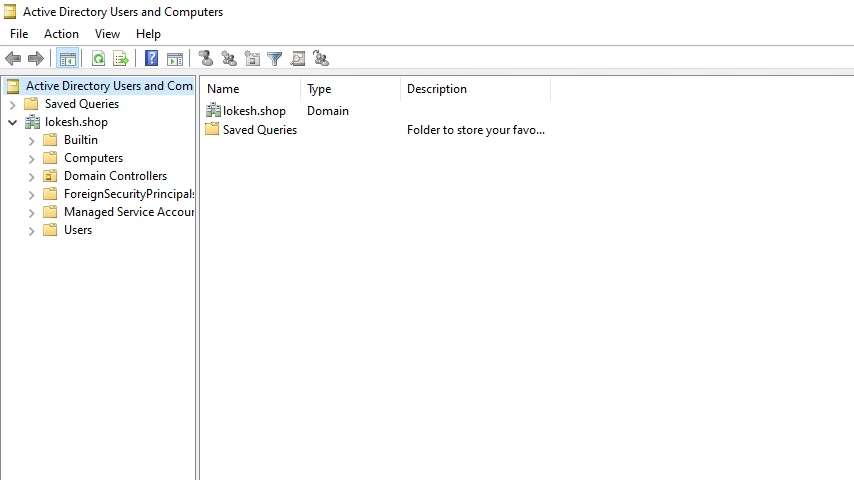
Create:
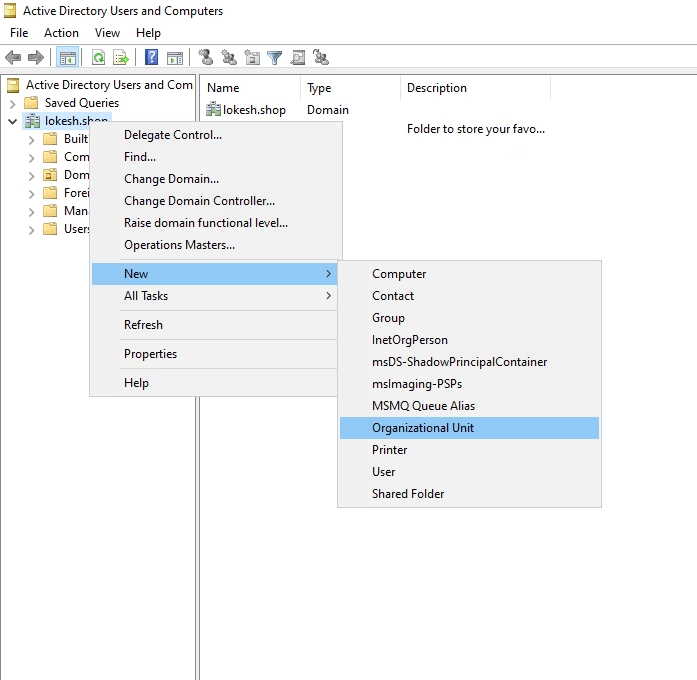
Organizational Units (OU)
- IT
- Users
Users
- testuser1
- testuser2
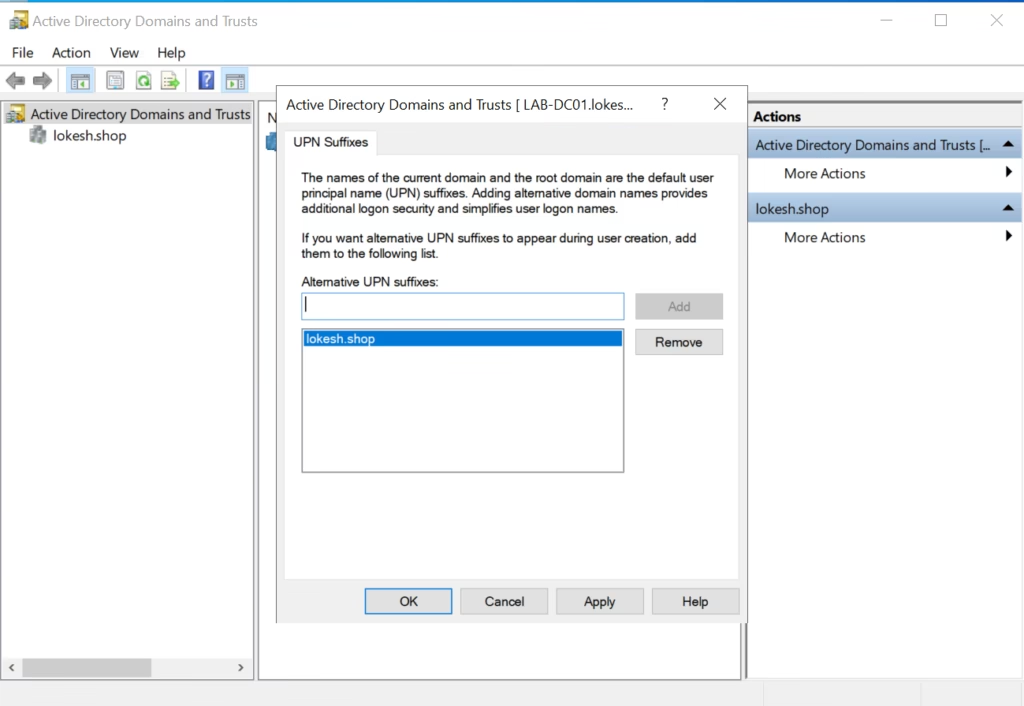
Step 7: Add UPN Suffix (IMPORTANT)
To match the Microsoft 365 domain:
- Open Active Directory Domains and Trusts
- Add your domain:
yourdomain.com
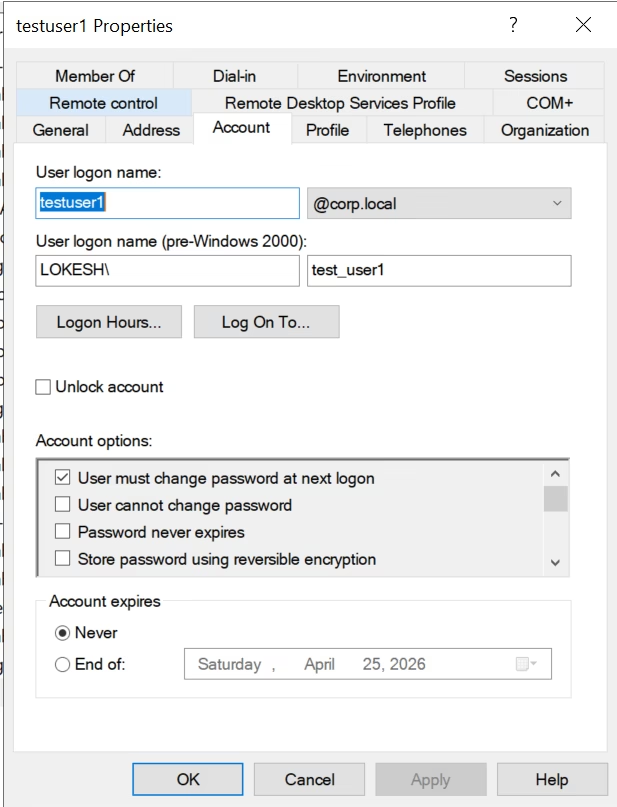
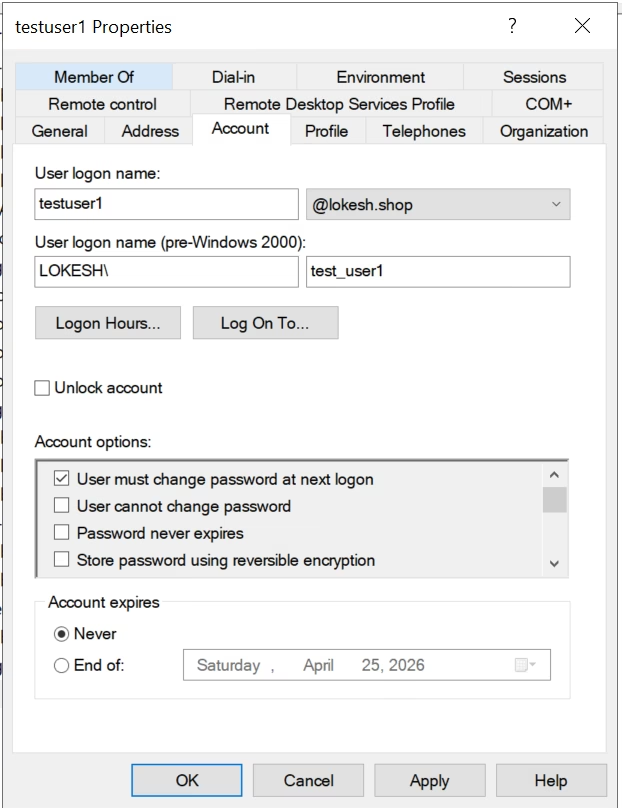
Step 8: Update User UPN
Change users from:
user@corp.local
To:
user@yourdomain.com
This is required for Entra Connect sync
Validation Checklist
Make sure:
- Domain Controller is working
- Users are created
- UPN matches Microsoft 365 domain
- DNS is configured correctly
Common Mistakes to Avoid
- Not setting UPN correctly
- Using a dynamic IP
- Skipping OU structure
- Creating users after sync setup
Security Note
This is a lab environment, so a basic setup is fine.

In production:
- Use separate servers
- Follow AD security best practices
- Apply proper access controls
What’s Next?
Now that your lab is ready, you can continue with:
- Identity Models (Cloud vs Hybrid)
- IdFix Tool
- Microsoft Entra Connect Sync
Pro Tip
Use this same lab for all hybrid identity topics no need to rebuild every time.
Conclusion
Setting up Active Directory is the first step in understanding Hybrid Identity.
Once your lab is ready, you can confidently explore synchronization, authentication methods, and troubleshooting in Microsoft Entra.
Quick Summary
- Active Directory is required for hybrid identity
- A Domain Controller acts as the source of identity
- UPN must match your Microsoft 365 domain
- This lab will be reused for all hybrid identity topics
Final Thought:
A simple and stable lab setup is enough to understand all hybrid identity concepts in MS-102.
👉 Next Step
Continue your learning with:
➡️ Identity Models in Microsoft Entra ID (Cloud vs Hybrid) (Coming Next)
⬅️ Previous Topic
If you haven’t explored it yet:
➡️ Administrative Units in Microsoft Entra ID
https://techcertguide.blog/role-assignment-in-microsoft-entra-id
📖 Start from the Beginning
➡️ MS-102 Microsoft 365 Administrator Overview
https://techcertguide.blog/ms-102-microsoft-365-administration/
📚 Official Microsoft Reference
➡️ https://learn.microsoft.com/en-us/certifications/exams/ms-102/
1 thought on “Active Directory & Domain Controller Setup for Hybrid Identity (MS-102)”