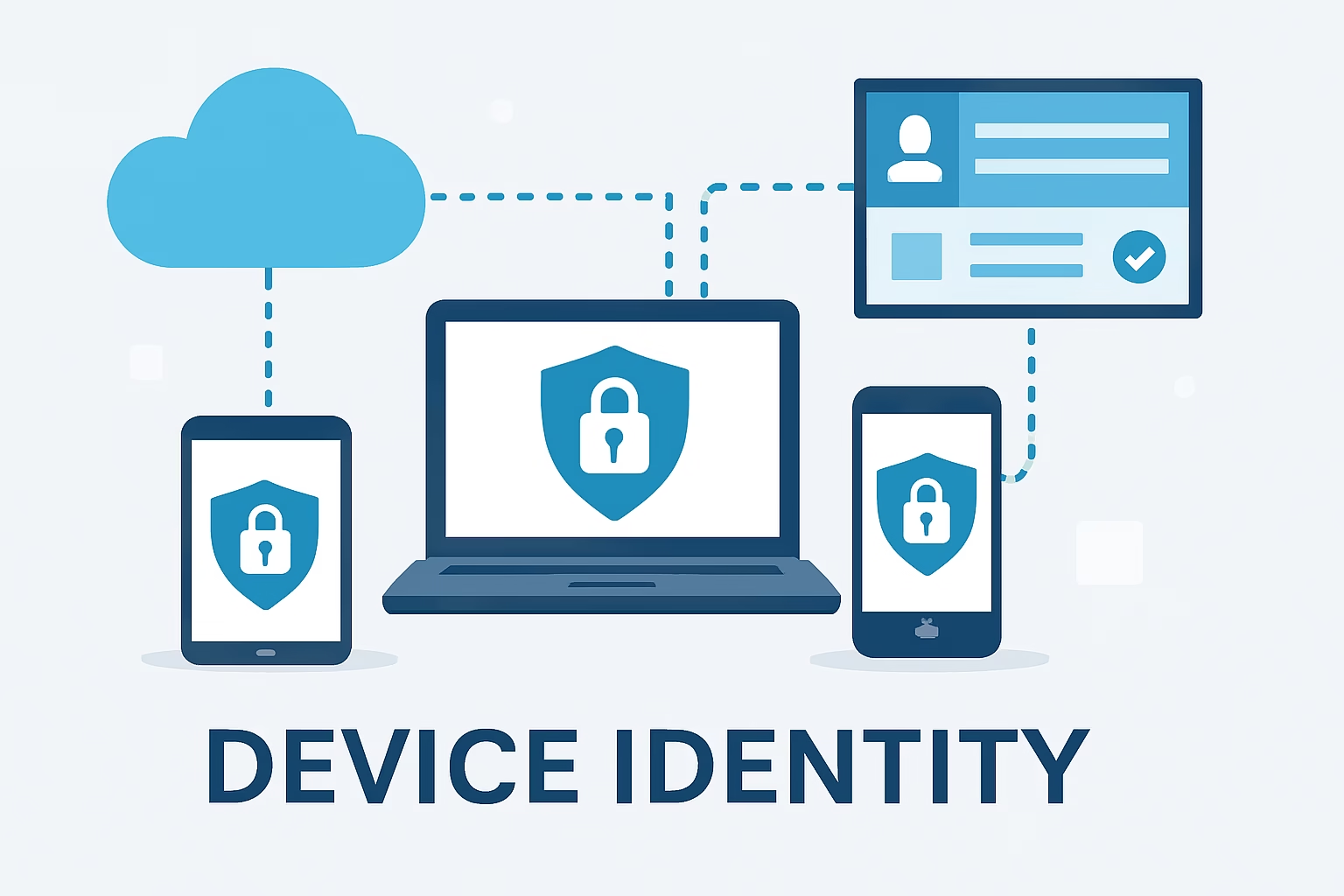
In today’s Microsoft 365 environments, device identity plays a crucial role in securing access, managing endpoints, and enforcing policies effectively. For Microsoft 365 administrators and IT professionals, understanding device identity is fundamental to ensuring devices are properly authenticated, authorized, and compliant with organizational security standards. This guide aims to clarify the core concepts of device identity, focusing on the three prevalent device identity types within Microsoft’s ecosystem: Entra Join, Hybrid Azure AD Join, and Azure AD Registered devices.
What Is Device Identity?
Device identity refers to the digital representation and authentication of a device within Microsoft 365 and Azure Active Directory (Azure AD). Unlike user identity, which focuses on an individual, device identity allows organizations to verify the trustworthiness of the device accessing corporate resources. It serves as a foundation for security controls, access management, and policy enforcement by establishing a trusted relationship between the device and Azure AD.
Device identity enables conditional access policies to evaluate not only who the user is but also the state and compliance of the device they are using. It integrates closely with tools like Microsoft Endpoint Manager, allowing IT administrators to deploy configuration profiles, applications, and compliance rules based on the device’s identity and status.
Overview of Device Identity Types
Microsoft primarily categorizes device identities into three distinct types, each designed for different use cases and environments. Understanding these helps administrators choose the right approach for their organizational needs:
- Entra Join (Azure AD Joined)
- Hybrid Azure AD Join
- Azure AD Registered Devices
| Device Identity Type | Primary Purpose | Typical Scenario |
|---|---|---|
| Entra Join (Azure AD Joined) | Cloud-native devices fully managed by Azure AD | Cloud-first organizations, remote workforce devices |
| Hybrid Azure AD Join | On-premises domain-joined devices extended to Azure AD | Corporate-managed devices in traditional enterprise environments |
| Azure AD Registered Devices | Bring Your Own Device (BYOD) and personal device registration | Mobile devices and users needing limited device trust |
Entra Join (Azure AD Joined) Overview
Entra Join, previously referred to as Azure AD Join, is the process where a device is registered directly with Azure Active Directory without relying on an on-premises Active Directory. This method suits modern, cloud-first organizations with devices that primarily connect to cloud resources.
Typical scenarios include remote users, branch offices, and mobile employees where devices are not joined to a traditional Active Directory domain but still need centralized management and security enforcement through Azure AD and Microsoft Endpoint Manager.
When a device is Entra Joined, it establishes a strong identity in Azure AD. This enables seamless single sign-on (SSO) for users accessing Microsoft 365 apps and resources, and allows IT administrators to apply compliance policies and conditional access rules based on the device’s registration and health.
Administrators can fully manage Entra Joined devices through Microsoft Endpoint Manager, deploying applications, enforcing security baselines, and monitoring compliance—crucial for maintaining a secure cloud-centric environment.
Prerequisites and Considerations
- Supported on Windows 10/11 Pro, Enterprise, and Education editions.
- Requires Azure AD Premium licensing for conditional access and advanced management features.
- Devices must have internet connectivity to communicate with Azure AD during registration and compliance checks.
Hybrid Azure AD Join Overview
Hybrid Azure AD Join applies to organizations with on-premises Active Directory infrastructure. Devices are joined to the local domain and simultaneously registered with Azure AD, providing a dual identity.
This enables devices to authenticate both to on-premises resources and Microsoft 365 cloud services, supporting enterprises managing corporate-owned desktops or laptops within a Windows domain environment while enabling cloud capabilities.
Device registration for Hybrid Join is typically automated via Group Policy or provisioning tools, syncing device identity information to Azure AD. This hybrid model offers seamless experiences across corporate resources and facilitates conditional access policies based on device compliance.
Administrators managing Hybrid Joined devices must maintain synchronization between on-premises Active Directory and Azure AD, configure Group Policies correctly, and monitor device registration to avoid access disruptions.
Prerequisites and Considerations
- Requires Azure AD Connect for directory synchronization.
- Supported on Windows 10/11 devices joined to Active Directory domain.
- Group Policy must be configured to enable automatic device registration.
- Potential synchronization delays or failures require monitoring using Azure AD Connect health tools.
Azure AD Registered Devices Overview
Azure AD Registered devices provide a lightweight device identity primarily used for Bring Your Own Device (BYOD) or personal devices. Unlike joining, devices are simply registered, creating a limited trust relationship useful for accessing corporate resources without full device management.
This approach is common for mobile devices and laptops where users require access with multi-factor authentication (MFA) and conditional access, but IT does not enforce full device compliance or configuration profiles.
Registration supports scenarios where flexibility and user autonomy are important while maintaining a baseline security posture to prevent unregistered devices from accessing sensitive corporate data.
Prerequisites and Considerations
- Suitable for personal Windows, iOS, Android, and macOS devices.
- Does not require full device management enrollment.
- Limited device compliance checks compared to joined devices.
- Provides basic conditional access capability based on device registration status.
Key Differences and When to Use Each Device Identity Type
| Criteria | Entra Join (Azure AD Joined) | Hybrid Azure AD Join | Azure AD Registered Devices |
|---|---|---|---|
| Device Ownership | Corporate-owned, cloud-first devices | Corporate-owned, domain-joined devices | Personal or BYOD devices |
| Management Capabilities | Full management via Endpoint Manager | Full management with on-prem AD + Azure AD integration | Limited or no management |
| Authentication Flow | Azure AD primary authentication for device and user | On-prem AD authentication synchronized with Azure AD | User-based authentication with device registration |
| Conditional Access Impact | Supports robust compliance evaluation | Supports robust compliance evaluation | Supports basic conditional access based on device registration |
Practical advice for administrators: Use Entra Join for modern devices in cloud-first or cloud-only environments; choose Hybrid Join for devices requiring on-premises AD authentication alongside cloud access; and deploy Azure AD Registered devices for personal or BYOD scenarios where limited device trust suffices.
Managing Device Identity: Tools and Best Practices
Microsoft 365 administrators have several powerful tools to manage device identity effectively:
- Azure AD Portal: Provides detailed views of device status, join type, compliance, and enables remote actions such as wipe or disable.
- Microsoft Endpoint Manager (Intune): Enables device configuration, policy deployment, application management, and conditional access integration.
- Azure AD Connect: Critical for syncing on-premises AD with Azure AD to support Hybrid Join scenarios.
To maintain security, administrators should continuously monitor device identity health and compliance. Automating onboarding processes for enrolling and registering devices reduces errors and accelerates deployment. Integrating device identity management with conditional access policies ensures only trusted, compliant devices can access sensitive resources, mitigating risks from unauthorized device access.
Device Lifecycle Management
Effective device identity management also involves lifecycle considerations such as onboarding new devices, offboarding former devices, re-enrollment procedures, and revoking device access when needed. Automating these tasks through policies and scripts improves security and operational efficiency.
Troubleshooting Device Identity Issues
Managing device identity can present challenges. Key troubleshooting tips include:
- Device Not Showing as Joined or Registered: Verify network connectivity, time synchronization, and device synchronization status in the Azure AD portal.
- Hybrid Join Synchronization Issues: Confirm Azure AD Connect health, ensure domain-joined devices receive Group Policy for device registration, and review synchronization logs.
- Conditional Access Failures: Check if device compliance policies are current and validate device meets security baseline configurations.
Helpful diagnostic tools include dsregcmd.exe on Windows devices for join status checks, Azure AD sign-in logs for authentication analysis, and Endpoint Manager monitoring dashboards. Device event viewer logs related to Azure AD device registration assist in root cause analysis.
Sample Troubleshooting Command
Run the following on a Windows device to check Azure AD join status:
dsregcmd /status
Conclusion
Understanding device identity types—Entra Join, Hybrid Azure AD Join, and Azure AD Registered devices—is essential for Microsoft 365 administrators aiming to secure device access and optimize endpoint management. Mastery of these device identity models improves security posture, ensures compliance, and enhances user experience across hybrid and cloud environments.
As device ecosystems evolve with increasing BYOD adoption and cloud migration, integrating device identity concepts into routine administrative workflows remains vital for successful Microsoft 365 deployments and ongoing management.
FAQ Section
- What is the primary difference between Entra Join and Hybrid Azure AD Join?
Entra Join registers devices directly with Azure AD, ideal for cloud-only environments, while Hybrid Azure AD Join involves devices joined to an on-premises Active Directory and also registered in Azure AD, supporting traditional corporate environments. - Can a single device be both Azure AD Registered and Azure AD Joined?
No, a device is either joined (Entra or Hybrid) or registered. Joining establishes a stronger trust and management relationship, while registration is a lighter association mainly for personal devices. - How does device identity affect conditional access policies in Microsoft 365?
Device identity enables conditional access to evaluate device trust and compliance before granting access to resources, allowing policies to enforce restrictions like requiring compliant devices or blocking untrusted endpoints. - What are typical troubleshooting steps if a device is not appearing as joined or registered correctly?
Check device connectivity and time synchronization, run dsregcmd /status on Windows devices, verify Azure AD Connect synchronization for Hybrid Join devices, review Azure AD device logs, and ensure Group Policies are applied correctly. - Are personal devices recommended to be Azure AD Registered rather than joined?
Yes, personal or BYOD devices are typically Azure AD Registered, offering limited device identity to secure access without requiring full device management or enrollment.
← Previous Lesson
Introduction to Microsoft Intune & Endpoint Manager