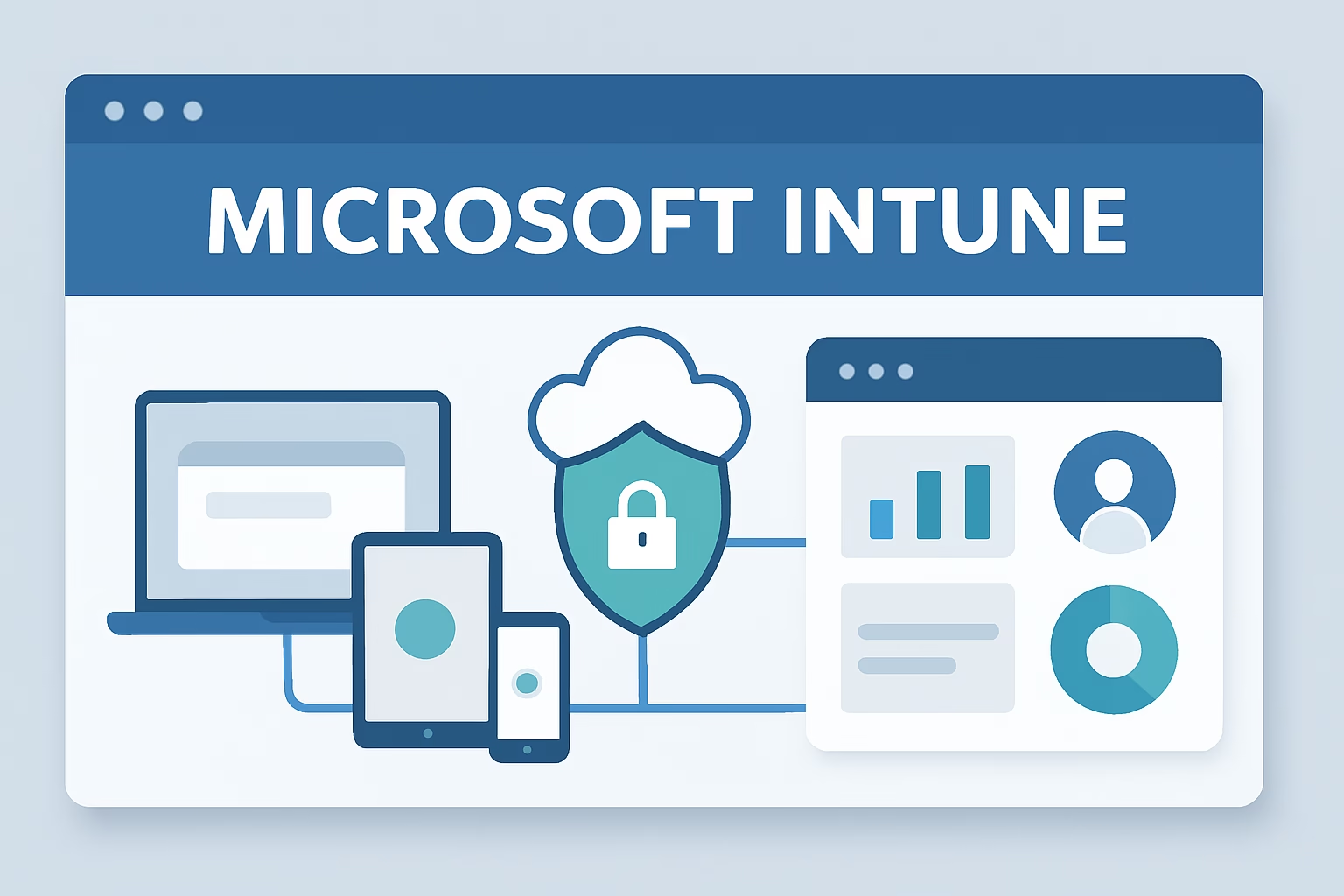
For Microsoft 365 Administrators and IT Professionals, mastering device and application management is crucial in today’s evolving enterprise landscape. This educational guide offers a comprehensive introduction to microsoft intune endpoint manager, a powerful cloud-based platform designed to streamline device and app management while enhancing security and compliance.
Overview of Microsoft Intune and Endpoint Manager
Microsoft Intune and Endpoint Manager together provide organizations with a modern, unified solution for managing devices, applications, and security policies across multiple platforms. As organizations increasingly adopt remote and hybrid work environments, these tools empower IT teams to ensure secure access to corporate resources while maintaining productivity.
This guide aims to provide Microsoft 365 administrators and IT professionals a clear understanding of what microsoft intune endpoint manager is, its core components, and practical insights into managing enterprise devices effectively. Whether you’re preparing for the MD-102 exam or seeking to optimize your device management approach, this article will serve as your foundational resource.
1. Understanding Microsoft Intune & Endpoint Manager
1.1 What is Microsoft Intune?
Microsoft Intune is a cloud-based service focused on mobile device management (MDM) and mobile application management (MAM). It enables administrators to control how organizational devices are used, configure specific policies to secure data, and manage applications installed on devices.
Core capabilities include:
- Device management – enrolling and monitoring compliance of Windows, iOS, Android, and macOS devices.
- Application management – deploying, updating, and securing corporate apps.
- Policy enforcement – ensuring that users meet organization-defined security and compliance policies.
1.2 What is Endpoint Manager?
Microsoft Endpoint Manager is a comprehensive management platform that combines services and tools, including Microsoft Intune, to provide unified endpoint management (UEM). It consolidates different management technologies into a single console, streamlining administrative tasks.
Specifically, Endpoint Manager integrates Microsoft Intune with traditional tools like System Center Configuration Manager (SCCM) to support both cloud-based and on-premises management scenarios. This integration allows organizations to manage all their devices—whether cloud-only or hybrid—from one platform.
1.3 Key Benefits of Using Microsoft Intune Endpoint Manager
- Unified management console: Simplifies administrative overhead by providing a single place to manage all devices, applications, and compliance policies.
- Cloud-based management: Enables remote device and app management without the need for on-premises infrastructure, supporting work-from-anywhere models.
- Enhanced security and compliance: Implements granular controls through policies and conditional access to safeguard corporate data.
2. Core Components and Features of Microsoft Intune Endpoint Manager
2.1 Device Management
Microsoft Intune Endpoint Manager supports a wide range of operating systems:
- Windows 10 and 11
- iOS and iPadOS
- Android
- macOS
Devices can be enrolled using various methods such as:
- Azure AD Join or Hybrid Azure AD Join for Windows devices
- Apple Automated Device Enrollment (formerly DEP) for iOS and macOS
- Android Enterprise Enrollment methods
Administrators deploy device configuration profiles to customize device settings and enforce policies such as password requirements, encryption, Wi-Fi configurations, and VPN settings.
2.2 Application Management
Application management in microsoft intune endpoint manager enables targeted app deployment and protection:
- App deployment and updates: IT teams can push applications from various sources including Microsoft Store for Business, line-of-business apps, and web apps.
- App Protection Policies (MAM): These policies apply data protection controls at the app level, helping secure corporate data on both managed and unmanaged devices.
- Microsoft Store for Business Integration: Facilitates simplified app procurement and management for organizations.
2.3 Security and Compliance Management
Security is at the core of microsoft intune endpoint manager’s design:
- Conditional Access policies allow access to corporate resources only if devices meet certain compliance criteria—ensuring secure resource access.
- Compliance policies define rules such as requiring device encryption, updated antivirus, or minimum operating system version, with built-in reporting.
- Role-Based Access Control (RBAC) lets organizations delegate administrative tasks securely by assigning roles with specific permissions in the Endpoint Manager admin center.
2.4 Reporting and Analytics
The platform provides rich reporting features to monitor device health and compliance:
- Real-time compliance status dashboards and alerts
- Detailed usage and deployment reports helpful for troubleshooting
- Audit logs to track administrative changes and user activities
3. Practical Guide for Microsoft 365 Administrators: Getting Started with Microsoft Intune Endpoint Manager
3.1 Prerequisites for Using Microsoft Intune Endpoint Manager
- Licensing considerations: Ensure appropriate licenses such as Microsoft 365 E3/E5, Enterprise Mobility + Security (EMS), or Intune standalone licenses are procured.
- Required permissions and roles: Administrative roles such as Intune Administrator or Global Administrator are needed to manage the platform.
- Network and infrastructure: Stable internet connectivity and proper firewall configurations to allow communication with Microsoft cloud services.
3.2 Initial Setup and Configuration
Administrators access the Endpoint Manager Admin Center via https://endpoint.microsoft.com/. Key setup steps include:
- Configuring device enrollment options for supported platforms.
- Creating device compliance and configuration policies aligned with organizational standards.
- Defining user and device groups for targeted policy assignment.
3.3 Common Administrative Tasks
- Enrolling devices and users: Administrators guide users through enrollment or use bulk enrollment methods like Windows Autopilot.
- Deploying applications and updates: Use app deployment features to deliver necessary software and updates remotely.
- Creating and managing compliance and conditional access policies: Regularly update and fine-tune these policies to maintain security in a dynamic environment.
4. Key Considerations, Limitations, and Best Practices for Microsoft Intune Endpoint Manager
4.1 Limitations to Be Aware Of
- Platform support varies, with some advanced management capabilities limited on non-Windows devices.
- Integration with legacy on-premises tools like SCCM requires hybrid configurations and planning.
4.2 Best Practices for Effective Management
- Policy design and testing: Develop policies in test environments to ensure they function as intended before wide deployment.
- Security baseline implementation: Apply Microsoft-recommended security baselines to standardize secure configurations.
- Regular monitoring and auditing: Continuously review compliance reports and audit logs to detect and remediate issues proactively.
5. Troubleshooting Common Issues in Microsoft Intune Endpoint Manager
5.1 Common Enrollment Errors and Fixes
- Enrollment failures: Check network connectivity, license assignments, and device compatibility. Use built-in diagnostics to identify registration errors.
- Policy application issues: Verify policy assignments, conflict resolution between profiles, and device sync status.
- Device compliance status troubleshooting: Review compliance reports and detailed device error messages to diagnose non-compliance reasons.
- Using logs and support tools: The Endpoint Manager admin center includes diagnostic tools and connection status details. Leveraging these with Microsoft Support documentation enhances troubleshooting effectiveness.
Conclusion
Microsoft intune endpoint manager stands as an indispensable tool for modern Microsoft 365 Administrators and IT Professionals tasked with securing and managing enterprise devices and applications. By unifying cloud-based management and robust security frameworks, microsoft intune endpoint manager simplifies complex IT challenges.
Embracing this platform enables organizations to confidently support diverse workstyles while maintaining compliance and operational efficiency. For those preparing for the MD-102 certification, mastering microsoft intune endpoint manager concepts and practical skills is foundational. Continue deepening your knowledge with hands-on practice and additional Microsoft learning resources.
FAQs
- What is the difference between Microsoft Intune and Endpoint Manager?
Microsoft Intune is a cloud-based device and application management service, while Endpoint Manager is a broader management platform that combines Intune with Configuration Manager and other tools to provide unified endpoint management. - Which devices can be managed using Microsoft Intune Endpoint Manager?
It supports Windows 10 and 11, iOS/iPadOS, Android, and macOS devices, allowing for comprehensive cross-platform management. - How does Microsoft Intune Endpoint Manager help enforce security policies?
Through device compliance policies, conditional access, and app protection policies, it ensures that only compliant devices and users can access corporate resources securely. - What are the basic enrollment options available in Intune?
Enrollment methods include Azure AD Join, Hybrid Azure AD Join, Apple Automated Device Enrollment, Android Enterprise enrollment, and manual user-driven enrollment. - Can Microsoft Intune Endpoint Manager be integrated with other Microsoft management tools?
Yes, it integrates with Configuration Manager (SCCM) to enable hybrid management and provides interface connections to Microsoft Defender for Endpoint and Azure AD for enhanced security and identity management.