Controlling the sync scope via OU and Attribute Filtering in Microsoft Entra Connect is a foundational governance task (with Lab)
After installing Microsoft Entra Connect and configuring authentication, the next critical responsibility is controlling what data actually synchronizes to Microsoft Entra ID.
By default, Entra Connect synchronizes all users, groups, and supported objects from on‑premises Active Directory. While this behavior is useful for initial deployments, production environments require tight control over scope and attributes to reduce risk, improve security posture, and simplify administration.
For the MS‑102 Microsoft 365 Administrator exam, administrators must understand:
- Why is filtering required
- What OU and attribute filtering in Microsoft Entra Connect do
- When to apply filtering
- How filtering impacts synchronization behavior
This post explains OU and Attribute Filtering in Microsoft Entra Connect in detail, including its importance and a hands‑on lab to validate behavior safely.
Why Filtering Matters in Hybrid Identity
Unrestricted synchronization can lead to:
- Service accounts appearing in Entra ID
- Test or disabled users synced unintentionally
- Licensing waste
- Increased attack surface
- Compliance concerns
Filtering is a governance control, not just a convenience feature.
Microsoft expects administrators to start broad and then narrow synchronization intentionally.
Understanding OU and Attribute Filtering in Microsoft Entra Connect is crucial for maintaining a secure and efficient environment.
Understanding Filtering in Entra Connect
Microsoft Entra Connect supports two primary filtering types:
| Filtering Type | Purpose |
|---|---|
| OU Filtering | Controls which directory objects sync |
| Attribute Filtering | Controls which attributes sync |
These filters are applied before objects reach Entra ID.
OU Filtering Explained
What Is OU Filtering?
OU (Organizational Unit) filtering determines which containers in Active Directory are included in synchronization.
Objects located in excluded OUs:
- Are not synchronized to Entra ID
- Do not appear as cloud users
- Cannot sign in to Microsoft 365
OU filtering is the most common and safest form of filtering.
When to Use OU Filtering
OU filtering should be used to:
- Exclude service accounts
- Exclude test or lab, users
- Exclude disabled or staging accounts
- Reduce visibility of privileged objects
Microsoft recommends OU filtering over attribute filtering whenever possible.
Important OU Filtering Behavior
- Filtering applies only to objects, not attributes
- Moving a synced user to an excluded OU:
- Removes them from Entra ID (soft‑delete)
- Moving back into a synced OU:
- Restores the user after the next sync
MS‑102 Insight
OU filtering changes identity lifecycle behavior and must be planned carefully.
Attribute Filtering Explained
What Is Attribute Filtering?
Attribute filtering allows administrators to:
- Prevent specific attribute values from synchronizing
- Control identity exposure beyond structure
- Apply logic‑based conditions
Attribute filtering is advanced and should be used cautiously.
Common Attribute Filtering Scenarios
Attribute filtering is typically used when:
- OU restructuring is not possible
- Multiple business units share OUs
- Custom logic determines sync eligibility
Example logic:
- Sync only users with
employeeType = Employee - Exclude users with
extensionAttribute1 = NOSYNC
Why Attribute Filtering Is Risky
Attribute filtering:
- Adds complexity
- Is harder to troubleshoot
- Can break identity consistency
- Requires rule‑level understanding
MS‑102 Insight
Microsoft prefers OU filtering for most scenarios.
Filtering Strategy: Best Practice Approach
Recommended progression:
1️⃣ Initial broad sync
2️⃣ Validate authentication and sign‑in
3️⃣ Apply OU filtering
4️⃣ Validate impact
5️⃣ Introduce attribute filtering only if necessary
This staged approach avoids accidental data loss.
Step-by-Step: Configuring OU and Attribute Filtering in Microsoft Entra Connect
Lab Objective:
Restrict synchronization scope by excluding a test OU and validate the effect in Entra ID.
Lab Prerequisites
- Microsoft Entra Connect is installed
- Synchronization is healthy (delta sync working)
- Test OU available in Active Directory
- At least one test user inside the target OU
Step 1: Identify OU Structure
In Active Directory Users and Computers, note:
- A test OU (example:
OU=LabUsers) - A production OU (example:
OU=Employees)
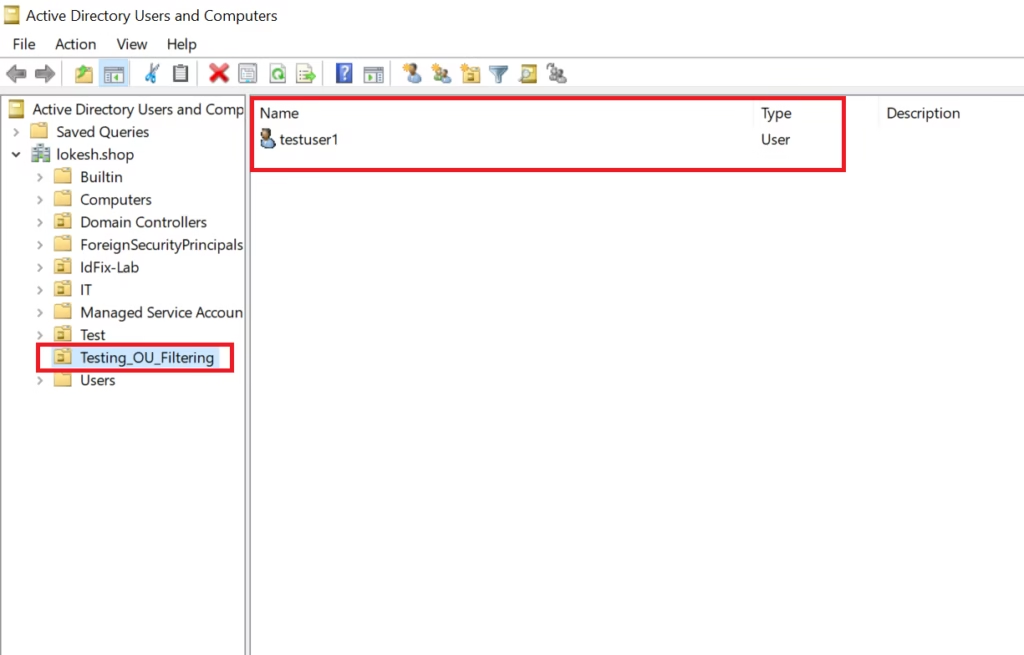
Ensure:
- Test users are inside the test OU
- Production users remain unchanged
Step 2: Open Entra Connect Configuration
- Sign in to the Entra Connect server
- Open Microsoft Entra Connect
- Select:
Customize synchronization options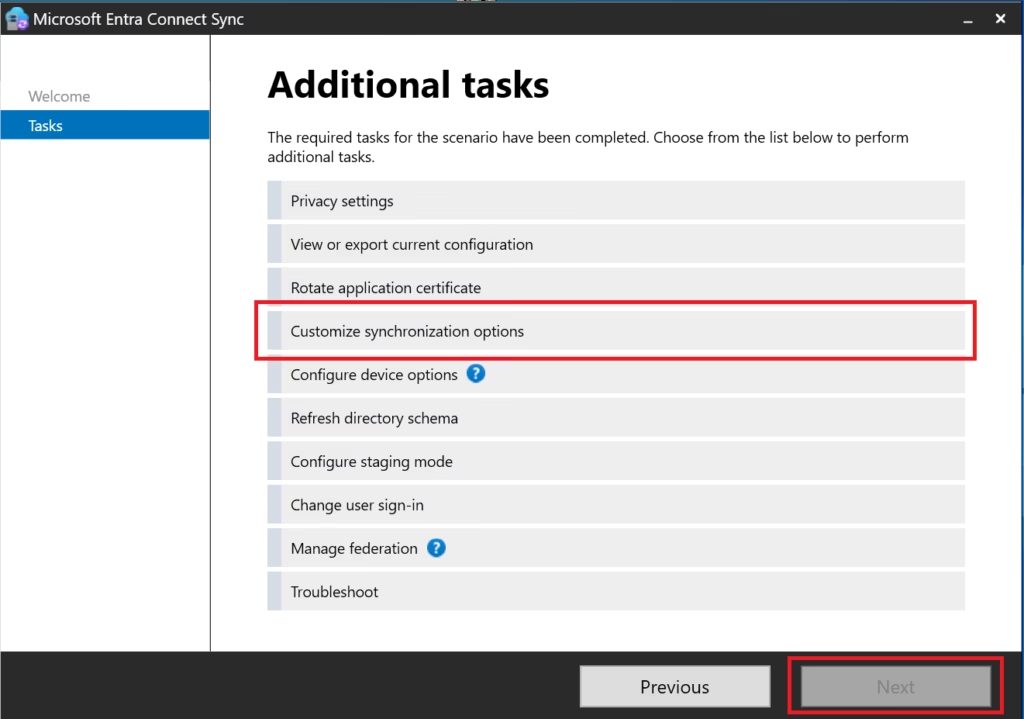
- Click Next
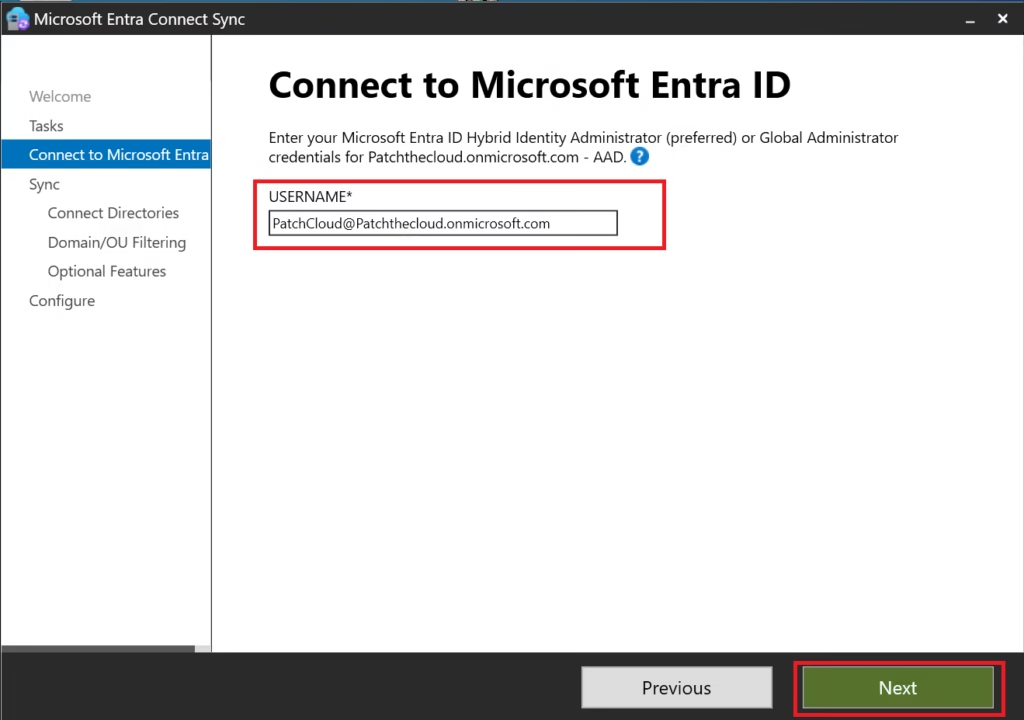
- Authenticate using:
- Entra ID Global Administrator
- Domain Administrator
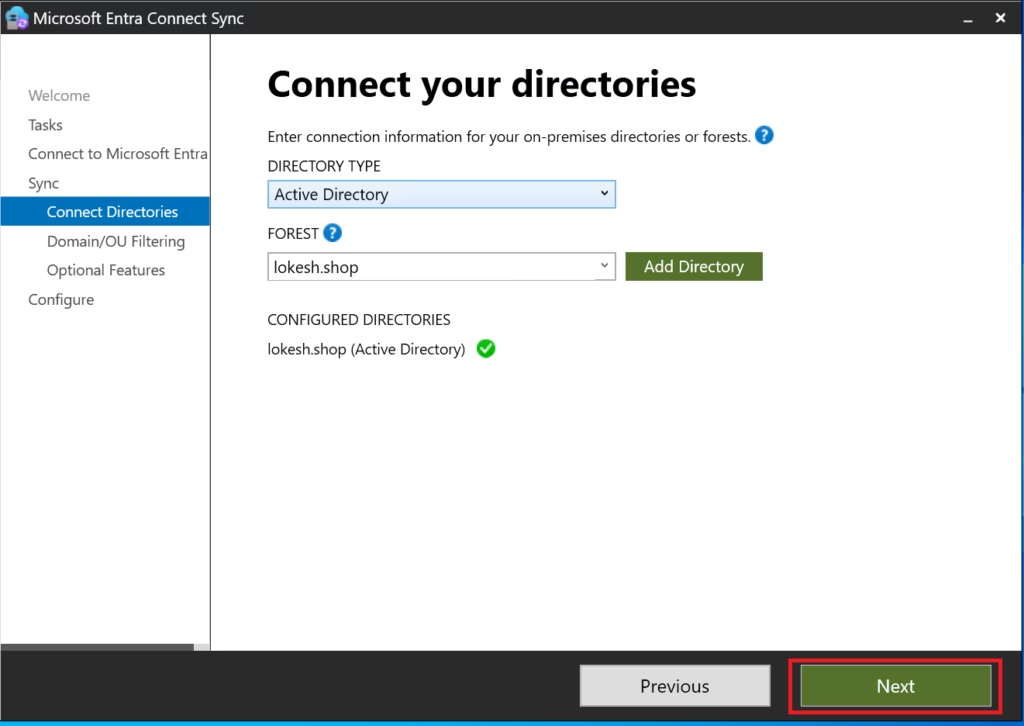
Step 3: Configure Domain and OU Filtering
Before you filter your OUs, ensure your Hybrid Authentication Methods are correctly chosen.
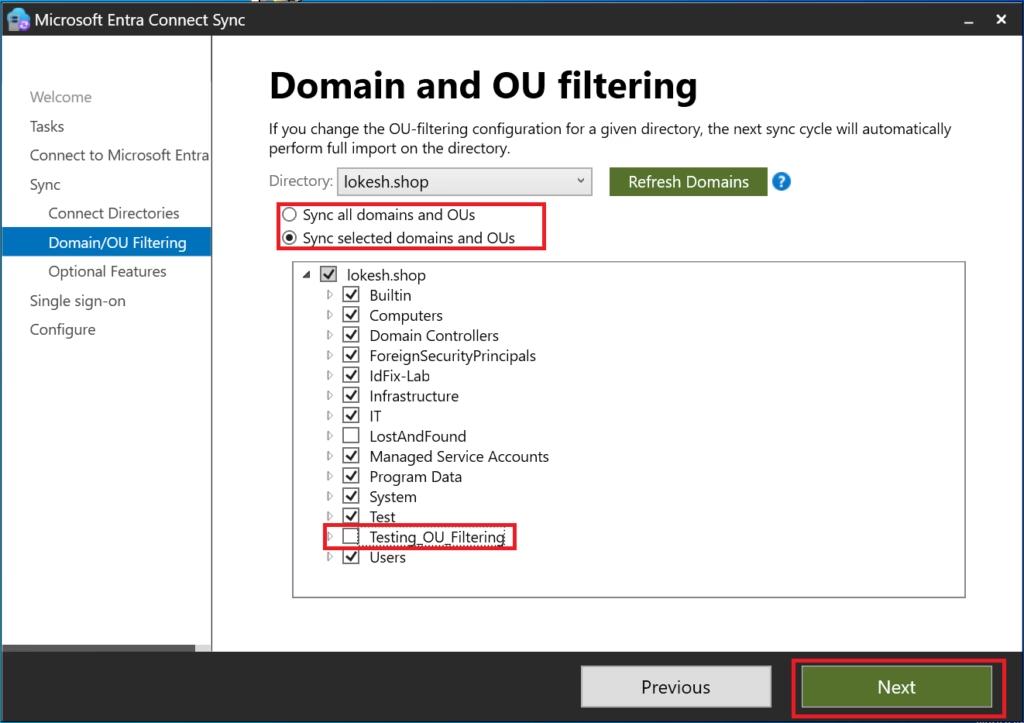
- When prompted, select:
Domain and OU filtering - Choose:
Sync selected domains and OUs - Uncheck the test OU:
OU=LabUsers - Leave all production OUs selected
- Click Next
- Complete the wizard
Senior Engineer Warning: The ‘Soft-Delete’ Trap When you uncheck an OU in Entra Connect, the objects currently in Entra ID aren’t just “hidden” they are Soft-Deleted. They move to the Deleted Users container for 30 days. If you accidentally filter out the wrong OU in a production environment, your users will lose access to Teams, Outlook, and SharePoint immediately. Always run a
Get-ADSyncConnectorStatisticscheck before a major filtering change.
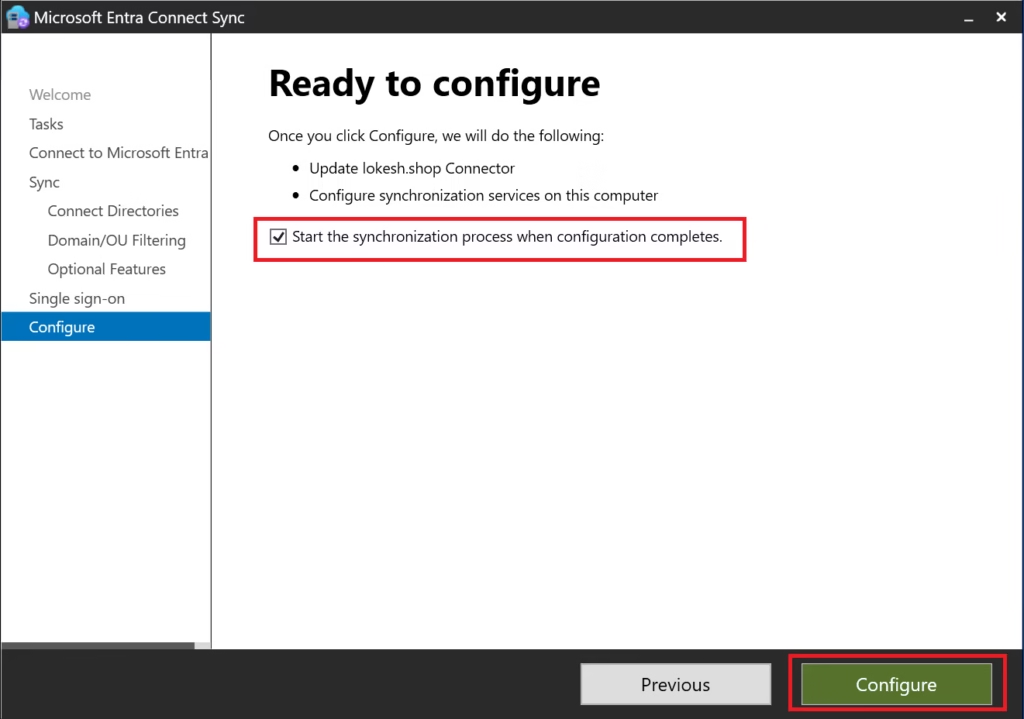
Step 4: Run Delta Synchronization
After configuration completes:
- Entra Connect triggers a delta sync automatically
(Optional manual trigger)
Start-ADSyncSyncCycle -PolicyType Delta
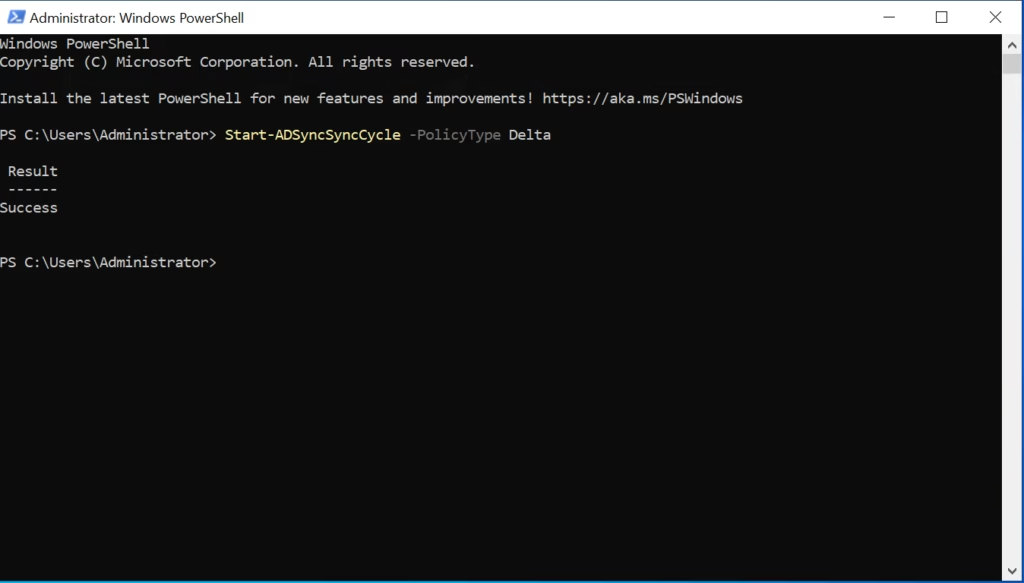
By following these steps, you have successfully implemented OU and Attribute Filtering in Microsoft Entra Connect within your lab environment.
Step 5: Verify Results in Entra ID
Go to: Microsoft Entra Admin Center → Users
Validate:
- Users in production OUs remain
- Users in the excluded test OU disappear (soft‑delete)
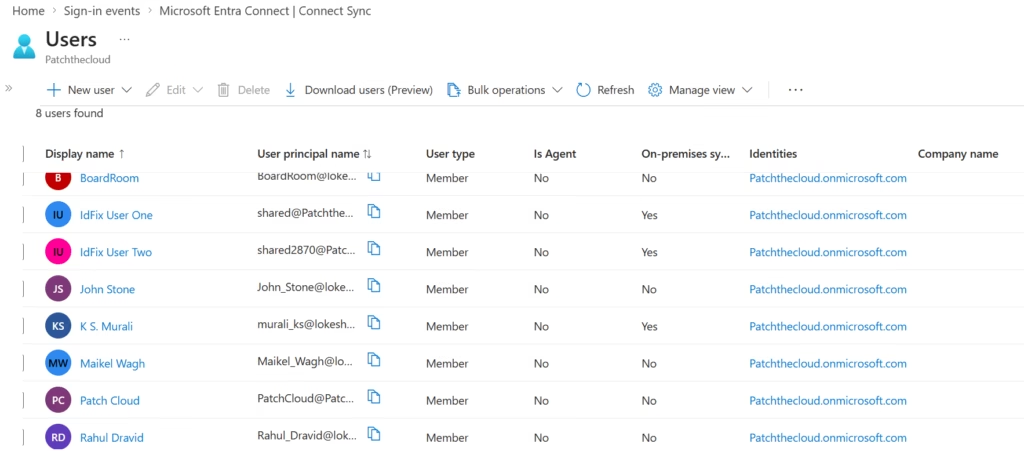
This confirms OU filtering is working correctly.
Step 6: Validate Sync Engine Status
Open Synchronization Service Manager:
- Confirm delta sync succeeded
- No export errors present
Healthy sync confirms safe filtering.
Attribute Filtering (Conceptual Lab Awareness)
This deployment does not configure attribute filtering.
Lab Note:
Attribute filtering requires custom synchronization rules and is not applied in this lab. MS‑102 evaluates administrator awareness of attribute filtering concepts, not mandatory implementation.
Common Filtering Mistakes to Avoid
- Filtering before initial sync validation
- Excluding critical OUs unintentionally
- Relying only on attribute filters
- Forgetting the impact on licensing and access
- Filtering changes identity lifecycle behavior.
MS‑102 Exam Focus Areas
Expect questions such as:
- How to exclude objects from synchronization
- Differences between OU and attribute filtering
- Impact of moving objects between filtered OUs
- Troubleshooting missing users after sync
Correct answers emphasize OU filtering first.
Conclusion
While we focused on OU filtering today, understanding both OU and Attribute Filtering in Microsoft Entra Connect is vital for the MS-102 exam.
Key Takeaways
- Filtering controls identity exposure
- OU filtering is safest and recommended
- Attribute filtering is advanced and risky
- Filtering affects lifecycle and access
- MS‑102 tests reasoning, not rule creation
What’s Next in the Series
With sync scope controlled, the next logical step is understanding modern alternatives to Entra Connect.
➡️ Next Post:
Microsoft Entra Cloud Sync vs Entra Connect (with Lab)
Previous Topic
If you haven’t explored it yet:
Mastering Hybrid Authentication Methods
https://techcertguide.blog/hybrid-authentication-methods-in-ms-102
Start from the Beginning
MS-102 Microsoft 365 Administrator Overview
https://techcertguide.blog/ms-102-microsoft-365-administration/
Official Microsoft Reference
https://learn.microsoft.com/en-us/certifications/exams/ms-102