Managing Microsoft 365 licenses individually for each user can quickly become complex in growing organizations. Microsoft Entra ID solves this challenge through Group-Based Licensing in Microsoft Entra ID, allowing administrators to automatically assign licenses to users based on group membership.
Instead of assigning licenses manually to each user, administrators can assign a license to a security group, and every member of that group automatically receives the license.
This approach simplifies license management and is widely used in real Microsoft 365 environments.
For administrators preparing for the MS-102 Microsoft 365 Administrator certification, understanding group-based licensing is an essential skill.
What Is Group-Based Licensing in Microsoft Entra ID?
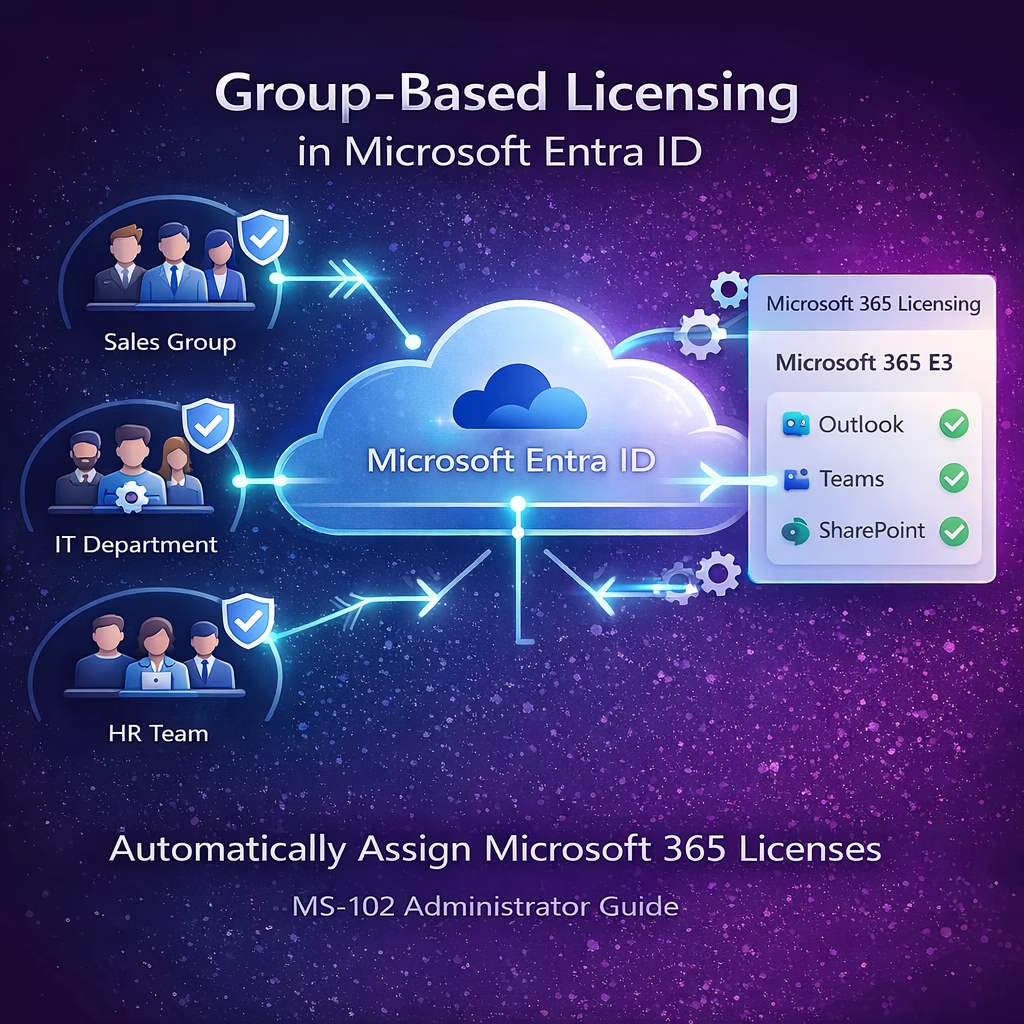
Group-Based Licensing allows administrators to assign Microsoft 365 licenses to an Entra ID group instead of individual users.
When a user is added to the group:
• The license is automatically assigned
• Service plans are enabled
• Access to services is provisioned
When the user is removed from the group, the license can also be removed automatically.
This makes license management automated, scalable, and consistent.
Benefits of Group-Based Licensing
Understanding Group-Based Licensing in Microsoft Entra ID
Simplified Administration
Administrators assign licenses once to a group rather than managing licenses per user.
Automatic User Provisioning
When a new employee joins and is added to the department group, the license is automatically applied.
Reduced Human Errors
Manual licensing mistakes are minimized.
Scalable Licensing
Works well for organizations with hundreds or thousands of users.
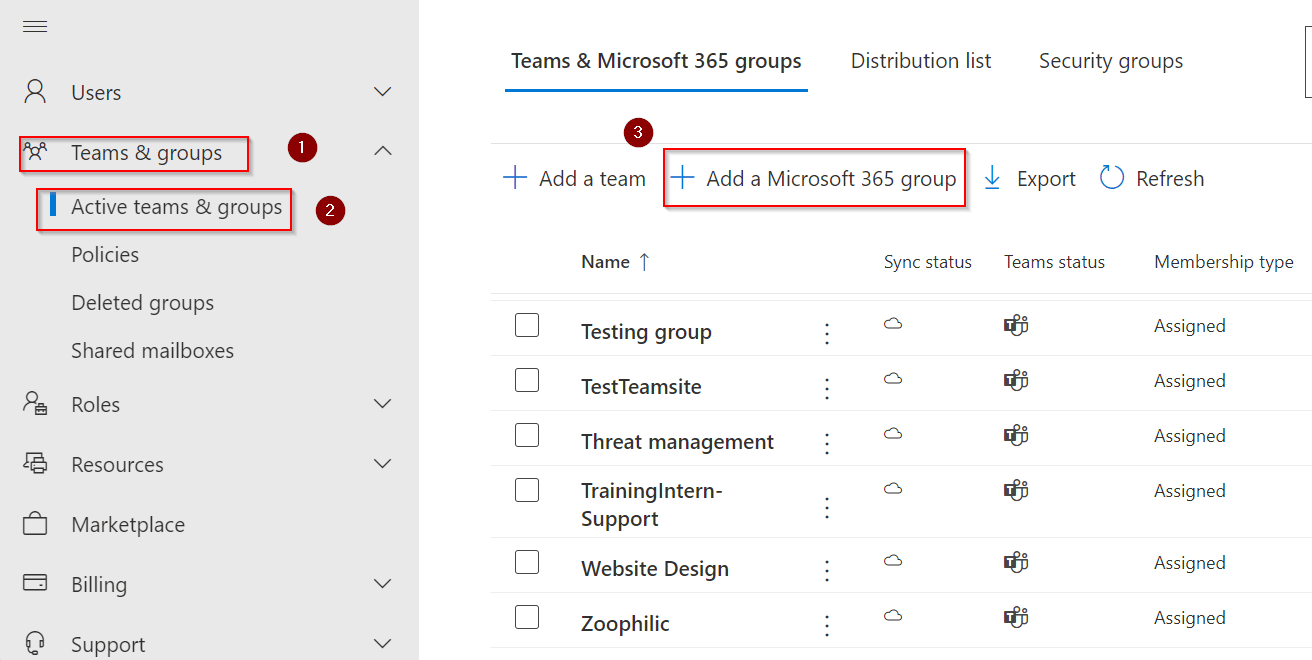
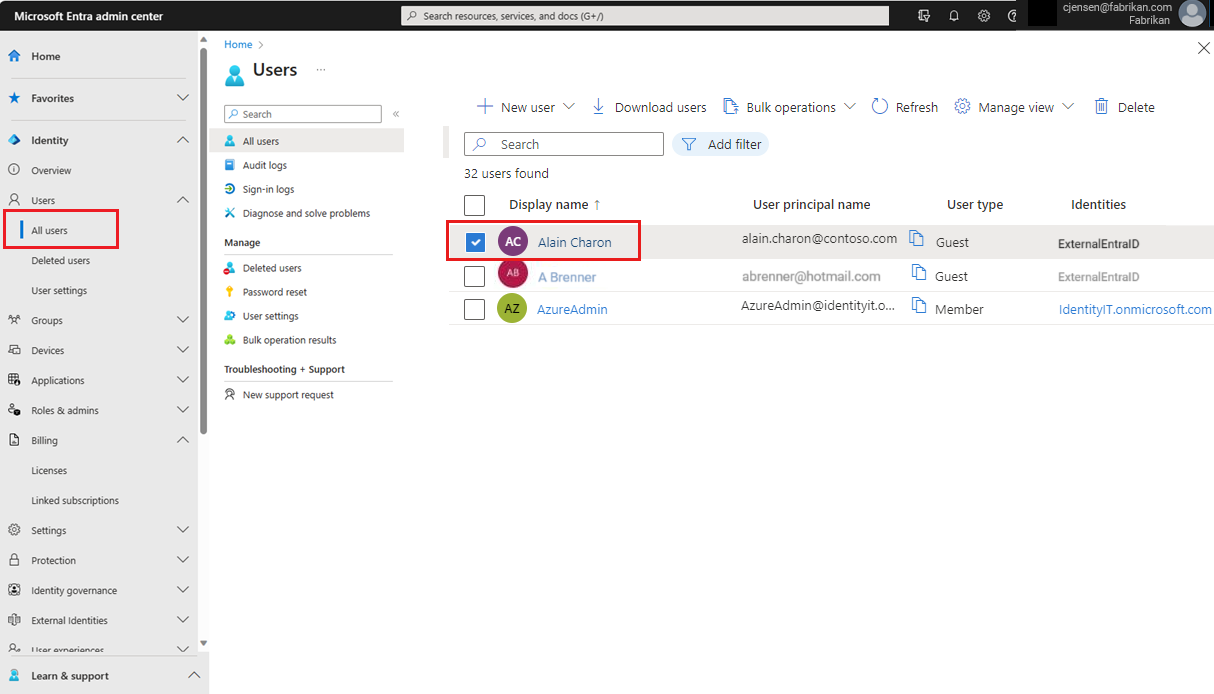
Step 1 — Navigate to Active Teams and Groups
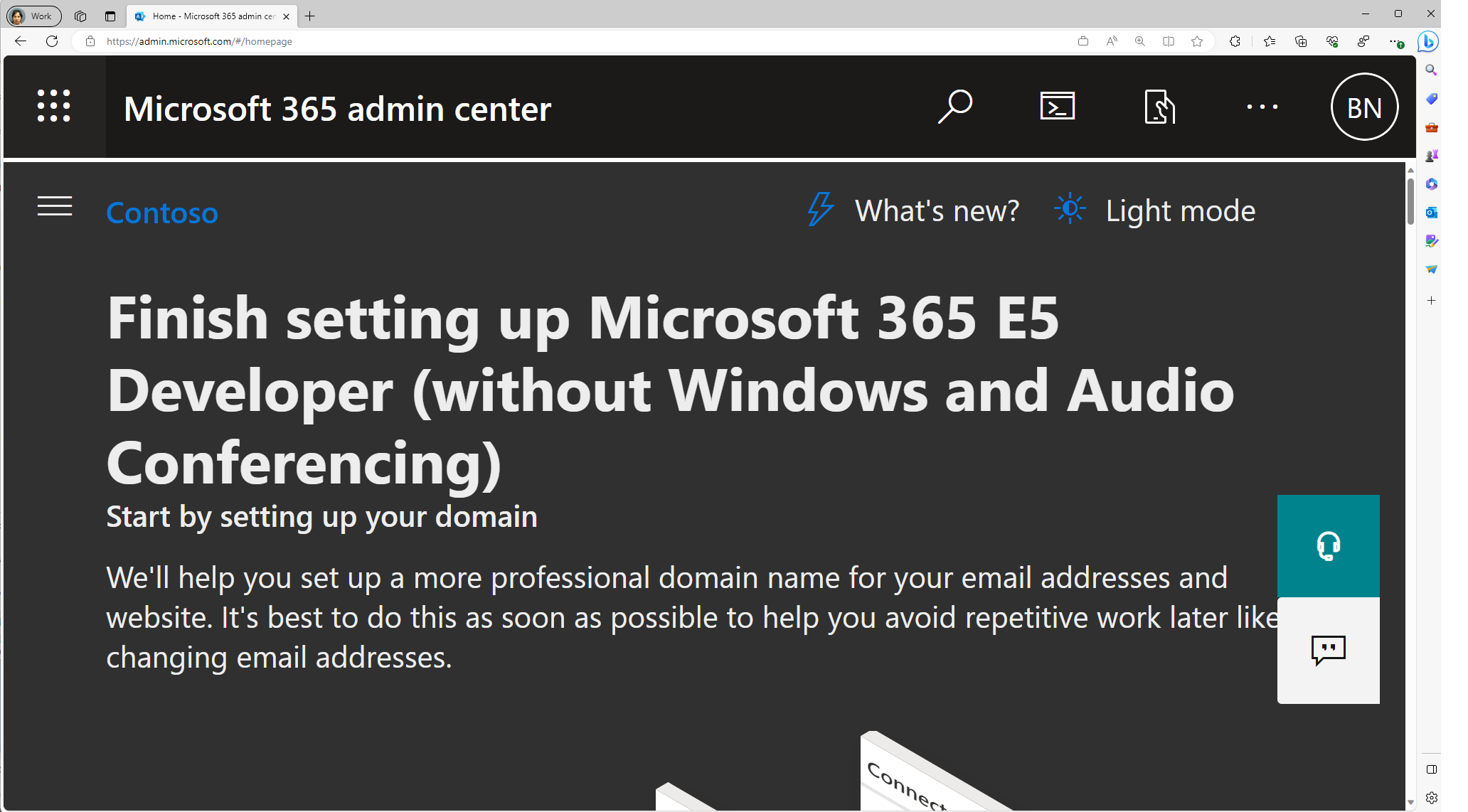
Open the Microsoft 365 Admin Center.
Navigation path:
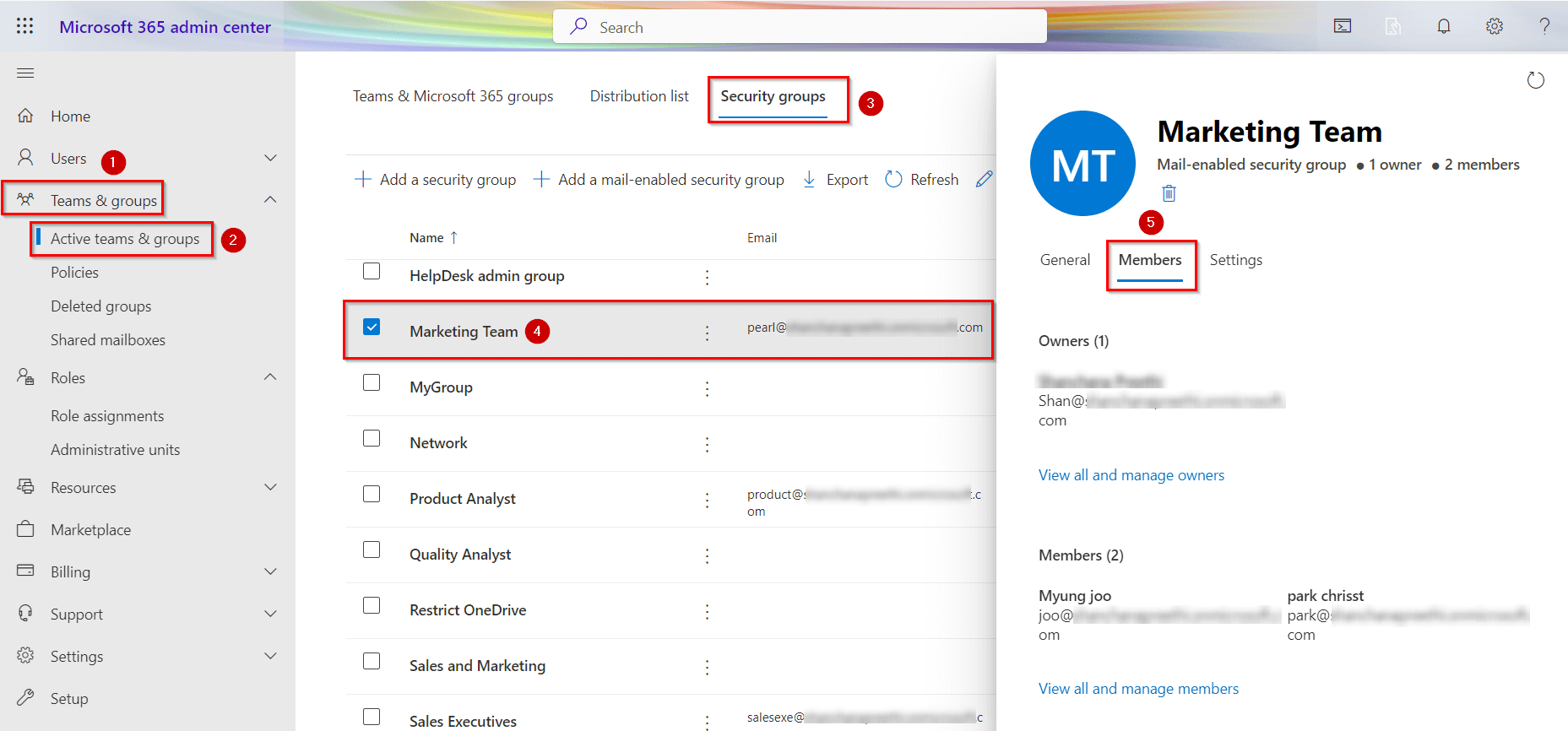
Users → Teams & Groups → Active teams & groups
Switch to the Security groups tab.
4
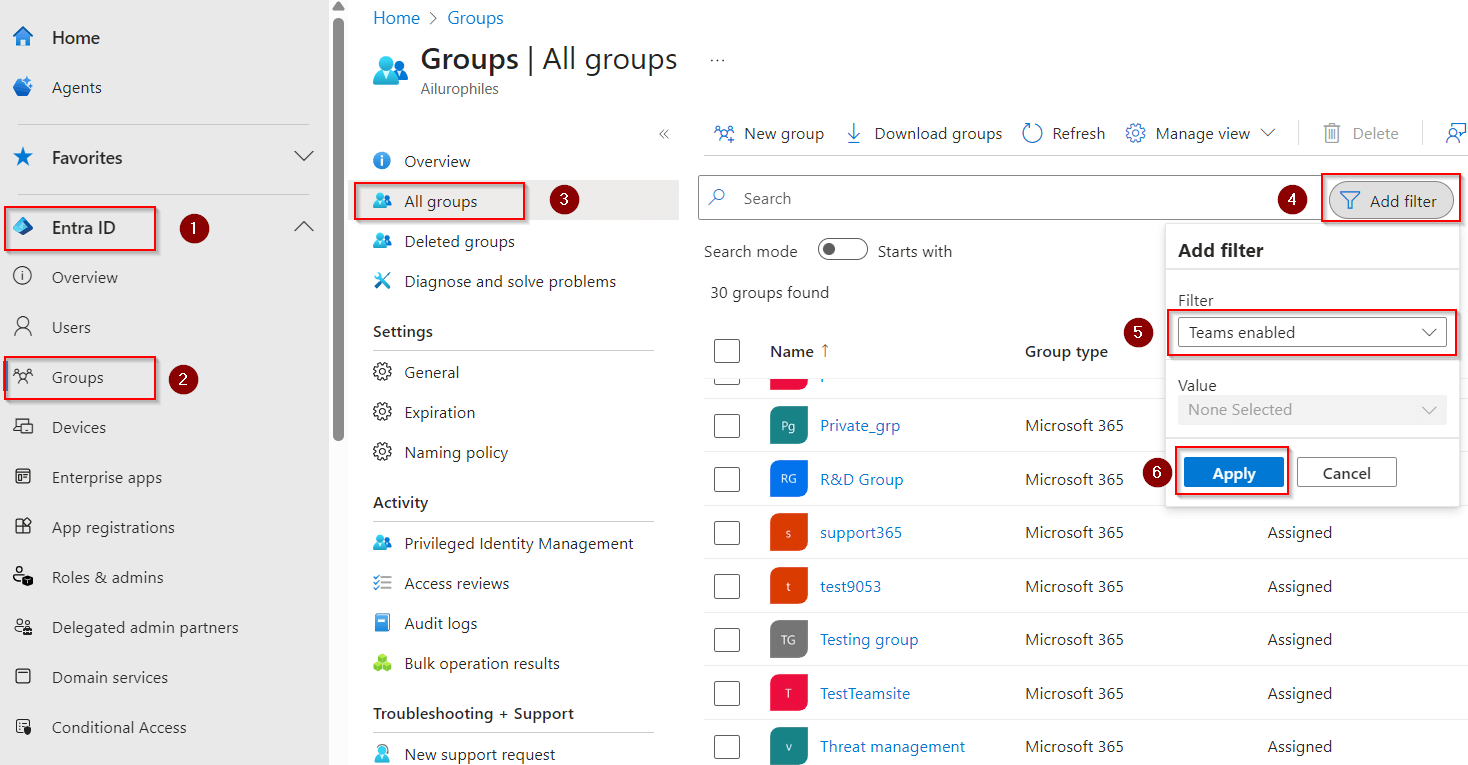
Here administrators can create and manage security groups used for licensing.
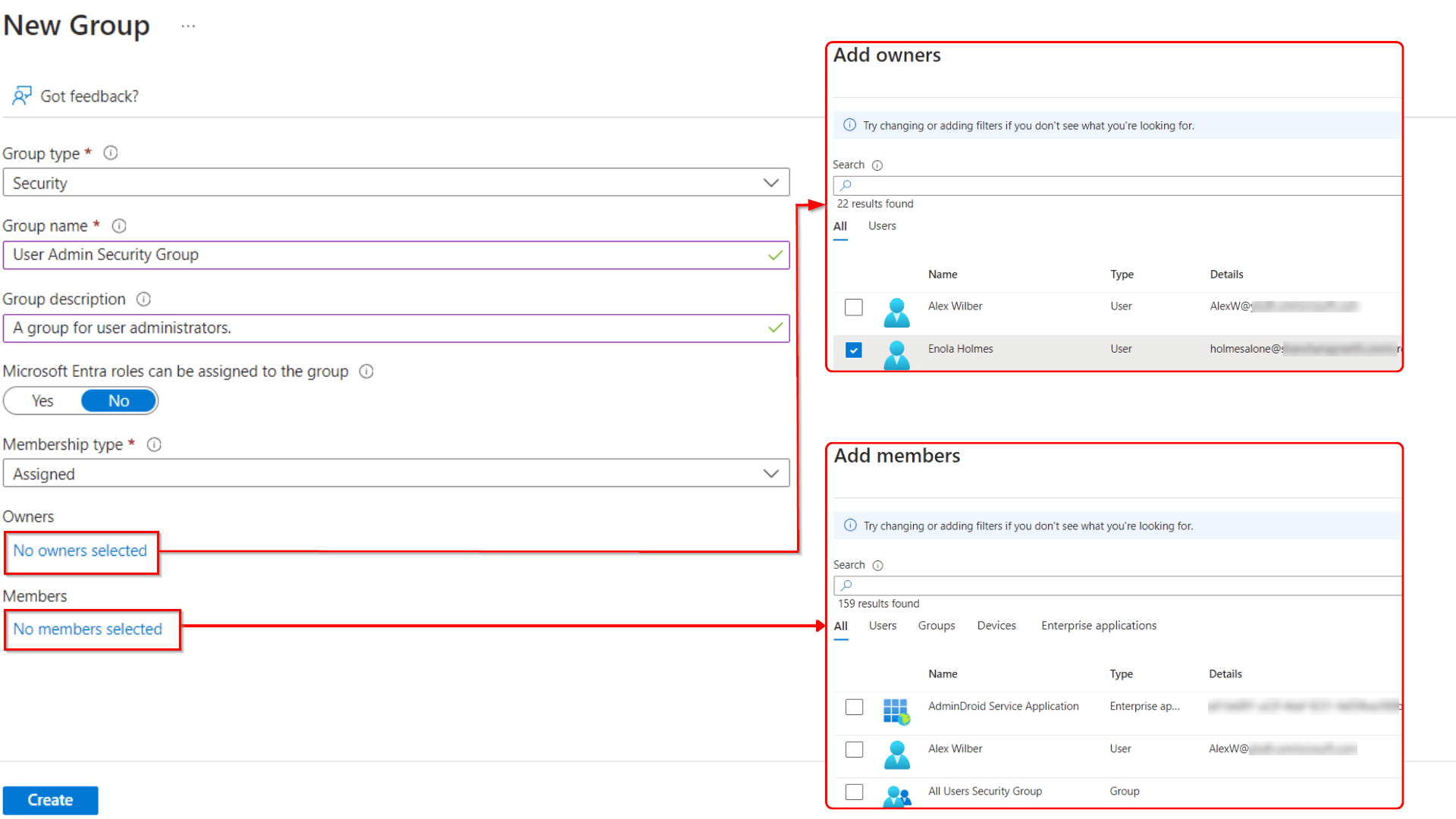
Step 2 — Create a Security Group
Click:
Add a security group
Provide the required information:
• Group Name
• Description
Example:
Group Name: M365-E3-Licensed-Users
Description: Users assigned Microsoft 365 E3 license


4
Click Next → Finish to create the group.
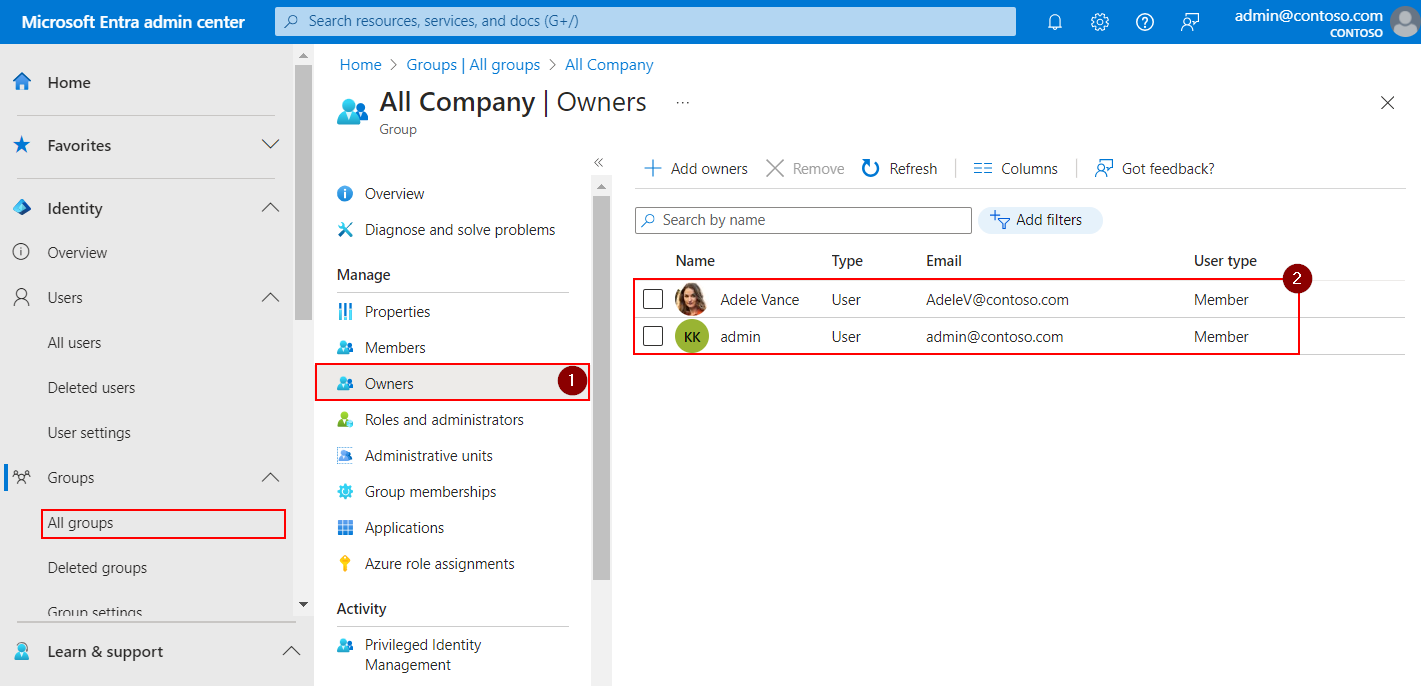
Step 3 — Add Members to the Security Group
Once the group is created, open the group and navigate to:
Members
Add users who should receive the license.
4
Example users:
• Maikel Wagh
• Rahul Dravid
These users will receive licenses once the group license is assigned.
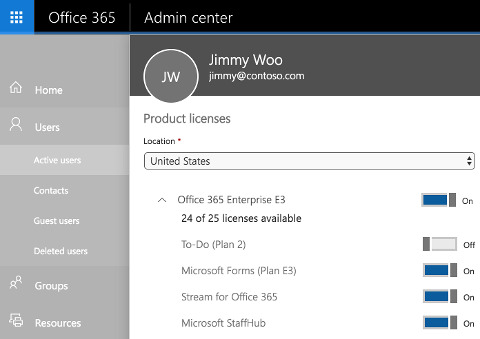
Step 4 — Assign Microsoft 365 E3 License to the Group
Open the Licenses and apps tab.
Here administrators can assign a license directly to the group.


4
Select the license:
Microsoft 365 E3
Click:
Save changes
Step 5 — License Assignment Confirmation
Once saved, Microsoft 365 confirms that the license has been successfully assigned.

4
All group members will now automatically receive the Microsoft 365 E3 license.
Step 6 — Verify Available Licenses
The portal will display available licenses remaining in the tenant.
Example:
Microsoft 365 E3
21 of 25 licenses available
This helps administrators monitor license consumption.
How Group-Based Licensing Works Internally
When a license is assigned to a group:
1️⃣ The system checks group membership
2️⃣ Licenses are assigned to all members
3️⃣ Services like Exchange, Teams, SharePoint are provisioned
4️⃣ When users join the group, licensing is applied automatically
Best Practices for Group-Based Licensing
Use Department-Based Groups
Examples:
Sales-M365-License
IT-M365-License
HR-M365-License
Combine with Dynamic Groups
Dynamic groups automatically add users based on attributes.
Example rule:
Department equals Sales
Users are automatically licensed.
Monitor License Usage
Regularly check available licenses to avoid allocation failures.
Avoid Manual License Assignment
Group-based licensing provides better consistency.
MS-102 Exam Alignment
For the MS-102 certification exam, administrators should understand:
• Group-based licensing configuration
• License assignment to groups
• Service plan management
• License troubleshooting
• Dynamic group integration
These are common scenario-based exam questions.
Final Insights
Group-Based Licensing in Microsoft Entra ID allows organizations to automate license management at scale. By assigning licenses to security groups, administrators can ensure that users receive the correct Microsoft 365 services automatically based on their roles or departments.
This approach simplifies administration, improves consistency, and reduces manual effort.
For Microsoft 365 administrators preparing for the MS-102 certification, mastering group-based licensing is an essential skill for managing enterprise environments efficiently.
If you’re new to this learning series, start with the main MS-102 Microsoft 365 Administrator overview, where we explain how all chapters connect and what skills you’ll build across the journey.
For the most accurate and up-to-date exam objectives and reference material, Microsoft maintains the official MS-102 documentation on Microsoft Learn. This series complements those resources by focusing on real-world administrative understanding.