Learning Objectives
After completing this guide, you will be able to:
- Explain the purpose of the IdFix tool.
- Identify what IdFix does and does not fix.
- Describe how to use IdFix to detect and resolve directory synchronization errors.
- Recognize best practices for preparing Active Directory before sync.
Introduction
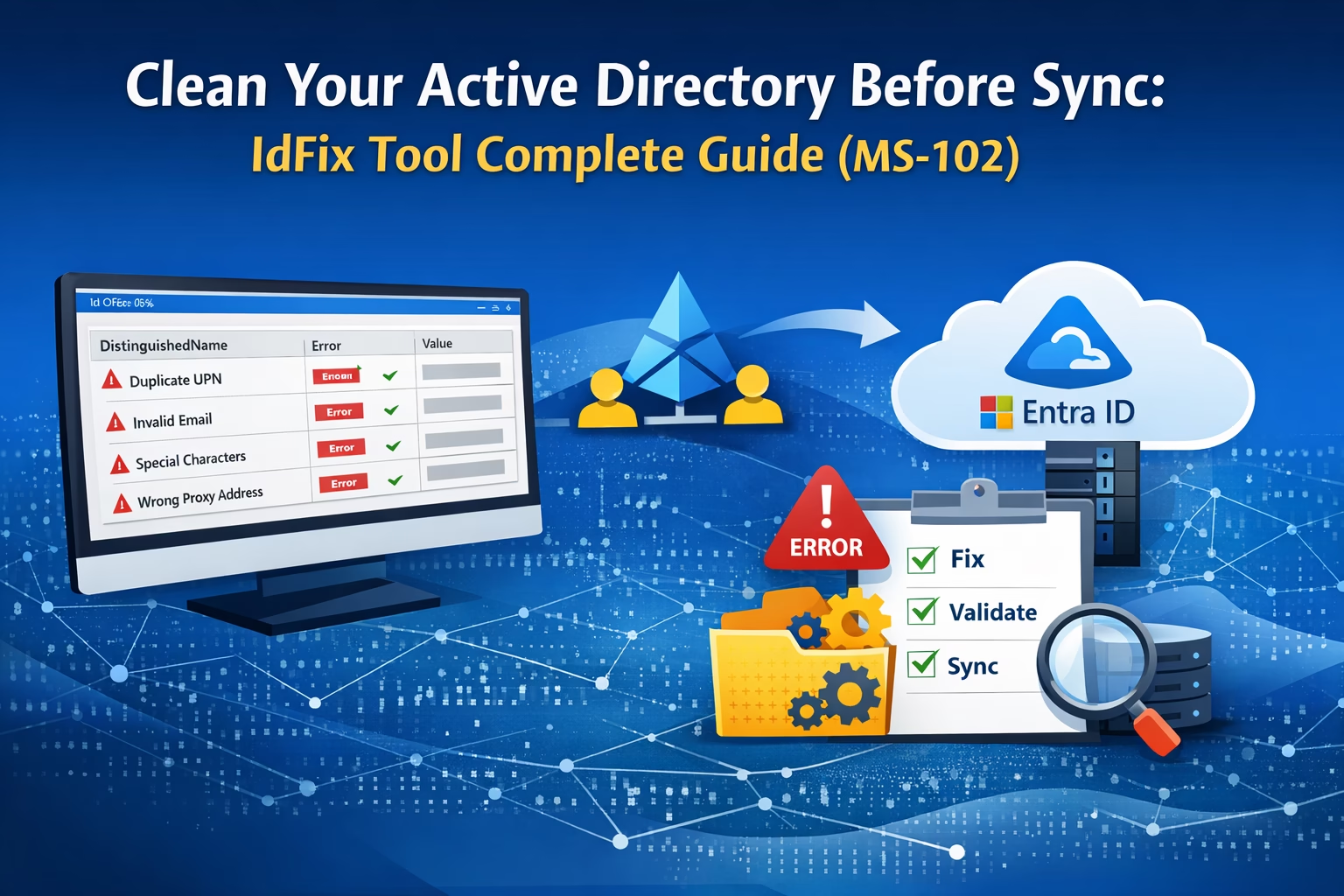
When preparing an on‑premises Active Directory for synchronization with Microsoft Entra ID (Azure AD), the most common cause of deployment failure is bad or non‑compliant directory data. Microsoft provides the IdFix Tool specifically to identify and remediate these issues before you configure Microsoft Entra Connect or Cloud Sync.
This article explains what the IdFix Tool is, why it matters, how to use it, and what MS‑102 expects you to know.
Editorial note: IdFix remains covered here because it is still valuable for understanding Microsoft Entra Connect preparation and for administrators supporting existing hybrid environments. However, Microsoft has officially deprecated IdFix (as of June 30, 2026) and archived its GitHub repository for historical reference only.
Even a small inconsistency in directory attributes can lead to:
- Synchronization failures
- Duplicate or missing users
- Login issues in Microsoft 365
- Broken email attributes
To avoid these issues, Microsoft provides a lightweight tool called IdFix.
In this guide, we’ll cover:
- What IdFix is
- Why it’s important
- Step-by-step usage
- Lab vs production scenarios
- Optional hands-on testing
What is the IdFix Tool?
IdFix is a directory remediation tool that scans your Active Directory and identifies attribute issues that may block synchronization with Microsoft Entra ID.
Simple Definition
IdFix is a pre-check tool that ensures your Active Directory is ready for synchronization.
What IdFix Does (and What It Does Not)
What IdFix Does
- Queries Active Directory via LDAP
- Identifies attributes that will fail synchronization
- Detects:
- Duplicate values
- Invalid formatting
- Unsupported characters
- Blank but required attributes
- Unverified UPN suffixes
- Allows administrators to:
- Correct values
- Remove invalid data
- Export findings for offline review
- Undo changes if needed
What IdFix Does NOT Do
- Automatically fix data without admin approval
- Change business logic
- Verify domains in Entra ID
- Replace proper directory planning
IdFix is a validation and remediation tool, not a replacement for identity design.
Why IdFix is Important
Microsoft Entra ID enforces strict rules for identity attributes such as:
- User Principal Name (UPN)
- Email (mail)
- proxyAddresses
If these attributes are incorrect:
- Synchronization will fail
- Users may not appear in Microsoft 365
- Authentication may break
Common Issues Found
- Duplicate UPNs
- Invalid email formats
- Missing attributes
- Unsupported characters
- Incorrect proxyAddresses
How IdFix Works
IdFix works in four simple steps:
- Query Active Directory
- Detect issues
- Display results in a table
- Allow fixes
Do You Need IdFix in a New Environment?
If your Active Directory is:
- Newly installed
- Clean with minimal users
- No legacy data
You may not see any errors.
However, the best practice is:
Run IdFix once to confirm your directory is clean
Lab vs Production
| Environment | IdFix Importance |
|---|---|
| Lab / New AD | Optional (validation only) |
| Production AD | Critical (must run) |
Step 1: Download the IdFix Tool
- The Microsoft Download Center link is deprecated.
- IdFix itself has since been deprecated by Microsoft, and its GitHub repository is now archived for reference only.
- No packaged MSI installer is currently available; only the archived source repository remains accessible.
microsoft/idfix (archived repository) · GitHub
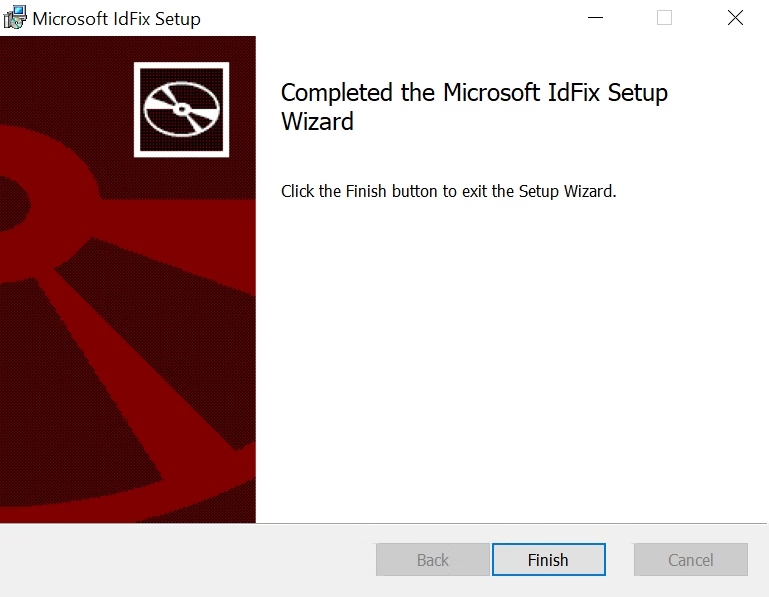
Step 2: Run IdFix
- Open folder
- Right-click IdFix.Setup.msi
- Run as Administrator
- Install IdFix as per instructions
Step 3: Scan Active Directory
- Click Query
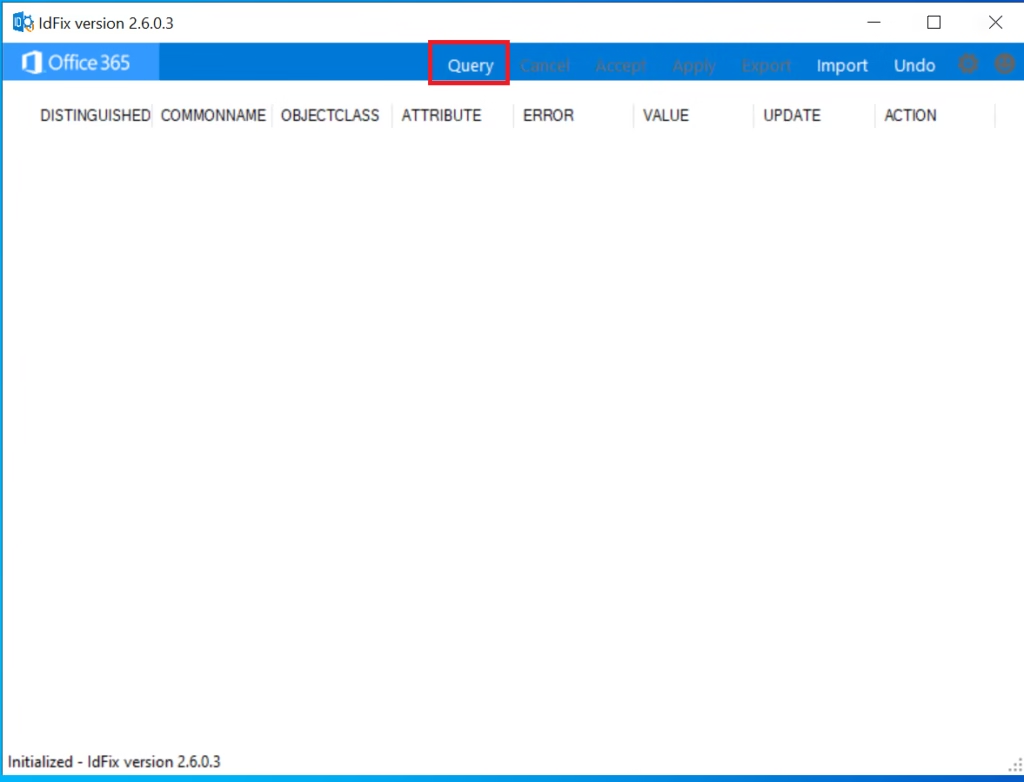
- Tool scans entire directory
- Results displayed in a table
Understanding Columns
- DN → Object location
- Attribute → Problem field
- Value → Current value
- Error → Issue type
- Update → Suggested fix
Step 4: Fix Errors
Common Error Types
| Error Type | Description | Recommended Fix |
|---|---|---|
| Duplicate | Same value used by multiple objects | Ensure uniqueness |
| Format | Invalid format (e.g., missing @domain.com) | Correct format |
| Blank | Required attribute missing | Add value |
| Invalid Characters | Unsupported symbols | Remove characters |
Apply Fix:
- Enter a value in the Update column
- Click Apply
OR fix directly in Active Directory (recommended)
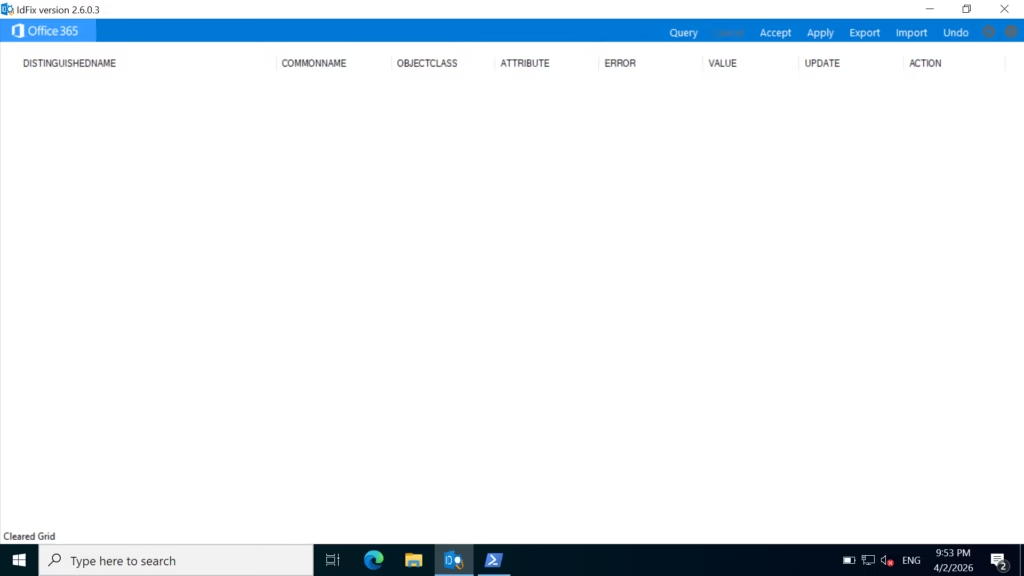
Step 5: Re-Validate
- Click Query again
- Ensure:
- No errors
- Clean output
Lab Demonstration (Create & Fix Issues)
If your AD is clean, you can simulate errors for learning.
Important: Do this only in lab environmentCreate Sample Issues
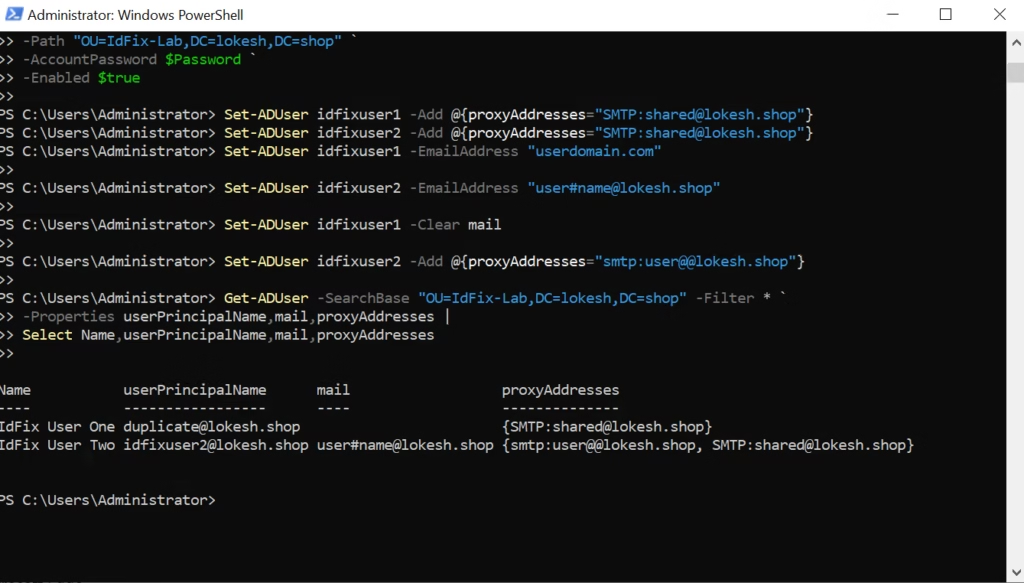
1. Duplicate UPN
- Create 2 users with the same UPN
Set-ADUser idfixuser1 -Add @{proxyAddresses="SMTP:shared@lokesh.shop"}
Set-ADUser idfixuser2 -Add @{proxyAddresses="SMTP:shared@lokesh.shop"}
2. Invalid Email
- userdomain.com
Set-ADUser idfixuser1 -EmailAddress "userdomain.com"3. Special Characters
- user#name@lokesh.shop
Set-ADUser idfixuser2 -EmailAddress "user#name@lokesh.shop"4. Blank Attribute
- Remove the mail field
Set-ADUser idfixuser1 -Clear mail5. Wrong Proxy Address
- smtp:user@@lokesh.shop
Set-ADUser idfixuser2 -Add @{proxyAddresses="smtp:user@@lokesh.shop"}6. Validate before IdFix
Get-ADUser -SearchBase "OU=IdFix-Lab,DC=lokesh,DC=shop" -Filter * `
-Properties userPrincipalName,mail,proxyAddresses |
Select Name,userPrincipalName,mail,proxyAddresses
Test with IdFix
- Run Query
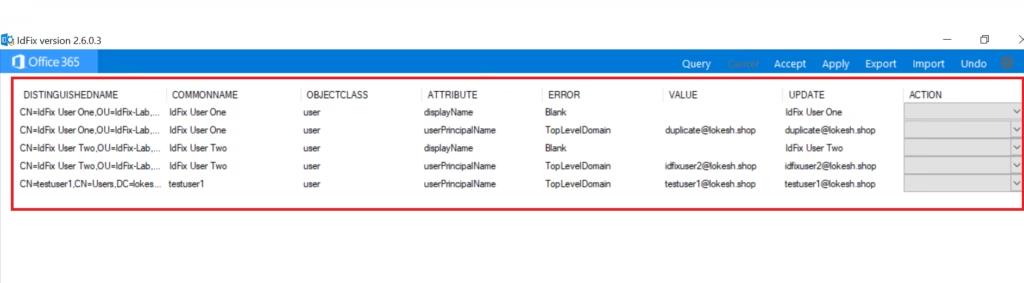
- Observe errors
- Fix them
- Re-run until clean
Best Practices
- Always take a backup before making changes
- Fix issues at the source (AD)
- Validate each change carefully
- Focus on:
- UPN
- proxyAddresses
Common Mistakes
- Skipping IdFix Tool
- Ignoring duplicate values
- Blindly applying fixes
- Not re-validating
MS-102 Exam Tips
- IdFix Tool = Pre-sync validation tool
- Used before Entra Connect
- Detects:
- Duplicate
- Format
- Blank errors
Note: IdFix is still useful for understanding historical and existing hybrid deployments, even though Microsoft has since deprecated the tool. For MS‑102, focus on understanding the concept of pre-sync attribute validation rather than expecting extensive hands-on tool usage.
Real-World Scenario
In a production AD:
- Years of changes
- Multiple admins
- Inconsistent data
IdFix Tool becomes essential before synchronization
Conclusion
The IdFix tool plays a crucial role in ensuring a successful hybrid identity deployment.
Whether your environment is new or existing:
- It validates directory health
- Prevents sync failures
- Reduces troubleshooting effort
Final Takeaway
Always validate before you sync
- Run IdFix Tool
- Fix all issues
- Confirm a clean directory
Then proceed with Microsoft Entra Connect.
Next Step
Continue your learning with:
Installing Entra AD Connect (Coming Next)
Previous Topic
If you haven’t explored it yet:
Microsoft Entra Hybrid Identity Models
Microsoft Entra Hybrid Identity Models
Start from the Beginning
MS-102 Microsoft 365 Administrator Overview
Why MS-102 Microsoft 365 Administration is Critical for Admins
Official Microsoft Reference
Exam MS-102: Microsoft 365 Administrator – Microsoft Learn
4 thoughts on “Clean Your Active Directory Before Sync: IdFix Tool Complete Guide (MS-102)”