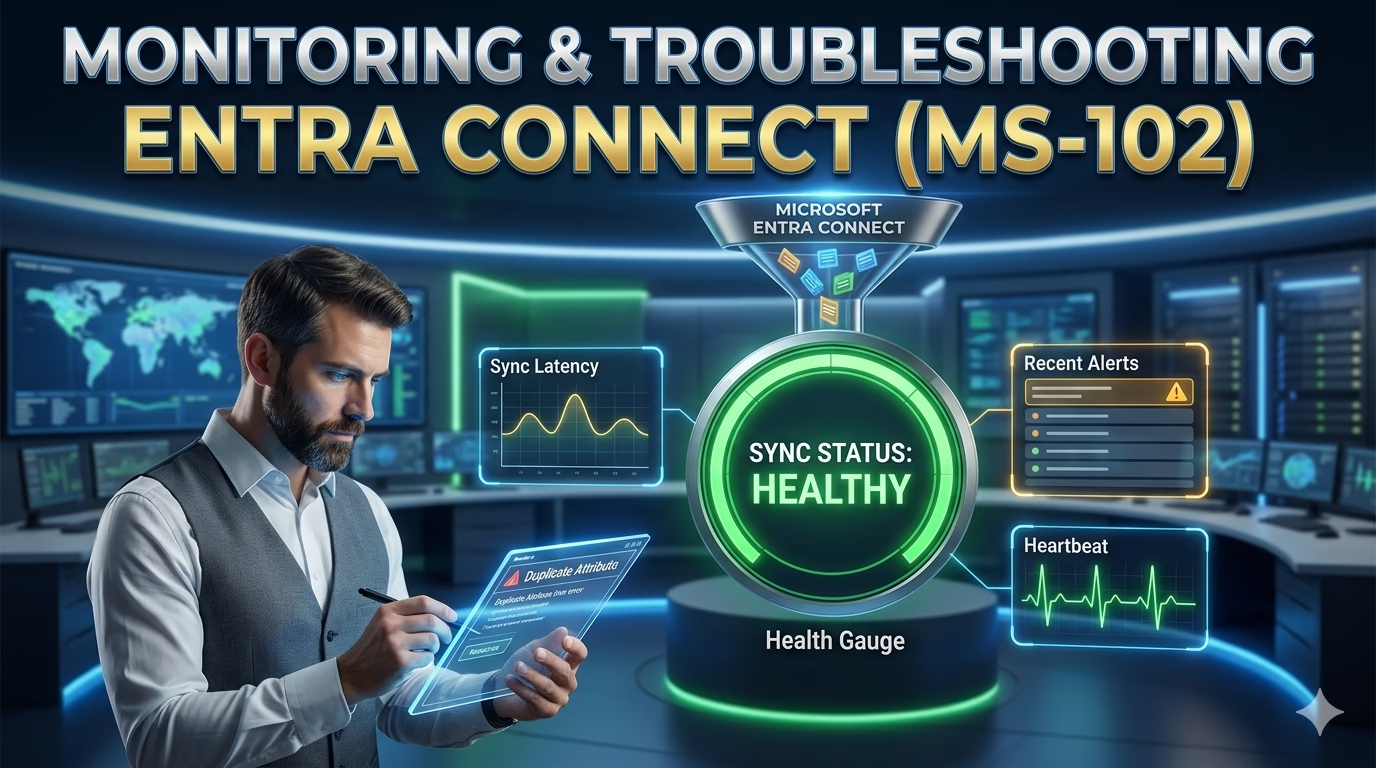
Monitoring, Alerts, and Common Fixes (with Lab)
Deploying Microsoft Entra Connect or Entra Cloud Sync is only the beginning. A production‑ready identity solution must be continuously monitored, and administrators must be able to troubleshoot synchronization issues quickly and safely.
Microsoft provides Microsoft Entra Connect Health to help administrators monitor hybrid identity components and detect problems before users are impacted.
For the MS‑102 Microsoft 365 Administrator exam, you are expected to:
- Understand what Microsoft Entra Connect Health monitors
- Know where to view Microsoft Entra Connect health information
- Identify common sync failures
- Choose the correct troubleshooting path
This post covers monitoring and troubleshooting together, because in real life and in MS‑102 they are inseparable.
Learning Objectives
After completing this guide, you will be able to:
- Explain the purpose of Microsoft Entra Connect Health.
- Identify key health indicators to monitor.
- Describe a recommended troubleshooting workflow for sync issues.
- Recognize common synchronization mistakes to avoid.
Why Monitoring Hybrid Identity Is Critical
Hybrid identity issues rarely start large. Most problems begin as:
- Missed sync cycles
- Credential issues
- Attribute conflicts
- Latency or agent failures
Without monitoring:
- Errors go unnoticed
- Users fail to sign in silently
- Admins troubleshoot too late
Microsoft Entra Connect Health exists to move administrators from reactive troubleshooting to proactive operations.
What Is Microsoft Entra Connect Health?
Microsoft Entra Connect Health is a cloud‑based monitoring service that provides health insights for:
- Microsoft Entra Connect Sync
- Active Directory Domain Services (AD DS)
- Authentication components (PHS / PTA / Federation)
It reports directly to the Microsoft Entra admin center, eliminating the need for manual log inspection in most cases.
What Entra Connect Health Monitors
Microsoft Entra Connect Health Sync
Monitors:
- Sync service availability
- Import/synchronization/export status
- Scheduler health
- Connector failures
- Password hash sync activity (indirect)
Active Directory Domain Services Health
Monitors:
- Domain controller availability
- LDAP connectivity
- Replication health
- Authentication latency
Authentication Health
Monitors:
- Pass‑Through Authentication agents (if used)
- Federation sign‑in health (AD FS)
- Authentication service availability
🗺️ Microsoft Entra Connect Health — Monitoring Architecture
Health Agents installed on the Connect server and domain controllers continuously report sync and authentication health to the cloud dashboard.
Where to Access Microsoft Entra Connect Health
Path:
Microsoft Entra admin center → Entra ID → Monitoring & health → Health
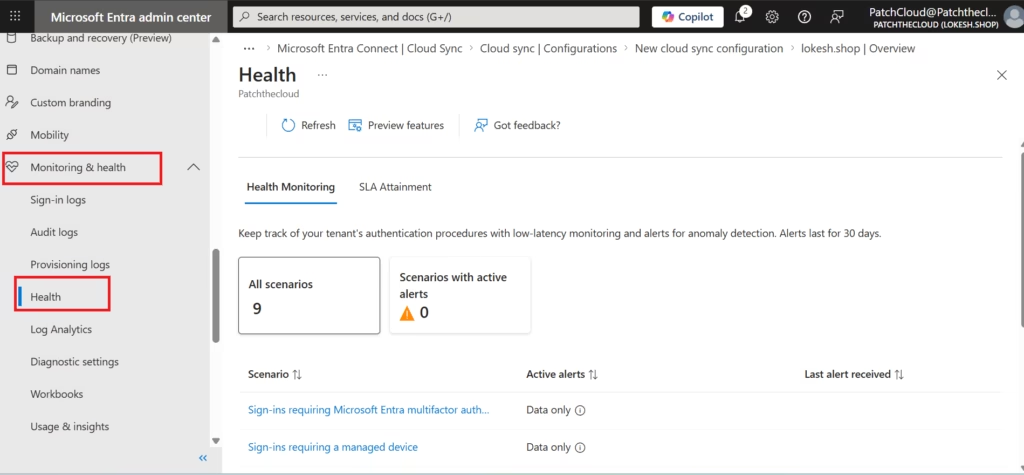
From here, administrators can view:
- Health dashboard
- Alerts
- Warnings
- Historical trends
Key Health Indicators to Watch
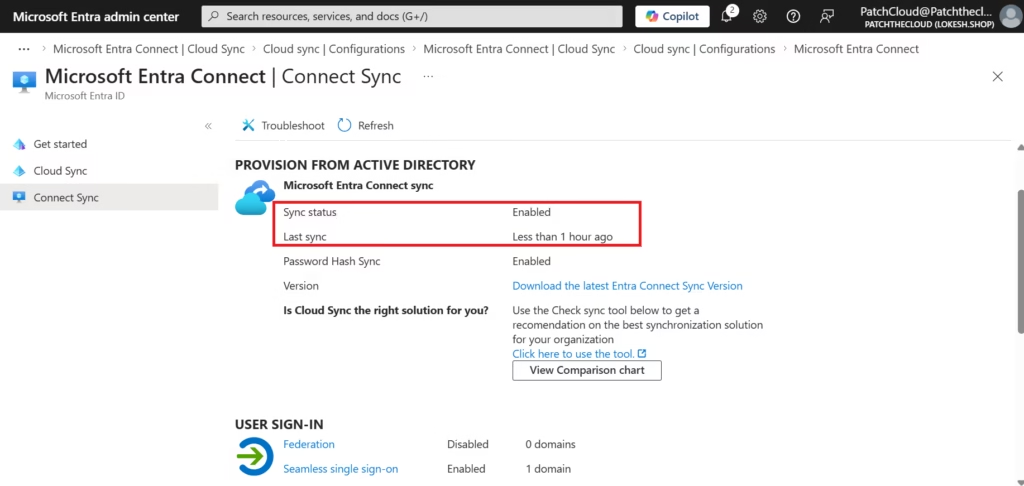
- Sync service status
- Last successful sync time
- Export failures
- Password sync anomalies
- Agent connectivity
A healthy environment shows green indicators with recent successful operations.
Hands‑On Lab: Monitor & Troubleshoot Entra Connect
Lab Objective:
Review Microsoft Entra Connect Health data and practice identifying common synchronization issues without impacting production.
Lab Prerequisites
- Microsoft Entra Connect is installed
- Synchronization completed successfully
- Admin access to the Microsoft Entra admin center
- Lab environment (recommended)
Step 1: Open Entra Connect Health Dashboard
- Go to Microsoft Entra admin center
- Navigate to:
Entra ID → Monitoring & health → Health
- Review: Sync health & Connection Status
- Review: Alerts
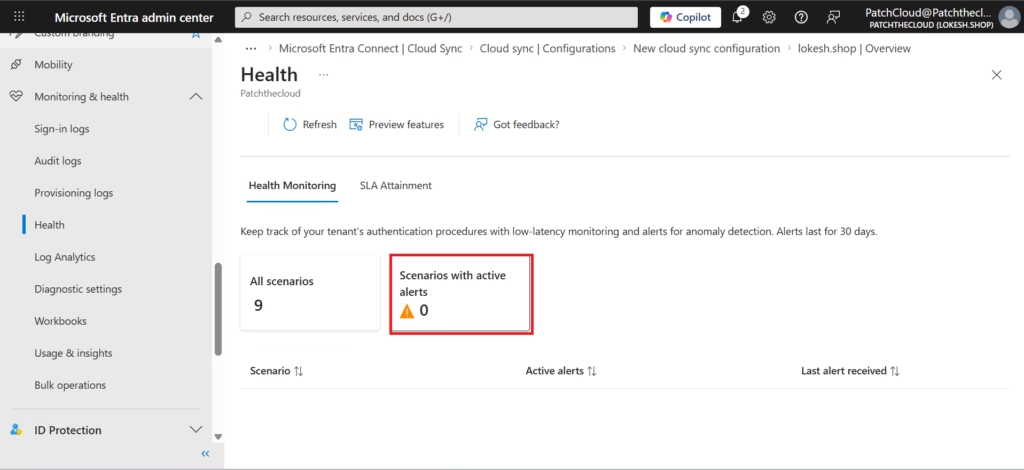
Verify no critical errors are present.
Lab Note:
This lab demonstrates the configuration workflow of Microsoft Entra Cloud Sync. Provisioning is intentionally not enabled because Microsoft Entra Connect Sync is already active in the environment. Running both synchronization solutions simultaneously for the same identity scope is not supported.
Step 2: Review Sync Status Locally
On the Entra Connect server:
- Open Synchronization Service Manager
- Go to the Operations tab
- Confirm:
- Delta Import succeeded
- Delta Synchronization succeeded
- Export succeeded
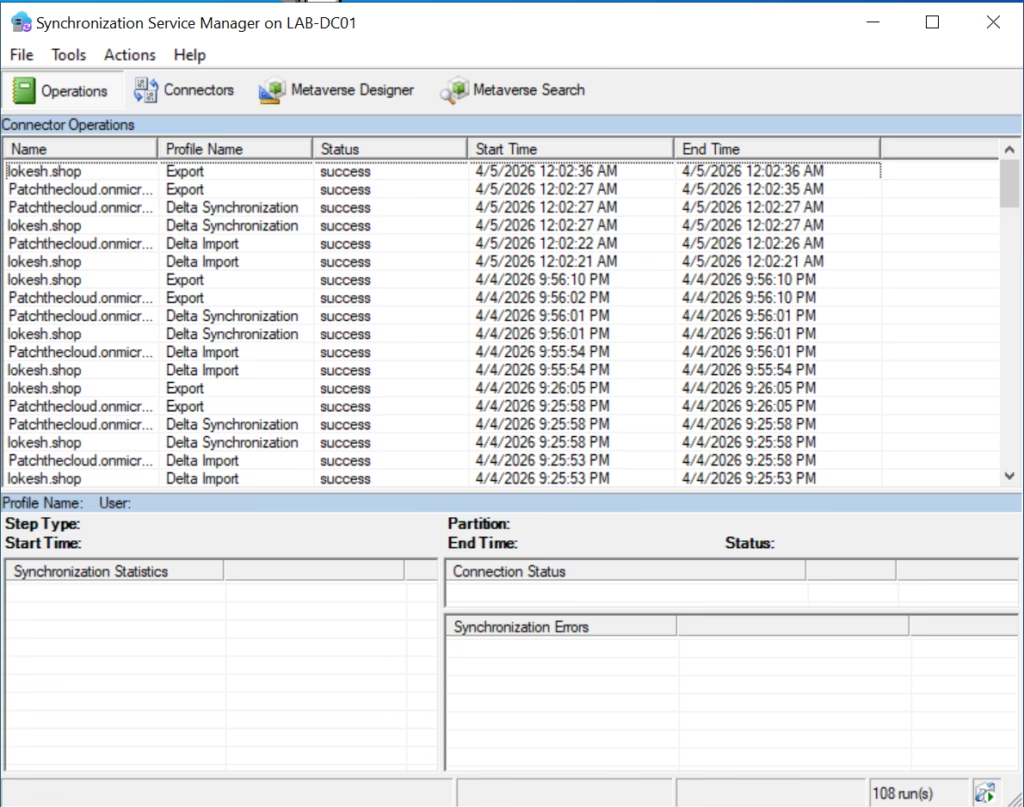
Successful operations confirm a healthy sync engine.
Step 3: Identify Common Sync Errors (Conceptual)
You may encounter errors such as:
Duplicate Attributes
If you find a user has both a cloud identity and a synced identity, you likely have a “Soft-Match” failure. Ensure the Primary SMTP address in AD matches the UserPrincipalName in Entra ID exactly.
Example:
- Duplicate
proxyAddresses - Duplicate
userPrincipalName
Resolution:
- Use IdFix
- Correct values
- Re‑run sync
Pro Tip: Before you even install Entra Connect, you should run the IdFix Persistence Tool. It identifies duplicate
proxyAddresses, invalid characters, and formatting errors in your local AD before they become sync errors in the cloud. In the exam, if the question asks how to prepare an on-premises forest for sync, “Run IdFix” is almost always the right answer.
Attribute Value Not Unique
Occurs when:
- Changes violate Entra ID uniqueness rules
Resolution:
- Modify attribute
- Force delta sync
Filtered Object Missing from Entra ID
Occurs when:
- OU filtering excludes the object
Resolution:
- Verify OU filtering configuration
- Move object to synced OU
Password Sync Issues
Occurs when:
- Password changes are not reflected
- Password writeback misconfigured
Resolution:
- Verify Password Hash Sync enabled
- Check Entra Connect Health warnings
Step 4: Use Entra ID Logs for Correlation
Although this lab may not generate sign‑in logs, in production, administrators should also check:
Entra ID → Monitoring & Health → Sign‑in logs
These logs help determine:
- Authentication failures
- Sign‑in method used
- Conditional Access impact
Step 5: Validate Scheduler and Services
On Entra Connect server:
- Open Services
- Confirm:
- Microsoft Azure AD Sync service is running
- Verify scheduler status (PowerShell):
PowerShell
# Check for any specific export errors via PowerShell
Get-ADSyncConnectorStatistics -ConnectorName "yourdomain.onmicrosoft.com - AAD"
Scheduler enabled and sync intervals active.
Troubleshooting Strategy (Recommended Workflow)
When sync problems are reported:
1️⃣ Check Entra Connect Health
2️⃣ Check Synchronization Service Manager
3️⃣ Review IdFix results
4️⃣ Validate OU/attribute filtering
5️⃣ Review Entra ID logs
6️⃣ Correct issue → run delta sync
This structured approach is exactly what MS‑102 evaluates.
Troubleshooting is easier when your scope is clean. Review our OU and Attribute Filtering Guide to prevent sync clutter.
Common Mistakes to Avoid
- Ignoring health warnings
- Chasing issues in Entra ID first
- Restarting services blindly
- Making bulk changes without IdFix
- Skipping monitoring after deployment
MS‑102 Exam Focus Areas
Expect questions such as:
- Where to monitor Entra Connect health
- What causes sync failures
- How to resolve duplicate attributes
- Which tool to check first during identity issues
Microsoft tests operational judgment, not deep internals.
Key Takeaways
- Hybrid identity must be monitored continuously
- Entra Connect Health provides centralized visibility
- Most sync issues are attribute‑related
- IdFix remains the first remediation tool
- MS‑102 expects structured troubleshooting
What’s Next in the Series
With deployment and architecture covered, the next step is monitoring and troubleshooting synchronization health.
➡️ Next Post:
Introduction to Microsoft 365 Security & Security Responsibility Model (Coming Soon)
Previous Topic
If you haven’t explored it yet:
Mastering Microsoft Entra Cloud Sync: Configuration Guide (MS‑102) with Lab
https://techcertguide.blog/microsoft-entra-cloud-sync/
Start from the Beginning
MS-102 Microsoft 365 Administrator Overview
https://techcertguide.blog/ms-102-microsoft-365-administration/
Official Microsoft Reference
https://learn.microsoft.com/en-us/certifications/exams/ms-102
2 thoughts on “Mastering Microsoft Entra Connect Health & Troubleshooting Sync Issues in MS-102”