Multi-Factor Authentication (MFA) in Microsoft Entra ID is one of the most important security controls in Microsoft 365. Modern attacks rarely break encryption — they compromise credentials.
For the MS-102 Microsoft 365 Administrator exam, you must understand:
- What authentication is
- What MFA is
- Authentication methods available
- How to enable and manage MFA
- Passwordless authentication
- Monitoring authentication logs
- Best practices
This guide walks through MFA clearly and practically.
What Is Authentication?
Authentication is the process of verifying a user’s identity.
Traditionally, this meant:
- Username
- Password
However, passwords alone are no longer sufficient.
What Is MFA in Microsoft Entra ID?
Multi-Factor Authentication requires users to provide two or more verification factors.
These factors belong to categories:
1️⃣ Something you know (password)
2️⃣ Something you have (mobile device)
3️⃣ Something you are (biometrics)
MFA combines at least two of these.
Example:
Password + Microsoft Authenticator approval
Why is an MFA in Microsoft Entra ID critical?
Most cloud breaches involve:
- Stolen passwords
- Phishing
- Credential reuse
MFA blocks:
- 99%+ of automated credential attacks
- Many phishing-based compromises
For MS-102, understanding why MFA reduces risk is essential.
Authentication Methods Available in Microsoft Entra ID
Microsoft Entra ID supports multiple authentication methods.
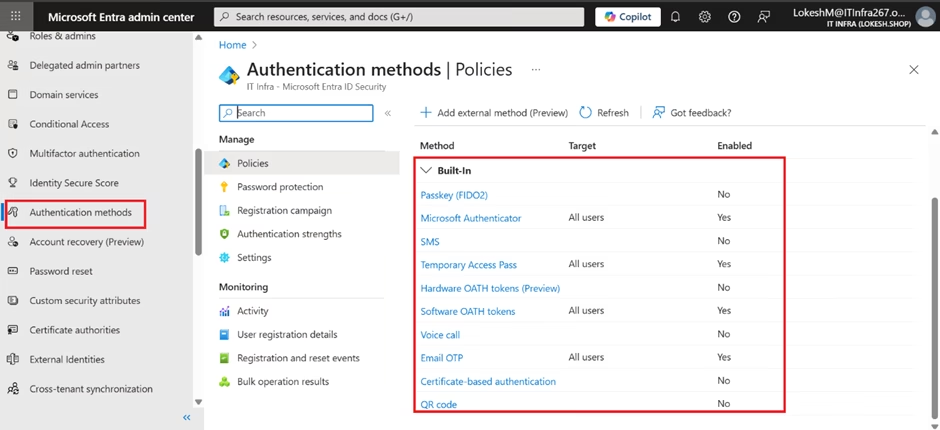
Microsoft Authenticator App (Recommended)
- Push notification approval
- Number matching
- Strong phishing resistance
SMS (Text Message)
- One-time code sent to mobile device
- Less secure than Authenticator
Voice Call
- Automated call with verification code
FIDO2 Security Keys
- Hardware-based authentication
- Very strong phishing protection
Windows Hello for Business
- Biometric authentication
- PIN-based device trust
Enabling and Managing MFA
There are two primary ways to enforce MFA.
1️⃣ Security Defaults (Basic)
If enabled:
- MFA required for admins
- Baseline protection applied
Good for small environments.
2️⃣ Conditional Access (Recommended)
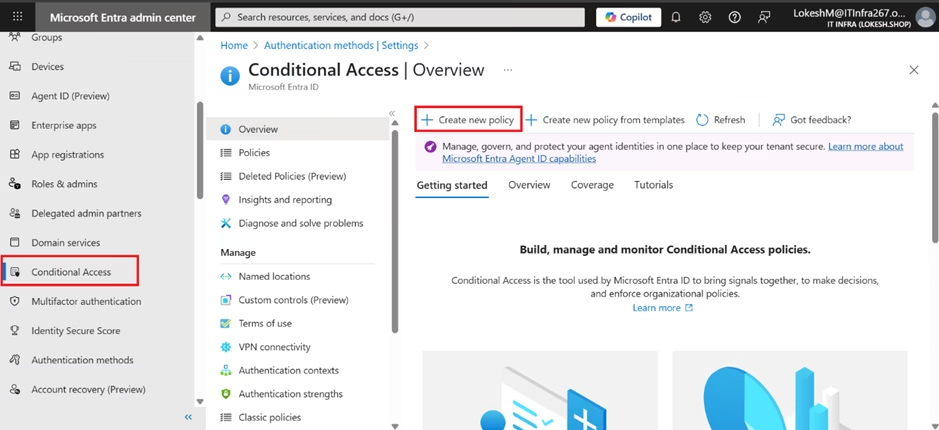
MFA can be enforced using Conditional Access policies.
Steps:
1️⃣ Go to Entra Admin Center
2️⃣ Navigate to Conditional Access
3️⃣ Create new policy
4️⃣ Select users or groups
5️⃣ Configure grant control → Require MFA
6️⃣ Enable policy
Conditional Access provides granular control.
This is frequently tested in MS-102.
Configuring Authentication Methods
To configure authentication methods:
- Go to https://entra.microsoft.com
- Navigate to Entra ID → Authentication methods
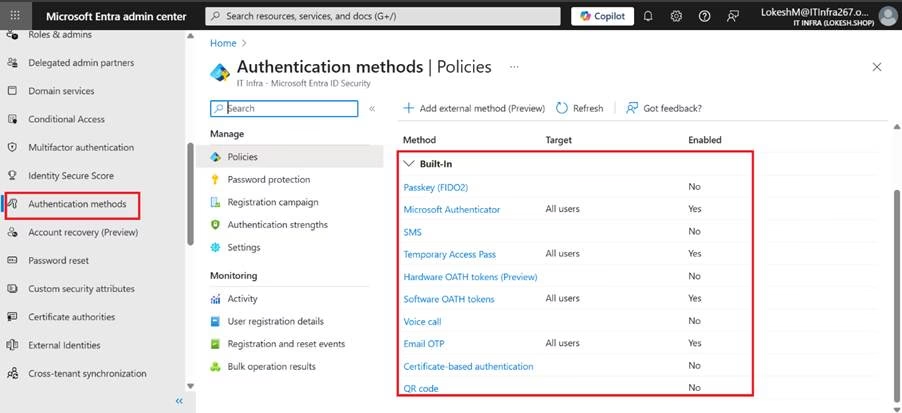
- Select the method (e.g., Microsoft Authenticator)
- Enable or disable for users/groups
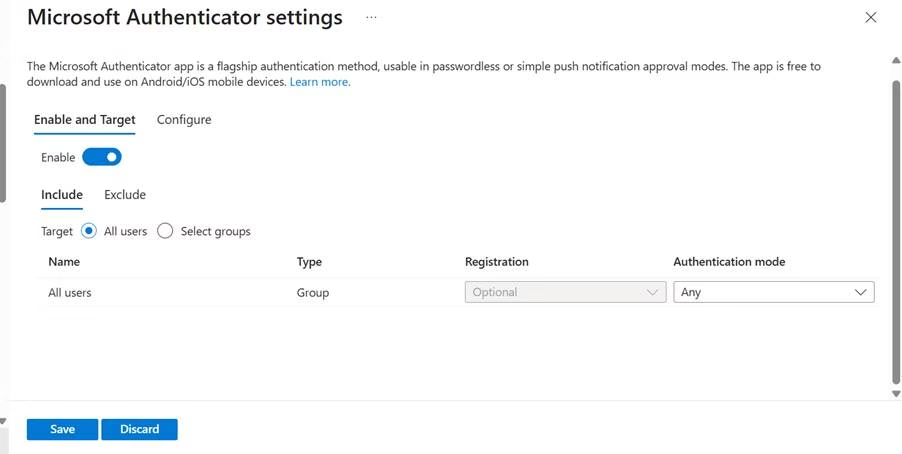
- Configure policy settings
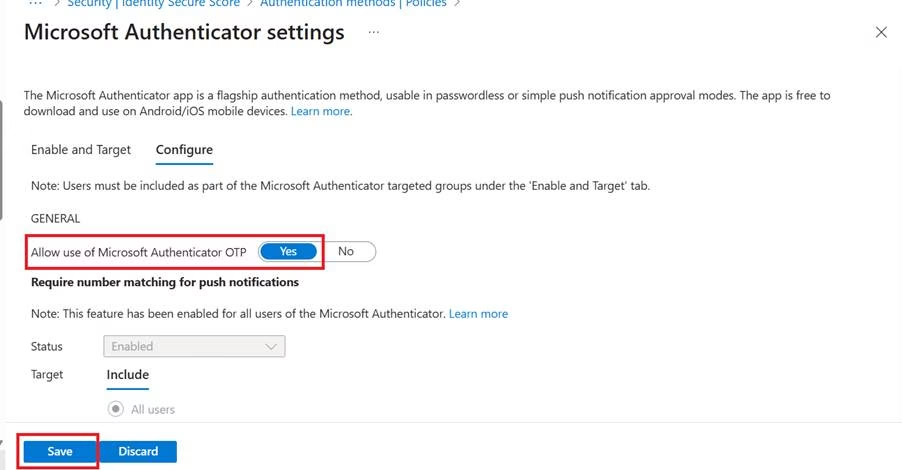
You can define which methods are allowed in the tenant.
Passwordless Authentication
Microsoft Entra ID supports passwordless login methods.
Examples:
- Authenticator app (passwordless mode)
- FIDO2 security key
- Windows Hello
Benefits:
- Reduces phishing risk
- Eliminates password reuse
- Improves user experience
Passwordless is increasingly emphasized in modern identity strategy.
User MFA Registration Process
Users may be required to register authentication methods.
You can configure:
- Registration campaigns
- Mandatory setup on next login
- Grace periods
Administrators must monitor registration compliance.
Monitoring MFA and Authentication Logs
Sign-in logs are located in:
Entra ID → Sign-in Logs
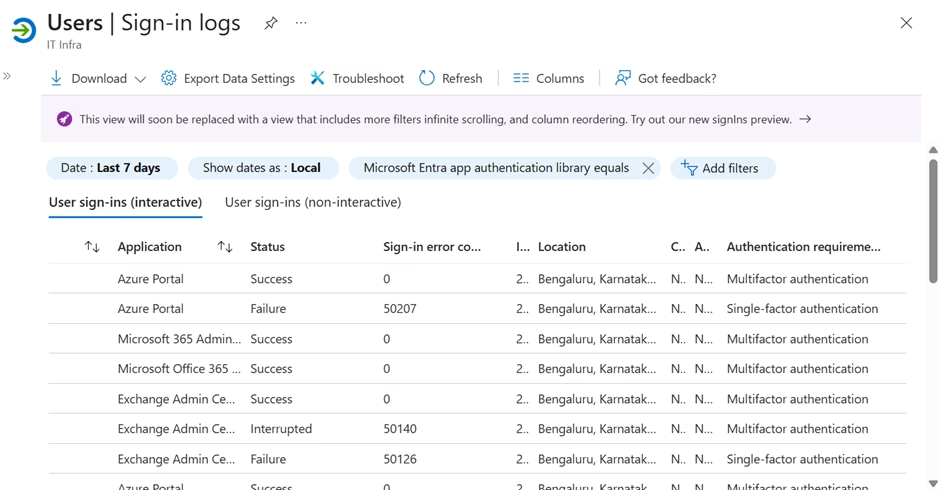
Here you can see:

- MFA requirement status
- Authentication method used
- Risk level
- Failure reason
For troubleshooting:
Check whether MFA was:
- Required
- Successfully completed
- Blocked by policy
Best Practices for MFA Deployment
1️⃣ Enforce MFA for All Users
Start with the administrators first.
2️⃣ Use Conditional Access Instead of Legacy Per-User MFA
Conditional Access provides better control.
3️⃣ Prefer Authenticator Over SMS
SMS is more vulnerable to SIM swap attacks.
4️⃣ Monitor Risky Sign-Ins
Combine MFA with Identity Protection.
5️⃣ Implement Passwordless Where Possible
Modernize authentication to reduce risk.
Why MFA in Microsoft Entra ID Matters for MS-102
MS-102 expects you to:
- Understand authentication vs authorization
- Configure MFA policies
- Choose appropriate authentication methods
- Troubleshoot sign-in failures
- Interpret authentication logs
MFA is central to identity security.
Final Insights
Multi-Factor Authentication in Microsoft Entra ID is not just a checkbox — it is a foundational defense layer.
Identity is the new security perimeter.
When MFA is implemented correctly:
- Credential theft becomes far less effective
- Risk exposure decreases dramatically
- Tenant security posture improves significantly
For the MS-102 Microsoft 365 Administrator exam, MFA represents the transition from identity management to identity protection.
If you’re new to this learning series, start with the main MS-102 Microsoft 365 Administrator overview, where we explain how all chapters connect and what skills you’ll build across the journey.
For the most accurate and up-to-date exam objectives and reference material, Microsoft maintains the official MS-102 documentation on Microsoft Learn. This series complements those resources by focusing on real-world administrative understanding.
In the next chapter, we will move into: Conditional Access Policies in Microsoft Entra ID
That is where identity becomes intelligent and risk-aware.


1 thought on “Multi-Factor Authentication (MFA) in Microsoft Entra ID: The Essential Security Guide for MS-102 Administrators”