Testing, Monitoring, and Troubleshooting Network Experience (with Lab)
Microsoft 365 is a cloud service, but user experience is often determined by network performance outside Microsoft’s datacenters. Latency, packet loss, DNS resolution, proxy configuration, and routing all play a major role in how users perceive Microsoft 365 reliability, especially in the context of Microsoft 365 Network Connectivity & Insights.
For Microsoft 365 administrators and especially for the MS‑102 Microsoft 365 Administrator exam, understanding Microsoft 365 Network Connectivity testing and network insights monitoring is essential for improving Microsoft 365 Network Connectivity & Insights. Many service issues blamed on Microsoft 365 are actually caused by local or regional network problems.
This post explains:
In this post, we will cover the vital topic of Microsoft 365 Network Connectivity & Insights.
- Why network monitoring matters
- How Microsoft measures network experience
- Which tools administrators use
- How to test connectivity
- A hands‑on lab to validate network paths
Why Network Understanding Matters in Microsoft 365
When users say:
- “Teams calls are dropping.”
- “Outlook is slow.”
- “SharePoint doesn’t load properly.”
The root cause is often network‑related.
Microsoft 365 consists of globally distributed services, but user traffic must still traverse:
- Local networks
- ISP routing
- DNS resolution
- Proxies and firewalls
MS‑102 expects administrators to:
- Differentiate between service outages and network issues
- Use Microsoft network diagnostic tools
- Identify whether issues are local, regional, or global
Network Responsibility Model in Microsoft 365
Microsoft uses a shared responsibility model:
| Area | Responsibility |
|---|---|
| Microsoft datacenter health | Microsoft |
| Service availability | Microsoft |
| Tenant configuration | Admin |
| User network connectivity | Admin |
| Local routing, DNS, proxies | Admin |
This is why network insights and diagnostics exist to help admins prove where the problem lies.
Part 1: Microsoft 365 Network Connectivity Testing
What Is Microsoft 365 Network Connectivity Testing?
Network Connectivity Testing validates:
- Endpoint reachability
- Latency to Microsoft 365 services
- Routing paths
- DNS resolution
- Proxy interference
It answers a simple but critical question:
Can users reliably reach Microsoft 365 endpoints from their location?
Microsoft Tools for Network Connectivity Testing
Microsoft 365 Network Connectivity Test (Web Tool)
Tool: https://connectivity.office.com
This tool runs diagnostic tests directly from the user’s network or browser.
It checks:
- DNS resolution
- TCP connectivity
- HTTPS reachability
- Network path quality
- Proxies and firewall behavior
Microsoft 365 Admin Center Network Tests
Path: Microsoft 365 Admin Center → Health → Network Connectivity
This integrates network diagnostics into tenant monitoring.
Admins can:
- View test results across locations
- Compare expected vs actual performance
- Identify poorly performing sites
Key Network Tests Explained
DNS Tests
Validates whether:
- Microsoft 365 domains resolve correctly
- Custom DNS does not block required endpoints
DNS issues often cause:
- Sign‑in failures
- Outlook connection delays
- Teams presence problems
TCP / HTTPS Connectivity
Verifies:
- Port 443 access
- No SSL inspection breaking Microsoft endpoints
Blocked or altered HTTPS traffic is a top cause of Microsoft 365 connectivity errors.
Network Latency Measurement
Measures:
- Round‑trip time (RTT) to Office 365 front doors
- Indicates real‑time suitability (Teams calls, meetings)
Typical expectations:
- < 100 ms → Good
- 100–200 ms → Acceptable
- 200 ms → Poor user experience
Routing Path Analysis
Identifies:
- Whether traffic follows Microsoft‑optimized paths
- If VPNs or proxies backhaul traffic inefficiently
This is especially critical for remote and hybrid users.
Hands‑On Lab: Network Connectivity Testing
Lab Objective
Test Microsoft 365 network connectivity from an admin workstation and interpret results.
Lab Prerequisites
- Browser access
- Non‑blocked outbound HTTPS
- Microsoft 365 tenant access
Step 1: Run Network Connectivity Tool
- Open browser
- Go to: https://connectivity.office.com
- Click Run Test
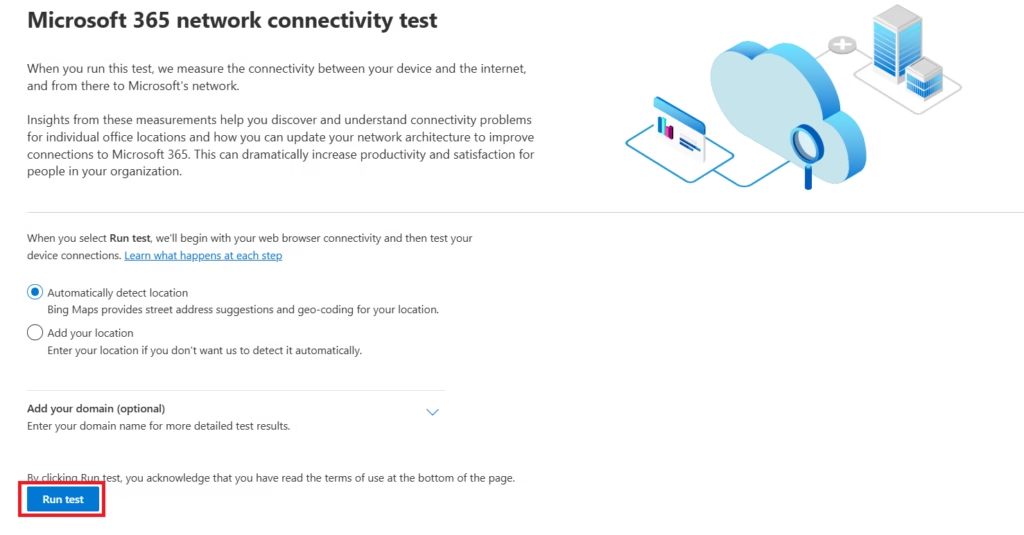
The tool will automatically:
- Detect location
- Measure connectivity
- Generate results
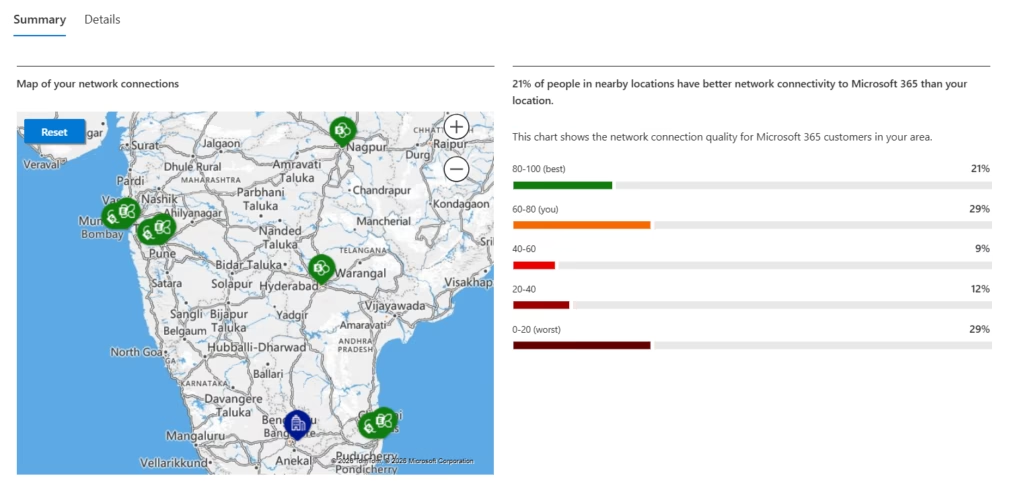
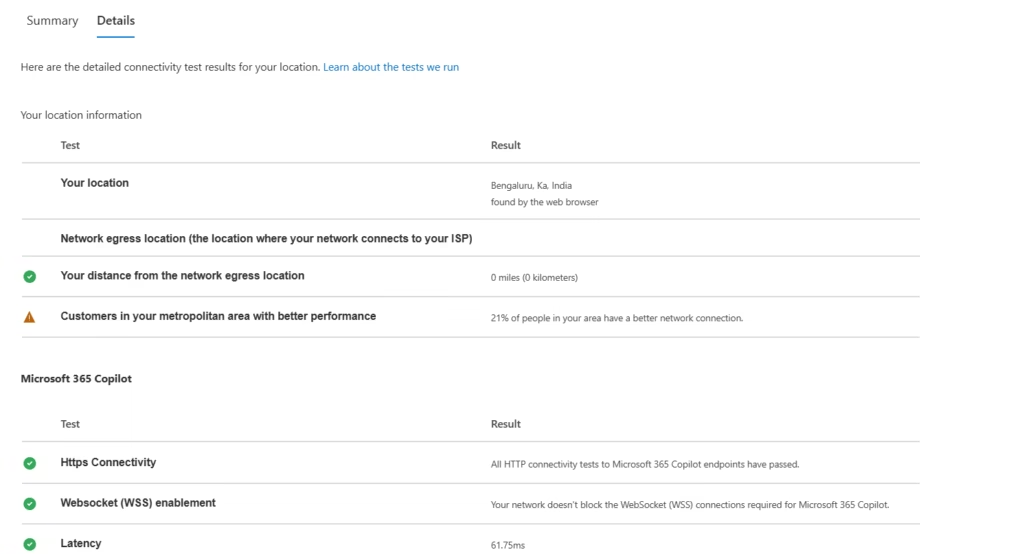
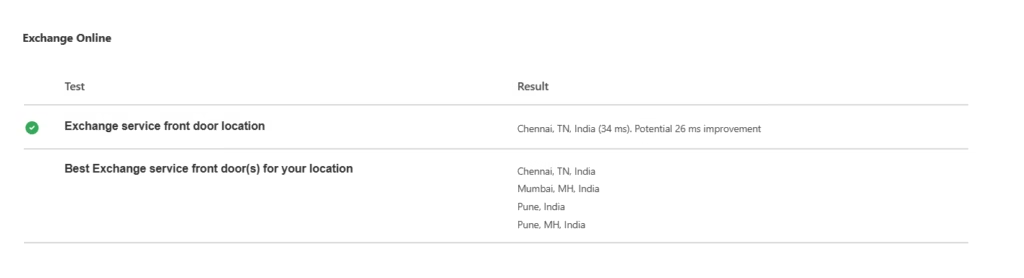
Step 2: Review Results
Pay attention to:
- DNS resolution status
- HTTPS connectivity
- Latency results
- Detected proxy usage
Sample indicators you may see:
- Green = Optimal
- Yellow = Acceptable but improvable
- Red = Issue detected
Step 3: Interpret Findings
If latency is high:
- Check VPN routing
- Verify ISP peering
- Recommend split‑tunneling for Microsoft 365 traffic
If DNS fails:
- Verify public DNS resolution
- Check conditional forwarders
Lab Outcome
You now understand:
- Where network issues originate
- Whether the issue is tenant, Microsoft, or local
- How to prove it with evidence
Part 2: Network Insights Monitoring in Microsoft 365
Connectivity tests show point‑in‑time results.
Network Insights Monitoring shows trends over time.
What Are Network Insights?
Network insights analysis:
- Average latency by location
- User network quality trends
- Regional performance variations
- Client and connectivity health signals
These insights help admins:
- Identify problematic offices
- Compare branch performance
- Justify network upgrades
Where to Find Network Insights
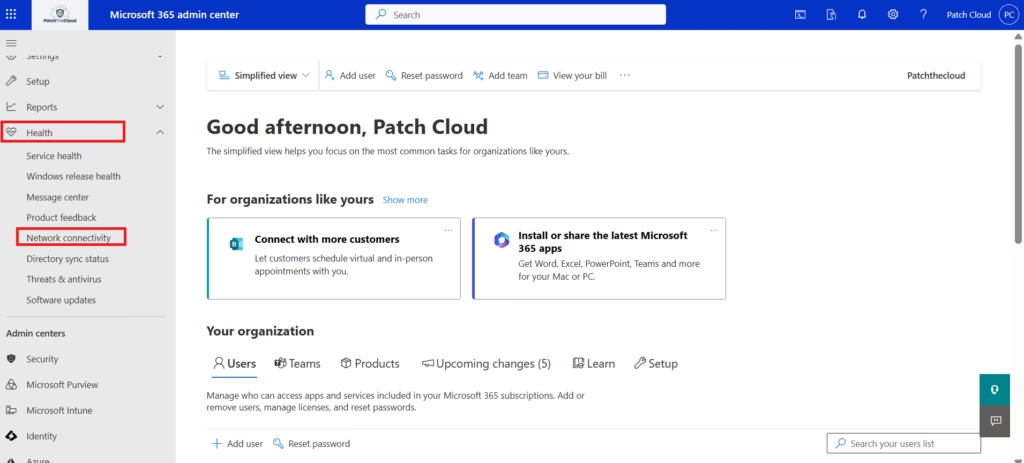
Microsoft 365 Admin Center → Health → Network Connectivity
Lab Note:
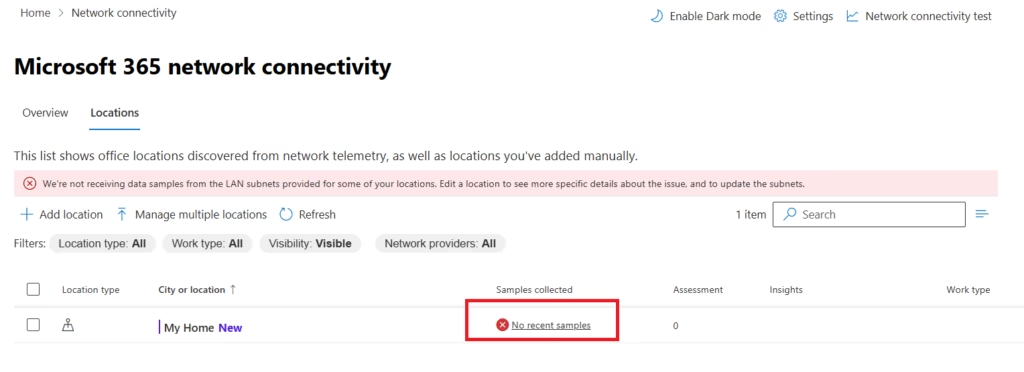
Microsoft 365 Network Connectivity Insights generates samples only from real Microsoft 365 user traffic over time. Although a public IP address has been configured, this lab environment does not generate sufficient production workload telemetry for samples to appear. This behavior is expected in lab environments and does not indicate a network configuration issue.
From here, admins can:
- View location‑based performance
- Identify sites with degraded connectivity
- Track improvements after changes
Common Network Insight Signals
High Latency Locations
Indicates:
- Poor ISP routing
- VPN backhaul
- Distance from Microsoft front doors
Inconsistent Connectivity
Indicates:
- Unstable links
- Wireless interference
- Proxy behavior
Improved Trends After Optimization
Confirms:
- Network remediation was effective
- Changes had a measurable impact
Network Insights vs Service Health
This distinction is frequently tested in MS‑102.
| Tool | Purpose |
|---|---|
| Service Health | Microsoft service availability |
| Network Insights | User connectivity quality |
Correct admin behavior:
- Check Service Health
- If healthy → analyze network insights
Real‑World Troubleshooting Flow
When users report slow Microsoft 365 performance:
1️⃣ Check Service Health
2️⃣ Review Network Insights
3️⃣ Run Connectivity Tests
4️⃣ Validate DNS, latency, routing
5️⃣ Escalate to ISP if needed
This structured approach demonstrates exam‑level maturity.
MS‑102 Exam Focus: Network Monitoring
Expect scenario‑based questions such as:
- Users report Teams call issues, but Service Health is normal
- Which tool helps diagnose the issue?
- How to test connectivity from user locations
- How to determine if latency is network‑related
Microsoft does not expect deep networking theory—only administrative decision‑making.
Best Practices for Microsoft 365 Network Monitoring
1️⃣ Test network connectivity from key locations
2️⃣ Avoid unnecessary VPN backhaul
3️⃣ Use split‑tunneling for Microsoft 365 traffic
4️⃣ Monitor trends, not just incidents
5️⃣ Document connectivity baselines
Key Takeaways
- Microsoft 365 experience depends heavily on network quality
- Network issues are often mistaken for service outages
- Microsoft provides built‑in network testing and insights
- Administrators must validate connectivity before escalating
- MS‑102 values diagnostic thinking, not just tools
Next Step
Continue your learning with:
Microsoft 365 Backup & Recovery
https://techcertguide.blog/microsoft-365-backup-recovery
Previous Topic
If you haven’t explored it yet:
MIcrosoft 365 Release Management
https://techcertguide.blog/microsoft-365-release-management-guide
Start from the Beginning
MS-102 Microsoft 365 Administrator Overview
https://techcertguide.blog/ms-102-microsoft-365-administration/
Official Microsoft Reference
https://learn.microsoft.com/en-us/certifications/exams/ms-102