What are Microsoft 365 Organizational Settings?
Microsoft 365 Organizational Settings are the foundation of your entire tenant architecture. While most administrators only touch a few surface-level options, the “Org Settings” menu in the Microsoft 365 Admin Center contains over 60 deep-level configurations that dictate how your users collaborate, stay secure, and access external data.
As a Senior IT Infrastructure Engineer, I’ve seen how one misconfigured toggle in this menu can lead to massive security gaps or helpdesk ticket storms. Whether you are a professional architect or a student preparing for the MS-102 Microsoft 365 Administrator exam, you need more than a summary; you need a complete map.
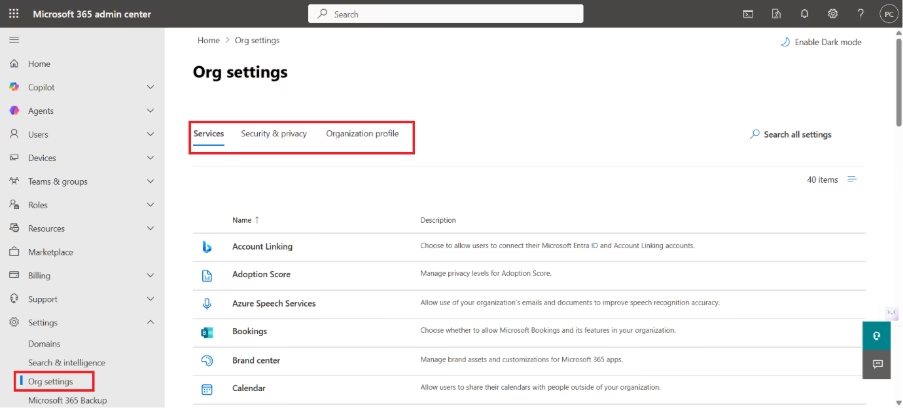
In this exhaustive 2026 guide, we are going beyond the basics. We are walking through all 50 settings found under the “Show All” menu, categorized by Services, Security & Privacy, and Organization Profile, to ensure your tenant is fully optimized and exam-ready.
How to Access Microsoft 365 Organizational Settings (Step-by-Step)
- Navigate to the Microsoft 365 Admin Center
- On the left-hand navigation menu, click Show all to expand the full list of admin centers and settings.
- Scroll down to Settings and click to expand the dropdown.
- Select Org settings.
Part 1: Microsoft 365 Organizational Settings: Services Tab (The Apps & Collaboration Hub)
Account Linking
What is this?
This Microsoft 365 Organizational Setting Account Linking allows users to connect their Microsoft 365 work account with external apps or services.
What it controls
- Allows users to link external apps
- Grants access to:
- Emails
- Calendar
- Files
Why it matters
While convenient, this can lead to:
- Unauthorized app access
- Exposure of sensitive data
- Shadow IT risks
Best practice
- Disable by default
- Allow only approved apps
- Monitor app permissions regularly
Final Tip
Small setting, big risk: controlling app access is key to securing your environment.
Adoption Score
What is this?
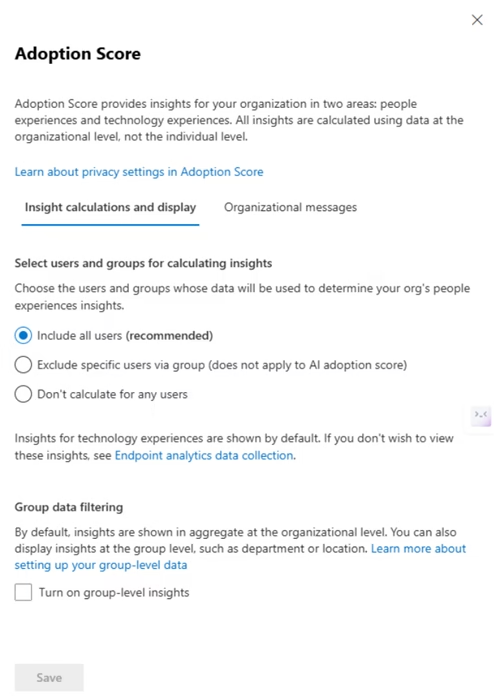
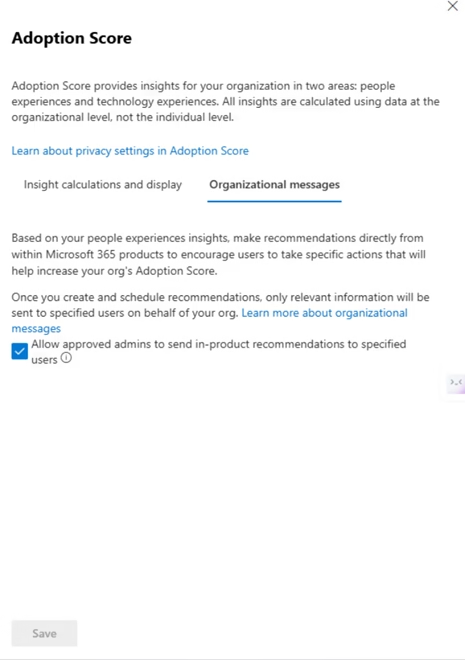
This Microsoft 365 Organizational Setting Adoption Score shows how users are using Microsoft 365, focusing on usage trends and productivity insights.
What it controls
- Include all users (recommended)
- Exclude specific users (e.g., admins/test accounts)
- Disable data collection (privacy-focused environments)
- Enable group-level insights (department/team view)
Why it matters
Helps understand:
- User adoption
- Productivity trends
- Areas needing improvement
But also involves privacy considerations.
Best practice
- Include all users for accurate insights
- Exclude admin/test accounts if needed
- Avoid disabling unless required
- Enable group insights only with proper privacy controls
Final Tip
Adoption Score is about insights, not surveillance — balance visibility with privacy.
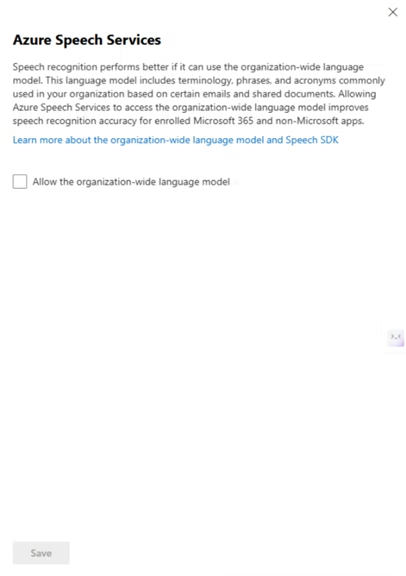
Azure Speech Services
What is this?
This Microsoft 365 Organizational Setting Azure Speech Services allows Microsoft to use your organization’s emails and documents to improve speech recognition accuracy.
What it controls
- Builds a custom language model
- Improves recognition of:
- Internal terms
- Acronyms
- Business-specific language
Why it matters
Enhances voice features (Teams, transcription), but involves processing organizational data, raising privacy concerns.
Best practice
- Keep disabled by default
- Enable only if speech features are heavily used
- Ensure compliance and data privacy policies are in place
Final Tip
Better accuracy vs data privacy is enabled only when truly needed.
Bookings
What is this?
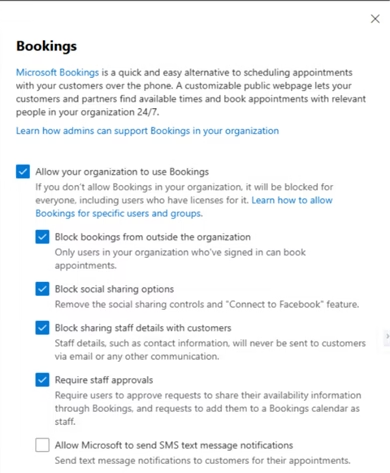
This Microsoft 365 Organizational Setting Microsoft Bookings allows users to create online appointment booking pages for customers or internal users.
What it controls
- Enable/disable Bookings
- External access (customer bookings)
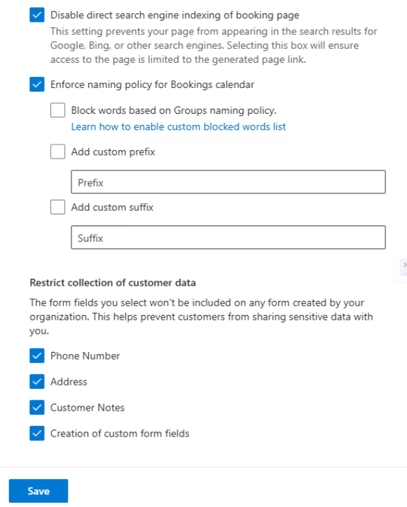
- Search engine visibility
- Sharing options (social/staff details)
- Data collection (customer info)
Why it matters
Bookings is public-facing, so misconfiguration can lead to:
- Data exposure
- Privacy risks
- Uncontrolled access
Best practice
- Enable only if required
- Disable search engine indexing
- Restrict external access if not needed
- Hide staff details
- Collect minimal customer data
Final Tip
Bookings improves scheduling, but always balance usability with privacy and security.
Brand center
What is this?
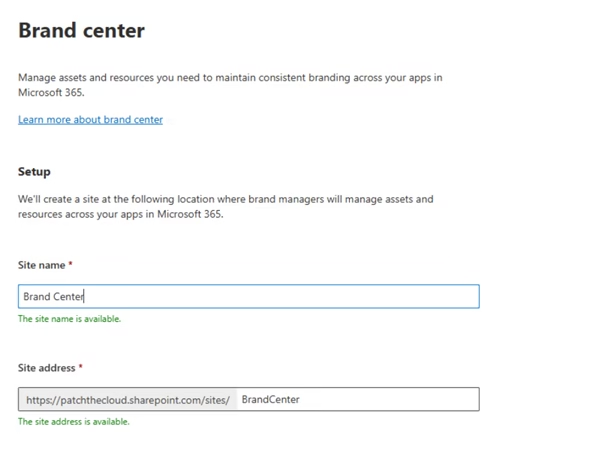
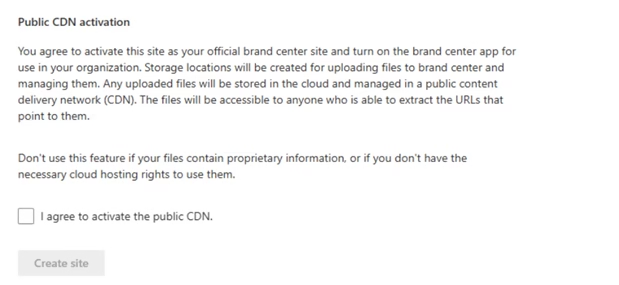
This Microsoft 365 Organizational Setting Brand Center provides a centralized place in Microsoft 365 to store and manage organization branding assets like logos, templates, and email signatures.
What it does
- Creates a SharePoint site
- Stores approved branding files
- Ensures users access standardized assets
Why it matters
- Maintains consistent branding
- Prevents outdated or incorrect templates
- Improves user experience across apps
Best practice
- Keep access internal
- Avoid enabling Public CDN (unless assets are public)
- Grant edit access only to admins/design team
Final Tip
Brand Center helps enforce consistency and governance across your organization.
Calendar
What is this?
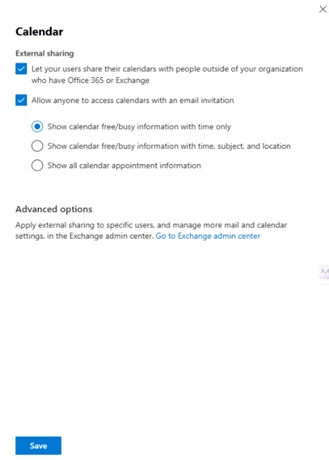
This Microsoft 365 Organizational Setting Controls whether users can share their calendars with people outside the organization and what level of detail is visible.
What it controls
- Enable/disable external sharing
- Who can access calendars
- Level of detail:
- Free/Busy
- Limited details
- Full details
Why it matters
Improves collaboration with external users, but may expose sensitive information if misconfigured.
Best practice
- Set to Free/Busy (time only)
- Avoid sharing full details externally
- Restrict sharing via Exchange Admin Center
- Review permissions regularly
Final Tip
Calendar data can reveal sensitive info — keep external sharing minimal and controlled.
Cortana
What is this?
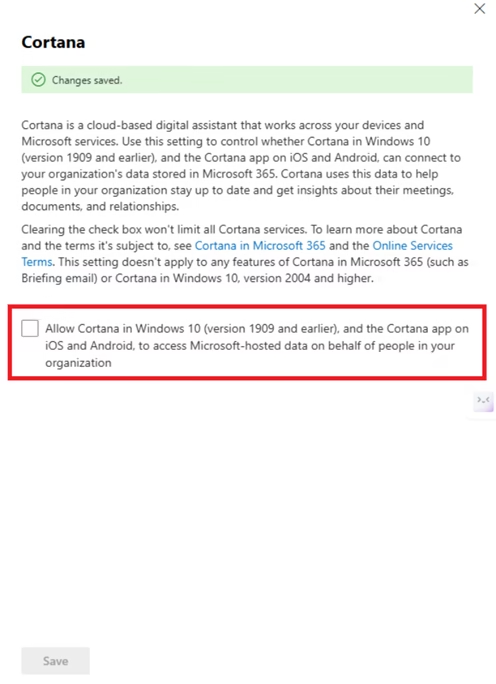
This Microsoft 365 Organizational Setting Controls whether Cortana can access organizational data like emails, calendar, and contacts.
What it controls
- Access to:
- Emails
- Calendar
- Contacts
- Enables personalized reminders and insights
Why it matters
Provides productivity features but involves access to sensitive organizational data.
Best practice
- Keep disabled (recommended)
- Not required in most modern environments
- Use alternatives like Microsoft 365 Copilot
Final Tip
Cortana is mostly a legacy feature disabling it reduces unnecessary data exposure.
Developer Portal for Teams
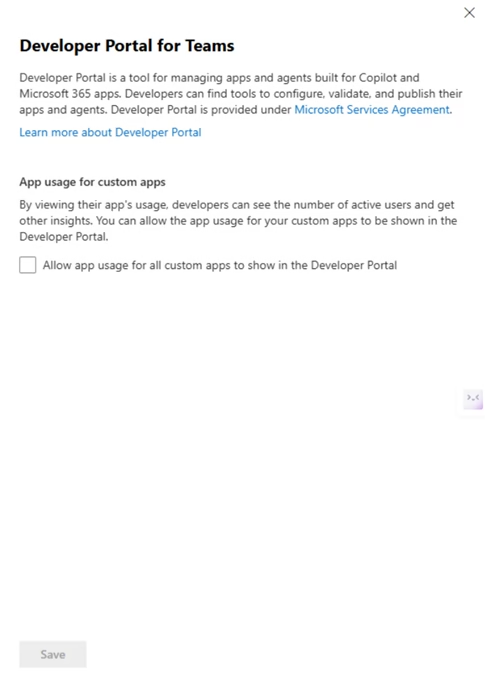
Allow app usage to be shown from custom apps.
What is this?
This Microsoft 365 Organizational Setting Developer Portal for Teams controls whether usage data of custom Teams apps is visible to developers.
What it controls
- Shows app usage insights:
- Active users
- App engagement
- Helps developers monitor Teams apps
Why it matters
Provides visibility into app adoption but may expose usage patterns within the organization.
Best practice
- Enable only if developing Teams apps
- Restrict access to developers/admins
- Disable if not required
Final Tip
Useful for Teams app development, but unnecessary for most organizations keep disabled unless
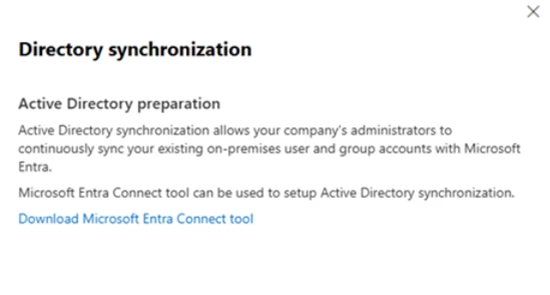
Directory synchronization
Sync users to the cloud using Microsoft Entra.
What is this?
This Microsoft 365 Organizational Setting Microsoft Entra ID Directory Sync connects on-premises Active Directory with Microsoft 365 using Entra Connect.
What it does
- Syncs users, groups, and passwords
- Enables hybrid identity (on-prem + cloud)
- Allows same credentials across environments
Important note
- This section is informational only
- Configuration is done via Entra Connect (on-prem), not here
Why it matters
- Ensures identity consistency
- Supports seamless user authentication
Best practice
- Use only if you have on-prem AD
- Secure the sync server
- Monitor sync regularly
Final Tip
Directory Sync is the backbone of hybrid identity, even though it’s not configured here.
Dynamics 365 Customer Voice
Choose to record the names of people who fill out surveys.
What is this?
This Microsoft 365 Organizational Setting Dynamics 365 Customer Voice controls whether survey responses are anonymous or identifiable.
What it controls
- Record respondent names (enabled)
- Keep responses anonymous (disabled)
Why it matters
Capturing identity helps with follow-ups, but it involves personal data and privacy risks.
Best practice
- Enable only for follow-up scenarios
- Keep anonymous for honest feedback
- Inform users before collecting identity
- Restrict access to survey data
Final Tip
Balance insight with privacy, use identity tracking only when necessary.
Mail
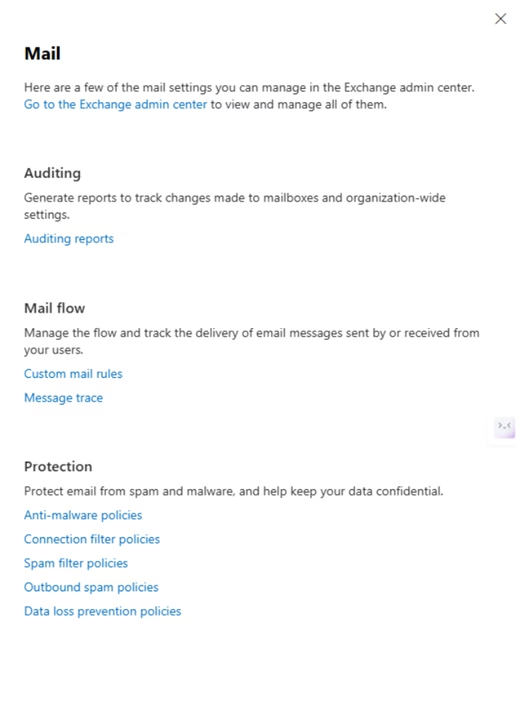
Set up auditing, track messages, and protect email from spam and malware in the Exchange admin center.
What is this?
This Microsoft 365 Organizational Setting Mail settings control how email is managed in Microsoft 365, including flow, security, and compliance.
- Configurations are handled in the Exchange Admin Center
What it controls
- Mail flow (rules, message trace)
- Spam & malware protection
- Auditing and reporting
- Data loss prevention (DLP)
Why it matters
Email is a major attack vector; proper configuration helps prevent phishing, spam, and data leaks.
Best practice
- Review mail flow rules regularly
- Enable auditing
- Configure strong spam/malware policies
- Use DLP for sensitive data
Final Tip
Microsoft 365 admin center is the entry point where real mail configuration happens in Exchange Admin Center.
Microsoft 365 Groups
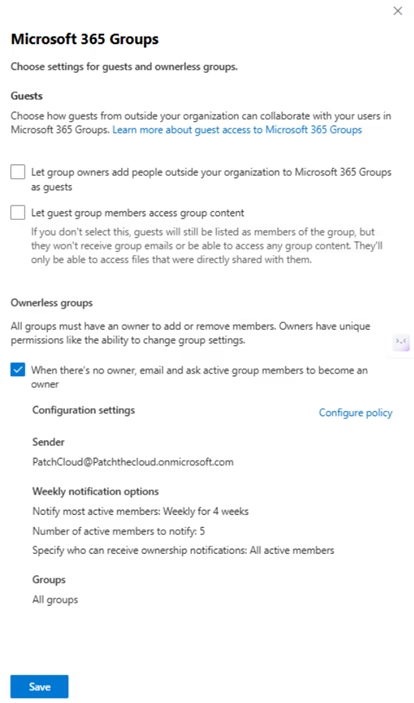
Manage external sharing and ownerless groups.
What is this?
This Microsoft 365 Organizational Setting Controls how groups are managed in Microsoft 365, including guest access and group ownership.
What it controls
- External (guest) access to groups
- Guest permissions (emails, files, conversations)
- Ownerless group handling (auto notifications)
Why it matters
Groups are used across Teams, SharePoint, and Outlook misconfiguration can lead to data exposure and governance issues.
Best practice
- Allow guest access only if needed
- Restrict who can add guests
- Enable ownerless group policy
- Review group memberships regularly
Final Tip
Microsoft 365 Groups are the backbone of collaboration balance access with security and governance.
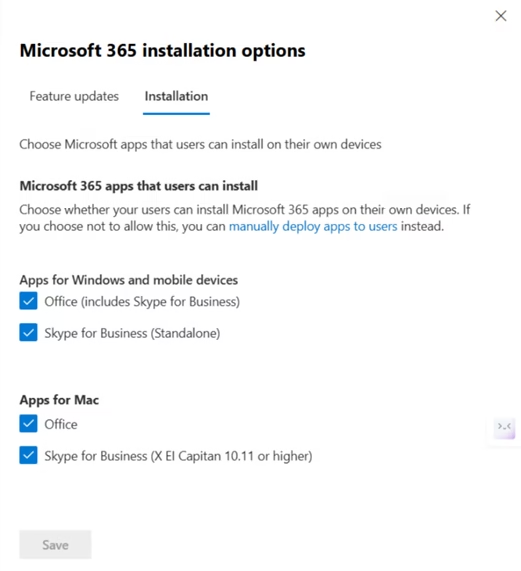
Microsoft 365 installation options
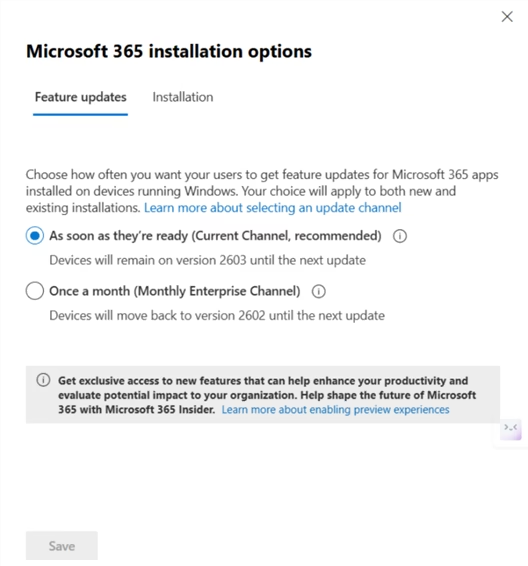
Choose how often users get feature updates and the Microsoft 365 apps that users can install.
What is this?
This Microsoft 365 Organizational Setting Controls how Microsoft 365 apps are updated and installed across the organization.
What it controls
- Update channels:
- Current Channel (latest features)
- Monthly Enterprise (stable updates)
- App installation permissions
- Available apps (Windows/Mac)
Why it matters
Ensures consistent app versions, reduces compatibility issues, and improves security.
Best practice
- Use Monthly Enterprise for production
- Use Current Channel for testing
- Restrict user installations if needed
- Review update settings regularly
Final Tip
Update settings impact both security and stability. Choose wisely.
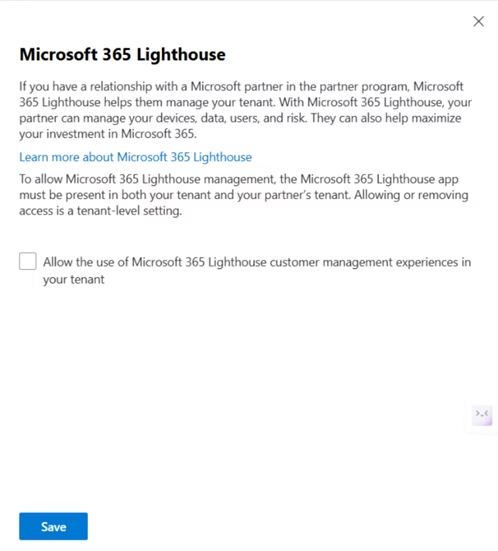
Microsoft 365 Lighthouse
Manage access to Microsoft 365 Lighthouse.
What is this?
This Microsoft 365 Organizational Setting Microsoft 365 Lighthouse allows partners (MSPs) to manage multiple Microsoft 365 tenants from a single interface.
What it controls
- Allows/disables partner access to your tenant
- Enables monitoring of users, devices, security, and compliance
Why it matters
Grants external administrative access misconfiguration can expose sensitive data.
Best practice
- Enable only for trusted MSPs
- Use least privilege access
- Review partner permissions regularly
- Disable when not needed
Final Tip
Not required for most organizations to keep disabled unless using a partner.
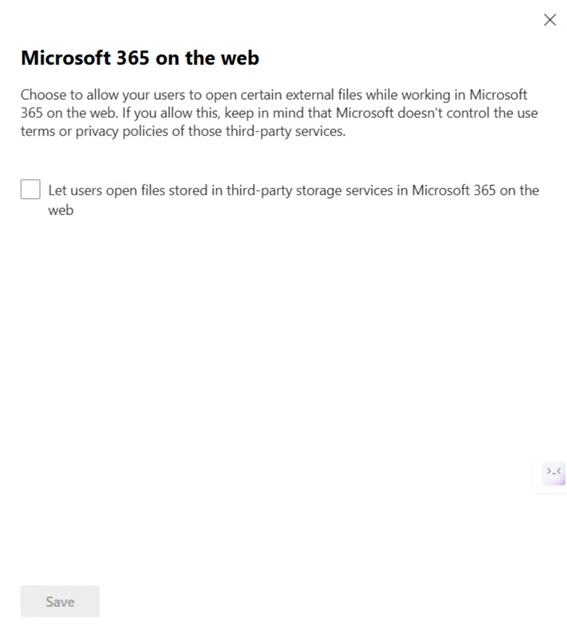
Microsoft 365 on the web
Let users open files stored in third-party storage services in Microsoft 365.
What is this?
This Microsoft 365 Organizational Setting Controls whether users can open files from third-party storage services in Microsoft 365 web apps.
What it controls
- Allow external storage access
- Restrict to OneDrive/SharePoint only
Why it matters
Improves flexibility but may expose data to external services outside Microsoft’s control.
Best practice
- Disable by default
- Enable only if required
- Prefer OneDrive/SharePoint
- Educate users on risks
Final Tip
Convenience vs security keeps it disabled for better data control.
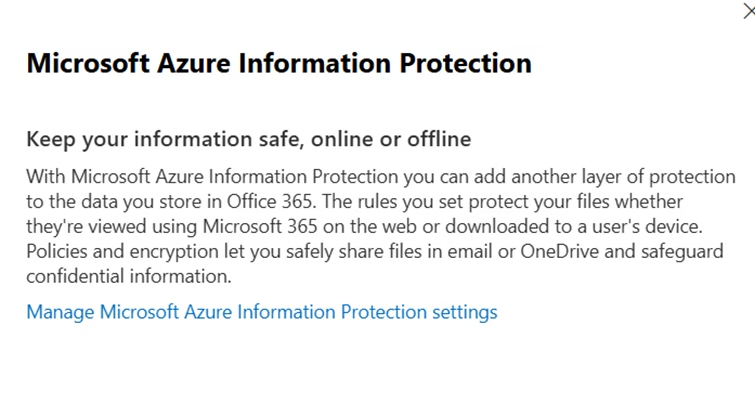
Microsoft Azure Information Protection
Update your settings for Microsoft Azure Information Protection.
What is this?
This Microsoft 365 Organizational Setting Microsoft Azure Information Protection helps protect and classify sensitive data across Microsoft 365 using labels and encryption.
What it controls
- Data classification (labels)
- Encryption and protection
- Secure sharing of files (email, OneDrive, etc.)
Why it matters
Protects sensitive information from unauthorized access, both inside and outside the organization.
Best practice
- Use sensitivity labels for data classification
- Apply encryption for confidential data
- Regularly review protection policies
Final Tip
AIP adds an extra layer of security classify and protect your data proactively.
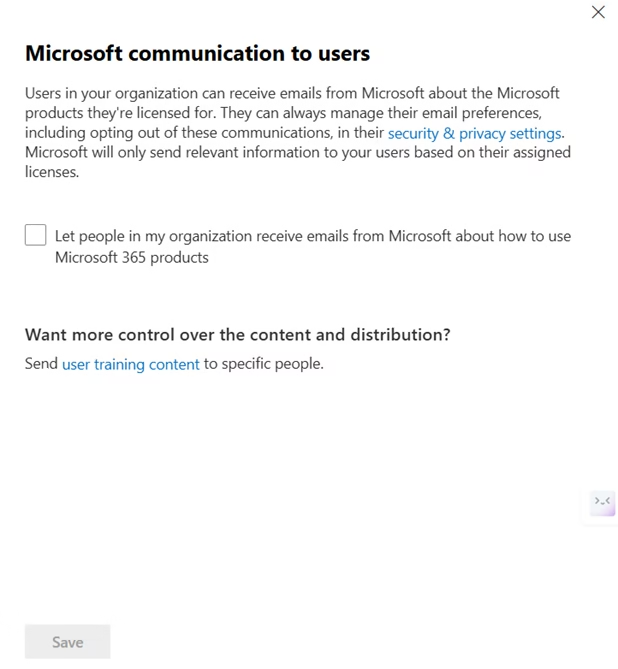
Microsoft communication to users
Let people in your organization receive email from Microsoft about training and new features.
What is this?
This Microsoft 365 Organizational Setting Controls whether users receive emails from Microsoft about Microsoft 365 products, tips, and updates.
What it controls
- Allows Microsoft to send product-related emails
- Users can manage preferences individually
Why it matters
Improves user awareness but may lead to unnecessary emails or distractions.
Best practice
- Disable to reduce noise
- Use internal communication for training
- Enable only if users benefit from Microsoft updates
Final Tip
Keep communication controlled, avoid unnecessary emails to users.
Microsoft Edge site lists
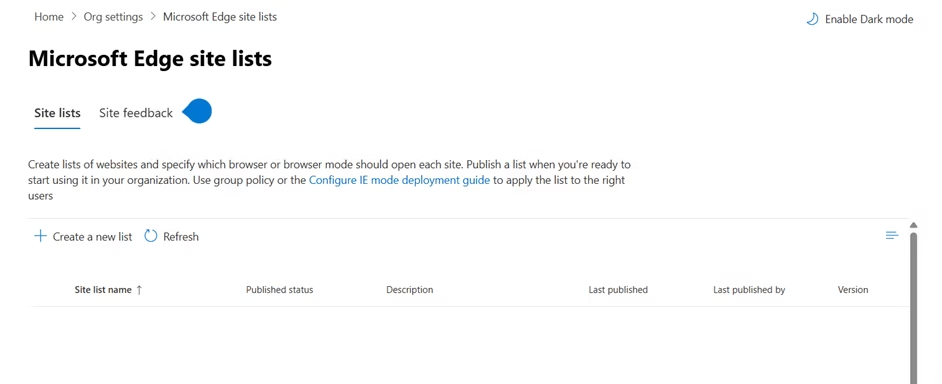
Set websites to open in Internet Explorer mode in Microsoft Edge, or other browser modes.
What is this?
This Microsoft 365 Organizational Setting Controls how specific websites open in Microsoft Edge, including support for IE mode.
What it controls
- Define site lists (URLs)
- Choose how sites open:
- Edge mode
- IE mode (for legacy apps)
- Apply settings via policies
Why it matters
Helps organizations run legacy applications that require Internet Explorer while using modern Edge.
Best practice
- Use for legacy/IE-dependent apps
- Keep the site list updated
- Apply via Group Policy or Intune
Final Tip
Edge site lists bridge the gap between modern browsing and legacy compatibility.
Microsoft Forms
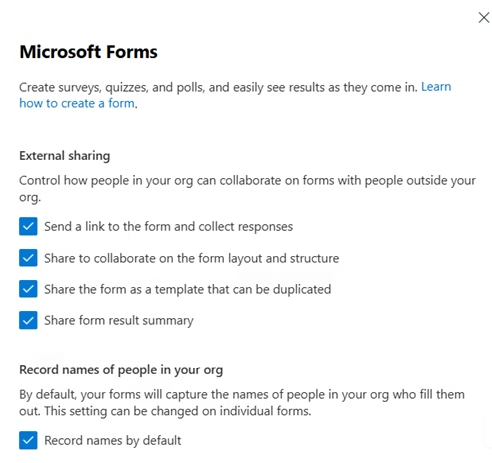
Manage external sharing and record the names of people in your org who fill out forms.
What is this?
This Microsoft 365 Organizational Setting Microsoft Forms allows users to create surveys, quizzes, and polls, with controls for sharing, data collection, and security.
What it controls
- External sharing (collect responses, collaborate, share templates/results)
- Record respondent names
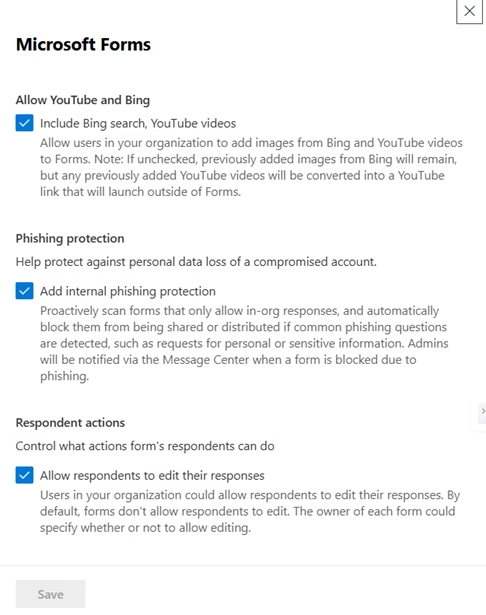
- Media integration (Bing/YouTube)
- Phishing protection
- Respondent actions (edit responses)
Why it matters
Forms can collect sensitive data improper settings may lead to data exposure or misuse.
Best practice
- Restrict external sharing if not needed
- Enable phishing protection
- Collect only the required data
- Limit response editing
Final Tip
Forms are simple but powerful, secure them to prevent data leakage and misuse.
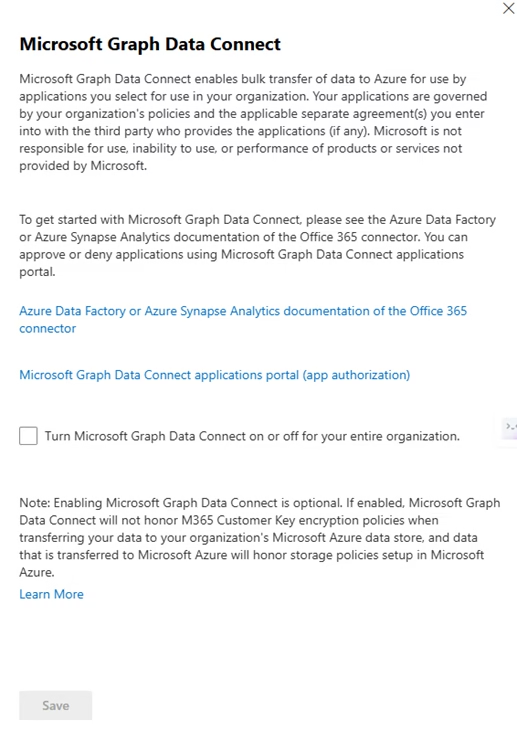
Microsoft Graph Data Connect
Manage and update your Microsoft Graph Data Connect settings.
What is this?
This Microsoft 365 Organizational Setting Microsoft Graph Data Connect allows bulk export of Microsoft 365 data to Azure for analytics and external applications.
What it controls
- Enable/disable data export to Azure
- Approve apps accessing organizational data
- Govern large-scale data transfers
Why it matters
Provides powerful analytics, but involves bulk data access, increasing risk of exposure if misused.
Best practice
- Enable only if required
- Approve trusted applications only
- Monitor data access regularly
- Follow compliance policies
Final Tip
Powerful for analytics, but high-risk enable only with strict governance.
Microsoft Loop
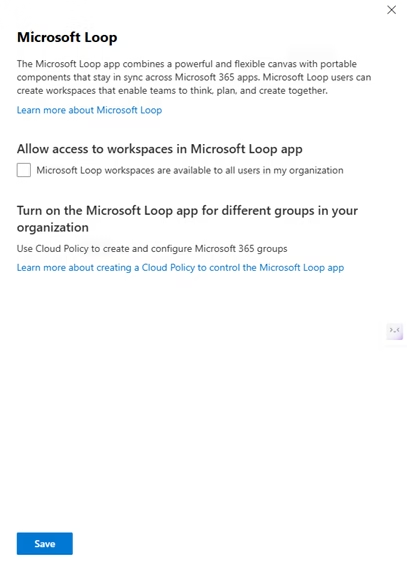
Control access to Microsoft Loop workspaces.
What is this?
This Microsoft 365 Organizational Setting Microsoft Loop enables real-time collaboration using shared workspaces and components across Microsoft 365 apps.
What it controls
- Enable/disable Loop workspaces
- Allow access for all users or specific groups
- Manage access via policies
Why it matters
Improves collaboration but may introduce data sharing and governance challenges.
Best practice
- Enable for specific users/groups first
- Apply policies for controlled access
- Monitor usage and data sharing
Final Tip
Start small with Loop balance collaboration with governance.
Microsoft Planner
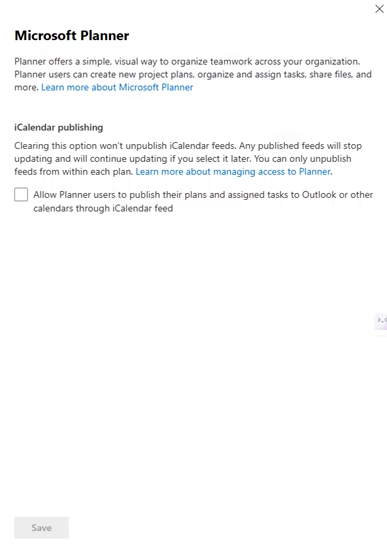
Choose whether your users can publish plans and assigned tasks to an iCalendar feed.
What is this?
This Microsoft 365 Organizational Setting Microsoft Planner settings control whether Planner tasks can be shared via iCalendar feed to Outlook or other calendar apps.
What it controls
- Publish Planner tasks as calendar feeds
- Allow access from external calendar apps
Why it matters
Improves visibility of tasks but may expose task details outside Microsoft 365.
Best practice
- Enable only if needed
- Avoid sharing sensitive task data
- Review access to shared calendars
Final Tip
Useful for visibility but be cautious shared calendars can expose internal tasks.
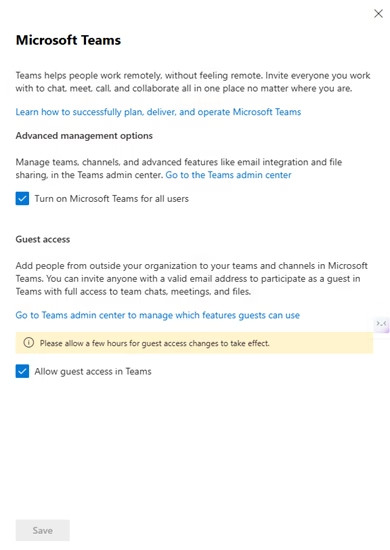
Microsoft Teams
Manage and update your Microsoft Teams settings.
What is this?
This Microsoft 365 Organizational Setting Microsoft Teams settings control access to Teams and external (guest) collaboration.
What it controls
- Enable/disable Teams for users
- Allow guest access (external users)
- Manage advanced settings via Teams Admin Center
Why it matters
Teams is a core collaboration tool — misconfiguration can lead to uncontrolled external access and data exposure.
Best practice
- Enable Teams based on business need
- Allow guest access only if required
- Monitor guest permissions regularly
Final Tip
Teams boosts collaboration, but controls guest access to protect your data.
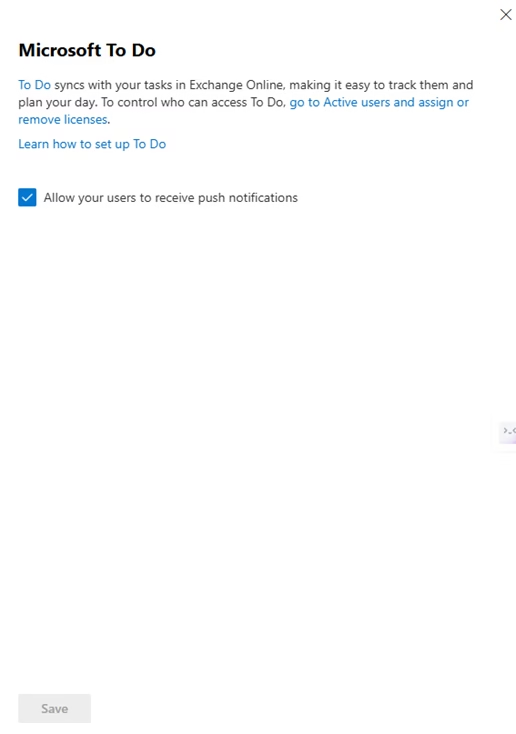
Microsoft To Do
Manage and update your To Do settings.
What is this?
This Microsoft 365 Organizational Setting Microsoft To Do helps users manage tasks and syncs with Exchange Online.
What it controls
- Allow push notifications for tasks and reminders
Why it matters
Improves productivity, but frequent notifications may cause user distraction.
Best practice
- Enable for better task tracking
- Allow users to manage notification preferences
Final Tip
Keep notifications balanced helpful, but not overwhelming.
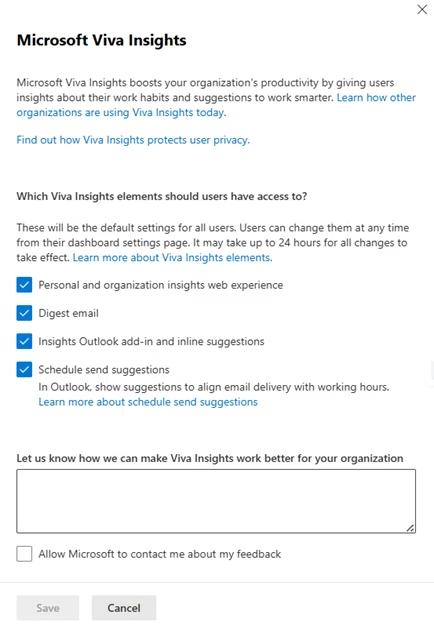
Microsoft Viva Insights
Manage and update Microsoft Viva Insights settings.
What is this?
This Microsoft 365 Organizational Setting Microsoft Viva Insights provides users with insights and recommendations to improve productivity and work habits.
What it controls
- Personal and organizational insights
- Digest emails
- Outlook suggestions (inline tips, schedule send)
Why it matters
Helps improve productivity, but involves the analysis of user activity data, raising privacy considerations.
Best practice
- Enable core insights for productivity
- Review privacy policies
- Allow users to control their preferences
Final Tip
Use insights wisely to balance productivity benefits with user privacy.
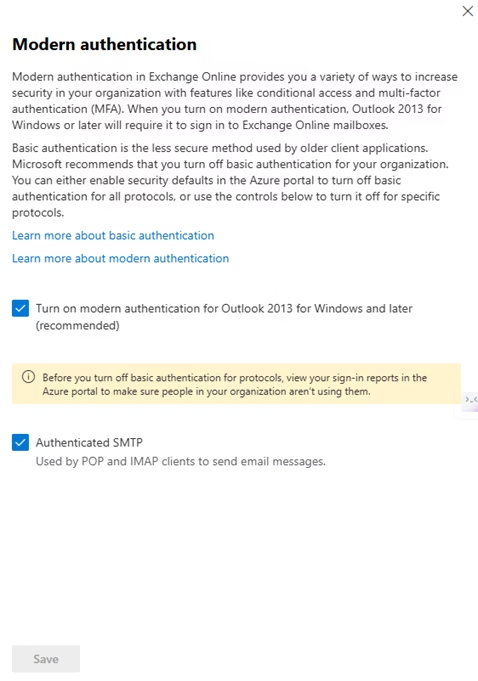
Modern authentication
Change Exchange Online authentication settings for your entire organization.
What is this?
This Microsoft 365 Organizational Setting Modern authentication in Exchange Online enables secure sign-in using methods like MFA and Conditional Access, replacing legacy basic authentication.
What it controls
- Enables modern auth for Outlook and clients
- Supports MFA and secure sign-in
- Controls legacy protocols (e.g., SMTP)
Why it matters
Basic authentication is insecure and vulnerable to attacks — modern auth improves security and identity protection.
Best practice
- Enable modern authentication (recommended)
- Disable basic authentication
- Review legacy protocol usage (SMTP, IMAP, POP)
Final Tip
Modern authentication is essential it’s a key step in securing Microsoft 365.
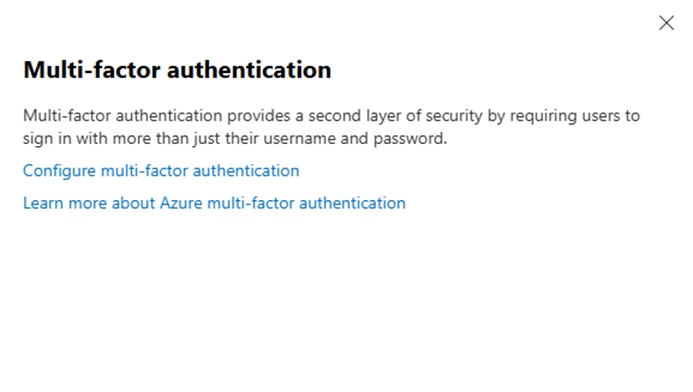
Multi-factor authentication
Manage multi-factor authentication settings for your users.
What is this?
This Microsoft 365 Organizational Setting Multi-Factor Authentication adds an extra layer of security by requiring users to verify their identity using more than just a password.
What it controls
- Requires additional verification (OTP, app, biometrics)
- Protects user sign-ins
Why it matters
Passwords alone are vulnerable. MFA significantly reduces the risk of account compromise.
Best practice
- Enable MFA for all users (especially admins)
- Use Conditional Access for enforcement
- Avoid legacy authentication
Final Tip
MFA is one of the most effective ways to secure your Microsoft 365 environment.
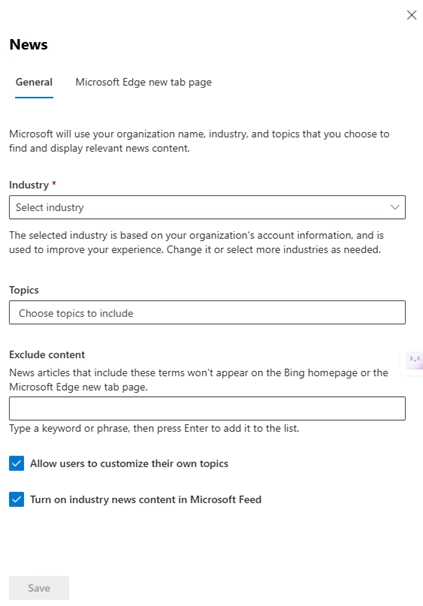
News
Choose how news about your organization and industry is sent and displayed to your users.
What is this?
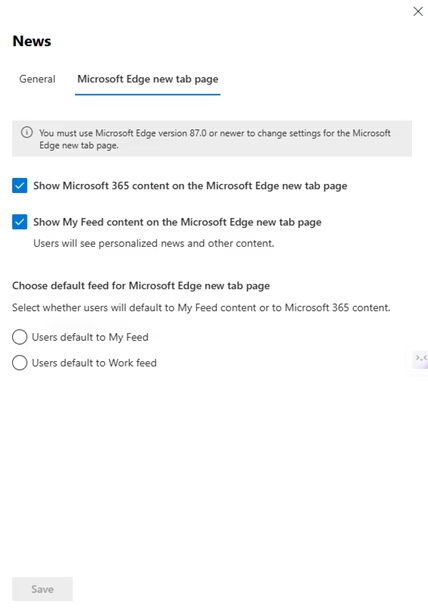
This Microsoft 365 Organizational Setting Controls how news and content are displayed to users in Microsoft 365 and the Microsoft Edge new tab page.
What it controls
- Industry and topic-based news
- Personalized content (My Feed)
- Microsoft 365 work-related content
- Content filtering (exclude keywords)
Why it matters
Improves user experience but may introduce non-work distractions or irrelevant content.
Best practice
- Enable work-related content (Microsoft 365 feed)
- Limit unnecessary or distracting topics
- Allow customization only if needed
Final Tip
Keep news relevant, prioritize productivity over distractions.
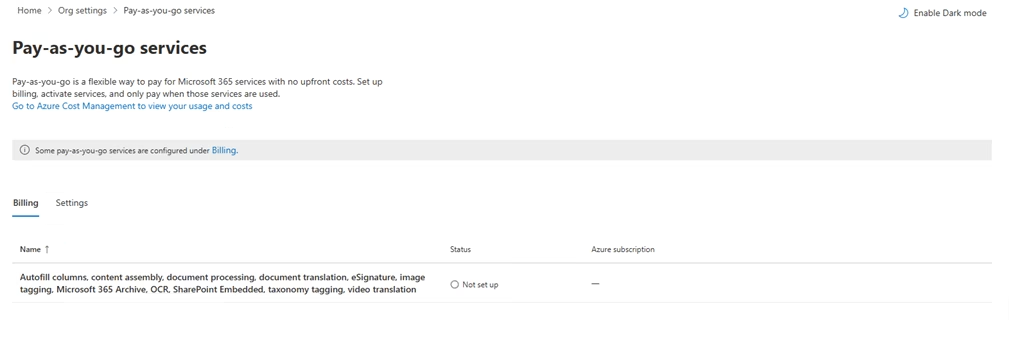
Pay-as-you-go services
Set up billing and manage access to services like agents in SharePoint, optical character recognition, document translation, autofill columns, Microsoft 365 Backup, Microsoft 365 Archive, SharePoint Embedded, and more.
What is this?
This Microsoft 365 Organizational Setting allows you to use certain Microsoft 365 services and pay based on actual usage instead of fixed licensing.
What it controls
- Enables usage-based billing
- Connects to Azure subscription for costs
- Applies to services like OCR, translation, eSignature, etc.
Why it matters
Provides flexibility but can lead to unexpected costs if not monitored.
Best practice
- Enable only if required
- Monitor usage regularly
- Set cost controls in Azure
Final Tip
Flexible billing is useful, but always keep an eye on usage to avoid surprises.
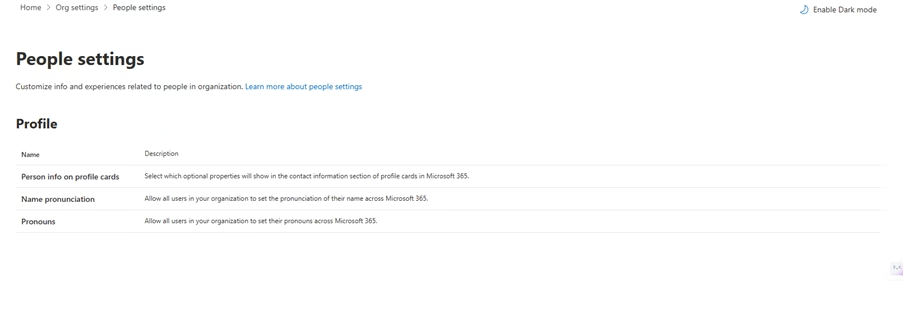
People settings
Customize experiences related to people in your organization. For example, decide which optional properties to show on employee profile cards, and manage how your Org Explorer looks.
What is this?
This Microsoft 365 Organizational Setting Controls how user profile information is displayed and managed across Microsoft 365 (profile cards, pronouns, etc.).
What it controls
- Profile card details (user info visibility)
- Name pronunciation
- Pronouns
Why it matters
Improves user experience and inclusivity but involves personal information visibility.
Best practice
Enable only required profile fields
Follow privacy and organizational policies
Allow user choice for optional details (e.g., pronouns)
Final Tip
Balance personalization with privacy show only what’s necessary.
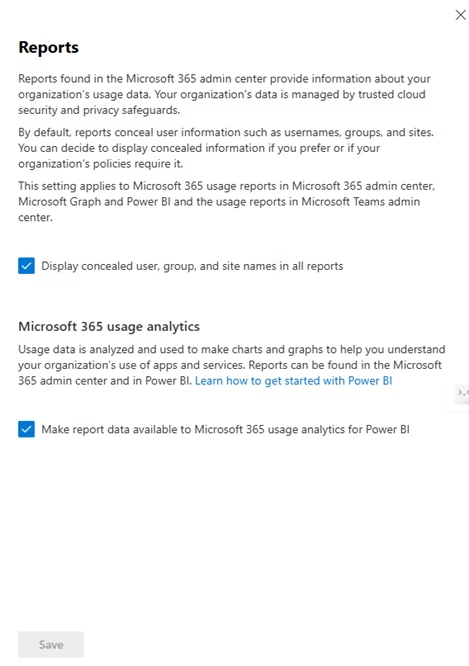
Reports
Manage data privacy controls for Admin Center reports
What is this?
This Microsoft 365 Organizational Setting Controls how usage data is displayed in Microsoft 365 reports, including whether user identities are shown or hidden.
What it controls
- Show or conceal user, group, and site names
- Share data with usage analytics (Power BI)
Why it matters
Helps analyze usage trends, but may expose user-level data, impacting privacy.
Best practice
Keep user data concealed (recommended)
Enable analytics only if needed
Follow privacy and compliance policies
Final Tip
Reports provide insights protect user privacy while using them.
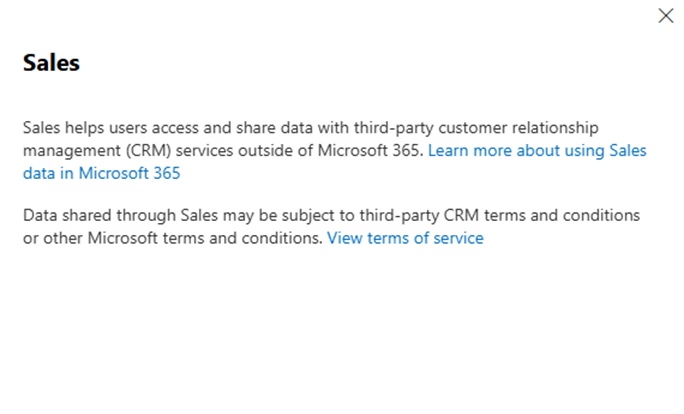
Sales
Manage and update Sales settings.
What is this?
This Microsoft 365 Organizational Setting Controls integration between Microsoft 365 and external CRM services for sharing sales-related data.
What it controls
- Access to third-party CRM apps
- Data sharing between Microsoft 365 and external services
Why it matters
Enables business integration but may expose data to third-party platforms.
Best practice
- Enable only if CRM integration is required
- Use trusted applications only
- Review data sharing policies
Final Tip
External integrations are powerful, but always validate data security before enabling.
Search & intelligence usage analytics
Analyze Microsoft Search activity by people in your organization.
What is this?
This Microsoft 365 Organizational Setting Provides insights into how users interact with Microsoft Search, including search queries and usage patterns.
What it controls
- Access to search usage analytics
- Visibility into user search behavior
- Insights for improving search experience
Why it matters
Helps optimize search and productivity, but involves user activity data, raising privacy considerations.
Best practice
- Enable only if analytics are needed
- Limit access to admins
- Follow privacy and compliance policies
Final Tip
Use analytics to improve experience but always protect user privacy.
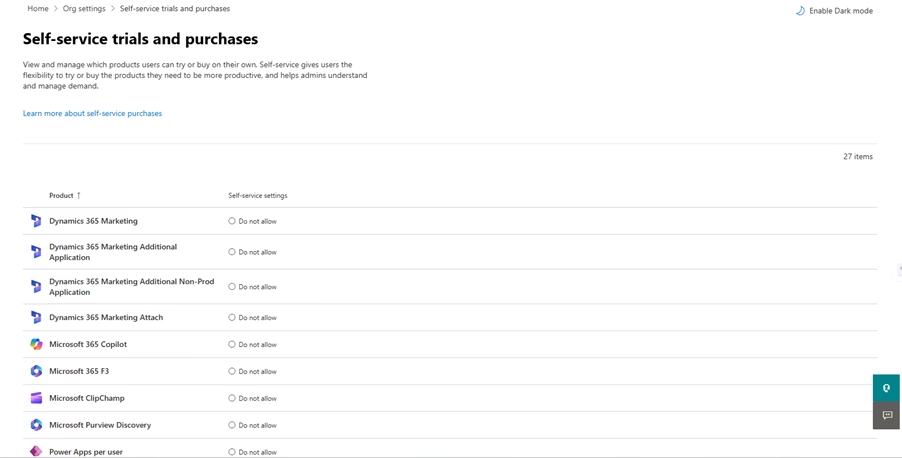
Self-service trials and purchases
Manage settings to allow users to try or buy products on their own.
What is this?
Controls whether users can try or purchase Microsoft 365 services on their own without admin approval.
What it controls
- Allow/deny self-service trials
- Allow/deny user-initiated purchases
- Control per product (e.g., Copilot, Power Apps)
Why it matters
Improves flexibility, but may lead to uncontrolled licensing and shadow IT.
Best practice
- Disable for most organizations
- Allow only specific products if needed
- Monitor licenses and usage regularly
Final Tip
Control self-service to avoid unexpected costs and maintain governance.
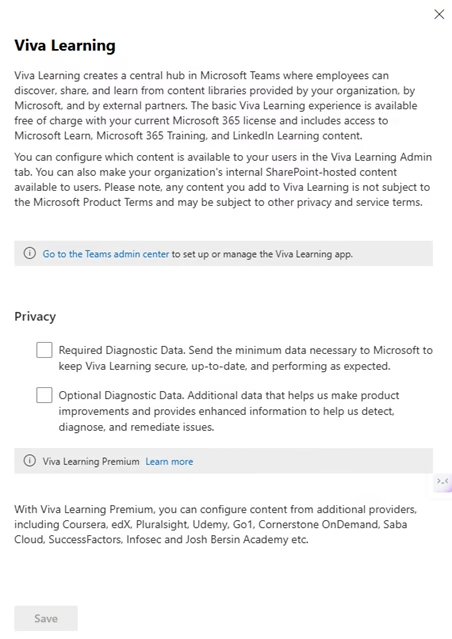
SharePoint
Control external sharing.
What is this?
This Microsoft 365 Organizational Setting Controls how users can share SharePoint content with people inside and outside the organization.
What it controls
- Internal only sharing
- Sharing with existing guests
- Sharing with new & existing guests (sign-in required)
- Anonymous links (anyone access)
Why it matters
Enables collaboration, but incorrect settings can lead to data exposure.
Best practice
- Use New & existing guests (recommended)
- Avoid anonymous “Anyone” links
- Restrict sharing via SharePoint Admin Center
Final Tip
SharePoint sharing should be controlled balance collaboration with data security.
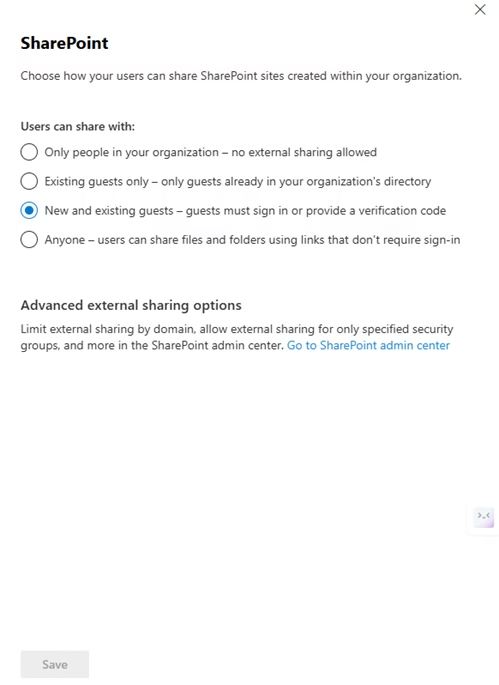
Sway
Manage sharing and content sources allowed for Sway.
What is this?
This Microsoft 365 Organizational Setting Microsoft Sway allows users to create and share interactive reports, presentations, and stories.
What it controls
- External sharing of Sway content
- Access to people/groups lookup
- Content sources (YouTube, Wikipedia, etc.)
Why it matters
Supports creativity, but external sharing and content sources may introduce data exposure risks.
Best practice
- Restrict external sharing if not needed
- Limit external content sources
- Control access based on policy
Final Tip
Sway is powerful for content creation manage sharing to keep data secure.
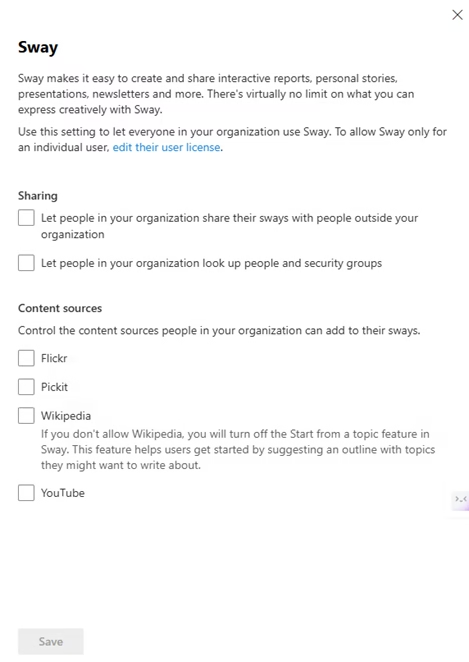
User-owned apps and services
Allow users to access the Office Store and Microsoft 365 trials.
What is this?
This Microsoft 365 Organizational Setting Controls whether users can access the Office Store, start trials, and automatically claim licenses.
What it controls
- Office Store access
- User-initiated trial subscriptions
- Auto-claim licenses
Why it matters
Provides flexibility but can lead to shadow IT and uncontrolled licensing.
Best practice
- Disable the Office Store if not required
- Restrict user-initiated trials
- Control auto-claims with policies
Final Tip
Limit user-owned services to maintain control over apps, licenses, and security.
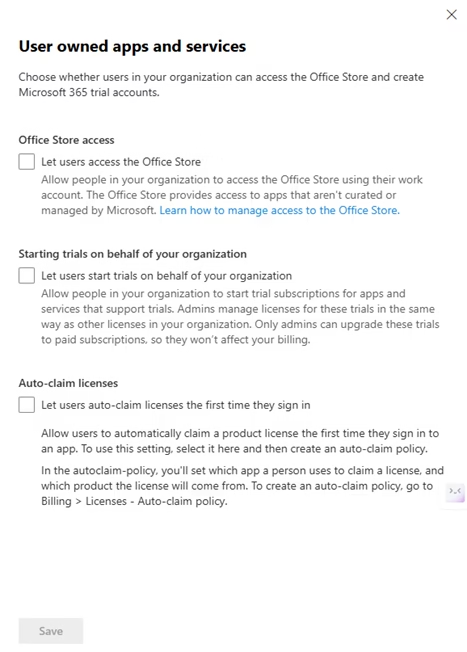
Viva Learning
Choose the content providers that users can search through when using the Viva Learning in Microsoft Teams.
What is this?
This Microsoft 365 Organizational Setting Microsoft Viva Learning provides a central hub in Teams for learning content from Microsoft and external providers.
What it controls
- Access to learning content
- Integration with external providers
- Diagnostic data (required/optional)
Why it matters
Improves employee learning but involves data sharing and external content integration.
Best practice
- Enable required diagnostic data only
- Review external content sources
- Control access based on policy
Final Tip
Use Viva Learning to enhance skills but manage data and content sources carefully.
What’s new in Microsoft 365
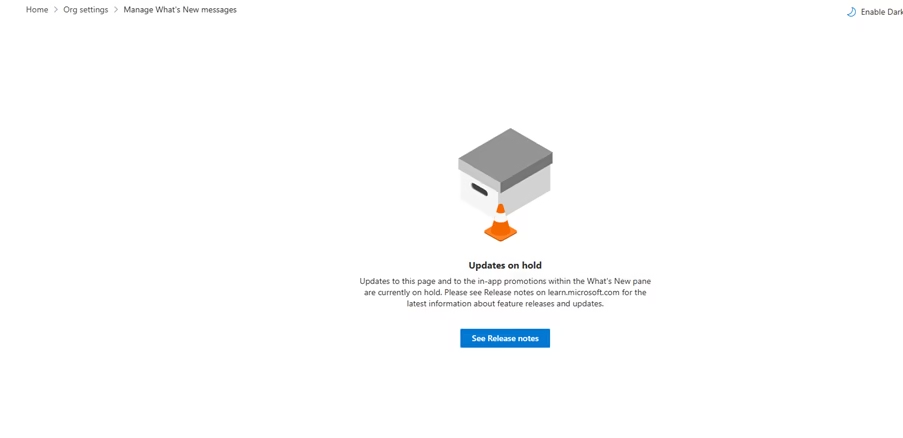
Manage which Microsoft 365 features appear in What’s New.
What is this?
This Microsoft 365 Organizational Setting Controls whether users see product updates and feature announcements inside Microsoft 365 apps.
Current Status
This feature is currently on hold by Microsoft
- No active controls available
- No new updates shown in admin center
Why it matters
Earlier, this helped control user-facing update notifications, but it is temporarily paused.
Best practice
- No action required
- Use Microsoft Release Notes for updates
- Monitor future changes from Microsoft
Final Tip
This setting is currently inactive rely on official release notes instead.
Whiteboard
Allow users to access Microsoft Whiteboard and collaborate on shared whiteboards.
What is this?
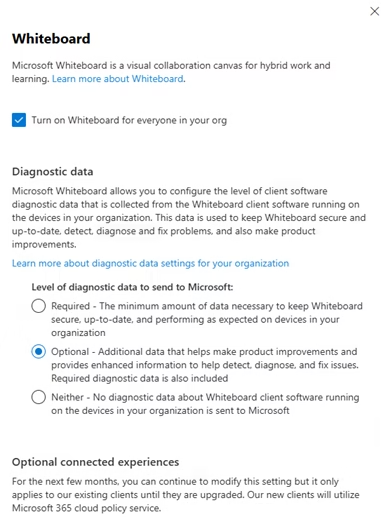
This Microsoft 365 Organizational Setting Microsoft Whiteboard allows users to collaborate visually in real-time across devices.
What it controls
- Enable/disable Whiteboard for users
- Diagnostic data (required/optional/none)
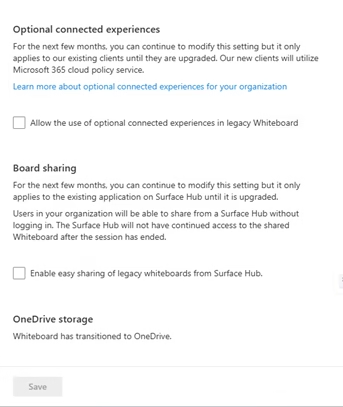
- Optional connected experiences
- Board sharing (legacy settings)
Why it matters
Enhances collaboration but may involve data collection and external sharing risks.
Best practice
- Enable if collaboration is needed
- Use required diagnostic data only
- Limit optional connected experiences
- Review sharing settings
Final Tip
Whiteboard boosts teamwork but control data and sharing for security.
Microsoft 365 Organizational Settings: Security & Privacy Tab
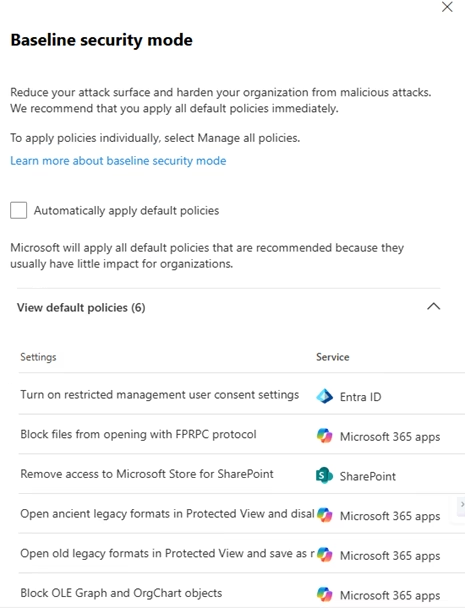
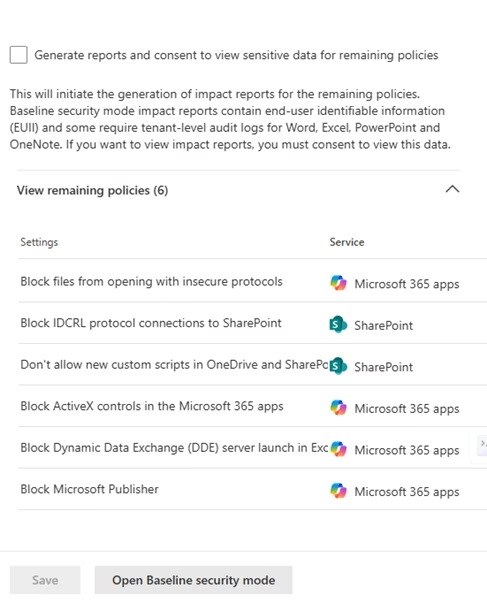
Baseline security mode
Microsoft’s minimum security benchmark recommendations.
What is this?
This Microsoft 365 Organizational Setting Baseline Security Mode applies recommended default security policies across Microsoft 365 to reduce the attack surface.
What it does
- Automatically enables key security settings
- Protects against common threats
- Applies policies across services (Entra ID, SharePoint, M365 apps)
Why it matters
Provides quick security hardening, especially for organizations without advanced configurations.
Best practice
- Enable for basic protection
- Review applied policies before enabling
- Use as a starting point, not final security setup
Final Tip
Baseline Security is a quick win but advanced security requires deeper configuration (covered separately).
Help & support query collection
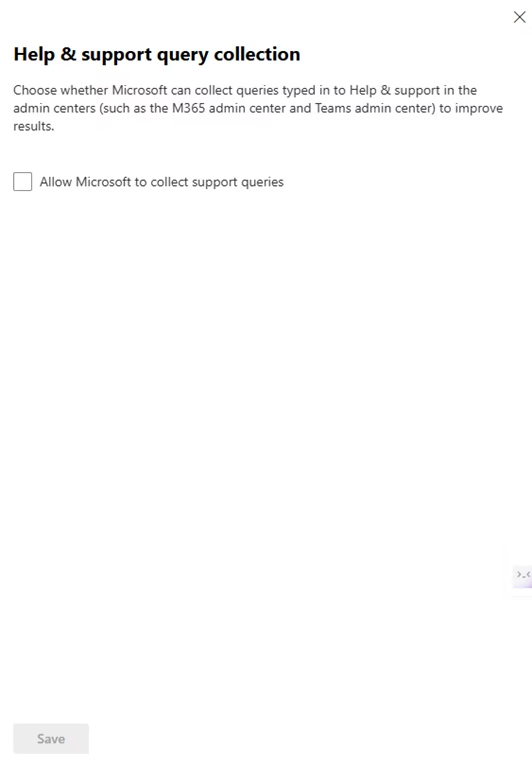
Choose whether Microsoft can use your organization’s support queries to improve help & support.
What is this?
This Microsoft 365 Organizational Setting Controls whether Microsoft can collect queries typed in Help & Support within admin centers to improve support experience.
What it controls
- Allows Microsoft to collect support queries
- Improves search and support recommendations
Why it matters
Enhances support quality but involves sharing admin-entered query data.
Best practice
- Disable in high-security environments
- Enable only if support improvement is needed
- Avoid entering sensitive data in support queries
Final Tip
Helpful for better support but be mindful of the data you share.
Idle session timeout
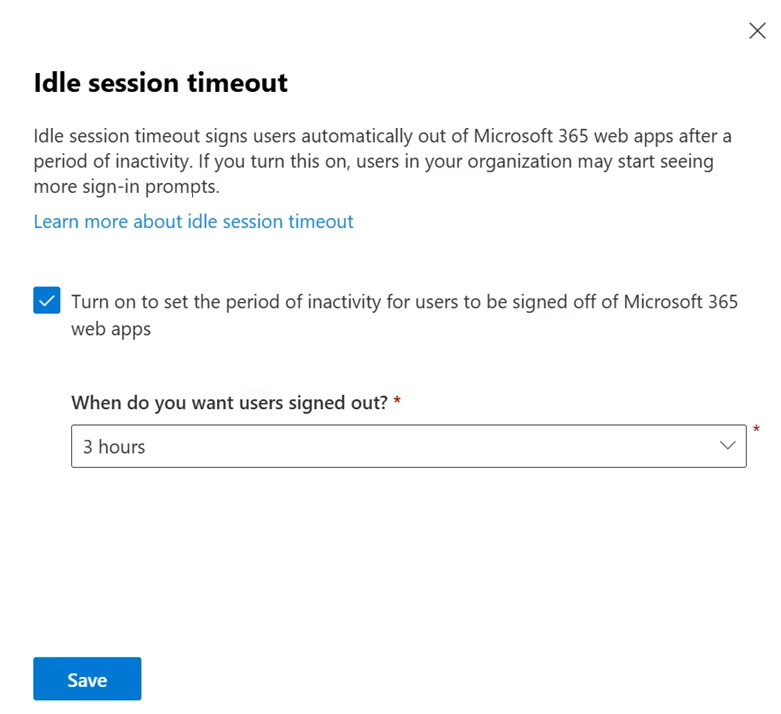
Automatically sign users out of the Microsoft 365 web apps after a period of inactivity.
What is this?
This Microsoft 365 Organizational Setting Automatically signs users out of Microsoft 365 web apps after a period of inactivity.
What it controls
- Enable/disable auto sign-out
- Set inactivity duration (e.g., 1–24 hours)
Why it matters
Reduces risk of unauthorized access if users leave sessions unattended.
Best practice
- Enable for all users
- Set timeout based on risk (e.g., 2–4 hours)
- Use shorter duration for high-security environments
Final Tip
A simple setting that significantly improves security, always enable it.
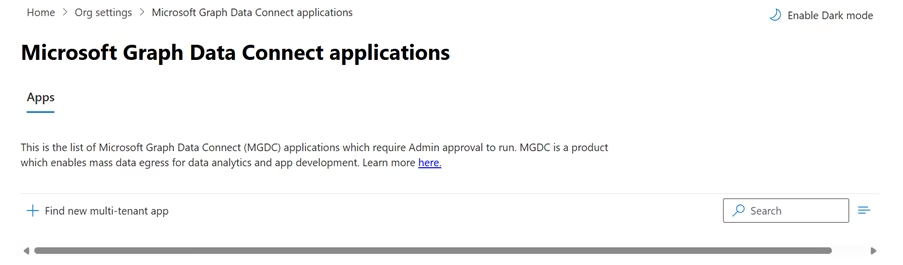
Microsoft Graph Data Connect applications
Approve and deny requests from apps to access your organization’s Microsoft 365 data.
What is this?
This Microsoft 365 Organizational Setting Controls approval and management of apps that use Microsoft Graph Data Connect to access Microsoft 365 data.
What it controls
- Approve or deny data access requests
- Manage multi-tenant applications
- Govern bulk data usage
Why it matters
These apps can access large volumes of organizational data, making this a high-risk area if misconfigured.
Best practice
- Approve only trusted applications
- Review app permissions carefully
- Monitor data access regularly
Final Tip
Treat these apps as high privilege; strict approval is essential.
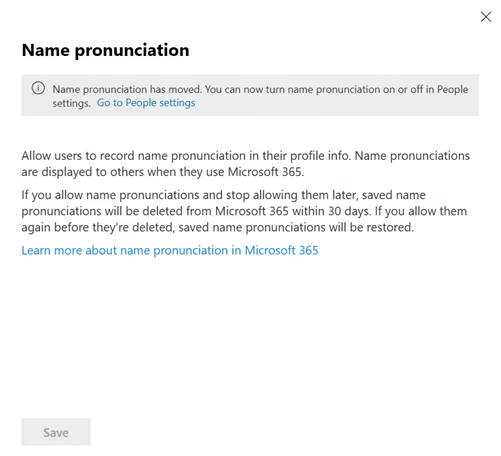
Name pronunciation
Allow all users in your organization to set the pronunciation of their name across Microsoft 365.
What is this?
This Microsoft 365 Organizational Setting Allows users to record and share how their name is pronounced across Microsoft 365 profile cards.
What it controls
- Enable/disable name pronunciation feature
- Displays pronunciation in user profiles
Why it matters
Improves inclusivity and communication but involves storing personal profile data.
Best practice
- Keep optional for users
- Follow privacy policies
- Enable if inclusivity is a priority
Final Tip
A small feature that improves collaboration keeps it user-controlled.
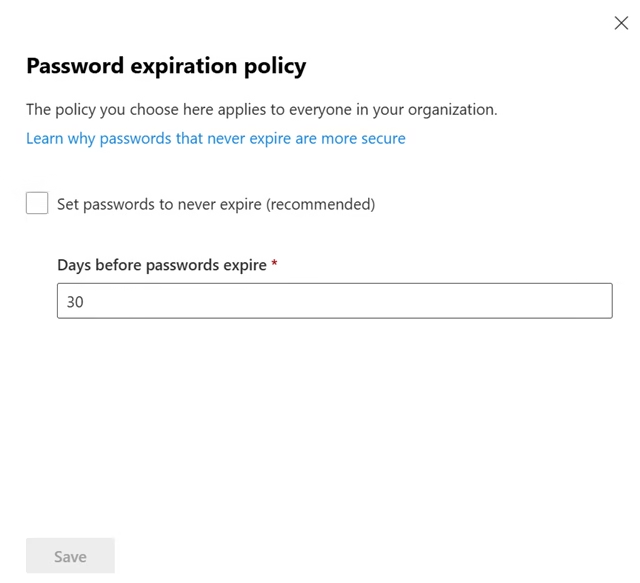
Password expiration policy
Set the password policy for all users in your organization.
What is this?
This Microsoft 365 Organizational Setting Controls how often users are required to change their passwords in Microsoft 365.
What it controls
- Set passwords to never expire (recommended)
- Define password expiration period (e.g., 30 days)
Why it matters
Frequent password changes can lead to weak passwords and poor user behavior, while modern security focuses on strong passwords + MFA.
Best practice
- Set passwords to never expire (recommended)
- Enforce MFA instead of frequent changes
- Use strong password policies
Final Tip
Modern security favors MFA over password rotation to avoid unnecessary expirations.
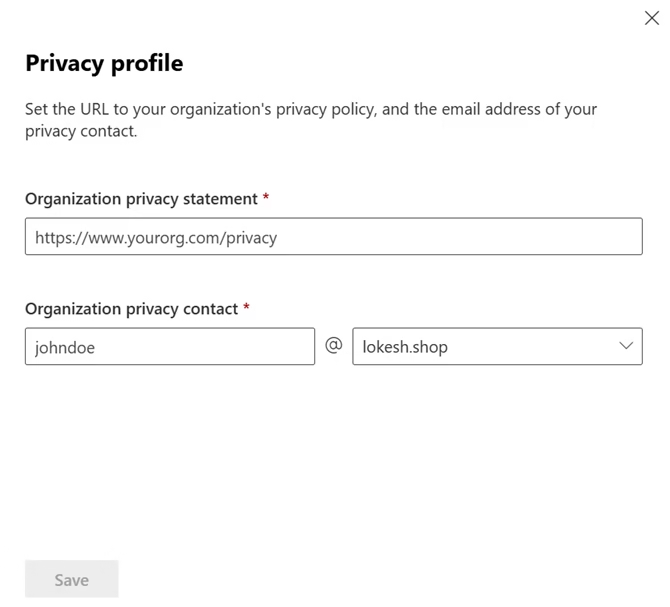
Privacy profile
Set the privacy statement of your organization.
What is this?
This Microsoft 365 Organizational Setting defines your organization’s privacy policy URL and privacy contact email in Microsoft 365.
What it controls
- Organization privacy statement (URL)
- Privacy contact (email address)
Why it matters
Helps users and external parties understand how data is handled and provides a point of contact for privacy concerns.
Best practice
- Add official privacy policy URL
- Use a dedicated privacy contact email (e.g., privacy@domain.com)
- Keep information updated
Final Tip
A simple setting that supports compliance and user trust don’t leave it blank.
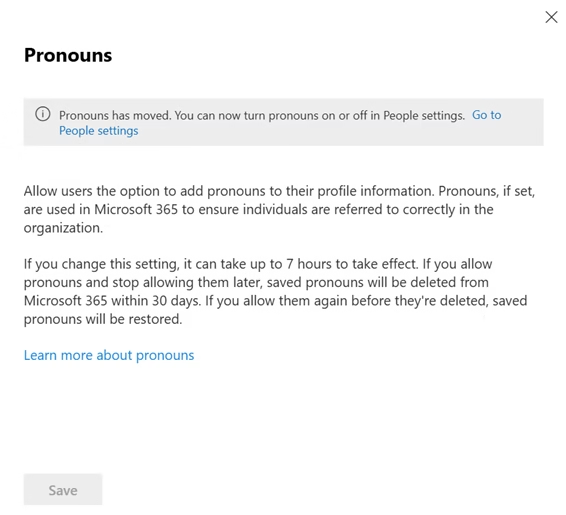
Pronouns
Allow all users in your organization to set their pronouns across Microsoft 365.
What is this?
This Microsoft 365 Organizational Setting Allows users to add pronouns (e.g., he/him, she/her, they/them) to their Microsoft 365 profile.
What it controls
- Enable/disable pronouns in user profiles
- Displays pronouns across Microsoft 365 apps
Why it matters
Improves inclusivity and respectful communication but involves personal profile information.
Best practice
- Keep optional for users
- Follow organizational privacy policies
- Enable if inclusivity is a priority
Final Tip
A small setting that enhances workplace culture keeps it user-driven and optional.
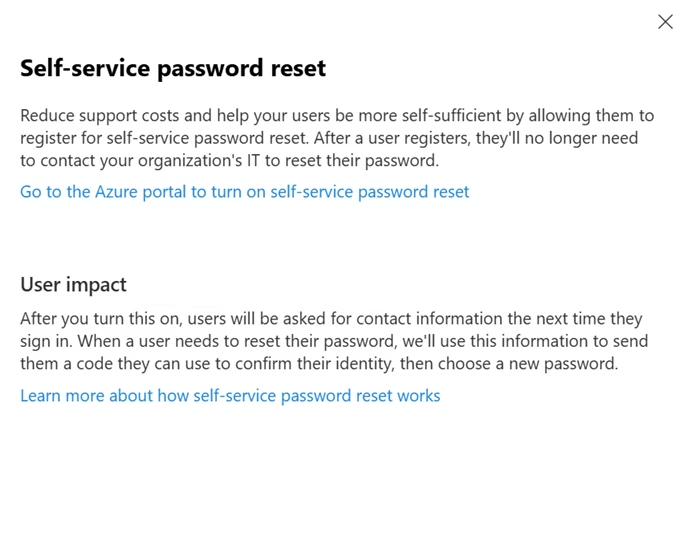
Self-service password reset
Let users reset their own forgotten passwords rather than contacting your organization’s IT for help.
What is this?
This Microsoft 365 Organizational Setting Allows users to reset their passwords without contacting IT, using identity verification methods.
What it controls
- Enable password reset for users
- Uses verification methods (OTP, email, phone, app)
Why it matters
Reduces IT workload and improves user productivity, while maintaining secure identity verification.
Best practice
- Enable for all users
- Require multiple verification methods
- Combine with MFA for stronger security
Final Tip
SSPR improves both security and user experience; always enable it.
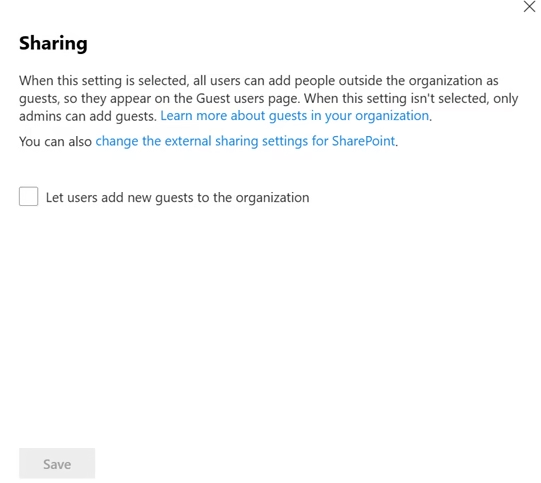
Sharing
Control access for people outside your organization.
What is this?
This Microsoft 365 Organizational Setting Controls whether users can invite external users (guests) into your Microsoft 365 organization.
What it controls
- Allow users to add new guest users
- Restrict guest invitations to admins only
Why it matters
Enables collaboration, but may lead to uncontrolled external access if not managed properly.
Best practice
- Allow only if business requires collaboration
- Restrict guest invitations to specific users/admins
- Regularly review guest accounts
Final Tip
Guest access is a powerful way to control who can be invited to prevent data exposure.
Microsoft 365 Organizational Settings: Organization Profile Tab
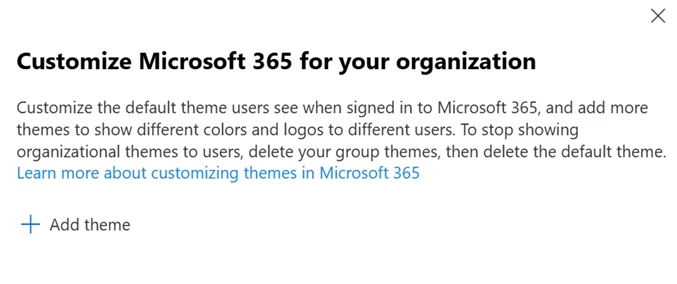
Custom themes
Customize Microsoft 365 for your organization.
What is this?
This Microsoft 365 Organizational Setting allows you to customize the Microsoft 365 experience by applying organization branding (logo, colors, themes).
What it controls
- Default theme for users
- Custom themes for different groups
- Branding (logo, color scheme)
Why it matters
Improves brand identity and user experience across Microsoft 365 apps.
Best practice
- Use consistent branding (logo + colors)
- Apply themes to specific groups if needed
- Keep design simple and professional
Final Tip
Custom themes enhance user experience and align them with your organization’s branding.
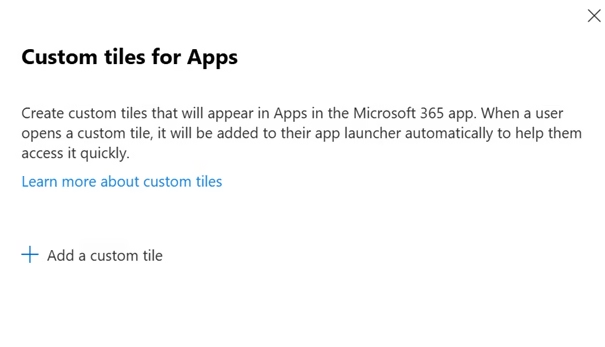
Custom tiles for Apps
Add tiles that open websites or SharePoint sites to Apps in the Microsoft 365 app.
What is this?
This Microsoft 365 Organizational Setting allows admins to create custom app shortcuts (tiles) in the Microsoft 365 app launcher.
What it controls
- Add custom app tiles (URLs)
- Display apps in the Microsoft 365 launcher
- Auto-add tiles when users access them
Why it matters
Improves user productivity by providing quick access to important internal or external apps.
Best practice
- Add only business-critical apps
- Use clear names and icons
- Avoid clutter in the app launcher
Final Tip
Custom tiles simplify access, keep them organized, and relevant.
Data location
See where Microsoft stores your data for each service you use.
What is this?
This Microsoft 365 Organizational Setting Shows where Microsoft stores your organization’s data across Microsoft 365 services.
What it controls
- Displays data storage regions
- Provides visibility into data residency
Why it matters
Important for compliance, data residency, and regulatory requirements.
Best practice
- Review data location regularly
- Ensure alignment with compliance policies (e.g., GDPR)
- Understand where sensitive data is stored
Final Tip
Data location is about visibility, know where your data lives to stay compliant.

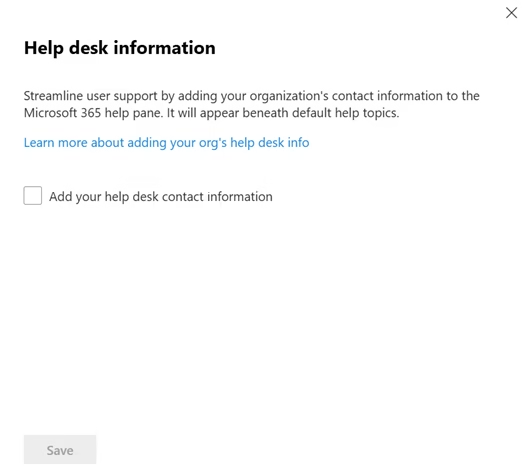
Help desk information
Streamline user support by adding customized contact info to the Microsoft 365 help pane.
What is this?
This Microsoft 365 Organizational Setting allows you to add your organization’s support contact details in the Microsoft 365 help pane.
What it controls
- Display help desk contact info (email, phone, URL)
- Shows support details to users inside Microsoft 365
Why it matters
Improves user experience by directing users to internal IT support instead of external help.
Best practice
- Add official IT help desk details
- Keep contact info updated
- Include multiple contact options (email/portal)
Final Tip
Make support easy to find. This reduces tickets and confusion for users.
Keyboard shortcuts
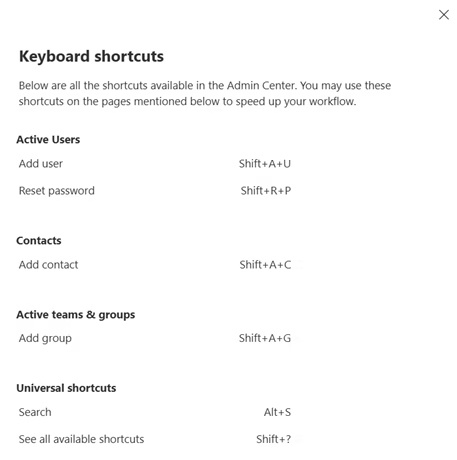
Perform many common tasks using the keyboard. Can you also see the full list of supported shortcuts by pressing Shift+? (question mark).
What is this?
This Microsoft 365 Organizational Setting displays available keyboard shortcuts in the Microsoft 365 admin center to speed up common tasks.
What it controls
- Quick actions (add user, reset password, add group)
- Navigation shortcuts (search, help)
Why it matters
Improves admin productivity and efficiency by reducing reliance on manual navigation.
Best practice
- Learn commonly used shortcuts
- Use for repetitive admin tasks
- Share with the IT team for efficiency
Final Tip
Small shortcuts can save big time. Use them to work faster in the admin center.
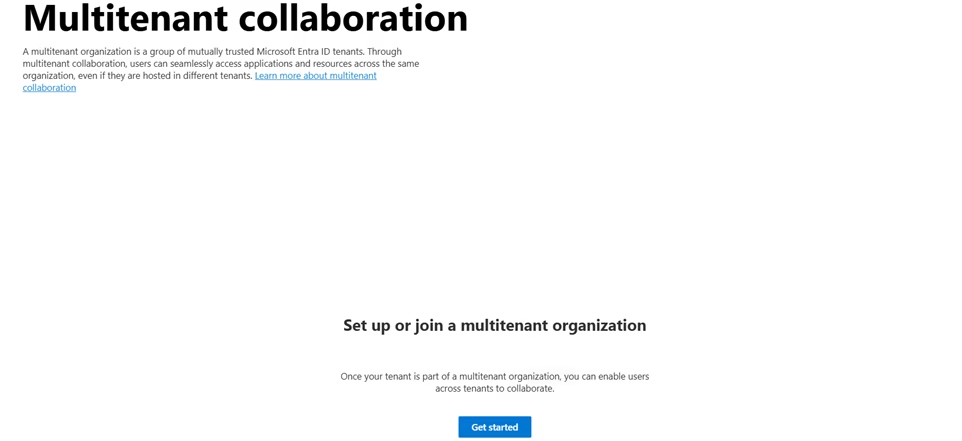
Multitenant collaboration
Enable users in your multitenant organization to collaborate seamlessly.
What is this?
This Microsoft 365 Organizational Setting allows multiple Microsoft 365 tenants to collaborate securely across organizations using Microsoft Entra ID.
What it controls
- Cross-tenant access to apps and resources
- Collaboration between trusted organizations
Why it matters
Enables seamless collaboration with partners while maintaining identity and access control.
Best practice
- Enable only for trusted organizations
- Use least privilege access
- Monitor cross-tenant activity
Final Tip
Multitenant collaboration is powerful; use it carefully to balance collaboration and security.
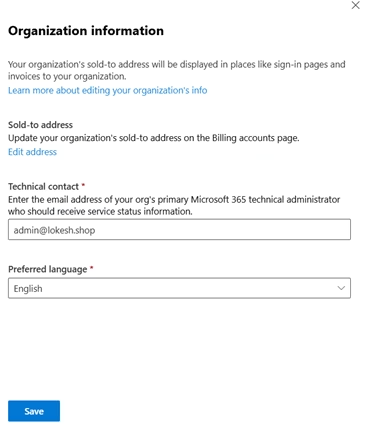
Organization information
Update your organization’s contact info, such as your address, phone number, and technical contact.
What is this?
This Microsoft 365 Organizational Setting defines basic organization details like address, technical contact, and language in Microsoft 365.
What it controls
- Sold-to (billing) address
- Technical contact email
- Preferred language
Why it matters
Ensures Microsoft communicates correctly for:
- Service updates
- Alerts & notifications
- Billing information
Best practice
- Use a shared IT/admin email (not personal)
- Keep contact details updated
- Set the correct language for the admin experience
Final Tip
This is a simple setting, but critical for receiving important alerts and service updates.
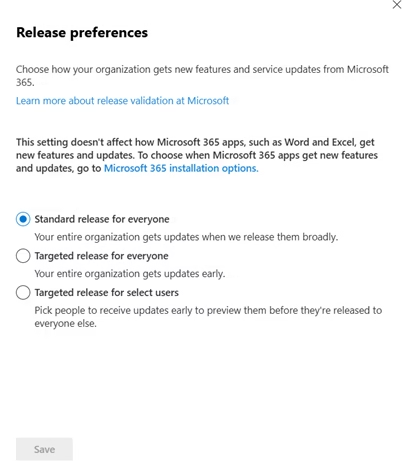
Release preferences
Choose how your organization gets new features and service updates from Microsoft 365.
What is this?
This Microsoft 365 Organizational Setting Controls how your organization receives new Microsoft 365 features and updates.
What it controls
- Standard release → Updates for everyone (default)
- Targeted release (all users) → Early access for all
- Targeted release (selected users) → Early access for specific users
Why it matters
Helps you test new features before full rollout and avoid unexpected issues.
Best practice
- Use the Standard release for most users
- Use Targeted release (selected users) for the IT/testing team
- Validate features before organization-wide rollout
Final Tip
Test first, deploy later, targeted release helps avoid surprises in production.
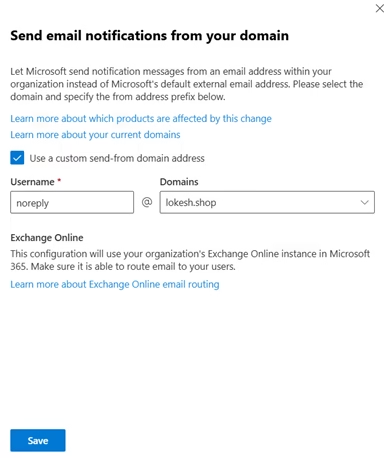
Send email notifications from your domain
Let Microsoft send notification messages from an email address within your organization instead of Microsoft’s default external email address.
What is this?
This Microsoft 365 Organizational Setting allows Microsoft 365 to send system emails using your organization’s domain instead of Microsoft’s default address.
What it controls
- Custom sender address (e.g., noreply@yourdomain.com)
- Uses Exchange Online for email delivery
Why it matters
Improves trust, branding, and deliverability of system notifications.
Best practice
- Use a standard address (e.g., noreply@domain)
- Ensure Exchange Online mail flow is configured correctly
- Monitor for delivery issues
Final Tip
Using your domain makes emails look professional and reduces the chances of being marked as spam.
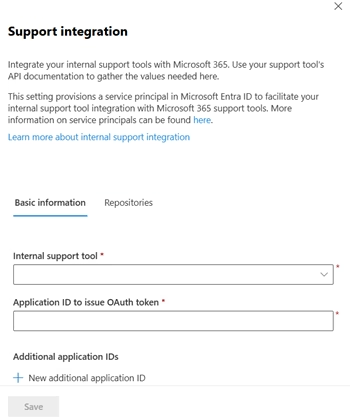
Support integration
Integrate your internal support tools with Microsoft 365.
What is this?
This Microsoft 365 Organizational Setting allows integration of internal support tools (like ticketing systems) with Microsoft 365 using APIs and service principals.
What it controls
- Connect support tools via Application ID
- Enable OAuth-based authentication
- Create a service principal in Microsoft Entra ID
Why it matters
Enables automated support workflows and better integration with IT service management (ITSM) tools.
Best practice
- Use only trusted support applications
- Apply least privilege permissions
- Secure and monitor service principals
Final Tip
Useful for advanced setups, not required for most organizations unless integrating ITSM tools.
Conclusion: Mastering the Tenant Foundation
Navigating all 60 Microsoft 365 Organizational Settings might feel like a deep dive into the weeds, but as a Senior IT Infrastructure Engineer, I can tell you: this is where the most critical tenant-wide decisions are made. Whether you are enabling Microsoft 365 Copilot for the first time or tightening your Security & Privacy defaults, these settings are the levers that control your entire organization.
For those preparing for the MS-102 exam, don’t feel the need to memorize every single toggle. Focus on the high-impact areas we covered: External Sharing, Modern Authentication, and Technical Contacts. Mastering these “small” details is what separates a technician from a true Microsoft 365 Administrator.
Now that you've mastered the Microsoft 365 Organizational Settings, take your tenant management skills to the next level with our other guides below.👉 Next Step
Continue your learning with:
➡️ Microsoft 365 Security Baseline
https://techcertguide.blog/microsoft-365-security-baseline-lab
⬅️ Previous Topic
If you haven’t explored it yet:
➡️ Microsoft 365 Licensing Models Explained
https://techcertguide.blog/microsoft-365-licensing-models/
📖 Start from the Beginning
➡️ MS-102 Microsoft 365 Administrator Overview
https://techcertguide.blog/ms-102-microsoft-365-administration/
📚 Official Microsoft Reference
➡️ https://learn.microsoft.com/en-us/certifications/exams/ms-102/