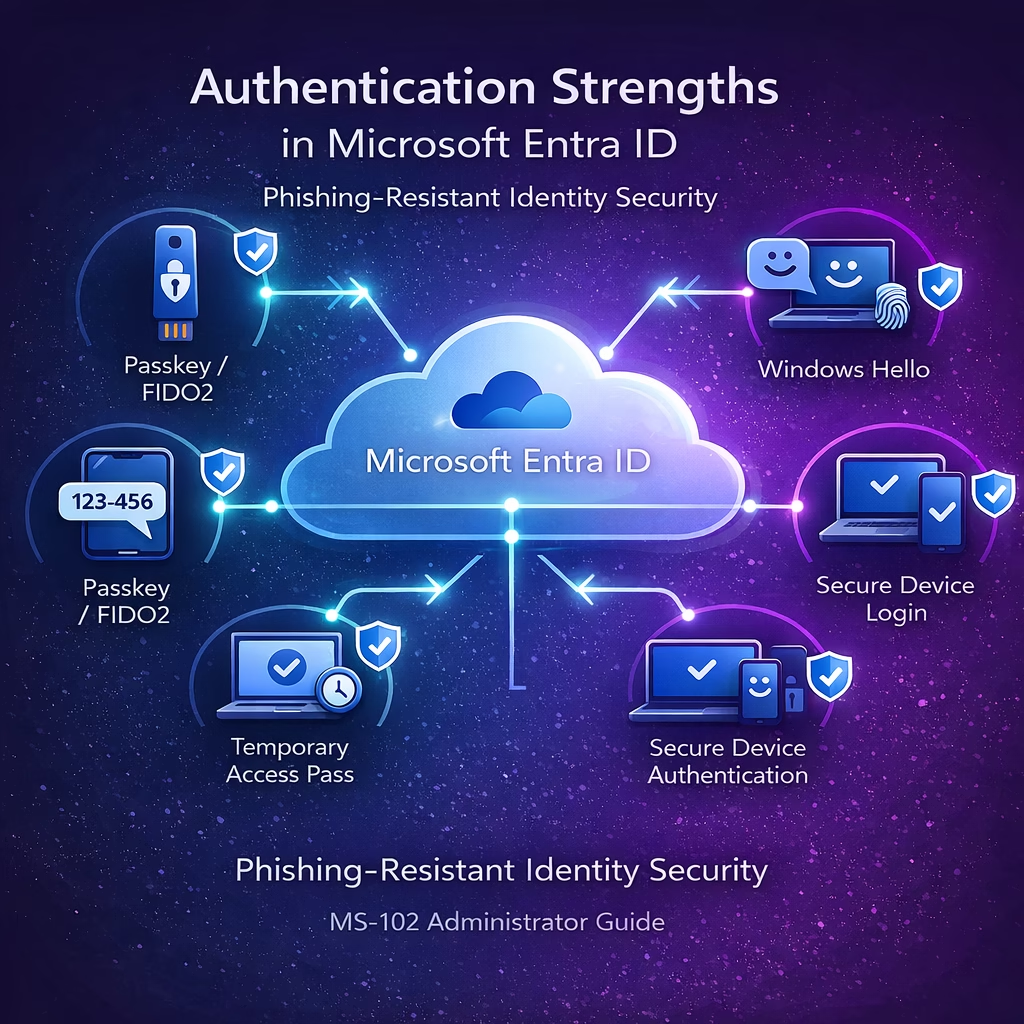
Modern identity attacks often target weak authentication methods such as passwords, SMS verification, or legacy authentication. To address these risks, Microsoft introduced Authentication Strengths in Microsoft Entra ID, allowing administrators to enforce stronger and phishing-resistant authentication methods.
Authentication strengths enable organizations to define which authentication methods are allowed during sign-in, ensuring users authenticate using secure methods such as passkeys, Windows Hello, or Microsoft Authenticator.
For administrators preparing for the MS-102 Microsoft 365 Administrator certification, understanding authentication strengths is essential because they play a key role in Conditional Access security policies.
What Are Authentication Strengths in Microsoft Entra ID?
Authentication Strengths define specific authentication methods required to access resources. Instead of simply requiring multi-factor authentication (MFA), administrators can specify which authentication methods must be used.
This allows organizations to enforce stronger authentication requirements for sensitive workloads.
Examples include:
- Passkeys (FIDO2)
- Windows Hello for Business
- Microsoft Authenticator passwordless
- Certificate-based authentication
Authentication strengths are typically applied through Conditional Access policies.
Why Authentication Strengths Matter for Identity Security
Traditional MFA policies allow weaker authentication methods such as:
- SMS verification
- Voice calls
- Email OTP
While these methods add security compared to passwords alone, they remain vulnerable to attacks such as:
- SIM swap attacks
- Social engineering
- OTP interception
Authentication strengths help organizations enforce phishing-resistant authentication methods.
Benefits include:
- Stronger identity protection
- Reduced phishing risk
- Zero Trust security alignment
- Enhanced compliance controls
Where to Configure Authentication Strengths
Authentication strengths are configured within the Microsoft Entra Admin Center.
Navigation path:
Microsoft Entra Admin Center
→ Protection
→ Authentication Methods
→ Authentication Strengths
From here administrators can:
- Review built-in authentication strengths
- Create custom authentication strengths
- Control which authentication methods are allowed
Authentication Methods Used by Authentication Strength Policies
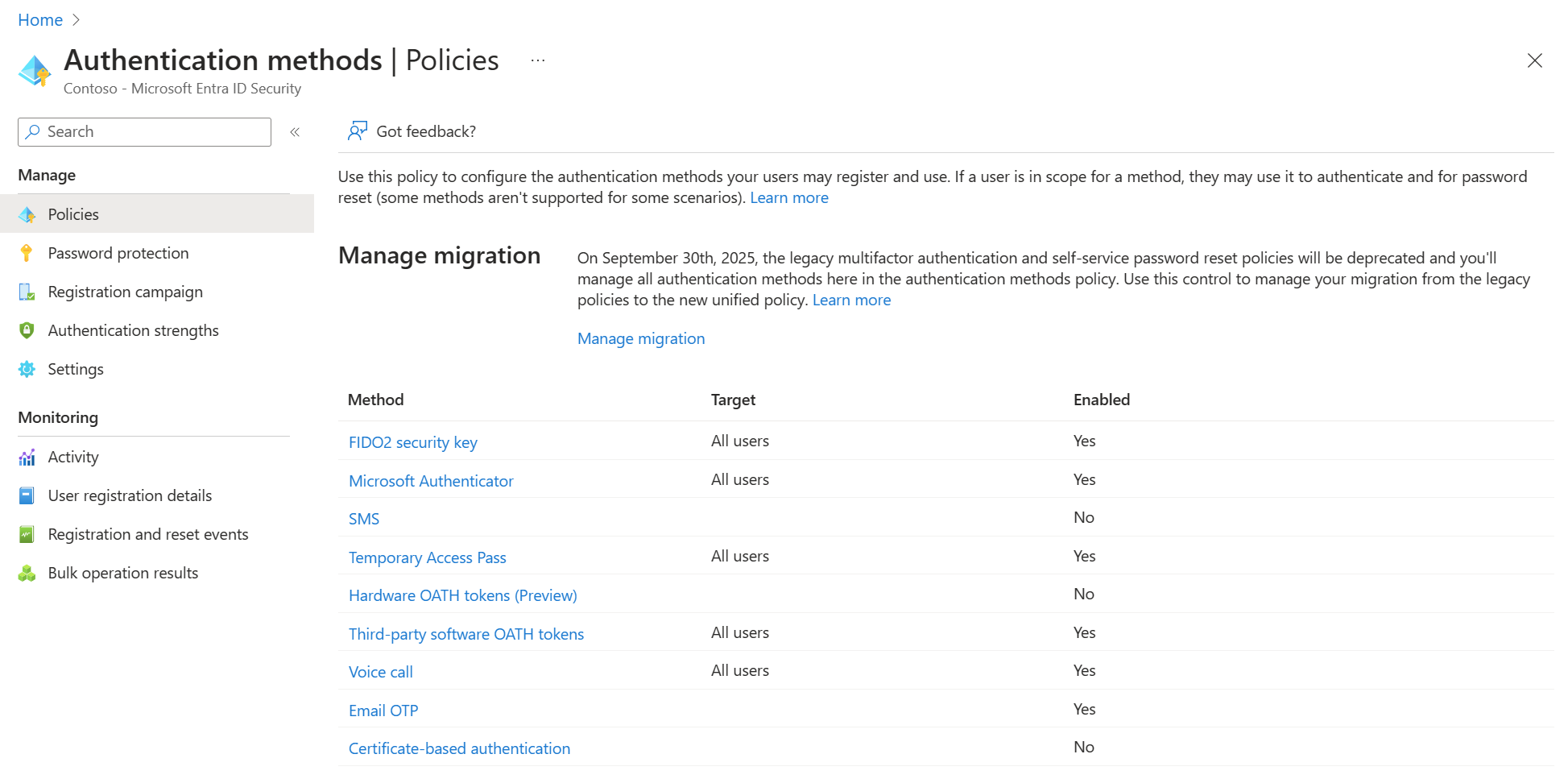
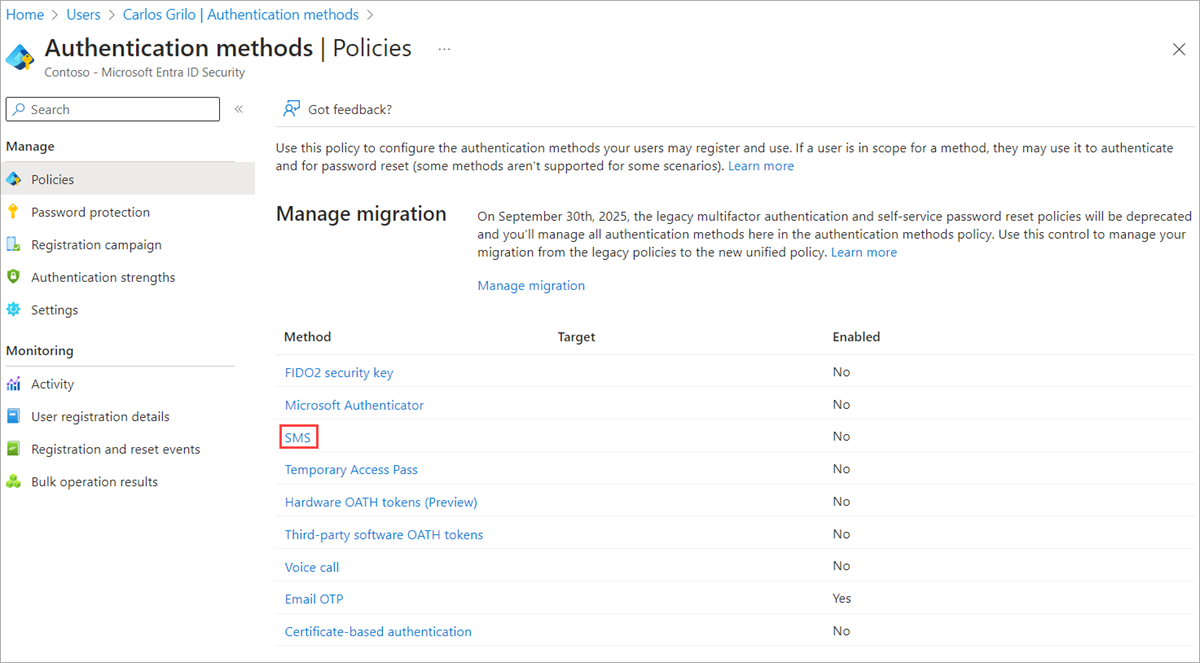
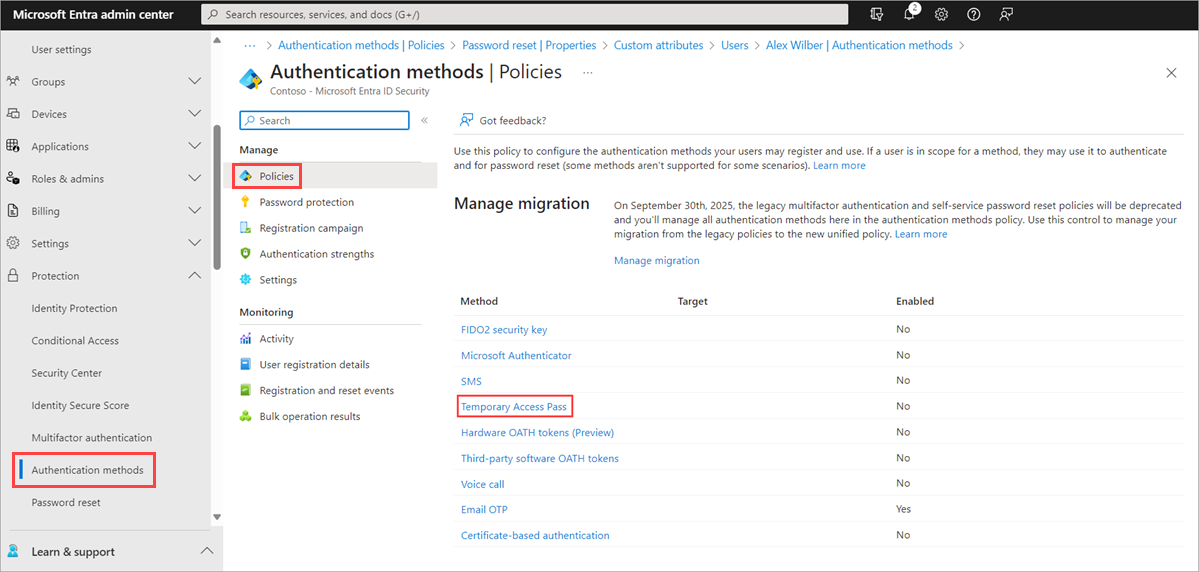
Before applying authentication strengths, administrators must configure the authentication methods available in the tenant.
Below is the Authentication Methods policy in Microsoft Entra ID.
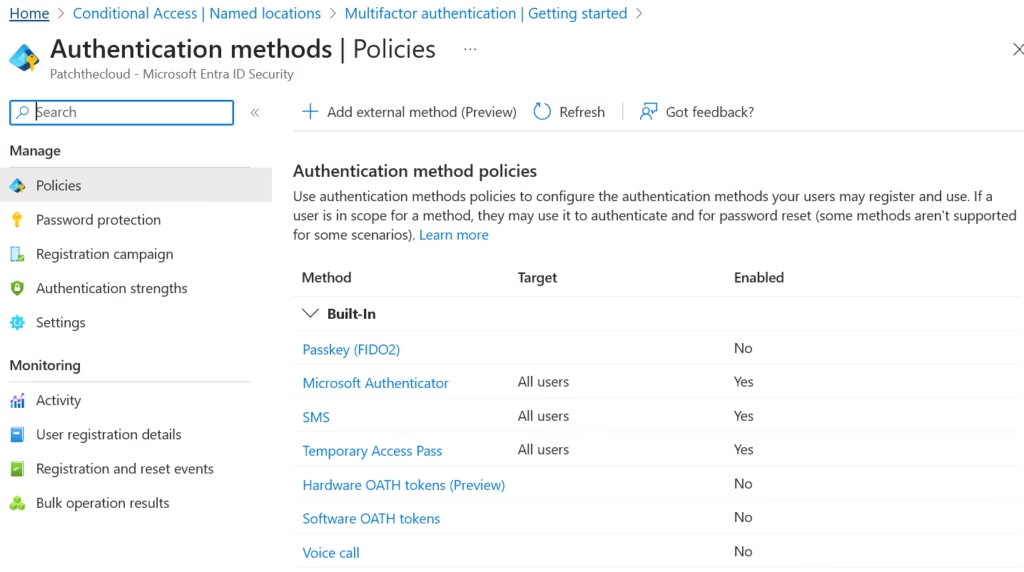
Image: Authentication methods policy configuration
Microsoft Authenticator as a Secure Authentication Method
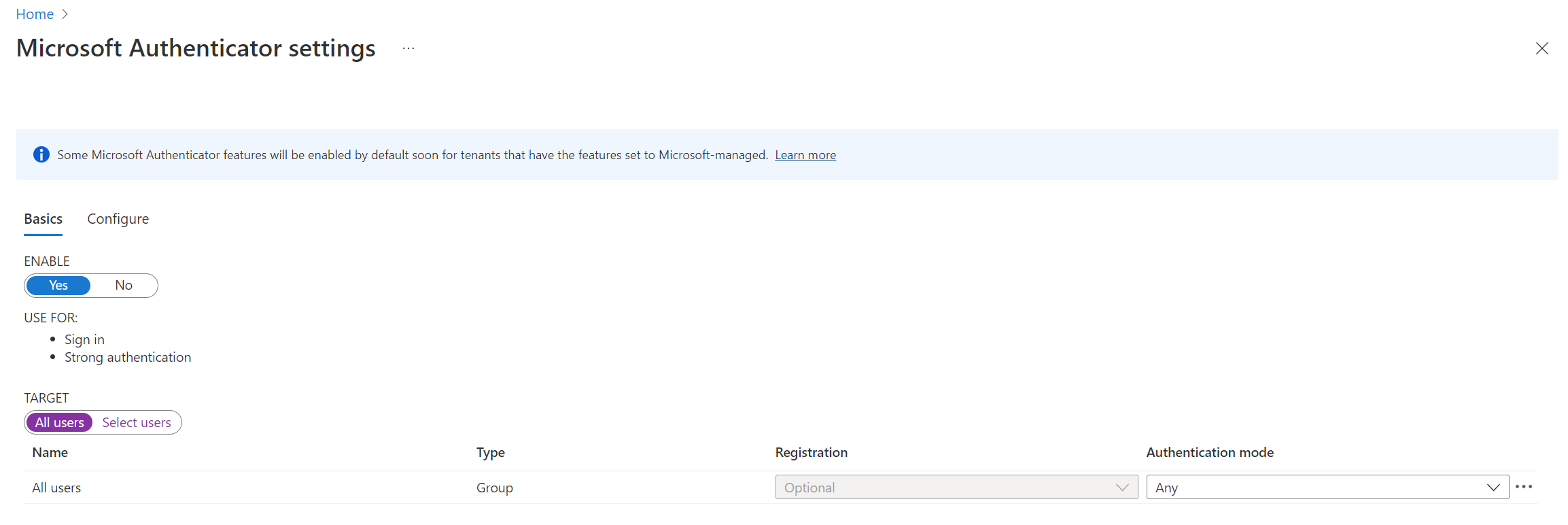
Microsoft Authenticator is one of the most widely used authentication methods for secure sign-in. It supports both multi-factor authentication and passwordless authentication.
Administrators can configure push notifications or passwordless approvals.

4
When enabled, users receive a push notification on their mobile device to approve sign-in requests securely.
Benefits include:
- Strong authentication
- Improved user experience
- Reduced reliance on passwords
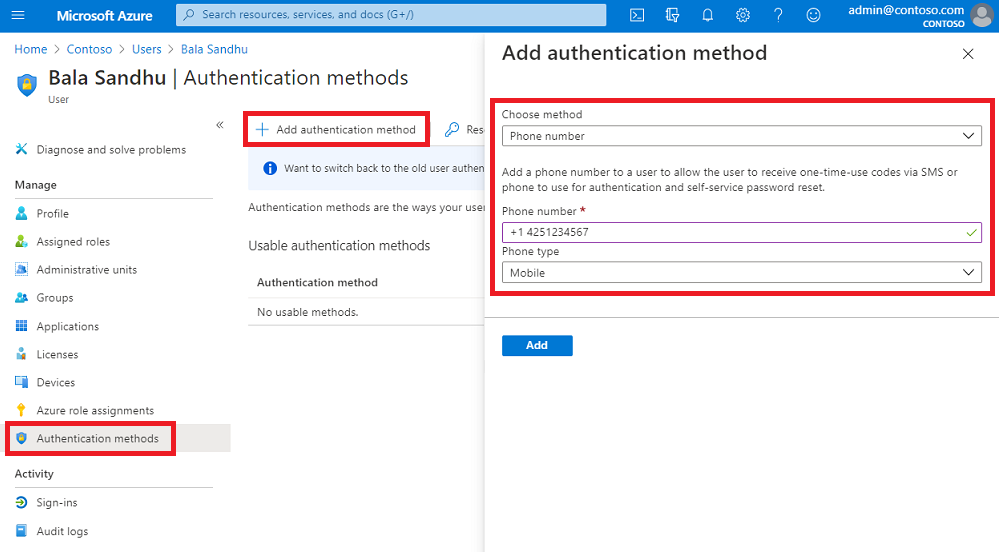
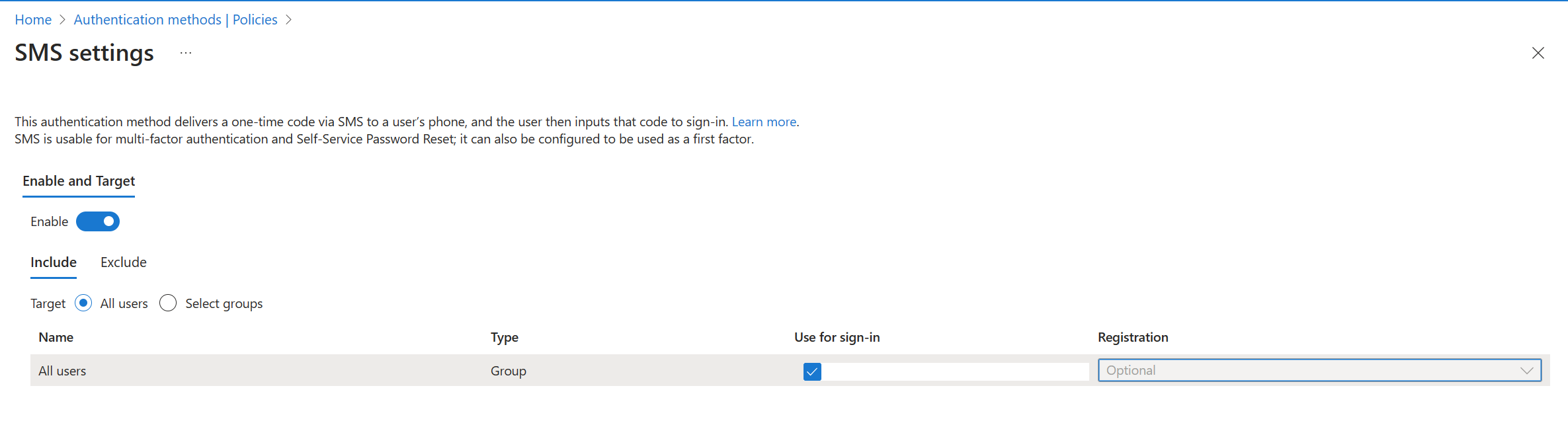
SMS Authentication Method Configuration
SMS authentication allows users to receive a one-time passcode (OTP) on their registered mobile device.
4
SMS can be used for:
- Multi-Factor Authentication (MFA)
- Self-Service Password Reset (SSPR)
However, organizations should avoid relying on SMS for high-security workloads due to potential vulnerabilities.
Passkeys (FIDO2) for Phishing-Resistant Authentication
Passkeys using FIDO2 security keys provide one of the strongest authentication methods available in Microsoft Entra ID.


4
Passkeys provide several advantages:
- Passwordless authentication
- Phishing-resistant login
- Hardware-based security
These methods are commonly required in phishing-resistant authentication strengths.
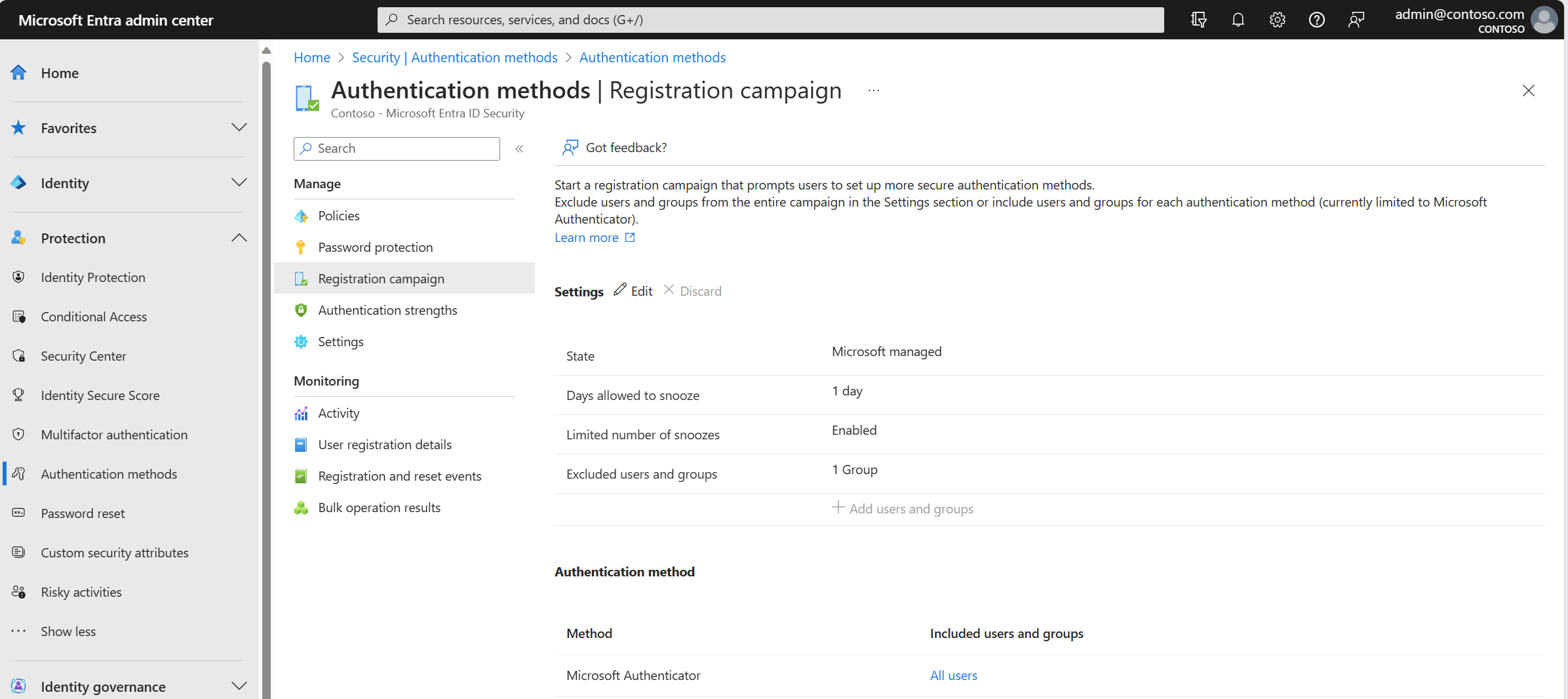
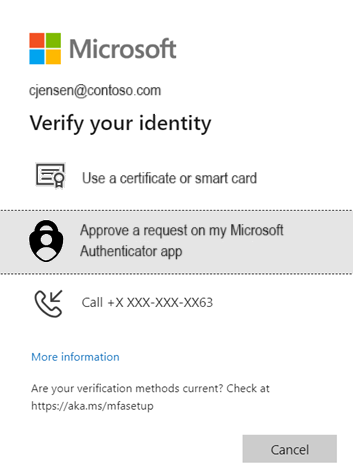
Registration Campaign for Authentication Methods
Administrators can encourage users to register secure authentication methods through a registration campaign.

4
Registration campaigns help organizations:
- Drive adoption of strong authentication methods
- Reduce password usage
- Improve identity security posture
Built-In Authentication Strength Policies
Microsoft Entra ID provides several built-in authentication strengths.
Multi-Factor Authentication Strength
Allows any supported MFA method such as:
- Microsoft Authenticator
- SMS verification
- Voice call
- OATH tokens
This is the most flexible policy but does not enforce phishing-resistant authentication.
Passwordless MFA Strength
Allows passwordless authentication methods including:
- Microsoft Authenticator passwordless
- Windows Hello for Business
- Passkeys (FIDO2)
Users can sign in without entering passwords.
Phishing-Resistant MFA Strength
This is the most secure authentication strength.
Allowed methods include:
- Passkeys (FIDO2)
- Windows Hello for Business
- Certificate-based authentication
This policy is commonly used to protect privileged administrator accounts.
Using Authentication Strengths with Conditional Access
Authentication strengths are enforced through Conditional Access policies.
Example configuration:
Policy Name: Secure Admin Sign-InUsers
AdministratorsCloud Apps
Azure Management
Microsoft 365 Admin CenterGrant Access
Require Authentication Strength
Phishing-Resistant MFA
This ensures administrators must use strong authentication methods when accessing sensitive resources.
Best Practices for Authentication Strength Policies
Organizations should follow these best practices.
Protect Privileged Accounts
Require phishing-resistant authentication for administrator accounts.
Avoid Weak Authentication Methods
Reduce reliance on:
- SMS authentication
- Voice calls
Encourage Passwordless Authentication
Promote methods such as:
- Microsoft Authenticator passwordless
- Passkeys (FIDO2)
- Windows Hello for Business
Use Conditional Access Integration
Authentication strengths should always be combined with Conditional Access policies.
MS-102 Exam Alignment
For the MS-102 certification, administrators should understand:
- Authentication strength policies
- Passwordless authentication methods
- Phishing-resistant authentication
- Conditional Access integration
- Authentication methods configuration
These topics often appear in scenario-based exam questions.
Final Insights
Authentication Strengths provide administrators with greater control over how users authenticate to Microsoft services. Instead of relying on basic MFA policies, organizations can enforce stronger authentication methods tailored to security requirements.
By combining authentication strengths with Conditional Access and passwordless authentication, organizations can significantly improve their identity security posture.
For Microsoft 365 administrators preparing for the MS-102 certification, mastering authentication strengths is a critical step toward implementing modern identity protection strategies.
Modern identity attacks often target weak authentication methods such as passwords, SMS verification, or legacy authentication. To address these risks, Microsoft introduced Authentication Strengths in Microsoft Entra ID, allowing administrators to enforce stronger and phishing-resistant authentication methods.
Authentication strengths enable organizations to define which authentication methods are allowed during sign-in, ensuring users authenticate using secure methods such as passkeys, Windows Hello, or Microsoft Authenticator.
For administrators preparing for the MS-102 Microsoft 365 Administrator certification, understanding authentication strengths is essential because they play a key role in Conditional Access security policies.
If you’re new to this learning series, start with the main MS-102 Microsoft 365 Administrator overview, where we explain how all chapters connect and what skills you’ll build across the journey.
For the most accurate and up-to-date exam objectives and reference material, Microsoft maintains the official MS-102 documentation on Microsoft Learn. This series complements those resources by focusing on real-world administrative understanding.