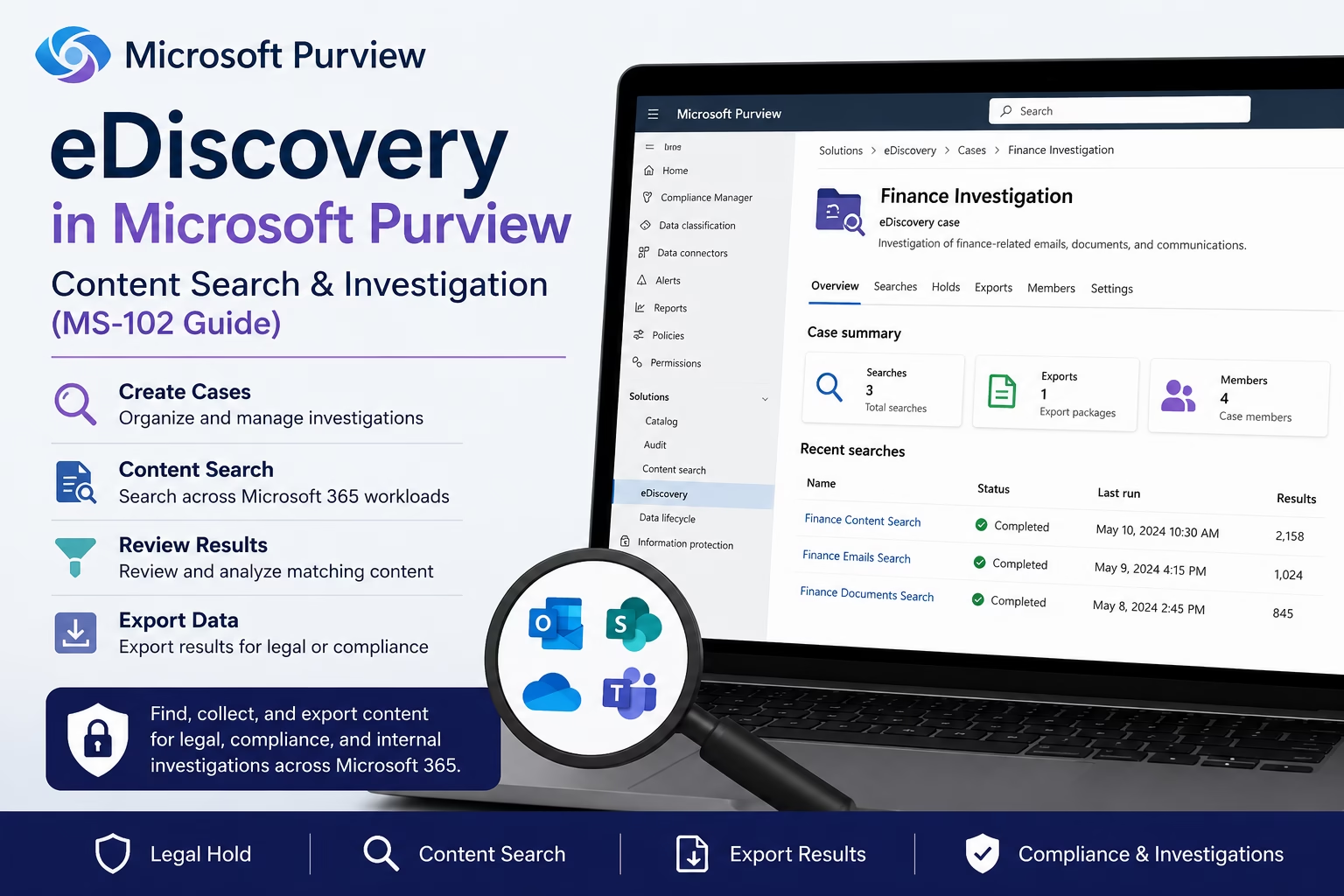
Learning Objectives
After completing this guide, you will be able to:
- Explain the purpose of eDiscovery in Microsoft Purview.
- Differentiate eDiscovery Standard from eDiscovery Premium.
- Identify the key components of the eDiscovery architecture.
- Perform an eDiscovery lab step-by-step.
Introduction
Your legal team just requested every email and document related to a finance investigation — and you have 48 hours to respond.
This is exactly what eDiscovery in Microsoft Purview is built for. Instead of manually digging through Exchange, SharePoint, Teams, and OneDrive separately, you run a single case-based search across all of them and export the results in one package.
In this lab guide, you’ll create an eDiscovery case, run a content search with real KQL queries, review results, and export data, everything you need for the MS-102 exam and real investigations.
In this guide, you’ll learn:
- What is eDiscovery in Microsoft Purview
- eDiscovery Standard vs Premium
- Key eDiscovery components
- How to create an eDiscovery case
- How to perform content searches
- Step-by-step lab
- Best practices
- MS-102 exam tips
What is eDiscovery in Microsoft Purview?
eDiscovery is a Microsoft Purview solution that helps organizations search, collect, and review content stored across Microsoft 365 workloads.
Using eDiscovery, administrators can locate:
- Exchange Online emails
- SharePoint Online documents
- OneDrive files
- Microsoft Teams conversations
- Microsoft 365 Group content
This helps organizations respond to legal requests, compliance investigations, and internal reviews.
Why eDiscovery in Microsoft Purview Matters
Organizations frequently need to investigate business activities and locate specific content.
Common scenarios include:
- Legal investigations
- HR investigations
- Security incidents
- Regulatory audits
- Internal compliance reviews
- Data breach investigations
Without a centralized investigation tool, administrators would need to log into Exchange, SharePoint, OneDrive, and Teams separately, a process that can take days and risks missing critical evidence. eDiscovery eliminates that gap by consolidating search and export into a single workflow.
eDiscovery Standard vs eDiscovery Premium
| Feature | eDiscovery Standard | eDiscovery Premium |
|---|---|---|
| Cases | Yes | Yes |
| Content Search | Yes | Yes |
| Export Results | Yes | Yes |
| Custodians | No | Yes |
| Review Sets | No | Yes |
| Advanced Analytics | No | Yes |
| Legal Hold Management | Limited | Advanced |
For most MS-102 labs, eDiscovery Standard is sufficient.
eDiscovery in Microsoft Purview Architecture
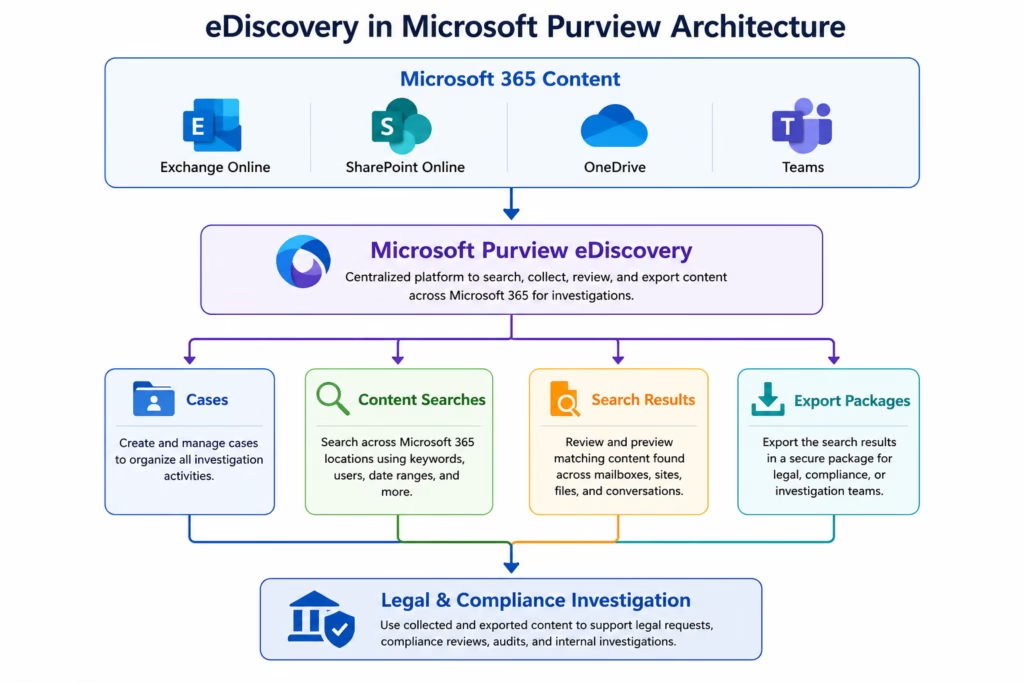
The following architecture illustrates how Microsoft Purview searches Microsoft 365 workloads, organizes investigations into cases, and exports search results for legal and compliance teams.
Key Components of eDiscovery in Microsoft Purview
Cases
Cases provide a container for investigation-related activities.
A case can contain:
- Searches
- Holds
- Export jobs
- Investigation details
Example:
Finance Investigation
Content Search
Content Search allows administrators to search Microsoft 365 content using keywords, users, locations, and date ranges.
Examples:
- Search emails containing “Confidential”
- Search documents modified by a specific user
- Search Teams conversations related to an incident
Search Results
After running a search, administrators can review matching content before exporting it.
Export
Search results can be exported for:
- Legal teams
- Compliance officers
- Security investigations
- External auditors
🔄 eDiscovery Workflow
Step-by-Step eDiscovery in Microsoft Purview Lab
Required Permissions:
To create and manage eDiscovery cases, users typically need appropriate Microsoft Purview roles, such as:
- eDiscovery Manager
- eDiscovery Administrator
- Compliance Administrator (where applicable)
This explains why some readers may not see the same options in the portal.
These roles can be assigned from Microsoft Purview → Permissions or through the appropriate Microsoft Entra role assignments, depending on the organization’s configuration
Step 1: Open Microsoft Purview
Navigate to:
Solutions → eDiscovery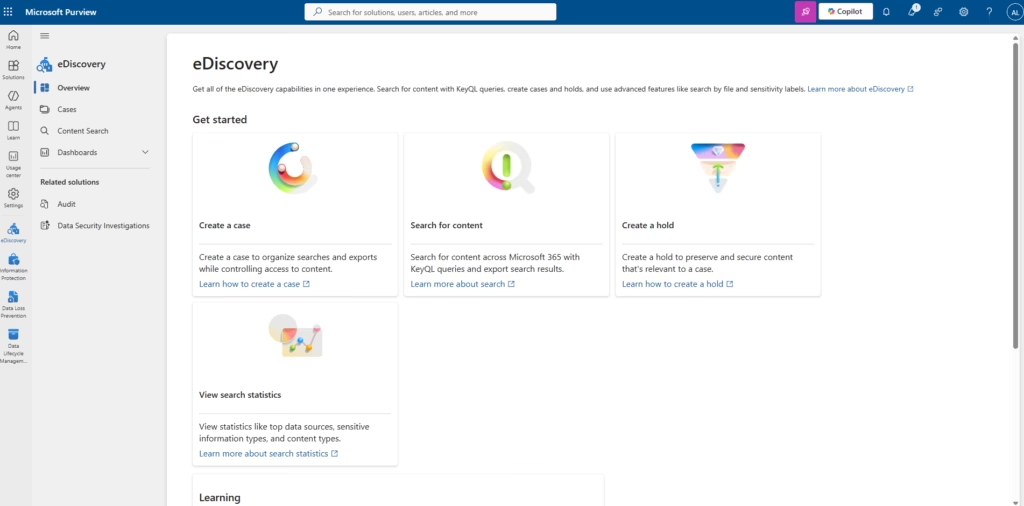
Step 2: Create a New Case
Select:
Create a Case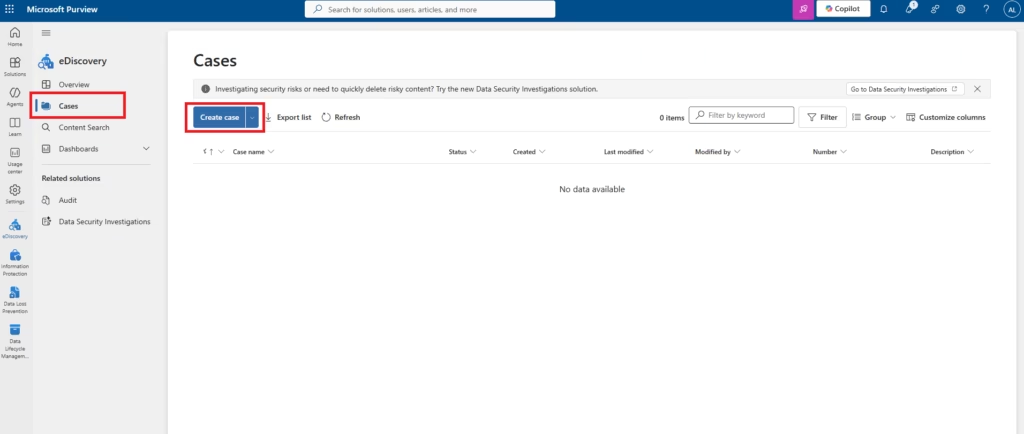
Configure:
Case Name:
Finance Investigation
Description:
Investigation of finance-related emails and documents.
Select:
Create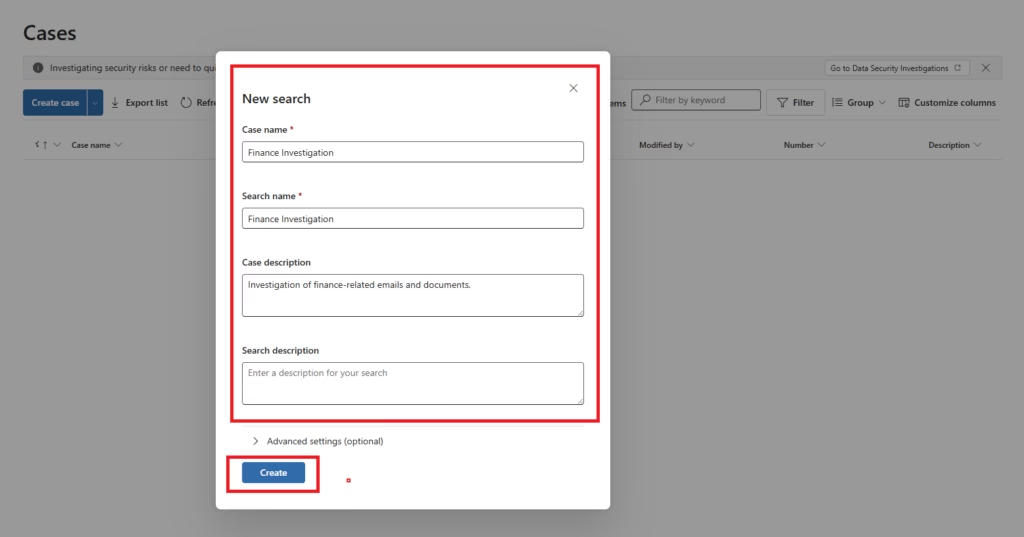
Step 3: Open the Case
Open the newly created case.
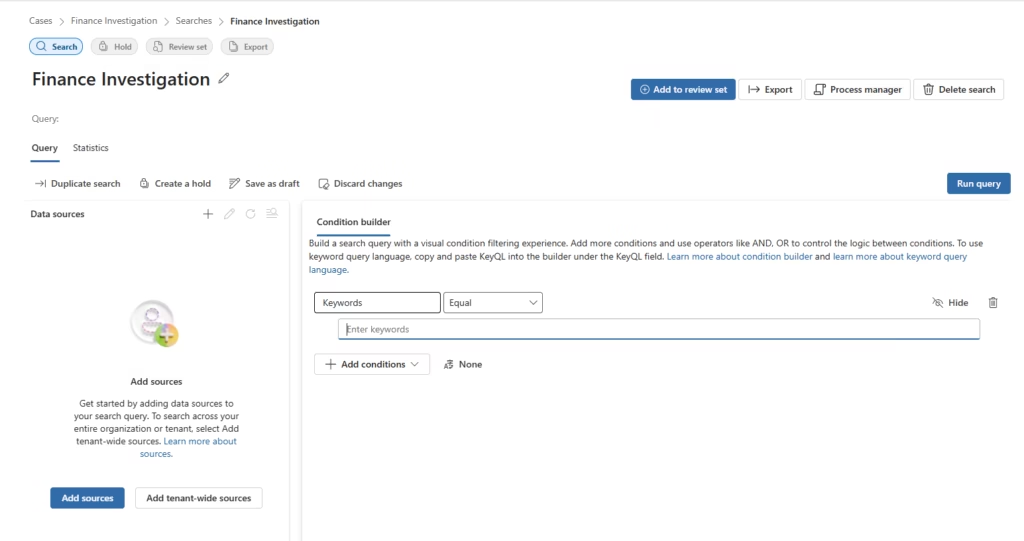
Step 4: Add Data Sources (VERY IMPORTANT)
After opening the case, create a new search and then click Add sources to select the Microsoft 365 locations you want to investigate.
Click Add sources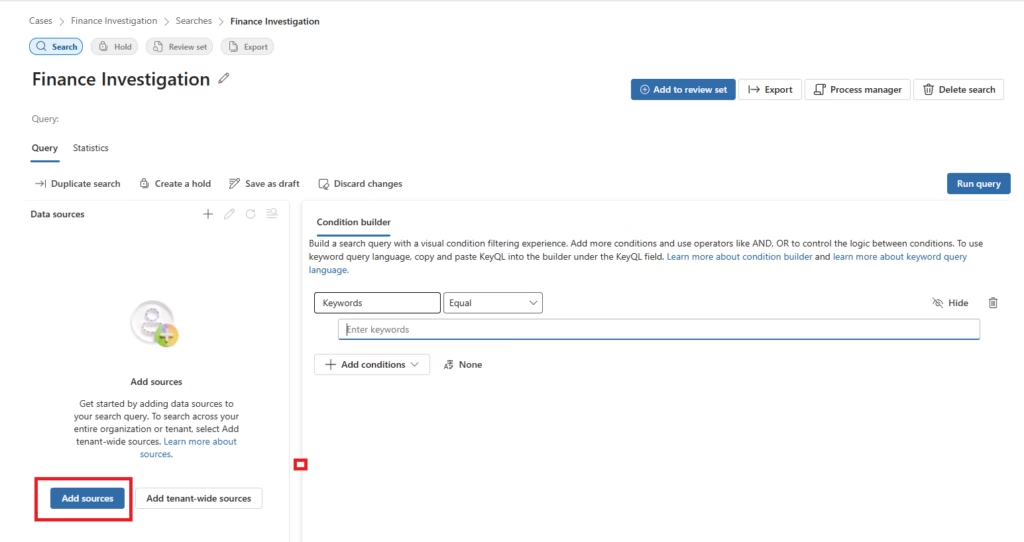
Select what you want to search:
- Exchange Online – Search mailbox emails and attachments.
- SharePoint Online – Search team sites and document libraries.
- OneDrive – Search user files.
- Microsoft Teams – Search chats, channel conversations, and shared files.
- Or a specific user (e.g.,
finance.user@contoso.com)
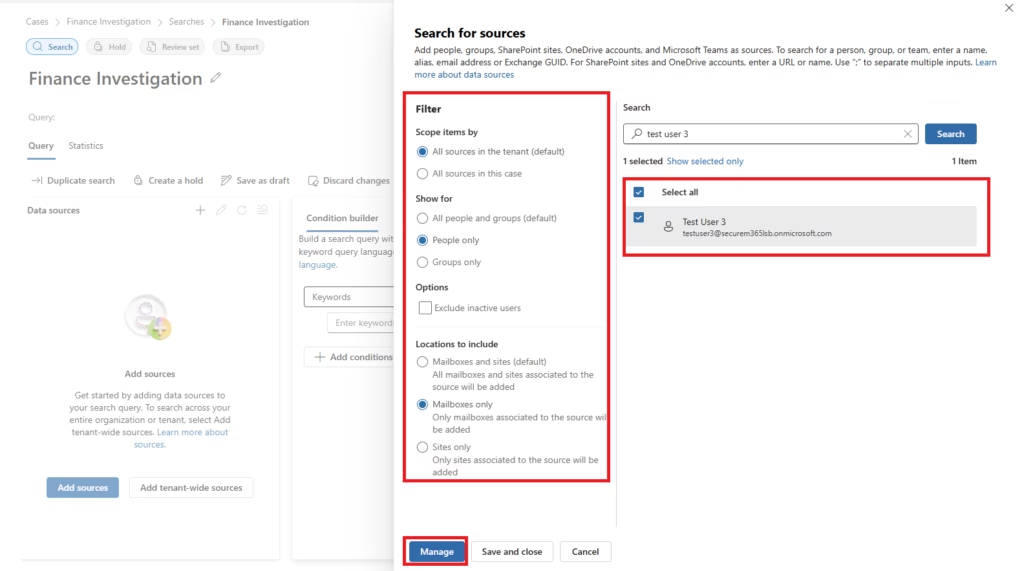
Best Practice: Always limit scope to relevant users/data for faster and accurate results.
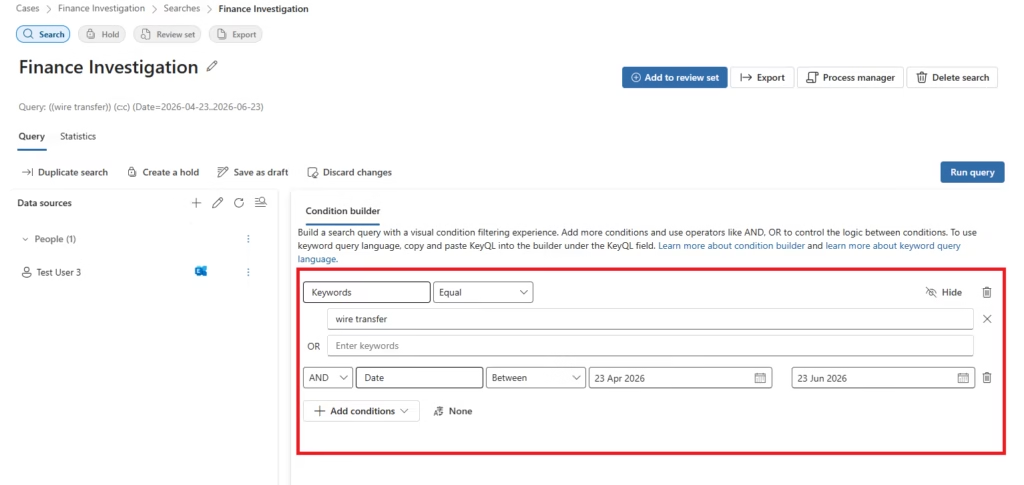
Step 5: Build Your Search Query
You will use the Condition builder (right panel).
- Option A – Simple Keyword Search
fraud OR payment OR transfer
- Option B – Keyword Query Language (KQL) enables administrators to build advanced searches using properties such as sender, subject, file type, dates, and keywords.
| Search | Example |
| Sender | from:finance@company.com |
| Subject | subject:”invoice” |
| File type | filetype:docx |
| Date | received>=2026-06-01 |
| Phrase | “wire transfer” |
- Option C – Add Filters
Click Add conditions, then configure:
- Sender / Recipient
- Date range
- File type
- Keywords
Example:
- Sender: finance@company.com
- Date: Last 30 days
- Keyword: “wire transfer”
Step 6: Run the Query
Click Run query
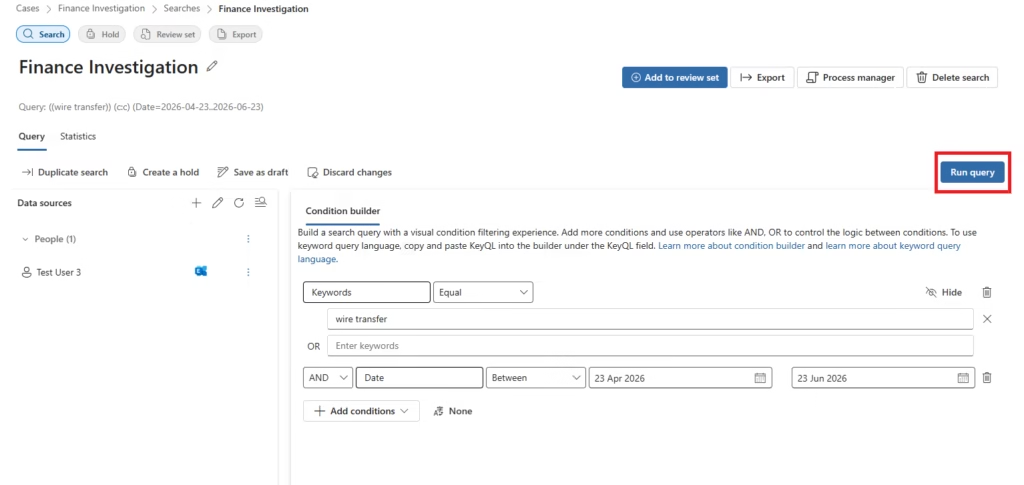
This will:
- Scan selected data sources
- Display:
- Number of matched items
- Estimated data size
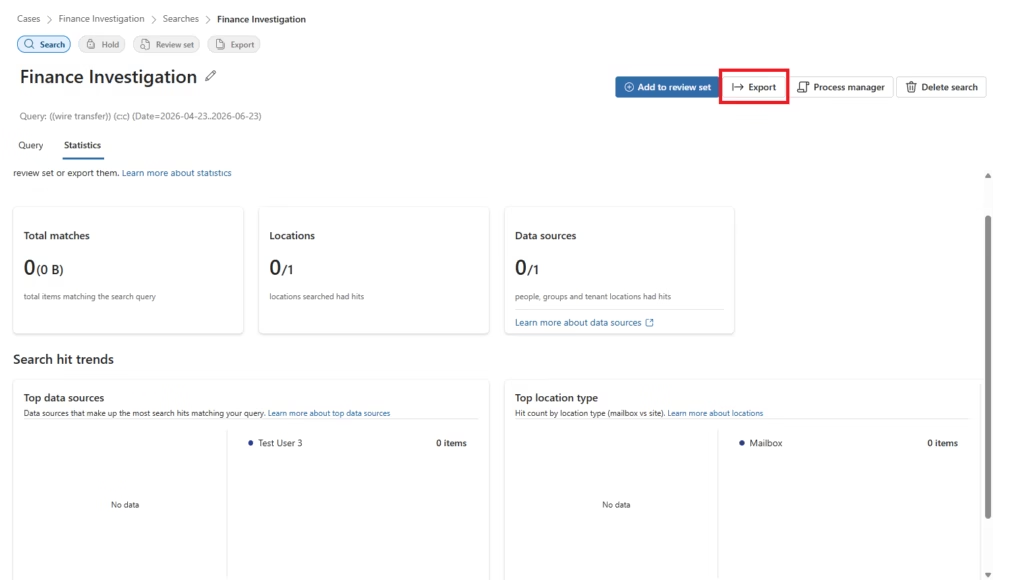
Step 7: Review Results (Critical Step)
Review:
- Matching items
- Number of results
- Estimated data size
- Search statistics
Verify that the search returned the expected content before exporting.
Click Export
Used for:
- Legal sharing
- Offline review (PST, CSV, etc.)
Lab Note: This demonstration was performed in a Microsoft 365 test tenant with limited sample data. As a result, the content search returned 0 matching items. In production environments, search results will vary based on available emails, documents, Teams messages, and other Microsoft 365 content.
For the best experience when exporting eDiscovery results, use Microsoft Edge. Some export functions and browser integrations may not work reliably in Google Chrome depending on tenant configuration and Microsoft export requirements.
MS-102 Exam Tip: It is common for lab environments and newly created test tenants to return zero search results because little or no user activity exists. The eDiscovery search process remains the same regardless of the number of returned items.
Step 8: Export Search Results
Select:
Export Results
Configure export settings and download the export package.
This package can be provided to legal, compliance, or investigation teams.
Benefits of eDiscovery in Microsoft Purview
- Faster Investigations:
- Instead of manually searching Exchange, SharePoint, Teams, and OneDrive separately, eDiscovery consolidates everything into a Single workflow, reducing investigation time from days to hours.
- Centralized Content Search
- A single search query spans all Microsoft 365 workloads simultaneously. This eliminates the risk of missing evidence stored in a different service.
- Reduced Legal Response Times
- When legal teams request data, administrators can run a targeted search and deliver a structured export package within hours, not days, directly improving legal SLA compliance.
- Improved Compliance Readiness
- Having a documented, repeatable investigation process supports ISO 27001, GDPR, and other regulatory frameworks that require evidence of data governance controls.
- Better Visibility into Microsoft 365 Data
- eDiscovery reveals what content exists across your tenant, useful not just for investigations but for understanding data distribution and access patterns.
- Support for Regulatory Requirements
- Many industries, such as finance, healthcare, and legal, require demonstrable ability to locate and produce specific records on demand. eDiscovery directly fulfills this obligation.
For organizations under legal hold or regulatory scrutiny, these advantages translate directly into reduced risk and faster response times. A search that might take an IT team several days manually can be completed in minutes using eDiscovery, with a full audit trail and exportable evidence package ready for legal review.
Best Practices
- Create Separate Cases
Use separate cases for different investigations.
Examples:
- HR Investigation
- Legal Review
- Security Incident
- Limit Search Scope
Search only relevant locations to improve performance and accuracy.
- Use Specific Keywords
Avoid broad searches that generate excessive results.
- Document Investigations
Maintain clear records of searches, exports, and investigation activities.
Common Administrator Mistakes
- Searching Too Broadly
- Large searches may return thousands of irrelevant results.
- Not Using Cases
- Always perform searches within a case for better organization and tracking.
- Ignoring Search Filters
- Use keywords, users, and dates to improve search precision.
MS-102 Exam Tip
📝 MS-102 Exam Tip
Scenario you’ll see in the exam:
“A legal team requests all emails and documents related to
a finance investigation.”
✅ Correct Answer: eDiscovery in Microsoft Purview
❌ Not: Sensitivity Labels, Retention Labels, Audit Logs, or Conditional Access
💡 Remember: Audit answers who did what. eDiscovery retrieves the actual content for investigation.
Frequently Asked Questions
What is the difference between eDiscovery Standard and eDiscovery Premium?
eDiscovery Standard supports cases, content searches, and export enough for most MS-102 labs and small investigations. eDiscovery Premium adds custodian management, review sets, and advanced analytics for large-scale legal matters. For the MS-102 exam, focus on Standard.
What data sources can eDiscovery in Microsoft Purview search?
eDiscovery can search Exchange Online mailboxes, SharePoint Online sites, OneDrive accounts, Microsoft Teams conversations, and Microsoft 365 Group content. You select the scope when adding data sources to your case.
What permissions are required to run eDiscovery in Microsoft Purview?
You need the eDiscovery Manager role in the Microsoft Purview compliance portal. Global Admins are not automatically granted this it must be explicitly assigned under Permissions > Roles.
Can eDiscovery search deleted emails and files?
Yes. eDiscovery searches the recoverable items folder, so soft-deleted emails (within the retention window) are included in the results. This is a common MS-102 exam scenario.
What is a KQL query in eDiscovery?
KQL (Keyword Query Language) is used to build precise content searches. For example, subject:"invoice" AND "urgent payment" finds emails with that subject and keyword. You used this in Step 5 of the lab above.
Conclusion
eDiscovery in Microsoft Purview enables organizations to search, collect, review, and export Microsoft 365 content for legal, compliance, and security investigations. By using cases and content searches, administrators can efficiently locate relevant emails, documents, and collaboration data across Microsoft 365 workloads.
Understanding eDiscovery in Microsoft Purview is an important skill for Microsoft 365 administrators and a key objective for the MS-102 certification exam.
Next in the Microsoft Purview Series
Ultimate Data Loss Prevention (DLP) in Microsoft Purview: Protect Sensitive Data (MS-102 Guide)
Previous Post:
Microsoft Purview Audit: Monitor User and Administrator Activities
http://techcertguide.blog/microsoft-purview-audit/
Start from the Beginning
MS-102 Microsoft 365 Administrator Overview
https://techcertguide.blog/ms-102-microsoft-365-administration
Official Microsoft Reference
https://learn.microsoft.com/en-us/credentials/certifications/exams/ms-102
1 thought on “eDiscovery in Microsoft Purview: Free MS-102 Lab Guide (2026)”