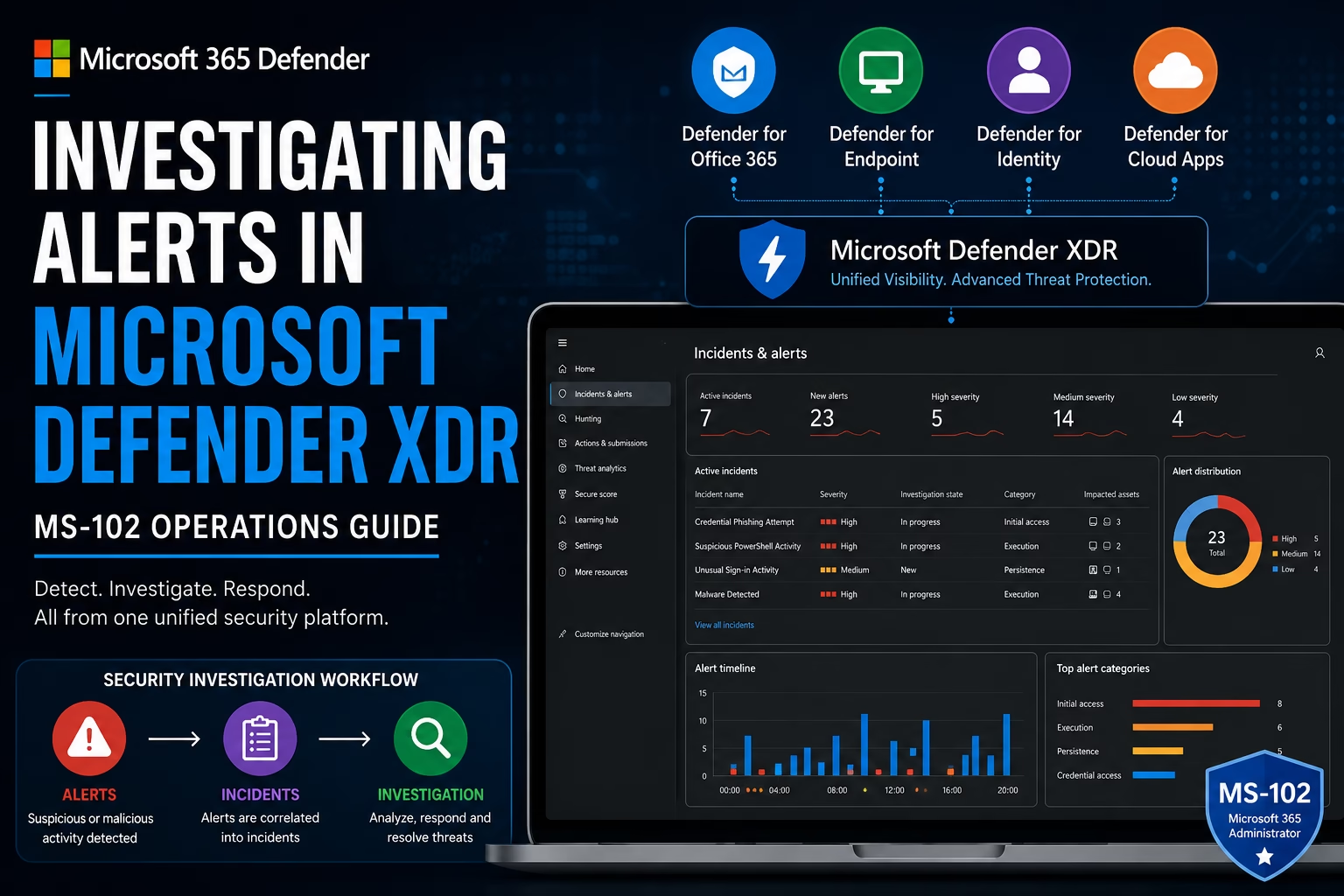
Investigating Alerts in Microsoft Defender XDR is one of the most important skills in modern Microsoft 365 security operations. In this MS-102 guide, you will learn how to analyze alert severity, review entities and evidence, investigate incidents, and respond to suspicious activity using Microsoft Defender XDR.
Even with strong protection tools like:
- Microsoft Defender for Office 365
- Microsoft Defender for Identity
- Microsoft Defender for Cloud Apps
- Microsoft Defender for Endpoint
Security alerts will still happen.
The real difference between secure and compromised organizations is:
How quickly security teams detect, investigate, and respond to alerts.This is where Microsoft Defender XDR becomes critical.
Microsoft Defender XDR provides a centralized security operations platform that helps organizations investigate threats across:
- Endpoints
- Identities
- Cloud applications
- Microsoft 365 services
For anyone preparing for the MS-102: Microsoft 365 Administrator certification, understanding how alerts work in Microsoft Defender XDR is essential because security monitoring and investigation are core Microsoft 365 administration responsibilities.
In this guide, we’ll cover:
- What Microsoft Defender XDR is
- What security alerts mean
- Alert severity levels explained
- Entities and evidence
- Investigation workflow
- Step-by-step alert investigation
- Best practices
- MS-102 exam tips
Learning Objectives
After completing this guide, you will be able to:
- Explain what a security alert is within Microsoft Defender XDR.
- Identify alert severity levels and their significance.
- Describe entities and evidence used during alert investigation.
- Investigate alerts in Microsoft Defender XDR step-by-step.
What is Microsoft Defender XDR?
Microsoft Defender XDR is Microsoft’s Extended Detection and Response (XDR) platform.
It combines security signals from:
- Microsoft Defender for Endpoint
- Microsoft Defender for Office 365
- Microsoft Defender for Identity
- Microsoft Defender for Cloud Apps
into a unified investigation experience.
This helps security teams:
- Detect attacks faster
- Correlate alerts automatically
- Investigate threats centrally
- Respond more efficiently
Think of Defender XDR as:
A centralized security operations dashboard for Microsoft environments.What is a Security Alert?
A security alert is a notification generated when suspicious or malicious activity is detected.
Examples include:
- Phishing email detected
- Malware execution
- Impossible travel activity
- Suspicious login attempts
- OAuth abuse
- Lateral movement detection
- Privilege escalation activity
Alerts help security teams investigate potential threats before major damage occurs.
Why Alert Investigation Matters
Attackers rarely stop after one action.
A single compromised account may lead to:
- Credential theft
- Lateral movement
- Privilege escalation
- Data exfiltration
- Ransomware deployment
Ignoring alerts can allow attacks to spread quickly.
This is why security operations teams rely heavily on Defender XDR.
Alert Severity Levels Explained
Microsoft Defender XDR categorizes alerts by severity.
Understanding severity is important for prioritization.
| Severity | Meaning |
|---|---|
| Informational | Minimal risk |
| Low | Suspicious but limited impact |
| Medium | Potential threat activity |
| High | Serious malicious behavior |
High-severity alerts require immediate investigation.
What are Entities in Defender XDR?
Entities are objects involved in a security event.
Examples:
- User accounts
- Devices
- IP addresses
- Mailboxes
- URLs
- Files
- Applications
Entities help analysts understand:
Who, what, and where the attack involves.What is Evidence in Defender XDR?
Evidence is the supporting data linked to alerts.
Examples:
- Malicious files
- Suspicious emails
- Login events
- Device telemetry
- Network connections
- OAuth permissions
Evidence helps analysts validate threats.
How Defender XDR Correlates Alerts
This is one of the most powerful XDR capabilities.
Instead of treating alerts separately:
Defender XDR automatically correlates related alerts into incidents.Example:
| Security Product | Alert |
|---|---|
| Defender for Office 365 | Phishing email |
| Defender for Identity | Suspicious login |
| Defender for Endpoint | Malware execution |
Defender XDR links these into:
One unified incidentThis dramatically improves investigation efficiency.
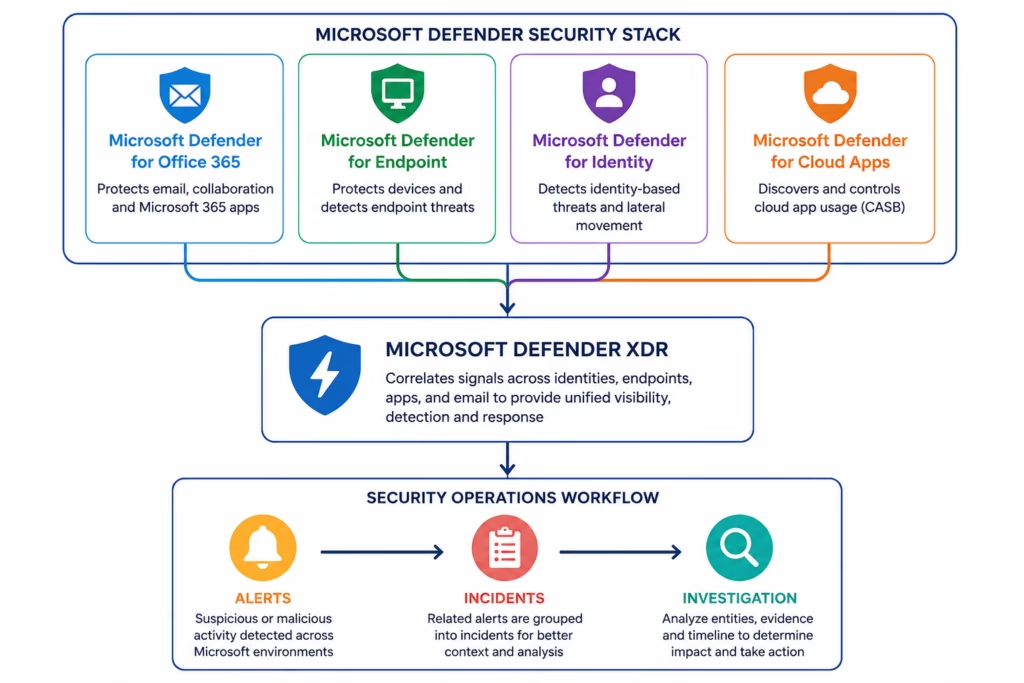
🔄 Alert Investigation Workflow
Microsoft Defender XDR Architecture
Investigating Alerts in Microsoft Defender XDR helps security teams correlate threats across email, endpoints, identities, and cloud applications.
Investigating Alerts in Microsoft Defender XDR Step-by-Step
This is your practical MS-102 operations section.
Step 1: Open Microsoft Defender Portal
Go to:
Microsoft Defender PortalSign in using:
- Global Administrator
- Security Administrator
- Security Reader
Step 2: Open Incidents & Alerts
Go to:
Incidents & Alerts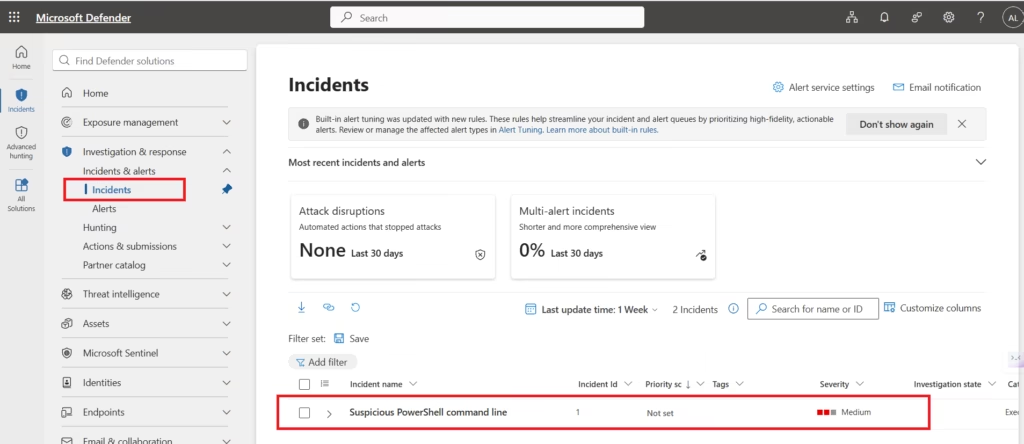
You will see:
- Active incidents
- Alert severity
- Investigation status
- Affected assets
This is the main SOC dashboard.
Step 3: Review Alert Severity
While Investigating Alerts in Microsoft Defender XDR, understanding alert severity is critical for prioritizing incidents.
Open a sample alert.
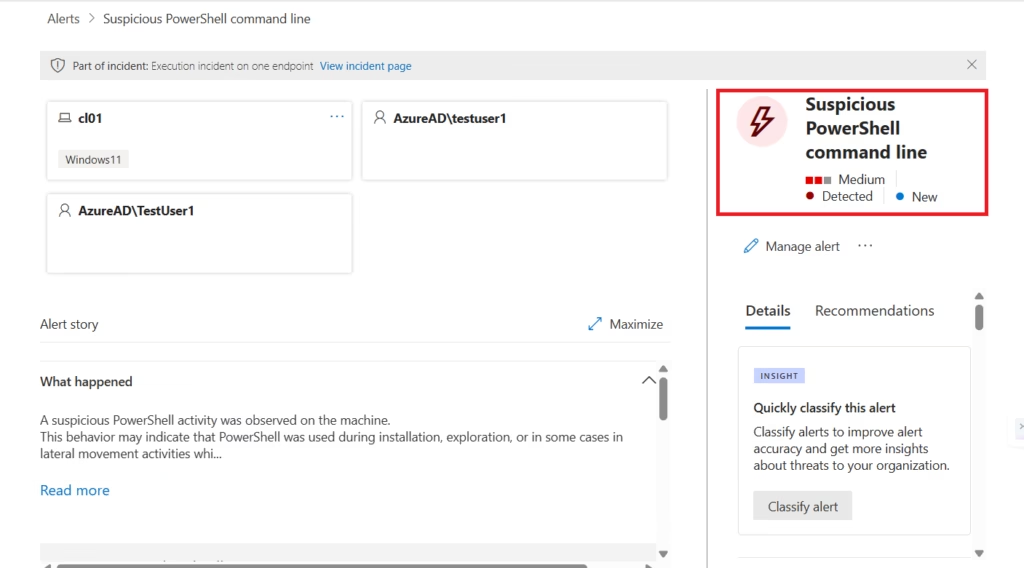
Review:
- Severity level
- Detection source
- Impacted users/devices
Severity helps determine investigation priority.
Step 4: Review Alert Details
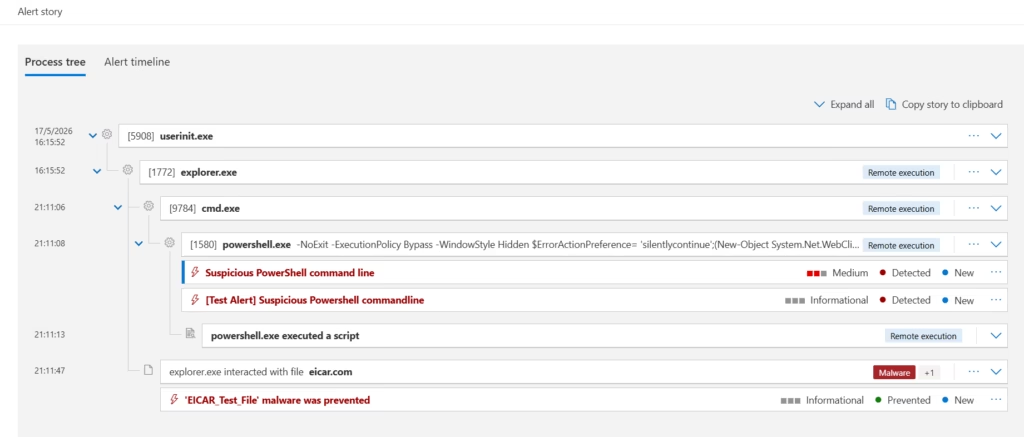
Inside the alert:
Check:
- Alert description
- Triggered activity
- Detection technology
- MITRE ATT&CK mapping
This helps understand attack behavior.
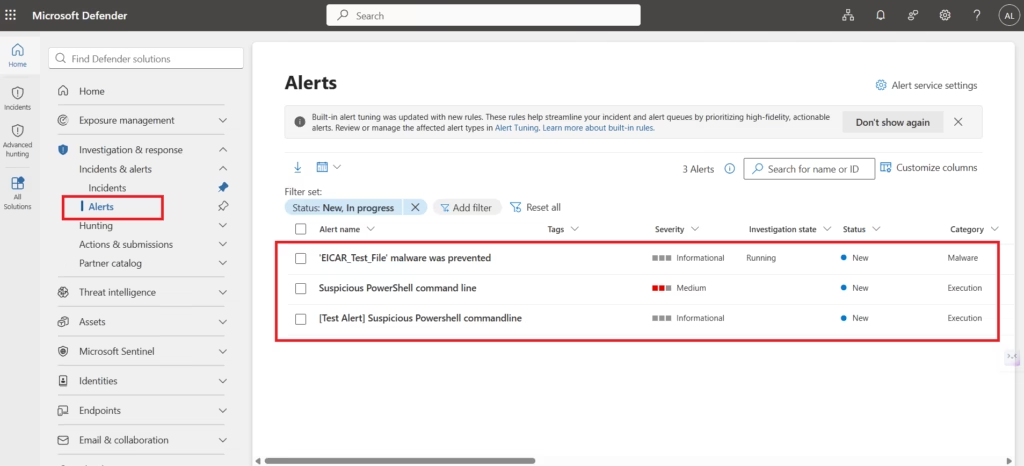
Step 5: Review Entities
Open:
any Alerts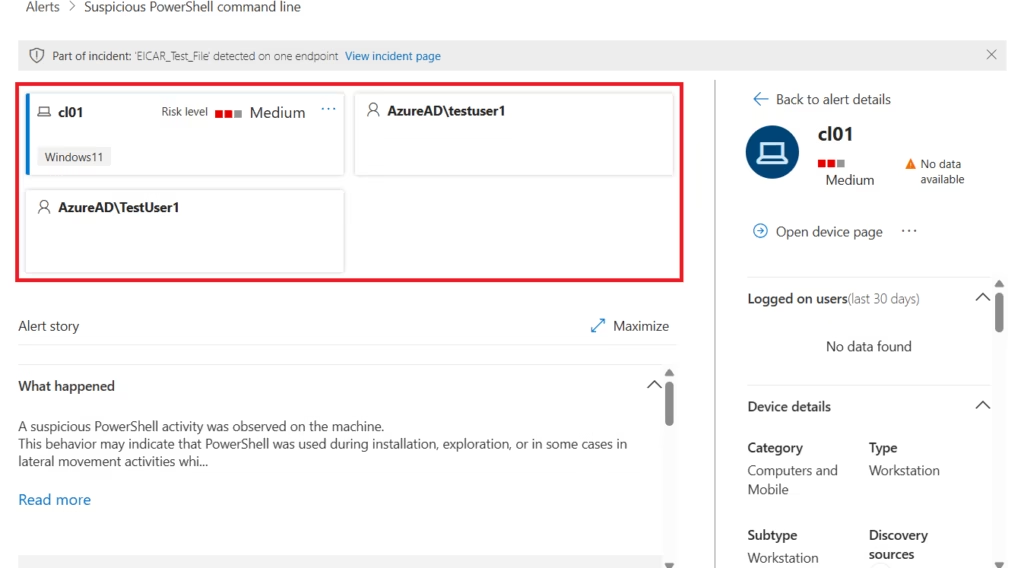
Review:
- User accounts
- Devices
- IP addresses
- URLs
- Mailboxes
This helps identify the attack scope.
Step 6: Review Evidence
Investigating Alerts in Microsoft Defender XDR involves reviewing entities, evidence, timelines, and suspicious activities.
Open:
Alert Story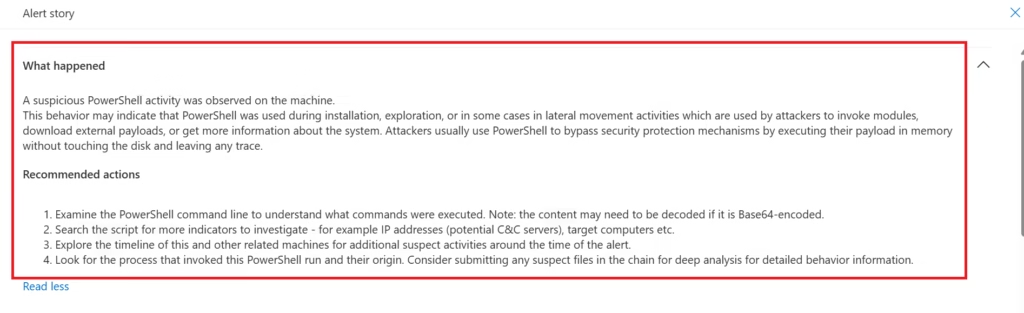
Review:
- Suspicious files
- Emails
- Network activity
- Device telemetry
Evidence confirms whether the alert is malicious or benign.
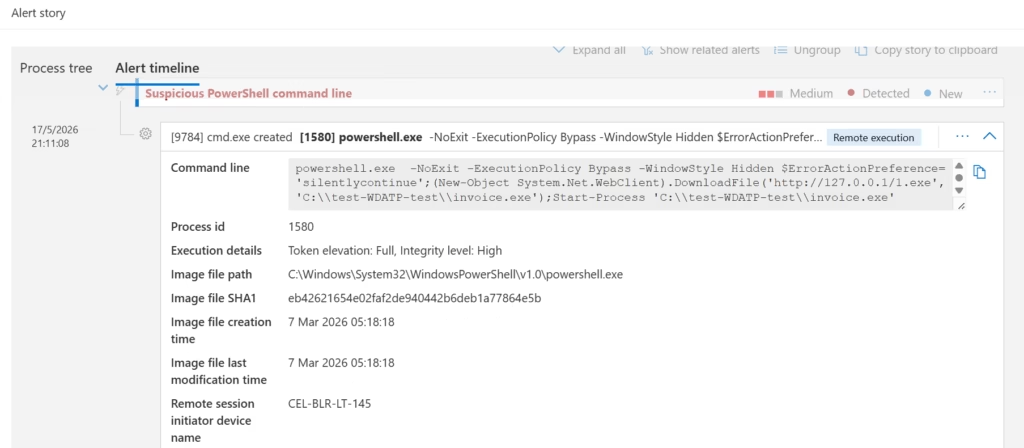
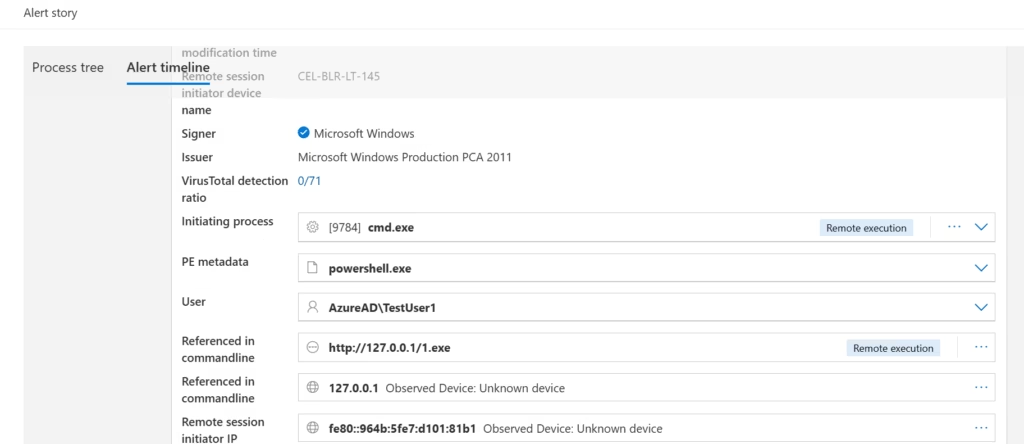
Step 7: Investigate Timeline
During Incident Management in Microsoft Defender XDR, analysts review entities, evidence, timelines, and related alerts to understand the full attack story.
Review:
Investigation TimelineThis shows:
- Attack sequence
- User actions
- Authentication events
- File execution
- Device activity
Very useful for understanding attack flow.
Step 8: Determine Alert Validity
At this stage, decide:
| Result | Meaning |
|---|---|
| True Positive | Real attack |
| False Positive | Benign activity |
| Informational | Low-risk event |
This is critical for SOC operations.
Security analysts determine whether alerts are malicious, benign, or informational after reviewing evidence, entities, timelines, and suspicious activities inside Microsoft Defender XDR.
Step 9: Take Response Actions
Possible actions include:
- Isolate device
- Disable user account
- Block URL
- Remove email
- Reset password
- Trigger automated investigation
This helps contain threats quickly.
Note:
This lab uses a safe test detection for learning purposes. In real-world security incidents, administrators may take additional remediation actions such as isolating compromised devices, forcing password resets, disabling user accounts, blocking malicious URLs, removing phishing emails, and triggering automated investigations to contain threats quickly.
Step 10: Update Incident Status
One major advantage of Investigating Alerts in Microsoft Defender XDR is centralized incident correlation across Microsoft security products.
Update incident as:
- Active
- In Progress
- Resolved
Add investigation notes for audit tracking.
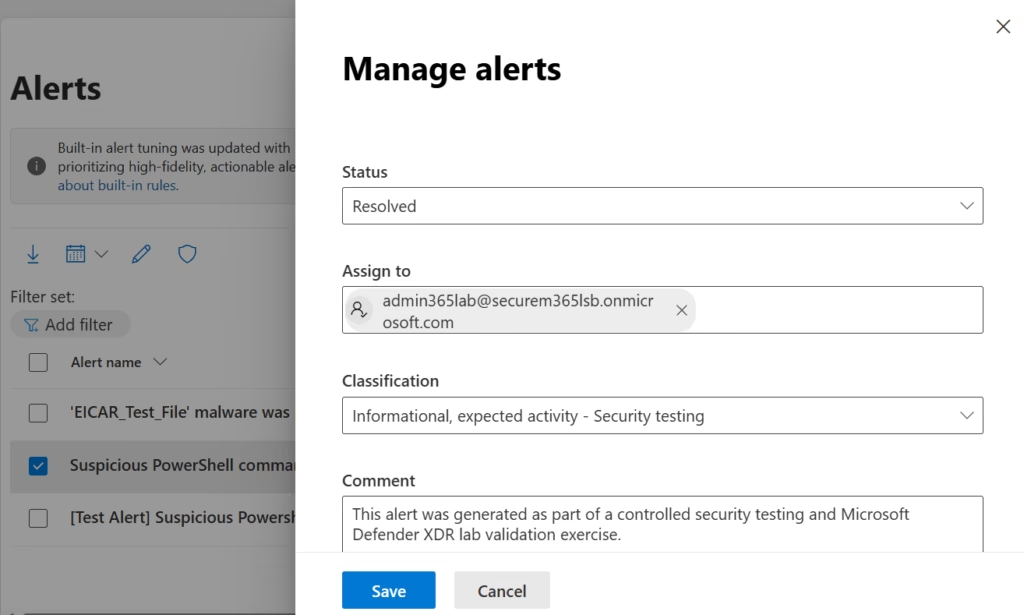
This alert was generated as part of a controlled Microsoft Defender XDR security testing and validation exercise. After reviewing the alert evidence, entities, and investigation timeline, the activity was classified as informational and expected within the lab environment.Common Alert Types in Defender XDR
| Alert Type | Example |
|---|---|
| Phishing | Malicious email detected |
| Malware | Suspicious executable |
| Identity | Impossible travel |
| Cloud Apps | Risky OAuth app |
| Endpoint | Credential dumping |
These are common in real environments.
Investigation Best Practices
Organizations should establish a structured workflow for Investigating Alerts in Microsoft Defender XDR to improve response efficiency.
As a senior infrastructure and security engineer, I strongly recommend:
- Prioritize High Severity Alerts First
- Focus on incidents with the highest business impact.
- Always Review Evidence
- Do not rely only on alert titles.
- Validate findings.
- Use Entity Relationships
- Attackers rarely target only one asset.
- Look for connected activity.
- Document Investigation Actions
- Proper notes help future investigations and compliance audits.
- Integrate Security Teams
- Identity, email, endpoint, and cloud teams should collaborate during investigations.
Microsoft Defender XDR vs Traditional Security Monitoring
| Traditional Monitoring | Defender XDR |
|---|---|
| Separate alerts | Correlated incidents |
| Manual analysis | Automated correlation |
| Siloed visibility | Unified visibility |
| Slower response | Faster investigation |
This is why XDR platforms are increasingly important.
MS-102 Exam Tip
Scenario:
“A company wants a centralized portal to investigate email, identity, endpoint, and cloud security alerts together.”
Correct answer:
Microsoft Defender XDRNot:
- Intune
- Exchange Admin Center
- Microsoft Sentinel
- Defender for Identity alone
Very common exam scenario.
Common Admin Mistakes
- Ignoring Low Severity Alerts
- Attackers often begin with subtle reconnaissance.
- Investigating Alerts Individually
- Always check related incidents and entities.
- Closing Alerts Too Quickly
- False negatives are dangerous.
- Validate evidence carefully.
- Poor Documentation
- Security investigations require proper audit tracking.
Final Thoughts
Investigating Alerts in Microsoft Defender XDR is essential for modern security operations and Microsoft 365 threat management
Security alerts are inevitable.
The real challenge is:
Investigating them efficiently before attackers escalate.- Microsoft Defender XDR provides centralized visibility across:
- Identity
- ENdpoints
- Cloud applications
- helping organizations detect and respond to threats faster.
- For MS-102 candidates, understanding alert investigation is essential.
- For administrators and security teams, it is operationally critical.
- Because modern cybersecurity is no longer just about prevention.
It is about visibility, correlation, investigation, and response.Next in the MS-102 Security Series
Incident Management in Microsoft Defender XDR: End-to-End Workflow (MS-102)
https://techcertguide.blog/incident-management-in-microsoft-defender-xdr
Because detecting alerts is important, but managing the entire incident lifecycle is where mature security operations truly begin.
Previous Topic
If you haven’t read it yet: Complete Microsoft Defender for Cloud Apps (CASB) Guide
https://techcertguide.blog/microsoft-defender-for-cloud-apps-ms-102
Start from the Beginning
MS-102 Microsoft 365 Administrator Overview
https://techcertguide.blog/ms-102-microsoft-365-administration
Official Microsoft Reference
https://learn.microsoft.com/en-us/certifications/exams/ms-102CategoriesMS-102
4 thoughts on “Ultimate Guide to Investigating Alerts in Microsoft Defender XDR (MS-102 Operations Guide)”