Design, Restore, and Monitoring Explained for Administrators
Data protection in Microsoft 365 is often misunderstood. Many administrators assume that because Microsoft 365 is a cloud service, all data is automatically protected, recoverable, and resilient against every scenario. This assumption leads to serious gaps in recovery planning.
For the MS‑102 Microsoft 365 Administrator exam and for real‑world administration, you must clearly understand what Microsoft 365 protects by default, what it does not, and how Microsoft 365 backup and recovery fit together as a single operational strategy.
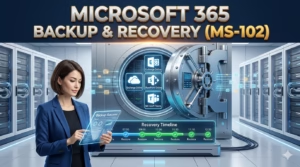
This post covers Microsoft 365 backup and recovery workflows and monitoring as one unified lifecycle.
Why Microsoft 365 Backup and Recovery Matter
Microsoft 365 provides high availability, not unlimited recovery.
Microsoft protects against:
- Datacenter failures
- Hardware faults
- Service outages
Microsoft does not protect against:
- Accidental deletion beyond retention limits
- Malicious deletion by compromised accounts
- Ransomware scenarios
- Insider threats
- Long‑term historical recovery requirements
That responsibility belongs to the tenant administrator.
This distinction is central to MS‑102.
Understanding Microsoft 365’s Native Data Protection Model
Before implementing backup, administrators must understand native protections:
Native Capabilities Include
- Recycle bins
- Retention policies
- Litigation hold
- Version history
These are data governance tools, not traditional backups.
They depend on:
- Correct configuration
- Time‑bound recovery
- User or admin action
Once retention periods expire, data is unrecoverable.
A critical component of Microsoft 365 backup and recovery is understanding the lifecycle of deleted items. In SharePoint Online and OneDrive for Business, when a user deletes a file, it moves to the first-stage Recycle Bin. If deleted again, it moves to the Second-Stage (Site Collection) Recycle Bin.
However, there is a hard limit: items are automatically purged after 93 days total. Without a dedicated Microsoft 365 backup and recovery solution, any data deleted beyond this 93-day window is gone forever. For administrators, relying solely on the Recycle Bin is not a backup strategy; it is a temporary safety net. In a production environment, legal and compliance requirements often dictate a 7-year retention period, which native recycle bins simply cannot satisfy.”
The “Point-in-Time” Restore: Mention that Microsoft 365 Backup (the new native tool) allows for high-speed, point-in-time recovery for OneDrive and SharePoint, which is a major update for 2024-2026 tenants.
What Is Microsoft 365 Backup?
Microsoft 365 Backup refers to intentional, administrator‑controlled protection mechanisms that allow data to be restored when native retention is insufficient.
This may include:
- Built‑in workload‑specific protections
- Microsoft‑provided recovery options
- Third‑party backup solutions (widely used in production)
MS‑102 does not require you to configure third‑party tools, but it expects you to recognize when native protection is insufficient.
Protected Workloads That Require Backup Planning
Administrators must plan backup coverage for:
- Exchange Online (mailboxes, calendars, contacts)
- SharePoint Online (sites, libraries, permissions)
- OneDrive for Business (user files)
- Microsoft Teams (channel messages, files, metadata)
Each workload has different recovery behaviors.
When an employee leaves the organization, many administrators mistakenly keep the license active just to preserve data. A more efficient Microsoft 365 backup and recovery approach is to use Inactive Mailboxes. By applying a Litigation Hold or Retention Policy to the mailbox before deleting the user account, the data is preserved indefinitely without requiring a monthly license. This allows for future eDiscovery and recovery of historical emails and calendar invites, ensuring that the ‘human’ element of your data remains protected even after the identity is removed from Entra ID.
Backup vs Retention: A Critical Distinction
This distinction is frequently tested.
| Concept | Purpose |
|---|---|
| Retention | Keep data for compliance |
| Backup | Recover data from mistakes or loss |
Retention ensures data is kept.
Backup ensures data can be restored cleanly.
Retention alone cannot:
- Roll back ransomware changes
- Restore deleted sites after retention expiry
- Recreate historical states months later
Backup Restore: How Recovery Works
Having a backup is meaningless unless restore workflows are understood.
Restore scenarios include:
- Individual item restore
- Mailbox‑level restore
- Site or library restore
- Full account recovery after deletion
Administrators must know:
- Who can initiate restores
- Where restored data goes
- How long do restore operations take
- What recovery options exist per workload
In the event of a ransomware attack, the speed of your Microsoft 365 backup and recovery process determines your business continuity. While versioning allows you to roll back individual files, a mass encryption event requires a Point-in-Time Restore.
Modern Microsoft 365 backup and recovery tools allow administrators to select a specific timestamp minutes before the infection occurred and revert entire document libraries or mailboxes to that healthy state. This ‘bulk roll-back’ capability is the primary differentiator between simple data retention and a true disaster recovery plan. For the MS-102 exam, remember that Microsoft’s own ‘Microsoft 365 Backup’ (Storage+) now offers these high-speed recovery points directly within the admin center.
Restore Scope and Limitations
Microsoft 365 restores are typically:
- Granular (files, messages)
- Time‑limited
- Policy‑dependent
Example: A user deletes a OneDrive file.
- Within retention → recoverable
- Beyond retention → not recoverable without backup
This is why backup planning must occur before incidents happen.
The 14-30 Day Window: Remind readers that deleted items in the “Second Stage Recycle Bin” have a hard limit (usually 93 days total for SharePoint). Anything beyond that requires an external backup.
Restore Responsibility in Real Incidents
In practice, restore events occur when:
- Users accidentally delete data
- Admins misconfigure policies
- Ransomware encrypts files
- Departing users’ data is needed later
MS‑102 expects admins to:
- Choose the correct recovery path
- Avoid unnecessary service escalations
- Recover data safely and efficiently
Backup Monitoring: The Forgotten Responsibility
Backup that is not monitored cannot be trusted.
Monitoring ensures:
- Backup jobs complete successfully
- All workloads are covered
- Storage thresholds are respected
- Restore points are available
Monitoring turns backup from hope into assurance.
What Backup Monitoring Includes
Effective backup monitoring tracks:
- Protected workloads status
- Last successful backup timestamps
- Failure alerts
- Restore test results
- Policy drift
Admins must regularly verify:
- New users are covered
- New sites are included
- Default settings haven’t changed the protection scope
Backup Testing: The Final Validation
One of the most serious admin mistakes is never testing restores.
Best practice:
- Perform periodic restore tests
- Validate recovered data accessibility
- Document recovery time objectives (RTO)
MS‑102 rewards administrators who think in terms of verification, not assumption.
Real‑World Backup & Recovery Workflow
When data loss occurs, a mature admin follows this process:
1️⃣ Identify what was lost
2️⃣ Confirm retention applicability
3️⃣ Determine backup availability
4️⃣ Choose the least disruptive restore method
5️⃣ Communicate recovery timeline
6️⃣ Validate restored data
This structured response demonstrates operational maturity.
MS‑102 Exam Focus: Backup & Recovery
Expect scenarios such as:
- Data loss beyond retention limits
- Users requiring historical recovery
- Need to protect Teams and SharePoint data
- Admin determining recovery responsibility
MS‑102 does not test vendor tools it tests decision‑making and responsibility awareness.
Best Practices for Microsoft 365 Backup Strategy
1️⃣ Understand native protection limits
2️⃣ Protect all critical workloads
3️⃣ Monitor backup success regularly
4️⃣ Test recovery workflows
5️⃣ Document restore responsibilities
Backup is not a one‑time configuration—it is an ongoing operational discipline.
Key Takeaways
- Microsoft 365 provides availability, not unlimited backup
- Backup, restore, and monitoring from one lifecycle
- Admins are responsible for recoverability
- Monitoring and testing are non‑negotiable
- MS‑102 evaluates backup understanding, not tooling
Conclusion: Use it one last time: “Ultimately, Microsoft 365 backup and recovery is about peace of mind for the modern administrator.”
Next Step
Continue your learning with:
Managing Users in Microsoft Entra ID
https://techcertguide.blog/managing-users-in-microsoft-entra-id/
Previous Topic
If you haven’t explored it yet:
Microsoft 365 Network Connectivity: Proven Insights & Lab
https://techcertguide.blog/microsoft-365-network-connectivity
Start from the Beginning
MS-102 Microsoft 365 Administrator Overview
https://techcertguide.blog/ms-102-microsoft-365-administration/
Official Microsoft Reference
https://learn.microsoft.com/en-us/certifications/exams/ms-102