Choosing the Right Synchronization Model (with Lab)
Hybrid identity is evolving. While Microsoft Entra Connect Sync has been the traditional solution for synchronizing on‑premises Active Directory with Microsoft Entra ID, Microsoft is increasingly promoting a cloud‑centric alternative known as Microsoft Entra Cloud Sync.
For the MS‑102 Microsoft 365 Administrator exam, administrators are expected to:
- Understand what Microsoft Entra Cloud Sync is
- Know how it differs from Entra Connect
- Identify when Microsoft Entra Cloud Sync is the better choice
- Recognize Microsoft Entra Cloud Sync limitations
This post explains Microsoft Entra Cloud Sync, how it compares to Entra Connect, and includes a hands‑on lab to explore Cloud Sync safely.
Why Microsoft Introduced Microsoft Entra Cloud Sync
Microsoft Entra Connect is powerful, but:
- Requires a full sync engine
- Depends on on‑prem SQL and scheduler
- Requires more operational management
Modern environments increasingly prefer:
- Lightweight agents
- Cloud‑managed services
- Reduced on‑prem dependency
Microsoft Entra Cloud Sync was introduced to address these needs.
What Is Microsoft Entra Cloud Sync?
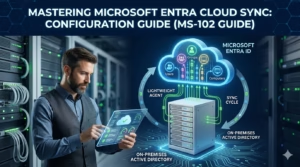
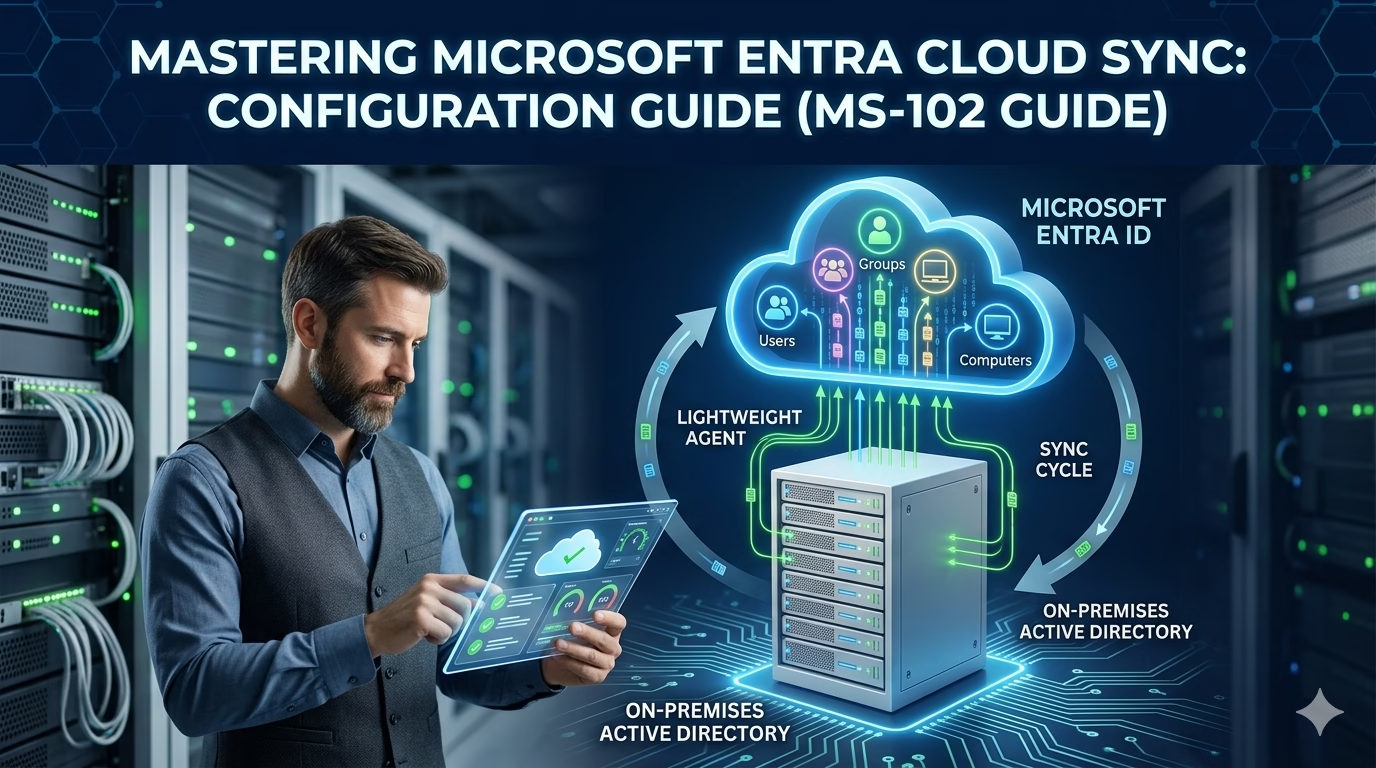
Microsoft Entra Cloud Sync is a lightweight, cloud‑managed directory synchronization solution that:
- Uses a provisioning agent installed on‑premises
- Is managed entirely from the Microsoft Entra admin center
- Requires no local sync engine console
- Supports incremental provisioning instead of full sync
Cloud Sync moves synchronization logic to the cloud, reducing server‑side complexity.
Key Architectural Difference
Entra Connect Sync
- Full synchronization engine (MIIS)
- Rules processed locally
- SQL‑based scheduler
- Broad attribute support
- Advanced writeback support
Entra Cloud Sync
- Lightweight provisioning agent
- Cloud‑controlled logic
- No local MIIS UI
- Limited attribute support
- Limited writeback capabilities
Cloud Sync vs Entra Connect (MS‑102 Summary)
| Feature | Entra Connect Sync | Entra Cloud Sync |
|---|---|---|
| Sync engine | On‑prem | Cloud |
| Management | Local + cloud | Cloud only |
| SQL dependency | Yes | No |
| Setup complexity | Higher | Lower |
| Writeback support | Broad | Limited |
| Supported scenarios | Full hybrid | Select hybrid |
| Microsoft future focus | ✅ | ✅✅ |
MS‑102 Insight
Microsoft positions Cloud Sync as the preferred solution for new, supported scenarios.
When to Use Entra Cloud Sync
Entra Cloud Sync is ideal when:
- Single or simple AD forest
- No complex attribute requirements
- No advanced writeback needs
- Preference for cloud management
- New hybrid deployments
It is particularly suitable for new organizations starting a hybrid identity.
When Entra Connect Is Still Required
Entra Connect remains required for:
- Exchange hybrid scenarios
- Device writeback
- Group writeback
- Complex attribute transformations
- Legacy coexistence models
MS‑102 Insight
Administrators must recognize functional gaps, not assume Cloud Sync fully replaces Entra Connect.
Understanding Cloud Sync Limitations
Cloud Sync currently has limitations, such as:
- No support for all sync features available in Entra Connect
- Limited attribute mapping
- Reduced customization
- No local MIIS console for deep troubleshooting
These are intentional trade‑offs for simplicity and cloud control.
Hands‑On Lab: Explore Entra Cloud Sync (Safe Lab)
Lab Objective:
Deploy the Entra Cloud Sync agent and understand how cloud‑based provisioning works without impacting the existing Entra Connect deployment.
Lab Prerequisites
- Active Microsoft 365 tenant
- On‑prem Active Directory
- Local administrator access on a server
- Entra ID administrator role
- Existing Entra Connect deployment (OK)
Lab Safety Note:
This lab does not disable or replace Entra Connect.
Step 1: Access Entra Cloud Sync
- Go to the Microsoft Entra admin center
- Navigate to:
Microsoft Entra ID → Entra Connect → Cloud Sync
- Review the Cloud Sync overview
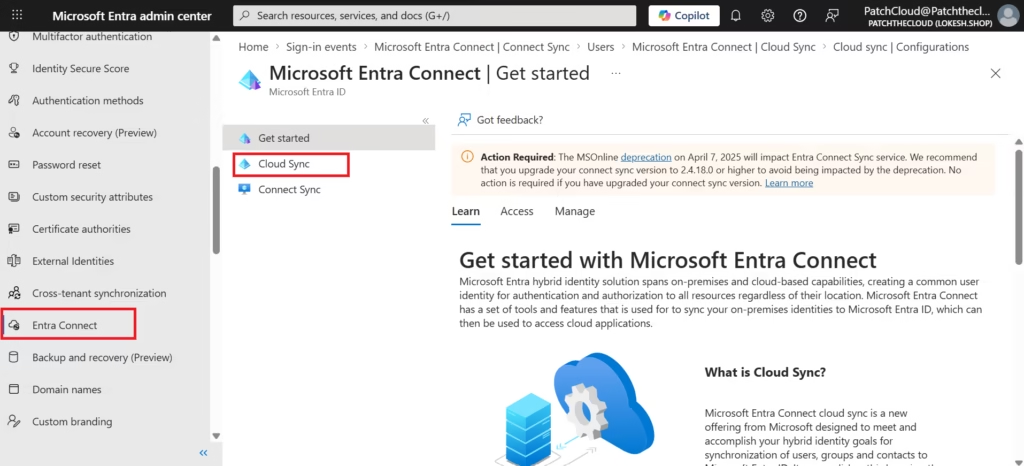
This shows:
- Service description
- Supported scenarios
- Agent requirements
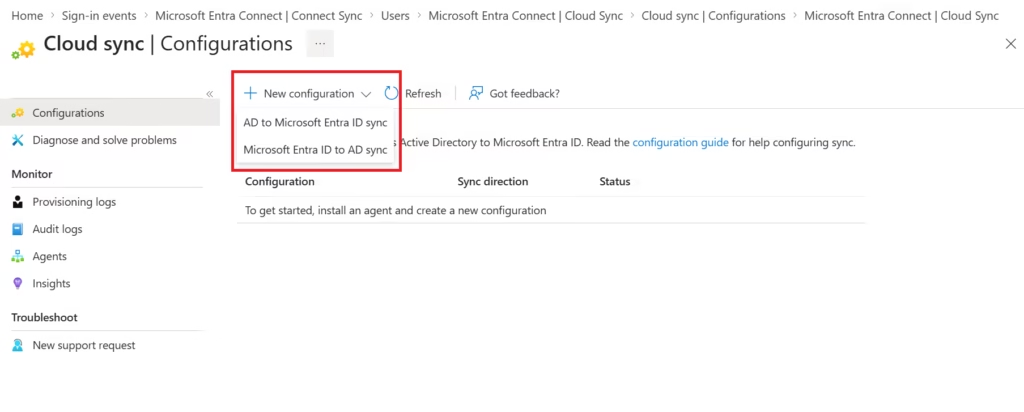
Step 2: Create a New Cloud Sync Configuration
- Select New configuration → AD to Microsoft Entra ID Sync
- Download on-premises agent
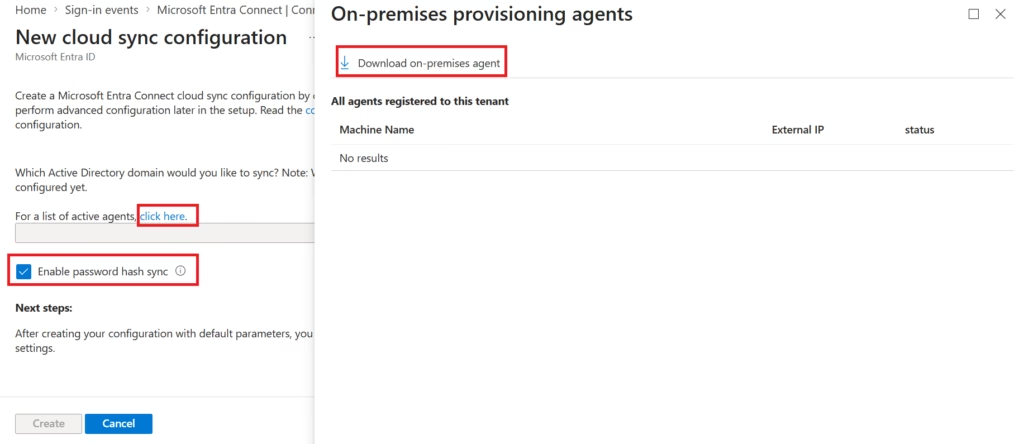
No changes have been applied yet.
Step 3: Download and Install Cloud Sync Agent
- Install it on a domain‑joined server
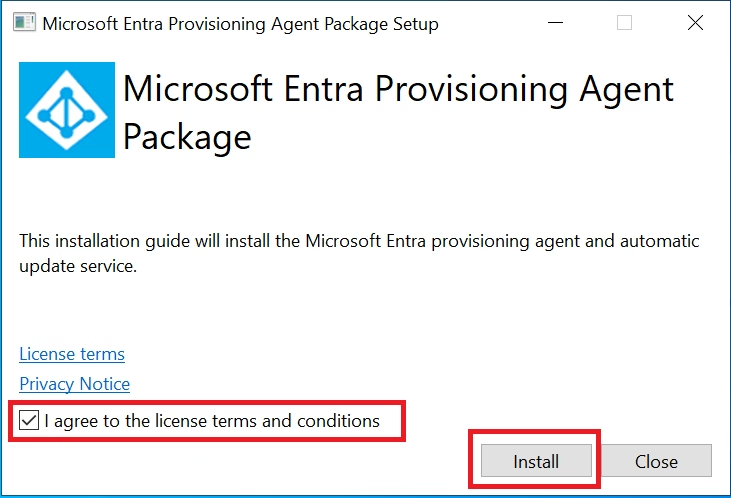
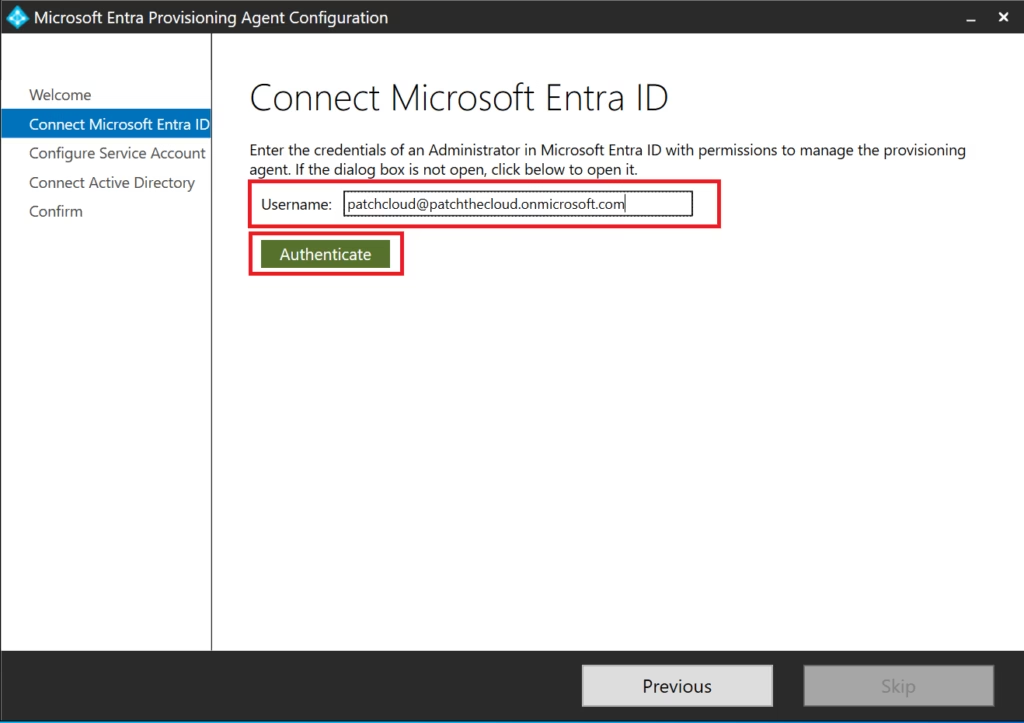
- Sign in with Global Admin permissions
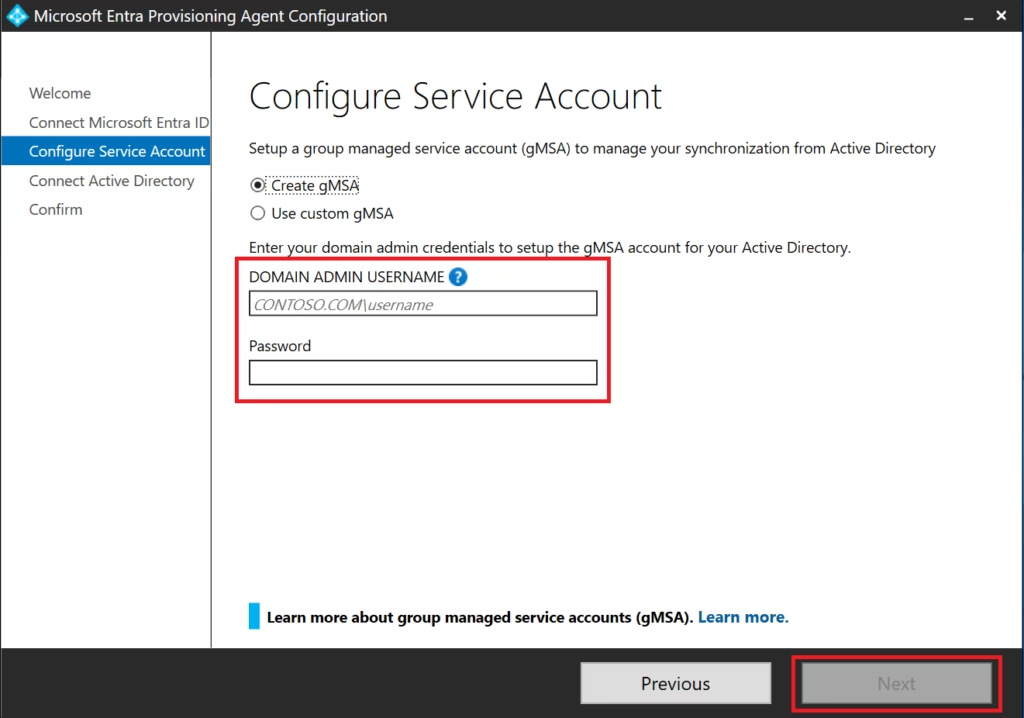
- Sign in with Domain Administrator permissions
- Confirm the Installation
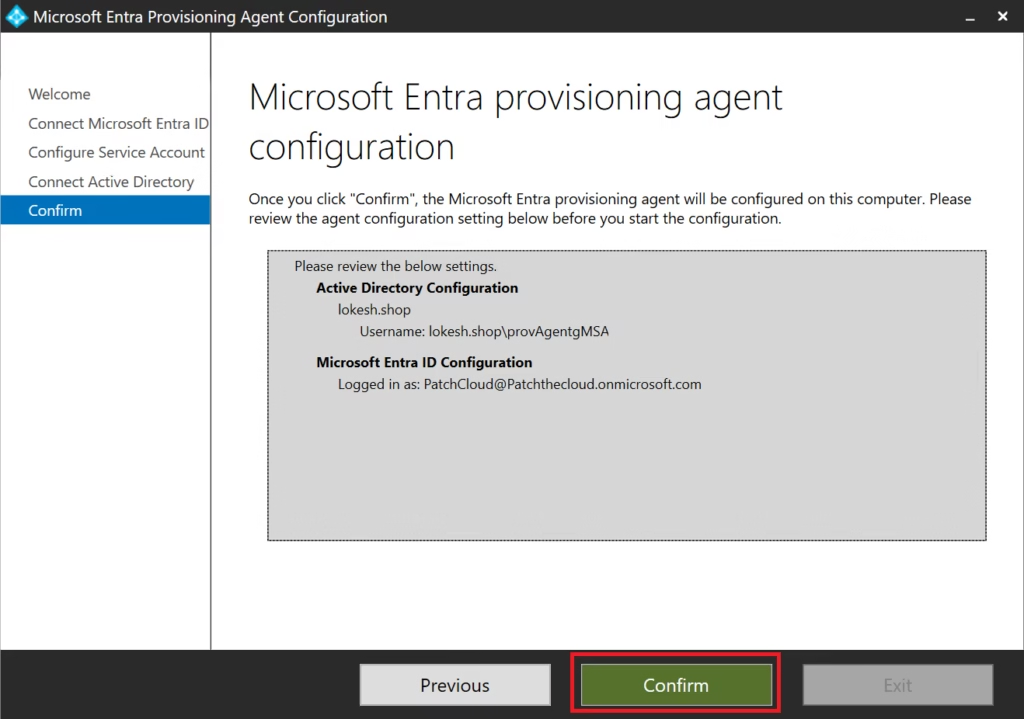
Agent registers automatically with Entra ID.
Step 4: Review Provisioning Scope
- In the Cloud Sync configuration
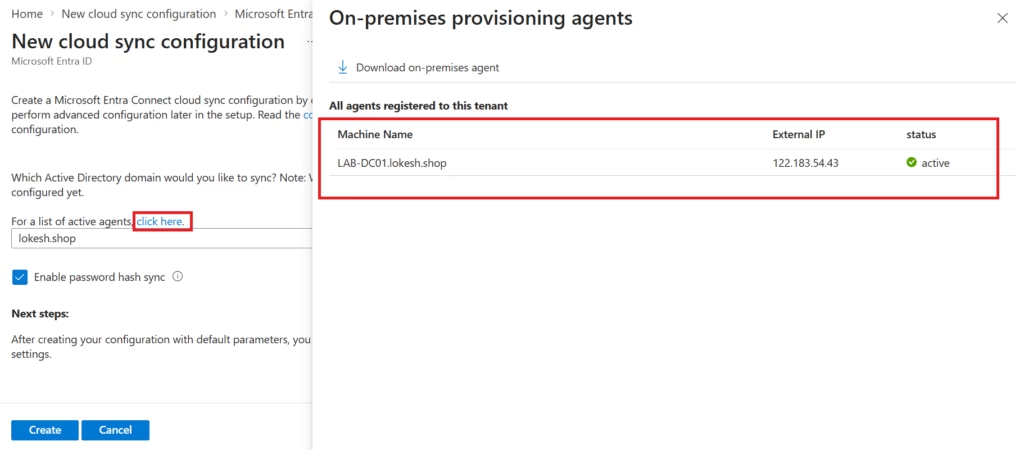
- Select the on‑prem domain
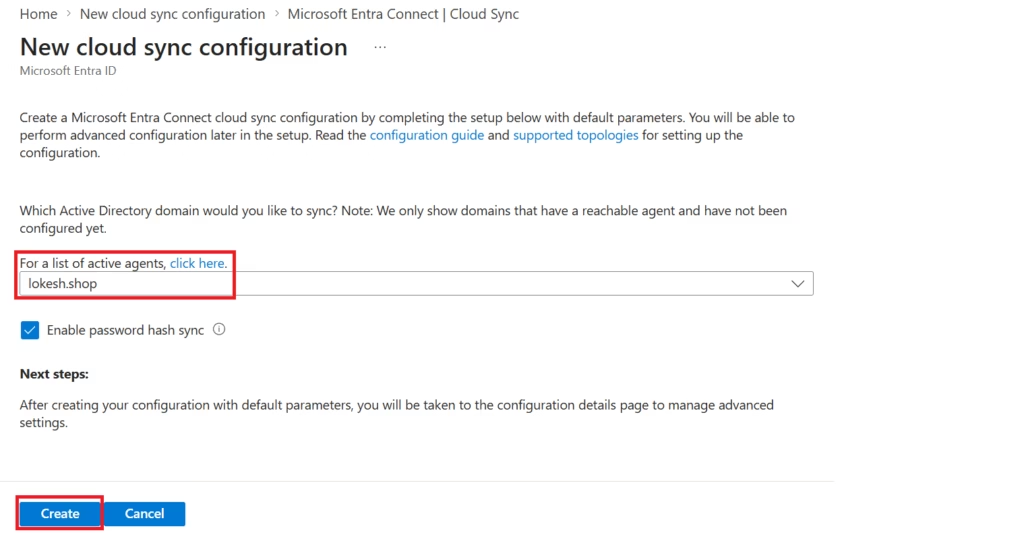
- Review:
- Sync scope
- Organizational units
- Object types
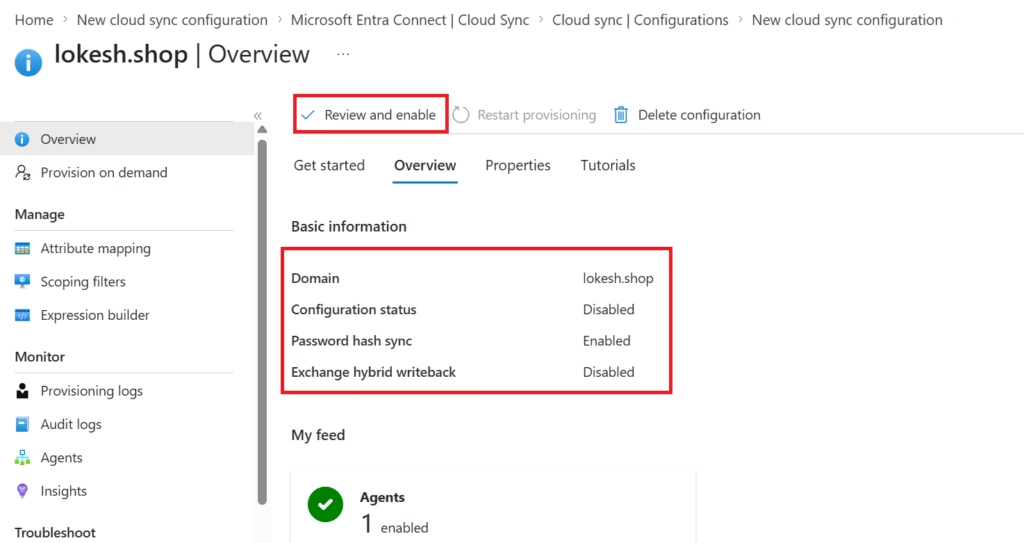
Review and Enable
Lab Note:
This lab demonstrates the configuration workflow of Microsoft Entra Cloud Sync. Provisioning is intentionally not enabled because Microsoft Entra Connect Sync is already active in the environment. Running both synchronization solutions simultaneously for the same identity scope is not supported.
Step 5: Compare with Entra Connect
Observe differences:
- No local sync console
- All logic is managed in the portal
- Agent status visible in Entra ID
This comparison reinforces architectural understanding.
Lab Completion Criteria
This lab is complete when:
- Cloud Sync portal is accessible
- Agent installed and visible
- No disruption to existing sync
- Differences are clearly understood
Cloud Sync and MS‑102 Exam Focus
MS‑102 frequently tests:
- Choosing Cloud Sync vs Entra Connect
- Identifying unsupported scenarios
- Understanding cloud‑managed provisioning
- Recognizing modern Microsoft strategy
Questions are scenario‑driven, not implementation‑heavy.
Common Misconceptions
- Cloud Sync fully replaces Entra Connect
- Cloud Sync supports all writeback features
- Cloud Sync is only for small tenants
Cloud Sync is scenario‑specific, not universal.
Key Takeaways
- Entra Cloud Sync is a modern alternative to Entra Connect
- It simplifies architecture and operations
- Not all hybrid scenarios are supported
- Microsoft promotes Cloud Sync for new, supported deployments
- MS‑102 tests decision‑making, not preference
What’s Next in the Series
With deployment and architecture covered, the next step is monitoring and troubleshooting synchronization health.
➡️ Next Post:
Microsoft Entra Connect Health & Troubleshooting Sync Errors (with Lab)
https://techcertguide.blog/microsoft-entra-connect-health
Previous Topic
If you haven’t explored it yet:
Sync Scope: OU and Attribute Filtering in Microsoft Entra Connect
https://techcertguide.blog/entra-connect-ou-attribute-filtering
Start from the Beginning
MS-102 Microsoft 365 Administrator Overview
https://techcertguide.blog/ms-102-microsoft-365-administration/
Official Microsoft Reference
https://learn.microsoft.com/en-us/certifications/exams/ms-102