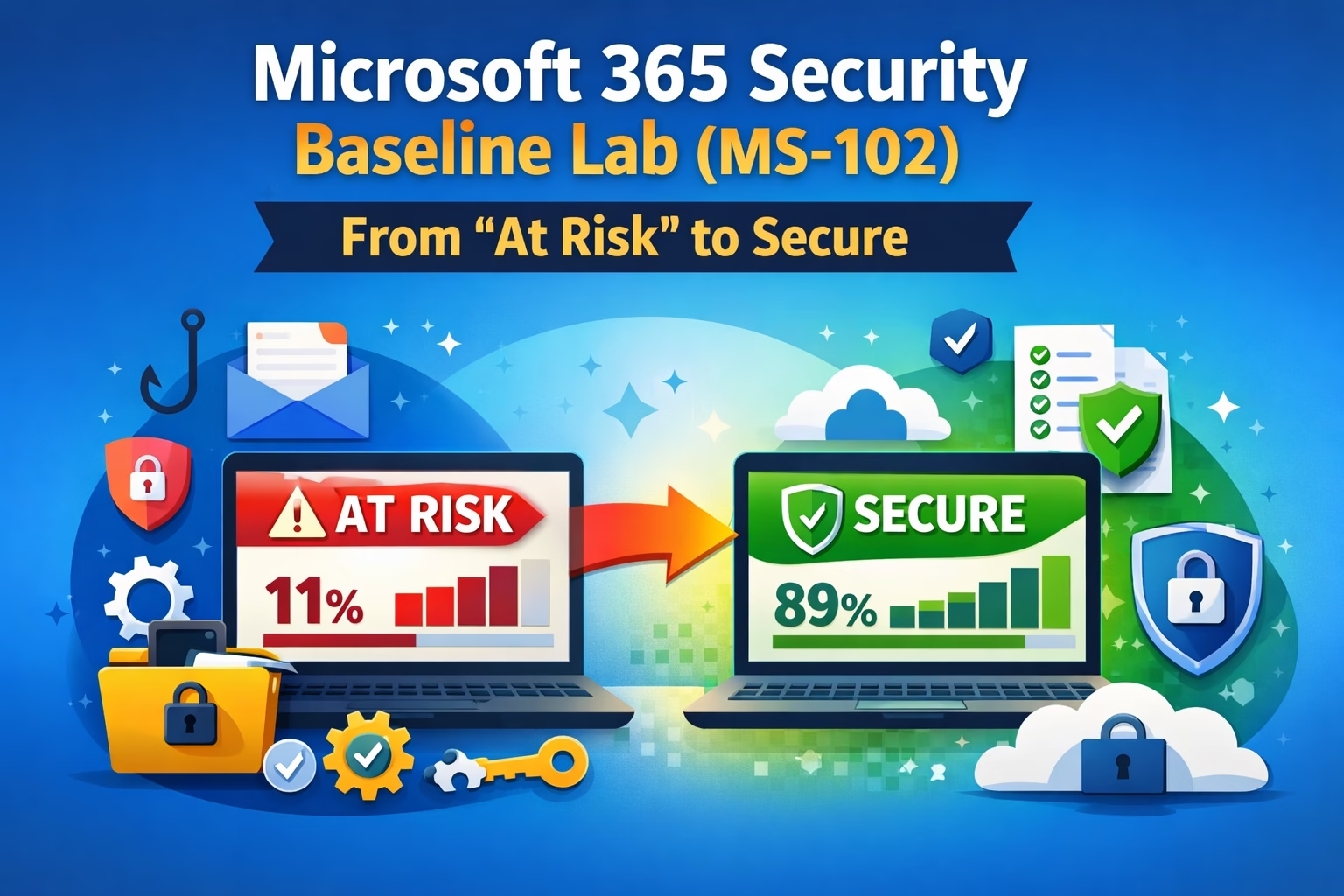
Learning Objectives
After completing this guide, you will be able to:
- Explain the purpose of the Microsoft 365 Security Baseline.
- Identify at-risk security recommendations in a baseline dashboard.
- Remediate authentication, file security, and endpoint recommendations.
- Describe best practices and troubleshooting steps for baseline configuration.
Introduction
In today’s threat landscape, securing your Microsoft 365 environment is not optional—it’s essential. One of the fastest and most effective ways to improve your tenant security is by implementing Microsoft-recommended security baselines. These recommendations help identify weak configurations and guide administrators toward a more secure, compliant setup.
In this Microsoft 365 security baseline lab, I explored how to identify and remediate multiple “At risk” recommendations using Microsoft Entra ID. Instead of manually configuring each setting from scratch, I leveraged Microsoft’s built-in guidance to strengthen authentication, application security, and data protection.
This hands-on approach not only improves real-world security posture but also aligns closely with key MS-102 exam objectives, making it highly valuable for both learning and implementation.
Initial State – Security Baseline Dashboard
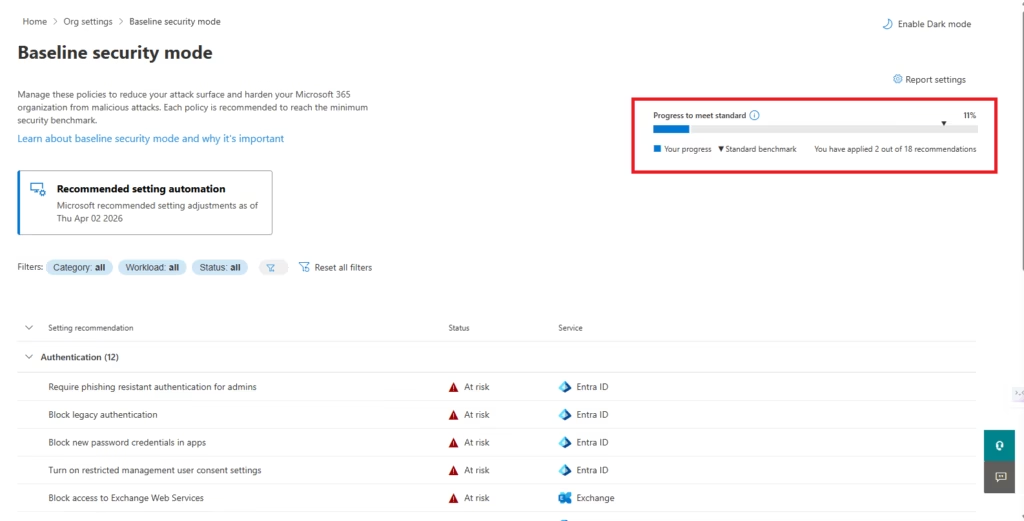
At the beginning of this lab, the Microsoft 365 security baseline dashboard clearly showed that the tenant was in a weak and unprotected state, which is common for newly created environments.
- Only 2 out of 18 recommendations were enabled
- Overall security posture was around 11%
- The majority of configurations were marked as “At risk.”
This is the default state in most new tenants because:
- Security configurations are not enforced by default
- Legacy protocols and weak authentication methods are still allowed
- Advanced protections like MFA and modern authentication are not fully configured
This initial view provides a clear starting point for administrators to understand where improvements are needed and how much work is required to secure the environment.
From here, the goal is simple:
Move from “At risk” → “Meets standard” by implementing recommended controls
Authentication in the Microsoft 365 Security Baseline
Authentication in the Microsoft 365 Security Baseline is the most critical security layer in any Microsoft 365 environment. Most attacks today target user identities through phishing, password spray, or credential theft. If authentication is compromised, attackers can gain direct access to organizational data and services.
Microsoft provides baseline recommendations to enforce strong, modern authentication mechanisms and eliminate weak or legacy access methods.
Key Settings:
- Require phishing-resistant authentication for admins
- Block legacy authentication
- Block new password credentials in apps
- Enable restricted user consent
Require Phishing-Resistant Authentication for Admins
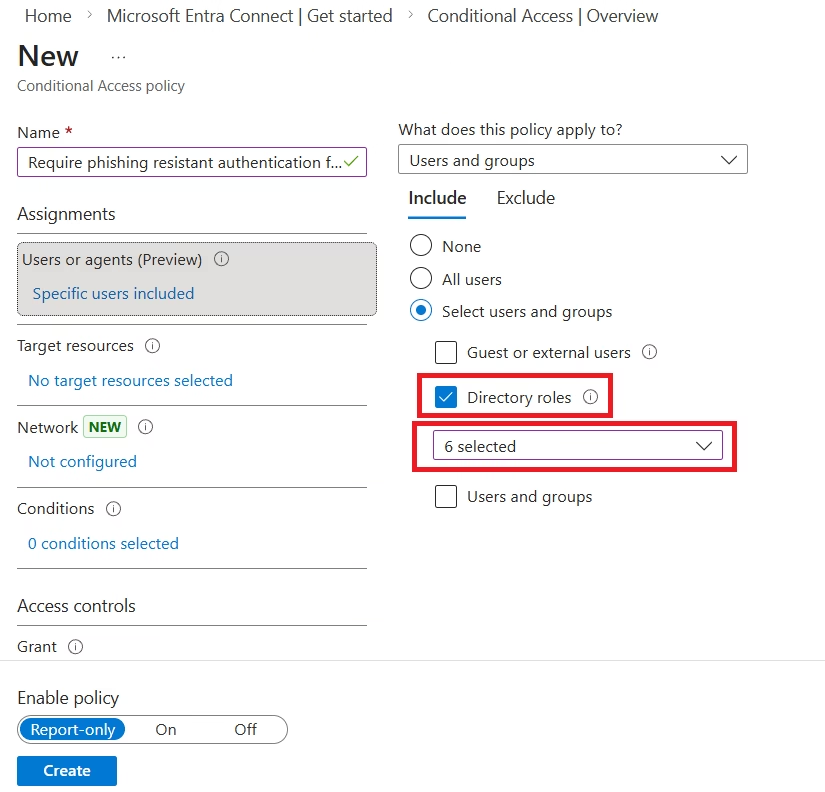
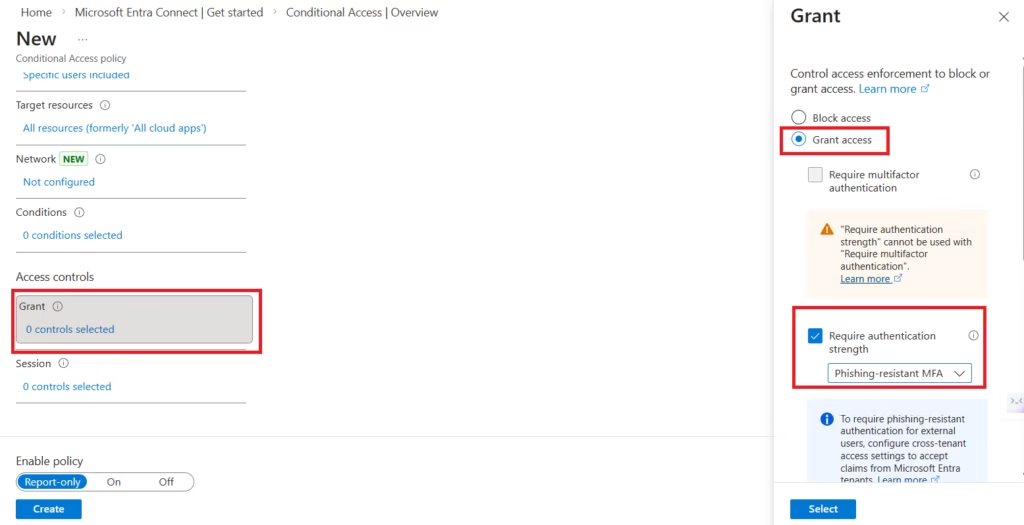
This Microsoft 365 security baseline setting ensures that all administrator accounts use phishing-resistant authentication methods, such as:
- Microsoft Authenticator (passwordless sign-in)
- FIDO2 security keys
- Certificate-based authentication
The goal of this control is to protect privileged accounts from advanced attacks like phishing, credential theft, and MFA fatigue attacks. Since admin accounts have elevated permissions, compromising even one account can lead to a complete tenant takeover. That’s why Microsoft strongly recommends enforcing strong authentication specifically for administrators.
In this lab, this setting has already been enabled and configured correctly. However, it still appears as “At risk” in the dashboard.
This is expected behavior.
The reason is that a break-glass (emergency access) account has been intentionally excluded from these policies. Break-glass accounts are designed for emergency situations where normal authentication methods (like MFA) may fail or be unavailable. These accounts typically have:
- No MFA enforcement
- Exclusion from Conditional Access policies
- Highly secure, monitored usage
Because this account does not meet the phishing-resistant authentication requirement, Microsoft flags the setting as “At risk”, even though the configuration is correct for operational needs.
In real-world environments, this is considered a best practice, not a misconfiguration.
Key Takeaway
Even if a setting shows “At risk”, it is important to understand the reason behind it. In this case, the risk status is due to a deliberate security design decision (break-glass account), ensuring business continuity during emergencies.
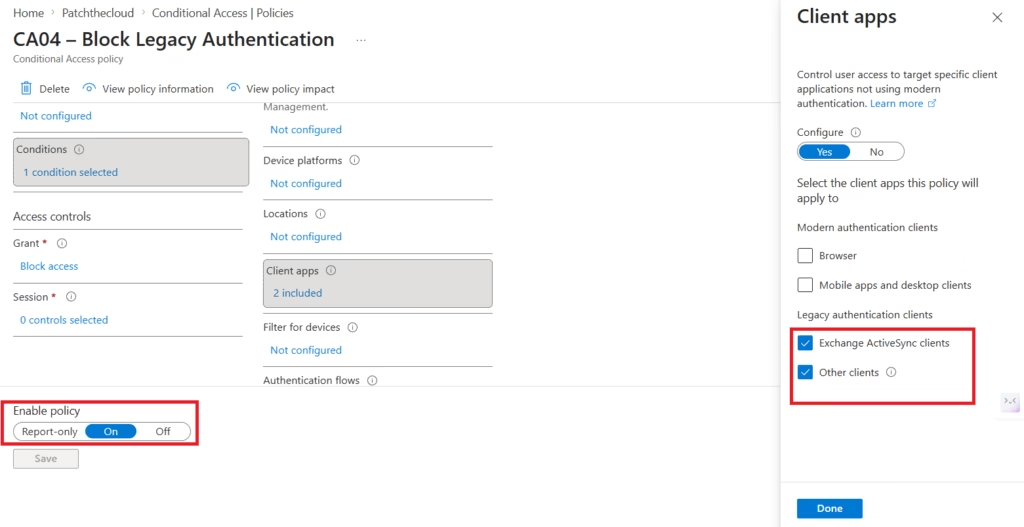
Block Legacy Authentication
This Microsoft 365 security baseline setting blocks legacy authentication protocols such as:
- IMAP
- POP
- SMTP AUTH
- Older Office clients using Basic Authentication
Legacy authentication does not support modern security controls like Multi-Factor Authentication (MFA), making it a common target for attacks such as password spray and brute-force attempts. Attackers often exploit these older protocols because they bypass Conditional Access and other advanced protections.
By enabling this setting, all authentication requests are forced to use modern authentication, which supports MFA, Conditional Access, and stronger security controls. This significantly reduces the risk of unauthorized access.
In this lab, this setting has been successfully enabled, and legacy authentication is blocked for the environment. However, it still appears as “At risk” in the dashboard.
This is expected behavior.
The reason is the presence of a break-glass (emergency access) account, which is intentionally excluded from Conditional Access policies. Since this account is not subject to the same restrictions, Microsoft continues to flag the setting as “At risk.”
This does not indicate a misconfiguration.
Instead, it reflects a deliberate exception for emergency access, which is a recommended best practice in real-world environments.
Key Takeaway
Blocking legacy authentication is one of the most important security controls in Microsoft 365. Even if the dashboard shows “At risk,” ensure that:
- Legacy authentication is blocked for all standard users
- Only break-glass accounts are excluded intentionally
Understanding these exceptions is crucial for both real-world implementation and MS-102 exam scenarios.
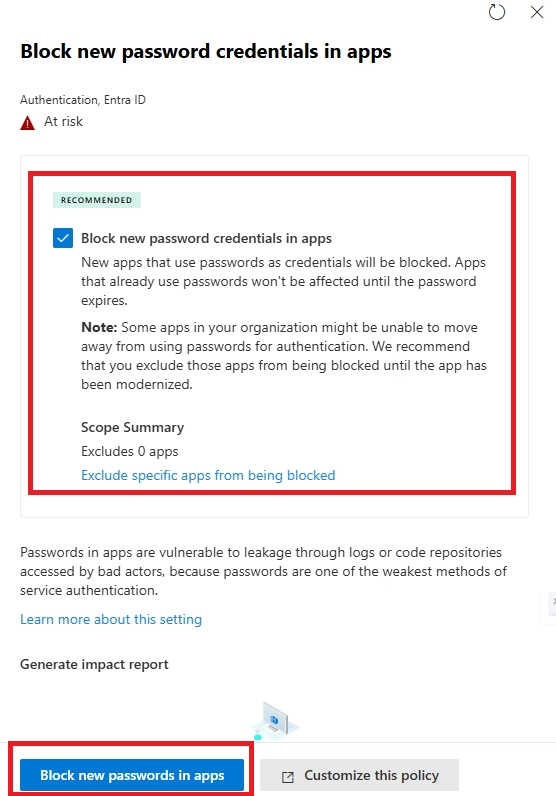
Block New Password Credentials in Apps
This Microsoft 365 security baseline setting prevents users and applications from creating new password-based credentials, such as app passwords or basic authentication secrets.
In older authentication models, users could generate app passwords to bypass Multi-Factor Authentication (MFA). While this was useful for legacy applications, it introduced a significant security risk because:
- App passwords do not support MFA
- They can be easily leaked or reused
- They bypass modern security controls
By enabling this setting, Microsoft Entra ID ensures that all applications and users must rely on modern authentication methods, such as:
- OAuth tokens
- Conditional Access policies
- MFA-enabled sign-ins
This eliminates weak authentication mechanisms and strengthens overall security.
In this lab, this setting shows “Meets standard”, which means:
- The configuration has been successfully applied
- No exceptions are weakening this control
- All users and apps are following modern authentication practices
Unlike the previous settings, this one is fully compliant because it does not conflict with break-glass account design.
Key Takeaway
Blocking new password credentials is a critical step toward achieving a modern, secure authentication environment. It ensures that all access methods align with current security standards and prevent users from bypassing MFA.
This is a low-effort, high-impact security control that should always be enabled.
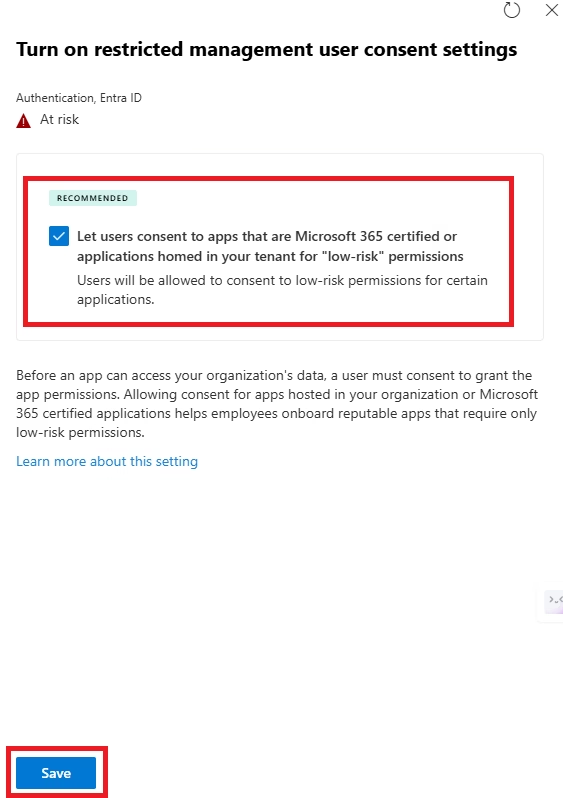
Turn On Restricted Management User Consent Settings
This Microsoft 365 security baseline setting controls how users can grant permissions to applications within the organization. By default, users may be able to consent to third-party or custom applications, which can introduce security risks if not properly managed.
When restricted user consent settings are enabled:
- Users cannot grant high-risk permissions to apps
- Only approved or low-risk permissions are allowed
- Admin approval is required for sensitive access
This helps prevent scenarios where:
- Malicious apps request access to emails, files, or data
- Users unknowingly grant excessive permissions
- Attackers gain access through consent phishing
Consent phishing is a growing attack vector where users are tricked into approving an app that then gains access to their data without needing their password.
By enabling this setting, organizations ensure that:
- Application access is controlled centrally
- Risky permissions are reviewed by administrators
- Users cannot accidentally expose sensitive data
In this lab, this setting shows “Meets standard”, which means:
- User consent is properly restricted
- Risky app permissions are controlled
- The environment is protected against consent-based attacks
This is a critical control for protecting data in Microsoft 365 environments.
Key Takeaway
Restricting user consent helps prevent unauthorized app access and data exposure. Always ensure that:
- Users cannot grant high-risk permissions freely
- Admin approval workflows are in place
This is especially important in environments where users frequently interact with third-party applications.
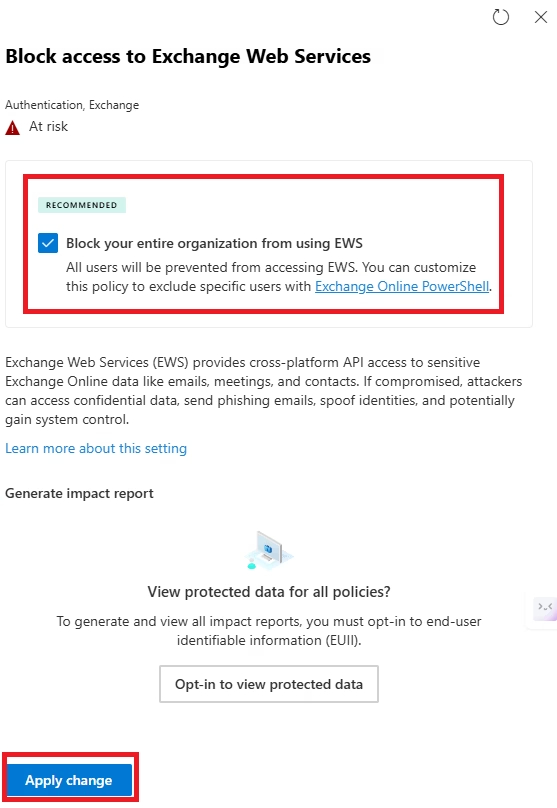
Block Access to Exchange Web Services (EWS)
This Microsoft 365 security baseline setting disables access to Exchange Web Services (EWS), which is a legacy API used by older applications to interact with Exchange Online.
EWS was widely used in the past for:
- Email synchronization
- Calendar access
- Third-party integrations
However, it has become a security concern because:
- It relies on older authentication methods
- It can be targeted by attackers for data access
- It increases the overall attack surface
By blocking access to EWS, organizations ensure that applications use modern and secure APIs such as Microsoft Graph instead.
This helps in:
- Reducing exposure to legacy protocols
- Preventing unauthorized data access
- Enforcing modern authentication standards
In this lab, this setting shows “Meets standard”, which means:
- EWS access has been successfully restricted
- Only secure and modern access methods are allowed
This is especially important in environments that no longer rely on legacy integrations.
Key Takeaway
Blocking Exchange Web Services helps eliminate outdated access methods and enforces modern, secure communication with Exchange Online.
Always verify that:
- No critical applications depend on EWS before disabling it
- Modern alternatives (like Microsoft Graph) are in use
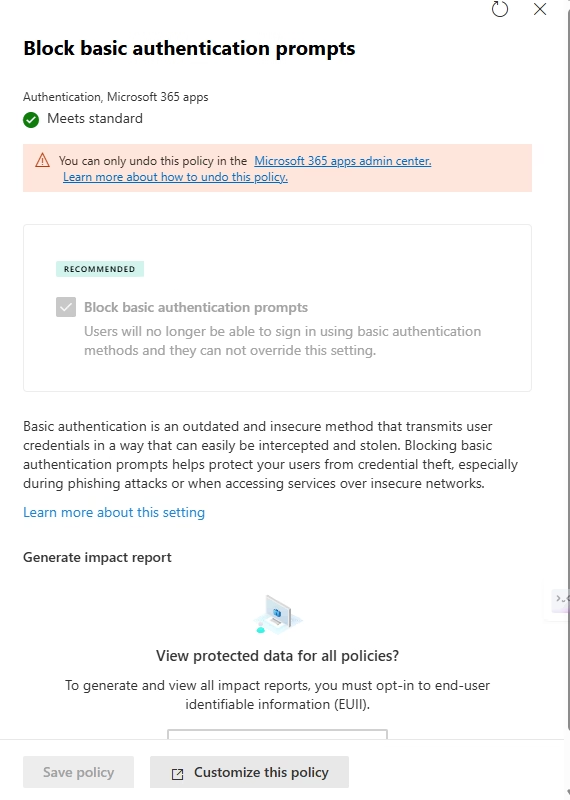
Block Basic Authentication Prompts
This Microsoft 365 security baseline setting blocks applications and services from using basic authentication prompts, which rely only on a username and password.
Basic authentication is considered insecure because:
- It does not support Multi-Factor Authentication (MFA)
- Credentials are often transmitted in a less secure manner
- It is highly vulnerable to brute-force and password spray attacks
Attackers commonly target basic authentication endpoints because they can bypass modern protections like Conditional Access and MFA enforcement.
By enabling this setting, all authentication attempts must use modern authentication, which supports:
- MFA
- Conditional Access policies
- Token-based authentication (OAuth)
This significantly strengthens identity security and reduces the risk of credential compromise.
In this lab, this setting shows “Meets standard”, which means:
- Basic authentication prompts are successfully blocked
- All users are forced to use secure login methods
This aligns with Microsoft’s recommendation to fully disable basic authentication across all services.
Key Takeaway
Blocking basic authentication is one of the most critical steps in securing Microsoft 365. It ensures that:
- Only modern, secure authentication methods are used
- Users cannot bypass MFA
- Attackers cannot exploit legacy login mechanisms
This is a must-have control in every secure environment.
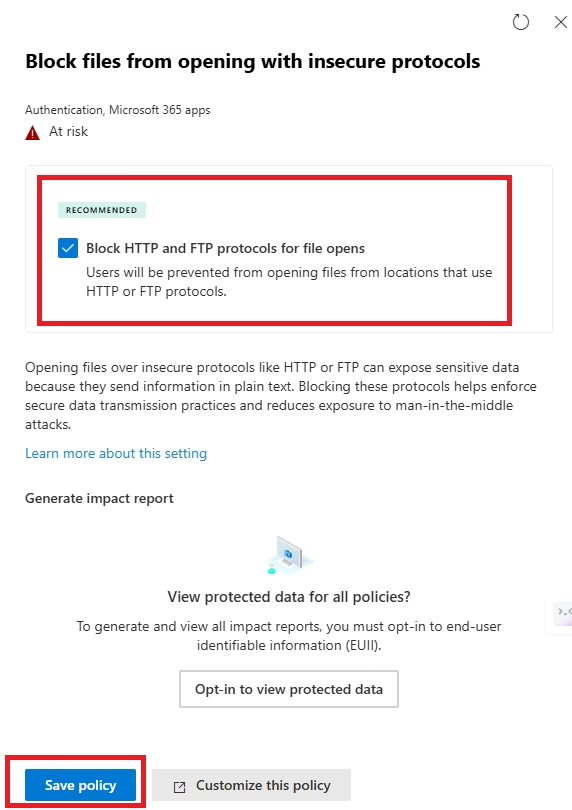
Block Files from Opening with Insecure Protocols
This Microsoft 365 security baseline setting prevents Microsoft 365 apps from opening files using insecure or outdated network protocols.
In older environments, files could be opened using legacy protocols that:
- Do not enforce modern security controls
- Can be intercepted or manipulated
- Are commonly exploited by attackers
These insecure protocols can allow attackers to deliver malicious files or execute unauthorized actions when a user opens a document.
By enabling this setting:
- Files are only opened through secure, trusted protocols
- Risky file access methods are blocked
- The attack surface is significantly reduced
This is especially important for protecting users from file-based attacks such as:
- Malware embedded in documents
- Remote file exploitation
- Unauthorized file access
In this lab, this setting shows “Meets standard”, which means:
- All insecure file-opening methods are blocked
- Only secure protocols are allowed
Key Takeaway
Blocking insecure protocols ensures that files are accessed safely and prevents attackers from exploiting outdated communication methods.
This is a silent but powerful control that protects users without affecting normal workflows.
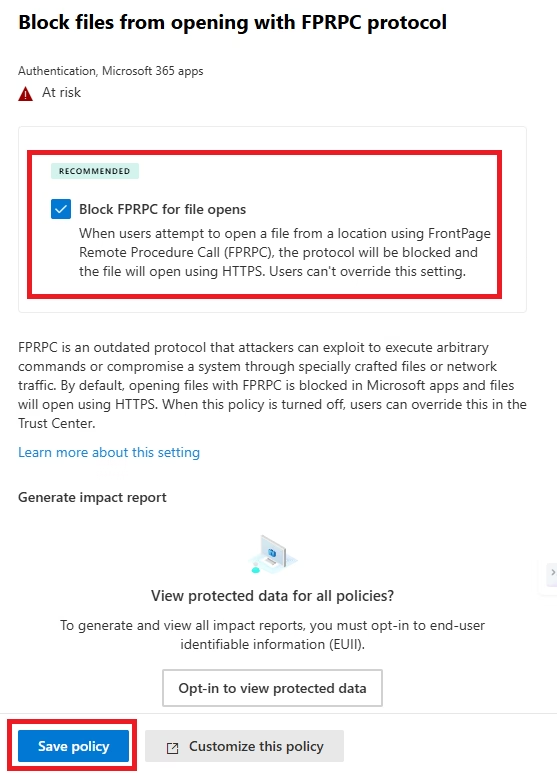
Block Files from Opening with FPRPC Protocol
This Microsoft 365 security baseline setting blocks files from being opened using the FPRPC (FrontPage Remote Procedure Call) protocol, which is a legacy protocol originally used with older versions of Microsoft FrontPage and SharePoint.
FPRPC is considered insecure because:
- It is outdated and no longer widely used
- It does not support modern authentication and security controls
- It can be exploited as an entry point for attacks
Attackers may attempt to use such legacy protocols to bypass newer security protections or gain unauthorized access to files.
By enabling this setting:
- All file access through FPRPC is blocked
- Users are forced to use modern, secure protocols
- Legacy vulnerabilities are eliminated
This helps reduce the risk of:
- Unauthorized file access
- Exploitation of outdated services
- Bypassing modern security mechanisms
In this lab, this setting shows “Meets standard”, which means:
- The legacy FPRPC protocol has been successfully disabled
- Only secure methods are allowed for file access
Key Takeaway
Even though FPRPC is rarely used today, disabling it is important to ensure that no legacy protocol can be exploited.
This is part of a broader strategy:
“Disable everything that is not needed.”
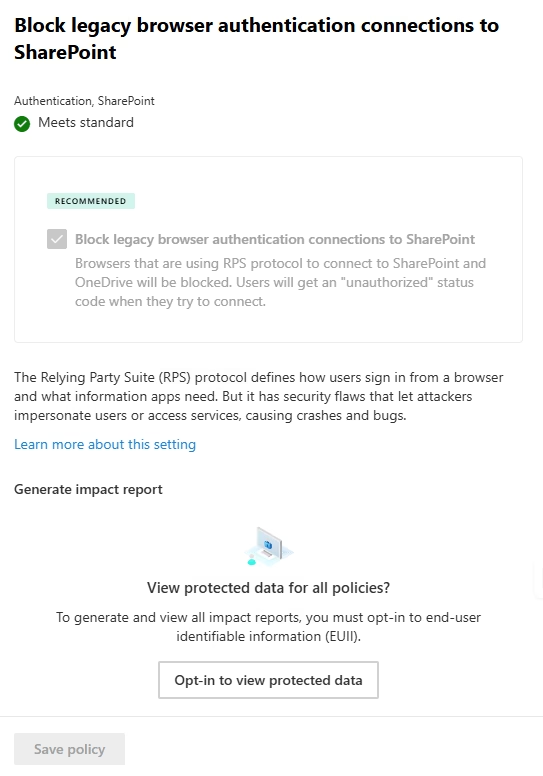
Block Legacy Browser Authentication Connections to SharePoint
This Microsoft 365 security baseline setting blocks SharePoint access from browsers or clients that use legacy authentication methods instead of modern authentication.
Legacy browser authentication is insecure because:
- It does not support Multi-Factor Authentication (MFA)
- It bypasses Conditional Access policies
- It is vulnerable to credential theft and replay attacks
Older browsers or outdated clients may attempt to connect using these legacy methods, which creates a security gap.
By enabling this setting:
- All SharePoint access must use modern authentication (OAuth-based)
- Users are protected with MFA and Conditional Access
- Legacy login attempts are blocked completely
This ensures that every connection to SharePoint is:
- Secure
- Policy-controlled
- Compliant with modern standards
In this lab, this setting shows “Meets standard”, which means:
- Legacy browser authentication has been successfully blocked
- Only secure login methods are allowed
Key Takeaway
Blocking legacy browser authentication is essential to ensure that all SharePoint access is protected by modern security controls.
This prevents attackers from exploiting outdated login methods to gain access to files and data.
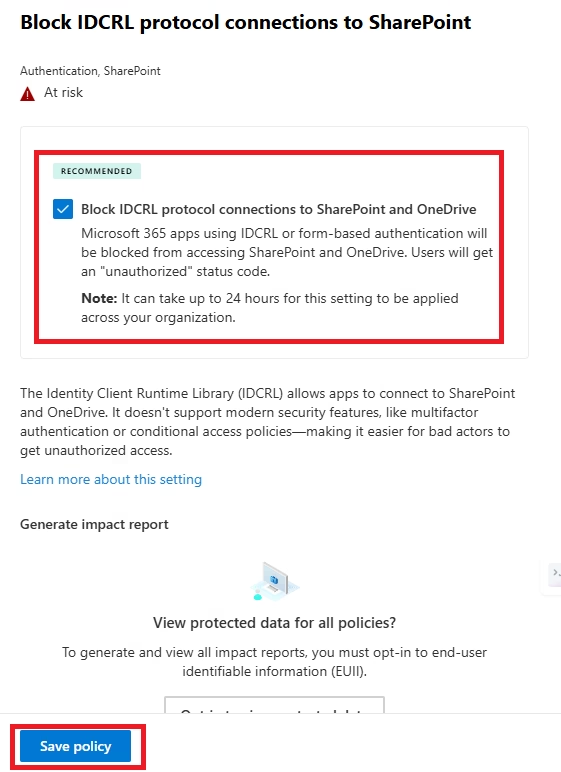
Block IDCRL Protocol Connections to SharePoint
This Microsoft 365 security baseline setting blocks authentication attempts using the IDCRL (Identity Client Runtime Library) protocol, which is an older Microsoft authentication mechanism used in legacy systems.
IDCRL is considered insecure because:
- It is outdated and no longer aligned with modern authentication standards
- It does not support advanced security features like MFA
- It can be used to bypass Conditional Access policies
Attackers may attempt to exploit such legacy protocols to gain unauthorized access, especially in environments where modern authentication is not strictly enforced.
By enabling this setting:
- All authentication requests using IDCRL are blocked
- SharePoint access is restricted to modern authentication methods
- Security controls like MFA and Conditional Access are enforced
This helps ensure that:
- Only secure and supported authentication mechanisms are used
- Legacy vulnerabilities are eliminated
- Access to SharePoint is fully protected
In this lab, this setting shows “Meets standard”, which means:
- IDCRL-based connections have been successfully disabled
- The environment is aligned with modern security practices
Key Takeaway
Blocking IDCRL is part of eliminating hidden legacy authentication paths that attackers could exploit.
Even if rarely used, disabling it ensures a clean and secure authentication surface.
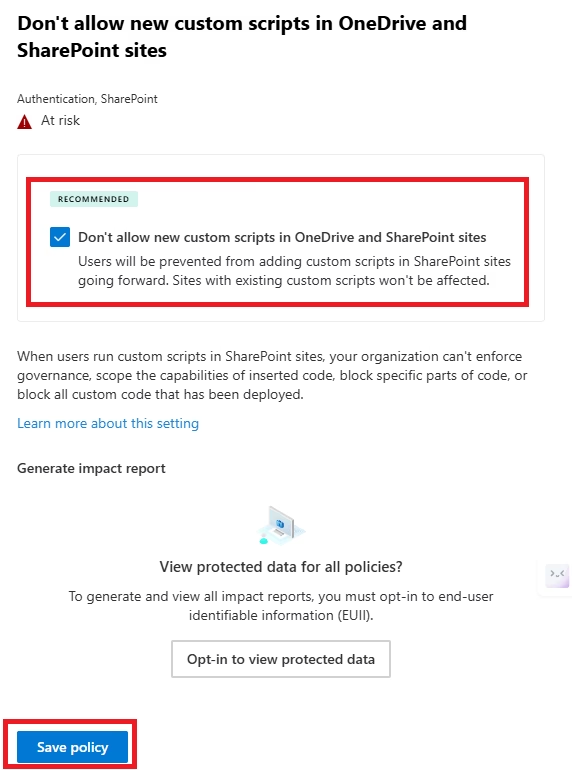
Don’t Allow New Custom Scripts in OneDrive and SharePoint Sites
This Microsoft 365 security baseline setting prevents users from adding or executing custom scripts in SharePoint and OneDrive sites.
Custom scripts (like JavaScript) can be used to:
- Modify page behavior
- Automate actions
- Integrate custom functionality
However, they also introduce serious security risks because:
- Malicious scripts can be injected into pages
- Attackers can execute unauthorized actions
- Data can be accessed or exfiltrated silently
If users are allowed to run custom scripts freely, it increases the chances of:
- Cross-site scripting (XSS) attacks
- Unauthorized data access
- Persistent malicious code within sites
By enabling this setting:
- New custom scripts are blocked
- Users cannot inject or execute unsafe code
- SharePoint and OneDrive environments remain secure
This ensures that collaboration platforms are protected from script-based attacks.
In this lab, this setting shows “Meets standard”, which means:
- Custom scripting has been successfully restricted
- The environment is protected from script injection risks
Key Takeaway
Disabling custom scripts is a key step in securing SharePoint and OneDrive.
It ensures that users cannot introduce uncontrolled or malicious code into the environment.
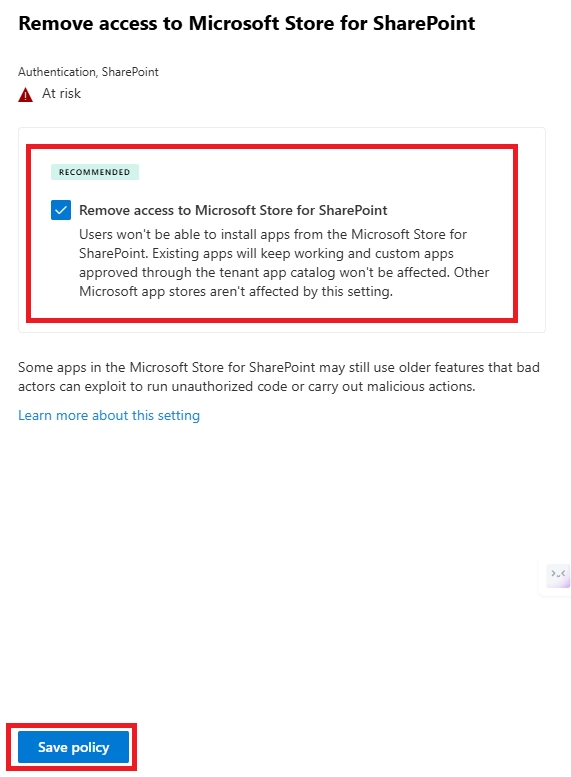
Remove Access to Microsoft Store for SharePoint
This Microsoft 365 security baseline setting blocks users from accessing and installing applications from the Microsoft Store within SharePoint.
The SharePoint Store allows users to add apps and extensions that can integrate with sites and data. While useful, it introduces potential risks because:
- Users may install unverified or third-party apps
- Apps can request access to sensitive data (files, sites, permissions)
- Malicious or poorly designed apps can compromise security
Without restrictions, this can lead to:
- Unauthorized data access
- Data leakage through external apps
- Increased attack surface
By enabling this setting:
- Users cannot browse or install apps from the SharePoint Store
- Only approved applications can be used
- Administrators maintain full control over app integrations
This ensures that all applications interacting with SharePoint are:
- Trusted
- Reviewed
- Secure
In this lab, this setting shows “Meets standard”, which means:
- Access to the SharePoint Store has been successfully restricted
- The environment is protected from unapproved app installations
Key Takeaway
Restricting Microsoft Store access helps prevent uncontrolled application usage and potential data exposure.
Always ensure that app installations are centrally managed and approved by admins.
Securing Files: Microsoft 365 Security Baseline
File-based attacks are one of the most common entry points for malware and data breaches. Microsoft 365 Security baseline provides several controls to protect users from opening unsafe files and executing malicious content.
Key Settings:
- Block files from opening with insecure protocols
- Block files from opening with the FPRPC protocol
- Open ancient legacy formats in Protected View and disallow editing
- Open old legacy formats in Protected View and save as a modern format
- Block ActiveX controls in Microsoft 365 apps
- Block OLE Graph and OrgChart objects
- Block Dynamic Data Exchange (DDE) server launch in Excel
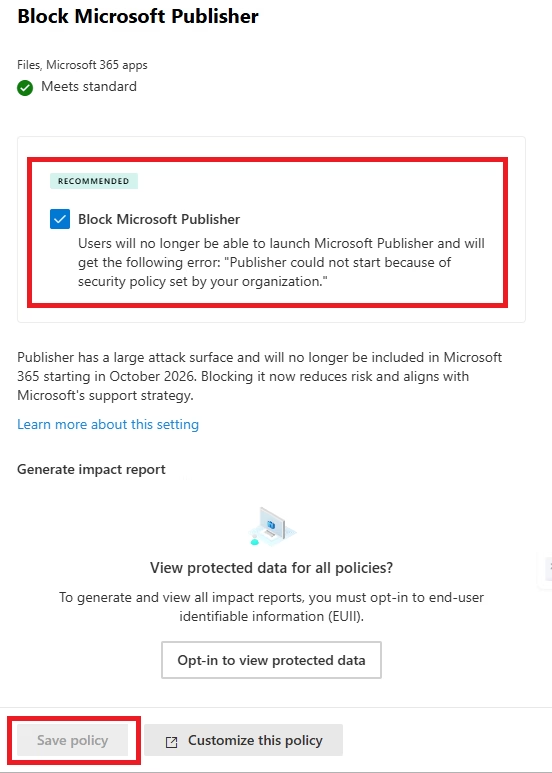
- Block Microsoft Publisher
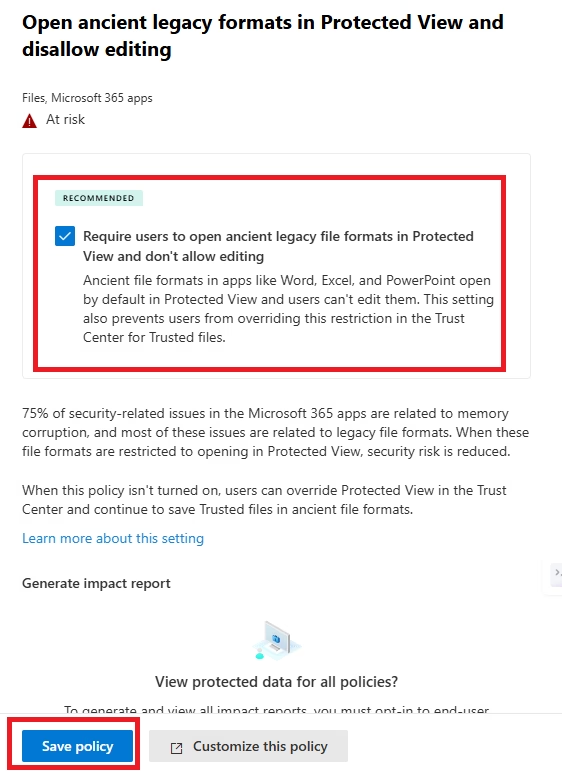
Open Ancient Legacy Formats in Protected View and Disallow Editing
This Microsoft 365 security baseline setting ensures that very old (ancient) file formats are opened in Protected View, and users are not allowed to edit them.
Older file formats (such as very old Word, Excel, or PowerPoint files) were created before modern security standards existed. Because of this, they:
- May contain embedded malicious code
- Do not support modern security protections
- Are commonly used in phishing and malware attacks
Attackers often use these formats to trick users into opening infected files.
By enabling this setting:
- Files open in read-only Protected View
- Editing is completely blocked
- Any embedded malicious content cannot execute
This provides strong protection against:
- Macro-based attacks
- Embedded malware
- Hidden payloads in legacy files
In this lab, this setting shows “Meets standard”, which means:
- All ancient file formats are safely restricted
- Users cannot accidentally execute harmful content
Key Takeaway
Ancient file formats are high-risk by default.
Blocking editing ensures users can view safely without exposing the system to threats.
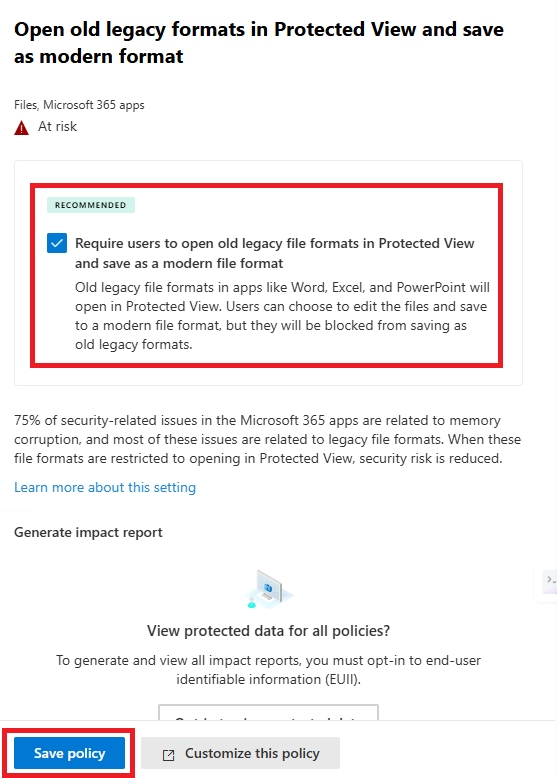
Open Old Legacy Formats in Protected View and Save as Modern Format
This Microsoft 365 security baseline setting ensures that older file formats are opened in Protected View first, and users are encouraged (or required) to save them in modern formats like .docx, .xlsx, or .pptx.
Unlike “ancient” formats (which are completely blocked from editing), these “old legacy formats” may still be used in some environments. However, they still pose risks because:
- They may contain outdated structures or vulnerabilities
- Security features like advanced protection and validation are limited
- They are more susceptible to embedded malicious content
By enabling this setting:
- Files open safely in Protected View (read-only mode)
- Users cannot directly interact with potentially unsafe content
- Users must convert the file to a modern format before editing
This approach provides a balance between:
- Security
- Usability
- Compatibility with older documents
It ensures that once a file is converted to a modern format:
- It benefits from improved security features
- It aligns with current Microsoft 365 standards
- Future risks are minimized
In this lab, this setting shows “Meets standard”, which means:
- Legacy files are handled securely
- Users are guided toward safer file formats
Key Takeaway
Instead of completely blocking older formats, this setting allows safe access while enforcing modernization of documents.
This is a practical control that improves both security and long-term compatibility.
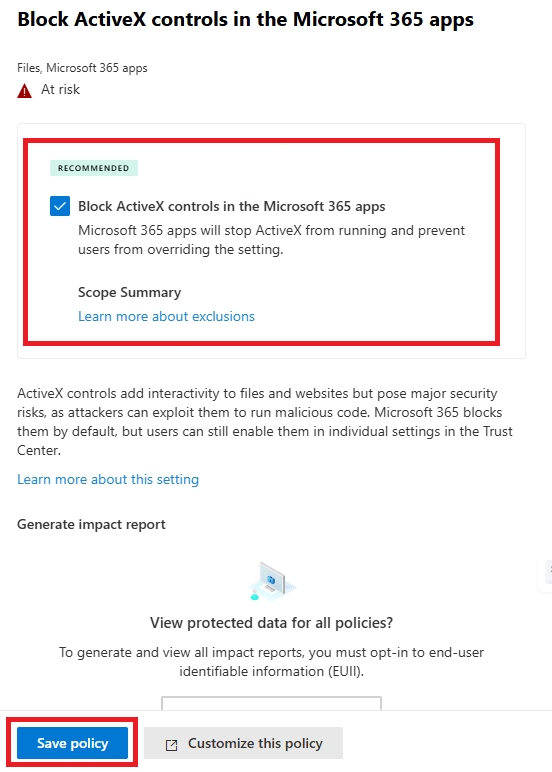
Block ActiveX Controls in Microsoft 365 Apps
This Microsoft 365 security baseline setting disables ActiveX controls within Microsoft 365 applications like Word, Excel, and PowerPoint.
ActiveX is a legacy technology that was used to add interactive features inside documents. However, over time, it has become a major security risk because:
- It can execute code directly on the system
- It has been widely exploited by malware
- It does not follow modern security standards
Attackers often embed malicious ActiveX controls inside Office documents. When a user opens the file, the control can:
- Run unauthorized scripts
- Install malware
- Gain access to system resources
By enabling this setting:
- All ActiveX controls are blocked from running
- Documents cannot execute embedded code
- Users are protected from hidden threats
This significantly reduces the risk of:
- Malware infections
- Remote code execution
- Document-based attacks
In this lab, this setting shows “Meets standard”, which means:
- ActiveX has been successfully disabled
- Office apps are protected from this legacy threat
Key Takeaway
ActiveX is outdated and dangerous in modern environments.
Blocking it is a critical security control to prevent malicious code execution through Office documents.
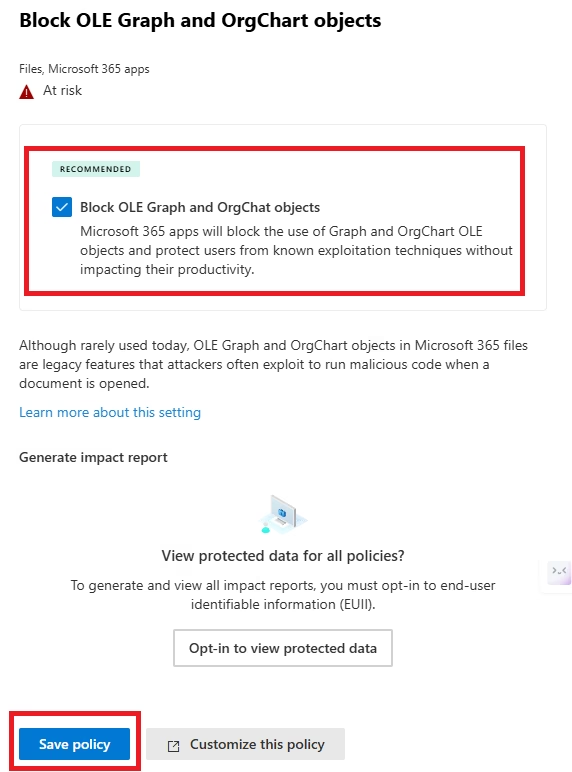
Block OLE Graph and OrgChart Objects
This Microsoft 365 security baseline setting blocks OLE (Object Linking and Embedding) Graph and OrgChart objects within Microsoft 365 applications.
OLE is a legacy feature that allows embedding objects (like charts, diagrams, or external content) inside Office documents. While it was useful for linking data between applications, it introduces security risks because:
- Embedded objects can contain hidden malicious content
- They can link to external sources and execute actions silently
- They may bypass modern security protections
Attackers can exploit OLE objects by embedding malicious payloads inside documents. When a user opens the file, these objects can:
- Execute unauthorized code
- Connect to external malicious servers
- Exfiltrate sensitive data
By enabling this setting:
- OLE Graph and OrgChart objects are blocked
- Embedded risky content cannot execute
- Documents are restricted to safer, modern formats
This helps prevent:
- Hidden malware execution
- Data leakage through embedded objects
- Exploitation of legacy Office features
In this lab, this setting shows “Meets standard”, which means:
- Risky OLE objects have been successfully disabled
- Office documents are safer to open and use
Key Takeaway
OLE is another legacy feature that can be abused by attackers.
Blocking it ensures that documents cannot contain hidden executable content or unsafe external links.
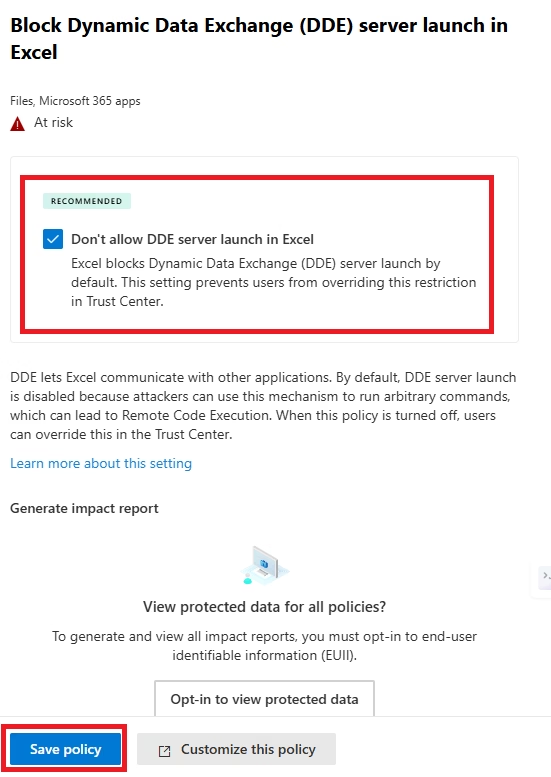
Block Dynamic Data Exchange (DDE) Server Launch in Excel
This Microsoft 365 security baseline setting blocks the use of Dynamic Data Exchange (DDE) in Microsoft Excel, a legacy feature that allows Excel to communicate with other applications and execute commands.
DDE was originally designed for data sharing between applications, but over time, it became a serious security risk because it can be abused to execute commands on a user’s system.
Attackers often use DDE in malicious Excel files by embedding payloads that:
- Execute PowerShell commands
- Launch external applications
- Download malware from remote servers
Unlike macros, DDE attacks can sometimes execute without strong warnings, making them more dangerous and harder for users to detect.
By enabling this setting:
- DDE server launch is completely blocked
- Excel cannot execute external commands through DDE
- Users are protected from hidden command execution
This helps prevent:
- Malware execution via Excel files
- Command injection attacks
- Unauthorized system-level actions
In this lab, this setting shows “Meets standard”, which means:
- DDE has been successfully disabled
- Excel is protected from this legacy attack vector
Key Takeaway
DDE is a well-known attack method used in phishing campaigns.
Blocking it is a critical security control to prevent Excel-based command execution and malware delivery.
Block Microsoft Publisher
This Microsoft 365 security baseline setting blocks the use of Microsoft Publisher files (.pub) within Microsoft 365 applications.
Microsoft Publisher is a legacy application that is not commonly used in modern enterprise environments. Because of its limited usage and outdated structure, it introduces potential security risks:
- It may not support modern security protections
- It can be used to deliver malicious content
- Users are often unfamiliar with the format, increasing phishing risk
Attackers may use Publisher files to:
- Embed malicious objects or links
- Trick users into opening unfamiliar file types
- Bypass standard security awareness
By enabling this setting:
- Publisher files are blocked from opening
- Users cannot interact with potentially unsafe content
- The attack surface is reduced
This helps ensure that only widely supported and secure file formats (like Word, Excel, and PowerPoint) are used within the organization.
In this lab, this setting shows “Meets standard”, which means:
- Publisher files are successfully blocked
- The environment is protected from this lesser-used attack vector
Key Takeaway
Blocking rarely used and legacy file types is a simple way to reduce unnecessary risk.
If a feature is not required, it’s best to disable it—this follows the principle of least functionality.
Room Devices and Endpoint: Microsoft 365 security baseline
Block Unmanaged Devices and Resource Account Sign-ins to Microsoft 365 Apps (Teams)
This Microsoft 365 security baseline setting is designed to prevent unmanaged devices and resource accounts (like Teams Rooms devices) from accessing Microsoft 365 services.
What It Does
When enabled:
- Blocks sign-ins from unmanaged or non-compliant devices
- Restricts access for resource accounts (used in Teams Rooms)
- Ensures only secure, compliant devices can access Microsoft 365 apps
This helps enforce:
- Device compliance
- Zero Trust security model
- Controlled access to organizational data
Why It Matters
In environments using Microsoft Teams Rooms:
- Devices like meeting room systems are shared
- They may not always meet security standards
- They can become entry points for attackers
This setting ensures that:
Only trusted and managed devices can access resources
Why It Shows “Not Applicable” in Your Lab
In your environment:
- You do NOT have Microsoft Teams Rooms devices
- You do NOT have resource accounts for Teams Rooms
So this setting has nothing to apply to
That’s why it shows: Not Applicable (N/A)
Don’t Allow Resource Accounts on Teams Rooms Devices from Accessing Microsoft 365 Files
This Microsoft 365 security baseline setting controls whether Teams Rooms resource accounts can access files stored in Microsoft 365 (like SharePoint, OneDrive).
What It Does
When enabled:
- Prevents Teams Rooms devices from:
- Accessing SharePoint files
- Accessing OneDrive content
- Restricts file-level access from shared devices
Why It Matters
Teams Rooms devices are:
- Shared across multiple users
- Located in physical meeting rooms
- Not always tightly controlled
If not restricted, they could:
- Access sensitive documents
- Expose data unintentionally
- Be misused by unauthorized users
This setting ensures data protection on shared devices
Why It Shows “Not Applicable” in Your Lab
In my lab tenant:
- No Teams Rooms license
- No Teams Rooms resource accounts
So this control cannot be enforced
Hence, it shows: Not Applicable (N/A)
Note: “Some security recommendations may appear as ‘Not Applicable’ when the corresponding workload (like Teams Rooms) is not in use. This does not indicate a misconfiguration but rather that the setting is not relevant to the current environment.”
Simple Summary
| Setting | Why N/A |
| Block unmanaged devices (Teams) | No Teams Rooms devices |
| Restrict Teams Rooms accounts | No Teams Rooms license |
Results: Microsoft 365 Security Baseline Lab Posture
After implementing all possible settings:
| Setting | Status | Explanation |
| Require phishing-resistant authentication for admins | At Risk | Removes unused risky file types |
| Block legacy authentication | At Risk | Enabled, but break-glass account bypass causes “At risk” status |
| Block new password credentials in apps | Meets Standard | Prevents weak app passwords and enforces modern authentication |
| Turn on restricted user consent | Meets Standard | Stops users from granting risky app permissions |
| Block Exchange Web Services | Meets Standard | Removes legacy API access to Exchange |
| Block basic authentication prompts | Meets Standard | Forces modern authentication (MFA supported) |
| Block files from insecure protocols | Meets Standard | Prevents unsafe file access methods |
| Block FPRPC protocol | Meets Standard | Disables legacy SharePoint protocol |
| Block legacy browser auth to SharePoint | Meets Standard | Forces secure login methods |
| Block IDCRL protocol | Meets Standard | Removes outdated authentication method |
| Disable custom scripts | Meets Standard | Prevents script-based attacks in SharePoint |
| Remove Microsoft Store access | Meets Standard | Blocks unapproved apps |
| Open ancient formats in Protected View | Meets Standard | Prevents editing unsafe files |
| Convert legacy formats to modern | Meets Standard | Improves security & compatibility |
| Block ActiveX | Meets Standard | Prevents malware execution |
| Block OLE objects | Meets Standard | Stops embedded malicious content |
| Block DDE in Excel | Meets Standard | Prevents command execution attacks |
| Block Microsoft Publisher | Meets Standard | Removes unused risky file type |
| Block unmanaged devices (Teams) | N/A | Not applicable (no Teams Rooms) |
| Restrict Teams Rooms accounts | N/A | Enabled, but the break-glass account is excluded from MFA, so it shows at risk (expected behavior) |
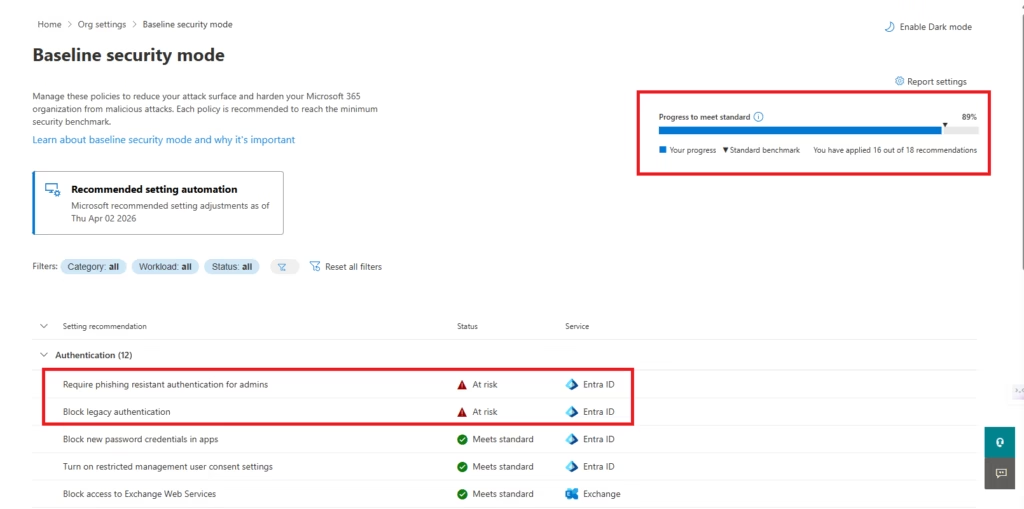
- 16 out of 18 recommendations applied
- Security posture increased to ~89%
- Most controls show “Meets standard.”
Key Learnings from This Lab
- Security recommendations are quick wins
- Authentication controls are most critical
- Legacy protocols are a major risk
- File-based attacks are often overlooked
- Security is continuous, not one-time
Best Practices for Microsoft 365 Security Baseline
- Prioritize Identity First
- Address authentication and Conditional Access risks before endpoint or device settings, since identity compromise is the most common attack vector.
- Validate Before Enforcing
- Test baseline recommendations in report-only or pilot mode before applying them tenant-wide, to avoid disrupting legitimate workflows.
- Document Accepted Risk
- When a recommendation is intentionally not applied, record the justification so it isn’t repeatedly flagged as a gap.
- Re-run the Baseline Regularly
- Microsoft updates baseline recommendations over time, so periodic reviews catch new risks and configuration drift.
- Combine with Monitoring
- Pair baseline hardening with ongoing sign-in and audit log monitoring rather than treating it as a one-time fix.
Troubleshooting Microsoft 365 Security Baseline
| Symptom | Likely Cause | Fix |
|---|---|---|
| Recommendation still shows “At risk” after applying the fix | Baseline score can take time to refresh | Allow up to 24-48 hours for the dashboard to re-evaluate the tenant configuration |
| Legacy authentication block breaks a working integration | A service account or app still relies on Basic Authentication or legacy protocols | Identify the affected account via sign-in logs, migrate it to Modern Authentication, then re-enable the block |
| MFA registration policy locks out a user | User has no alternate verification method registered before enforcement | Use a temporary access pass or admin-assisted registration to onboard the user, then confirm enforcement |
| Baseline recommendation conflicts with a documented business need | Setting is correct for the environment but flagged as “at risk” generically | Mark the recommendation as an accepted risk with justification instead of forcing a change that breaks operations |
| Room device or shared mailbox fails sign-in after hardening | Conditional Access or MFA policy applied to an account that can’t complete interactive MFA | Exclude break-glass, service, and shared/room resource accounts from interactive MFA policies, and secure them with alternative controls instead |
MS-102 Exam Relevance
This lab covers:
- Security baselines
- Authentication hardening
- Legacy authentication blocking
- Application & data protection
These are core MS-102 topics
FAQ
Q: What is the Microsoft 365 Security Baseline?
A: It’s a set of recommended security configurations, often shown as a checklist of “at risk” and “resolved” items, that helps administrators identify and close common security gaps across identity, devices, and data in a Microsoft 365 tenant.
Q: Does fixing every “At risk” item guarantee a fully secure tenant?
A: No. The baseline highlights common risks, but security also depends on ongoing monitoring, user behavior, and organization-specific policies that a generic baseline can’t fully capture.
Q: Is it safe to apply all baseline recommendations at once in a production tenant?
A: Not always. Some recommendations, like blocking legacy authentication, can break existing integrations. It’s safer to test in a pilot group or report-only mode first.
Q: How does the Security Baseline Lab relate to the MS-102 exam?
A: MS-102 tests your ability to evaluate and remediate security configurations across identity, devices, and data, which is exactly what a baseline review exercises in a hands-on way.
Conclusion
Completing this Microsoft 365 security baseline lab proves how a Microsoft 365 tenant can be transformed from a weak security posture to a strong baseline by implementing recommended configurations.
Even after enabling all settings:
- “At risk” may remain due to intentional exclusions (break-glass accounts)
- “Not applicable” appears when features are not in use (e.g., Teams Rooms)
Final Takeaway
100% compliance is not always required in applying Microsoft 365 Security Baseline; understanding WHY matters more
- Fix what you can
- Understand exceptions
- Document decisions
Next Step
Continue your learning with:
Microsoft 365 Domain Management
Previous Topic
If you haven’t explored it yet:
Ultimate Guide to 60 Microsoft 365 Organizational Settings
https://techcertguide.blog/microsoft-365-organizational-settings/
Start from the Beginning
MS-102 Microsoft 365 Administrator Overview
https://techcertguide.blog/ms-102-microsoft-365-administration/
Official Microsoft Reference
https://learn.microsoft.com/en-us/certifications/exams/ms-102
2 thoughts on “Ultimate Microsoft 365 Security Baseline Lab (MS-102): Fix 20 At-Risk Recommendations”