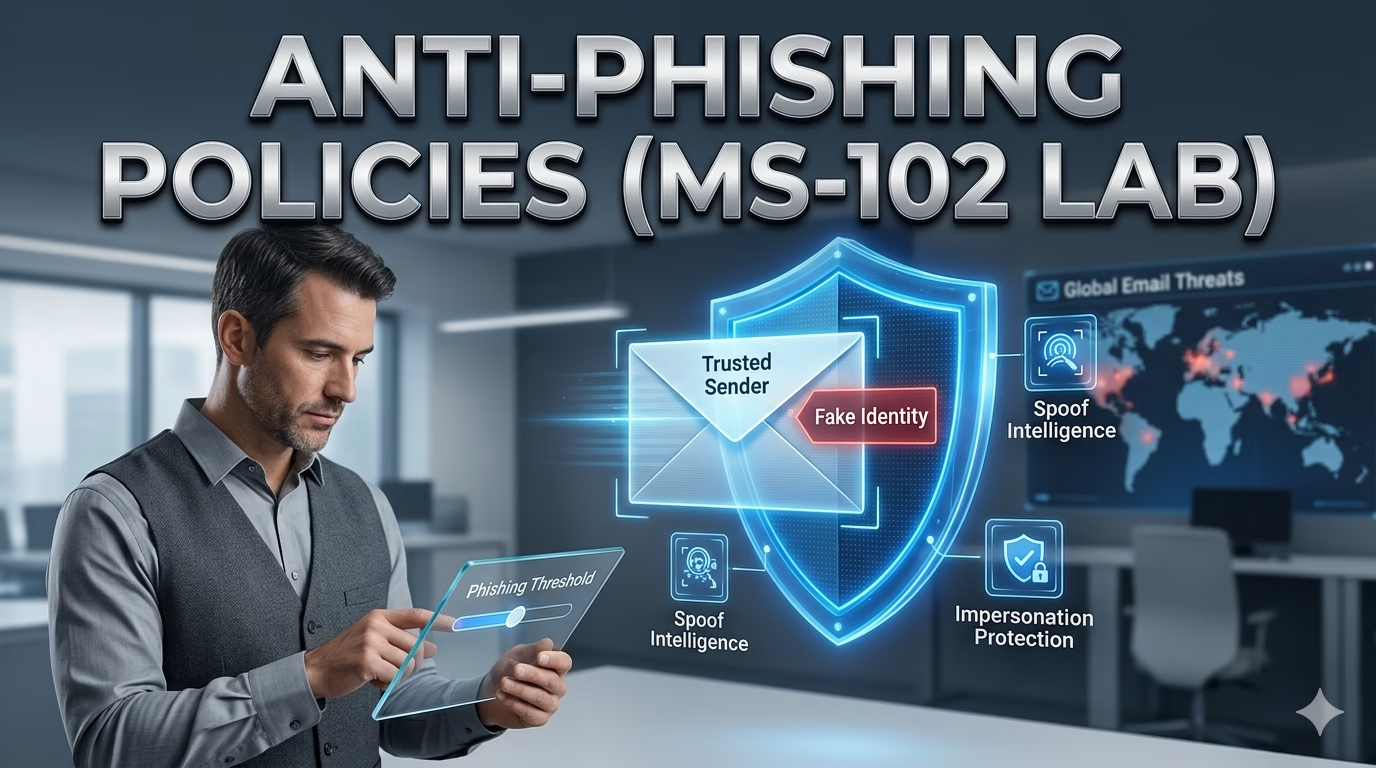
Anti-Phishing Policies in Microsoft Defender represent the front line of defense in a modern Zero Trust architecture. While traditional email filters focus on bulk “spam,” the modern threat landscape has shifted toward highly targeted identity deception, such as credential harvesting and executive impersonation.
In our previous post, we used Threat Analytics to identify active attack campaigns. Now, we move from awareness to action. Understanding how to configure Anti-Phishing Policies in Microsoft Defender is a core requirement for the MS-102 exam and a critical operational skill for any Microsoft 365 Administrator.
In this guide, we will break down the architecture of phishing protection and complete a hands-on lab to harden your tenant against spoofing and impersonation attacks.
Learning Objectives
After completing this guide, you will be able to:
- Explain how anti-phishing policies defend against identity deception.
- Differentiate anti-phishing from anti-spam protection.
- Describe how anti-phishing works within Defender for Office 365.
- Configure and review anti-phishing policy settings.
Why Anti‑Phishing Comes Next
Threat Analytics answers:
What attackers are actively doing.
Anti‑phishing policies answer:
How do I stop those attacks from reaching users?
Microsoft 365 phishing attacks commonly target:
- Credentials
- OAuth consent
- MFA fatigue
- Executive impersonation
- Vendor trust
Microsoft Defender for Office 365 provides purpose‑built anti‑phishing controls that go far beyond basic spam filtering.
What is an Anti‑Phishing Policy?
Anti‑phishing policies protect users from identity‑based email attacks, including:
- Domain spoofing
- User impersonation
- Brand impersonation
- Credential harvesting
- Account takeover attempts
When implementing Anti-Phishing Policies in Microsoft Defender, administrators move beyond basic content filtering to focus on sender intent and identity verification.
Unlike spam filters, anti‑phishing policies focus on who the email pretends to be, not just content or reputation.
When we look at Anti-Phishing Policies in Microsoft Defender, we aren’t just looking for bad words in an email. We are looking for identity deception. These policies are designed to protect against sophisticated social engineering that traditional spam filters often miss.
Anti‑Phishing vs Anti‑Spam (Critical Distinction)
| Anti‑Spam | Anti‑Phishing |
|---|---|
| Filters bulk mail | Detects targeted deception |
| Reputation‑based | Identity & intent‑based |
| Volume attacks | Personalized attacks |
| Commodity threats | High‑impact threats |
MS‑102 frequently tests this distinction.
Understanding the role of Anti-Phishing Policies in Microsoft Defender versus basic Anti-Spam is a major exam objective. While Anti-Spam handles the volume, Anti-Phishing handles the intent.
How Anti‑Phishing Works in Defender for Office 365
Anti‑phishing policies evaluate:
- Sender identity
- Header anomalies
- Domain relationships
- User behavior patterns
- Historical trust signals
Microsoft combines machine learning with tenant context to detect high‑confidence phishing, even when links and attachments appear clean.
The intelligence behind Anti-Phishing Policies in Microsoft Defender uses machine learning to compare incoming signals against millions of known attack patterns.
Where Anti‑Phishing Policies Are Managed
Path:
Microsoft Defender portal
→ Email & collaboration
→ Policies & rules
→ Threat policies
→ Anti‑phishing
This location matters for MS‑102 scenario questions.
Key Anti‑Phishing Features
🔹 User Impersonation Protection
Detects emails pretending to be:
- Executives
- High‑value employees
🔹 Domain Impersonation Protection
Detects look‑alike domains attempting brand abuse.
🔹 Spoof Intelligence
Identifies and blocks false sender domains.
🔹 Phishing Thresholds
Controls detection sensitivity.
MS‑102 Exam Insight
MS‑102 emphasizes:
- When to use anti‑phishing vs spam
- How impersonation protection works
- Policy scope and precedence
- Admin action when phishing is detected
Hands‑On Lab: Configure Anti‑Phishing Protection
This lab will walk you through the manual configuration of Anti-Phishing Policies in Microsoft Defender to protect high-value users from impersonation.
Lab Objective
Review and configure an anti‑phishing policy to protect users against impersonation and spoofing attacks.
Lab Prerequisites
- Microsoft Defender for Office 365 (Plan 1 or Plan 2)
- Security Administrator or Global Administrator role
- Test tenant (recommended)
Step 1: Open Anti‑Phishing Policies
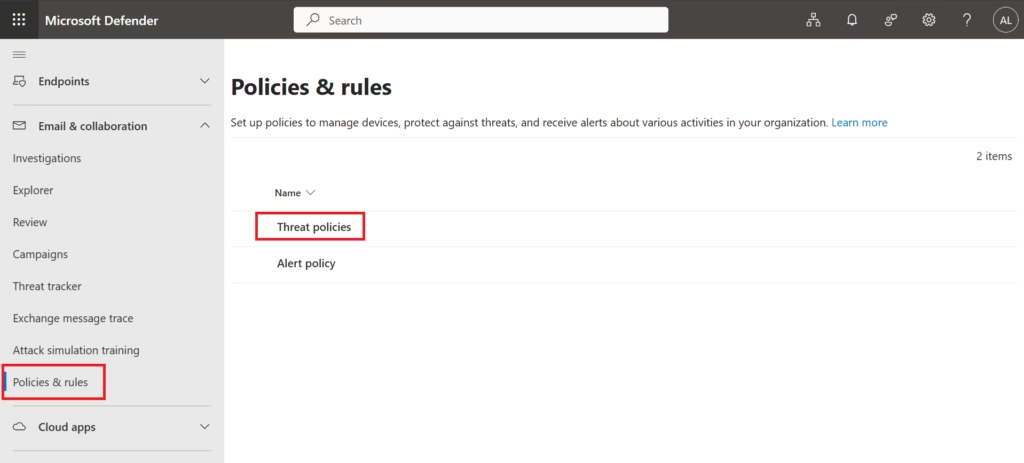
- Go to the Microsoft Defender portal
- Navigate to:
Email & collaboration → Policies & rules → Threat policies → Anti‑phishing - Review the Default anti‑phishing policy
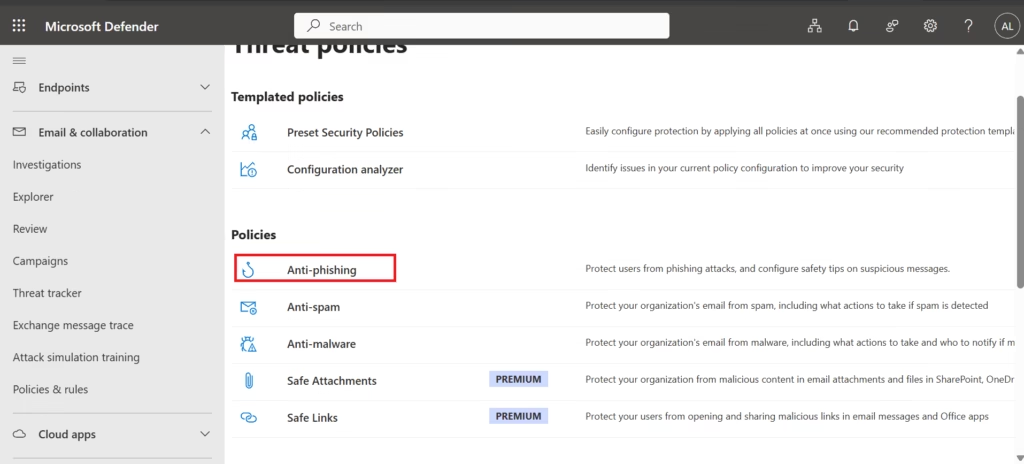
Note that Microsoft enables baseline protection by default.
Step 2: Review Default Policy Settings
Examine:
- Impersonation protection status
- Protected users
- Spoof intelligence
- Action settings
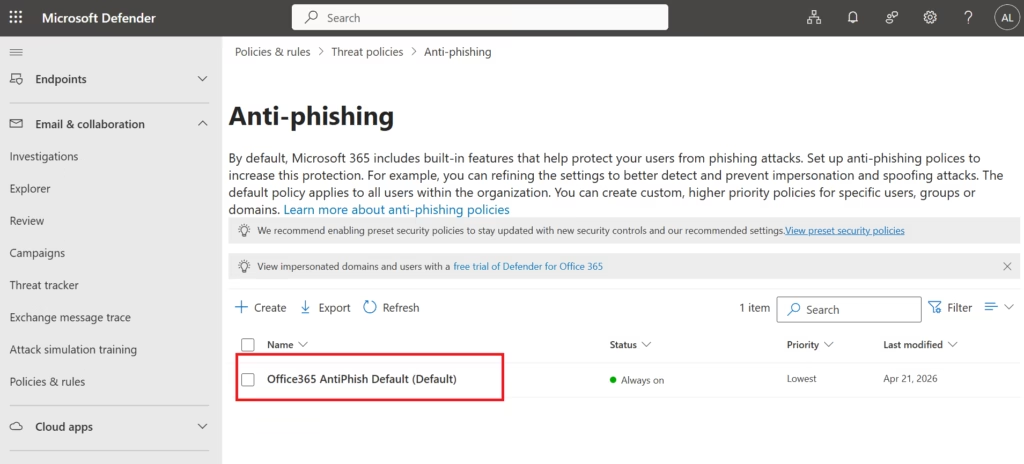
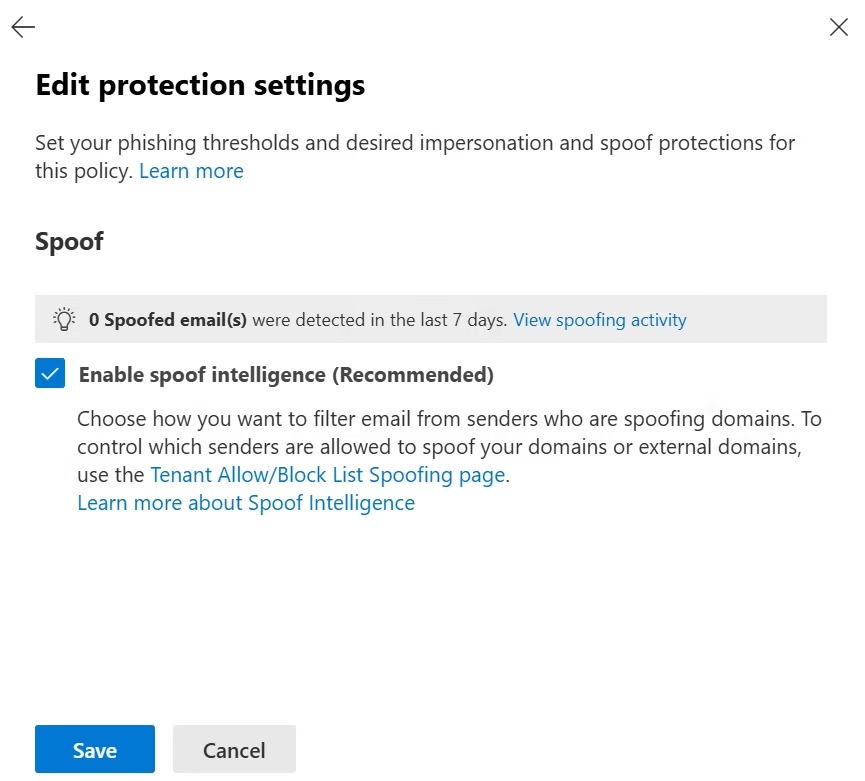
Understand what is already active before creating custom policies.
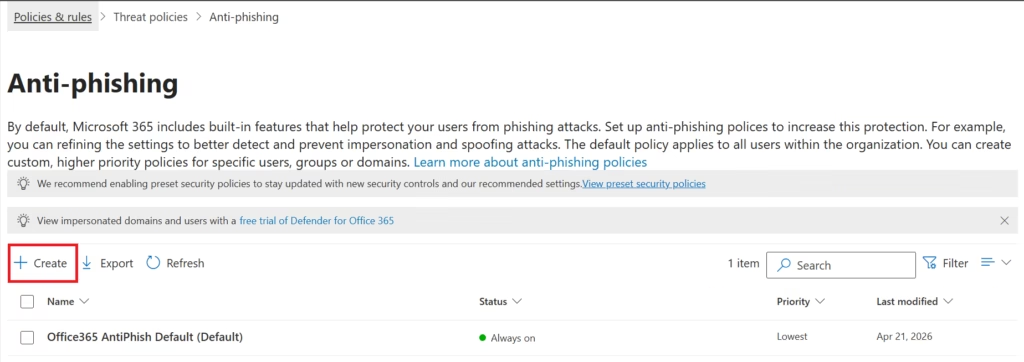
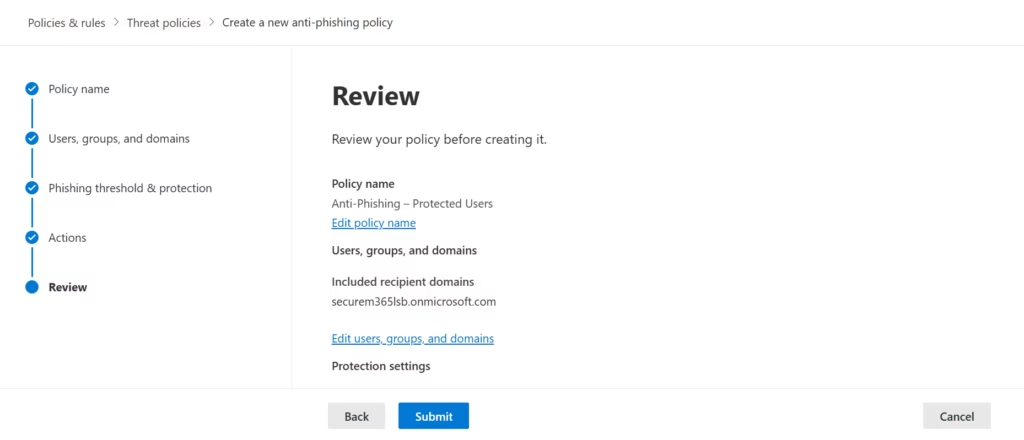
Step 3: Create a Custom Anti‑Phishing Policy
- Select Create
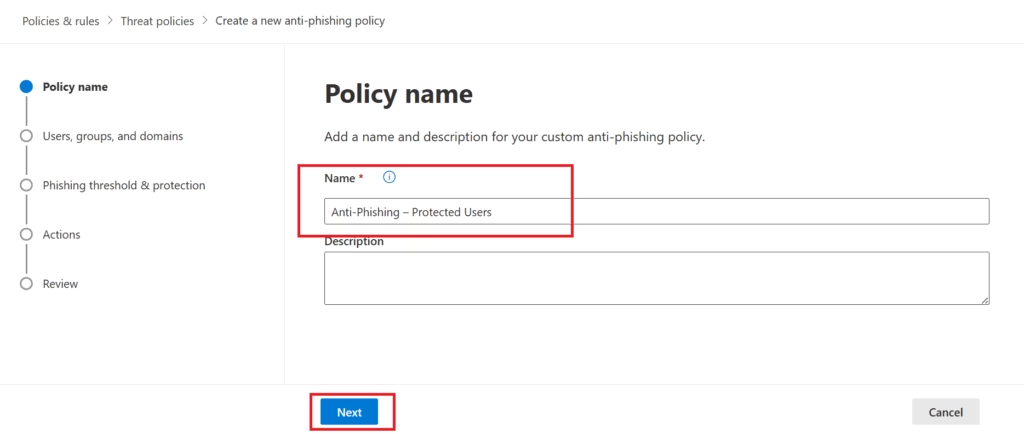
- Name the policy:
Anti‑Phishing – Protected Users - Proceed through policy setup
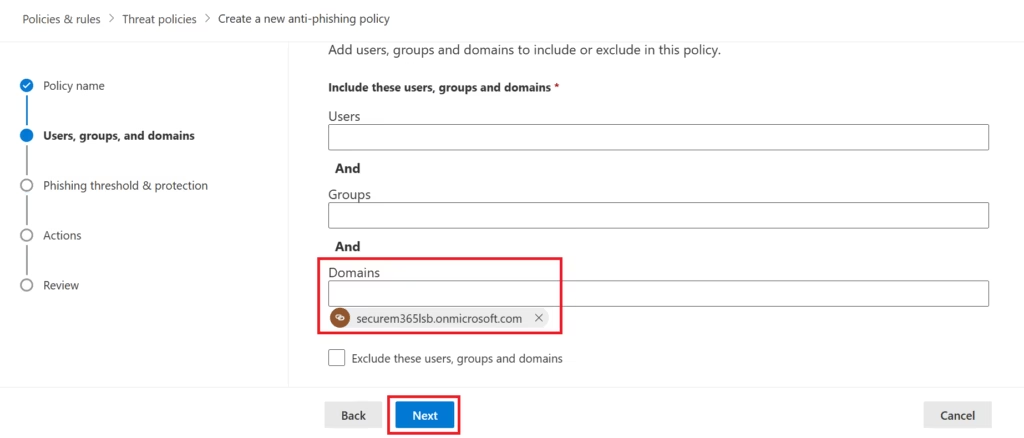
Step 4: Assign Policy Scope
Apply the policy to:
- A test group
- Or selected users
Avoid tenant‑wide rollout in first iteration.
Step 5: Configure Protection Settings (Spoof Intelligence)
In this step, spoof‑based protections are reviewed and enabled to help protect users against domain spoofing and sender impersonation attempts.
Configuration
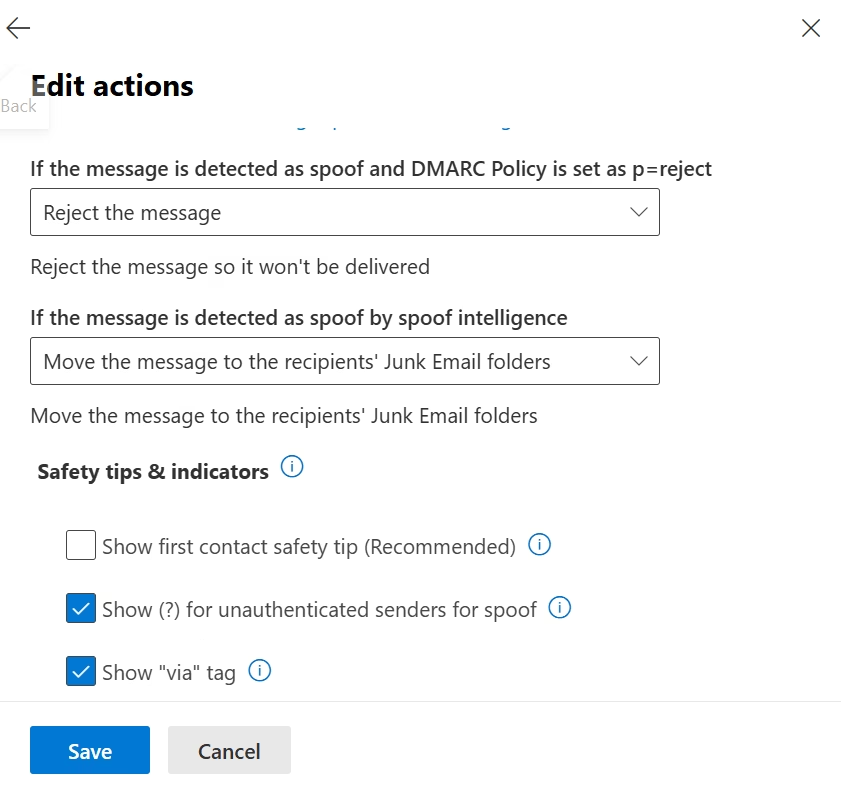
Under Protection settings, ensure the following options are configured:
- Spoof intelligence: On
- Honor DMARC record policy when spoof is detected: On
- Unauthenticated senders symbol (?) for spoof: On
- Show “via” tag: On
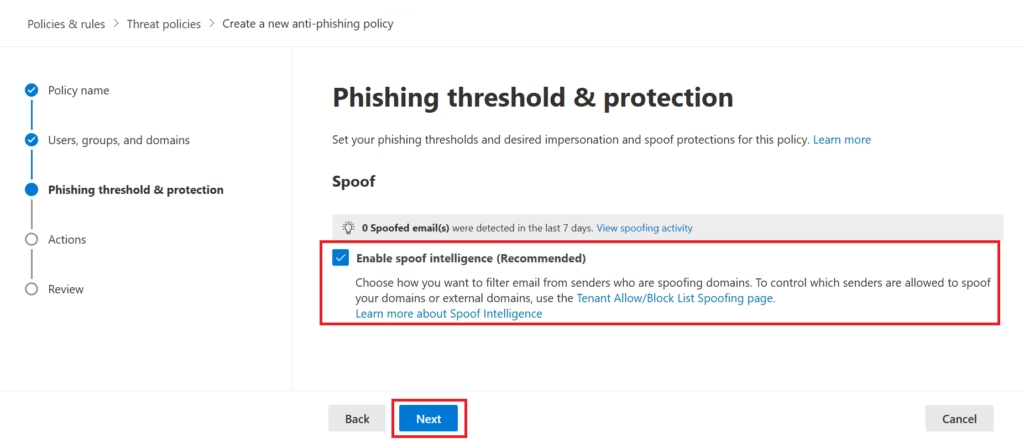
These settings enable Microsoft Defender for Office 365 to:
- Detect spoofed sender domains
- Apply DMARC enforcement (quarantine or reject)
- Visually warn users about unverified senders
Actions Configuration
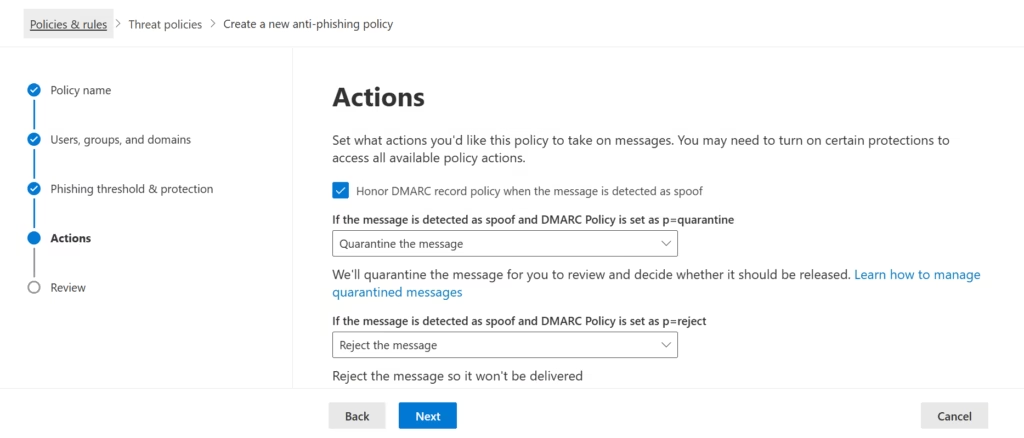
Verify that actions are set appropriately:
- If spoof is detected and DMARC policy = p=quarantine
→ Quarantine the message - If spoof is detected and DMARC policy = p=reject
→ Reject the message - If spoof is detected by spoof intelligence
→ Move to Junk Email folder
These actions provide layered protection while reducing the risk of false positives.
Step 6: Configure Actions
Set actions such as:
- Move the message to quarantine
- Enable safety tips
- Alert administrators
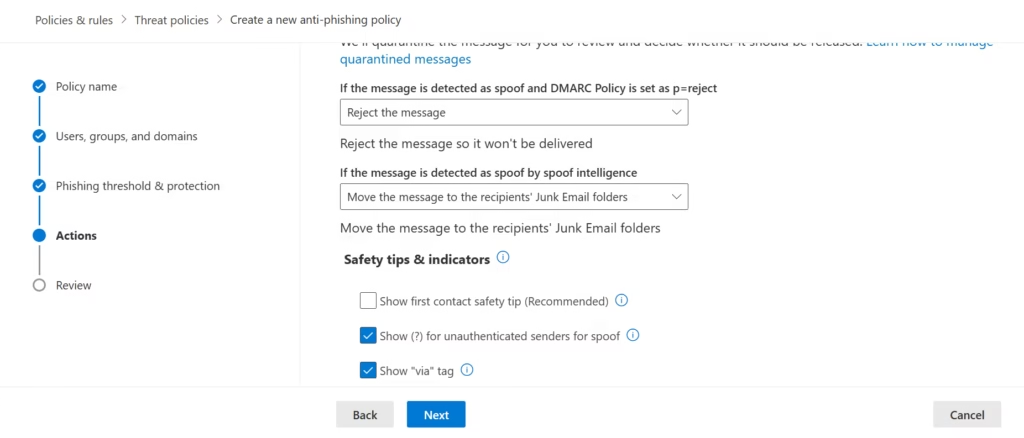
Avoid delete actions initially in production environments.
Step 7: Review Policy Precedence
Confirm:
- Interaction with the default policy
Higher priority policies override lower priority ones.
Lab Note:
User and domain impersonation protection are available only with Microsoft Defender for Office 365 Plan 2. This lab tenant uses Defender for Office 365 Plan 1, so impersonation protection options are not available in the anti-phishing policy configuration. For MS-102, administrators are expected to understand where impersonation protection is configured and that it is license-dependent, not to configure it in every lab environment.
In tenants licensed with Microsoft Defender for Office 365 Plan 2, anti‑phishing policies also support user and domain impersonation protection, allowing administrators to protect executives and high‑value users against targeted identity‑based attacks.
Senior Engineer Tip: "On the MS-102, if a question mentions 'User Impersonation' or 'Executive Protection,' you must immediately think Defender for Office 365 Plan 2. This is one of the most common 'licensing' traps on the exam. If the lab environment only has Plan 1, focus your mastery on Spoof Intelligence, which is the core protection available at both levels."Common Anti‑Phishing Mistakes
A common error is assuming that the default Anti-Phishing Policies in Microsoft Defender are enough; for executive protection, custom policies are almost always required
- Relying on anti‑spam alone
- Not protecting executive accounts
- Over‑aggressive actions without monitoring
- Skipping spoof intelligence review
Anti‑Phishing in Defender XDR Context
Anti‑phishing controls:
- Reduce incident creation
- Lower alert noise
- Improve Secure Score
- Prevent credential compromise
This shows the integration between prevention and detection in Defender XDR.
Key Takeaways
- Phishing is the top Microsoft 365 attack vector
- Anti‑phishing policies protect identities, not just inboxes
- Impersonation protection is the most valuable feature
- Defender for Office 365 provides layered email defense
- MS‑102 tests both understanding and application
Mastering Anti-Phishing Policies in Microsoft Defender is a critical skill for any MS-102 candidate looking to secure their tenant effectively.
What Comes Next in Domain 3
Once phishing emails are blocked, the next attack surface is malicious URLs.
➡️ Next Post:
Safe Links in Microsoft Defender for Office 365: URL Protection Explained (MS‑102)
http://techcertguide.blog/safe-links-in-microsoft-defender-office-365
Previous Topic
If you haven’t read it yet: Threat Analytics in Microsoft Defender XDR
Start from the Beginning
MS-102 Microsoft 365 Administrator Overview
https://techcertguide.blog/ms-102-microsoft-365-administration
Official Microsoft Reference
https://learn.microsoft.com/en-us/certifications/exams/ms-102
2 thoughts on “Anti-Phishing Policies in Microsoft Defender: Essential MS-102 Lab Guide”