Learning Objectives
After completing this guide, you will be able to:
- Explain the purpose of Exchange Online Protection (EOP).
- Describe the spam filtering layers in Microsoft 365.
- Differentiate anti-malware protection from Safe Attachments.
- Configure an anti-spam and anti-malware policy step-by-step.
What is Microsoft 365 Anti-Spam and Anti-Malware Protection?
Email remains the number one attack vector for modern cyber threats. From spam campaigns and phishing emails to ransomware attachments, attackers continue to exploit Microsoft 365 email security gaps every single day.
This is why Microsoft 365 Anti-Spam and Anti-Malware protection using Exchange Online Protection (EOP) plays a critical role in strengthening email security in Microsoft 365 environments.
Before advanced protections like Safe Links and Safe Attachments take action, Exchange Online Protection (EOP) works silently in the background to filter spam, detect malware, and protect mail flow.
For anyone preparing for the MS-102: Microsoft 365 Administrator certification, understanding Anti-Spam and Anti-Malware policies is essential because these are core Exchange Online security controls and frequently tested exam topics.
In this guide, we’ll cover:
- What Microsoft 365 Anti-Spam and Anti-Malware protection are
- How Exchange Online Protection (EOP) works
- Spam filtering layers explained
- Malware detection process
- Protection inheritance and default policies
- Step-by-step configuration in Microsoft Defender
- Best practices for production environments
- MS-102 exam tips
What is Exchange Online Protection (EOP) in Microsoft 365 Email Security?
Exchange Online Protection (EOP) is the core engine behind Microsoft 365 spam filtering and anti-malware protection, providing multi-layered email security. Exchange Online Protection is Microsoft’s built-in cloud-based email filtering service that protects organizations against:
- Spam
- Phishing attempts
- Malware
- Spoofing
- Business Email Compromise (BEC)
- Unsafe attachments
- Suspicious senders
It acts before messages even reach the user’s mailbox.
Think of EOP as the security gatekeeper of Exchange Online.
Without it, users would be flooded with malicious emails daily.
This is where Microsoft 365 Anti-Spam and Anti-Malware protection using Exchange Online Protection (EOP) becomes critical.
Anti-Spam Protection Explained
Anti-spam protection in Microsoft 365 uses Exchange Online Protection (EOP) to filter unwanted emails based on spam confidence level (SCL) and sender reputation.
Anti-Spam policies help identify and block unwanted or suspicious email messages before they reach users.
This includes:
- Bulk spam
- Phishing messages
- Suspicious sender behavior
- Domain spoofing
- High confidence phishing
- Business Email Compromise attempts
Microsoft uses:
- Reputation analysis
- Sender authentication checks
- Machine learning
- Threat intelligence
- Behavioral analysis
- Microsoft global threat signals
to decide whether an email is safe.
Spam Filtering Layers in Microsoft 365 (EOP Explained)
This is a high-value MS-102 topic.
Microsoft applies multiple layers of filtering:
1. Connection Filtering
Checks the sender’s IP reputation.
If the sender IP is known for spam activity, the message can be blocked immediately.
This happens before full email processing.
2. Sender Filtering
Evaluates:
- Sender address
- Domain reputation
- Blocked senders
- Allowed senders
Useful for controlling trusted and blocked sources.
3. Content Filtering
Scans:
- Subject lines
- Email body
- Embedded URLs
- Attachments
- Headers
This helps identify phishing and spam behavior.
4. Spoof Intelligence
Detects fake senders pretending to be trusted domains.
Very important for preventing impersonation attacks.
Especially CEO fraud and invoice scams.
5. Zero-Hour Auto Purge (ZAP)
If Microsoft later identifies a delivered email as malicious:
Zero-Hour Auto Purge (ZAP) automatically removes malicious emails from user mailboxes after delivery, making it a critical feature in Microsoft 365 email protection and threat response.
This is extremely important.
Even after delivery, protection continues.
Understanding SCL and BCL in Microsoft 365
- Spam Confidence Level (SCL) determines how likely an email is spam.
- Bulk Complaint Level (BCL) identifies bulk or marketing emails.
These values help Microsoft 365 anti-spam policy settings decide whether a message should be:
- Delivered to inbox
- Moved to junk
- Quarantined
Anti-Malware Protection in Microsoft 365 (Policy & Detection Explained)
Anti-Malware policies protect against harmful files delivered through email.
This includes:
- Viruses
- Trojans
- Ransomware
- Worms
- Malicious scripts
- Suspicious executables
Microsoft scans:
- Email attachments
- Embedded payloads
- File reputation
- File behavior indicators
before delivery.
This is the baseline protection before Safe Attachments adds sandbox detonation.
Anti-Malware vs Safe Attachments
| Feature | Anti-Malware | Safe Attachments |
|---|---|---|
| Protection Type | Signature + reputation | Sandbox detonation |
| Detects | Known malware | Unknown + zero-day malware |
| Speed | Fast | Deeper analysis |
| Default Availability | Included in EOP | Requires Defender for Office 365 |
Both are important.
One should not replace the other.
Layered security wins.
Protection Inheritance Explained
This is often misunderstood in MS-102.
Microsoft provides:
Default Policies
These protect all users automatically.
Even if admins do nothing.
Examples:
- Default Anti-Spam policy
- Default Anti-Malware policy
Custom Policies
Admins can create higher-priority policies for:
- VIP users
- Finance teams
- Executives
- High-risk departments
Important rule: Custom Policies Override Default Policies

This is called: Policy Inheritance

Very common exam topic.
Configure Microsoft 365 Anti-Spam and Anti-Malware Protection Policy in (Step-by-Step)
In this section, you will configure Microsoft 365 anti-spam and anti-malware protection using Microsoft Defender.
This is your practical MS-102 lab section.
Step 1: Open Microsoft Defender Portal
Go to: Microsoft Defender Portal
URL: security.microsoft.com
Sign in with:
- Global Administrator
- Security Administrator
- Exchange Administrator
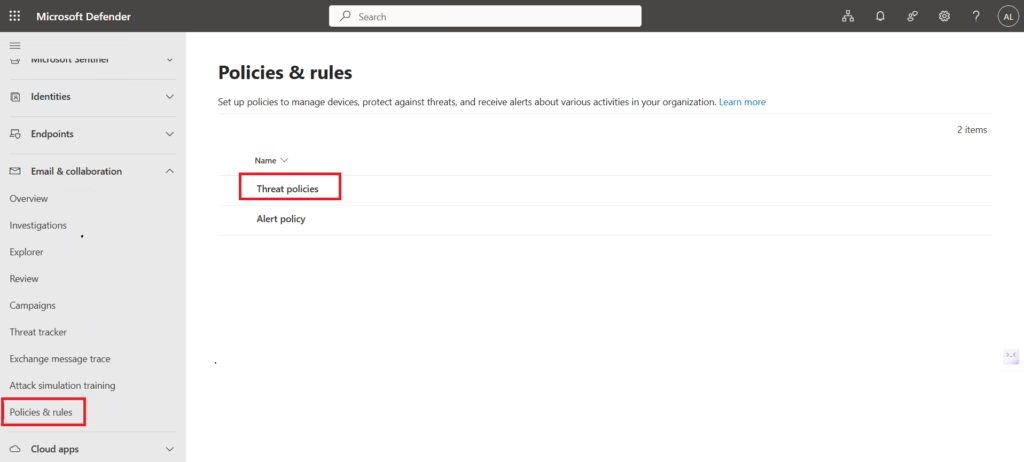
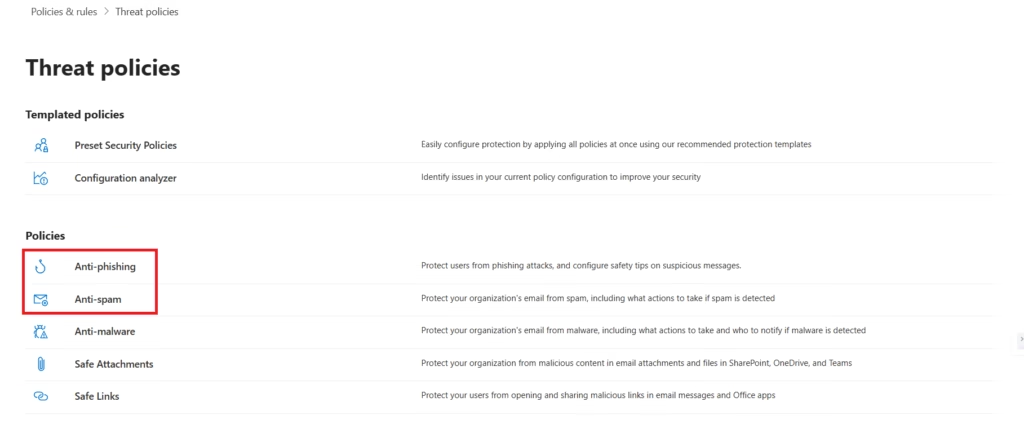
Step 2: Navigate to Threat Policies
From the left menu:
Email & Collaboration
→ Policies & Rules
→ Threat Policies
Step 3: Review Anti-Spam Policies
Open:
Anti-Spam
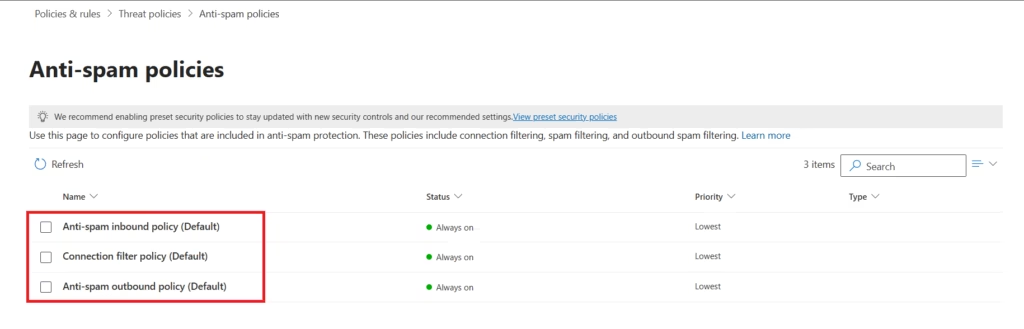
Here you will see:
- Default Anti-Spam Inbound Policy (Default)
- Connection filter Policies (Default)
- Default Anti-Spam Outbound Policy (Default)
Review:
- Spam confidence levels (SCL)
- Bulk complaint level (BCL)
- Allowed senders
- Blocked senders
- Quarantine settings
Step 4: Review Anti-Malware Policies
Open:
Anti-Malware
Here you will see:
- Office365 AntiPhish Default (Default)
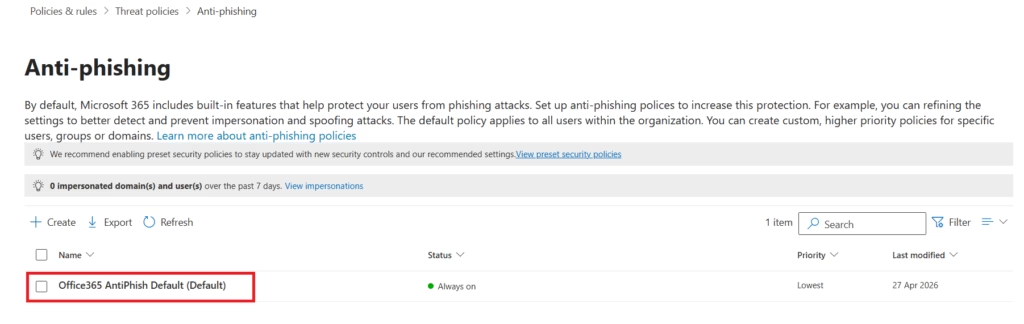
Review:
- Malware filtering settings
- File type filtering
- Internal sender protection
- Notification settings
Step 5: Modify Thresholds
This is commonly done in production.
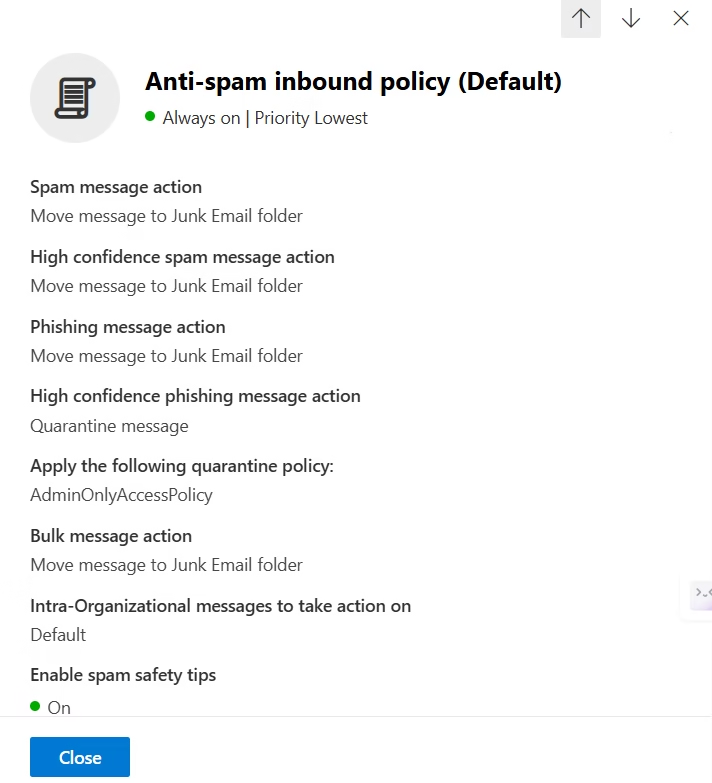
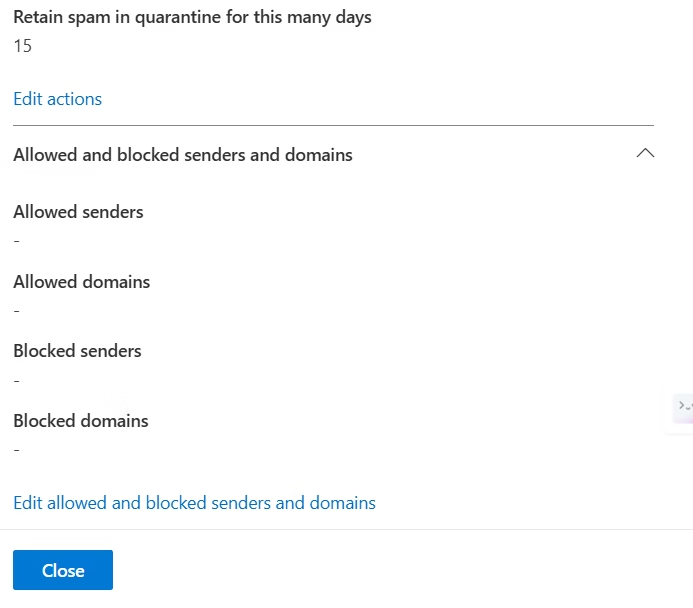
Examples:
- Tighten phishing thresholds
- Increase bulk email filtering
- Enable stronger quarantine actions
- Improve spoof protection
Always test before applying globally.
Step 6: Track Message Trace
Message Trace helps troubleshoot Microsoft 365 email delivery issues, including spam filtering errors, malware detection, and policy enforcement.
Go to:
Mail Flow
→ Message Trace
This helps investigate:
- Why was a message blocked
- Why spam reached the inbox
- Delivery failures
- Malware quarantines
- Transport rule actions
This is critical for real-world administration.
Best Practices from Real-World Infrastructure Teams
As a senior infrastructure engineer, I strongly recommend:
- Never Disable Default Policies: Always keep baseline protection active, even if custom policies exist.
- Create Separate Policies for VIP Users: Executives are prime phishing targets. Use stricter controls.
- Enable Internal Sender Protection: Compromised internal accounts are common. Never trust internal mail automatically.
- Review Quarantine Weekly: Security is not “set and forget.” Review quarantined messages regularly.
- Use Message Trace for Investigations: Do not guess. Always verify delivery paths using trace logs.
- Regularly reviewing Microsoft 365 spam filtering logs and quarantine reports helps improve overall email security posture.
MS-102 Exam Tip
Scenario:
“A company wants stricter spam filtering for executives without affecting all users.”
Correct answer:
Create a Custom Anti-Spam Policy
Not:
- Modify the default policy only
- Mail flow rule
- Exchange transport rule
This is a very common exam trap.
Common Admin Mistakes
- Trusting Internal Email Too Much: Internal compromise happens often.
- Ignoring Default Policies: They are critical baseline protection.
- Not Reviewing Quarantine: This creates blind spots.
- Using Only Anti-Malware Without Safe Attachments: Known malware is not the full threat. Zero-day attacks still happen.
Final Thoughts
Microsoft 365 Anti-Spam and Anti-Malware protection powered by Exchange Online Protection (EOP) is the foundation of modern Microsoft 365 email security.
From spam filtering and malware detection to advanced features like Zero-Hour Auto Purge (ZAP), EOP ensures that threats are blocked before they impact users.
For administrators and MS-102 candidates, understanding Microsoft 365 anti-spam and anti-malware protection policy configuration is essential for building a secure email environment.
Next in the MS-102 Security Series
Configure DKIM & DMARC in Microsoft 365
Next in the MS-102 Security Series: Anti‑Spam & Anti‑Malware Protection in Microsoft 365 (MS‑102 Guide)Explained
http://techcertguide.blog/configure-dkim-in-microsoft-365
Previous Topic
If you haven’t read it yet: Safe Attachments in Microsoft Defender: Essential MS-102 Guide & Lab
Start from the Beginning
MS-102 Microsoft 365 Administrator Overview
https://techcertguide.blog/ms-102-microsoft-365-administration
Official Microsoft Reference
https://learn.microsoft.com/en-us/certifications/exams/ms-102CategoriesMS-102
35 thoughts on “Microsoft 365 Anti-Spam and Anti-Malware Protection (MS-102 Guide)”