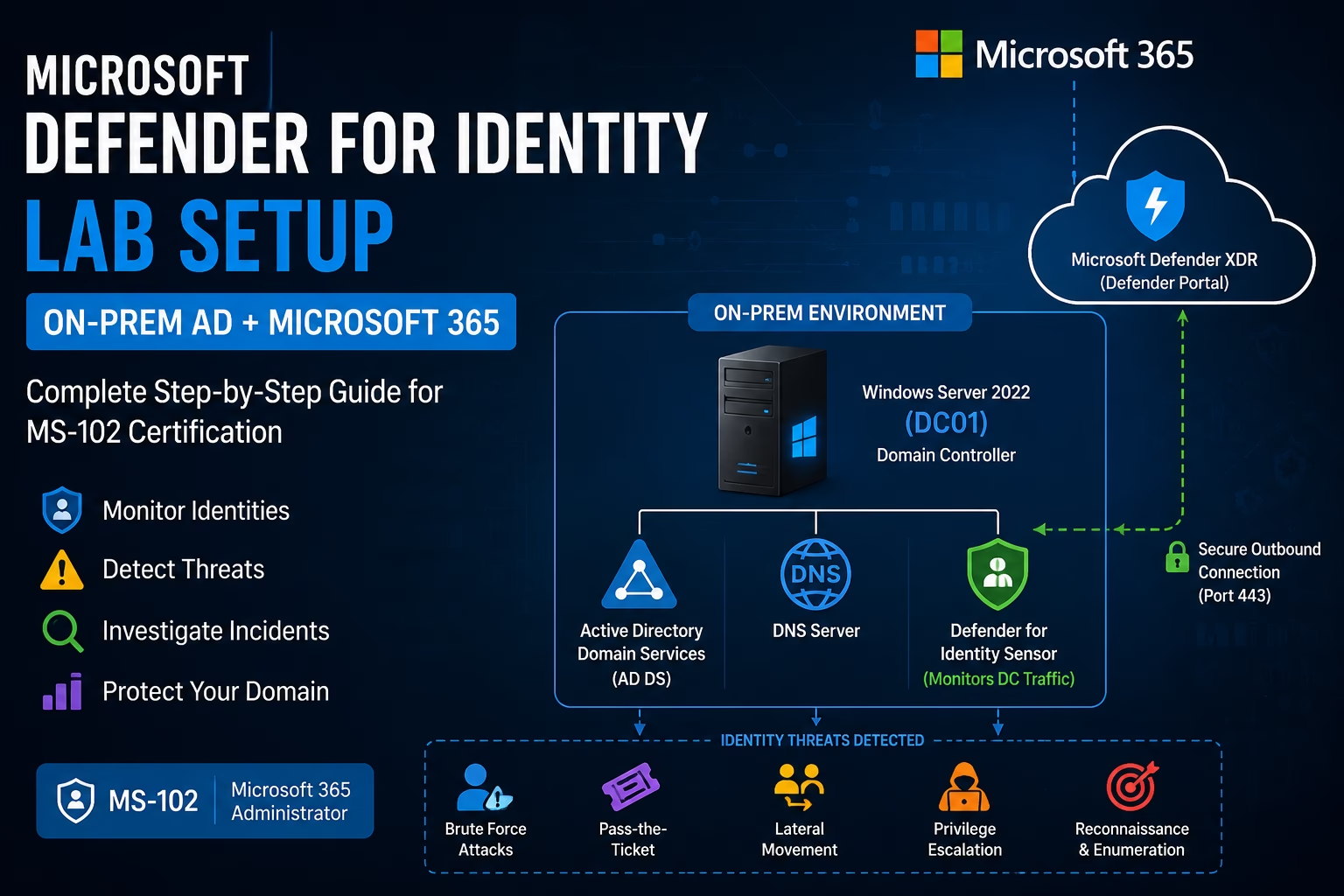
Modern cyberattacks rarely begin with malware alone. Attackers target identities first.
This Microsoft Defender for Identity Lab Setup helps administrators understand how identity threat detection works in hybrid Active Directory environments.
Once a threat actor compromises an account, they often attempt:
- Privilege escalation
- Lateral movement
- Domain reconnaissance
- Credential theft
- Kerberos attacks
- Pass-the-ticket attacks
This is where Microsoft Defender for Identity becomes critical.
Microsoft Defender for Identity helps organizations detect and investigate identity-based attacks inside on-premises Active Directory environments by monitoring authentication traffic, domain controllers, and suspicious user behavior.
For anyone preparing for the MS-102: Microsoft 365 Administrator certification, understanding Defender for Identity is essential because it bridges:
On-Premises Active Directory → Microsoft 365 SecurityIn this guide, we’ll build a complete Microsoft Defender for Identity lab setup using:
- Windows Server
- Active Directory
- Microsoft 365
- Defender XDR integration
This is one of the most practical and valuable Microsoft security labs you can build.
Learning Objectives
After completing this guide, you will be able to:
- Explain why identity is a primary target in modern cyberattacks.
- Identify what Microsoft Defender for Identity monitors.
- Set up a Defender for Identity lab in a hybrid Active Directory environment.
- Differentiate Defender for Identity from Defender for Endpoint.
What is Microsoft Defender for Identity?
Microsoft Defender for Identity is a cloud-based security solution that helps detect:
- Identity attacks
- Suspicious authentication activity
- Lateral movement
- Privilege escalation
- Reconnaissance attempts
- Compromised accounts
It works by installing lightweight sensors directly on:
Domain ControllersThese sensors analyze:
- Kerberos traffic
- NTLM authentication
- LDAP activity
- DNS requests
- User behavior
- Security events
This helps security teams identify attackers before a major compromise occurs.
Why Defender for Identity Matters
Traditional antivirus focuses on endpoints.
But modern attacks target:
Identity firstExample attack flow:
- User account compromised
- Attacker enumerates domain users
- Privilege escalation begins
- Lateral movement starts
- Domain admin compromised
Without identity monitoring:
These attacks often go unnoticed.
Defender for Identity helps detect them early.
🔄 Identity Attack Detection Flow
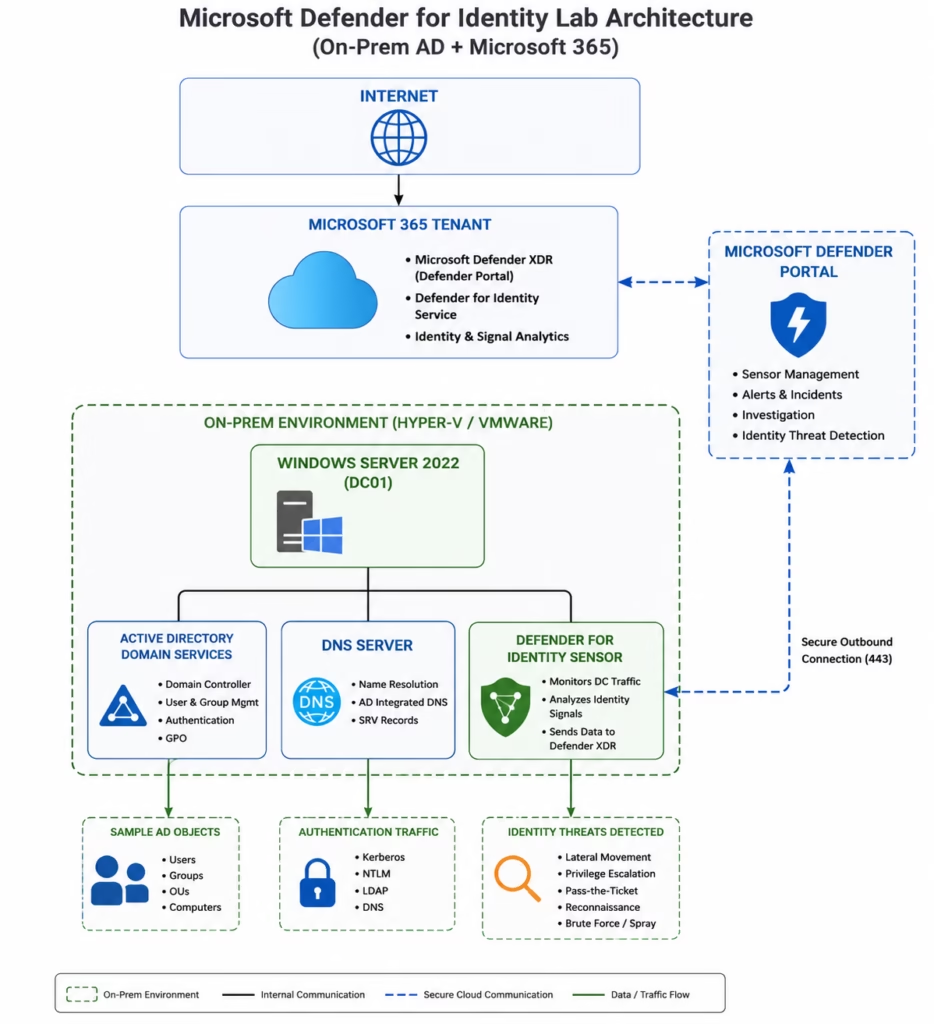
The sensor forwards domain controller activity to Microsoft’s cloud analytics, which detect identity-based attacks and raise them as incidents.
Recommended Lab Architecture
For MS-102 learning and blogging, a simple lab is enough.
Minimal Lab Setup
This Microsoft Defender for Identity Lab Setup helps administrators understand how identity threat detection works in hybrid Active Directory environments.
Can You Build This Without a Client VM?
Yes
For basic Defender for Identity learning:
- One Domain Controller VM is enough
- No Windows client required initially
This setup is sufficient for:
- Sensor installation
- Alert review
- Identity monitoring
- Learning Defender architecture
- MS-102 preparation
- Blog demonstrations
You can always add a client VM later for advanced attack simulations.
Microsoft Defender for Identity Lab Setup Requirements
Recommended Specifications
| Component | Recommended |
|---|---|
| Hypervisor | Hyper-V / VMware |
| Server OS | Windows Server 2022 |
| RAM | 4–6 GB |
| CPU | 2 vCPU |
| Disk | 60 GB |
| Internet | Required |
| Microsoft 365 Tenant | Required |
Step 1: Create Windows Server VM
Create a new VM using:
Windows Server 2022Choose:
Desktop ExperienceThis makes lab management easier.
Step 2: Configure Static IP Address
Example configuration:
| Setting | Example |
|---|---|
| IP Address | 192.168.1.10 |
| Subnet Mask | 255.255.255.0 |
| Gateway | 192.168.1.1 |
| Preferred DNS | 192.168.1.10 |
Important:

Domain Controllers should point DNS to themselves
Step 3: Rename the Server
Rename server to:
DC01Then reboot the VM.
Step 4: Install Active Directory Domain Services
Open:
Server Manager
Go to:
Add Roles and Features
Install:
- Active Directory Domain Services
- DNS Server
These are required for Active Directory.
Step 5: Promote Server to Domain Controller
After installation:
Click:
Promote this server to a domain controller
Choose:
Add a new forest
Recommended domain name:
corp.techcertguide.blogThis looks professional for labs and screenshots.
Step 6: Configure DSRM Password
Set a strong:
Directory Services Restore Mode (DSRM) password
Store it safely.
Step 7: Restart the Server
After reboot:
Active Directory is now ready
Step 8: Create Test Users
Open:
Active Directory Users and Computers
Create sample accounts:
- John.Admin
- HR.User
- Finance.User
- Test.User
These help generate identity activity for testing.
Step 9: Verify Active Directory Health
Before starting the Microsoft Defender for Identity Lab Setup, verify that Active Directory and DNS are functioning correctly.
Run:
dcdiagVerify no major errors exist.
Always validate AD health before installing security tools.
Step 10: Open Microsoft Defender Portal
Go to:
Microsoft Defender Portal
Sign in using:
- Global Administrator
- Security Administrator
Step 11: Navigate to Defender for Identity
Go to:
Settings → Identities
OR
Microsoft Defender XDR → Identity
This is where sensor management happens.
Step 12: Configure Microsoft Defender for Identity
Enable:
- Identity monitoring
- Defender integration
- Sensor onboarding
Microsoft may ask for additional configuration permissions.
Approve them.
Step 13: Download the Defender for Identity Sensor
Download:
Defender for Identity Sensor
This installs directly on the Domain Controller.
Step 14: Install Sensor on Domain Controller
The most important component in a Microsoft Defender for Identity Lab Setup is the Defender for Identity sensor installed on the domain controller.
Run installer on:
DC01
During installation:
- Accept the license agreement
- Enter tenant access key
- Complete onboarding
After installation:
Sensor starts monitoring authentication traffic
Step 15: Verify Sensor Health
Inside Microsoft Defender portal:
Check:
Sensors
You should see:
DC01 → Healthy
This confirms successful communication with Microsoft Defender XDR.
What Defender for Identity Monitors
After completing the Microsoft Defender for Identity Lab Setup, administrators can monitor suspicious authentication activity and identity threats.
Once connected, Defender for Identity monitors:
- Kerberos authentication
- NTLM traffic
- LDAP queries
- DNS activity
- User behavior analytics
- Privileged account usage
- Reconnaissance attempts
This helps detect suspicious identity activity in real time.
Common Identity Threats Detected
A successful Microsoft Defender for Identity Lab Setup provides visibility into reconnaissance attacks, lateral movement, and privilege escalation attempts.
Defender for Identity can detect:
| Threat Type | Example |
|---|---|
| Password Spray | Multiple failed logins |
| Reconnaissance | User enumeration |
| Lateral Movement | Suspicious authentication |
| Pass-the-Ticket | Kerberos abuse |
| Privilege Escalation | Admin group abuse |
| Compromised Accounts | Unusual login behavior |
This is where Defender becomes extremely powerful.
Simple Lab Tests You Can Perform
Even without a client VM, you can simulate:
- Failed login attempts
- User enumeration
- PowerShell reconnaissance
- LDAP queries
- Privileged group changes
These activities generate useful telemetry.
Best Practices from Real-World Infrastructure Teams
Always validate Active Directory health before deploying a Microsoft Defender for Identity Lab Setup in production environments.
As a senior infrastructure engineer, I strongly recommend:
- Use Dedicated Domain Controllers
Do not install unnecessary applications on DCs.
Keep them clean and secure.
- Monitor Privileged Accounts Closely
Admin accounts are prime attack targets.
Use strong password policies and MFA where possible.
- Keep Sensor Health Monitored
If the sensor stops reporting:
- Visibility disappears
Always monitor sensor status.
- Secure Service Accounts
Many identity attacks target poorly secured service accounts.
Review them regularly.
- Review Identity Alerts Weekly
Identity attacks are often stealthy.
Do not ignore low-severity alerts.
Defender for Identity vs Defender for Endpoint
| Feature | Defender for Identity | Defender for Endpoint |
|---|---|---|
| Focus | Identity threats | Endpoint threats |
| Monitors | Domain Controllers | Devices |
| Detects | Lateral movement | Malware |
| Data Source | Authentication traffic | Endpoint telemetry |
Both solutions complement each other.
MS-102 Exam Tip
Scenario:
“A company wants to detect suspicious authentication activity and lateral movement inside Active Directory.”
Correct answer:
Microsoft Defender for IdentityNot:
- Microsoft Defender for Endpoint
- Intune
- Exchange Online Protection
- Microsoft Sentinel
Very common exam trap.
Common Admin Mistakes
- Installing Sensor Without AD Health Checks: Always validate AD before onboarding.
- Ignoring Sensor Alerts: Even low alerts can indicate attacker reconnaissance.
- Weak Service Account Security: Service accounts are frequently abused.
Assuming Cloud Identity Protection Covers On-Prem AD: It does not.
Defender for Identity specifically protects: On-premises Active Directory
Final Thoughts
This Microsoft Defender for Identity Lab Setup provides a strong foundation for learning identity protection and hybrid security operations in Microsoft 365.
Modern attacks focus on identity.
Attackers know:
If identity is compromised, everything else follows.Microsoft Defender for Identity provides deep visibility into Active Directory threats, suspicious authentication activity, and attacker movement inside the network.
For MS-102 candidates, this is exam-critical.
For administrators, it is business-critical.
Because in modern cybersecurity:
Identity is the new security perimeter.Next in the MS-102 Security Series
Microsoft Defender for Cloud Apps (CASB): Shadow IT & App Control (MS-102 Guide)
Because protecting identities is important, but controlling cloud application access is equally critical.
Previous Topic
If you haven’t read it yet: Master DKIM in Microsoft 365: Complete Setup with DMARC & SPF
Start from the Beginning
MS-102 Microsoft 365 Administrator Overview
https://techcertguide.blog/ms-102-microsoft-365-administration
Official Microsoft Reference
https://learn.microsoft.com/en-us/certifications/exams/ms-102CategoriesMS-102
2 thoughts on “Complete Microsoft Defender for Identity Lab Setup Guide (On-Prem AD + Microsoft 365 | MS-102)”