Most DLP policies run silently for weeks after deployment, and admins only discover misconfigurations when a user escalates a blocked email. Microsoft Purview DLP Alerts fix that.
This lab originally covered alert configuration, DLP Reports, and switching from Simulation to Enforce mode for cloud workloads. It now also covers monitoring Endpoint DLP, reviewing endpoint events in Activity Explorer, investigating an alert end-to-end, validating that a Generative AI website upload was correctly blocked, and reading the results from a SOC (Security Operations Center) and compliance-reporting perspective.
In this guide, Part 3 of a 3-part Microsoft Purview DLP series, you’ll configure Microsoft Purview DLP Alerts so violations notify you in real time, read DLP Reports to measure policy effectiveness, monitor Endpoint DLP activity, including Generative AI website blocks, and safely switch your Finance Credit Card Protection policy from Simulation mode to full Enforcement. Specifically, you’ll learn:
- How Microsoft Purview DLP Alerts work and when they fire
- How to configure alert thresholds, severity, and email notifications
- How to monitor Endpoint DLP activity in Activity Explorer, including file and browser-upload events
- How to investigate a DLP alert end-to-end, from the Alerts dashboard to the underlying event chain
- How to validate that an Endpoint DLP block (including a Generative AI website upload block) worked as intended
- How to read DLP Reports for compliance evidence
- How to switch a DLP policy from Simulation to Enforce mode without disrupting users
- MS-102 exam tips for DLP monitoring and enforcement
Series navigation: Part 1: Create your first DLP policy ← Start here if you haven’t Part 2: Custom Sensitive Information Types, Activity Explorer and Endpoint DLP Part 3: You are here: Microsoft Purview DLP Alerts, Endpoint Monitoring, Reports, and Enforce Mode
How Microsoft Purview DLP Alerts Work
When a DLP rule matches content, two things can happen: the policy takes an action on the user (block, notify, or require override), and separately, it can fire an alert to notify administrators. These are independent: a rule can block users without generating an admin alert, and it can generate alerts without taking any user-facing action.
Microsoft Purview DLP Alerts appear in two places: the DLP Alerts dashboard under Data Loss Prevention, and in your inbox if you configure email notifications. They show you which rule fired, which user triggered it, which content was involved, and on which workload.
There are two alert modes:
| Alert Mode | When to Use | Example |
|---|---|---|
| Single event | High-severity rules where every match needs review | A rule detecting 50+ credit card numbers in one email |
| Aggregated | High-volume rules where individual alerts would overwhelm | A rule detecting any mention of a keyword may fire hundreds of times per day |
Single event alerts fire once per rule match. Aggregated alerts batch match over a time window (15 minutes to 1 hour) and send one alert covering all events in that period. For most MS-102 scenarios, a single event is the correct answer.
Step-by-Step Lab: Configure Microsoft Purview DLP Alerts
Prerequisites: Compliance Administrator or Global Administrator role. The Finance Credit Card Protection policy from Part 1 must exist.
Step 1: Open the Policy for Editing
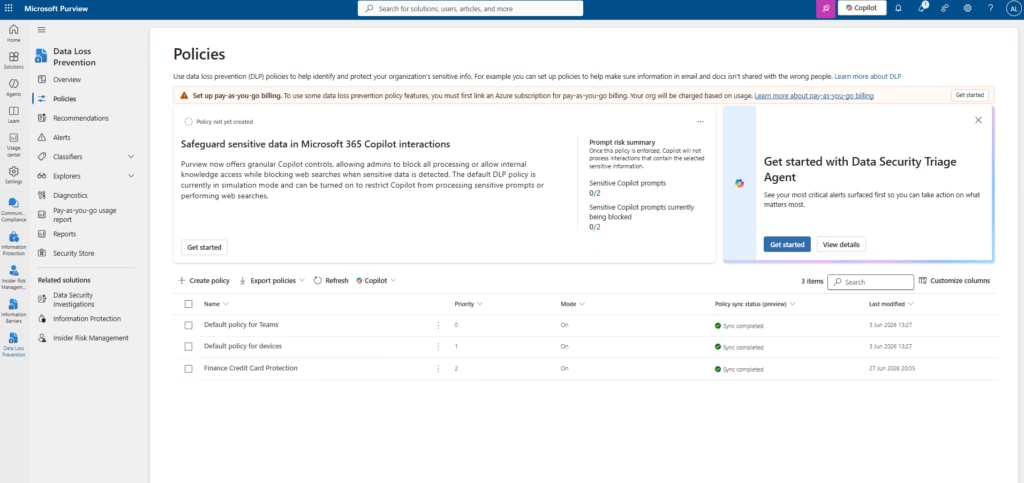
Navigate to purview.microsoft.com → Data Loss Prevention → Policies.
Locate your Finance Credit Card Protection policy and click on it to open the details panel. Click Edit policy.
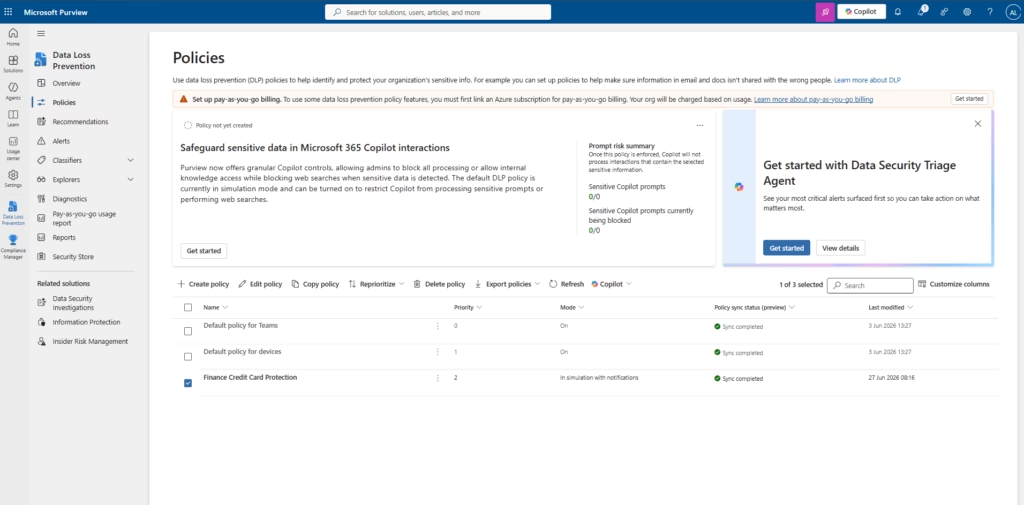
The policy edit wizard opens at the same steps you used during creation. Click Next through the first pages until you reach Advanced DLP rules.
Step 2: Edit the Rule
On the Advanced DLP rules page, click the pencil icon to edit your existing rule (Finance Credit Card Rule or similar).
The rule editor opens. Scroll down past the Conditions and Actions sections until you reach the Alerts section at the bottom of the rule.
Step 3: Configure Incident Reports (Alert Settings)
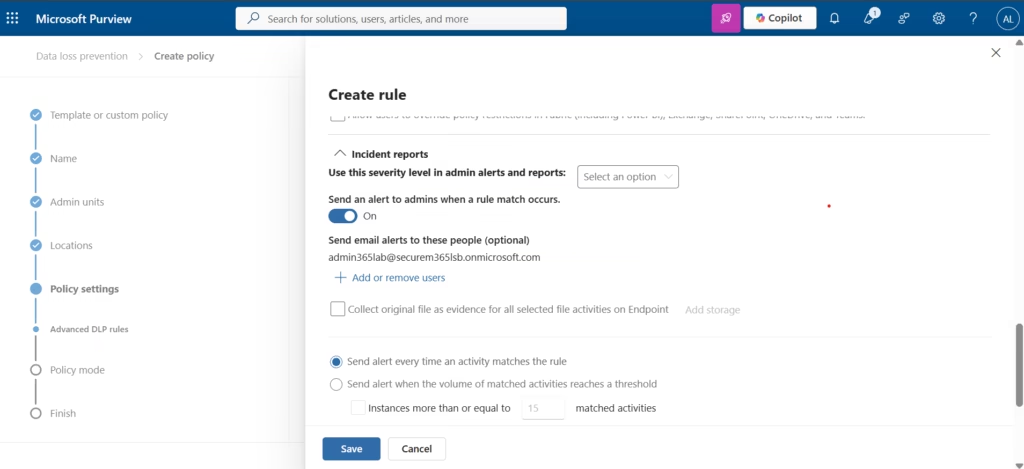
In the rule editor, scroll down past Conditions and Actions to the Incident reports section.
Configure the following:
- Use this severity level in admin alerts and reports: Set to High
- Send an alert to admins when a rule match occurs: Toggle On
- Send email alerts to these users: Add your admin email or a compliance team distribution list
- Use email incident reports to notify you when a policy match occurs: Toggle On if you want a full email report with matched content details
💡 Best Practice: Use a shared mailbox like
dlp-alerts@yourdomain.comfor alert recipients rather than a personal inbox. When the admin who configured alerts is on leave, alerts still reach someone who can act.
⚠️ Common Mistake: Confusing the Alerts dashboard (Data Loss Prevention → Alerts) with alert configuration. The dashboard only shows alerts after they fire. Configuration always happens inside the rule editor under Incident reports.
⚠️ Common Mistake: Setting aggregated alerts on a high-severity rule because “there’ll be too many emails.” If a rule detecting 10+ credit card numbers in an email is firing hundreds of times per day, that is not an alert problem it is a policy problem. Investigate the volume before suppressing alerts.
Click Save to save the alert configuration, then click Save again to save the rule, then click Next through the remaining wizard pages and click Submit to save the policy.
Step 4: Verify Alert Configuration
After the policy saves and syncs (allow 5–10 minutes), navigate to Data Loss Prevention → Alerts.
The Alerts dashboard shows all Microsoft Purview DLP alerts that have fired across your tenant. Until your policy matches content, the list will be empty or show alerts from other policies. The columns show:
- Alert name: which rule fired
- Severity: High, Medium, or Low
- Status: Active, Investigating, Resolved, Dismissed
- Time: when the match occurred
- Workload: Exchange, SharePoint, Teams, etc.
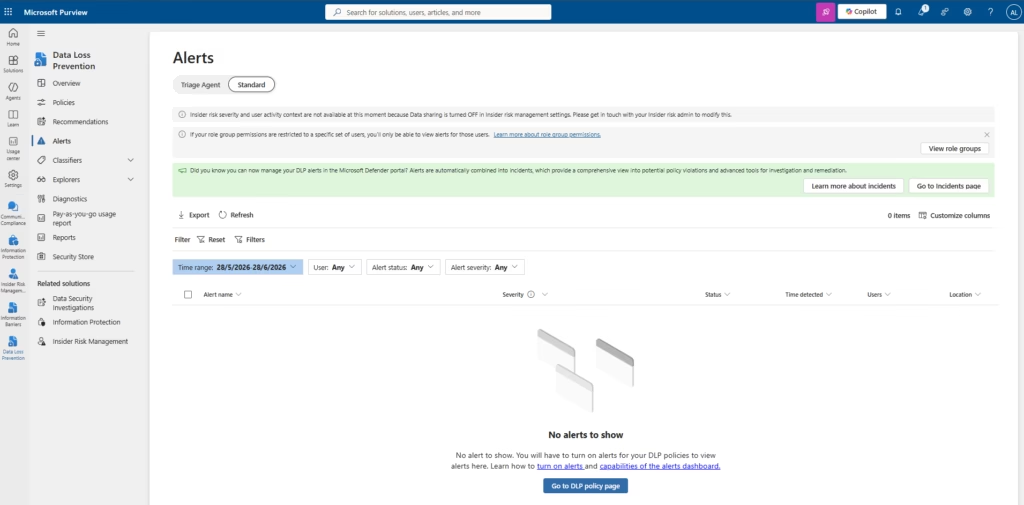
Click any alert to open the detail view. The detail panel shows the matched content (redacted or full, depending on your settings), the user who triggered it, the specific SIT that matched, and the action taken by the policy.
The Alerts page also exposes a Triage Agent view alongside the Standard view, grouping alerts into Needs attention, Less urgent, and Not categorized buckets. This is Purview’s Copilot-assisted triage layer that treats its categorization as a starting point for review, not a substitute for it.
📝 Lab note: This screenshot is from a Microsoft 365 trial tenant running in Simulation mode with no real users, so the Alerts dashboard shows 0 entries. In a production environment, alerts appear here within minutes of a rule match. Note the filter options Time range, User, Alert status, and Alert severity which let you narrow results when alert volumes grow.
💡 Best Practice: Establish a weekly alert review cadence before going to enforcement mode. If no one is reviewing alerts in simulation, they won’t be reviewed in enforcement either and you’ll miss real incidents.
Monitoring Endpoint DLP: Architecture Recap
Part 2 covered extending the GSM custom SIT to Windows endpoints through Endpoint DLP, onboarding a device via Microsoft Defender for Endpoint, restricting Firefox as an unallowed browser, and blocking uploads of protected files to the built-in Generative AI sensitive service domain group.
Everything you configure for alerts in this part applies to those endpoint events without any additional setup. Endpoint DLP reuses the same rule, the same Incident reports alert configuration, and the same Activity Explorer and Alerts dashboard you already use for Exchange, SharePoint, OneDrive, and Teams. The only difference is the location value on each event: endpoint activity shows Endpoint devices instead of a cloud workload name.
This matters operationally: you do not maintain a separate monitoring process for endpoints. A single weekly alert review, a single DLP Reports export, and a single Activity Explorer view cover cloud and endpoint activity together.
Investigating a DLP Alert End-to-End
Use this walkthrough as your standard investigation pattern for any DLP alert, cloud or endpoint.
1. Start at the alert. In this lab’s test, the alert “DLP policy match for document ‘GSM-Test.docx’ in OneDrive” appeared in Data Loss Prevention → Alerts, with Alert scope: Scoped to agent, DLP Alert Severity: Low, and Alert status: Active, detected 2 Jul 2026, 3:02 pm.
Appendix B-1: Alerts dashboard (Triage Agent view) showing the single active alert for GSM-Test.docx, severity Low, status Active
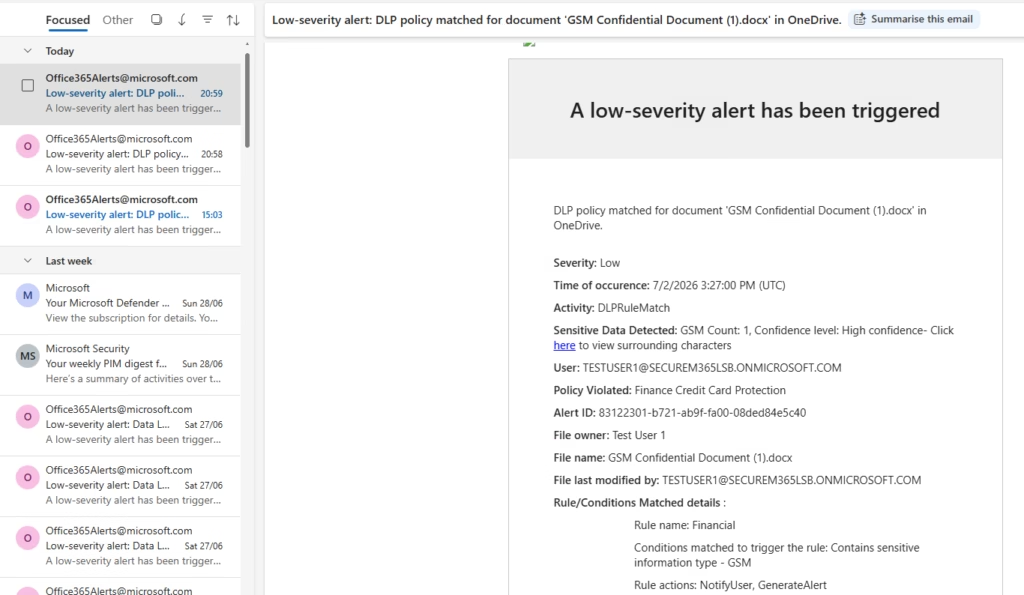
2. Open the alert email if configured. The corresponding email from Office365Alerts provided the full incident detail without needing to open the portal:
- Severity: Low
- Time of occurrence: 7/2/2026 3:27:00 PM (UTC)
- Activity: DLPRuleMatch
- Sensitive Data Detected: GSM Count: 1, Confidence level: High confidence
- User: the signed-in test user’s UPN
- Policy Violated: Finance Credit Card Protection
- Alert ID: a unique GUID for cross-referencing with the portal alert
- File owner and File last modified by
- Rule/Conditions Matched details: Rule name (Financial), conditions matched (Contains sensitive information type GSM), and Rule actions: NotifyUser, GenerateAlert
3. Cross-reference with Activity Explorer. Filtering Activity Explorer to the same date range shows the underlying event chain that led to the alert. See the next section for the specific sequence observed in this lab.
4. Confirm the location and enforcement plan. The alert and Activity Explorer both show the Location (OneDrive, in this test) and, for endpoint events, the Enforcement plane column showing Endpoint devices. This tells you whether the match occurred in the cloud or on the device itself, an important context before deciding on remediation.
5. Set alert status. Once reviewed, move the alert from Active to Investigating if follow-up is needed, or to Resolved/Dismissed once closed out. Leaving alerts permanently in Active status defeats the purpose of a review cadence; see the SOC Perspective section below.
Endpoint Events in Activity Explorer
Activity Explorer aggregates DLP-relevant events across Exchange, SharePoint, OneDrive, and endpoint devices in one timeline. For the endpoint test performed in Part 2, filtering to the test date range (Date: 1/7/2026–2/7/2026) surfaced the following event types, all tied to the same policy (Finance Credit Card Protection) and rule (Financial):
| Activity | File | Location | Enforcement Plane | User |
|---|---|---|---|---|
| File created | C:\Users\TestUser1\Downloads\index.pdf | Endpoint devices | — | testuser1 |
| File modified | C:\Users\TestUser1\Downloads\index.pdf | Endpoint devices | — | testuser1 |
| File renamed | C:\Users\TestUser1\Downloads\Unconfirmed 990705.crdownload | Endpoint devices | — | testuser1 |
| DLP rule matched | https://securem365lsb-my.sharepoint.com/personal/testuser1_se... | OneDrive | — | TESTUSER1 |
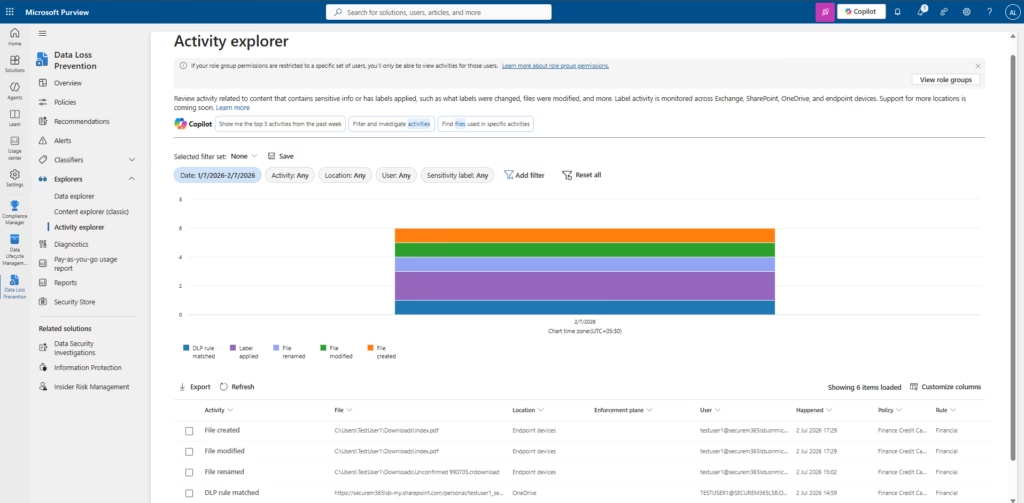
Two things are worth calling out here that a new admin frequently misreads:
The “location” column distinguishes cloud from device activity, but a single user action can generate events in both. A file downloaded through a browser shows as Endpoint devices activity (file created/modified/renamed on disk), while the DLP condition match on the file’s content shows against the cloud location (OneDrive, in this case) if the file also exists there. Read the full chain, not a single row, to reconstruct what actually happened.
File renamed events with a .crdownload Extension indicates an in-progress browser download, not a completed file. If you see a rename event immediately followed by a DLP rule-matched event, that is the expected pattern for “download completed, then classification engine scanned it.”
⚠️ Common Mistake: Reading a single “File created” event in isolation and assuming a DLP violation occurred. File creation events are informational they populate the surrounding event chain for context. The DLP rule matched activity is the one that indicates a policy condition actually fired.
Validating a Generative AI Website Block
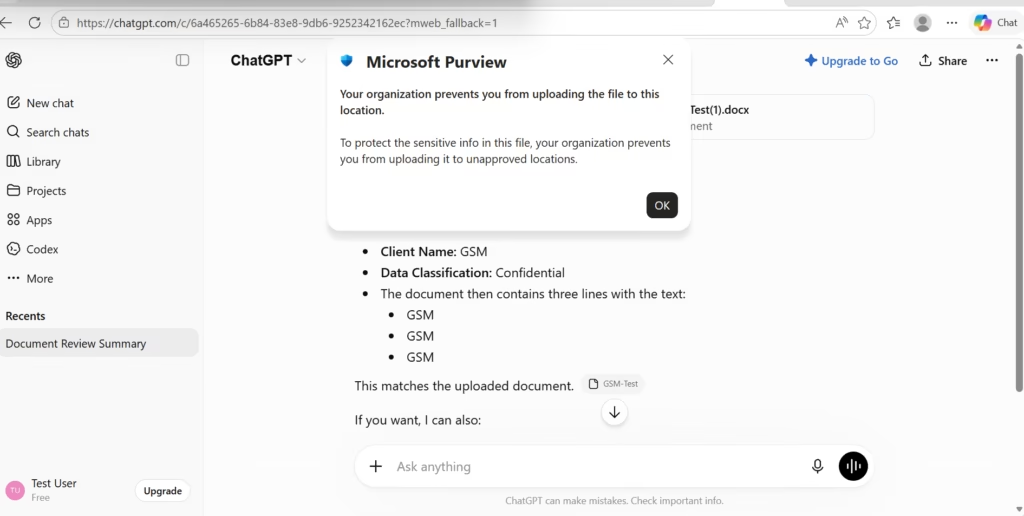
To confirm Endpoint DLP is protecting against Generative AI upload risk (configured in Part 2), validate using this sequence after any policy or domain-group change:
- Confirm device sync. In Settings → Device onboarding → Devices, confirm the target machine shows Configuration status: Updated and Policy sync status: Updated. In this lab, the device (
testing_machine, Windows 11, version 25H2) showed both statuses as Updated at the time of the successful test. - Attempt the upload. Using a browser with the Purview extension present, attempt to upload a file known to contain the GSM SIT to a Generative AI site. In this test, ChatGPT returned: “Your organization prevents you from uploading the file to this location. To protect the sensitive info in this file, your organization prevents you from uploading it to unapproved locations.”
- Confirm the policy tip on the source file. In OneDrive, the file (
GSM-Test.docx) showed a warning icon and a Policy tip panel: “This item conflicts with a policy in your organization” → Issues: Item contains the following sensitive information: GSM → Last scanned: Less than a minute ago. - Confirm the alert fired. As shown above, the alert appeared in the Alerts dashboard within minutes, with DLP Alert Severity: Low matching the severity configured on the rule for this specific condition.
- Confirm that Activity Explorer captured the enforcement plane. The event should show against OneDrive as the file’s home location, with the browser upload attempt itself visible as a File copied to cloud or equivalent browser-activity event where the Full URL for ‘File copied to cloud’ setting is enabled under Endpoint DLP settings.
💡 Best Practice: Turn on Full URL for ‘File copied to cloud’ under Endpoint DLP settings → Browser and domain restrictions to sensitive data during a pilot so investigators can see the exact destination URL, not just the domain category. Review the privacy implications with your compliance team before enabling broadly, since this captures full browsing URLs for protected file activity.
Troubleshooting Endpoint DLP Monitoring
| Symptom | Likely Cause | Fix |
|---|---|---|
| Device missing from Devices list | Defender for Endpoint onboarding not yet complete, or Endpoint DLP device onboarding not turned on | Confirm onboarding package ran successfully in the Defender portal; confirm Settings → Device onboarding → Onboarding is turned on |
| Device shows in Devices list but upload isn’t blocked | Policy sync status still shows “Not updated” | Wait for sync to complete; do not test enforcement until both Configuration and Policy sync status show “Updated” |
| Upload blocked in Edge but not in Chrome | Purview browser extension not installed on the test device’s Chrome profile, or Chrome not in the unallowed browsers list and the extension is missing | Install the Microsoft Purview extension for Chrome, or add Chrome to unallowed browsers if the extension cannot be deployed |
| No alert generated despite a confirmed block | Alert toggle not enabled on the rule’s Incident reports section, or alert severity/notification recipients misconfigured | Re-open the rule → Incident reports → confirm “Send an alert to admins when a rule match occurs” is On and recipients are correct |
| Activity Explorer shows file events but no “DLP rule matched” | The file’s content did not actually match the SIT pattern, or classification hadn’t completed yet (“Last scanned” timestamp check) | Re-check the SIT pattern and confidence level against the test file’s actual content; allow a few minutes for classification to complete |
| Alert fires for every minor file rename | Alert mode set to single event on a low-value activity type | Review whether the activity genuinely needs single-event alerting, or move to aggregated mode with a sensible threshold |
⚠️ Common Mistake: Troubleshooting an endpoint block failure by only checking the DLP policy conditions. In practice, most early failures trace back to device sync status or a missing browser extension, not the policy itself. Check the device and browser layer first.
The SOC Perspective on DLP Alerts
For a Security Operations Center, a DLP alert is a triage item, not an isolated notification. Treat each alert the way you would treat any security event:
- Severity drives response time, not curiosity. A Low-severity single match (as in this lab’s GSM test) is reviewed on a standard cadence. A High-severity alert, for example, dozens of credit card matches in one message, or repeated Generative AI upload attempts by the same user, should be worked on immediately, the same way you’d triage a Defender XDR incident.
- Correlate the user, not just the event. A single Low-severity DLP alert is rarely actionable on its own. Repeated alerts from the same user across a short window, or DLP alerts that coincide with other signals (a risky sign-in, a mass download, a resignation on file), change the picture significantly. This is where integration with Microsoft Purview Insider Risk Management and Microsoft Defender XDR becomes valuable; see Future Improvements.
- Document the disposition. Every alert should end in a status change (Investigating → Resolved/Dismissed) with a short note on what was found. An Alerts dashboard full of alerts permanently stuck on “Active” is not being operated as a SOC queue; it’s a log nobody reads.
- Endpoint alerts carry more forensic value than cloud alerts. They tell you the specific device, the specific file path, and the specific local operation (copy to USB, upload to browser, print) this is exactly the kind of detail a SOC analyst needs to distinguish an accidental policy trip from a deliberate exfiltration attempt.
Certification alignment: This SOC-style triage workflow is Important for Real-World Administration rather than a directly tested MS-102 objective. The exam focuses on where alerts are configured and how they behave; how a SOC operationalizes them is production context worth knowing but not a scored exam topic.
Reading DLP Reports
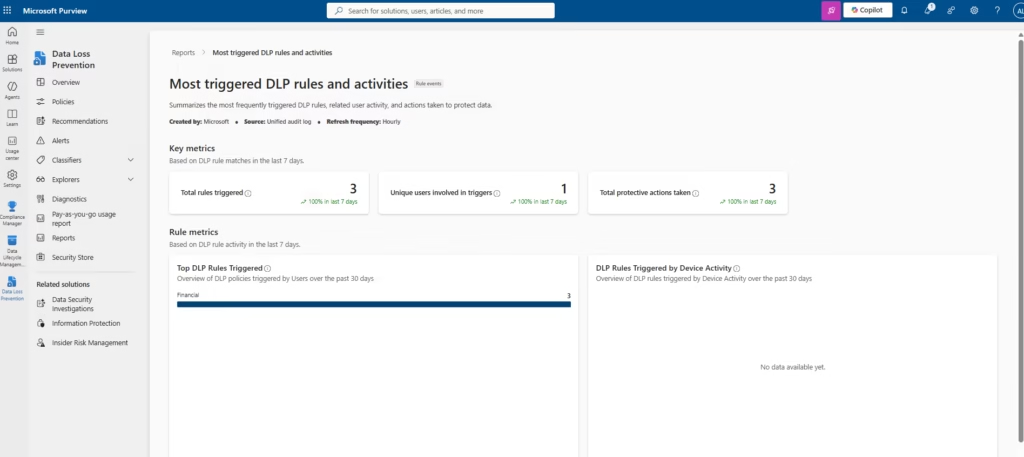
DLP Reports give you a policy-level view of matches over time, useful for compliance evidence, capacity planning, and measuring whether your policies are working.
Navigate to Data Loss Prevention → Reports.
Key Reports
DLP policy matches show match counts per policy over a selectable date range (last 7, 30, or 90 days). Use this to compare policies, spot trends, and show leadership that DLP is actively protecting data.
DLP incidents groups related matches into incidents. If the same user triggers the same rule five times in one day, that appears as one incident with five events inside it. More useful than raw match counts for identifying problematic behavior patterns.
DLP false positives and overrides show how often users reported a DLP block as a false positive or used the override option. High false positive rates indicate your policy conditions need tightening (raise instance counts, add supporting elements to SITs, or add exception conditions).
💡 Best Practice: Export DLP Reports as CSV quarterly and store them in a compliance evidence folder. If your organisation faces an audit, a 12-month history of DLP match data demonstrates active enforcement even if no incidents resulted in disciplinary action.
Switching from Simulation to Enforce Mode
After at least 7 days of simulation data (ideally 14–30 days for critical policies), you have enough signal to make the enforcement decision. Before switching, confirm:
- False positive rate is acceptable: below 5% of matches are legitimate business operations being incorrectly blocked
- Match volumes are predictable: no unexplained spikes that suggest policy misconfiguration
- Affected teams have been notified: finance, HR, or legal teams whose workflows will be affected know that the policy is going live
- User override is configured if needed: high-volume teams may need override capability with business justification logging
Step-by-Step: Switch to Enforce Mode
Navigate to Data Loss Prevention → Policies → open Finance Credit Card Protection → Edit policy.
Click through the wizard pages to reach Policy mode (the final configuration page before Review).
Change the selection from:
☑ Run the policy in simulation mode
To:
☑ Turn the policy on right away
Click Next, review the summary, then click Submit.
The policy enters a sync cycle. Allow 15–60 minutes for full propagation across all configured workloads. During this window, some workloads may be enforced while others are still in the previous state. This is normal.
⚠️ Common Mistake: Expecting instant enforcement after clicking Submit. DLP policy changes sync to Exchange within 1 hour, SharePoint and OneDrive within 24 hours, and Teams within 1 hour. If a user reports the policy isn’t blocking on SharePoint immediately after you switched, the sync is still in progress.
What Changes Immediately After Enforcement
| Workload | Old behavior (Simulation) | New behavior (Enforce) |
|---|---|---|
| Exchange | Rule matches logged only | Emails blocked or encrypted at send time |
| SharePoint | Match logged, file accessible | File access restricted, policy tip shown |
| OneDrive | Match logged, file shareable | External sharing blocked |
| Teams | Match logged, message sent | Message blocked before delivery |
| Endpoints | Match logged | File operations are blocked on the device |
Users will see a policy tip a notification explaining why their action was blocked and (if configured) an option to override with business justification. Policy tips appear in Outlook, Teams, and SharePoint automatically once enforcement is active.
Best Practices for Microsoft Purview DLP Alerts and Enforcement
- Review simulation data for at least 7 days before enforcing. One full business cycle surfaces patterns that 48 hours cannot end-of-month reports, weekly team syncs, and scheduled data exports.
- Notify affected users before enforcement. A short email from a manager explaining that DLP is going live reduces help desk tickets by 60–80%. People comply more readily with policies they understand.
- Start with high-confidence rules at enforcement and keep low-confidence at simulation. You can have different rules within the same policy at different enforcement states by adjusting instance counts and confidence levels per rule.
- Set up a DLP alert review calendar item. If alerts aren’t reviewed on a schedule, they aren’t reviewed at all. Weekly is minimum; daily is better for high-severity policies.
- Use override with justification rather than a hard block for new policies. Override lets you enforce while gathering data on what legitimate operations are being flagged. Review the justifications weekly and refine.
MS-102 Exam Tips
Scenario you’ll likely see: “An administrator has deployed a DLP policy in simulation mode for 10 days. Activity Explorer shows 200 matches. The administrator needs to configure the policy to notify the security team each time a rule matches, without changing the simulation state. What should they configure?”
Correct answer: Configure a DLP alert with single event severity on the rule, with email notification to the security team Not: Switch to enforce mode (this changes user behaviour, not just notifications) | Configure a sensitivity label (labels classify, not alert) | Enable audit logging (audit logging is always on and doesn’t send notifications)
Remember: Alerts notify admins. Policy tips notify users. These are configured separately. Alerts fire regardless of whether the policy is in simulation or enforce mode.
Endpoint-specific scenario you’ll likely see: “A DLP policy correctly detects sensitive content on Windows devices, but an administrator reports that alerts are not being generated for endpoint activity even though cloud workload alerts work normally. What is the most likely cause?”
Correct answer: The target device has not completed policy synchronization (Policy sync status is not “Updated”), so the current rule and alert configuration has not yet been applied to the endpoint. Not: The alert severity is set incorrectly (this would still generate an alert, just at the wrong severity) | The Sensitive Information Type doesn’t work on endpoints (SITs work identically across cloud and endpoint locations) | Endpoint DLP doesn’t support alerts (it does, using the same Incident reports configuration as cloud workloads)
Also know for the exam:
- Microsoft Purview DLP Alerts dashboard is under Data Loss Prevention → Alerts (not under Audit)
- Alert severity (High/Medium/Low) is set on the rule, not the policy
- Switching from simulation to enforce mode requires Submit clicking Save alone does not apply the change
- Policy sync time: Exchange ~1 hour, SharePoint/OneDrive up to 24 hours; endpoint devices sync independently and should be verified via Policy sync status, not assumed
- Override with justification logs the justification in Activity Explorer under the “DLP policy override” activity type
- You can switch back to simulation mode at any time enforcement is reversible
- Endpoint DLP alerts and cloud workload alerts use the same Incident reports configuration on the rule there is no separate endpoint alert toggle
FAQ
Q: Can I configure Microsoft Purview DLP Alerts without switching to enforce mode?
A: Yes. Alerts fire in both simulation and enforcement modes. Configuring alerts during simulation is recommended it lets you validate that notifications reach the right people before users are affected.
Q: What is the difference between a DLP Alert and a DLP Incident?
A: A DLP Alert fires per rule match (or per aggregated window). A DLP Incident groups related matches together, for example, five matches by the same user in one day become one incident. Incidents appear in DLP Reports and are better for tracking patterns; alerts are better for real-time response.
Q: How do I reduce false positive alerts without changing the policy?
A: Switch the alert mode from single event to aggregated, then set the threshold to a higher instance count (e.g., only alert when 10+ matches occur in 1 hour). This suppresses noise from isolated matches while still catching bulk violations. The longer fix is to refine your rule conditions, raise instance counts, or add supporting SIT elements.
Q: Can I test Microsoft Purview DLP Alerts without waiting for a real policy match?
A: Yes. Use the Test button on the Microsoft Purview DLP Alerts page (available in some tenants), or temporarily lower the rule’s instance count to 1 and send a test email containing a credit card number pattern (use a Luhn-valid test number like 4111 1111 1111 1111). Reset the threshold after confirming the alert fires.
Q: Do Microsoft Purview DLP Alerts work for endpoint DLP as well as cloud workloads?
A: Yes. DLP Alerts fire across all configured workloads, including endpoints (Windows 10/11 devices onboarded to Purview). Endpoint alerts include additional detail: the device name, the file path, and the specific operation that triggered the rule (copy to USB, upload to browser, print, etc.).
How do I know an alert relates to an endpoint event rather than a cloud workload event?
A: Check the Location and Enforcement plane columns in Activity Explorer and in the alert detail view. Endpoint events show Endpoint devices as the enforcement plane and typically reference a local file path (e.g., C:\Users\...), while cloud events reference a workload-specific location such as a SharePoint or OneDrive URL.
Q: Why does the same file show both endpoint and OneDrive activity for one test?
A: A file synced through OneDrive exists in both locations simultaneously. Local operations (create, modify, rename, print, browser upload) generate endpoint events; content classification and rule matching against the synced copy generate the cloud-location event. Read them together to reconstruct the full user action.
Lessons Learned
- A Low-severity alert is not a non-event. The GSM test alert in this lab was Low severity by design (single instance, single confidence match), but it still confirmed the entire detection-to-notification pipeline was working correctly end to end.
- The Triage Agent view is a starting point, not a replacement for review. Copilot-assisted categorization (Needs attention / Less urgent / Not categorized) speeds up triage but should be spot-checked, especially early in a deployment when the model has limited tenant-specific history to learn from.
- Endpoint device sync status is the single most common source of “it didn’t work” reports. Most apparent Endpoint DLP failures in this lab were traced back to checking too early, before the Policy sync status showed “Updated.”
- The native browser block dialog reduces investigation overhead. Because the block message is shown directly to the user with a clear reason, fewer alerts require follow-up user interviews compared to a silent failure that the user simply worked around.
- Reports and Activity Explorer answer different questions. Activity Explorer is for investigating a specific event; DLP Reports are for demonstrating a trend or pattern over time. Use the right one for the audience — an investigator wants Activity Explorer; a compliance auditor wants Reports.
Future Improvements
- Integrate DLP alert data with Microsoft Defender XDR incidents so a DLP match involving a device with other active security signals is correlated automatically rather than reviewed in isolation.
- Pilot Microsoft Purview Insider Risk Management alongside DLP alerts to build a risk score per user that accounts for repeated DLP matches over time, not just single events.
- Move from manual weekly review to a Power Automate-driven workflow that posts new High-severity DLP alerts directly into a Teams channel monitored by the compliance team.
- Expand the Full URL for the ‘File copied to cloud’ setting from pilot to broader rollout, once the compliance and privacy review referenced earlier in this lab is complete.
- Build a quarterly compliance report template that combines DLP Report exports with the endpoint onboarding coverage percentage to give leadership one consolidated view instead of two separate reports.
Conclusion
You’ve completed all three parts of the Microsoft Purview DLP series. You can now create a DLP policy from scratch, build custom Sensitive Information Types for proprietary data, review simulation results in Activity Explorer, extend protection to Windows endpoints and Generative AI websites with Endpoint DLP, configure Microsoft Purview DLP Alerts for real-time admin notification, investigate an alert end-to-end from a SOC perspective, read DLP Reports for compliance evidence, and switch a policy safely from simulation to full enforcement. These capabilities cover the majority of DLP-related scenarios you’ll see on the MS-102 exam and in production.
Related Posts in the MS-102 Series
- Part 1: Microsoft Purview DLP Policies: Proven MS-102 Lab Guide (2026)
- Part 2: Custom Sensitive Information Types: Proven MS-102 Lab (2026)
- Related: Microsoft Purview Sensitivity Labels: MS-102 Lab Guide
- Related: Microsoft Purview Audit Logs: MS-102 Lab Guide
- Related: eDiscovery in Microsoft Purview: Proven MS-102 Lab Guide (2026)
Official Microsoft Reference: Get started with DLP policy recommendations, Microsoft Learn
2 thoughts on “Microsoft Purview DLP Alerts: Proven MS-102 Lab (2026)”