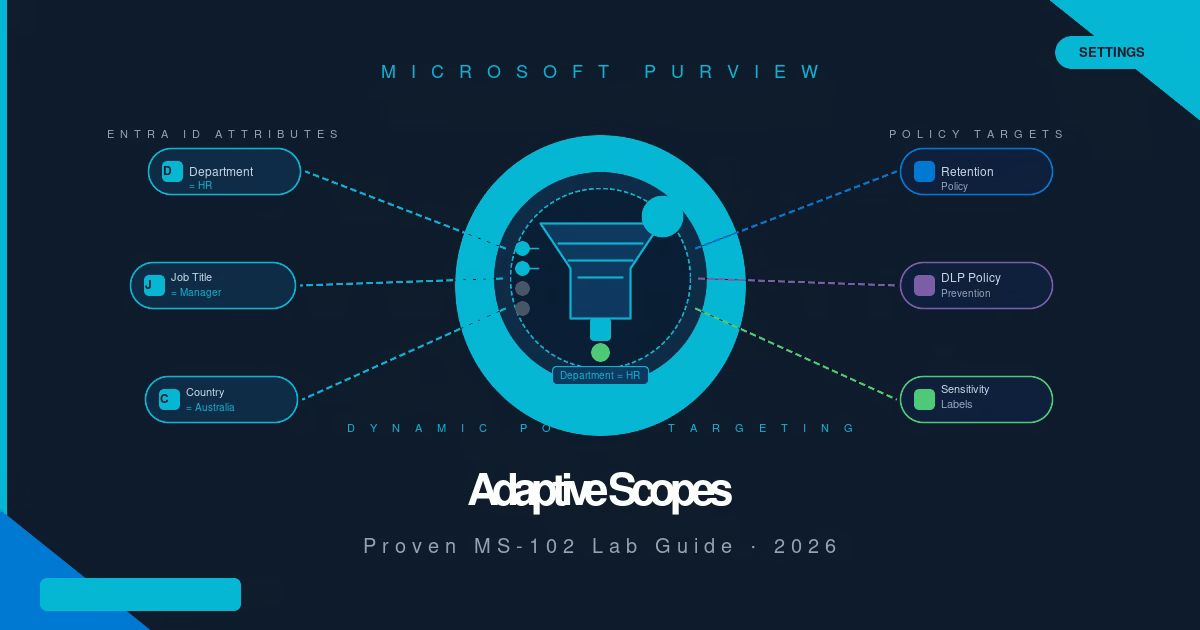
Every time someone joins or leaves your HR department, a static retention policy silently stops protecting them unless an admin remembers to update the list manually. Microsoft Purview adaptive scopes fix that.
In this guide, you’ll create a Microsoft Purview adaptive scope that dynamically targets users based on their Microsoft Entra ID department attribute, with no manual updates required. Specifically, you’ll learn:
- What Microsoft Purview adaptive scopes are and how they work
- The difference between Microsoft Purview adaptive scopes and static scopes
- How to create an adaptive scope targeting users by department
- How to assign an adaptive scope to a compliance policy
- MS-102 exam tips for Microsoft Purview adaptive scopes
What Are Microsoft Purview Adaptive Scopes?
A Microsoft Purview adaptive scope is a dynamic query that automatically identifies which users, SharePoint sites, or Microsoft 365 Groups a compliance policy should apply to based on attributes from Microsoft Entra ID.
Instead of listing specific mailboxes or sites when creating a retention, DLP, or sensitivity label policy, you define a query: “all users where Department = HR.” The scope evaluates that query continuously. When a new employee is assigned to HR in Entra ID, they’re automatically covered by every policy using that scope. When someone transfers out, they’re automatically removed.
This is the core problem Microsoft Purview Adaptive Scopes solve: compliance coverage that keeps up with your organization without admin intervention.
Adaptive Scope vs Static Scope
Microsoft Purview compliance policies support two targeting methods:
| Feature | Static Scope | Adaptive Scope |
|---|---|---|
| How targets are defined | Manually selected mailboxes, sites, or groups | Query based on Entra ID or SharePoint attributes |
| Updates when people change departments | Manual admin must edit the policy | Automatic scope re-evaluates continuously |
| Supports exclusions | Yes, include all except specific locations | Yes add exclusion conditions to the query |
| Best for | Small stable groups; one-off policies | Departments, roles, and regions that change over time |
| Licensing requirement | Available on all plans | Requires Microsoft 365 E3 or above |
| Max per tenant | N/A | 10,000 adaptive scopes |
Key exam distinction: If an MS-102 scenario says a policy “must automatically include new employees” or “must not require admin updates when staff change roles,” the answer always involves an adaptive scope not a static scope.
Where Microsoft Purview Adaptive Scopes Can Be Used
Once created, a single adaptive scope is reusable across multiple policy types:
- Retention policies: retain or delete content for matched users
- Sensitivity label policies: publish labels to matched users
- Auto-labeling policies: apply labels automatically to content owned by matched users
- Communication compliance policies: monitor communications from matched users
- DLP policies: apply data loss prevention rules to matched user locations
This reusability is a significant advantage: create one “HR Department” adaptive scope and assign it to all HR-related compliance policies. When the HR department expands, every policy updates automatically.
Step-by-Step Lab: Create a Microsoft Purview Adaptive Scope
Prerequisites: Compliance Administrator or Global Administrator role. Access to purview.microsoft.com.
Step 1: Navigate to Microsoft Purview Adaptive Scopes
From the Microsoft Purview compliance portal, click Settings in the left navigation → expand Roles and scopes → select Adaptive scopes.
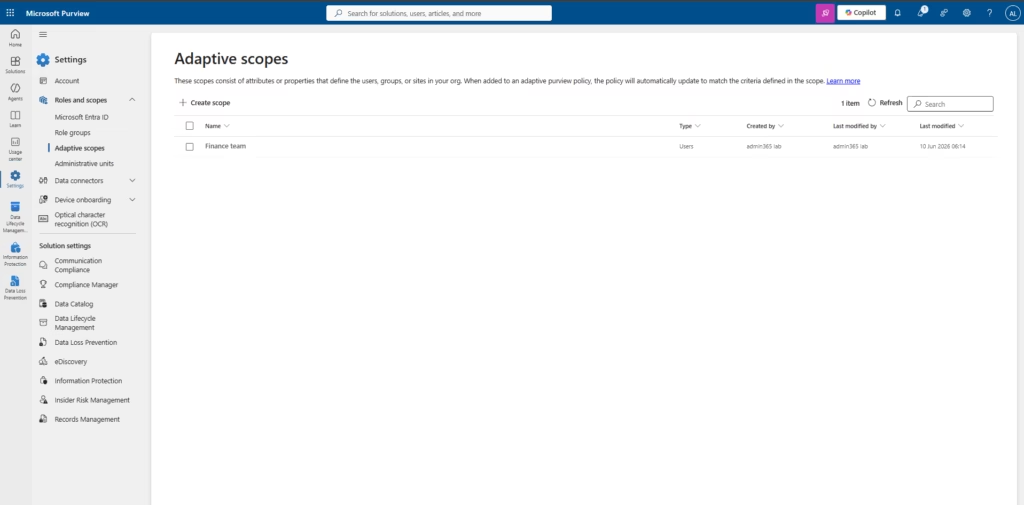
The list shows existing Microsoft Purview adaptive scopes in your tenant. A Finance team scope already exists here. Click + Create scope.
Step 2: Name the Adaptive Scope
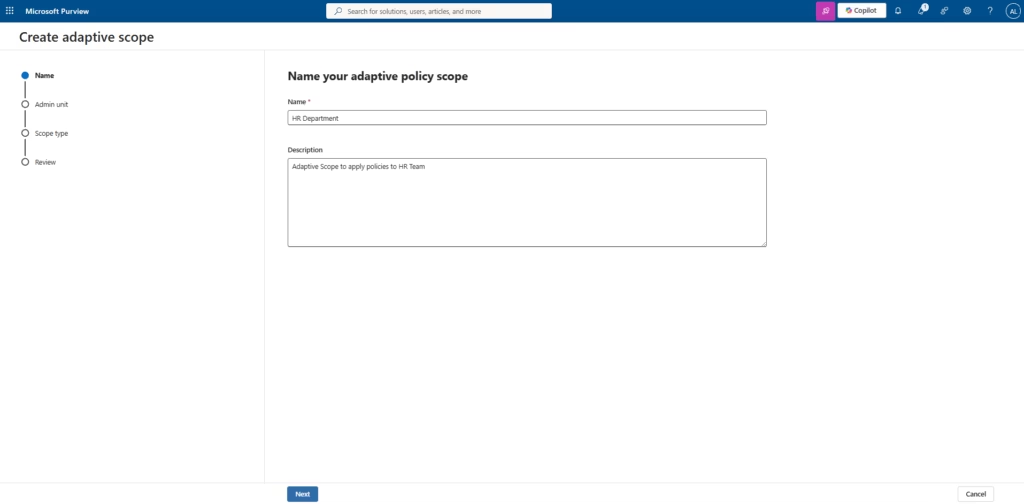
On the Name your adaptive policy scope page, enter:
- Name: HR Department
- Description: Adaptive Scope to apply policies to the HR Team
💡 Best Practice: Name Microsoft Purview adaptive scopes after the organisational unit they represent, not the policy they’ll first be used in. “HR Department” can be reused across a retention policy, a DLP policy, and a sensitivity label policy. “HR Retention Scope” can only logically serve one purpose.
Click Next.
Step 3: Assign Admin Unit
On the Assign admin unit page, the Selected admin unit shows Full directory. Leave this as-is for most deployments.
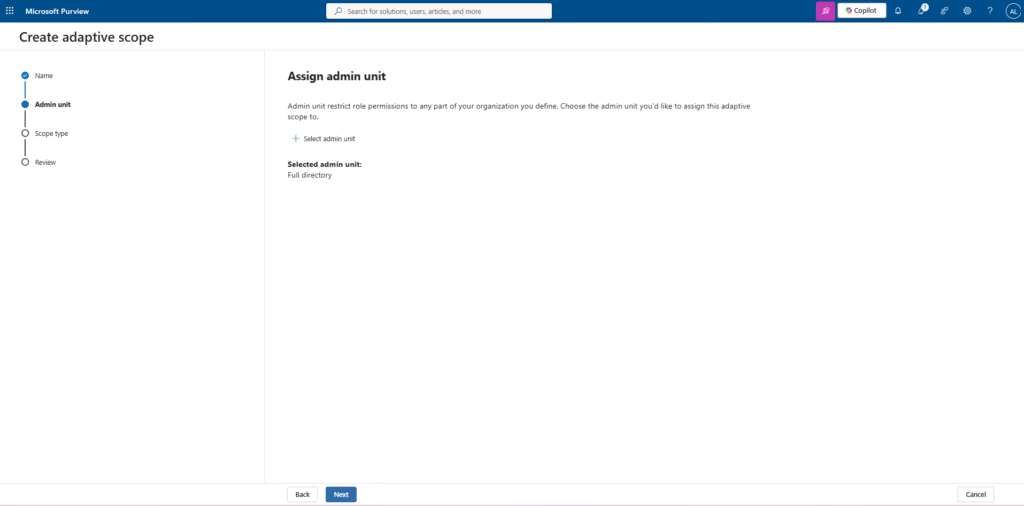
Admin units in Microsoft Purview restrict which subset of the directory a compliance role can manage. For most organizations without a delegated admin structure, Full directory is the correct choice.
Click Next.
Step 4: Choose Scope Type
What type of scope do you want to create? page, select Users.
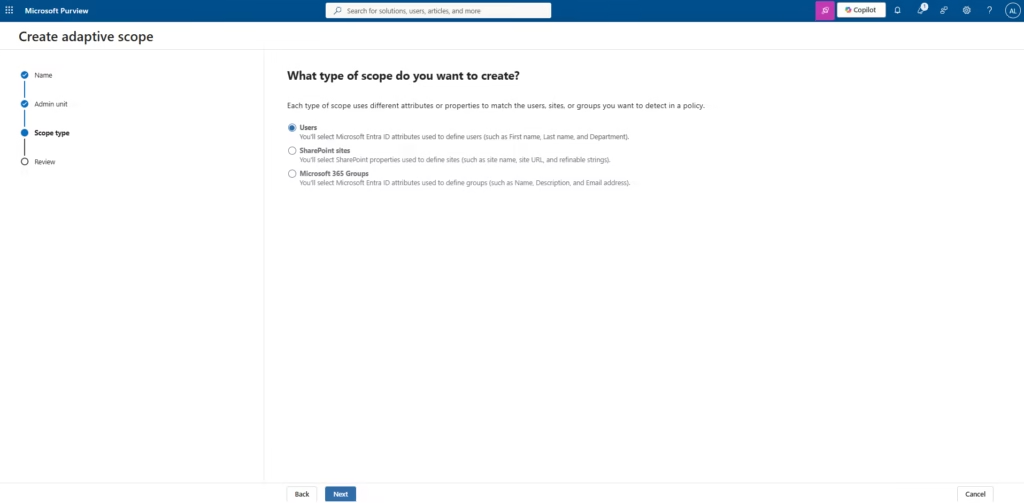
The three scope types and their attribute sources:
| Scope Type | Attributes Available | Policy Targets |
|---|---|---|
| Users | Entra ID user attributes (Department, Job title, Country, City…) | Exchange mailboxes, OneDrive accounts |
| SharePoint sites | SharePoint site properties (site name, URL, refinable strings) | SharePoint document libraries |
| Microsoft 365 Groups | Group attributes (Name, Description, Email address) | Group mailboxes and SharePoint sites |
Click Next.
Step 5: Define the User Query
On the Create the query to define users page, build the attribute filter:
- Click + Add attribute
- Attribute: Department
- Operator: is equal to
- Value: HR
The Query summary at the bottom updates to: Department = HR;
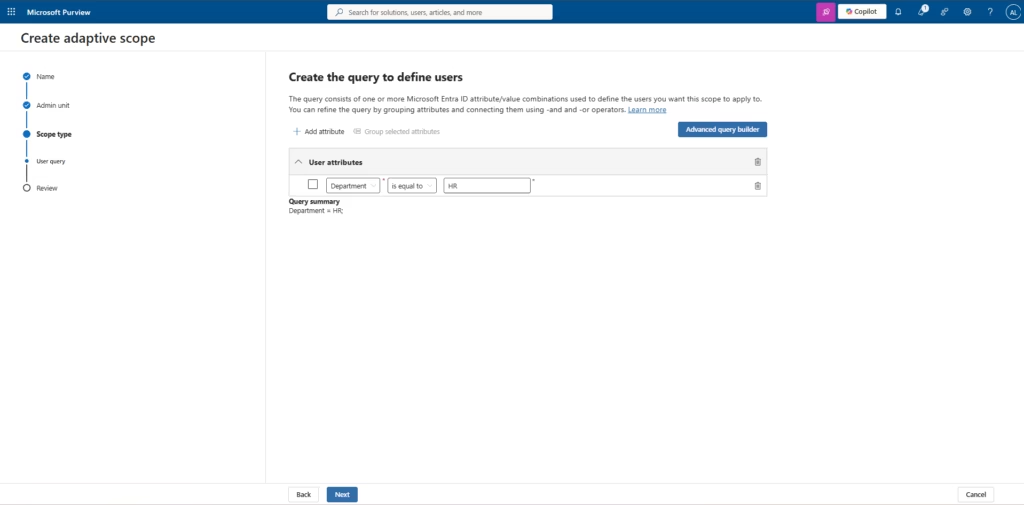
⚠️ Common Mistake: Building a query for “Human Resources” when the Entra ID attribute value is actually “HR” or the reverse. The match is string-exact (though case-insensitive). Before creating the scope, check a sample user in Entra ID → Users → Profile → Department to confirm the exact attribute value.
💡 Best Practice: Use Advanced query builder if you need compound logic for example, users where Department = HR AND Country = Australia. The simple attribute interface only supports a single attribute; the advanced builder supports AND/OR operators and multiple conditions.
Click Next.
Step 6: Review and Submit
The Review and finish page shows the complete scope configuration:
- Name: HR Department
- Description: Adaptive Scope to apply policies to the HR Team
- Admin unit: Full directory
- Type: User
- Query summary: Department = HR
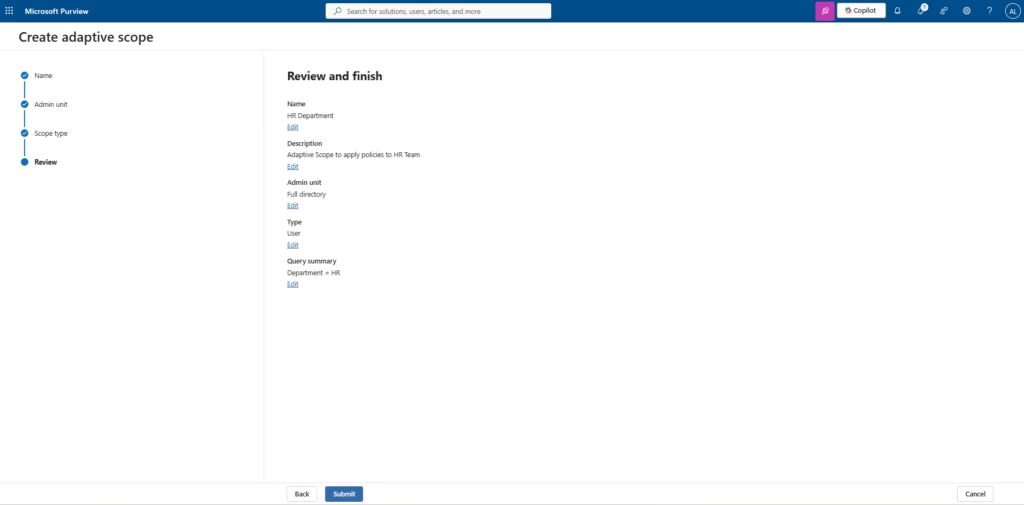
Click Submit.
Step 7: Scope Created Confirmation
Microsoft Purview displays the Your scope was created confirmation page.
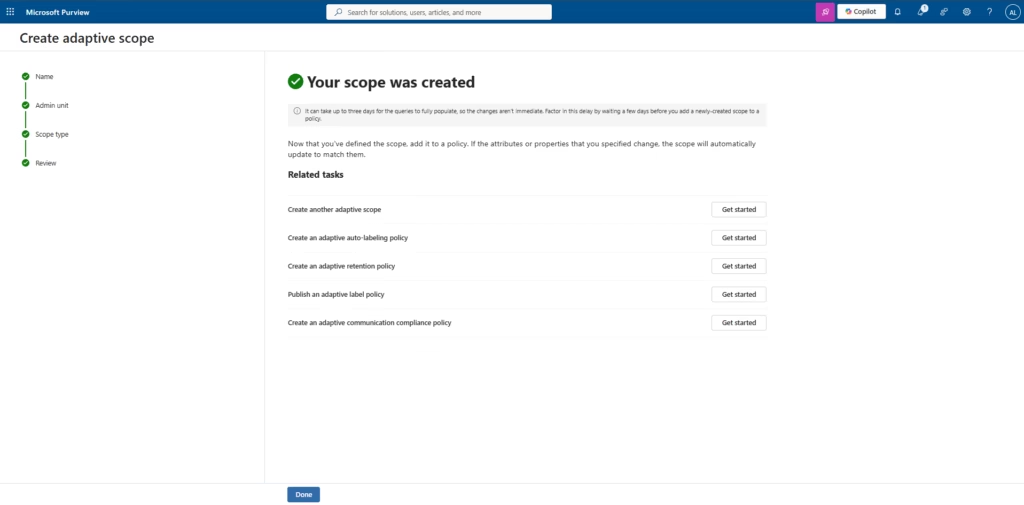
⚠️ Critical: The page notes that it can take up to three days for the queries to fully populate. Assigning a new adaptive scope to a policy before it fully populates means the policy may apply to an incomplete or empty set of users. Wait at least 24 hours, verify the scope member count, then assign it.
Click Done.
Step 8: Verify the Scope in the List
Back on the Microsoft Purview Adaptive scopes page, the HR Department now appears alongside the Finance team scope.
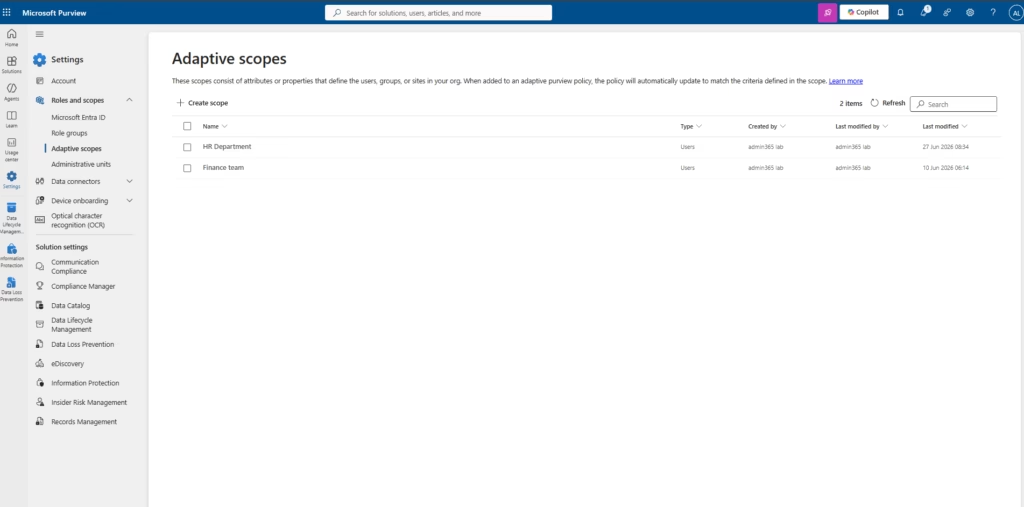
Step 9: Inspect Scope Details
Click the HR Department row. The Details panel opens on the right, showing all scope properties, including the query summary and last modified information.
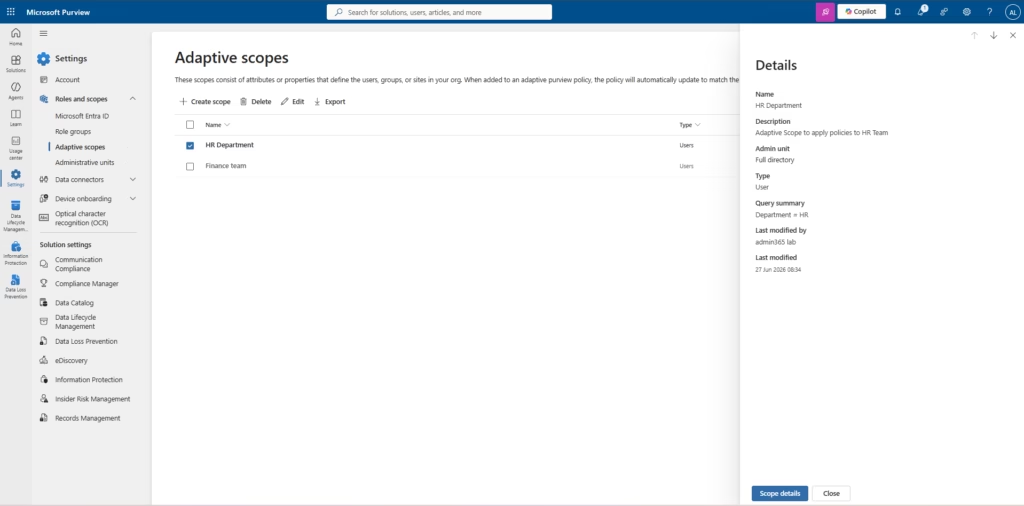
Use the Scope details button at the bottom of the Details panel to see the current count of matched users this confirms the scope is populating correctly before you assign it to a policy.
Step 10: Assign the Scope to a Policy
Once the scope is ready, you assign it during policy creation. Here’s what it looks like in a retention policy’s Review and finish step the scope appears as Selected Scope: HR Department (User).
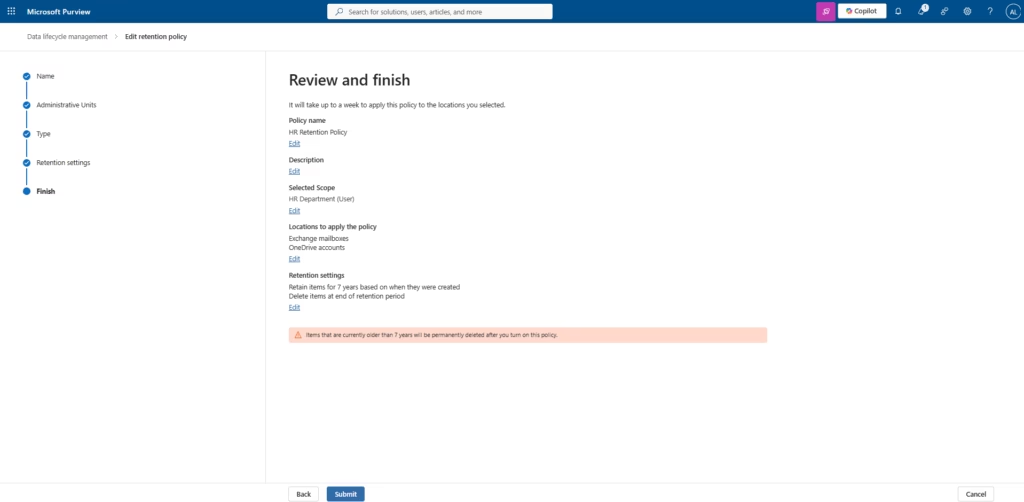
The same scope can be selected when creating sensitivity label policies, DLP policies, or auto-labeling policies one scope, multiple policies, zero manual list management.
Best Practices for Microsoft Purview Adaptive Scopes
- Audit Entra ID attribute quality first. Run a user export from Entra ID and check how many users have the Department field populated. If 30% of users have blank Department values, your adaptive scope will miss them entirely.
- Wait 24–72 hours before assigning to a production policy. The 3-day population warning is real. Verify the scope member count in the Scope details before attaching it to an active policy.
- Use one scope across multiple policies. A well-designed “HR Department” scope should serve your retention policy, your DLP policy, and your sensitivity label policy simultaneously reducing the number of objects to maintain.
- Name scopes for the group, not the use case. “Finance Team” not “Finance Retention Scope.” Names that describe the group remain useful when you assign the scope to a second or third policy type.
- Document your query logic. Add the query summary to the scope description field. When someone reviews the scope six months later,
Department = HR AND Country = AUThe description is far more useful than “Adaptive Scope for Aus HR.”
MS-102 Exam Tips
Scenario you’ll likely see: “A company wants to apply a sensitivity label policy to all users in the Legal department. New Legal staff should receive the policy automatically without admin intervention. What should the administrator configure before creating the label policy?”
Correct answer: A Microsoft Purview adaptive scope with a user query where Department = Legal Not: A static scope (requires manual updates) | A Microsoft Entra ID group (groups can be used in static scopes but don’t auto-update policy assignments) | An administrative unit (admin units restrict admin permissions, not policy targets)
Remember: Adaptive scope = dynamic query = automatic coverage. Static scope = manual list = manual maintenance.
Also know for the exam:
- Microsoft Purview Adaptive scopes require Microsoft 365 E3 or above
- Population delay after creation: up to 3 days
- Maximum Microsoft Purview adaptive scopes per tenant: 10,000
- Scope types: Users, SharePoint sites, Microsoft 365 Groups, these are the only three
- Microsoft Purview Adaptive scopes work with: retention policies, sensitivity label policies, auto-labelling policies, DLP policies, communication compliance policies
- You cannot convert a static scope policy to adaptive after creation you must create a new policy
FAQ
Q: Do I need to create a new adaptive scope for every policy?
A: No this is one of the key advantages. A single adaptive scope can be assigned to multiple policies simultaneously. Create “HR Department” once and reuse it in your retention policy, DLP policy, and sensitivity label policy.
Q: How long does it take for an adaptive scope to reflect a department change in Entra ID?
A: Typically, within 24 hours of the attribute change in Entra ID. The scope re-evaluates continuously, so new users with the matching attribute are picked up in the next evaluation cycle. The initial population after scope creation can take up to 3 days.
Q: Can I use an adaptive scope to exclude specific users from a policy?
A: Yes. In the user query, you can add exclusion conditions for example, Department = HR AND Job title is not equal to HR Director. The Advanced query builder supports complex NOT and AND/OR logic for this purpose.
Q: What is the difference between an adaptive scope and a Microsoft Entra ID dynamic group?
A: Both use attribute-based queries. A dynamic group in Entra ID controls group membership. An adaptive scope in Purview controls compliance policy coverage. They are separate concepts you cannot directly use a dynamic group as an adaptive scope, though both may use the same attribute logic.
Q: Can I use Microsoft Purview adaptive scopes in the Microsoft 365 Defender portal or only in Microsoft Purview?
A: Adaptive scopes are created and managed exclusively in the Microsoft Purview compliance portal (purview.microsoft.com → Settings → Roles and scopes → Adaptive scopes). They are then available when creating policies within Purview.
Conclusion
You’ve created a Microsoft Purview adaptive scope that dynamically identifies HR department users from Entra ID, verified it in the Microsoft Purview Adaptive scopes list, and seen how it appears when assigned to a compliance policy. Adaptive scopes eliminate one of the most common compliance drift problems policies that stop covering the right people because no one remembered to update a manual list.
Related Posts in the MS-102 Series
- Related: Microsoft Purview DLP Policies: Proven MS-102 Lab Guide (2026)
- Related: eDiscovery in Microsoft Purview: Proven MS-102 Lab Guide (2026)
- Related: Microsoft Purview Retention Policies: MS-102 Lab Guide
- Related: Microsoft Purview Sensitivity Labels: MS-102 Lab Guide
Official Microsoft Reference: Microsoft Purview Adaptive scopes for retention policies Microsoft Learn