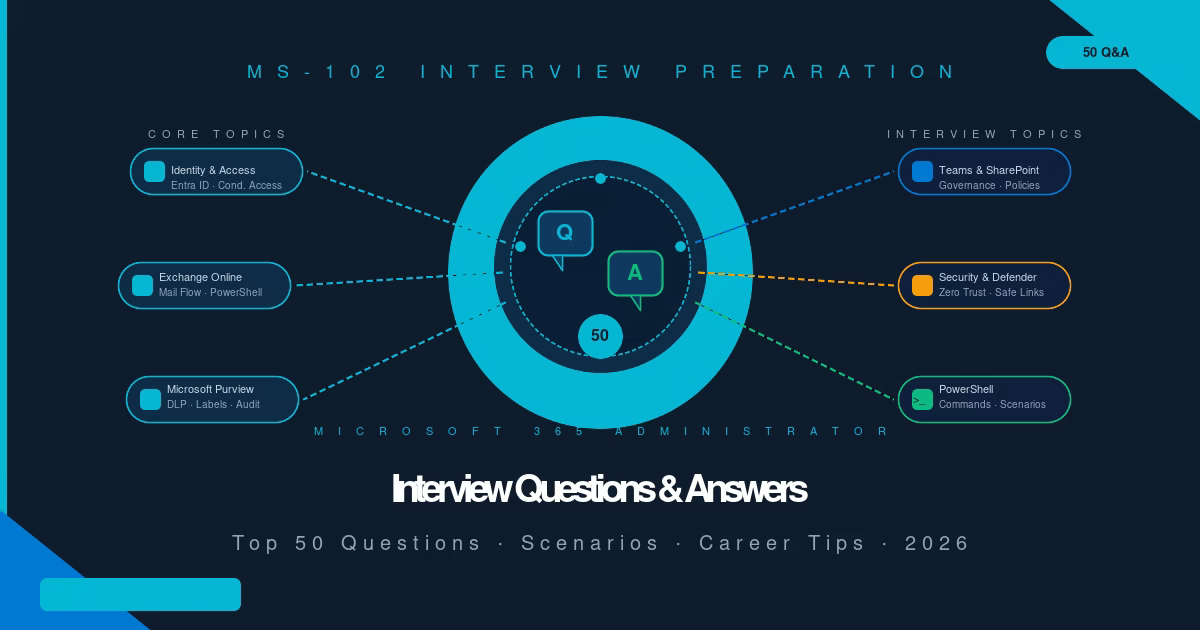
These MS-102 Interview Questions and answers will help you prepare with confidence. Passing the MS-102 certification proves you understand Microsoft 365 administration. Getting hired proves you can explain it under pressure, connect it to real-world problems, and demonstrate it with practical examples. This guide prepares you for both.
Why MS-102 Interview Preparation Matters
These MS-102 Interview Questions matter because hiring managers want proof you can apply MS-102 knowledge under real conditions. For the official exam objectives, see Microsoft’s MS-102 exam page.
Hiring managers for Microsoft 365 Administrator roles are not running a second certification exam. They are trying to answer three questions: Can this person configure the environment correctly? Can they explain their decisions to non-technical stakeholders? Can they troubleshoot under pressure without breaking production?
Certification questions test whether you know the right answer. Interview questions test whether you have done the work. The difference matters a candidate who memorized answers for MS-102 will struggle when an interviewer asks “walk me through how you would set up Conditional Access for a 500-person organization” and expects a practical, structured response.
What employers expect from MS-102-certified candidates:
- Hands-on portal experience, not just theoretical knowledge
- Ability to explain Microsoft 365 concepts to non-technical colleagues
- Confidence troubleshooting real incidents (mailflow failures, sign-in issues, DLP false positives)
- Understanding of when to use each feature — and why
- Familiarity with Microsoft 365 licensing and its impact on available features
Use the TechCertGuide MS-102 lab series to build the hands-on experience that makes your answers concrete rather than theoretical.
Section 1: Microsoft 365 Fundamentals (Questions 1–7)
These MS-102 Interview Questions focus on core Microsoft 365 fundamentals every administrator should know.
Q1. What is Microsoft 365, and how does it differ from Office 365? (one of our featured MS-102 Interview Questions)
Microsoft 365 is Microsoft’s cloud-based productivity and security platform. It includes the Office application suite (Word, Excel, PowerPoint, Outlook), cloud services (Exchange Online, SharePoint Online, Teams, OneDrive), device management (Microsoft Intune), and security and compliance tools (Microsoft Defender, Microsoft Purview). Office 365 was the earlier brand focused primarily on productivity apps and email. Microsoft 365 expanded that to include enterprise security, compliance, and device management under one license. In most enterprise environments today, the correct term is Microsoft 365, though the underlying services are the same.
Q2. What is a Microsoft 365 tenant?
A tenant is a dedicated, isolated instance of Microsoft 365 services provisioned for a single organization. When a company signs up for Microsoft 365, Microsoft creates a tenant in Azure Active Directory (now Microsoft Entra ID) that holds all the organization’s users, groups, licenses, and service configurations. The tenant is identified by a primary domain (e.g., contoso.onmicrosoft.com) and can have multiple custom domains attached. All Microsoft 365 services — Exchange Online, SharePoint, Teams — run within that tenant boundary. Data from one tenant is never accessible from another.
Q3. How do you add and verify a custom domain in Microsoft 365? (one of our featured MS-102 Interview Questions)
In the Microsoft 365 admin centre, navigate to Settings → Domains → Add domain. Enter the domain name and Microsoft provides a TXT record to add to the domain’s public DNS zone. This record proves ownership. Once the DNS provider propagates the record (typically within minutes to a few hours), Microsoft verifies it. You then add MX, CNAME, and SPF records to route email and enable services like Teams and Outlook Autodiscover. For the exam and in interviews, always note the verification step comes before service configuration — Microsoft will not route email to a domain it has not verified.
Q4. What Microsoft 365 licence tiers should an administrator know?
The key tiers for enterprise administrators are: Microsoft 365 Business Basic (web apps, email, Teams — no desktop Office), Microsoft 365 Business Premium (adds desktop Office, Intune, and Defender for Business), Microsoft 365 E3 (enterprise productivity, compliance, basic security), and Microsoft 365 E5 (full security stack including Defender for Endpoint, Microsoft Purview advanced compliance, and Microsoft Entra ID P2 for PIM and Conditional Access risk policies). Knowing which licence enables which feature is critical — interviewers frequently present scenarios where the answer depends on the licence tier.
Q5. What is the difference between a Microsoft 365 Group and a Distribution List? (one of our featured MS-102 Interview Questions)
A Distribution List (also called a Distribution Group) is a legacy mail-enabled group — it has an email address and delivers messages to its members, but it has no Microsoft 365 services attached. A Microsoft 365 Group is a modern group that provides a shared mailbox, shared calendar, SharePoint team site, Teams workspace, and Planner board automatically. Microsoft 365 Groups are the foundation of Teams and modern SharePoint collaboration. Distribution Lists are still valid for email-only scenarios and are commonly used for department-wide announcements.
Q6. What is group-based licensing and why is it used?
Group-based licensing assigns Microsoft 365 licences to users through their group membership rather than individually. An administrator assigns a licence to a group (for example, “All Engineers”), and every current and future member of that group automatically receives the licence. When a user leaves the group, the licence is automatically removed. This reduces administrative overhead in large organisations, prevents licence over-provisioning, and ensures new users receive the correct licence immediately upon being added to the appropriate group. It requires at least Microsoft Entra ID P1 (included in Microsoft 365 E3 and above).
Q7. How does the Microsoft 365 admin centre differ from the Microsoft Entra admin centre and the Microsoft Purview portal? (one of our featured MS-102 Interview Questions)
The Microsoft 365 admin centre (admin.microsoft.com) is the primary hub for user management, licencing, domain configuration, and service health. The Microsoft Entra admin centre (entra.microsoft.com) focuses on identity — Conditional Access policies, MFA, PIM, role assignments, and directory configuration. The Microsoft Purview portal (purview.microsoft.com) manages data governance and compliance — Sensitivity Labels, DLP, Retention, eDiscovery, Audit, and Compliance Manager. In real environments, administrators use all three regularly, and understanding which portal owns which workload prevents confusion during incidents.
Section 2 — Identity and Microsoft Entra ID (Questions 8–14)
These MS-102 Interview Questions cover identity and Microsoft Entra ID scenarios.
Q8. What is Microsoft Entra ID (formerly Azure Active Directory)?
Microsoft Entra ID is Microsoft’s cloud-based identity and access management service. It authenticates and authorises users and applications across Microsoft 365, Azure, and thousands of third-party SaaS applications via SAML, OAuth 2.0, and OpenID Connect. Every Microsoft 365 tenant is backed by a Microsoft Entra ID directory. Entra ID manages users, groups, app registrations, enterprise applications, and identity security features like Conditional Access, MFA, and Privileged Identity Management.
Q9. What is Conditional Access and how does it work? (one of our featured MS-102 Interview Questions)
Conditional Access is Microsoft Entra ID’s policy engine that controls who can access which resources under what conditions. An administrator defines a policy with three components: Assignments (which users, which cloud apps, and which conditions apply — such as device platform, location, or sign-in risk), and Access controls (grant access with requirements like MFA or a compliant device, or block access entirely).
Common policies include: require MFA for all users accessing cloud apps, block legacy authentication protocols, require a compliant Intune device for access to Exchange Online, and block sign-ins from high-risk countries. Conditional Access requires Microsoft Entra ID P1 or P2.
Q10. What is Privileged Identity Management (PIM) and why is it important?
PIM is a Microsoft Entra ID P2 feature that implements just-in-time privileged access. Instead of permanently assigning users to high-privilege roles like Global Administrator, PIM allows users to be eligible for a role and activate it only when needed — for a defined duration (for example, 2 hours), requiring justification, and optionally requiring approval from a second administrator. This dramatically reduces the attack surface from compromised admin accounts. Interviewers often ask about PIM in the context of Zero Trust architecture — the principle of least privilege means no one should have permanent Global Admin access.
Q11. What is the difference between Dynamic Groups and Assigned Groups? (one of our featured MS-102 Interview Questions)
In an Assigned Group, an administrator manually adds and removes members. In a Dynamic Group, membership is determined automatically by a membership rule based on user attributes in Entra ID — for example, all users whose Department attribute equals “Engineering” are automatically members. Dynamic Groups are powerful for licence assignment, Conditional Access scope, and policy targeting. They require Microsoft Entra ID P1. The key limitation: Dynamic Group membership can take up to 24 hours to reflect attribute changes in Entra ID.
Q12. What is Password Writeback and when is it required?
Password Writeback is an Entra ID Connect (hybrid identity) feature that synchronises password changes made in the cloud back to the on-premises Active Directory. Without Password Writeback, if a user resets their password through Self-Service Password Reset (SSPR) in Microsoft 365, the change applies only in Entra ID — their on-premises Active Directory password remains unchanged. This creates authentication problems for users who still authenticate against on-premises resources. Password Writeback is required in any hybrid environment where users reset passwords via SSPR and need those changes to apply on-premises.
Q13. What are Administrative Units in Microsoft Entra ID? (one of our featured MS-102 Interview Questions)
Administrative Units allow administrators to scope the management permissions of other administrators to a subset of users, groups, or devices. For example, in a large multi-campus organisation, a campus IT administrator can be given User Administrator rights scoped only to users in their campus Administrative Unit — they cannot see or manage users in other campus units. This enables delegation of administration without granting tenant-wide permissions. Administrative Units are particularly valuable in higher education and large enterprise environments with decentralised IT teams.
Q14. What is the difference between MFA and passwordless authentication?
MFA (Multi-Factor Authentication) requires a user to provide something they know (password) plus something they have (authenticator app, SMS, hardware token) or something they are (biometric). It adds a second step on top of the password. Passwordless authentication removes the password entirely — users authenticate using the Microsoft Authenticator app with biometric or PIN, a FIDO2 security key, or Windows Hello for Business. Passwordless is more secure than MFA because there is no password to phish, steal, or spray. It is Microsoft’s recommended direction for modern identity security.
Section 3 — Exchange Online (Questions 15–20)
These MS-102 Interview Questions dig into Exchange Online administration.
Q15. What is the difference between a Shared Mailbox and a User Mailbox? (one of our featured MS-102 Interview Questions)
A User Mailbox is assigned to a specific individual, requires a Microsoft 365 licence, and the user signs in with their own credentials.
A Shared Mailbox is a mailbox accessible by multiple users who have been granted Full Access or Send As permissions — it does not require a dedicated licence (up to 50 GB), users access it as an additional mailbox in their Outlook profile without a separate sign-in, and it does not have its own password by default. Shared Mailboxes are commonly used for departmental email addresses (support@, info@, hr@). For mailboxes over 50 GB, a licence must be assigned.
Q16. What is a mail flow rule (transport rule) and give an example use case?
Mail flow rules (also called transport rules) in Exchange Online process messages passing through the mail transport pipeline and apply conditions and actions. They run on the server before messages reach recipients. Example use case: an organisation requires that all external emails sent by Finance department users include a specific disclaimer. A transport rule can be configured to match emails where the sender’s department attribute equals “Finance” and the recipient is external, then append a legal disclaimer to the message body. Other common uses: block specific file attachments, add email headers for downstream filtering, enforce journaling to a compliance archive.
Q17. How do SPF, DKIM, and DMARC work together? (one of our featured MS-102 Interview Questions)
SPF (Sender Policy Framework) is a DNS TXT record that lists the IP addresses authorised to send email on behalf of your domain. It tells receiving mail servers: “only trust email from this domain if it comes from these IPs.” DKIM (DomainKeys Identified Mail) adds a cryptographic signature to outgoing messages that receiving servers can verify using a public key published in DNS — this proves the message was not tampered with in transit.
DMARC (Domain-based Message Authentication, Reporting and Conformance) ties SPF and DKIM together by specifying what receiving servers should do when emails fail authentication — quarantine, reject, or allow — and generates reports back to the domain owner. All three working together provides the strongest email authentication posture.
Q18. A user reports they cannot receive emails from an external domain. How would you troubleshoot?
Structured approach: First, check the Microsoft 365 Message Trace (Exchange admin centre → Mail flow → Message trace) to see whether the messages are arriving at Microsoft’s mail servers, being delivered, or being blocked. If messages are not arriving, the issue may be DNS (sender’s MX record pointing wrong) or a block at the sending organisation.
If messages are arriving but being blocked internally, check anti-spam policies, Safe Attachments/Safe Links policies in Defender for Office 365, and any mail flow rules that may be deleting or redirecting messages. Check the recipient’s mailbox storage — full mailboxes reject inbound mail. Finally, verify the recipient’s email address is correctly configured and not pointing to an incorrect routing domain.
Q19. What is the difference between Full Access and Send As permissions on a mailbox? (one of our featured MS-102 Interview Questions)
Full Access allows a user to open and read the contents of a mailbox and manage its contents — but emails sent from that mailbox still show the original mailbox owner as the sender. Send As allows a user to send email that appears to come directly from the mailbox — the recipient sees the mailbox address, not the delegated user’s address.
Send on Behalf is a third permission: the recipient sees “John Smith on behalf of HR Department.” In most Shared Mailbox scenarios, Full Access + Send As is the correct combination — users can read all mail and send as the shared address with no indication of which individual sent it.
Q20. What are resource mailboxes and how are they used?
Resource mailboxes represent physical resources — meeting rooms and equipment — that can be booked via calendar invitations. There are two types: Room Mailboxes (conference rooms, meeting spaces) and Equipment Mailboxes (projectors, company vehicles, AV equipment). When a user sends a meeting invitation to a resource mailbox, the resource’s booking policy determines whether it auto-accepts or requires approval from a Resource Delegate. Resource mailboxes do not require user licences. Administrators configure booking windows, maximum duration, and whether double-booking is permitted through the Exchange admin centre.
Section 4 — Microsoft Teams (Questions 21–25)
These MS-102 Interview Questions explore Microsoft Teams administration and governance.
Q21. What is the difference between Teams Guest Access and External Access? (one of our featured MS-102 Interview Questions)
External Access (formerly Federation) allows Teams users from your tenant to find, call, and chat with Teams users in other organisations — but they communicate as external users and cannot be added to Teams or channels. Both organisations must enable External Access. Guest Access allows external individuals (including non-Microsoft 365 users) to be invited into a specific Team as a guest member — they can access channels, files, tabs, and conversations within that Team. Guests are provisioned as guest users in your Entra ID tenant. External Access = organisation-to-organisation communication. Guest Access = individual access to a specific Team.
Related: Microsoft Teams Administration (Coming Soon)
Q22. What are Teams policies and give three examples of what they control?
Teams policies are configurations applied to users (or groups of users) that control their Teams experience. Administrators assign policies via the Teams admin centre or PowerShell. Three common policy types: (1) Meeting policies — control who can present, whether recordings are allowed, whether anonymous users can join, and lobby bypass settings. (2) Messaging policies — control whether users can delete sent messages, use Giphy, send urgent messages, or read receipts. (3) App permission policies — control which Teams apps (first-party and third-party) users can install. Policies allow organisations to standardise the Teams experience and prevent features from being used inappropriately.
Q23. What is Teams governance and why is it important? (one of our featured MS-102 Interview Questions)
Teams governance refers to the policies, controls, and procedures organisations use to manage the lifecycle of Teams — creation, usage, membership, and deletion. Without governance, organisations can end up with hundreds of abandoned Teams, inconsistent naming, and sensitive data spread across poorly managed workspaces.
Key governance controls include: Group creation policies (restrict who can create Microsoft 365 Groups / Teams), Teams expiration policies (automatically expire unused Teams after a defined period), naming policies (enforce prefixes or suffixes on Team names), and sensitivity label policies (apply protection settings to Teams based on classification). Governance is a common interview topic because it demonstrates understanding of real enterprise IT challenges beyond basic configuration.
Q24. What happens to a Team’s data when the Team is deleted?
When a Team is deleted in Microsoft Teams, the associated Microsoft 365 Group is deleted, which triggers a soft-delete of the underlying SharePoint site, shared mailbox, and shared calendar. By default, the Microsoft 365 Group is retained in a soft-deleted state for 30 days, during which an administrator can restore it from the Microsoft 365 admin centre. After 30 days, the Group and all associated data (SharePoint site, mailbox, files) are permanently deleted. This is why Teams expiration and retention policies are important — data that matters should be protected before the Team is deleted, not recovered after the fact.
Q25. How would you prevent users from creating Teams without approval? (one of our featured MS-102 Interview Questions)
By default, any Microsoft 365 user can create a Microsoft 365 Group, which creates a Team. To restrict this, create a security group called (for example) “Teams Creators” and configure the Microsoft 365 Group creation policy to allow Group creation only for members of that security group. This is done via PowerShell or through the Microsoft Entra admin centre Group settings. Users outside the “Teams Creators” group will see an error when attempting to create a new Team or Group. The IT team or a designated Team creation request process can then manage Group creation centrally.
Section 5 — SharePoint Online and OneDrive (Questions 26–30)
These MS-102 Interview Questions test your SharePoint Online and OneDrive knowledge.
Q26. What are the SharePoint Online external sharing levels and when would you use each?
SharePoint Online has four external sharing levels (configurable at tenant and site level): (1) Anyone — users can share files with anonymous links, no sign-in required. (2) New and existing guests — external users must authenticate (Microsoft account or OTP), creating a guest account in Entra ID. (3) Existing guests only — only external users already in the Entra ID directory can access shared content. (4) Only people in your organisation — no external sharing permitted.
The site-level setting cannot be more permissive than the tenant-level setting. Most organisations set the tenant level to “New and existing guests” and restrict specific sensitive sites to “Only people in your organisation.”
Q27. How does versioning work in SharePoint Online? (one of our featured MS-102 Interview Questions)
SharePoint Online maintains a version history for documents stored in document libraries. When versioning is enabled, every time a file is edited and saved, a new version is created. Administrators can configure the number of major versions retained (1–50,000) and whether minor (draft) versions are tracked.
Users with Edit access can view and restore previous versions from the Version History panel. Versioning protects against accidental overwrites and allows recovery of content changed or corrupted by ransomware. It does not replace backup — versioning stores versions within the SharePoint storage quota and versions deleted files only retain them in the Recycle Bin for 93 days.
Q28. What is the difference between SharePoint permissions inheritance and unique permissions?
By default, SharePoint sites, libraries, and lists inherit permissions from their parent — if a user has Edit access to a site, they can access all libraries within it. Unique permissions break this inheritance at the library, folder, or item level, allowing different access controls for a specific location.
For example, a HR Documents library within a general company intranet site can have unique permissions that restrict access to HR staff only, even though the rest of the intranet is accessible to all employees. Breaking inheritance increases administrative complexity — Microsoft recommends using it sparingly and managing access through groups rather than individual user assignments.
Q29. What is OneDrive for Business and how does it differ from personal OneDrive? (one of our featured MS-102 Interview Questions)
OneDrive for Business is Microsoft 365’s per-user cloud storage for work files — each user receives a dedicated storage allocation (typically 1 TB, expandable to 5 TB) associated with their Microsoft 365 account. Files stored in OneDrive for Business are governed by the organisation’s Microsoft 365 policies — retention policies, DLP rules, eDiscovery holds, and sensitivity labels can all apply.
When an employee leaves the organisation, their OneDrive for Business content is retained for 30 days (configurable up to 180 days) and can be transferred to their manager. Personal OneDrive (consumer) is an individual service unconnected to any organisation and not subject to corporate governance.
Q30. How do you recover a deleted SharePoint site?
When a SharePoint site is deleted, it is moved to the SharePoint admin centre’s Deleted sites view where it remains for 93 days. A SharePoint administrator can restore it from the admin centre with one click — all content, permissions, and version history is preserved.
After 93 days, the site is permanently deleted and is not recoverable through standard admin tools. If a site needs to be recovered after permanent deletion, a Microsoft support case must be opened and recovery is not guaranteed. This is why communication with site owners before deletion, and retention policies for content that must be preserved, are critical operational practices.
Section 6 — Microsoft Purview (Questions 31–37)
These MS-102 Interview Questions examine Microsoft Purview compliance features.
Q31. What is the difference between a Sensitivity Label and a DLP policy? (one of our featured MS-102 Interview Questions)
A Sensitivity Label classifies content and optionally applies protection — encryption, access restrictions, visual markings (watermarks, headers, footers). It is applied to content at the time of creation or classification and travels with the file wherever it goes. A DLP (Data Loss Prevention) policy monitors content and prevents specific actions based on what the content contains — it does not classify or protect the file itself.
DLP says “this document contains a credit card number — block the user from emailing it externally.” Sensitivity Labels say “this document is Confidential — encrypt it so only authorised users can open it.” They are complementary: DLP policies can use Sensitivity Labels as conditions, and Sensitivity Labels can trigger DLP rules.
Related: Data Loss Prevention — MS-102 Lab Guide Related: Information Protection and Sensitivity Labels — MS-102 Lab Guide
Q32. What is the difference between a Retention Policy and a Retention Label?
A Retention Policy is applied broadly to entire locations — all Exchange mailboxes, all SharePoint sites, all Teams chats — and automatically retains or deletes all content in those locations for a set period. It requires no user action. A Retention Label is applied to individual items — a specific email, a specific document — and can be applied manually by users or automatically by auto-labelling policies.
Retention Labels also support additional capabilities not available in policies: they can mark content as a Record (preventing deletion), support event-based retention (retention triggered by an event rather than content age), and can initiate a disposition review before permanent deletion. When asked to distinguish them: policies are broad and automatic; labels are granular and flexible.
Q33. What is eDiscovery and when would an organisation use it? (one of our featured MS-102 Interview Questions)
eDiscovery (Electronic Discovery) is the process of identifying, preserving, collecting, and reviewing electronically stored information in response to legal proceedings, regulatory investigations, or internal HR investigations. Microsoft Purview eDiscovery allows administrators to place Legal Holds on specific mailboxes, SharePoint sites, or Teams conversations to prevent content from being deleted or modified, run content searches across Microsoft 365 with keyword and date filters, and export results in formats accepted by legal review platforms.
Typical triggers: an employee files a wrongful termination claim (HR places a hold on their mailbox), a regulatory body requests email records for a specific period, or an internal investigation requires reviewing communications between specific individuals.
Q34. What is Compliance Manager and what does the compliance score represent?
Compliance Manager is a Microsoft Purview risk assessment dashboard that measures how well a Microsoft 365 environment aligns with regulatory standards — GDPR, ISO 27001, NIST 800-53, PCI DSS, and hundreds more. The compliance score is a number from 0 to the maximum possible points, expressed as a percentage.
It consists of two components: your points (improvement actions that your organisation must implement) and Microsoft managed points (controls Microsoft handles automatically at the platform level). The score indicates your current compliance posture against a standard — it is not a certification. Reaching 100% in Compliance Manager does not mean your organisation is certified; third-party audits are still required for formal certification.
Q35. What is Microsoft Purview Audit and what is the difference between Audit Standard and Audit Premium? (one of our featured MS-102 Interview Questions)
Microsoft Purview Audit records user and administrator activities across Microsoft 365 — sign-ins, file access, mailbox access, policy changes, and more. Audit Standard (included in Microsoft 365 E3) retains audit logs for 90 days and supports basic search.
Audit Premium (Microsoft 365 E5 or E5 Compliance add-on) extends retention to 1 year (extendable to 10 years with an add-on licence), adds high-value audit events such as MailItemsAccessed (which tracks individual email access by users and tools), provides bandwidth throttling priority for high-volume searches, and supports audit log export via API. In breach investigation scenarios, Audit Premium’s MailItemsAccessed event is critical for determining exactly which emails were accessed by a compromised account.
Q36. What are Adaptive Scopes in Microsoft Purview?
Adaptive Scopes are dynamic queries used in Microsoft Purview compliance policies — Retention, DLP, Sensitivity Label, and Communication Compliance policies — to automatically target users, SharePoint sites, or Microsoft 365 Groups based on attributes from Microsoft Entra ID.
Instead of manually listing specific mailboxes in a retention policy, you define a query: “all users where Department = Finance.” When a new user joins Finance, they are automatically covered; when someone transfers out, they are automatically removed. This eliminates the administrative overhead of manually updating policy membership when the organisation changes. Adaptive Scopes require Microsoft 365 E3 or above and can take up to 3 days to fully populate after creation.
Related: Adaptive Scopes — MS-102 Lab Guide
Q37. What is Records Management in Microsoft Purview? (one of our featured MS-102 Interview Questions)
Records Management is Microsoft Purview’s capability for managing content that must be preserved for legal, regulatory, or business reasons as immutable records. When content is declared a Record using a Retention Label with Records Management, it cannot be edited or deleted until the retention period expires — even by administrators.
At the end of the retention period, a disposition review can be triggered, requiring a designated reviewer to confirm that the content should be permanently deleted before deletion occurs. This creates a defensible deletion process with an audit trail — important for GDPR (right to erasure with defensible documentation) and regulatory frameworks requiring provable records destruction.
Section 7 — Security and Microsoft Defender (Questions 38–43)
These MS-102 Interview Questions probe security and Microsoft Defender skills.
Q38. What does Microsoft Defender for Office 365 protect against?
Microsoft Defender for Office 365 extends Exchange Online’s built-in anti-malware and anti-spam protection with advanced threat capabilities: Safe Links rewrites URLs in emails and Office documents and checks them in real time when a user clicks — if the destination becomes malicious after delivery, Safe Links blocks access.
Safe Attachments opens email attachments in a protected detonation environment before delivering them to the user — if the attachment behaves maliciously in the sandbox, it is blocked. Anti-phishing policies use machine learning to detect impersonation attempts against specific protected users (executives) and protected domains. Attack Simulation Training allows administrators to run simulated phishing campaigns against their users to measure susceptibility and deliver targeted training.
Q39. What is Zero Trust and how does Microsoft 365 implement it? (one of our featured MS-102 Interview Questions)
Zero Trust is a security model based on the principle “never trust, always verify” — every access request is authenticated, authorised, and continuously validated regardless of whether it originates inside or outside the corporate network.
Microsoft 365 implements Zero Trust through: Conditional Access (every sign-in evaluated against policies before access is granted), Microsoft Entra ID Identity Protection (risk-based access decisions based on sign-in anomalies), Microsoft Intune (device compliance enforcement — only managed, healthy devices access corporate resources), Microsoft Defender for Endpoint (continuous endpoint health monitoring), and Microsoft Purview (data classification and protection ensuring sensitive data is protected regardless of where it goes). Zero Trust replaces the perimeter-based “castle and moat” model.
Q40. What is Microsoft Secure Score and how should administrators use it?
Microsoft Secure Score is a measurement of an organisation’s security posture relative to Microsoft’s security recommendations. It is displayed as a score out of the maximum achievable points, broken down by category (Identity, Device, Apps, Data, Infrastructure). Each recommended action has a point value — implementing MFA for all admins might be worth 30 points.
Administrators should use Secure Score as a prioritised action list: focus on high-impact, low-effort recommendations first. Secure Score should not be treated as a target to maximise at all costs — some recommendations may not be appropriate for every organisation. It is a compass, not a report card. The key exam distinction: Secure Score measures security posture; Compliance Manager measures regulatory compliance posture.
Q41. How does Microsoft Defender for Endpoint integrate with Microsoft 365? (one of our featured MS-102 Interview Questions)
Microsoft Defender for Endpoint (MDE) is an endpoint detection and response (EDR) platform. In Microsoft 365 environments, MDE integrates through: Intune device compliance — MDE sends device health signals to Intune, and Conditional Access policies can require a “healthy” MDE signal before granting access to Microsoft 365 apps. Microsoft Defender XDR portal — MDE incidents appear alongside Defender for Office 365 and Defender for Identity alerts in a unified incident queue, enabling correlation of endpoint and email attack chains. Automated investigation and response — MDE can automatically quarantine suspicious files and isolate compromised devices without waiting for analyst intervention.
Q42. What is the difference between anti-spam and anti-phishing protection in Microsoft 365?
Anti-spam filtering evaluates inbound messages for spam characteristics — bulk senders, known spam sources, message content patterns — and routes suspected spam to the Junk Email folder or quarantine. It is primarily volume-based threat filtering. Anti-phishing protection specifically targets impersonation and deception: messages designed to look like they come from your CEO (executive impersonation), your email domain (domain spoofing), or trusted Microsoft partners.
Anti-phishing policies in Defender for Office 365 can define specific protected users (executives whose names are frequently impersonated), enable mailbox intelligence (learn who each user communicates with to detect unusual sender patterns), and configure spoof intelligence to manage legitimate senders who send on behalf of your domain.
Q43. What is a Safe Attachments policy and what is Dynamic Delivery? (one of our featured MS-102 Interview Questions)
A Safe Attachments policy routes inbound email attachments through Microsoft’s detonation sandbox before delivery. The sandbox opens the attachment in an isolated environment and monitors for malicious behaviour. If the attachment is clean, it is released to the user. Dynamic Delivery is a setting that delivers the email body to the user immediately, with a placeholder for the attachment, while the attachment is being scanned.
When scanning completes, the real attachment replaces the placeholder. This prevents users from waiting for email delivery during scanning while still providing protection. Without Dynamic Delivery, the entire email is held during scanning, which can delay delivery by several minutes.
Section 8 — PowerShell (Questions 44–47)
These MS-102 Interview Questions include hands-on PowerShell scenarios.
Q44. How do you connect to Exchange Online using PowerShell?
Install the Exchange Online Management module from the PowerShell Gallery: Install-Module -Name ExchangeOnlineManagement. Then connect with: Connect-ExchangeOnline -UserPrincipalName admin@contoso.com. This opens a browser authentication prompt and establishes an authenticated session using modern authentication (OAuth). For automated scripts or pipelines, certificate-based authentication can be used instead of interactive login. Once connected, all Exchange Online cmdlets (Get-Mailbox, Set-Mailbox, New-TransportRule, etc.) are available. To disconnect the session cleanly: Disconnect-ExchangeOnline -Confirm:$false.
Q45. What PowerShell commands would you use for common Microsoft 365 administration tasks? (one of our featured MS-102 Interview Questions)
Some essential commands by area:
- Users:
Get-MgUser(Microsoft Graph PowerShell) — list all users;New-MgUser— create a user - Mailboxes:
Get-Mailbox -RecipientTypeDetails SharedMailbox— list all shared mailboxes;Set-Mailbox -Identity user@contoso.com -ProhibitSendQuota 49GB— set mailbox quota - Transport rules:
Get-TransportRule— list all mail flow rules;New-TransportRule— create a rule - Groups:
Get-DistributionGroup— list distribution groups;Add-DistributionGroupMember— add a member - Licences:
Get-MgUserLicenseDetail -UserId user@contoso.com— check assigned licences - MFA:
Get-MgUserAuthenticationMethod -UserId user@contoso.com— review authentication methods - SharePoint:
Connect-SPOService -Url https://contoso-admin.sharepoint.com— connect to SharePoint Online PowerShell
Q46. How would you use PowerShell to find all users with a specific licence assigned?
Using Microsoft Graph PowerShell:
Connect-MgGraph -Scopes "User.Read.All", "Directory.Read.All"
$sku = Get-MgSubscribedSku | Where-Object {$_.SkuPartNumber -eq "ENTERPRISEPREMIUM"}
Get-MgUser -Filter "assignedLicenses/any(x:x/skuId eq $($sku.SkuId))" -All
This retrieves all users with the Microsoft 365 E3 licence assigned. Replace ENTERPRISEPREMIUM with the relevant SKU part number for other licences (e.g., SPE_E5 for E5). In an interview, demonstrating knowledge of Microsoft Graph PowerShell (the modern replacement for the older MSOnline and AzureAD modules) signals up-to-date skills.
Q47. A user reports they cannot access their email. How would you troubleshoot using PowerShell? (one of our featured MS-102 Interview Questions)
Structured approach:
# 1. Verify the mailbox exists and check its status
Get-Mailbox -Identity user@contoso.com | Select DisplayName, RecipientTypeDetails, LitigationHoldEnabled

# 2. Check the mailbox is not blocked from sign-in
Get-MgUser -UserId user@contoso.com | Select DisplayName, AccountEnabled

# 3. Check assigned licences include Exchange Online
Get-MgUserLicenseDetail -UserId user@contoso.com

# 4. Check mailbox size / quota
Get-MailboxStatistics -Identity user@contoso.com | Select TotalItemSize, ItemCount

# 5. Check if the user's account is synced correctly from on-premises (hybrid)
Get-MgUser -UserId user@contoso.com | Select OnPremisesSyncEnabled, OnPremisesLastSyncDateTime
Working through these checks in a structured, methodical way — and explaining each step as you go — is exactly what interviewers want to see in a troubleshooting question.
Scenario-Based Questions (Questions 48–57)
These MS-102 Interview Questions simulate real-world troubleshooting scenarios.
Q48. A user accidentally deleted important emails 25 days ago. How would you recover them?
First, check the user’s Recoverable Items folder (Deleted Items → Recover Deleted Items in Outlook). Exchange Online retains deleted items in the Recoverable Items folder for 14 days by default, extended to 30 days in Microsoft 365 with a retention hold. If the items were permanently deleted from Recoverable Items, check whether the mailbox has a Litigation Hold or In-Place Hold applied — held mailboxes retain all items regardless of user deletion.
If a hold is in place, run a Compliance Content Search from the Microsoft Purview portal targeting that mailbox to locate and export the messages. If no hold exists and items are beyond the Recoverable Items window, recovery is not possible without a third-party backup solution.
Q49. Your organisation is merging with another company. Both have Microsoft 365 tenants. How do you approach the merger? (one of our featured MS-102 Interview Questions)
A tenant merge is a complex project. Key phases: (1) Assessment — inventory both tenants (users, domains, mailboxes, SharePoint sites, Teams, licences, custom policies). (2) Identity — decide whether to keep one tenant and migrate the other, or merge into a new tenant.
Configure cross-tenant synchronisation in Microsoft Entra ID for identity coexistence during migration. (3) Information Barriers — implement Information Barriers immediately to prevent regulated communications between the two organisations during due diligence. (4) Mailbox migration — use Microsoft’s Cross-Tenant Mailbox Migration (supported in Exchange Online) to move mailboxes. (5) SharePoint and Teams — use Microsoft 365 tenant-to-tenant migration tools or a third-party migration platform (Mover, ShareGate, AvePoint). (6) Post-migration — validate all services, decommission the source tenant.
Q50. A Conditional Access policy is blocking a legitimate user from accessing Microsoft 365 apps. How do you diagnose and fix it?
(1) Ask the user for the error code shown at sign-in — Conditional Access errors display a specific code (e.g., AADSTS53003 for access block). (2) In Microsoft Entra admin centre → Sign-in logs, filter by the user’s UPN and find the failed sign-in. The sign-in log shows exactly which Conditional Access policy triggered and why. (3) Review the policy that triggered — check the assignments (was this user/group intended to be in scope?), the conditions (is the device correctly marked as compliant?
Is the location correctly defined?), and the access controls. (4) If the policy is incorrectly scoped, exclude the user temporarily (not the recommended long-term fix) while you diagnose the correct fix. (5) Use What If in Conditional Access policies to simulate sign-in scenarios and verify policy behaviour before making changes.
Q51. DLP is generating too many false positives — users are being blocked from sending legitimate emails. How would you resolve this? (one of our featured MS-102 Interview Questions)
(1) Review the DLP alerts and DLP reports (purview.microsoft.com → Data Loss Prevention → Reports) to understand the volume and pattern of alerts. (2) Examine the specific policy rule triggering the false positives — check the Sensitive Information Type (SIT) confidence threshold and instance count settings.
High false positive rates often come from SITs with low confidence thresholds or instance counts set to 1. (3) Switch the policy to Simulation mode to see what would trigger without actually blocking users — this lets you refine the policy without impact. (4) Adjust the confidence level or add exclusions for specific users, groups, or domains that should not be subject to this rule. (5) Use User Override options to allow users to override DLP blocks with business justification — this maintains protection while reducing friction for legitimate use cases.
Q52. A new regulation requires your organisation to retain all Finance department emails for 7 years. How would you implement this?
(1) Create an Adaptive Scope targeting all users where Department = Finance — this ensures new Finance hires are automatically covered and departing employees are automatically removed. (2) Create a Retention Policy in Microsoft Purview, select the adaptive scope, set it to Exchange mailboxes and OneDrive accounts, configure retention for 7 years with a “Retain items even if users delete them” action. (3) Verify the policy is applied and the scope is populating correctly (allow 3 days for adaptive scope population). (4) Test by sending an email from a Finance user mailbox, deleting it, and confirming it remains accessible via Content Search despite deletion. (5) Document the policy in Compliance Manager as evidence of the control implementation.
Q53. An executive’s account shows a sign-in from an unexpected country. What do you do? (one of our featured MS-102 Interview Questions)
Immediate response: (1) Check the Microsoft Entra Sign-in logs to confirm the sign-in details — time, location, IP, device, app accessed. (2) Check Microsoft Entra ID Protection → Risky sign-ins — Entra ID Protection should have already flagged this as a high-risk sign-in. (3) If the sign-in is confirmed as suspicious, immediately revoke all active sessions for the user (Entra admin centre → User → Revoke sessions). (4) Reset the user’s password and require re-registration of MFA.
(5) Check Microsoft Defender XDR Incidents for any correlated alerts — a compromised admin account often triggers multiple alerts across Defender for Office 365 and Defender for Endpoint. (6) Review whether any mail forwarding rules, inbox rules, or app permissions were added during the suspicious session. (7) Implement a Conditional Access policy blocking sign-ins from the specific country if not already in place.
Q54. Users report that Teams meetings are being joined by anonymous attendees. How do you prevent this?
(1) In the Teams admin centre → Meetings → Meeting policies, check the assigned meeting policy for the affected users. (2) Look at the Anonymous users can join a meeting setting — set this to Off if anonymous join should be blocked entirely, or configure Who can bypass the lobby to “People in my org” to require all external/anonymous users to wait in the lobby for admission.
(3) For specific high-security meetings, meeting organisers can disable anonymous join per-meeting in Meeting Options. (4) If the organisation runs external meetings regularly, a better approach is to require Teams meeting participants to authenticate and configure the lobby bypass appropriately — blocking all anonymous join may prevent legitimate external partners from joining. Review the policy with the business before changing it.
Q55. A sensitivity label is not appearing for a specific user in their Office apps. How do you troubleshoot? (one of our featured MS-102 Interview Questions)
(1) Verify the Sensitivity Label policy includes the user or a group the user belongs to (purview.microsoft.com → Information protection → Label policies). (2) Check the label policy scope — the policy must publish labels for the apps the user is using (Office 365 apps). (3) Confirm the user has a Microsoft 365 Apps licence — sensitivity labels in Office desktop apps require Microsoft 365 Apps for enterprise (not Microsoft 365 Apps for business or web-only licences). (4) Have the user run File → Options → General → Reset the label settings in Word or Excel, or sign out and back in to trigger a policy refresh.
Labels can take up to 24 hours to propagate after a new policy is published. (5) Check whether the Office apps are fully updated — older build versions may not support certain label configurations.
Q56. How would you set up a Microsoft 365 environment for a new 200-person organisation from scratch?
High-level sequence: (1) Tenant setup — sign up, add and verify custom domain, configure DNS (MX, CNAME, TXT records for email, Teams, Autodiscover). (2) Identity — enable MFA for all users, configure SSPR, set up at least two Global Admin accounts and reduce day-to-day use of Global Admin via least-privilege roles. (3) Users and licences — import users via Microsoft 365 admin centre CSV import or Microsoft Entra Connect (if hybrid), assign licences via group-based licensing. (4) Security baseline — create Conditional Access policies: require MFA for all users, block legacy auth, require compliant devices for sensitive app access. Enable Defender for Office 365 Safe Links and Safe Attachments.
(5) Collaboration — configure Teams governance (restrict Team creation), SharePoint external sharing settings, OneDrive storage quotas. (6) Compliance — create baseline retention policies for Exchange and SharePoint, configure DLP for common sensitive information types (credit card, SSN), set up Microsoft Purview Audit. (7) Validate — test mailflow, sign-in with MFA, Teams and SharePoint access, DLP policy behaviour.
Q57. A DLP policy is blocking emails containing what appears to be a test credit card number in internal communications. How would you handle this? (one of our featured MS-102 Interview Questions)
The DLP policy is working as designed — it detected a pattern matching the Credit Card Number sensitive information type. The issue is the context (internal test data, not a real credit card). Approach: (1) Check the DLP policy’s rule — confirm whether it is set to block or audit-only for internal recipients.
Many organisations configure DLP to audit (not block) for internal communications and only block for external recipients. (2) If the internal block is intentional, train users to avoid including real-format test data in messages — use clearly fake card numbers that do not match the Luhn algorithm check. (3) If the block is not intentional for internal communications, modify the DLP rule’s recipient condition to apply only when the recipient domain is external. (4) Document the exception in the DLP policy notes for future audit reference.
Rapid Fire Questions — 20 One-Line Answers
This rapid-fire round of MS-102 Interview Questions checks quick recall.
- What score is needed to pass MS-102? — 700 out of 1000.
- What is the default deleted items retention period in Exchange Online? — 14 days (extended to 30 days with retention hold).
- What PowerShell module is used to administer Exchange Online? — ExchangeOnlineManagement (
Connect-ExchangeOnline). - What is the difference between MFA and SSPR? — MFA authenticates users; SSPR (Self-Service Password Reset) lets users reset their own passwords.
- What licence is required for Microsoft Entra ID PIM? — Microsoft Entra ID P2 (included in Microsoft 365 E5).
- What does SPF stand for? — Sender Policy Framework.
- What is the Microsoft Defender XDR portal URL? — security.microsoft.com
- What is the maximum size of a Shared Mailbox before a licence is required? — 50 GB.
- What is the Recoverable Items folder? — The hidden Exchange folder that retains deleted and hard-deleted items for the retention period.
- What is a Sensitivity Label’s most important property? — Persistence — it travels with the file regardless of where it is moved or copied.
- What does DKIM stand for? — DomainKeys Identified Mail.
- What is a Resource Mailbox? — A mailbox representing a room or equipment that can be booked via calendar invitations.
- How long does a Conditional Access policy change take to apply? — Near-immediate for new sign-ins; existing sessions are not immediately affected.
- What is Microsoft Secure Score? — A measurement of an organisation’s security posture based on implemented security recommendations.
- What is the difference between an eDiscovery Hold and a Retention Policy? — An eDiscovery Hold preserves content for legal proceedings; a Retention Policy manages content lifecycle for compliance.
- What is Attack Simulation Training? — A Defender for Office 365 feature for running simulated phishing campaigns against users.
- What does Dynamic Delivery do in Safe Attachments? — Delivers the email body immediately and replaces the attachment placeholder after scanning completes.
- What is the Microsoft Purview compliance portal URL? — purview.microsoft.com
- What is Teams External Access? — Allows Teams users to communicate with users in other Microsoft 365 organisations without being added as guests.
- What is the compliance score in Compliance Manager? — A measure of an organisation’s regulatory compliance posture across implemented and Microsoft-managed controls.
Interview Tips for MS-102 Roles
Use these tips to approach MS-102 Interview Questions with confidence.
Use the STAR Method for Scenario Questions
When an interviewer asks “Tell me about a time you resolved a mail delivery issue” — they are looking for structured problem-solving, not a vague description. Use STAR: Situation (what was the context), Task (what needed to be done), Action (what you specifically did, step by step), Result (what the outcome was, quantified if possible). MS-102 interview questions often blend scenario-based technical questions with STAR-style behavioural questions — practice answering both formats.
Demonstrate Troubleshooting Structure
Interviewers are not just checking whether you know the answer — they are evaluating whether you think methodically under pressure. When faced with a troubleshooting question, always start by saying what information you would gather before taking action. “Before making any changes, I would check the sign-in logs to confirm what policy triggered, then review the policy scope before modifying anything in production” demonstrates the discipline that separates experienced administrators from inexperienced ones.
Connect Theory to Real-World Examples
Every concept you mention should be anchored to a practical scenario. “Conditional Access blocks legacy authentication” is theory. “I configured a Conditional Access policy to block legacy authentication protocols because our organisation’s sign-in risk logs showed that 40% of failed sign-in attempts were using basic authentication from deprecated mail clients — after enabling the policy, those alerts dropped to near zero” is a real-world example. Build a library of examples from your lab work if you lack production experience.
Know Your Microsoft Terminology Precisely
Interviewers listen for exact Microsoft terminology. “Azure Active Directory” vs “Microsoft Entra ID” (use the current name, but know both). “Sensitivity Label” vs “Azure Information Protection label.” “Mail flow rule” vs “transport rule” (both are correct, but using both shows awareness). “Recoverable Items” vs “Deleted Items” (different folders with different purposes). Precision in terminology builds interviewer confidence.
Common MS-102 Interview Mistakes
Avoid these common mistakes when answering MS-102 Interview Questions.
Confusing DLP with Sensitivity Labels. DLP prevents actions based on content; Sensitivity Labels classify and protect content. They work together — treat them as complementary, not interchangeable.
Confusing Retention Policies with Retention Labels. Retention Policies are broad; Retention Labels are granular. Labels support Records Management and event-based retention; Policies do not.
Confusing Teams Guest Access with External Access. Guest Access = specific external individual added to a Team. External Access = organisation-to-organisation communication for all Teams users.
Giving only theoretical answers. “A DLP policy monitors and prevents data loss” tells an interviewer nothing. Explain how you have configured or would configure it, what conditions and actions you would use, and in which scenario.
Not knowing licence implications. When answering any security or compliance question, always consider whether the feature requires E3, E5, or an add-on licence. Interviewers for senior roles test this specifically.
Skipping PowerShell. Many candidates strong in portal administration cannot name a single PowerShell command. Even basic familiarity — knowing how to connect and run common Get-Mailbox or Get-MgUser commands — significantly differentiates candidates.
Career Advice for MS-102 Candidates
Beyond MS-102 Interview Questions, here’s career advice for your next steps.
What recruiters look for: Hiring managers want candidates who have done the work, not just passed the exam. The candidates who perform best in Microsoft 365 Administrator interviews can describe specific configurations they have made, specific incidents they have resolved, and specific policies they have implemented — with real details, not general descriptions. If you are building experience through a lab rather than a production role, document everything you build in your Developer Tenant and be ready to discuss your lab projects in detail.
How to stand out: Build a portfolio of lab projects. Create a GitHub repository or personal documentation site showing the DLP policies, Conditional Access policies, Retention configurations, and eDiscovery searches you have built. When an interviewer asks “have you worked with Compliance Manager?” you want to be able to say “yes, in my lab I configured an ISO 27001 assessment and implemented 15 improvement actions — here is what I found.”
How to use your TechCertGuide lab experience: Each lab in the TechCertGuide MS-102 series was designed to mirror real-world administrator tasks. If you have completed all the labs in this series, you have hands-on experience with every major MS-102 topic. Treat the lab work as professional experience and describe it as such in interviews — the configuration steps, the decisions made, the behaviour you observed.
Key Takeaways
- Interviews test whether you have done the hands-on work, not just whether you passed the exam.
- Be ready to explain specific configurations, incidents, and decisions with real detail.
- Practical lab experience in Identity, Exchange, Teams, SharePoint, Purview, and Defender is what separates strong candidates from memorizers.
- With MS-102 interview preparation complete, the MD-102 series is the natural next step in your Microsoft certification journey.
1 thought on “Top 50 Microsoft 365 Administrator: MS-102 Interview Questions and Answers (2026)”