Learning Objectives
After completing this guide, you will be able to:
- Explain why Microsoft 365 is not a single data store.
- Identify where data actually lives across Microsoft 365 services.
- Describe why data location drives governance decisions.
- Understand common misconceptions about Microsoft Teams data storage.
M365 Data Architecture: Why Admins Must Know Where Data Lives
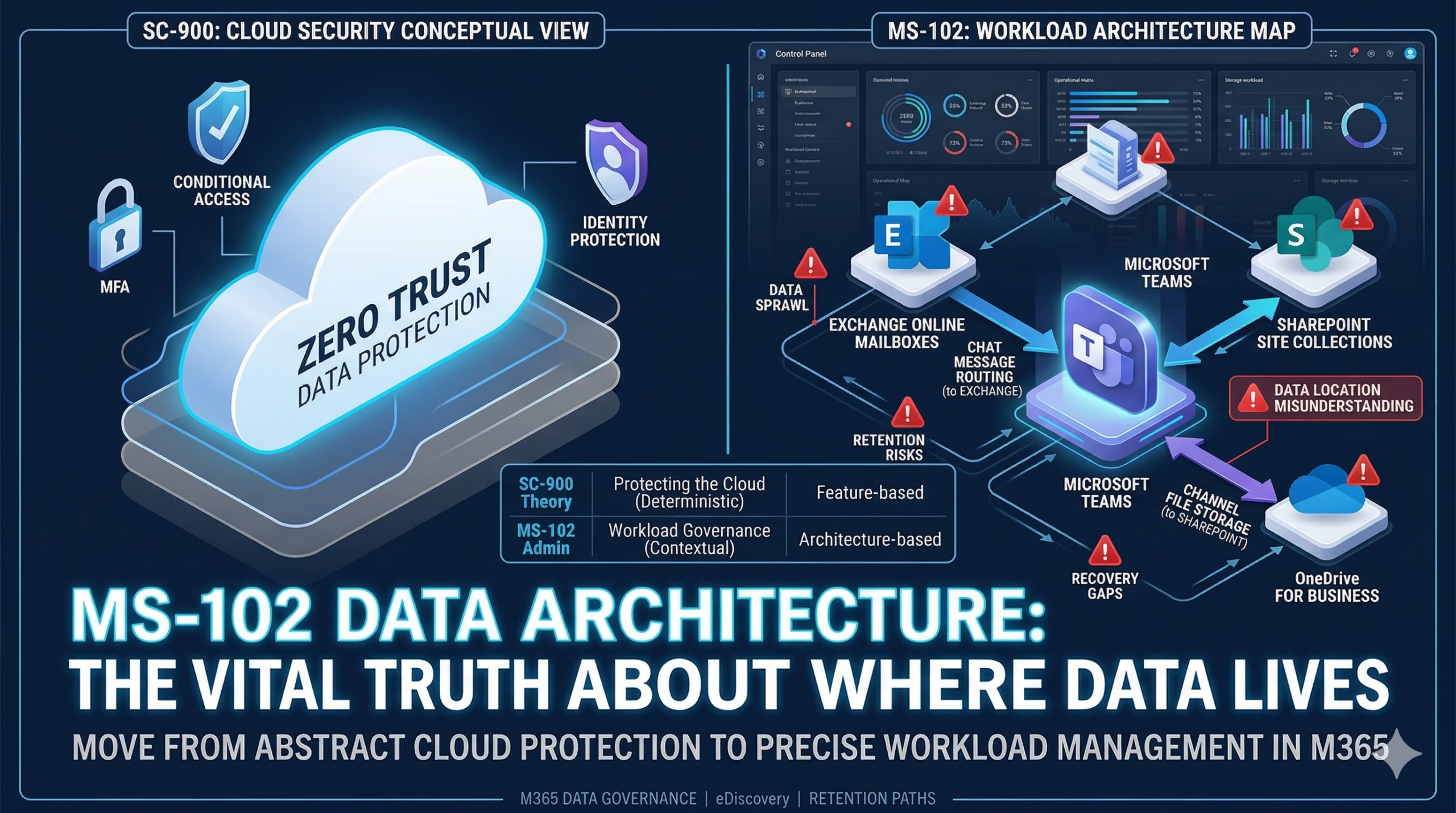
Mastering MS-102 Data Architecture requires a critical shift from ‘protecting the cloud’ to managing specific workloads. In real-world environments, security failures don’t happen because of the cloud; they happen because an administrator doesn’t know where their data actually lives.
“Microsoft 365 data is just… in the cloud.”
That vague idea works for awareness-level security discussions.
It fails completely when you become responsible for administration.
In SC-900, data is discussed as something to protect.
In MS-102, data becomes something you must locate, manage, retain, delete, and recover.
That requires precision, not assumptions.
Why the MS-102 Data Architecture is Often Misunderstood
Security guidance often says:
- Protect sensitive data
- Monitor access to data
- Apply labels to data
- Retain data securely
But as an admin, the first question you must ask is simpler:
Which data — and where exactly is it stored?
Because in Microsoft 365:
- Data location determines permissions
- Data location determines retention
- Data location determines deletion behavior
- Data location determines recovery options
If you don’t know where data lives, every policy you apply is guesswork.
Microsoft 365 Is Not One Data Store
Senior administrators learn this quickly:
Microsoft 365 is a collection of workloads,
each with its own data model and behavior.
At a high level:
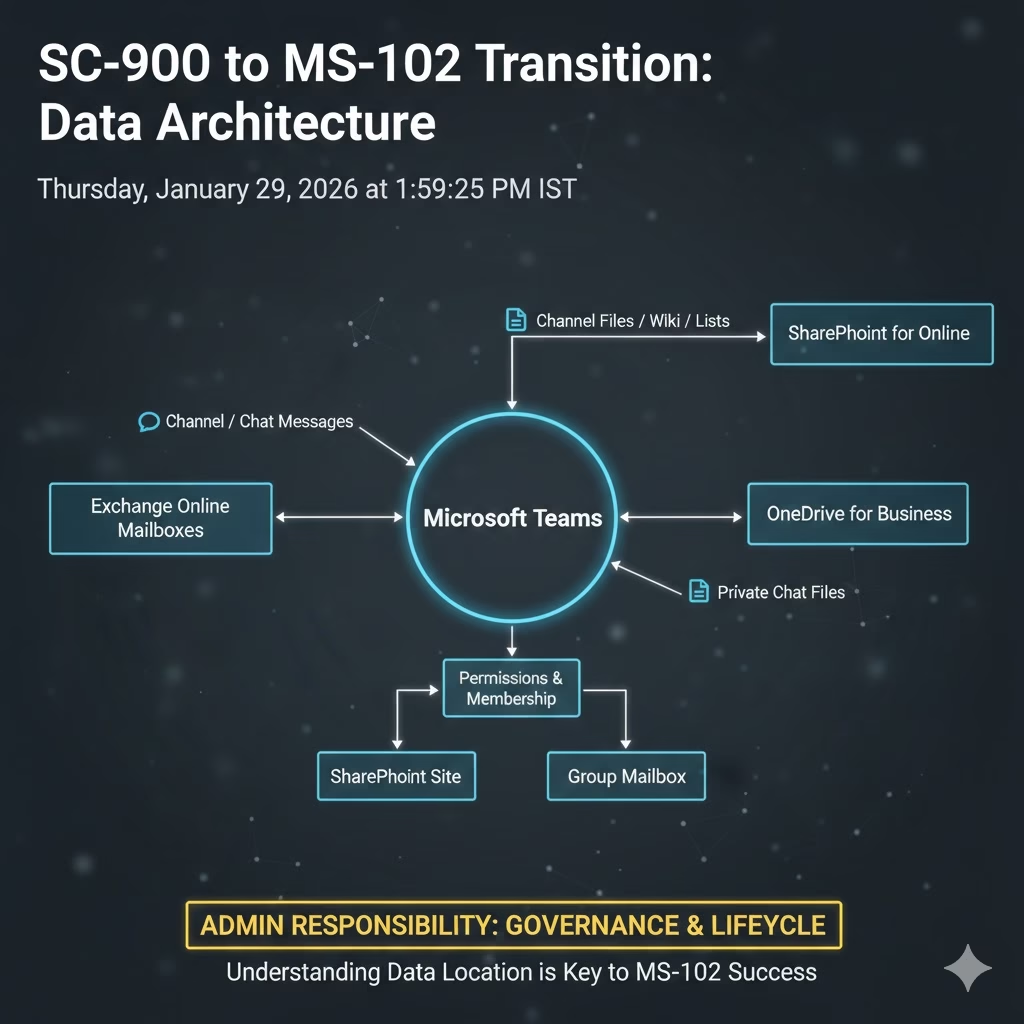
- Exchange Online
- Mailboxes
- Calendars
- Contacts
- Compliance copies of Teams chats
- SharePoint Online
- Team files
- Channel documents
- OneDrive for Business
- Shared content
- Microsoft Teams
- Chat messages
- Channel conversations
- Meetings metadata
(but not file storage itself)
Teams feels like a single product —
but it is really a front-end for multiple back-end services.
The Teams Illusion (Every Admin Learns This Late)
One of the most common admin realizations is this:
Teams doesn’t store files. SharePoint does.
When a Team is created:
- A Microsoft 365 Group is created
- A SharePoint site is created
- An Exchange mailbox is created
- Permissions are linked automatically
This means:
- A Teams issue might be a SharePoint issue
- A sharing issue might be an identity issue
- A retention issue might be a mailbox issue
Understanding data location is what separates tool operators from platform administrators. This hidden complexity is exactly why MS-102 Data Architecture focuses so heavily on the backend relationship between Teams and SharePoint.
Why Data Location Matters for Admin Decisions
Here’s where senior admins think differently.
If data lives in:
- Exchange → retention behaves one way
- SharePoint → retention behaves differently
- Teams chat → deletion rules change again
This impacts:
- Legal holds
- Retention policies
- eDiscovery searches
- User deletion outcomes
- Backup and restore expectations
You cannot build a retention policy until you have mapped out your MS-102 Data Architecture from a workload perspective.
Many “security incidents” turn out to be:
Admins misunderstanding where the data was stored.
Data Location Drives Governance (Not the Other Way Around)
A common beginner mistake:
“Let’s design retention first.”
A senior admin approach:
“Let’s map where data lives, then apply governance.”
Why?
- You can’t retain what you can’t locate
- You can’t delete what you don’t understand
- You can’t explain data behavior during audits without clarity
Governance only works when data architecture is understood first.
Mini-Lab: Trace Data the Admin Way (10 Minutes)
This mini-lab is designed to help you visualize MS-102 Data Architecture by tracing a file from the Teams UI to its actual back-end storage location. In the SC-900 mindset, you might simply see a file in a chat; however, to think like an MS-102 administrator, you must be able to trace that file to its actual physical “home.”
Perform this 10-minute trace to verify your understanding of how workloads connect
Step 1
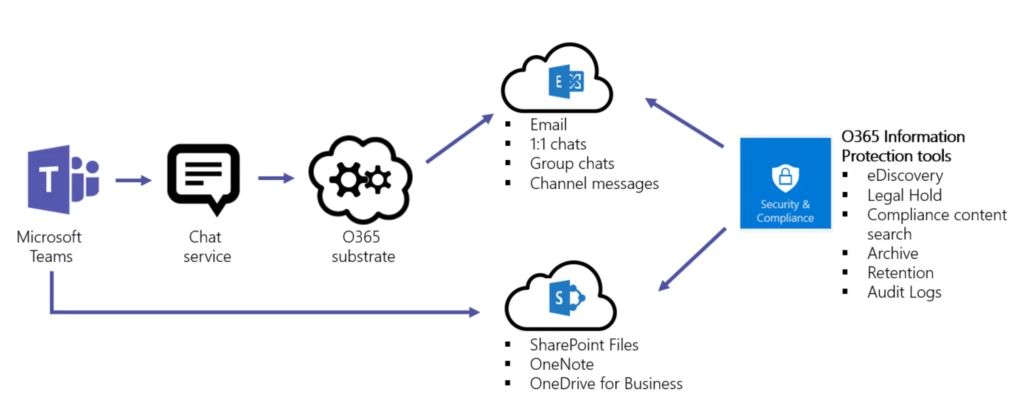
Create a new Microsoft Team.
Step 2
Upload a file in:
- A standard channel
- A private or shared channel (if available)
Step 3
Now trace:
- Where the file appears in SharePoint
- Which site collection does it belong to
- Which permissions were applied automatically
Step 4
Ask yourself:
- Which admin center would I troubleshoot from?
- Which retention policy would apply here?
- What happens if the user is deleted?
If you can answer confidently, you’re thinking like an MS-102 admin.
Why This Post Exists Before MS-102 Core Topics
Before we go deep into:
- Exchange administration
- SharePoint governance
- Teams policies
- Compliance and retention
One rule must be clear:
Microsoft 365 administration is workload-aware, not feature-based.
Data location is the map.
Everything else is navigation.
What’s Next in the Transition Series
In the final transition post, we shift mindset again:
Why admins think in lifecycle, not features.
Because once data and identity are clear,
ownership becomes the real challenge.
Final Thought
Mastering the MS-102 Data Architecture is the final step in moving from security theory to admin reality.
SC-900 teaches you that data matters. MS-102 teaches you where data lives and why guessing is dangerous.
Once you understand data locations, Microsoft 365 stops feeling complex; it starts feeling predictable.
If you are just starting out, check out our comprehensive 30-day SC-900 learning path to master the fundamentals of Microsoft Security, Compliance, and Identity.
🔗 Continue Your Learning
Follow the complete SC-900 to MS-102 transition series to move from security theory to administrative mastery:
Now that you understand where data lives, it’s time to learn how to manage its entire journey. In our final post, we move beyond simple features to master the Admin Lifecycle.
➡️The Critical Shift to Lifecycle Thinking (Beyond Simple Features) Move past “checkbox administration” and learn to manage the entire user and resource lifecycle.
For the most current exam objectives and official study modules, refer to the Microsoft Learn SC-900 certification page.
5 thoughts on “MS-102 Data Architecture: The Brutal Truth About Where Data Lives”